

Back-office Quick Search: setup and help
Quick start
- Install the module through PrestaShop’s module manager and open its configuration action.
- In the standard menu, open Advanced Parameters > “Quick Search”, then “Configuration”. You can also reach this page from the module manager.
- Open “License”. Use “Activate from mypresta.rocks” with your account, or enter your supplied key and use “Activate key”. Return to “Configuration”.
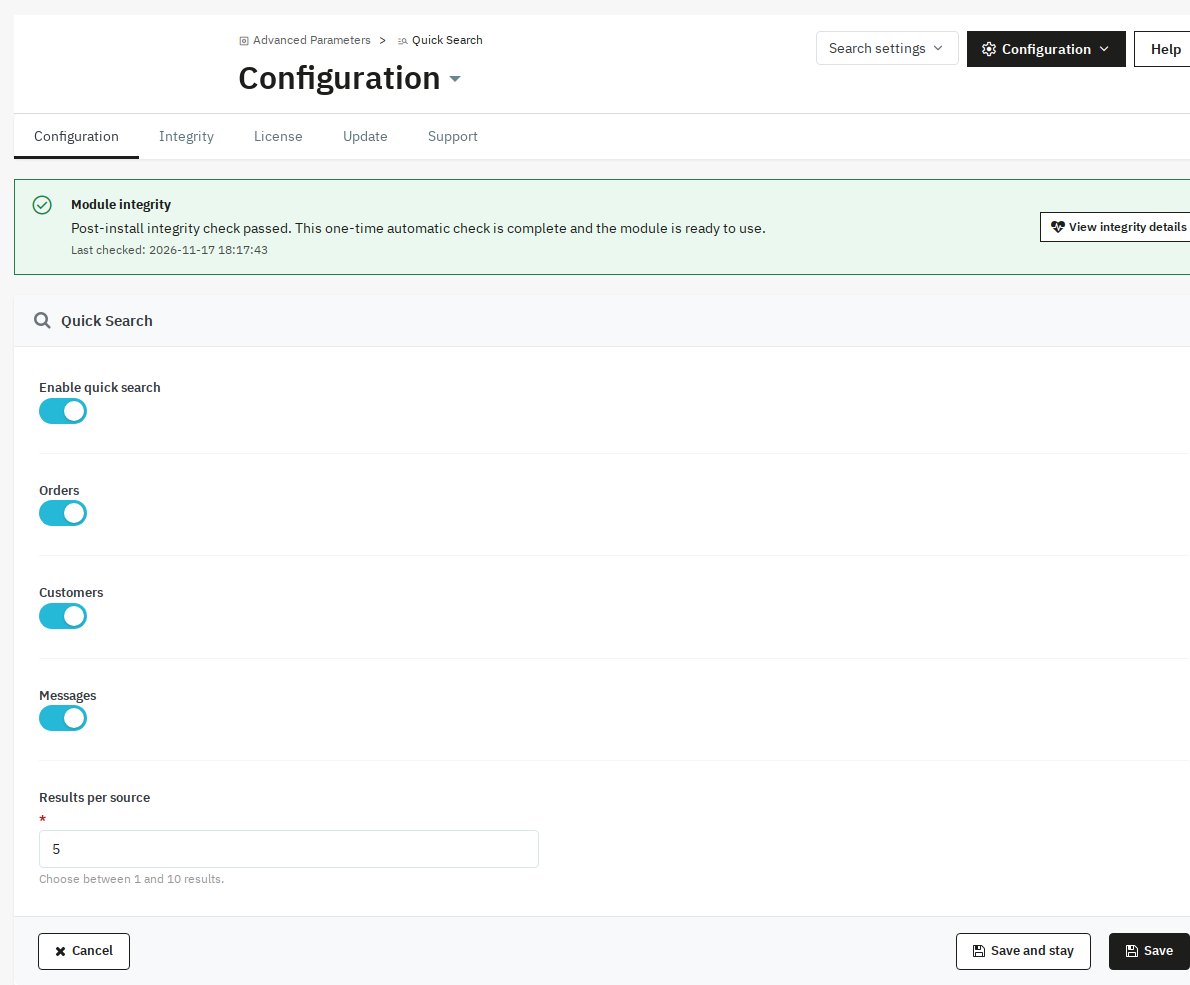
- Choose “Enable quick search”, “Orders”, “Customers” and “Messages” as needed. Set “Results per source” and use “Save”.
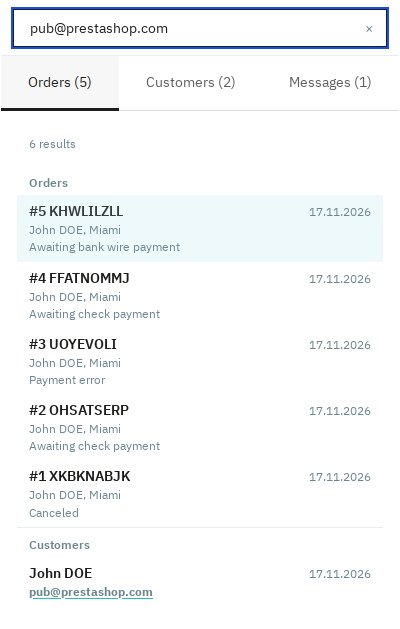
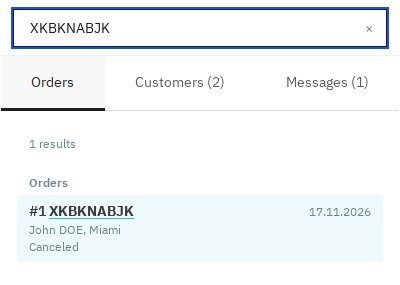
- Open the notification menu and search a known order reference or customer email. Use the arrow keys and Enter to open a result.
- Clear the field to return to notifications. In multishop, select the shop you want to work in.
Setup manual
Find the order, customer or conversation you need from the notification menu in your PrestaShop back office. Back-office Quick Search puts grouped results and links to the right records in one place.
Features
- Search from notifications. Find orders, customers and messages in the menu you already use.
- Orders by familiar details. Use a reference, invoice number, customer detail or tracking number.
- Customer records. Find a customer by name, email, company, ID or phone.
- Customer conversations. Search native message text and open the matching conversation.
- Staff access. Search follows each employee’s page permissions and selected shops.
- Keyboard navigation. Select with the arrow keys, open with Enter and clear with Escape.
- Your choice of sources. Choose which groups appear and how many results each shows.
- Settings within reach. Find the search switch, result limit and sources through settings search.
Configuration options
Choose the sources your team uses and the number of results to show. These are the initial values; saved shared search settings are used when already present.
| Setting | Default | Effect |
|---|---|---|
| “Enable quick search” | On | Shows or removes the notification search. |
| “Orders” | On | Includes order results when the employee can view orders. |
| “Customers” | On | Includes customer results when the employee can view customers. |
| “Messages” | On | Includes native service conversations when the employee can view them. |
| “Results per source” | 5 | Maximum displayed results for each source; whole number from 1 to 10. |
Use “Save” to apply your choices. Additional registered sources get their own switch, initially enabled. Participating modules use these shared search settings, which are kept when this module is removed.
For diagnostics, select one shop and open “Troubleshooting”. “Recording” starts off and records technical events for the duration selected in “Keep on for”: 1, 4, 8 or 24 hours, with 24 hours initially selected. “Record every visitor” starts off with staff as the audience. Use “Save” to apply the choices, “Preview” to view events or “Download diagnostic file” to download them. Recording stops at the chosen time.
Customization examples
For a shorter list, set “Results per source” to 3 and use “Save”. For order work, keep “Orders” enabled and turn off “Customers” and “Messages”. Search with a full email address or order reference to find a specific record. On module pages, / or Ctrl+K opens settings search.
Installation
PrestaShop compatibility: PS 1.6 – 9.x. Search uses your shop database and PHP with mbstring, ctype, JSON and PCRE, plus a browser with JavaScript and Fetch. intl is optional. License, update and support operations use outbound HTTPS to mypresta.rocks, OpenSSL and either cURL or PHP HTTPS streams. Module updates use ZIP support.
How it works
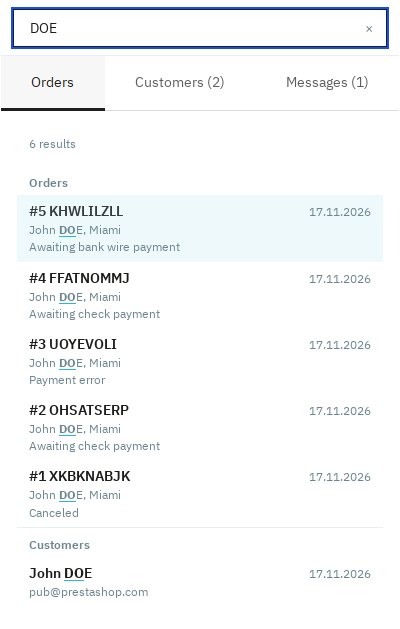
Type two characters or a numeric ID in the notification search. The module searches your shop database and groups matching records by source, with stronger matches first. All words must match, in any order. Common accent variants are recognized. Use the arrow keys to select, Enter to open, Ctrl+Enter or Cmd+Enter for a new tab, and Escape to clear the field.
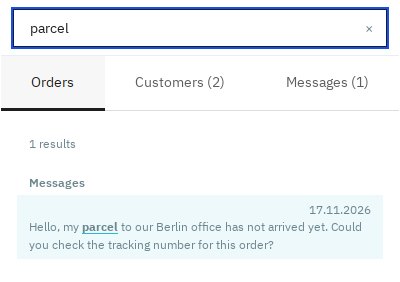
Honest limits
- Search covers back-office orders, customers and native customer messages. It shows up to 10 results per source and accepts up to 160 characters and eight words. A broad search can return partial results; add a detail to narrow it.
- Employee page permissions and selected shops govern access. Customer results also follow native customer sharing within the shop group.
- After an empty search, typo assistance can try one correction using recent customer and address words. It needs customer view permission and remaining search time, and applies to ordinary words of at least five characters.
- A customized back-office header needs a notification layout the module recognizes.
Troubleshooting
- To show the search field, enable “Enable quick search”, activate the module and allow browser JavaScript, then open the notification menu.
- To find a record, enable its source, select the intended shop and check the employee’s access to the corresponding page. Try a known reference or full email address.
- To narrow a search, add a customer name, city or order reference.
- To save settings, enter a whole number from 1 to 10 and use an employee account with edit rights. Reload the page and use “Save”.
- For a recurring problem, open “Integrity” to run the checks. Record a short diagnostic session in “Troubleshooting”, reproduce the search and use “Download diagnostic file” to inspect the events.
Questions
7
What can I search?
Search orders, customers and native customer-service messages. Use an order reference, invoice number, customer detail or tracking number for orders; names, email addresses, companies or phones for customers; and message text or sender details for conversations.
Where do I search and which keys can I use?
Open the back-office notification menu and type two characters or a numeric ID. Arrow keys select a result, Enter opens it, and Ctrl+Enter or Cmd+Enter opens a new tab. Escape clears the search.
How does search handle employee access?
Search uses each employee’s existing page permissions and selected shops. Customer results follow PrestaShop’s customer-sharing rules within the shop group, so staff use the same access arrangements as their daily back-office work.
How do I choose sources and result counts?
Open “Configuration”, choose your sources and set “Results per source” from 1 to 10, then use “Save”. Orders, customers and messages start enabled, with five results each.
What are the search limits?
Search covers back-office records, with up to 10 results per source, 160 characters and eight words. Broad searches can be partial. Typo assistance uses recent customer and address words. Custom headers need a compatible notification layout.
Can I search my team’s order comments too?
No. The search covers orders, customers and native customer-service messages. Use message text or sender details to find a customer conversation about an order, then open it to continue the exchange.
Which languages does the interface use?
The module includes English, German, French, Spanish, Italian and Polish catalogues; some administrative labels remain in English.
Known Issues
No known issues
There are currently no open or resolved issues registered for this module.
Feature Requests
No feature requests for this module yet
Missing something? Suggest it, and follow its progress here.
Changelog
v1.1.02026-11-18
- Find orders, customers and native customer-service conversations from the back-office notification menu.
- Look up orders by reference, invoice number, customer details, delivery city or tracking number, then open the matching record.
- Search customer names, email addresses, companies and phone numbers, and find conversations by message text.
- See results grouped by source within the employee's existing page permissions and selected shops.
- Select results with the arrow keys, open them with Enter and clear the search to return to notifications.
- Choose which sources appear and show between 1 and 10 results per source, with 5 as the initial limit.
- Find the search switch, source settings and result limit through the module's settings search.