

Cleanup Revolution: setup and help
Quick start
- Upload and install the Cleanup Revolution ZIP in Module Manager.
- Choose the intended shop and verify the employee cleanup permissions.
- Open Database configuration and review Enabled, archive retention and the selected task policy.
- Verify that private archive storage and OpenSSL support are available.
- Open Cleanup Tasks, select one task and click Preview cleanup.
- Review the saved plan, verify backup and approve it where required, then Execute approved plan.
- Read the final report and Database history to confirm completed work and any skipped rows.
Requires PrestaShop 1.6.1 or later and PHP 7.1 or later.
Setup manual
Install and prepare access
- Upload and install the
mprcleanuprevolutionZIP through Modules > Module Manager. - Click Configure. You reach Cleanup > Settings > Configuration for file and image settings.
- Choose the intended shop context.
- Open Cleanup > Database > Database configuration for database policies.
- Check the employee profile permissions and private archive storage before destructive database work.
- Start with Cleanup > Database > Cleanup Tasks and click Preview cleanup for one task.
- Review the saved plan, scope, protected rows and dependencies. Complete backup verification and approval where required before execution.
Keep your regular shop database and file backups. The module's row archives cover eligible database cleanup plans. They are not a full backup of your shop files, all tables or external services.
Configure employee permissions and storage
Database operations use native employee profile permissions. The module installs separate permission tabs for Preview cleanup, Statistics cleanup, Personal data cleanup, Catalogue cleanup, Approve destructive runs, Run now and scheduling, Export encrypted backups, Restore backups and Optimise tables.
Viewing a plan requires preview and task-category view access. Destructive work also checks the matching delete permission. Approval, backup export, restore and maintenance have additional permissions. Shop access is checked for the employee. CLI execution also checks the selected employee's permissions and shop access.
Database archives must be outside every public document root. The default location is a hidden directory beside the shop root, named .mprcleanuprevolution- plus a generated hash. A deployment can set the PHP constant MPRDBCLEAN_STORAGE_ROOT to another absolute private directory and MPRDBCLEAN_PUBLIC_ROOTS to an array of public roots.
The PHP user needs access to this storage. Directories must have private permissions equivalent to 0700; the archive key must be private, equivalent to 0600. Symlinked or publicly accessible archive storage is refused. OpenSSL must support aes-256-gcm.
Keep the archive encryption key with your private recovery material. Export encrypted backup does not export that key. For CLI, provide a valid DOCUMENT_ROOT or configured MPRDBCLEAN_PUBLIC_ROOTS so the module can establish which locations are public.
Configure database cleanup
Open Cleanup > Database > Database configuration. Database settings are separate from the file/image configuration.
| Setting | Default | What to change |
|---|---|---|
| Enabled, at scope level | Inherit, with effective default Yes | Choose Yes or No for the current shop/group/global scope, or inherit the parent value. Checked before each destructive batch, restore and optimisation. |
| Archive retention in hours | Inherited, effective default 720 |
Set a positive retention period for encrypted archives or leave empty to inherit. |
| Enabled, for a task | Yes except the opt-in tasks below | Enable only the tasks you intend to use. |
| Retention days | Per-task value below | Set the minimum age where the task has an age rule. It is not the only eligibility check. |
| Batch size | 1000 |
Reduce for smaller database batches. Allowed positive maximum is 10000. |
| Run row budget | 50000 |
Bound work for the run. |
| Run time budget in milliseconds | 1000 |
Bound processing time. Work can checkpoint and continue. |
| Backup freshness in hours | 24 |
Maximum age of the backup the module takes before a cleanup or optimisation; an older backup stops the run. |
| Task schedule | Empty | Five-field cron expression, for example 30 3 * * *; leave empty to disable. Runs as the employee who saved the policy. |
| Timezone | UTC |
Timezone used to evaluate the task schedule. |
Policies inherit by scope. Read the effective policy table to confirm the source and value for each shop. A changed policy or scope requires a new preview. Approval is tied to the saved plan hash and authenticated employee.
Choose a database task
| Task label | Key | Retention days | Initially enabled |
|---|---|---|---|
| Abandoned carts | old_carts |
30 | Yes |
| Orphan cart relations | orphan_cart_children |
30 | Yes |
| Search statistics | search_stats |
90 | Yes |
| Expired specific prices | expired_specific_prices |
30 | Yes |
| Old logs | old_logs |
90 | Yes |
| Old visits | old_connections |
90 | Yes |
| Expired guest observations | old_guests |
90 | Yes |
| Mail logs | mail_logs |
30 | Yes |
| Orphan visit pages | orphan_connection_pages |
90 | Yes |
| Orphan visit sources | orphan_connection_sources |
90 | Yes |
| Missing page statistics | missing_pages |
90 | Yes |
| Expired cart rules | expired_cart_rules |
30 | No |
| Orphan combinations | orphan_combinations |
90 | Yes |
| Orphan combination relations | orphan_combination_relations |
90 | Yes |
| Selected merchant variants | selected_combinations |
90 | No |
| Orphan search index | orphan_search_index |
90 | No |
| Unused search words | unused_search_words |
90 | No |
| Orphan addresses | orphan_addresses |
90 | No |
| Orphan catalogue relations | orphan_catalogue |
90 | No |
The task registry protects active references, historical orders and other-shop data according to each task. Unknown guest age starts at first observation. It does not assume every guest row is already old enough.
For Selected merchant variants, supply Selected combination IDs, separated by commas. This task requires explicit selection, preview, backup and approval. Acknowledged module names, separated by commas is available for the plan's dependency workflow. Read the dependency report before using it.
Old configuration fields for closed customer messages, page views, guest/registered customers without orders, double confirmation and global rows-per-batch are not the current database-policy screen. Use the task list and policies above.
Preview, back up and execute a database plan
Open Cleanup > Database > Cleanup Tasks. Select Tasks. You can enter One-off retention days for a preview override. Click Preview cleanup.
The workspace saves a run with a Run ID and plan hash. Review counts, affected shops, retention cutoff, effective policies, dependencies, risks, estimated logical bytes and protected/skipped rows. Large previews can progress through several bounded requests.
For tasks requiring backup and approval:
- Click Verify backup and wait for backup verification to finish.
- Review the saved plan and click Approve this plan.
- Confirm the destructive operation.
- Click Execute approved plan.
- Read the final report. A partial or failed result needs review before Resume run.
Low-risk statistics tasks do not have the same backup/approval requirement. Check the plan rather than assuming every operation is recoverable.
Run now uses the same saved-plan workflow and permissions. It is not an unconditional delete shortcut. Cancel run stops further work; it does not reverse batches already committed.
Restore, export and optimise
Open Cleanup > Database > Backups and restore. Load the Run ID, inspect backup items and choose Preview restore. Review conflicts before Restore verified backup. Restore refuses conflicting live rows rather than replacing them blindly.
Use Export report JSON or Export report CSV for the run report. Choose a Backup item ID for Export encrypted backup. These downloads require the matching permissions.
Purge expired archives runs bounded archive housekeeping. Archive retention is measured in hours and is separate from the orphan-image trash setting.
Table optimisation uses the database workspace too. Enter Tables to optimise, separated by commas, then use Preview table optimisation, Verify optimisation backup, Approve table optimisation and Optimise tables. Only proceed after reviewing the plan. Optimisation can lock or rebuild database tables and should be scheduled for a suitable maintenance period.
Table Sizes reports data size, index size, reusable/free space and fragmentation from database metadata. The row-size figures estimate logical data; deleting rows can leave reusable database space without immediately reducing disk usage.
Configure file and image cleanup
Open Cleanup > Settings > Configuration, headed Cleanup Configuration.
| Setting | Default | What it controls |
|---|---|---|
| File and image cleanup enabled | On | Controls manual and scheduled file/image cleanup, including module-folder removal. Separate from database Enabled. |
| Dry-run by default | On | Default mode for manual file/image actions. Choose Preview only or Apply cleanup on the action page. Scheduled file cleanup applies changes. |
| Move images to trash instead of deleting | On | Move selected orphaned images to the image trash directory. |
| Trash retention | 30 days |
Permanently purges expired dated image-trash folders during scheduled file cleanup, based on when images entered trash. |
| Temp files | 7 days |
Minimum file age for automated temporary-file cleanup and the temporary-image cleanup action. |
| Fragmentation alert threshold | 20 percent |
Minimum fragmentation for the fragmented-table view. |
| Enable email reports | Off | Sends reports for automated file and image cleanup when enabled. |
| Email address | Empty | Report recipient; leave empty to use the shop admin email. |
| Report frequency | Daily digest (daily) |
Daily digest (daily) or After each automated run (per-run). Reports cover automated file/image work, not database runs or manual actions. |
Click Save configuration after changes. On file/image action pages, review Preview only before choosing Apply cleanup to make changes. The saved dry-run preference selects the default; scheduled cleanup always applies changes.
Review images
Use Images > Orphaned Images to scan product, category, manufacturer and supplier image files against database references. Review files before removal, especially with custom image handling.
With trash mode on, selected orphaned images are moved to:
/img/_cleanup_trash/YYYY-MM-DD/
Recover those from the filesystem before the scheduled purge removes them after the retention period. With trash mode off, removed images are deleted permanently. Do not confuse image trash with encrypted database archives.
Duplicate Images groups matching product image files by MD5 and reports estimated wasted space. It does not merge image assignments or automatically delete duplicates. Missing Images reports referenced product images whose files cannot be found.
Review cache, temporary files and module leftovers
Files & Cache > Cache Cleanup lists existing Symfony cache, Smarty compiled/cache files, theme asset cache, log files and class-index cache. Review groups before clearing them. Cache clearing can cause regeneration work on the next requests.
Temp Files lists image-temp and import files for manual review and removal, including files younger than the retention threshold. Manual selection can remove these younger files. The retention setting applies to automated temporary-file cleanup and the temporary-image cleanup action in supported paths.
Module Leftovers distinguishes uninstalled module folders, parked folders and non-module entries. Only eligible uninstalled module folders have the removal workflow. Removing a folder deletes its files. Export anything you need first. Candidate MPR tables and configuration keys are review information; this page does not automatically drop those tables or erase every MPR% key.
Duplicate Finder reports duplicate products by name/reference/EAN/UPC, categories, features and attributes. Review and resolve these manually. It does not merge catalog entities.
Before removing an uninstalled module folder, the action checks its current inventory classification again. It rejects a candidate that conflicts with an installed module name only by letter case, and it rejects a symlinked candidate. The resolved folder must remain inside the modules directory. These checks do not make a file backup: review and export the folder contents before removal.
Run maintenance from the command line
The database workspace supplies:
php modules/mprcleanuprevolution/bin/cleanup.php --help
php modules/mprcleanuprevolution/bin/cleanup.php --employee=1 --shops=1 --task=old_carts --preview
Replace IDs with an authorized active employee and the intended shops. Use --shops=1,2 for an authorized explicit list. --global is a separate explicit scope choice. The command does not bypass profile permissions.
Saved-run steps are separate commands:
php modules/mprcleanuprevolution/bin/cleanup.php --employee=1 --shops=1 --run-id=RUN_ID --verify-backup
php modules/mprcleanuprevolution/bin/cleanup.php --employee=1 --shops=1 --run-id=RUN_ID --approve --plan-hash=PLAN_HASH
php modules/mprcleanuprevolution/bin/cleanup.php --employee=1 --shops=1 --run-id=RUN_ID --execute
Use the actual Run ID and hash from your reviewed report. Use one operation flag per command. Restore uses --restore-preview, then --restore --plan-hash=PLAN_HASH. --batches=N checkpoints after a bounded number of batches. Preview overrides include --retention-days, --batch-size, --row-budget, --time-budget-ms, --combination-ids and --acknowledged-modules. A saved plan cannot be changed by adding those overrides.
The shared MPR cron runner checks database_cleanup every minute. Save a five-field cron expression and timezone in the task policy to activate its schedule, or leave the schedule empty to disable it. Runs use the permissions and shop access of the employee who saved the policy. The scheduler creates a saved preview and prepares required backups; tasks requiring approval wait for a reviewed plan to be approved in Cleanup Tasks before execution continues.
The separate file_cleanup task, labelled Clean Cache & Temp Files, runs at daily:03:30. It clears supported cache groups, deletes temporary files older than the configured threshold and permanently purges expired image-trash folders. It applies changes even when Dry-run by default is on. With email reports enabled, per-run sends a report after this callback; daily sends a digest through email_report at daily:05:00.
Verify, troubleshoot and uninstall
After any run, inspect Database history and its report for completed, skipped, partial and failed work. File/image operations also write the module's cleanup history with affected counts, space estimates, duration and employee/trigger details.
If a database action is unavailable, check profile permissions, selected shops, effective Enabled settings, task policy, plan revision and required backup. If backup verification fails, check the private storage location, permissions, public-root declarations and OpenSSL support. If a restore reports conflicts, review the changed live rows before creating a new restore preview.
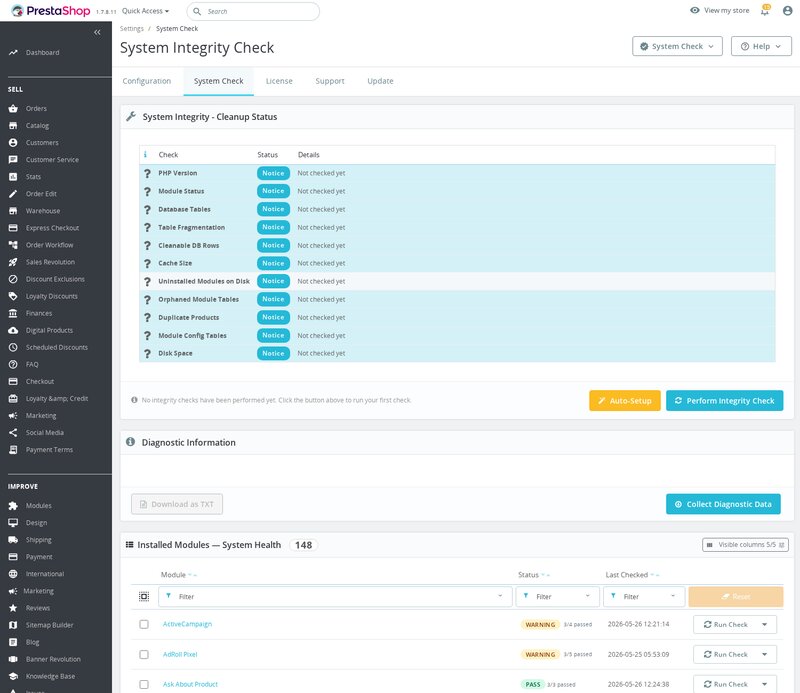
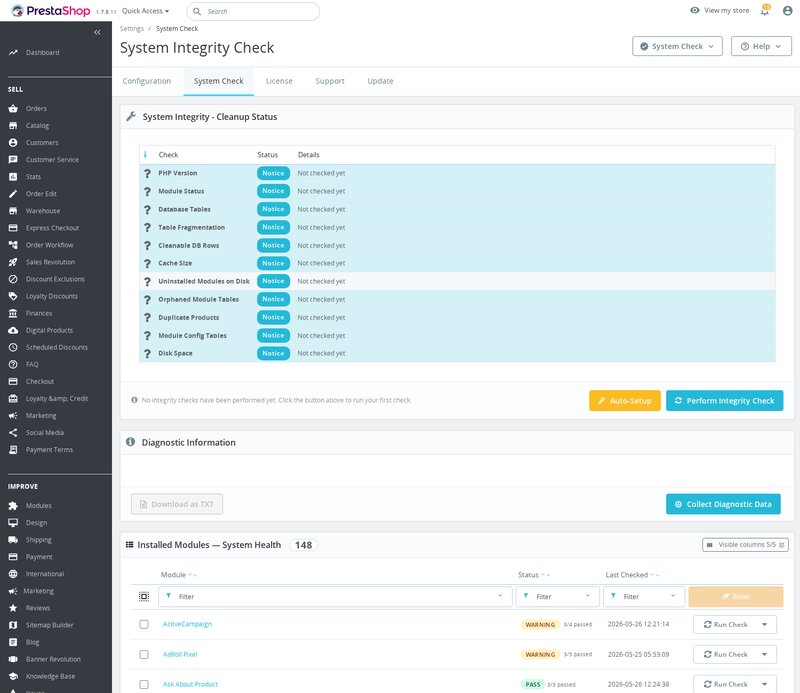
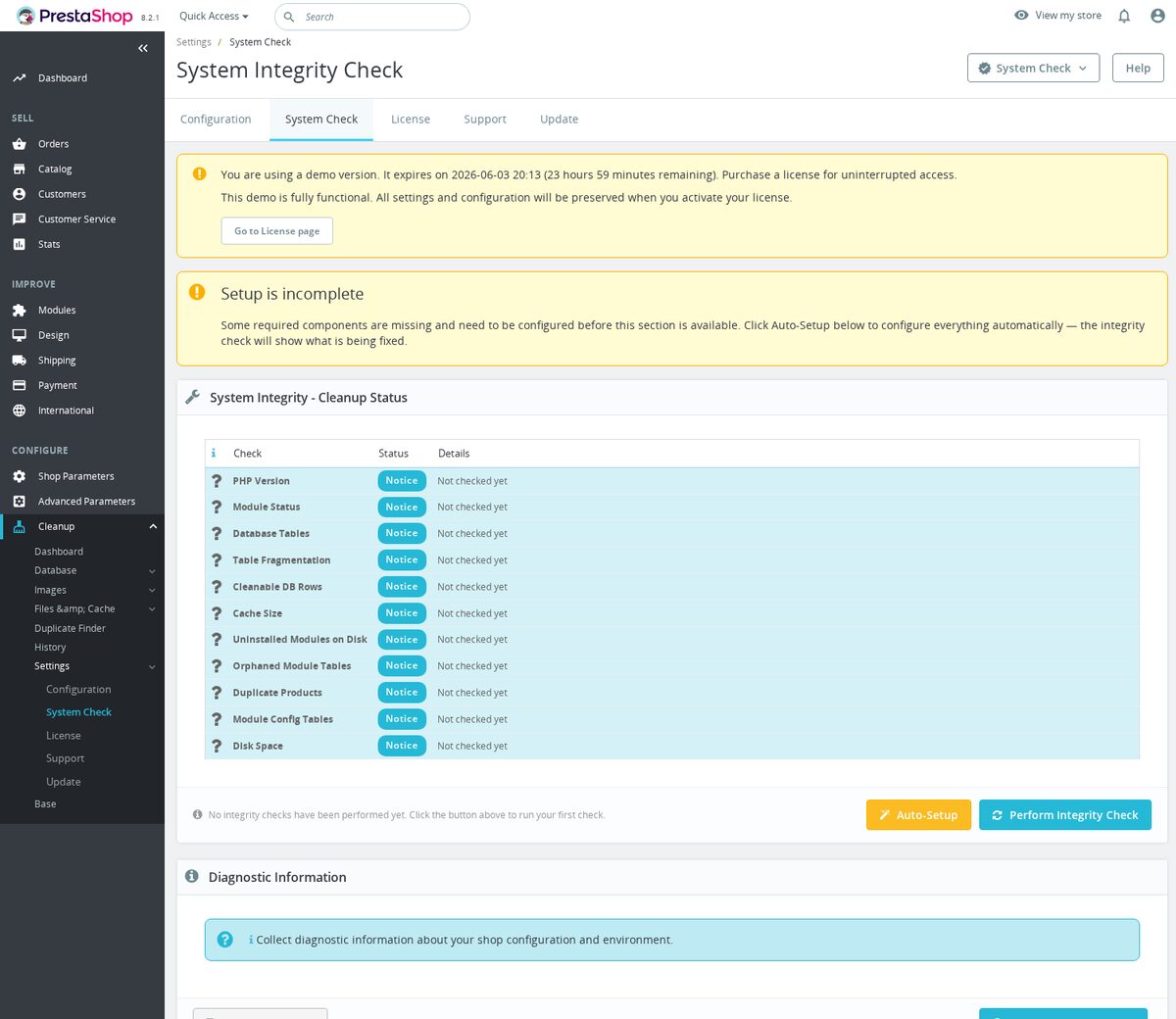
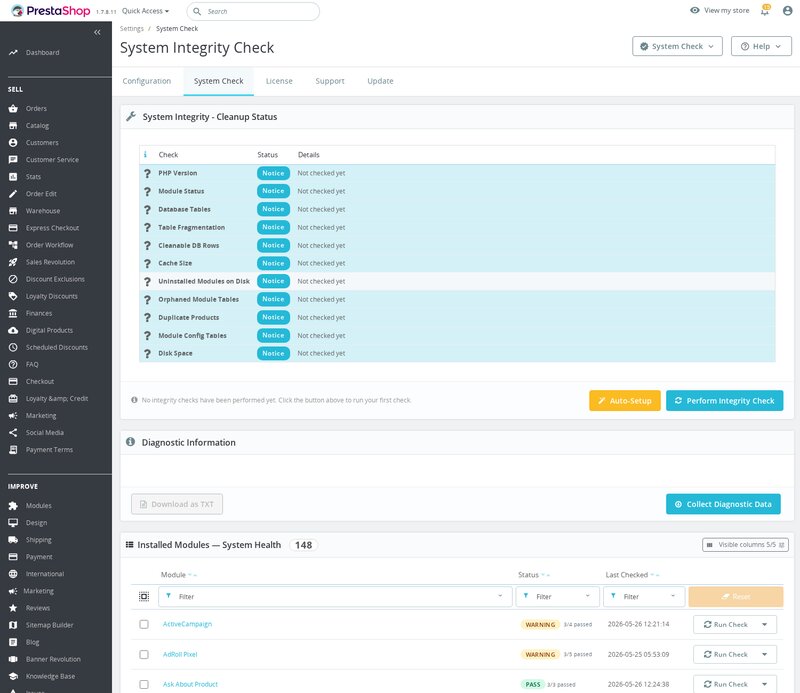
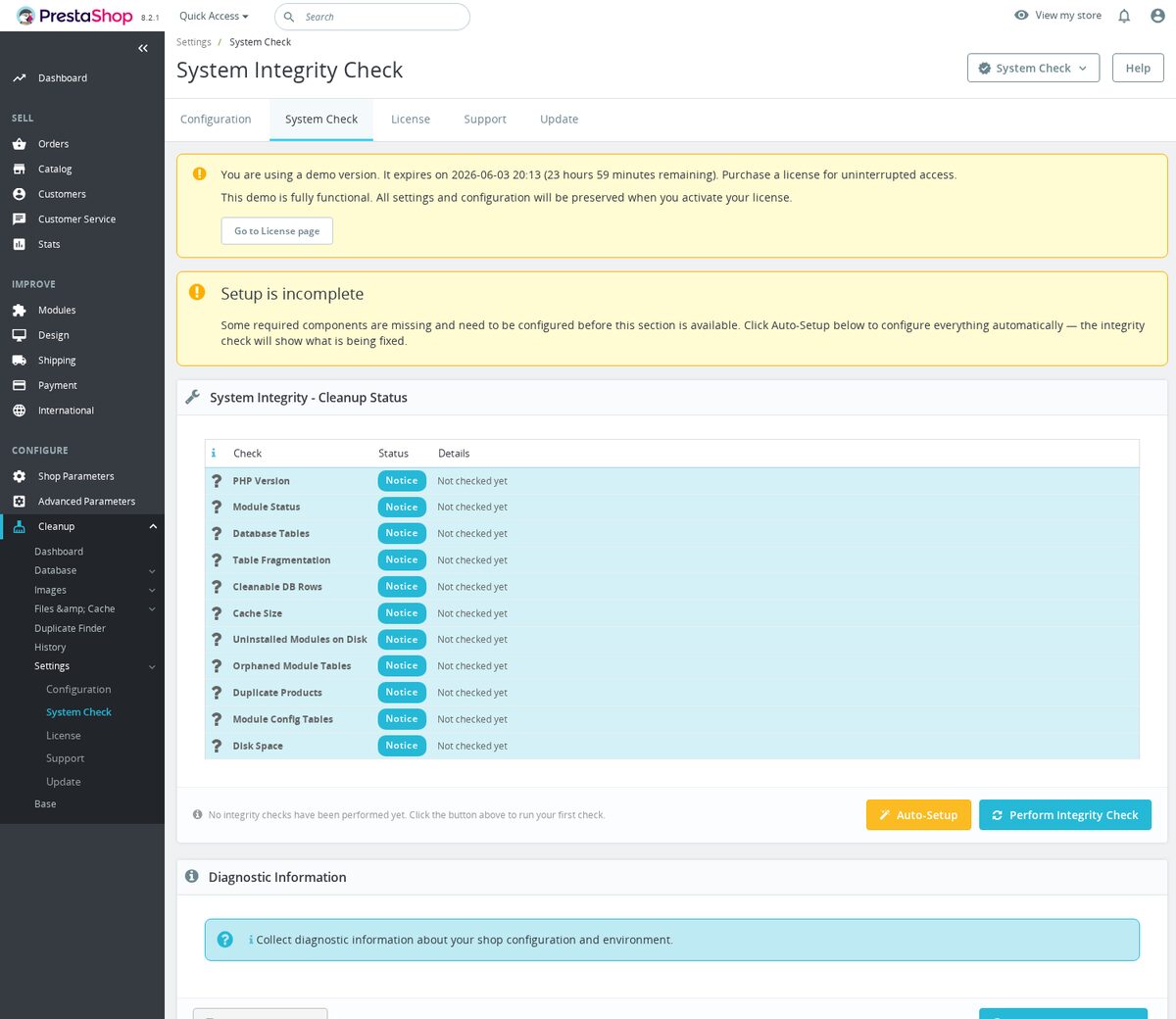
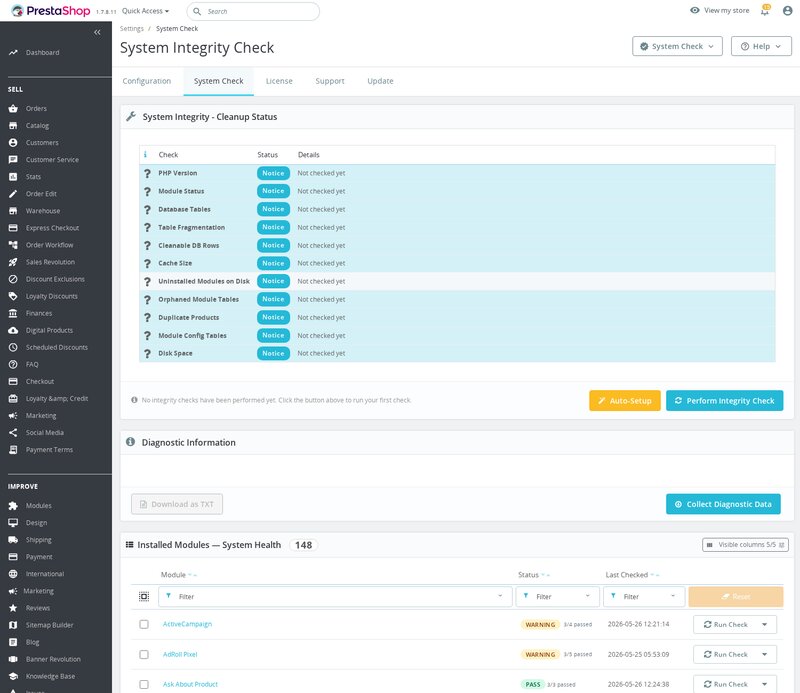
Use Cleanup > Settings > System Check for shared tables and runtime-version problems. If execution pauses at a budget, inspect the saved run and resume instead of creating an unrelated delete operation.
To stop database destruction, set its effective Enabled value to No. Turn off File and image cleanup enabled to block both scheduled and manual file/image cleanup, including module-folder removal. Disable Enable email reports separately to stop report emails. Disable the whole module in Module Manager if you need to stop all module access. These settings are separate.
Uninstall removes the menu and module registration. Shared cleanup journals and recovery archives are kept for other modules that use them. Uninstall does not restore deleted rows or files. Preserve required recovery data and keys until your retention obligations and recovery needs are complete.
Compatibility
Requires PrestaShop 1.6.1 or later and PHP 7.1 or later.
Reference screenshots




Questions
No questions about this module yet
Ask anything about installation, compatibility or setup. Answers appear here.
Known Issues
15
Orphan image cleanup deletes images still referenced by CMS pages
The orphan detection only checks product associations, not CMS page content. Images embedded in CMS page HTML via tags are flagged as orphans and deleted.
Resolution note
Added CMS content scanning before flagging images.
Cleanup tasks fail during deletion
Dashboard table statistics display incorrectly
Cleanup reports mix shop scopes
Retention forms obscure inherited values
Database permissions block unrelated cleanup screens
Cleanup settings and installation checks disagree
Translated back-office text
Security hardening
Unsafe module folder cleanup suggestions
Damaged translated text
Scheduled cleanup stops with an error
Parked modules offered for deletion
Back-office pages failing to open
Cleanup list filters
Feature Requests
8
Implemented
Cleanup preview before deletion
Scheduled cleanup
Multilingual administration
Licence management
One-click module updates
Preview and approve cleanup runs
Context-aware retention settings
Cleanup backup recovery
Changelog
v1.1.62026-07-31
- Addedcomplete FR/DE/ES/IT/PL translations
- FixedAdd standard infrastructure checks, tag quality/monitoring checks
Older releases
v1.2.02026-04-20
- Addedadmin menu management via MenuInstaller for streamlined module setup
- AddedLicense management tab with key management and renewal options
- Addedself-healing integrity checks for automatic diagnostics and repair
- Addedcomplete FR/DE/ES/IT/PL translations
- Improvedadmin list columns with visual badge indicators and multiselect filters
- Improvedsettings form rebuilt with modern configuration pattern
- Fixedadmin list filters — sorting, searching, and filtering now work correctly on all columns
v1.1.02026-01-09
- AddedPrestaShop 9 and Hummingbird theme compatibility
- AddedPS 9 Symfony cache pool cleanup support alongside legacy Smarty and media caches
- Improveddry-run mode to display exact estimated row counts before any deletion is performed
- Fixedaudit log not recording cleanup operations when PS log directory lacks write permissions
- Addedscheduled auto-cleanup via cron with configurable per-category retention periods
- Improvedorphaned image detection to correctly handle multi-shop shared product image sets
v1.0.02026-01-08
- Initialrelease of Cleanup Revolution
- InitialDatabase cleanup: removes orphaned records from cart, order, and search tables
- InitialDuplicate image detection and removal with before/after preview
- InitialCache cleanup: clears Smarty, media, and XML cache directories
- InitialDry-run mode shows exactly what would be deleted without making any changes
- InitialAudit log records every cleanup operation with row counts, categories, and timestamps
Demo
Test the full module before you buy
Buy a licence later and keep your settings.
- Your 30-day demo Test it on your own shop for 30 days from the first install.
- Ready demo shop Explore a ready demo shop in your browser.
- No registration No account, email or store domain needed.
By downloading, you accept the demo terms and privacy policy.
By opening this demo you accept the demo terms and the privacy policy.