

Pixel for ChatGPT Ads: setup and help
Quick start
- Upload and install Pixel for ChatGPT Ads through Modules > Module Manager > Upload a module, then click Configure.
- Enter Pixel ID and Conversions API key from your account; use the Conversions API key rather than an Advertiser API key.
- Keep Visitor consent required when applicable and configure MPR Cookies Revolution to grant ad_storage and ad_user_data.
- Review Browser Pixel, Conversions API (server), the six event switches, Item IDs and Purchase value; turn Tracking enabled on and Save.
- Read Tracking status and any ownership or staging notice. Check test-mode availability currently sends no event and cannot validate a purchase.
- Configure regular execution of Send ChatGPT Ads server-side conversion events, due every 300 seconds.
- Use a clean customer session for an authorized production purchase, then inspect Server-side purchases, HTTP and Last error and check the destination diagnostics.
Requires PrestaShop 1.6 or later and PHP 7.1 or later.
Setup manual
Install and prepare tracking
Requirements
Requires PrestaShop 1.6 or later and PHP 7.1 or later.
You need a ChatGPT Ads website Pixel ID. Server reporting also needs a Conversions API key and outgoing HTTPS to bzr.openai.com. The settings direct you to the Conversions tab in ChatGPT Ads Manager and distinguish the Conversions API key from an Advertiser API key. Confirm the account's current setup requirements in Ads Manager.
If you require visitor consent, install and activate MPR Cookies Revolution. Configure a marketing category that grants ad_storage and ad_user_data. Do this before enabling tracking.
Install and open the form
- Upload the module ZIP through Modules > Module Manager > Upload a module and install it.
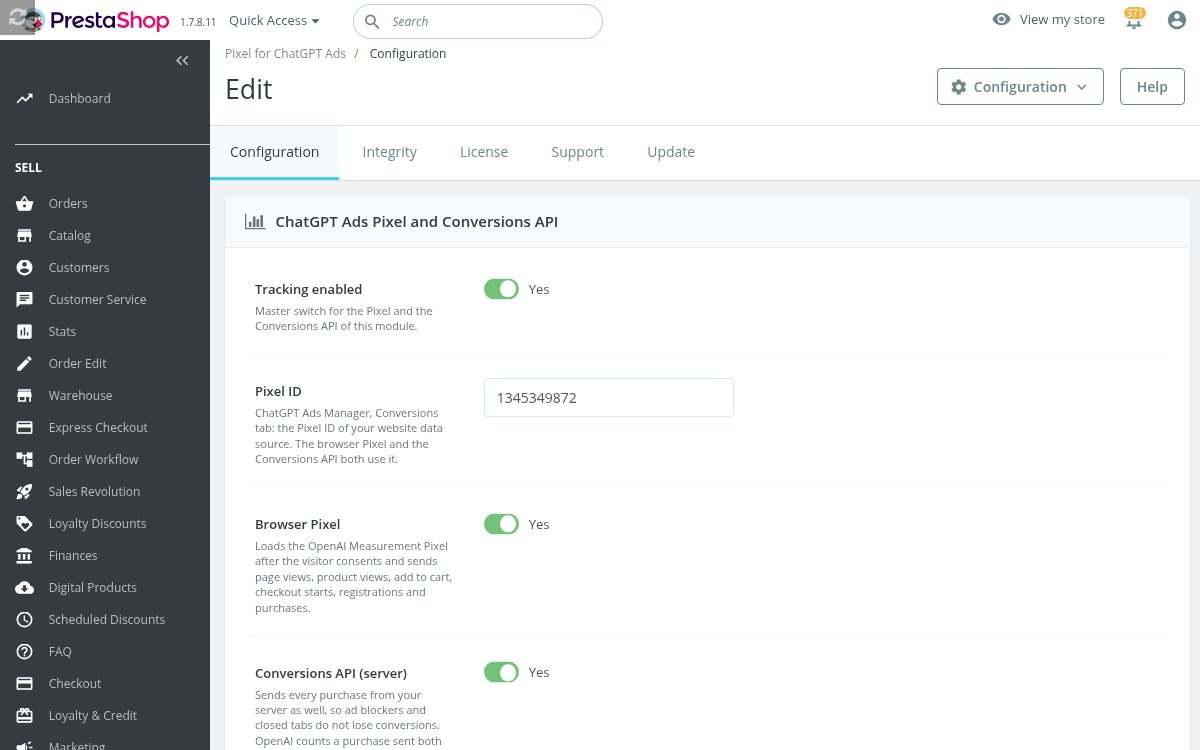
- Click Configure for Pixel for ChatGPT Ads. This opens the configuration form headed ChatGPT Ads Pixel and Conversions API.
- Enter Pixel ID and Conversions API key.
- Review consent and event settings, enable Tracking enabled, then click Save.
Configuration changes require an employee with edit permission. A saved API key is masked. Leave its field empty to keep the current key.
Configure events and data
Connection settings
| Setting | Initial value | How to use it |
|---|---|---|
| Tracking enabled | Off | Master switch for this module's browser and server tracking. |
| Pixel ID | Empty | Enter the website data source ID. The accepted format is 4 to 128 letters, digits, dashes or underscores. |
| Browser Pixel | On | Allow browser events after the applicable consent and traffic checks. |
| Conversions API (server) | On | Queue eligible purchases for server delivery. The API key and Purchases switch are also required. |
| Conversions API key | Empty | Enter the key for the same account as the Pixel ID. An empty save keeps the saved key. |
| Check the connection | Action | Check test-mode availability currently refuses the test and sends no event. |
Check test-mode availability sends no purchase or test event. Use the readiness display and an authorized real purchase on the production shop to verify delivery. A staging copy does not send real events.
Event switches
All six commerce event switches start on. Turn off events you do not intend to report.
| Setting | OpenAI event | Trigger |
|---|---|---|
| Page views | page_viewed |
Supported page views. |
| Product views | contents_viewed |
Product views with available product data. |
| Add to cart | items_added |
Supported browser cart updates. |
| Checkout started | checkout_started |
The visitor's supported checkout context. |
| Purchases | order_created |
Browser order confirmation and eligible server order creation. |
| Account registrations | registration_completed |
Creation of a non-guest customer account. |
For purchase-only reporting, leave Purchases on and turn the other five switches off. Turning Browser Pixel off leaves server purchases available. Keep Conversions API (server) and Purchases on for that setup.
Consent and privacy
| Setting | Initial value | How to use it |
|---|---|---|
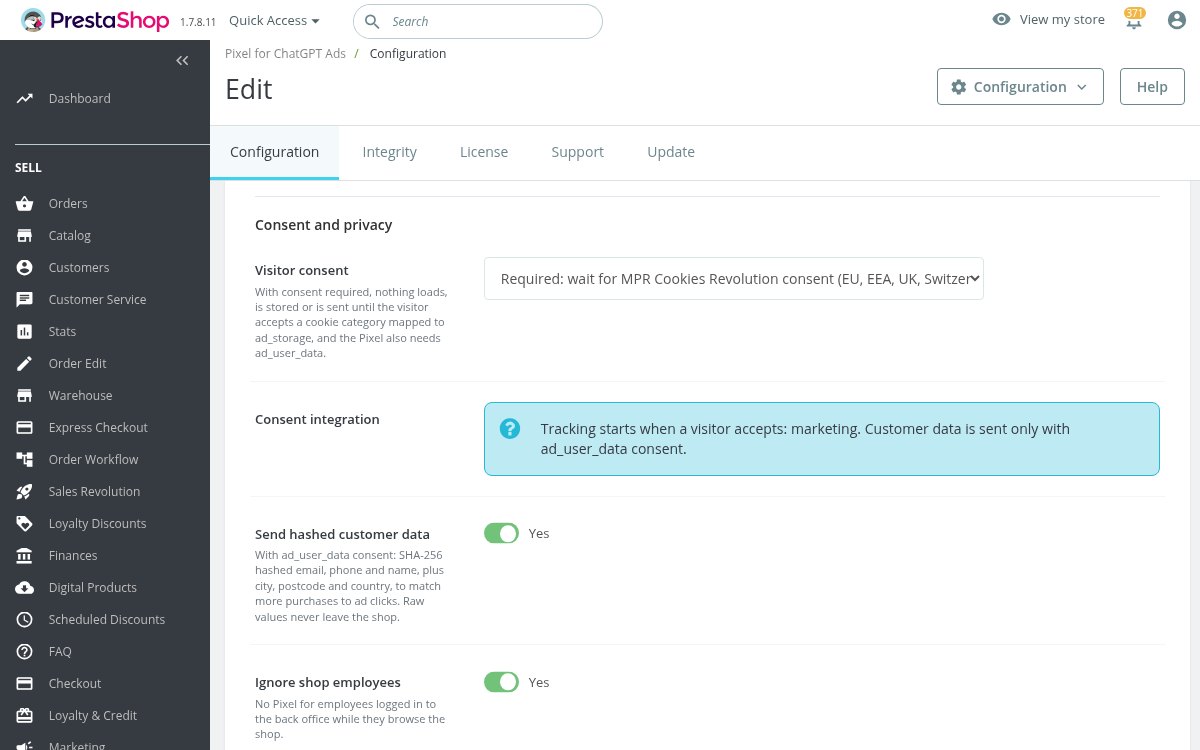
| Visitor consent | Required: wait for MPR Cookies Revolution consent (EU, EEA, UK, Switzerland) | Keep consent required when your shop collects permission. Not required on this shop (track without asking) is an explicit alternative, not automatic geographic detection. |
| Consent integration | Status display | Check that the consent module is active and that a suitable category is mapped. |
| Send hashed customer data | On | Allow customer matching details when the required user-data permission is evidenced. |
| Ignore shop employees | On | Leaves out visits and orders from recognized shop employees. Test from a clean customer session. |
With consent required, server measurement needs ad_storage; browser Pixel use also needs ad_user_data. Unknown or denied consent prevents the applicable tracking. Withdrawal suppresses waiting events when the withdrawal reaches the shop. It cannot recall an event already sent.
Order events contain value, currency, product identifiers and quantities. When permitted and enabled, matching data can include SHA-256 hashed email, phone, first name, last name and customer identifier. City, region, postcode and country are normalized location fields, not all hashed fields. Click and browser references can also be included.
The current server purchase queue deliberately does not add the worker's or payment callback's IP address and user agent as customer data. Some outbound fields are sent without hashing. Reflect the actual data use in your privacy information.
Products and values
| Setting | Initial value | How to use it |
|---|---|---|
| Item IDs | Product ID (e.g. 42) | Match your feed identifiers. Alternative: Product ID and combination ID (e.g. 42-7). An active ChatGPT product feed module takes precedence for the shop. |
| Purchase value | Order total paid, tax and shipping included | Choose this or Products, tax included or Products, tax excluded according to the value you intend to report. |
| Failed server events | Action | Retry failed events returns eligible failed rows to the queue. It does not bypass age, consent, ownership or traffic checks. |
Combination identifiers use 42-7 for product 42 and combination 7. A product without combinations retains its plain product ID. Verify matching against the feed rather than relying only on the example.
Optional contact and engagement signals
These controls are present in addition to the six commerce events. Each starts off.
| Setting | What to verify before enabling |
|---|---|
| Track phone-link clicks | Test a real telephone link in your theme. The event records the click, not whether a call took place. |
| Track actual chat starts | Use a compatible chat integration that reports a started conversation. A decorative chat button alone is insufficient. |
| Track successful contact forms | Test a confirmed successful form submission. A submit-button click or a form error is insufficient. |
| Track product engagement | Test product-gallery, variant and detail interactions and the dwell threshold in your theme. |
| Send confirmed forms through the server API | Enable Track successful contact forms too. A form is sent from the server only after a successful submission on a supported contact form. |
| Product engagement thresholds | Keep the supplied JSON initially. Edit valid JSON only after checking your theme selectors and desired thresholds. |
The engagement defaults use 3 gallery views, 1 variant change, 1 detail click or 45 seconds of dwell, with a 1500 ms option throttle. The supplied configuration also defines gallery, variant and detail selectors, an event name and one-event-per-session behavior. The allowed numeric ranges are 1 to 20 for interaction thresholds, 5 to 600 seconds for dwell, and 250 to 60000 ms for option throttling. Save and retest after editing. These switches still depend on consent, staff exclusion and tracking ownership.
Configure server processing
Initial sending and retries
At order creation, the module records the order and the buyer's consent and queues an eligible purchase. Orders created in the configured error or canceled state are skipped. Unknown consent, recognized employee traffic, missing buyer data, inactive server settings or another module owning the Pixel ID can also keep a purchase out of the queue.
The module attempts a small batch after the checkout request finishes. Its scheduled Send ChatGPT Ads server-side conversion events task is due every 300 seconds and processes remaining work. Configure your installed scheduled-task runner or host scheduler so this task executes regularly. Do not rely only on a successful checkout request for retry delivery.
The daily Delete ChatGPT Ads click references older than 35 days task handles attribution cleanup. Queue cleanup also runs during conversion processing. Monitor scheduled runs and their errors through the scheduling interface available in your installation.
Events expire locally after 6 days and 22 hours, leaving a two-hour margin before the seven-day limit. Retrying a failed event does not reset its original purchase time.
Delayed payment callbacks
A payment provider can create the order in a server callback after the shopper leaves. The module then uses the consent and data recorded for the buyer and cart, never the callback's own browser or network details. Test this payment route separately if you use it.
Marketing Revolution ownership
If another capable module owns the same Pixel ID, the configuration page displays an ownership notice and this module stays inactive for that destination. Marketing Revolution can take ownership when configured for the same Pixel ID. The shared queue and purchase identity support coordination between the modules. Check the notice and queue after changing either module.
All shops share this module's Pixel ID and settings. Purchase and consent records remain linked to their own shop. Selecting another shop in the back office does not create a separate tracking configuration.
Verify the complete setup
Check readiness
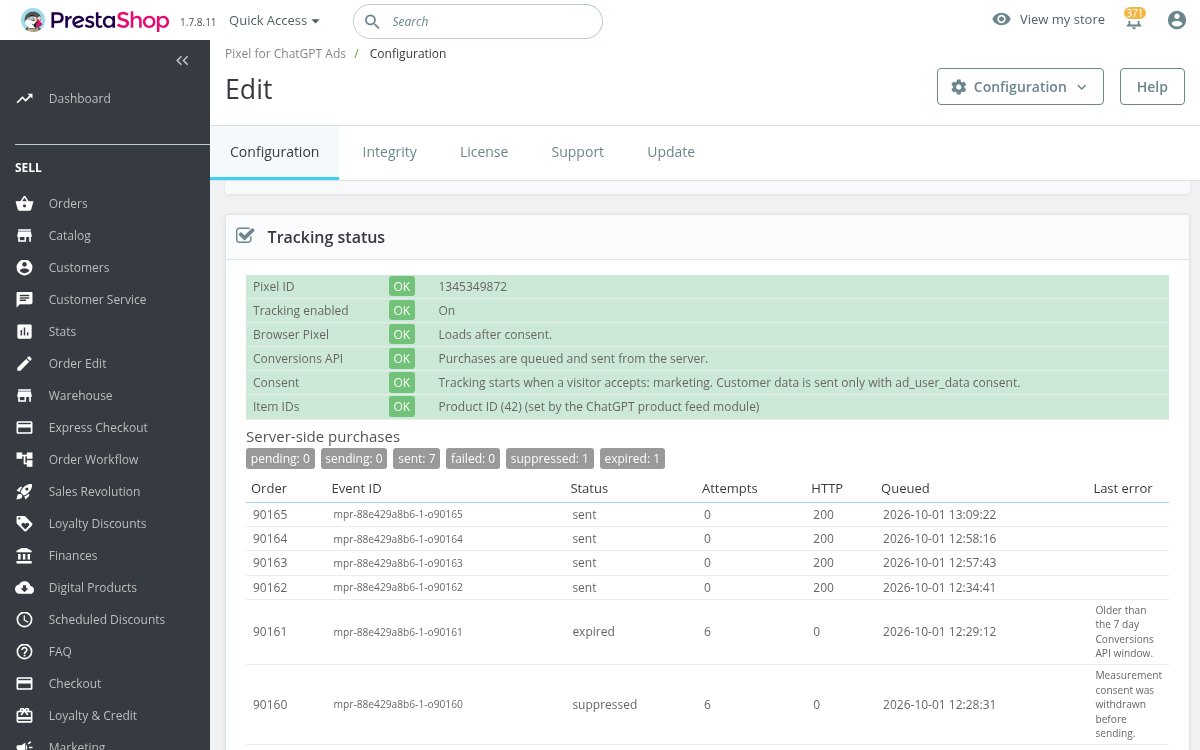
Open Configuration and read Tracking status. Confirm the Pixel ID, tracking switch, browser state, server state, consent integration and item ID source. Below it, Server-side purchases shows status counts and the latest ten rows with Order, Event ID, Status, Attempts, HTTP, Queued and Last error.
Test the customer journey
- Use a clean customer browser session so employee exclusion does not suppress your test.
- Before consent, verify that the external Pixel has not loaded. Grant the configured marketing permission and verify the allowed browser requests.
- Visit a product, add it to the cart, start checkout and create a non-guest account if you enabled these events.
- Complete an authorized real purchase on the production shop. Inspect the order's queue row, response and Event ID.
- Let the scheduled task run and confirm a successful delivery result. Check the destination's own diagnostics separately.
- Test consent refusal and withdrawal using a separate session. Check that waiting orders are suppressed when withdrawal is received.
Browser and server purchases use a common purchase identity for deduplication. The advertising platform handles attribution and report timing. Ad blockers, unavailable scripts, rejected credentials and platform processing can affect the result.
On PrestaShop 1.6, verify add-to-cart behavior with the classic shopping cart block. Custom themes, checkout modules, forms and chat integrations need their own functional check.

Troubleshoot missing events
Nothing is tracked
Check Tracking enabled, Pixel ID, event switches and Tracking status. Read any ownership or staging-host notice. With consent required, check the MPR Cookies Revolution mapping to ad_storage and ad_user_data. Use a clean customer session.
Server purchases fail
Read Last error and HTTP. Check that outgoing HTTPS to bzr.openai.com works and that the Conversions API key belongs with the Pixel ID and is not an Advertiser API key. Fix the configuration first, then use Retry failed events and run the scheduled task. Expired, suppressed, held and terminal events show a reason; fix that reason, and check the queue again after retrying.
Staging mode or connection test refusal
A detected development or staging address blocks real outbound tracking. Check test-mode availability still sends nothing there. Do not treat its refusal as a failed API credential check.
Capture diagnostics
Open the Troubleshooting panel in Configuration. Enable Recording, choose 24 hours, click Save, and reproduce the problem. Recording turns off after the selected period. Use Integrity for module infrastructure checks when available.
Disable or uninstall
Stop tracking
Turn Tracking enabled off and save. This disables the module's browser and server paths. Events already accepted by the advertising platform are outside the shop's control.
Uninstall
Back up any queue or diagnostic data you need. Uninstall through Module Manager. Uninstall removes this module's configuration, menu and scheduled tasks. Shared conversion queue and attribution tables are dropped only when no other installed module needs them, and other shared tracking tables follow their own rules, so some shared tracking records can remain.
Questions
No questions about this module yet
Ask anything about installation, compatibility or setup. Answers appear here.
Known Issues
2
Visitor-specific tracking on cached pages
Registration event lost during page preloading
Feature Requests
4
Implemented
ChatGPT Ads browser tracking
Server-side purchase conversions
Validation-only purchase test
Contact and engagement tracking
Changelog
v1.0.12026-10-02
- Changedmodule name to Pixel for ChatGPT Ads
Older releases
v1.0.02026-10-01
- OpenAI Pixel for ChatGPT Ads, loaded only after visitor consent
- Page views, product views, add to cart, checkout starts, registrations and orders, each with its own switch
- Every order also sent from the store server through the Conversions API, with retries
- One shared order reference so ChatGPT Ads counts each sale once
- Product references matched to the ChatGPT product feed
- Consent from MPR Cookies Revolution on server and browser; withdrawal cancels orders not yet sent
- Test purchase checked by ChatGPT Ads without recording
Demo
Test the full module before you buy
Buy a licence later and keep your settings.
- Your 30-day demo Test it on your own shop for 30 days from the first install.
- Ready demo shop Explore a ready demo shop in your browser.
- No registration No account, email or store domain needed.
By downloading, you accept the demo terms and privacy policy.
By opening this demo you accept the demo terms and the privacy policy.