

Bank Transfer Accounts: setup and help
Quick start
- Upload and install the Bank Transfer Accounts ZIP. Select one shop you are allowed to manage.
- Open the Bank accounts screen. Add Internal label and Account holder in the shop default language.
- Enter a valid IBAN, a complete UK sort code and UK account number pair, or a complete US routing number and US account number pair. Fill other required receiving details.
- Select Currencies, keep Active at Yes and save the account.
- Use Configure to open Configuration. Under Bank accounts on the confirmation page, choose The account for the order currency or All bank accounts and save.
- Check PrestaShop payment restrictions and place a test order using Pay by bank transfer in each supported currency.
- Check the confirmation amount, reference and receiving details, verify instructions-email delivery, and reopen the order while it is Awaiting bank transfer.
Requires PrestaShop 1.6.0.0 or later and PHP 7.1 or later.
Setup manual
Install and open the module
Upload the Bank Transfer Accounts ZIP from your back office's Modules page and install it.
Requires PrestaShop 1.6.0.0 or later and PHP 7.1 or later.
Prepare your receiving bank details. You do not need a bank login or external service key. The module displays transfer instructions. You check your bank and confirm payment yourself. Legacy checkout uses displayPayment; PrestaShop 1.7 and later uses paymentOptions.
Select one shop if multishop is enabled. You must have access to that shop and the relevant employee permissions to add, edit or retire accounts. Settings require edit permission. Accounts and currency assignments belong to the selected shop and this module.
Open Bank Transfer Accounts to reach the Bank accounts screen. Use the installed module card's Configure action to reach Configuration. The generated menu groups Configuration under the module's Settings area.

Configure your first receiving account
- Open Bank accounts in the shop you want to configure and add an account.
- Enter Internal label. Enter Account holder in the shop's default language.
- Enter at least one complete payable identifier set: IBAN, both UK fields or both US fields. Fill any other identifiers your bank requires.
- Select the intended Currencies, keep Active set to Yes and save.
- Open Configuration. Keep Bank accounts on the confirmation page set to The account for the order currency, or choose All bank accounts. Save.
- Check PrestaShop's payment restrictions, then place a test order with Pay by bank transfer in each supported currency.
- Verify the confirmation amount, reference and bank details. Check the instructions email and reopen the order while it is in Awaiting bank transfer.
Use your own bank details. The reference images contain example account information and do not provide details for real payments.
Complete the Bank account form
You use the same form to add or edit an account. A new account starts active, with Position 0, empty identifiers and empty translated text.
| Field | What to enter and when to change it |
|---|---|
| Internal label | A required label for your team. Customers do not see it. |
| Display name | The translated heading customers see above this account. If absent, a generic translated bank-account heading is used. |
| Account holder | The recipient's name. Required in the shop's default language. |
| Bank name | The translated name of the receiving bank. |
| IBAN | A valid international account number if this is one of your payable identifier sets. |
| BIC / SWIFT | The bank identifier where needed. A supplied value must be valid. |
| UK sort code | A six-digit UK sort code. Supply UK account number too. |
| UK account number | An eight-digit account number. Supply UK sort code too. |
| US routing number | A valid nine-digit ABA routing number. Supply US account number too. |
| US account number | Between one and 34 digits. Supply US routing number too. |
| Bank address | A translated plain-text address. |
| Payment instructions | Translated formatted instructions. Supported formatting is sanitized before display. |
| Note | A translated plain-text note. |
| Custom labelled rows | Extra translated labels and values, such as a Branch row. |
| Currencies | Currency assignments for the order-currency display mode. |
| Position | A non-negative whole number. Lower values appear first in All bank accounts mode. Account ID settles equal positions. |
| Active | Keep Yes to make the account available. Set No to remove it from customer-facing selection without removing its saved details or currency assignments. |
Empty translations of account details fall back to the shop's default language. Translate Display name, Account holder, Bank name, Bank address, Payment instructions and Note where needed. The identifier fields themselves are shared across languages.
At least one complete payable set is required: an IBAN, a UK sort code and account number pair, or a US routing and account number pair. A BIC alone is insufficient. Every supplied identifier is checked, even if another valid set is present.
Whitespace is removed from identifiers and letters are uppercased. Hyphens are also removed from UK sort codes. The module checks IBAN country length and checksum, BIC structure and country code, UK digit lengths, and US routing structure and checksum. Leave unused optional fields empty rather than entering placeholders.

Set UK, US and custom account details
There is no bank-format dropdown. Fill the identifiers relevant to your account. The display includes non-empty fields from the selected account. It does not infer a separate format from the order currency.
For a GBP receiving account, enter UK sort code and UK account number. You can also enter a valid IBAN and BIC if you want customers to have those details.

For a USD receiving account, enter US routing number and US account number. Optional empty identifiers are omitted from the displayed details.

Use Payment instructions for explanatory text. Add Custom labelled rows for other bank information. Translate both the row label and its value. For example, add a Branch label and the bank's branch value.
You can save up to 50 custom rows per account. Each non-empty translated value needs a label. A saved custom row also needs a label in the shop's default language. Empty translated custom rows can fall back to that language. The row sequence follows the saved custom-row order.

Assign currencies
Use Currencies to select the order currencies assigned to this account. A currency has one assignment per module and shop. Assigning it to another account moves that assignment.
For a new account, saving with no selected currencies assigns every active shop currency that is still unassigned. For an existing account, clearing Currencies removes its assignments. Deactivating an account keeps its assignments but makes it unavailable to customers.
For example, assign EUR to the account you want selected for EUR orders. Assign GBP to the account you want selected for GBP orders. One account can cover more than one currency if those are the receiving details you intend to provide.

Choose which accounts customers receive
Open Configuration. Bank accounts on the confirmation page is a radio setting with two choices. The default is The account for the order currency.
| Choice | Customer-facing selection | When to use it |
|---|---|---|
| The account for the order currency | The active account assigned to the order's currency | Use when each order currency should lead to designated receiving details. If no active account covers that currency, the module offers no bank-transfer payment option for it. |
| All bank accounts | Every active, non-retired account in the selected shop, in Position order | Use when customers should choose a receiving account after placing their order. Currency assignments do not limit this list. At least one active account is still needed. |
Save after choosing the mode. This selection also controls the account details in the instructions email and reopened order pages.
In All bank accounts mode, a EUR order can show an active USD account as well as an active EUR account. With three active accounts, the customer receives three sets of bank details. The displayed order amount remains in the order currency. The module does not calculate a separate converted amount for each receiving account.

In currency mode, Configuration warns about active shop currencies without an active assigned account. Edit an account, assign those currencies and enable it. Disabling a previously assigned account can cause the warning without resetting your other settings.

Check checkout and order instructions
The module adds one Pay by bank transfer choice to checkout. Customers do not select a separate checkout payment method for each receiving account.
Check PrestaShop's payment restrictions for currency, customer group, country and carrier where applicable. Then place a test order in each currency you offer. Confirm the intended account selection on the order confirmation page.
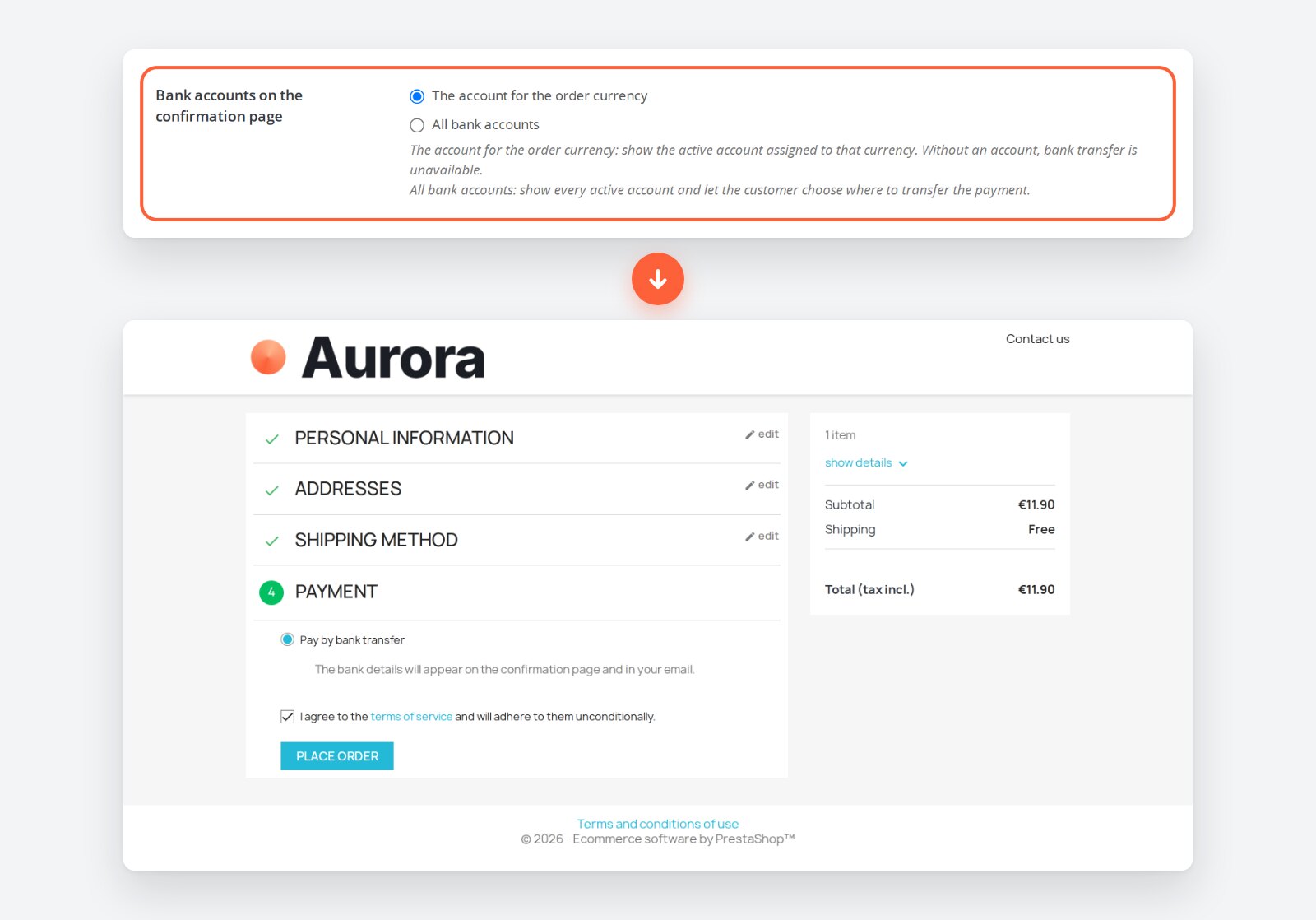
The module creates the order in its own Awaiting bank transfer state. This is an unpaid state. The confirmation provides the amount to transfer, order reference and selected bank details. For split orders sharing a cart and reference, the confirmation can combine the outstanding amount across the related module orders.

During order creation, the module attempts to send an instructions email for each order. It includes that order's amount, reference and selected accounts in the order language. The awaiting state itself has email sending disabled, so it does not produce an additional state-triggered bank-instructions email.
Check actual delivery through your shop's mail system. An instructions-email failure is logged and does not stop order creation. The module does not provide a scheduled retry or reminder process.

Customers can reopen authorized order details while the module's order remains in Awaiting bank transfer. The instructions use the currently configured account selection and details. Editing an account, changing display mode or changing assignments can therefore change existing order pages. Emails already sent keep their original content.
Copy buttons are provided for account holder, bank name, supplied identifiers and custom rows. Copied appears after a successful copy. Bank address, Note and formatted Payment instructions are not copy fields. The amount and order reference do not have these account-field copy buttons.

Verify receipt in your bank, then update the order state in PrestaShop. The module does not connect to your bank, reconcile transactions or mark an order paid automatically. It does not provide transfer discounts, QR codes, reminders or automatic cancellation.
Maintain accounts and troubleshoot
The account list shows the internal label, display name, bank, masked account, active status and position. Use the edit form to change details. Bulk actions can enable, disable or retire selected accounts. Deleting through the account list retires the account and removes it from customer selection.
| Problem | What to check |
|---|---|
| Bank transfer is missing at checkout | Check module activation, the selected shop, active accounts, display mode, currency assignments and PrestaShop payment restrictions. |
| Configuration lists uncovered currencies | In currency mode, assign each listed currency to an active account. An assignment to an inactive account does not provide a payable option. |
| Account save fails | Enter Internal label, Account holder in the default language and one complete payable identifier set. Correct every supplied identifier and check custom-row labels. |
| The form submission is incomplete | Reload the account form. Check the server input-variable limit, especially with many languages or custom rows, and resubmit the complete form. |
| The wrong account appears | Check the current shop, display mode and currency assignment. In All bank accounts mode, all active accounts appear regardless of currency assignment. |
| Checkout confirmation is refused | Return to checkout, refresh and retry. Check whether payment restrictions, cart details or delivery choices changed. |
| Instructions email is absent | Confirm the order was created, check shop mail delivery and module or server logs. An order can exist after a mail failure. |
| Instructions are absent from reopened order details | Check that this module owns the order, it belongs to the current shop and it remains in its Awaiting bank transfer state with an outstanding amount. |
| Copy feedback reports failure | Check browser clipboard access. Copy the displayed field manually if access is blocked. |
| Saving settings or accounts is denied | Select one permitted shop and check employee rights. Reload the page to refresh your back office session. |
If the awaiting state is unavailable, open Integrity and check Awaiting bank transfer state. Its repair action can restore the module's state and shop mapping. Repairs require edit permission.
Uninstall
Back up your account details, translated instructions, custom rows and settings before removal. Resolve outstanding transfers and retain the information customers need for existing orders.
Uninstalling removes this module's accounts and configuration. Its awaiting state is retained when orders or order history still use it. An unused owned state can be removed.
If you move to another payment module, verify its account data and checkout instructions before removing this one. Account migration is not performed by this module's uninstall action.
Questions
1
When is Bank Transfer Revolution the right upgrade?
Use Bank Transfer Revolution for routing rules, discounts, QR codes, reminders, automatic cancellation or reconciliation. It can copy active Bank Transfer Accounts accounts once when the selected shop has no Revolution accounts. Bank Transfer Accounts itself requires you to check payments and update order states.
Known Issues
6
Custom bank detail editor stacks unnecessarily
Unwanted space below the account form
Orders show the module name as the payment method
Inconsistent bank detail formatting
Account editor language controls outside the panel
Long bank details overflow on phones
Feature Requests
3
Implemented
Bank transfer payment
Currency-based bank account selection
Bank transfer instructions
Changelog
v1.0.52026-10-18
- Custom labelled rows in the account form stay on one line (label, value and compact move/remove buttons) instead of stacking.
Older releases
v1.0.42026-10-16
- Orders name the payment method "Bank transfer" (in the customer's language) on order history, invoices and emails, instead of the module name.
v1.0.32026-10-16
- The module has its own icon in the module list instead of the Bank Transfer Revolution one.
- The bank account form ends cleanly: no extra gap or line below its last field.
v1.0.22026-10-15
- On phones, long bank details such as the IBAN wrap inside their cell, so every label stays beside its value.
v1.0.12026-10-15
- The bank details look the same on the order confirmation and on the order detail page, with each label lined up with its value.
- Account editor: the language buttons of the address, instructions and note fields stay inside the form, and the custom row buttons are lined up at one width.
- Shared admin and bank-account components updated.
v1.0.02026-10-14
- Initialrelease with one bank transfer payment option.
- InitialShow the account for the order currency or all active accounts.
- InitialPresent the amount, order reference and bank details on confirmation, waiting-order details and in one instructions email per order.
- InitialAdd translated bank details, IBAN/BIC, UK and US identifiers, up to 50 custom rows and storefront copy buttons.
- InitialInclude an Awaiting bank transfer state and instructions emails in six languages.
- InitialSupport PrestaShop 1.6 to 9 and PHP 7.1 or later.
Demo
Test the full module before you buy
Buy a licence later and keep your settings.
- Your 30-day demo Test it on your own shop for 30 days from the first install.
- Ready demo shop Explore a ready demo shop in your browser.
- No registration No account, email or store domain needed.
By downloading, you accept the demo terms and privacy policy.
By opening this demo you accept the demo terms and the privacy policy.