

Estimated Delivery Date: setup and help
Quick start
- Upload and install the module ZIP in Modules > Module Manager.
- Open Estimated Delivery Date > Configure and leave Enable on.
- Set Processing days to your shop schedule.
- Set Order cutoff hour in the shop timezone and choose Exclude weekends.
- Choose Date format and click Save.
- Open a product page. Confirm the estimated date and, before cutoff, the decreasing countdown.
Requires PrestaShop 1.6 or later and PHP 7.1 or later.
Setup manual
Installation and first configuration
- Upload and install the module ZIP in Modules > Module Manager.
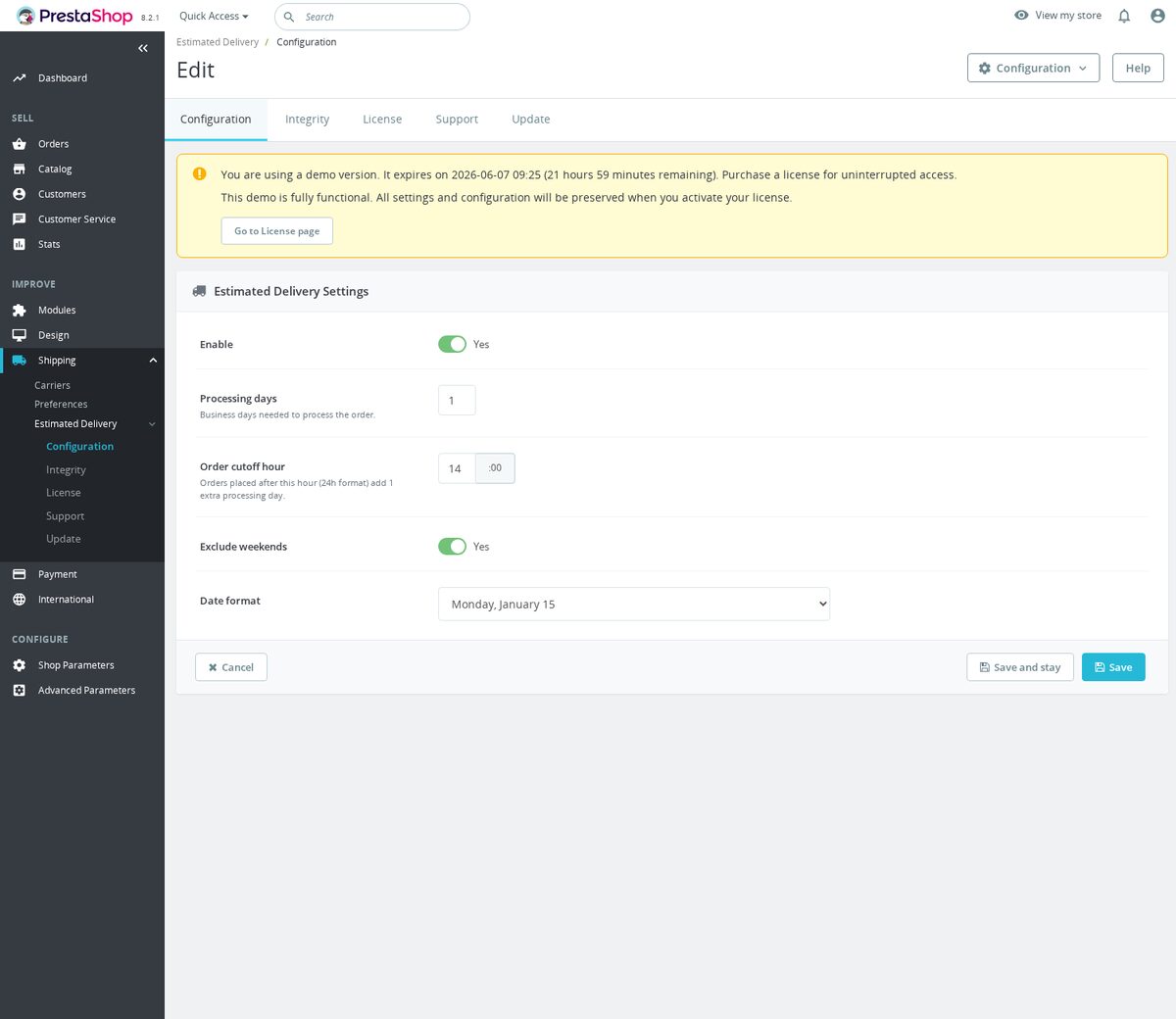
- Open Estimated Delivery Date > Configure and leave Enable on.
- Set Processing days to your shop schedule.
- Set Order cutoff hour in the shop timezone and choose Exclude weekends.
- Choose Date format and click Save.
- Open a product page. Confirm the estimated date and, before cutoff, the decreasing countdown.
Estimated Delivery Settings
Open Modules > Module Manager > Estimated Delivery Date > Configure. Use Estimated Delivery Settings and click Save after changes.
| Setting | Installed default | Use |
|---|---|---|
| Enable | On | Show or hide your estimate. |
| Processing days | 1 |
Set your global processing-day count. Use zero or a positive integer. |
| Order cutoff hour | 14 |
Enter a whole hour in 24-hour time. The calculation clamps it to 0 through 24. At the cutoff, the estimate gains one processing day. |
| Exclude weekends | On | Skip Saturdays and Sundays when adding days. A zero-day estimate on a weekend moves to Monday. |
| Date format | l, F j |
Choose a PHP date format from the list below. |
| Format value | Example style |
|---|---|
l, F j |
Monday, January 15 |
D, M j |
Mon, Jan 15 |
F j, Y |
January 15, 2026 |
d/m/Y |
15/01/2026 |
Y-m-d |
2026-01-15 |
The examples show formatting, not a predicted delivery date. Textual day and month names use PHP date formatting. Choose a numeric format for language-neutral output.
Date calculation and countdown
Your estimate uses the shop timezone from PS_TIMEZONE. PHP's default timezone is a fallback when that setting is empty.
For the current shop calendar day, the module prepares a date before cutoff, a date after cutoff, an absolute cutoff timestamp, and the next shop midnight. The before-cutoff date adds Processing days. The after-cutoff date adds one more day. With weekend exclusion, only eligible weekdays count.
Your storefront shows one estimate at a time. JavaScript updates the HH:MM:SS countdown each second before cutoff. At cutoff, it hides the countdown and switches to the after-cutoff date. At the next shop midnight, it hides the old estimate until fresh page content is loaded. Your browser clock affects this switching.
Without JavaScript, the template shows the after-cutoff date and keeps the urgency line hidden.
Your settings are global. The module does not add carrier transit times, holiday calendars, per-product lead times, stock checks, or a delivery-date range. Treat the date as the result of your configured processing schedule.
Placement and theme customization
On PrestaShop 1.7 and later, your theme must render displayProductAdditionalInfo. On PrestaShop 1.6, the module registers displayRightColumnProduct. CSS and countdown JavaScript load through actionFrontControllerSetMedia, including pages from which a quick view may open.
For a modern product template, the hook call is:
{hook h='displayProductAdditionalInfo' product=$product}
To customize the markup, copy the module template to:
themes/your-theme/modules/mprestimateddelivery/views/templates/hook/delivery.tpl
Start from the current template. Keep .mprestdel-box, .mprestdel-date, .mprestdel-urgency, .mprestdel-countdown, and the data-cutoff-at, data-valid-until, data-before-date, and data-after-date attributes for the countdown.
The assigned Smarty values are mprestdel_cutoff_at, mprestdel_valid_until, mprestdel_before_date, and mprestdel_after_date. Escape them when rendering HTML. The former mprestdel_date and mprestdel_hours_left values are not assigned by this version.
You can style the existing classes in theme CSS:
.mprestdel-box { background: #f7fbff; border-color: #cfe2f3; }
.mprestdel-date { font-weight: 700; }
.mprestdel-urgency { color: #b83227; }
Configuration is stored through the shared MPR configuration system under module name mprestimateddelivery. Use the configuration form for changes. To inspect the saved global values, use this read-only query with your database prefix:
SELECT `key`, `value`
FROM ps_mpr_config
WHERE module = 'mprestimateddelivery'
  AND context_type = 'global'
  AND context_id = 0;
Replace ps_mpr_config if your database uses another prefix.
Verification and troubleshooting
- Check your shop timezone and set a known processing schedule.
- Open a product page and compare the date with the shop calendar.
- Before cutoff, confirm the countdown decreases once a second.
- Test crossing the cutoff. Confirm the countdown hides and the estimate switches.
- Test a Friday or weekend calculation with Exclude weekends enabled.
If the date is missing, check Enable, the correct product hook for your PrestaShop version, and the installation integrity banner. If the countdown is missing before cutoff, inspect the JavaScript request, browser console, browser clock, and any theme template override. Old overrides that use the former Smarty variables must be updated.
Clear stale page and asset caches after template changes. An estimate generated for a previous shop day is intentionally hidden by JavaScript. Reload to obtain a fresh one. The script rescans product refreshes and quick views, but your theme still has to supply the hook output.
Disable or uninstall
Set Enable to No and save to hide the estimate. Uninstall from Module Manager to remove its menu and configuration entries. Save your processing schedule before uninstalling.
Compatibility
Requires PrestaShop 1.6 or later and PHP 7.1 or later.
Reference screenshots


Questions
1
Does the delivery estimate need customer data or set its own cookie?
The estimate uses the shop timezone and global processing settings; it does not need a customer name, email, address or location. The countdown updates the displayed date from timestamps and does not set a visitor cookie. The module does save its configuration in the shared MPR configuration table.
Known Issues
4
Stale countdown and dates on cached pages
Administration labels remained in English
Module refused to load on PHP 7.1
Damaged translated labels
Feature Requests
4
Implemented
Configurable estimated delivery dates
Installation checks and repair
One-click module updates
Live order cutoff countdown
Changelog
v1.0.142026-08-17
- Addedcomplete FR/DE/ES/IT/PL translations
Older releases
v1.2.02026-04-20
- Addedadmin menu management via MenuInstaller for streamlined module setup
v1.1.02026-01-22
- Addedfull compatibility with PrestaShop 9.x and Hummingbird theme
- Addedsupport for multiple carrier exclusion rules on the same product
- Improvedweekend and public holiday detection with per-country calendar configuration
- Fixededge case where cut-off time calculation was off by one day during DST transitions
- Optimized delivery date rendering on quick-view and product listing pages
v1.0.02025-08-04
- Initialrelease: displays estimated delivery date on product pages based on active carriers
- InitialCarrier-specific lead times configurable from the module settings panel
- InitialWeekend and national holiday exclusion with configurable country calendar
- InitialOrder cut-off time support (e.g. orders placed before 14:00 ship same day)
- InitialResponsive label with customizable text and date format
Demo
Test the full module before you buy
Buy a licence later and keep your settings.
- Your 30-day demo Test it on your own shop for 30 days from the first install.
- Ready demo shop Explore a ready demo shop in your browser.
- No registration No account, email or store domain needed.
By downloading, you accept the demo terms and privacy policy.
By opening this demo you accept the demo terms and the privacy policy.