

Knowledge Base: setup and help
Quick start
- Upload and install the Knowledge Base ZIP from your back office Modules page. Select the shop you want to configure.
- Use Configure to open Configuration. Review Knowledge base URL slug, Search URL slug, Hero title and Hero text in each language, then save.
- Open Categories. Add Name and Friendly URL, keep Active enabled and save.
- Open Articles. Select Category and enter Title, Excerpt and Content in each published language. Use at least two suitable second-level headings for contents navigation.
- Review Written by staff after checking every language. Keep Active enabled and leave Publish date empty to publish immediately, then save.
- Clear the shop cache if you changed URL slugs. Open the public help page and follow its category and article links.
- Search for text from the published guide in the same language. Check the guide, contents links and translations on the storefront.
Requires PrestaShop 1.6.1 or later and PHP 7.1 or later.
Setup manual
Install and open the settings
Upload the Knowledge Base ZIP from your back office's Modules page and install it. Use the module card's Configure action to open Configuration. You manage guides under Knowledge Base > Articles and Knowledge Base > Categories. Menu labels follow your back office language.
Requires PrestaShop 1.6.1 or later and PHP 7.1 or later.
Use working friendly URLs and the shop's secure address. PHP DOM support is needed to generate article contents navigation. PHP ZIP support is needed by the bundled module updater. You supply your own articles and translations. You do not need an external knowledge-base account.
Select the shop whose content you want to manage. Articles and categories are stored for a shop. Your employee profile needs permission to view the relevant screens, add or edit content and save settings. CMS import requires both add and edit permission.
Publish your first guide
- Open Configuration. Check Knowledge base URL slug and Search URL slug in each language.
- Enter Hero title, Hero text, Meta title and Meta description. Save.
- Open Categories and add a category. Enter Name, review Friendly URL and keep Active enabled.
- Open Articles and add a guide. Select Category. Fill Title, Excerpt and Content in your shop languages.
- Add at least two suitable second-level headings to the article content if you want a contents list. Review Friendly URL.
- Keep Active enabled and leave Publish date empty for immediate publication. Review Written by staff as explained below. Save.
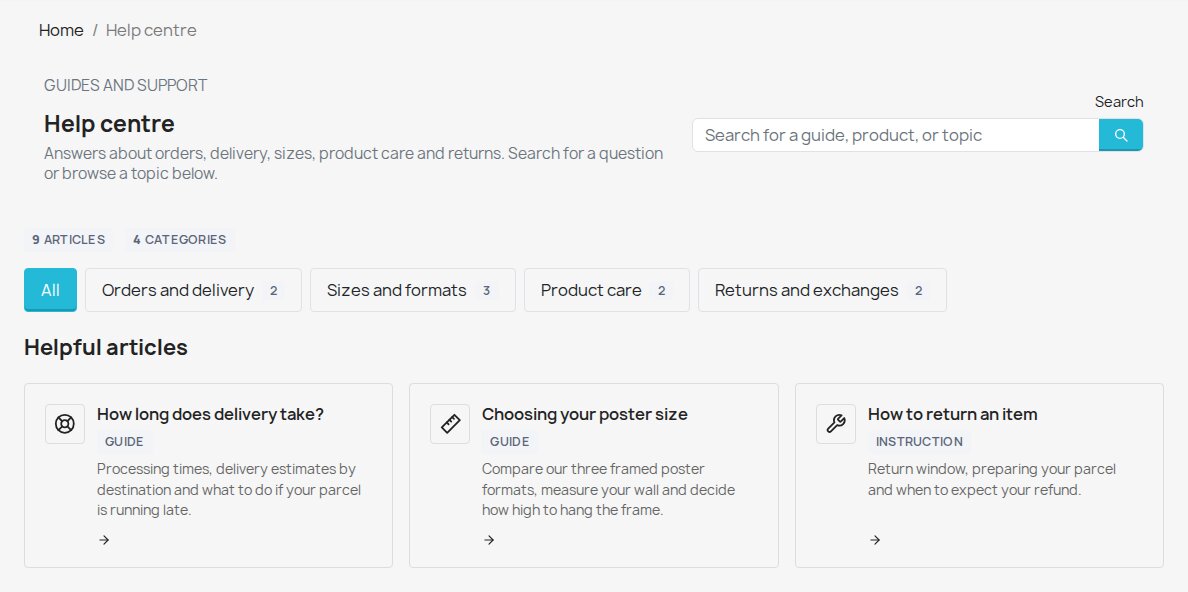
- Open the public help page. Follow the category and article links. Search for a phrase from the article in the same language.
For example, use an Installation category with an article titled Fitting your new wall shelf. Use Before fitting, Fitting the shelf and Care after installation as second-level headings. Set Badge to Guide if you want that label on its card. Add a second published article to the same category to check related guidance.
Configure the help page
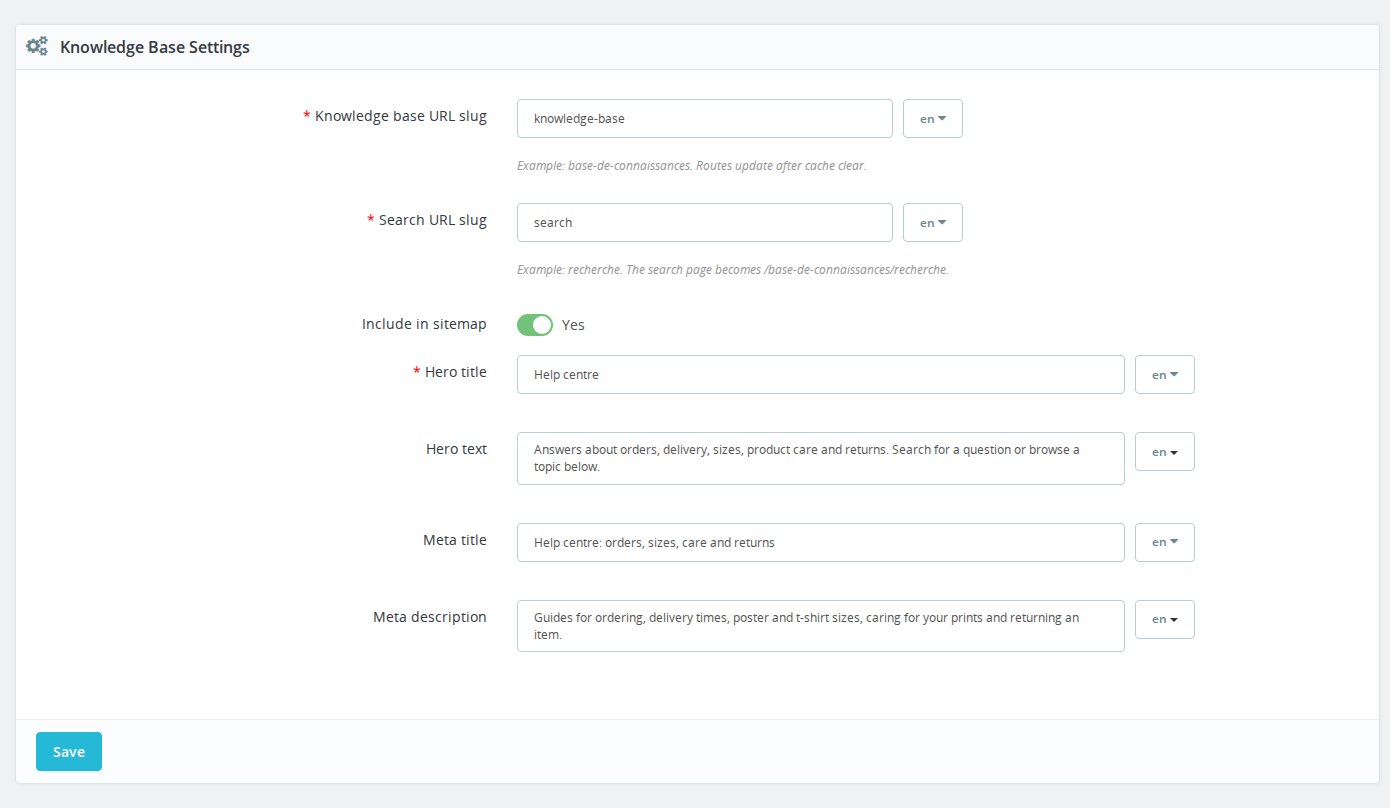
Open Configuration. The text and address fields are translated. Complete and check every language you publish.
| Setting | Initial value | What to do |
|---|---|---|
| Knowledge base URL slug | knowledge-base in English |
Set the help page's root address. Use a short address and check existing links after changing it. |
| Search URL slug | search in English |
Set the segment used below the help-page root for search. |
| Include in sitemap | Yes | Keep enabled if your sitemap tool consumes the module's gSitemapAppendUrls output. Disable to stop this module supplying these entries. |
| Hero title | Knowledge Base in English | Enter the landing-page heading. |
| Hero text | A localized introduction about guides, installation instructions, technical advice and project information | Replace it with your own introduction. |
| Meta title | The initial Hero title | Enter the landing page's metadata title. An empty value falls back to Hero title. |
| Meta description | The initial Hero text | Enter the landing page's metadata description. |
Installation provides localized defaults for English, French, German, Polish, Italian and Spanish. Other languages receive English defaults. Changing Hero title or Hero text later does not automatically rewrite the saved metadata fields.
Save the form. Clear the shop cache after changing URL slugs so saved routes refresh. Previous root slugs are remembered. Previous custom search endings are not retained in the same way. Check the landing page, search and previously shared links after an address change.
The Theme Settings section has its own save form. Shop Template defaults to Automatic and also offers None or a shipped adaptation. Enable custom assets defaults to No and controls loading the module's custom CSS and JavaScript. The section reports the detected theme and whether the custom files exist. Use these controls when adapting the public pages to your theme. Save with Save Theme Settings.
Its shared Content loading controls include Public content, initially After the page has loaded, and Visitor-specific content, initially When the pointer reaches it. They also offer Only when opened. Visitor-specific after-load behavior is available only where all affected content supports it. These are settings for supported content across modules in the selected shop context, not a publication delay for your articles. Changing these shared defaults requires edit permission on Performance or Themes. Any declared module content overrides start at Inherit. This release does not ship a fragment declaration for its article pages.
Create and maintain categories
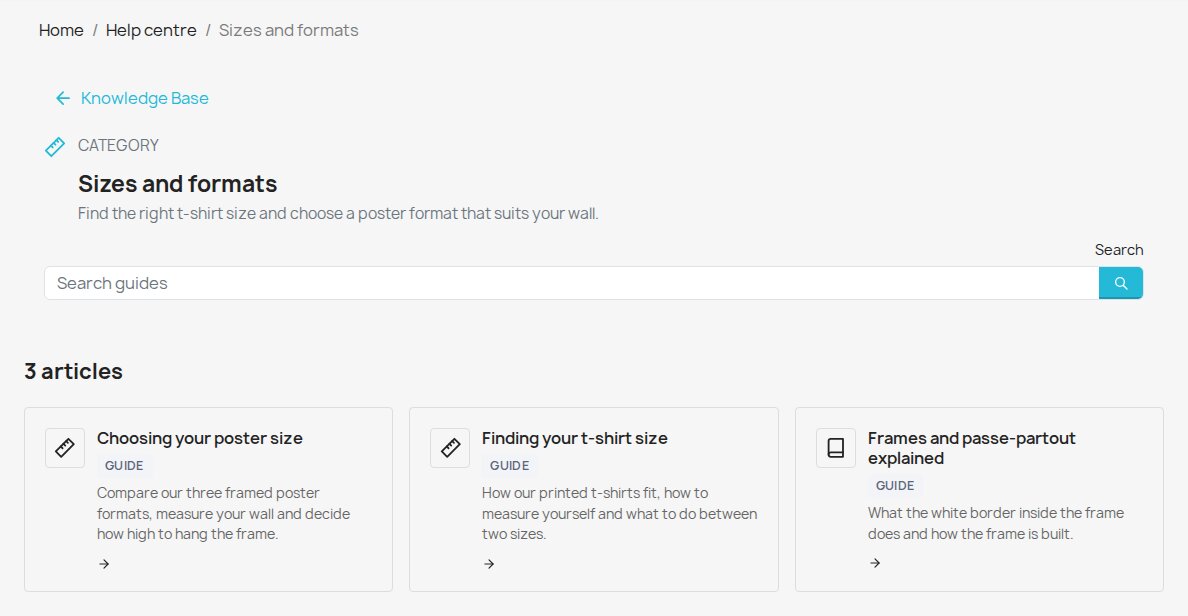
Open Categories, add a category and complete its translated fields. You use categories to group guides. They do not contain the guide itself.
| Field | Initial state or default | Use |
|---|---|---|
| Written by staff | No for a new category | Confirm only after reviewing its name, description and metadata in every language. See the content review chapter. |
| Name | Empty, required | Enter the subject name in each language. |
| Friendly URL | Generated from Name when left empty | Review the generated address. A numeric suffix distinguishes duplicates in that shop and language. |
| Description | Empty | Enter the category introduction. |
| Parent category | No parent | The value is saved. Public navigation remains a flat category list. |
| Icon | book |
Choose a supported icon key. |
| Accent color | #0099cc |
The value is saved. Current public cards use the module and theme styles rather than this value. |
| Position | New categories are placed after existing categories when the position is empty or zero | Use a lower saved position to place a category earlier. Names settle equal positions. |
| Active | Yes | Disable to hide its category page and landing-page section. |
| Meta title | Empty | Enter metadata, or let the page title fall back to Name. |
| Meta description | Empty | Supply the category's metadata description. |
Disabling a category does not withdraw all its guides. Its active, published articles can still appear in search and open through direct addresses. Disable each article's Active setting to withdraw it.
Deleting a category keeps its articles and removes their category assignment. Its child categories also lose their parent assignment.
Create and maintain articles
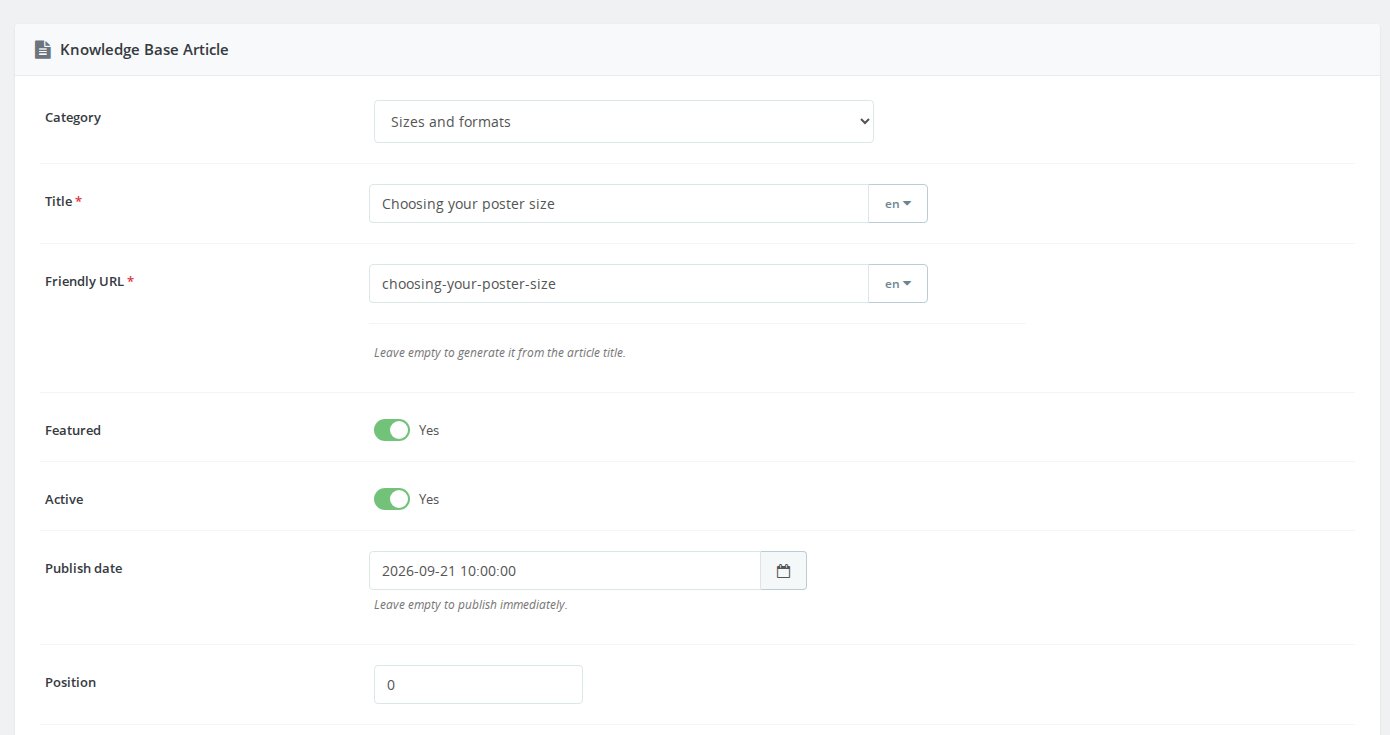
Open Articles. The list includes Title, Category, Badge, Source, Views, Featured, Active, Position and Published, as well as the record ID. Use its filters to find an existing guide.
| Field | Initial state or default | Use |
|---|---|---|
| Written by staff | No for a new article | Confirm after reviewing the title, body, excerpt, badge and metadata in every language. |
| Category | No category until selected | Assign the subject group. An uncategorized guide can still be published. |
| Title | Empty, required | Enter the guide's title in each language. |
| Friendly URL | Generated from Title when left empty | Review the address. Duplicate slugs receive a distinguishing numeric suffix. |
| Featured | No | Give a guide priority in article ordering and make categorized guides eligible for the featured selection. |
| Active | Yes | Enable public eligibility. Disable to withdraw the guide. |
| Publish date | Empty | Leave empty to publish an active guide immediately. Set a future date and time to delay publication. |
| Position | New articles are placed after existing articles in their category when the position is empty or zero | Set the order after featured priority. |
| Excerpt | Empty | Enter the short introduction used on cards and above the article. If absent, display falls back to Meta description, then an extract from Content. |
| Content | Empty | Enter the formatted guide in each language. Use real heading elements for contents navigation. |
| Badge | Empty | Enter a short label such as Guide or Instruction. This value is shared across languages. |
| Icon | file-text |
Use a supported key such as file-text, book, tool, ruler, wrench, thermometer or life-buoy. |
| Accent color | #0099cc |
Saved with the same public-display limitation as category Accent color. |
| Meta title | Empty | Supply the page metadata title. An empty value falls back to Title. |
| Meta description | Empty | Supply the page metadata description. |
| Meta keywords | Empty | Supply keywords passed to the page's metadata. Whether they appear in rendered HTML depends on the theme. |
Publication, category, featured status and ordering apply to the whole article across languages. You provide translations in the same article's language fields.
Articles are ordered by featured status first, then ascending position, descending publication date, descending creation date and article ID. The module checks the publication date when content is requested. You do not need a publication cron task.
There is no dedicated cover-image upload field in this editor. Add the guide's media through its content as appropriate.
Review staff-written and imported content
Use Written by staff in the article and category editors to mark the content as staff-written after reviewing every language; a normal save does not set this. Only staff-written content has its shop-variable markers filled in; imported or unknown content keeps them as literal text.
Confirmed staff content can resolve supported shop variables through the bundled content adapter. If you switch a staff record back to No, its origin becomes unknown. The importer marks its output as imported.
If required staff content containing variable markers cannot be resolved safely, the module can omit the record from lists and search. A direct page can return a temporary-unavailable response. Optional text can be omitted. Check the module's diagnostics or server log for trusted_content entries and review the affected fields and bundled dependencies. The Active setting does not override these content errors.
Check storefront navigation and discovery
Landing page and guide pages
The landing page groups published guides under active categories. Category buttons filter the visible groups. Uncategorized guides use a separate resource section. The featured selection includes up to four featured guides from active categories. It is hidden when it would repeat the whole displayed library.
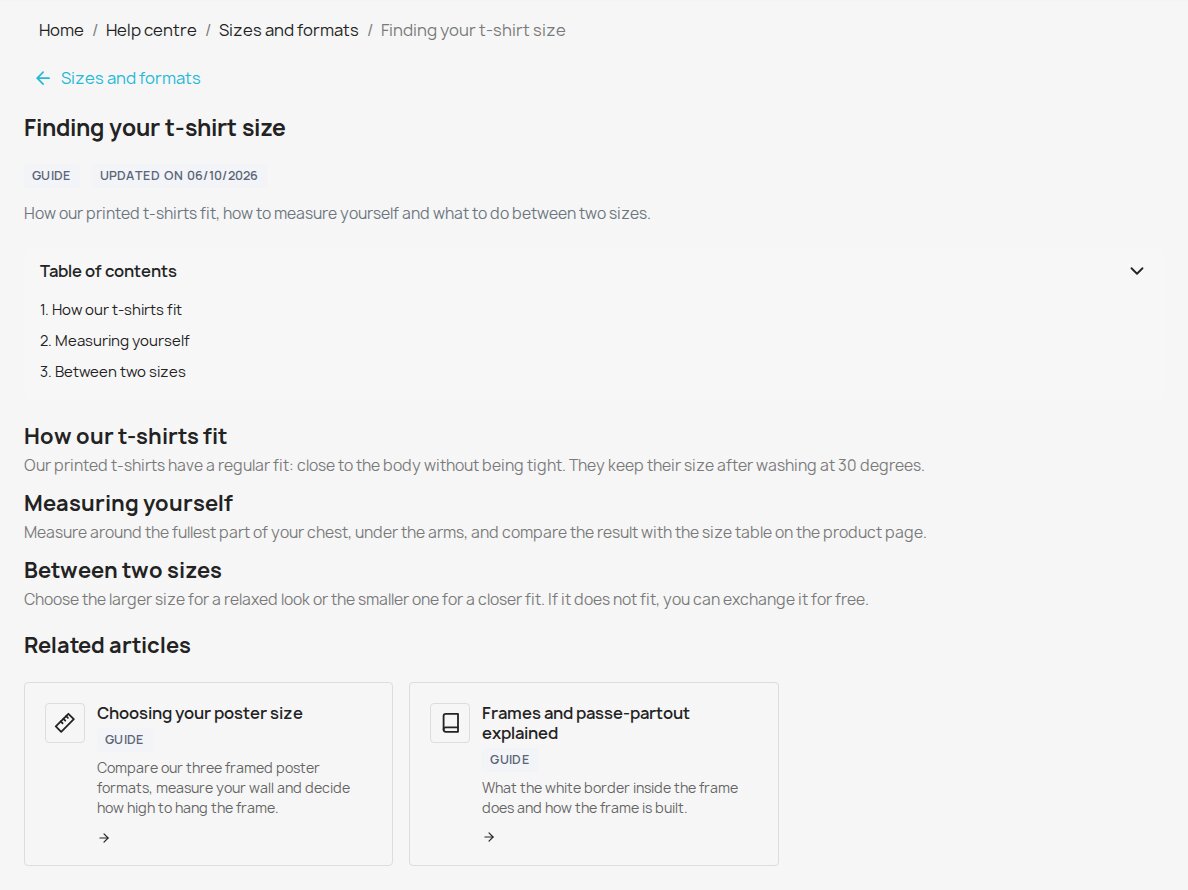
Each article page shows its title, introduction, badge and last-updated date when available. Its return link goes to the category, or to the help page when no category is available. Up to four other published guides from the same category appear below it, in article order. You do not select related articles in a separate screen.
Contents navigation
The module builds navigation from eligible second- and third-level headings in the article content. A suitable sequence of numbered headings takes priority. Otherwise it uses two to twelve second-level headings, or a suitable set of two to twelve headings overall. Without a suitable set, the guide keeps its content without a contents list.
Check that the links reach the correct sections and that you can collapse the list. If it is missing, check heading markup and PHP DOM support.
Local search and Search Revolution
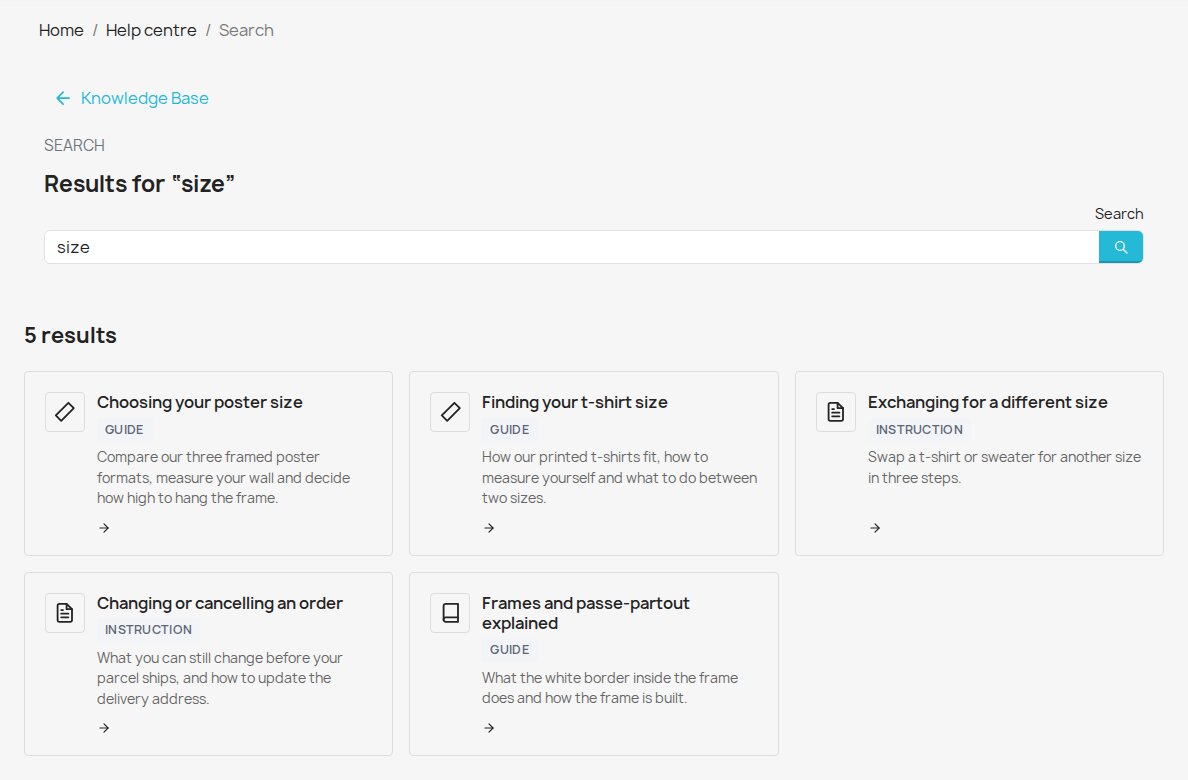
Search for a phrase in the storefront's current language. Built-in search matches titles, excerpts, article content, metadata titles, metadata descriptions and category names. It excludes inactive and future-dated articles and limits results to the current shop and language. It matches text rather than meaning and does not search category descriptions. The public results page shows up to sixty articles in article order.
A compatible active Smart Search Revolution installation can receive published articles through the module's content-provider hook. Its public search service can also supply product and other configured result sections below local article matches. You do not need that companion for local article search. Check its configuration if wider results are missing.
Addresses, sitemap and views
Saving an article or category address change records its previous slug. Old supported addresses redirect to the current published page. Moving an article to another category also redirects its previous category path when the article slug still resolves. A current live page using an old slug takes priority over the stored redirect. Deleting content does not preserve a working destination.
With Include in sitemap enabled, the module supplies eligible help-page, category and published article addresses to a compatible sitemap consumer. Availability and the module's SEO policy also affect eligibility. The consumer produces the sitemap. Check its output after publication.
Views counts displayed article visits, including repeat visits. It does not measure unique readers, satisfaction or resolved support requests. There is no helpfulness voting.
Use CMS Import only after reviewing its rules
Open CMS Import to see counts of active CMS pages, knowledge-base categories and articles. Run CMS import starts the migration. This is optional and is not part of manual article creation.
Review the import on a copy of your shop first. Its rules target a French bathroom shop. It creates fixed categories, excludes selected slugs, converts selected legacy layouts and applies fixed text and link replacements. It offers no source-page selection or editable category mapping. Its CMS source query is not restricted to the selected shop.
Available source translations are copied. Missing ones fall back to the selected source text. Repeating the import matches articles by original CMS ID and replaces imported content and classification. It marks imported articles and categories as imported content. It also deactivates CMS pages matching the help-page root slugs and clears publication dates on CMS-imported articles in the selected destination shop.
The redirect checkbox starts checked. Redirects remain enabled even when you clear the checkbox. Imported CMS redirects require the companion mprseo_redirect storage. Article and category rename redirects use Knowledge Base's own storage instead.
After a trial import, review every generated category, guide, translation, publication status and old URL before using the action on your live shop. Do not rerun it over manual changes without reviewing the replacement behavior.
Check coexistence with Support Revolution
Compatible active versions coordinate which module owns the public knowledge base. If Support Revolution owns it, Knowledge Base suppresses its standalone routes and sitemap output. Requests that still reach its controller redirect to Support Revolution's help page. Configuration displays an ownership notice.
Both modules retain their own back office content. Ownership does not copy or merge articles. Check previously shared article URLs separately. With older versions, a missing coordinator or an unresolved ownership decision, both sets of routes can remain available.
Verify and troubleshoot
Check the help page, a category, an article and search in every published language. Confirm that a future-dated article stays hidden. Check an old address after renaming a guide. Check related articles, contents links and sitemap entries where used.
| Problem | What to check |
|---|---|
| A guide is missing from the landing page | Check its Active switch, Publish date and category Active switch. Uncategorized guides appear in their own section. Also check content-resolution diagnostics. |
| A disabled category's guide still opens | Disable the article itself to withdraw it from direct visits and search. |
| A phrase returns no guide | Use the current language and text from a searched field of a published article. |
| A contents list is missing | Use eligible headings and enable PHP DOM support. |
| A changed address still uses old routes | Clear the shop cache. Open Integrity and check Front URL Slugs. Test the new and old addresses. |
| The help page redirects to Support Revolution | Read the ownership notice in Configuration and check which library holds your content. |
| A save is refused | Check employee add or edit rights, the selected shop and your back office session. Reload the form before retrying. |
You write and translate the guides yourself. The module does not generate answers or translations.
Uninstall
Back up your articles, translations, categories and settings before uninstalling. Use the module's Uninstall action in the back office.
Successful uninstallation removes its articles, translations, categories, settings and stored slug history. Keep a restorable shop backup if you need that content later. If theme cleanup fails, the uninstall can stop before deleting module data. Resolve the cleanup failure and retry.
Questions
No questions about this module yet
Ask anything about installation, compatibility or setup. Answers appear here.
Known Issues
7
Saving articles on PrestaShop 1.6
Multishop SEO decisions
Combined storefront assets
Security hardening
Knowledge base layout and editors
Category editing and ordering
Article contents navigation
Feature Requests
6
Implemented
Knowledge base articles
Localized article search
Article covers and older shop support
Redirects for renamed articles
Thin-content indexing control
Reviewed article variables
Changelog
v1.4.32026-10-07
- Article cards on the landing, category, search, related-guides and not-found pages share one card design with covers, price and meta lines, and keep their grid on every theme.
- The search field and category filter buttons use the shared form and button styles, with a visible focus ring and the pressed state announced to screen readers.
- The module's own front stylesheet and script carry a version, so browsers load the new files right after an update.
- The article and category editors show the translated fields, publication and SEO settings together.
- The category editor saves on PrestaShop 8 and 9, and saving keeps an article's or category's position.
- The featured block hides when the category filter is empty.
- Theme-specific styles ship with the module.
Demo
Test the full module before you buy
Buy a licence later and keep your settings.
- Your 30-day demo Test it on your own shop for 30 days from the first install.
- Ready demo shop Explore a ready demo shop in your browser.
- No registration No account, email or store domain needed.
By downloading, you accept the demo terms and privacy policy.
By opening this demo you accept the demo terms and the privacy policy.