

Product Videos: setup and help
Quick start
- Upload and install the Product Videos ZIP, select one shop and open Product Videos > Settings > Configuration.
- Keep Display mode at Video strip below the gallery, Show video strip On and Show listing badges On. Leave autoplay Off for the first test and save.
- Open a saved product and choose Add a video in its Product Videos interface.
- Choose Link and supply Video URL, or choose Upload file with a browser-ready MP4, WebM or Ogg file within the effective upload limit.
- Review Thumbnail, Caption, Description (used for VideoObject schema) and Alt text (SEO / accessibility) in each language. Supply a custom poster if needed.
- Review Autoplay, Muted, Consent gate and VideoObject JSON-LD. Add the video; use Save video settings for later edits.
- Open the product page and play the clip, then test its listing badge and mobile view. Confirm the expected poster, language text, sound and any consent prompt.
Requires PrestaShop 1.7.8 or later and PHP 7.1 or later.
Setup manual
Install and prepare your media
Upload the Product Videos ZIP from your back office's Modules page and install it. Use Configure, or open Product Videos > Settings > Configuration.
Requires PrestaShop 1.7.8 or later and PHP 7.1 or later.
Prepare a browser-ready video or an accessible source URL. Supported links include YouTube, Vimeo, Dailymotion and direct self-hosted videos. Local uploads accept MP4, WebM and Ogg. Direct self-hosted links also accept M4V and OGV. Files are stored as supplied. The module does not transcode recordings or generate subtitles or translations.
For uploaded posters, use JPG, PNG, WebP or GIF. Your server needs file-type detection through Fileinfo or mime_content_type, plus GD support for the poster formats you process. Animated GIFs cannot be cropped.
The shop must be able to create and write media under img/mprproductvideos/. PHP upload limits and available storage must accommodate your videos and posters. You do not need an external video account for self-hosted clips. Externally hosted clips remain subject to their provider's availability and playback permissions.
Select one shop before editing settings or videos in multishop. Your employee profile needs the corresponding view, add, edit or delete permission for the module’s Configuration page. Save the product before adding its videos.
Add your first video
- Open Configuration in the selected shop. Leave Display mode at Video strip below the gallery for an initial placement check.
- Keep Show video strip and Show listing badges enabled. Leave autoplay disabled for your first test. Save.
- Open a saved product and select Add a video in its Product Videos interface, including the Images area where the back office integration is available.
- Choose Link and enter Video URL, or choose Upload file and select a supported file.
- Review Thumbnail, Caption, Description (used for VideoObject schema) and Alt text (SEO / accessibility) in each language. Supply a poster if one cannot be retrieved or captured.
- Set Consent gate to On if this video should wait for agreement. Review Autoplay, Muted and VideoObject JSON-LD, then add the video. For later edits, use Save video settings.
- Open the product page and play the clip. Open a category listing and test its play badge. Check the same product on a mobile viewport and in each published language.
Confirm that the intended poster appears, the source plays and any configured consent prompt appears before the remote player loads. Test sound separately because browser and provider restrictions can affect it.
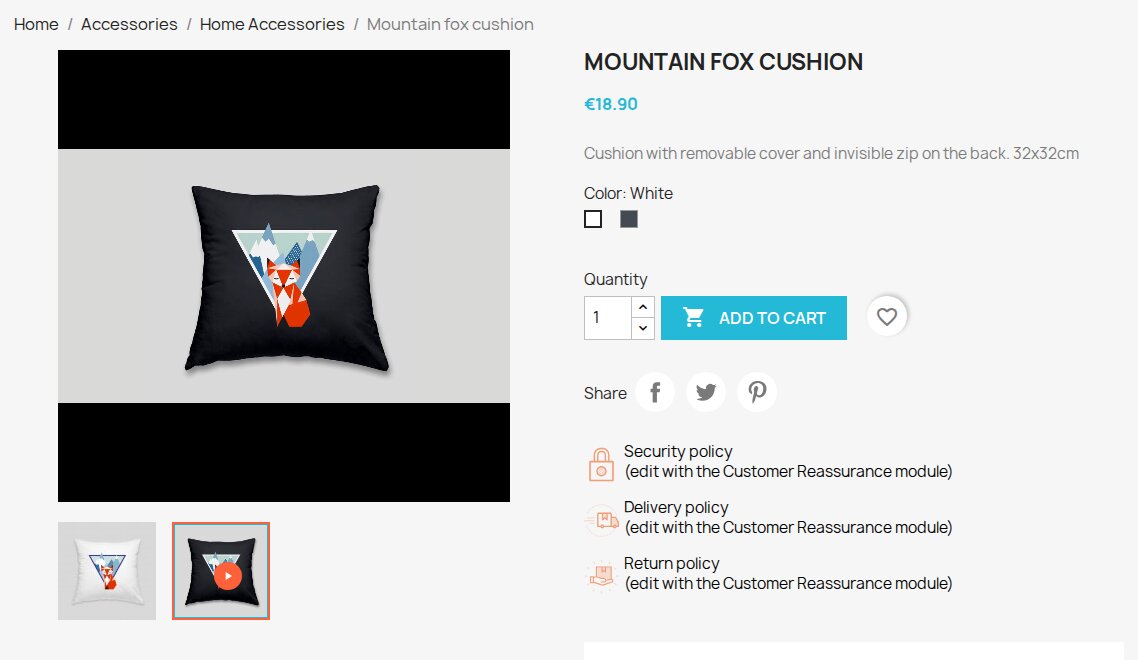
Set shop defaults
Open Product Videos > Settings > Configuration. These values apply to the selected shop unless a product or video overrides them.
| Setting | Initial value | What it controls and when to change it |
|---|---|---|
| Display mode | Video strip below the gallery | Choose the separate section, or Inside the product gallery for a supported native gallery. Check your actual theme after changing it. |
| Show video strip | On | Enable the video section. Keep it On for gallery mode too. Turn it Off for a tab-only setup. |
| Show product tab | Off | Enable to add the Videos section through the theme's product extra-content or tab integration. |
| Enable VideoObject JSON-LD | On | Supply structured video information on product pages when required details are available. |
| Autoplay product-page videos by default | Off | Allow an eligible video cover to start automatically in a supported gallery. This does not start every clip in a strip or tab. |
| Mute product-page videos by default | Off | Set the inherited sound choice. Automatic gallery-cover playback forces mute. |
| Show listing badges | On | Add a play control to supported product listings. |
| Autoplay video on listing miniatures | Off | Attempt automatic playback of a video cover over its listing image when sufficiently visible. Enable only after checking page weight and playback. |
| Mute listing autoplay | Off | Request muted listing playback. Enable alongside listing autoplay if you want silent automatic starts. Unmuted autoplay may be blocked. |
| Enable hover preview | Off | Enable muted self-hosted previews on devices that support hovering. |
| Require consent before embeds | Off | Gate the player and remote poster behind agreement. This can also gate self-hosted clips that inherit it. |
| Default aspect ratio | 16:9 |
Set frame proportions and the poster crop shape. Enter a ratio such as 16:9 or a percentage such as 56.25%. |
| Maximum video upload size (MB) | 0 |
Use the server limit. Enter a non-negative whole number to impose a module limit. The same effective limit applies to poster uploads. |
The accepted aspect-ratio range is from 1:3 to 5:1, equivalent to height percentages from 300% to 20%. Invalid values are refused.
The effective upload maximum cannot exceed PHP's upload_max_filesize or post_max_size. Increasing the module setting does not increase those server limits. The form shows the current server maximum.
Override settings for a product or video
Product choices
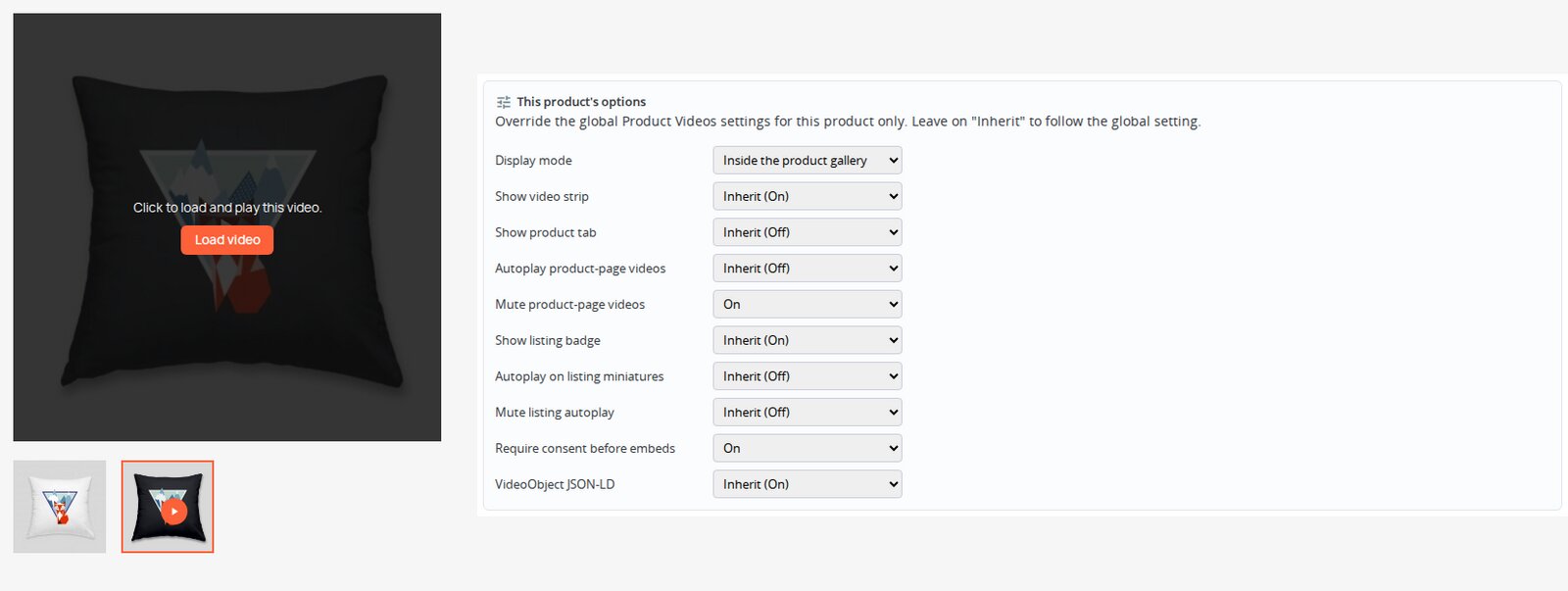
Open This product's options in the product's Product Videos panel. New product overrides use Inherit. This follows the selected shop's current value.
Display mode also offers Video strip below gallery and Inside the product gallery. The following controls offer Inherit, On and Off:
- Show video strip
- Show product tab
- Autoplay product-page videos
- Mute product-page videos
- Show listing badge
- Autoplay on listing miniatures
- Mute listing autoplay
- Require consent before embeds
- VideoObject JSON-LD
Change a product override when that product needs different placement or playback. Return it to Inherit when you want it to follow the shop setting again.
Hover preview, aspect ratio and upload limits remain shop settings.
Video choices
In the video editor, Autoplay, Muted, Consent gate and VideoObject JSON-LD each offer Inherit, On and Off. Inherit follows the effective product choice, then the shop default. An explicit video choice takes priority for that clip.
Listing autoplay and listing mute use their separate shop or product settings. A clip's Autoplay and Muted controls do not override those listing settings.
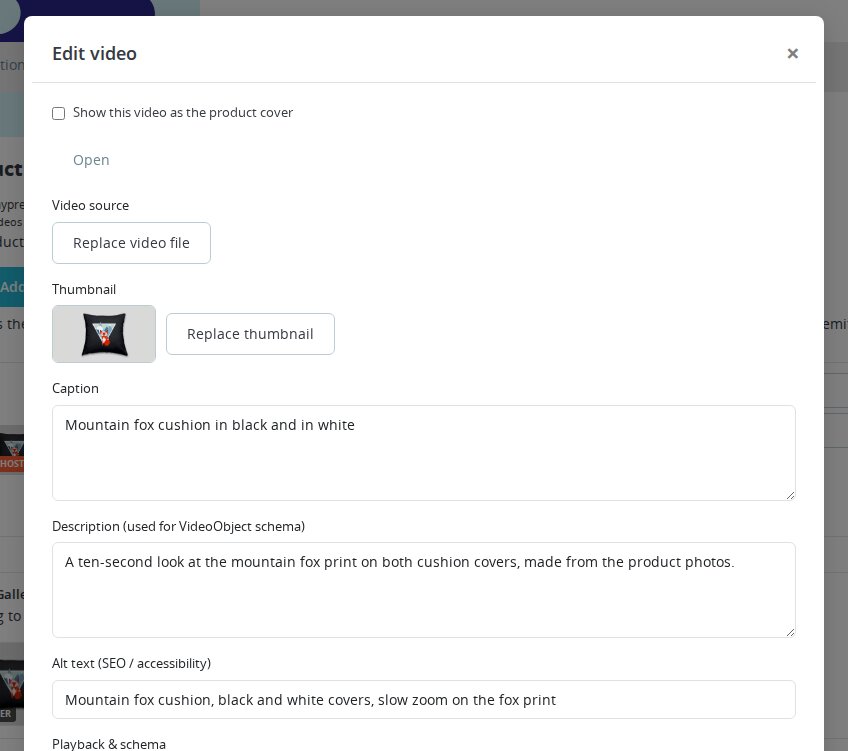
Edit the source, poster and translated text
Use Add a video for a new record. Open an existing video to change it.
| Editor control | What to enter or check |
|---|---|
| Link / Video URL | An accessible URL from a supported provider or a supported direct video URL. A recognized provider may return a title and poster. |
| Upload file | A browser-ready MP4, WebM or Ogg file within the effective upload limit. The extension must match its detected file type. |
| Video source | Review the stored source. You can paste a different link to replace it. |
| Replace video file | Select a replacement upload when editing a stored clip. |
| Thumbnail / Replace thumbnail | Supply a custom poster when the automatic image is absent or unsuitable. |
| Caption | Enter the video's title in each language. This is a text title, not a speech subtitle track. |
| Description (used for VideoObject schema) | Enter the translated video description used for structured information. |
| Alt text (SEO / accessibility) | Describe the poster image in each language. |
| Set as product cover | Select this video as the product's video cover in the selected shop. |
| Playback & schema | Review Autoplay, Muted, Consent gate and VideoObject JSON-LD. |
For an uploaded clip without a supplied poster, the editing browser attempts to capture a still frame. Upload a custom poster if frame capture fails or gives an unsuitable image.
Select the thumbnail's crop control to reposition and zoom the image within the frame. The configured aspect ratio determines the crop shape. Server image support is required to process it. Use a still image if an animated GIF cannot be cropped.
Use Save video settings to store an edit. Reopen it to check the saved source, image and language fields. Delete removes the selected video and reclaims its uploaded files when no remaining record needs them.
Arrange photos, videos and the cover
Use Gallery order (images + videos) to drag photos and clips into the intended sequence. The module also saves the product's photo ordering. In multishop, video settings and records belong to the selected shop, but the product-image order is shared by shops using those images.
Only one video cover is selected for a product and shop. In a supported native gallery, that video becomes the initial gallery media. In listings, its poster can represent the product if an image is available and consent permits loading it. Check the cover after changing either the video selection or the native photo cover.
For a folding-chair demonstration, try this arrangement:
- Set Display mode to Inside the product gallery and Show video strip to On.
- Keep an overall photo as the cover.
- Arrange the media as overall photo, opening demonstration, hinge photo.
- Set the clip's Caption to How the chair opens and folds. Keep Autoplay Off for this test.
- Set Consent gate to On if you want agreement before that clip loads.
You supply the example product, photos and video.

Choose storefront placement
Product page
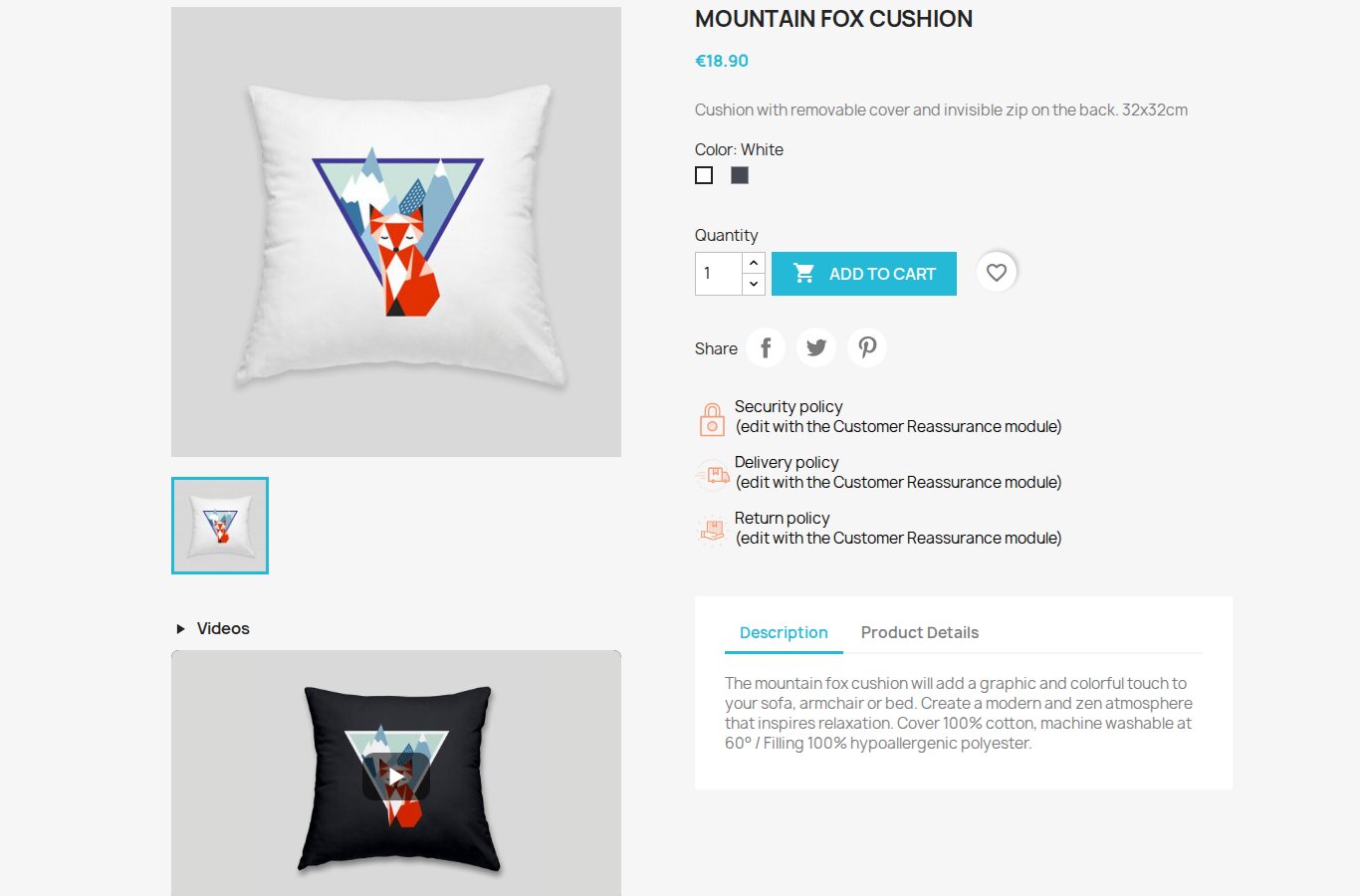
The separate video strip is the initial display mode. You can also enable Show product tab. For instructions grouped only in the Videos tab, enable Show product tab and disable Show video strip.
Native gallery display supports Classic and Hummingbird, with a legacy default-bootstrap adapter also included. Other themes and heavily customized galleries need a placement check. When the expected gallery is unavailable, the module keeps a separate video section as fallback.
Selecting a video creates its player. Selecting another photo or video stops the previous gallery player. The product page uses active video records for the current product, shop and language.
With compatible Gallery Revolution coordination, Product Videos contributes its video section to the owned gallery area and avoids rendering it again in the native position. If that contribution is unavailable or ownership is uncertain, it uses a visible adjacent section. Not every Gallery Revolution layout shows videos as slides, so read the placement notice in Configuration and check the product page.
Listings
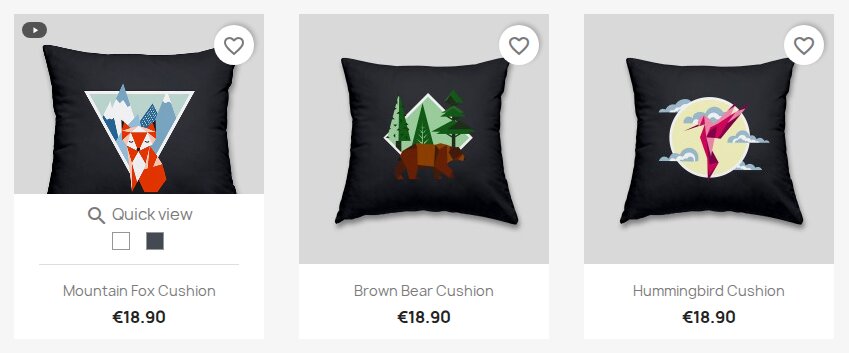
The listing badge opens a window containing the product’s videos and thumbnails. Supported listings include category, search, manufacturer, supplier, special offers, new products and best sellers. Controls remain available after supported product-list refreshes.
Optional listing autoplay requires a video cover and a suitable browser. It starts when at least 60% of the observed media area is visible. Only one listing autoplay player is kept running at a time. Playback stops when it leaves the visibility threshold.
Hover previews use self-hosted video, play muted and stop when the pointer leaves. You need a device with hover support. Reduced-motion and reported data-saving or slow-connection preferences suppress automatic cover playback and hover previews. Consent-required listing clips skip automatic and hover playback and use the badge to reach their prompt.
For a silent fabric-motion preview, use a self-hosted clip, enable Enable hover preview and test a hover-capable device. Keep the listing badge available for opening the video window.
Configure and test consent
Enable Require consent before embeds at shop or product level, or set the clip's Consent gate to On. Consent starts Off at shop level, so enable it wherever you require the prompt.
For a gated clip, the player and remote poster wait for agreement. Posters stored through the module under the shop's img/mprproductvideos/ path remain visible. Agreement is remembered per provider in that browser's local storage. Clearing that storage removes the remembered choice. If browser storage is unavailable, the browser cannot remember agreement for later visits.
The choice is separate from Cookies Revolution. A choice in one interface does not automatically update the other. It also applies to self-hosted clips when their effective consent setting is enabled.
Test in a browser profile without saved agreement. Check the prompt before playback, grant agreement and verify the clip plays. Reload and test another clip from the same provider. Clear storage when you need to repeat the first-visit test.
Check video structured information
Keep Enable VideoObject JSON-LD enabled if you want the module to emit structured information for eligible clips. A product or video override can disable it.
Output requires a name, thumbnail and upload date. The module uses the video title or product name. It prefers the saved video description, then video title, product short description and product name. If the source has no upload date, it uses the date the video was added to the shop. A valid saved duration is included when available.
Supply a custom poster if no thumbnail is available. Check the product page source for VideoObject after saving. These details describe the recording.
Verify and troubleshoot
After changing placement, playback or source, check the product page and at least one supported listing in your actual theme. Test each language, a mobile viewport, consent before agreement, manual playback and sound. Refresh the product editor to confirm the saved order and cover.
| Problem | What to check |
|---|---|
| Add a video or settings cannot be used | Save the product, select one shop and check employee permissions for Configuration. Reload the back office page if the session token has expired. |
| Gallery videos remain in a separate section | Confirm Inside the product gallery, keep Show video strip On and check supported gallery markup and the Gallery Revolution notice. |
| No product tab appears | Enable Show product tab and check whether the theme renders the relevant product extra-content integration. |
| A file is rejected | Check the allowed extension, detected MIME type, module limit and PHP upload limits. Video extensions and MIME types must agree. |
| Uploads or deletion fail | Check write permissions and storage under img/mprproductvideos/, the temporary upload directory and shop logs. |
| A poster is missing or crop fails | Upload a supported still image. Check GD support and file limits. Use a custom image when provider lookup or browser frame capture fails. |
| Autoplay does not start | Check the relevant cover and effective settings. Enable mute for listing autoplay. Check consent, reduced motion, data saving, visibility and browser/provider restrictions. |
| Hover preview does not start | Use a self-hosted clip and a hover-capable device. Check the shop hover setting, consent and motion/data preferences. |
| A remote poster stays hidden | Grant the video's consent or use a poster uploaded into module storage. |
| VideoObject is absent | Check shop, product and video settings, plus the required name, poster and date. |
The module does not provide viewing reports or saved playback positions. You maintain the recordings, poster images and translated text yourself.
Uninstall
Back up video records, translated text, settings and uploaded files before removal. Use the module's Uninstall action.
Successful uninstallation removes its video tables, settings and uploaded media. Videos stored at external providers remain there. If uploaded-media cleanup fails, uninstallation stops before removing the schema. Check file permissions and PrestaShop logs, then retry.
Questions
No questions about this module yet
Ask anything about installation, compatibility or setup. Answers appear here.
Known Issues
13
Video order changed between galleries
Gallery interactions interrupted video playback
Administration requests failed on PrestaShop 9
Saving a video overwrote translated details
Video settings could cross shop boundaries
Adding a video could fail or create duplicates
Failed video addition could leave missing media
Image and video covers could conflict
Failed uninstall could remove media still in use
Fresh installation or product editing failed
Saved video order could be reversed
Thumbnail failures were not reported correctly
Security hardening
Feature Requests
7
Implemented
Product gallery videos
Uploaded videos and Dailymotion
Thumbnail cropping and repositioning
Unified video editor
Hummingbird gallery support
Consent before media loading
Complete PrestaShop 1.6 video integration
Changelog
v1.6.32026-10-07
- Installs cleanly on a fresh PrestaShop 8.2 shop.
- The video editor opens in the module's dialog on the PrestaShop 8 and 9 product page, with an Add video button and an Edit action on every row; dialogs keep their width and close button on the new back-office theme.
- Every editor action works on PrestaShop 9, including saving the gallery order, setting the cover and deleting.
- When PrestaShop's own image editor adds, removes or reorders images while the page is open, the gallery order refreshes instead of overwriting that change, and unsaved product fields are kept.
- Switching to the module tab no longer marks the product as modified.
- Uploaded videos get neutral consent wording; external embeds keep the provider notice.
- Labels with special characters display correctly in the editor.
Demo
Test the full module before you buy
Buy a licence later and keep your settings.
- Your 30-day demo Test it on your own shop for 30 days from the first install.
- Ready demo shop Explore a ready demo shop in your browser.
- No registration No account, email or store domain needed.
By downloading, you accept the demo terms and privacy policy.
By opening this demo you accept the demo terms and the privacy policy.