


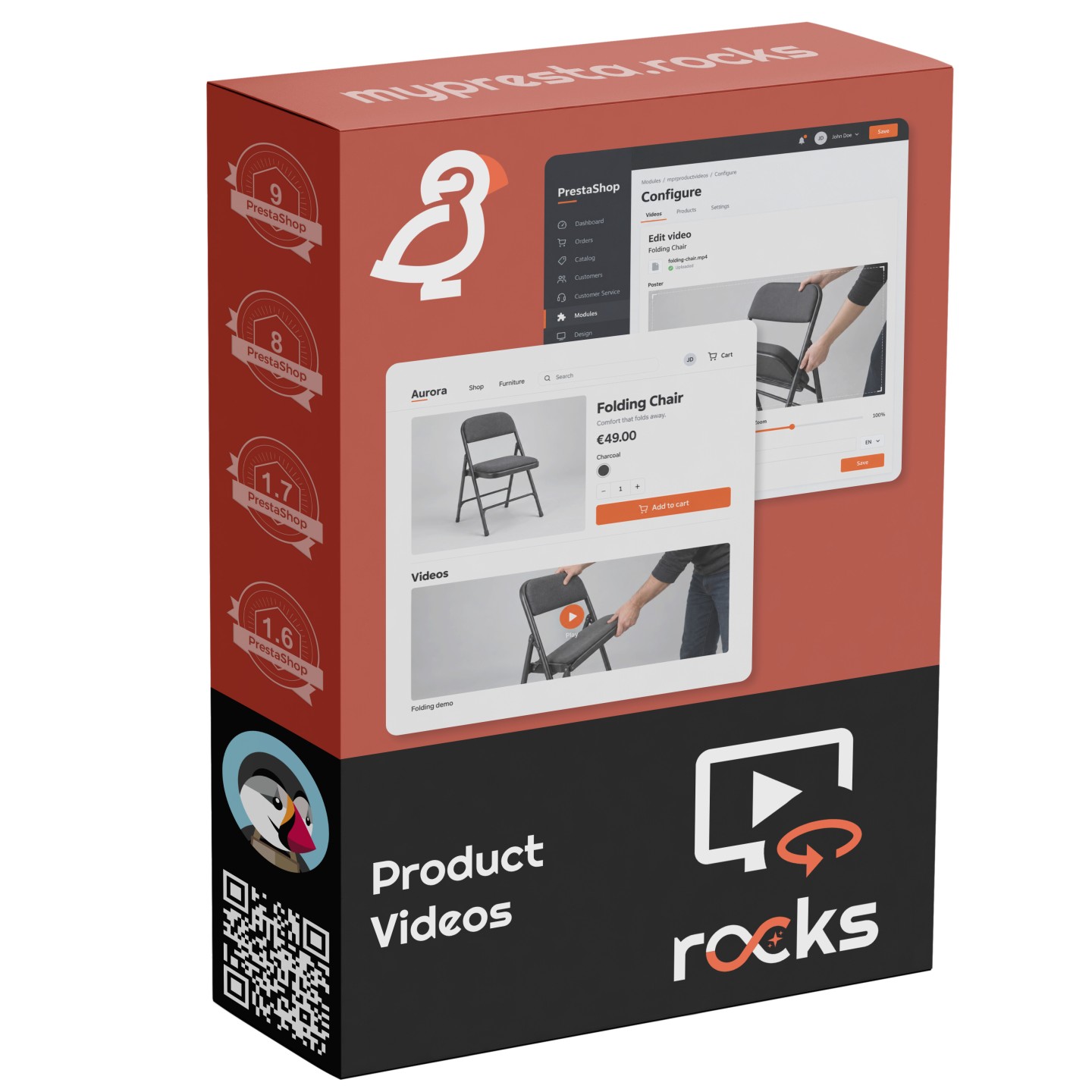

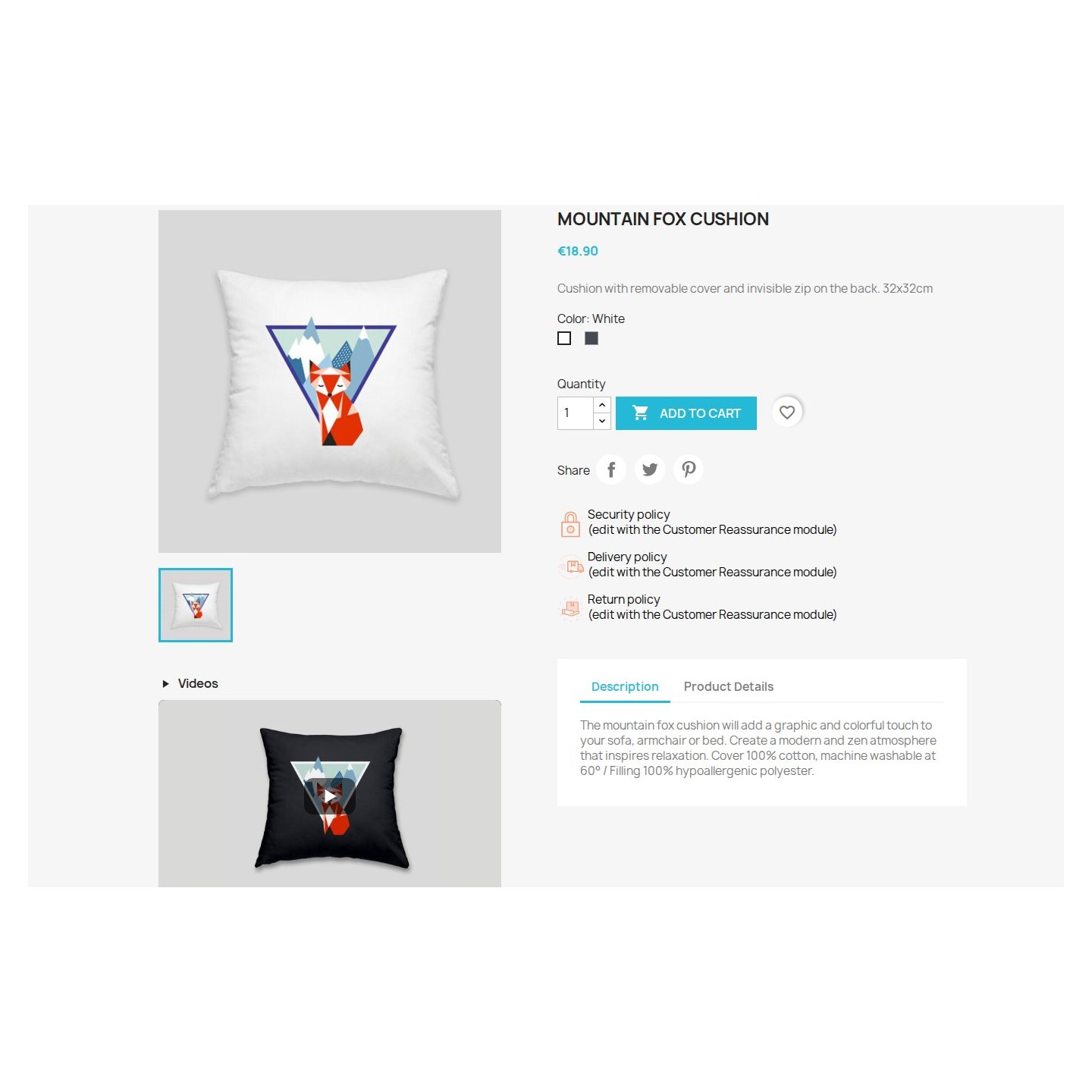

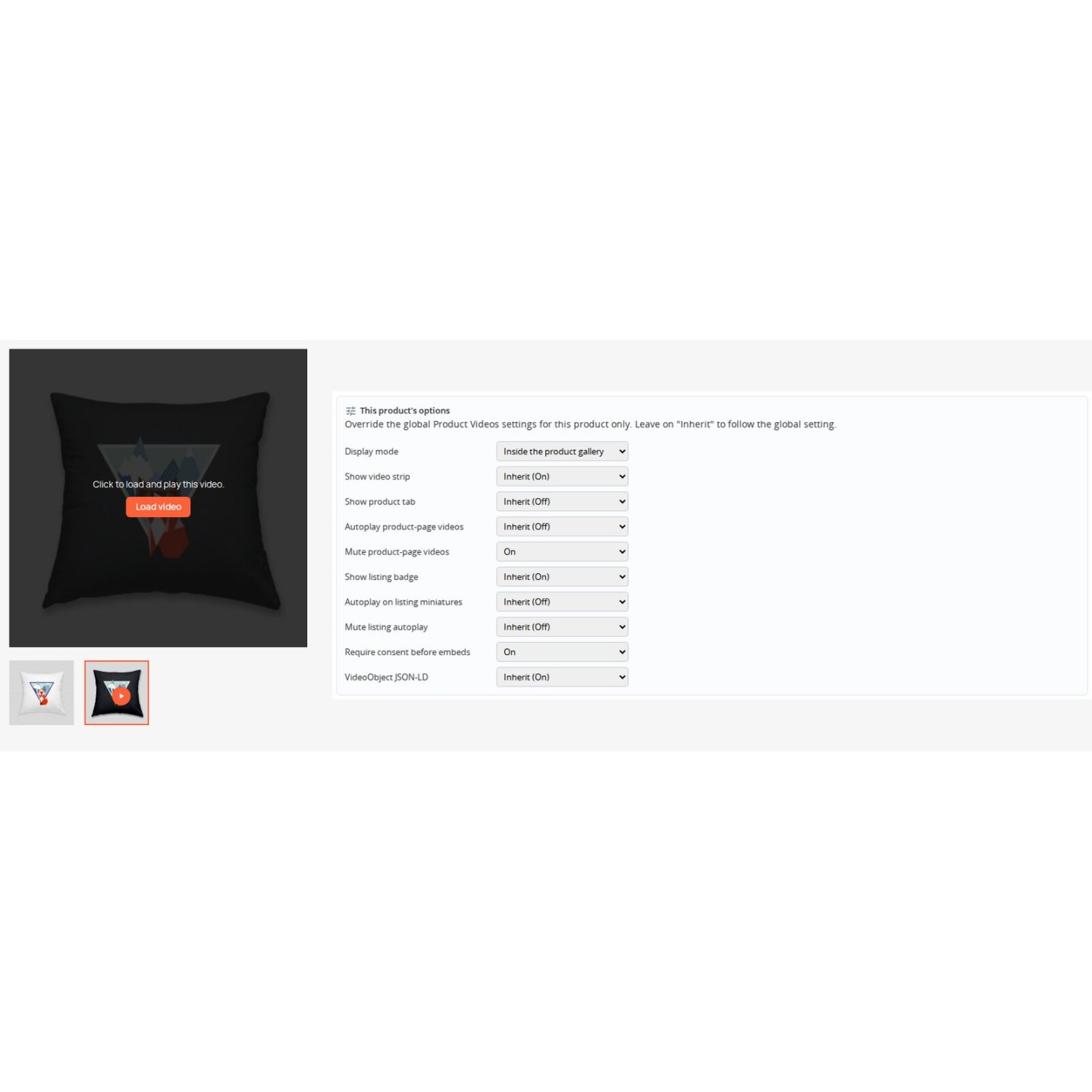
Show products in use on PrestaShop with Product Videos and arrange demonstrations alongside product photos


Product Videos is a module for PrestaShop stores that adds product demonstrations to the product page and helps customers find them while browsing your catalogue. Setup starts in the product editor with a video link or an uploaded clip, followed by your choice of where it appears.
YouTube, Vimeo and Dailymotion links bring videos already hosted on those services into the shop. Self-hosted video links and direct uploads give you another source for your own demonstrations. A clip shows how a product folds, fits together or works in use, so customers see the action behind the product photos.
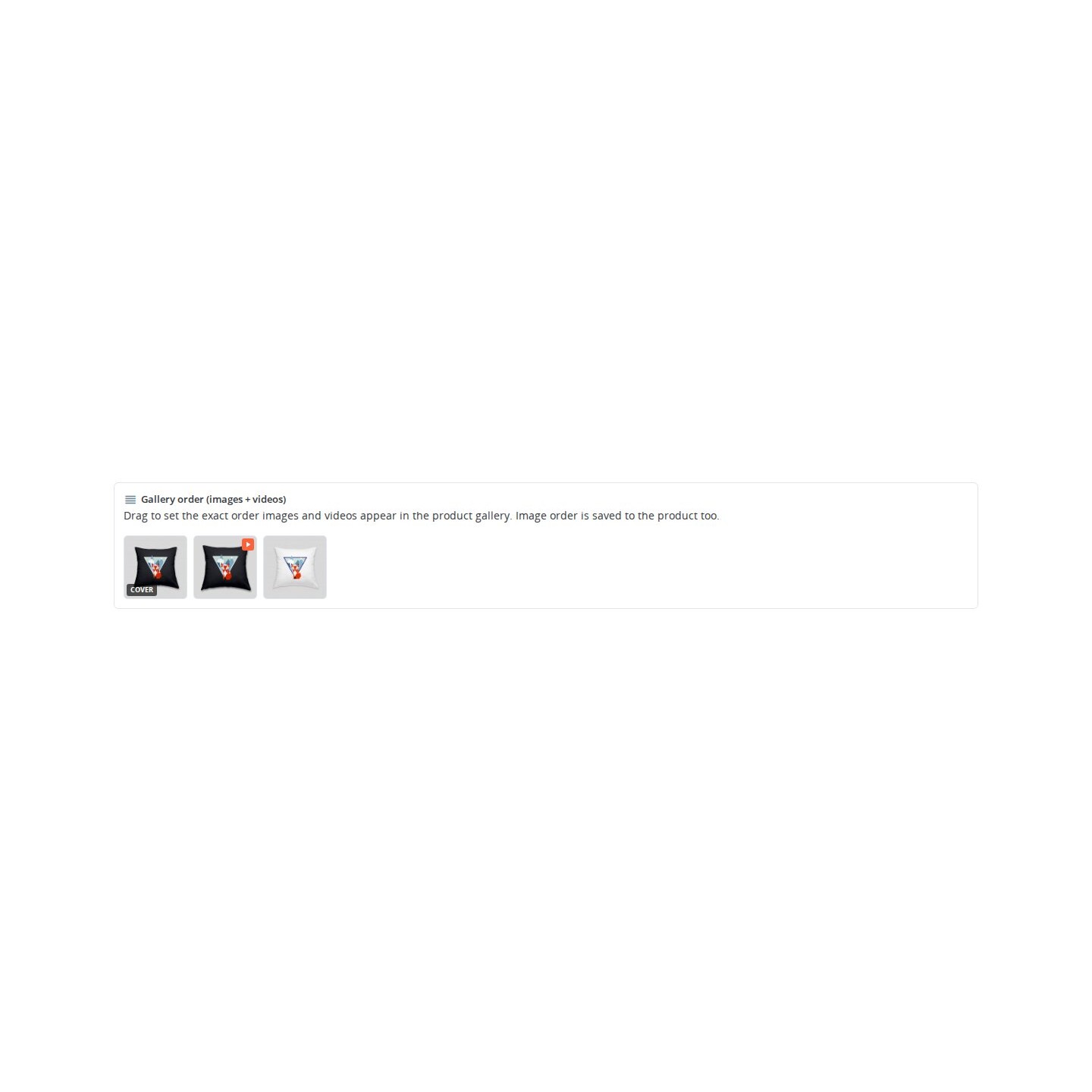
The module is straightforward to start and gives you detailed control as your catalogue grows. You choose a separate video strip, an optional Videos tab or a place inside a supported product gallery. Photos and videos share an ordering screen, and a video cover puts the demonstration first. Shop defaults keep the presentation consistent, with separate choices for individual products and clips.
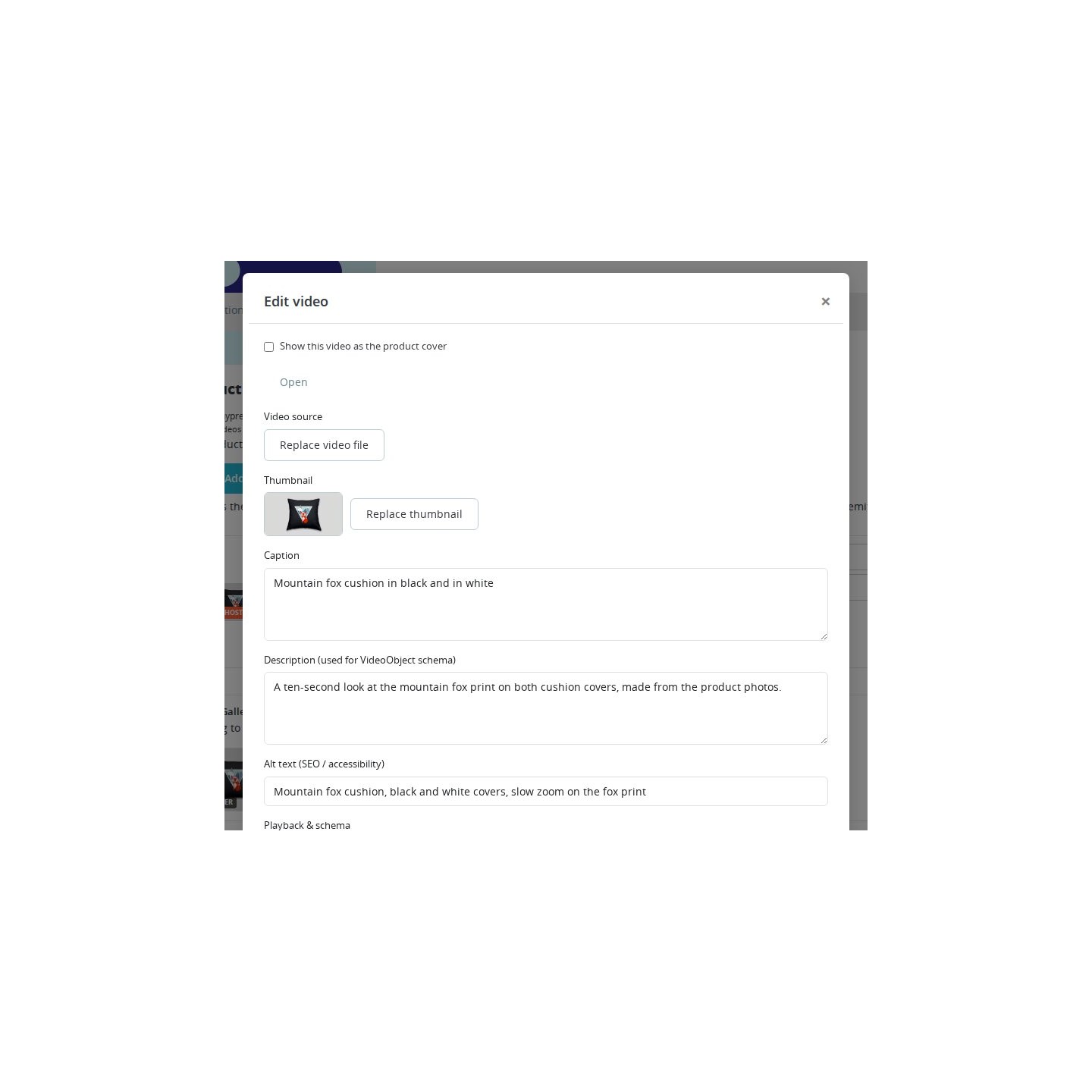
Custom thumbnails show the detail you want shoppers to notice before playback. Titles, descriptions and alternative text are editable in each shop language. Listing badges open videos while customers browse, and self-hosted clips offer optional hover previews. Playback and consent settings decide how the demonstration starts.
Customers see how the product works, your team has a visual answer to recurring product questions, and demonstrations stay alongside the information shoppers use to choose.
What does Product Videos add to your shop?
- Demonstrations in a video strip, an optional tab or a supported product gallery
- Photos and videos arranged together, with a video cover when the demonstration should lead
- YouTube, Vimeo, Dailymotion and self-hosted sources, including direct video uploads
- Custom thumbnails and video text in each shop language
- Listing badges, video windows and optional self-hosted hover previews
- Shop defaults, product and clip settings, and a consent prompt before playback
Product Videos adds demonstrations to the places where customers assess your products. A folding chair opens, a fitting slides into place or a fabric moves on camera, giving the shopper a view of the product in use alongside its photographs.
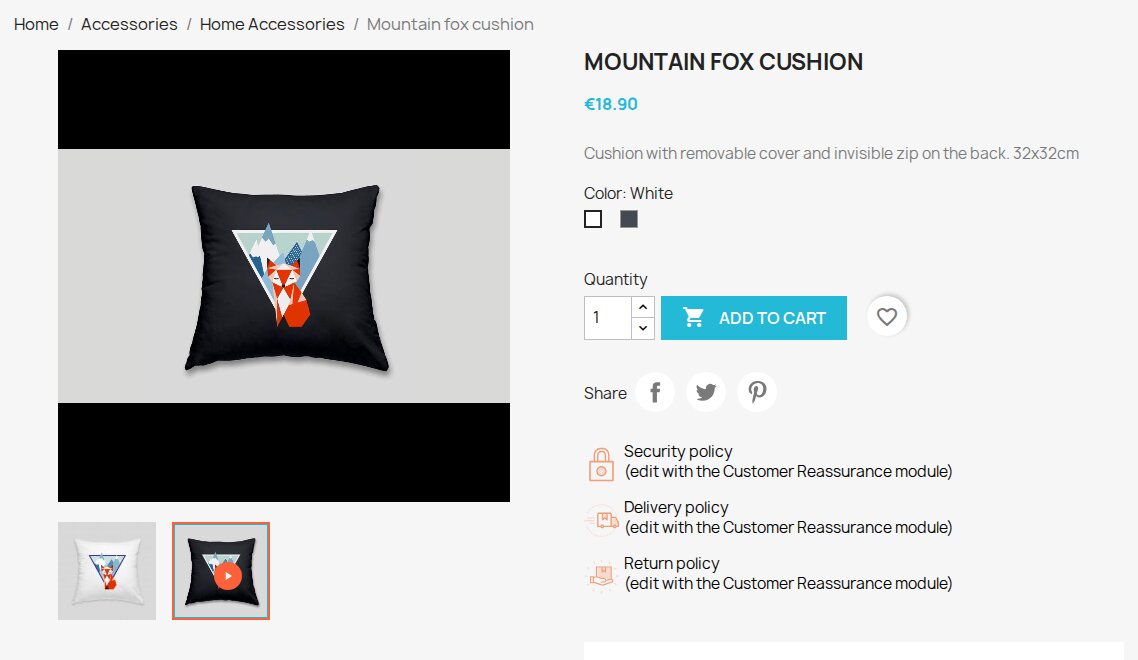
Where will customers find the demonstration?
You choose the position that suits the product page: a video strip near the gallery, a separate Videos tab or videos among the gallery photos on supported themes. A demonstration stays close to the product details, so customers watch it while considering that item.
When the theme cannot mix photos and videos in one gallery, demonstrations appear in a separate section on the product page. With a compatible Gallery Revolution setup, the video section appears within or beside its gallery, keeping demonstrations close to the product photos.
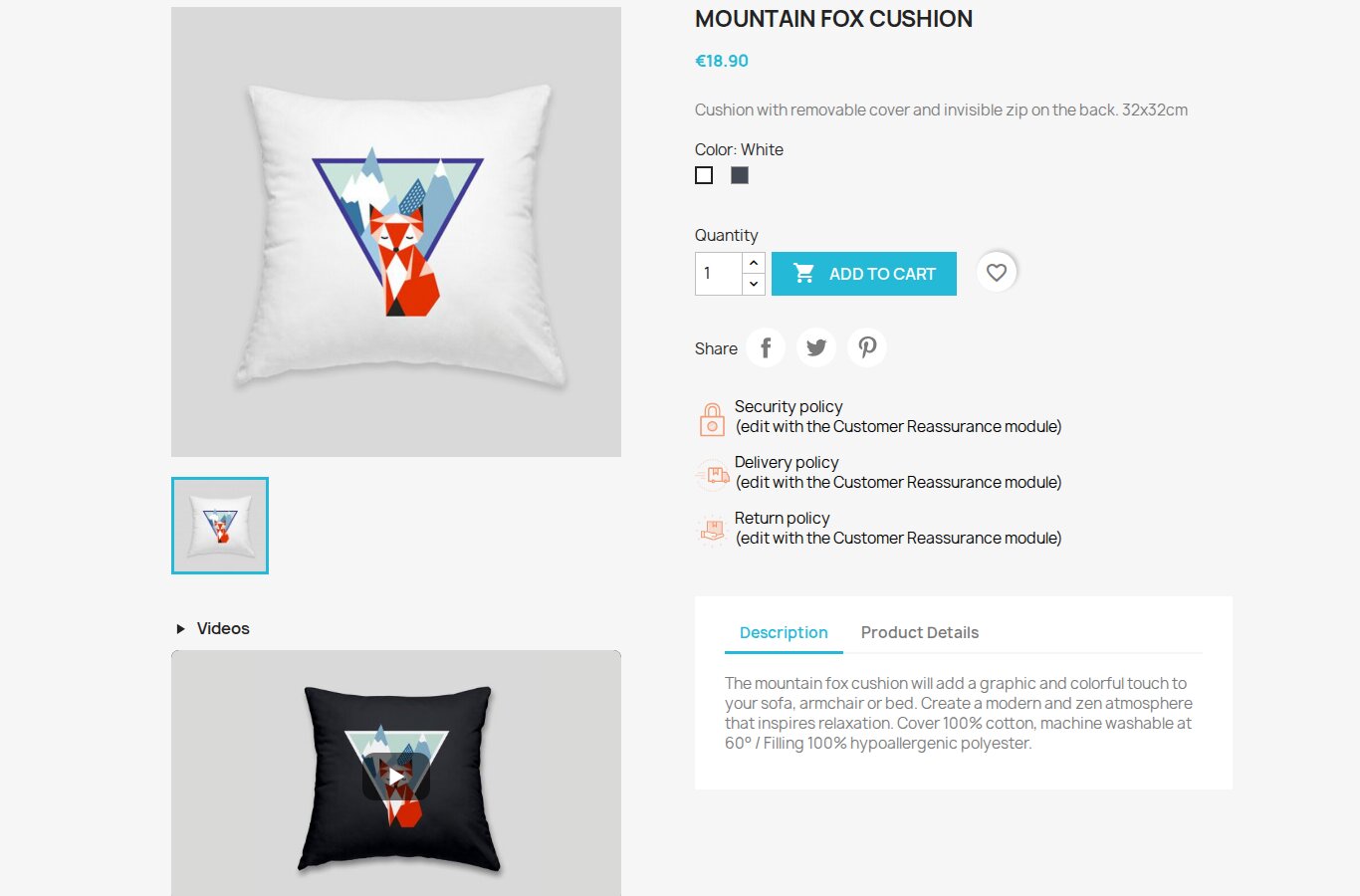
Which photo or video should customers see first?
You arrange photos and videos together in the product editor. An overall photo might come first, followed by a demonstration and then a close-up of the finish. The saved order gives customers a deliberate sequence as they examine the product.
A video cover leads with the demonstration in a supported gallery. Its thumbnail also represents the product in listings when available to display. This suits products whose movement or operation explains their purpose better than a still image alone.

How do your existing clips become product demonstrations?
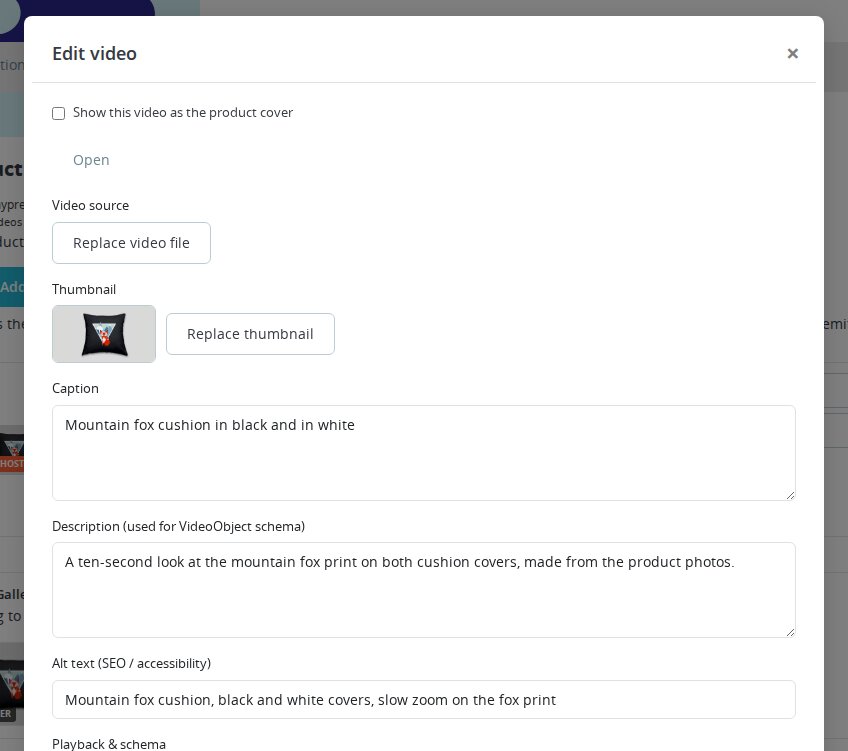
A YouTube, Vimeo or Dailymotion link, a self-hosted video address or an uploaded clip becomes a video attached to the product. The editor brings the source, thumbnail and descriptive text together, so the person maintaining the product also maintains its demonstration.
You replace or crop the thumbnail to show the useful detail before playback, and write the title, description and alternative text in each shop language. When enabled and supplied with the required details, the module also describes the video to search engines, so your team maintains its search information alongside the product.
Will shoppers notice the video while browsing products?
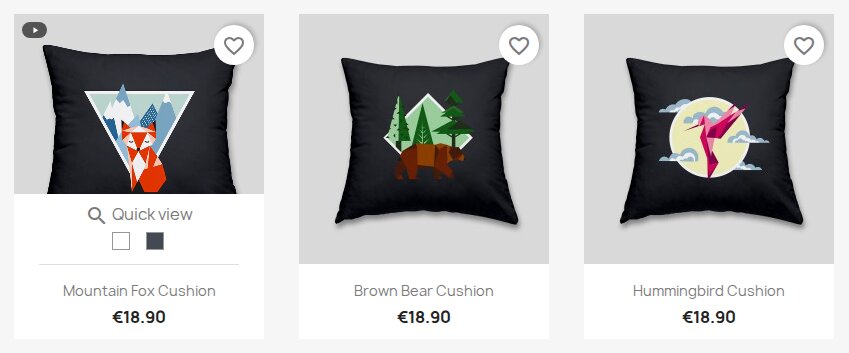
A play badge on a product listing opens an in-page video window. Customers watch the demonstration and choose between the product's clips while staying on the listing, which helps when they are comparing several items.
For self-hosted clips, an optional hover preview shows movement over the product image on devices that support it. A separate setting offers automatic playback for video covers in listings. Automatic previews stay off when shoppers request less motion or their browser reports data-saving mode. For videos requiring agreement, the listing's play button opens the consent prompt.
How much control do you keep over playback?
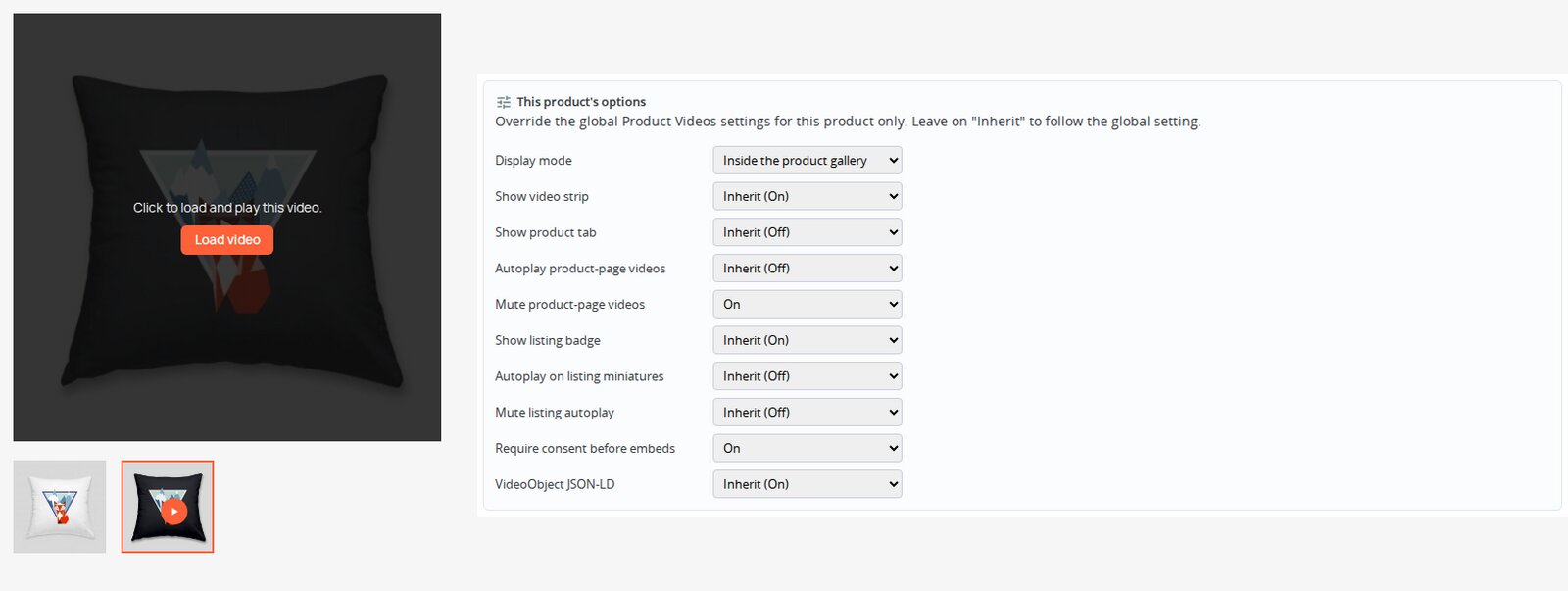
Shop defaults establish the usual presentation, with separate choices for individual products and clips. Automatic playback and sound over listing images have their own settings. A silent product overview and an explanation with spoken instructions need different treatment, even on the same product page.
With consent enabled, customers agree before the player and remote thumbnail load. The module remembers that choice for the video provider in their browser; a thumbnail uploaded to your shop remains available before agreement. Product Videos manages this choice separately from Cookies Revolution, so both have their own settings.
-
Referencemprproductvideos
-
PrestaShop CompatibilityPS 1.7 – 9.x
-
Pricing ModelOne-time Purchase
-
Module TypeFront & Back-office
-
GDPR RelevantYes
-
Business GoalBoost Conversions
-
External Account NeededNo
-
Module ComplexityFeature-Rich Module
-
Customer Journey StageConvert to Buyers
-
Works With PlatformVideo Platforms
What customers say about us
Company reviews
5.0
★
★
★
★
★
(4 reviews)
Loading customer reviews...
No product reviews yet
Be the first to share your experience with this module.
Write a Review
Product Videos by mypresta.rocks places demonstrations on PrestaShop product pages and makes them accessible from product listings. Video sources, thumbnails and descriptions are managed alongside the product, so the catalogue team keeps the presentation together.
Have a question about this product?
Our experts are here to help. Ask anything about installation, compatibility, or specifications.
1343
questions
9
categories
v1.6.32026-10-06
- Installs cleanly on a fresh PrestaShop 8.2 shop.
- The video editor opens in the module's dialog on the PrestaShop 8 and 9 product page, with an Add video button and an Edit action on every row; dialogs keep their width and close button on the new back-office theme.
- Every editor action works on PrestaShop 9, including saving the gallery order, setting the cover and deleting.
Loading full changelog...
Works Well With Product Videos
Modules our team genuinely pairs with this one, and exactly why each belongs in the same setup.
Workflow
Product Videos gives customers demonstrations beside product photos. A shopper sees how a chair folds, how a fitting connects or how a fabric moves before choosing the item. Your team maintains each clip, thumbnail and description from the product editor.
Gallery Revolution handles how the product gallery is presented. It suits shops that want to shape the gallery's appearance while keeping useful demonstrations close to the photos. With a compatible setup, Product Videos places a separate video section within or beside that gallery.
Together, the modules keep product views and demonstrations close together. You manage the gallery presentation through Gallery Revolution and maintain the clips through Product Videos. Customers find the photographs and the explanation in the same product-page area, with the video section shown once.

Complement
Product Videos helps customers understand a product through a demonstration on its page. A shopper comparing folding chairs, fittings or fabrics gets a closer look at how each item works or moves. The clip remains alongside the photos and product information for the next visit to that page.
Recently Viewed Products gives that shopper a route back to products already opened. Its product-history block helps someone return to an earlier option after looking at several alternatives, without having to remember the product name and search the catalogue again.
Together the modules support two parts of comparison shopping: understanding an item and finding it again. The recently viewed block returns the shopper to the product and its demonstration, where the decision can continue. Someone returning through that block finds the demonstration on the product page and chooses the clip to watch.

Governance
Product Videos offers a consent prompt for videos, including delayed loading of remote thumbnails, so the shop decides which demonstrations require agreement before playback. It remembers the shopper's agreement for that provider in the same browser, while a poster uploaded to the shop remains visible.
Cookies Revolution handles the shop's wider cookie choices. It belongs beside Product Videos when the shop needs both a cookie-choice interface and control over how externally hosted demonstrations load. Each module has its own responsibility and configuration.
The two choices remain separate: agreement in the cookie banner does not automatically grant or withdraw Product Videos consent. This pairing helps the shop plan both parts of the customer experience, with the banner covering its configured cookies and Product Videos handling its own player prompt.
 30 days return right
Easy return - no questions asked
 Plug & Play Modules
Install, set up and take profit
 Dedicated Support First
Priority Help & Satisfaction Over Sales
You might also like


