Free Customer Experience & Engagement

Google Address Autocomplete

PrestaShop: Google fills street, postcode, city and state or province where requested, in shop and back office forms

Version
1.0.10
Improvements
31
Updated
PrestaShop
1.6.1 to 9
Price: Free

Google Address Autocomplete is a free PrestaShop module that makes address entry shorter. Customers choose a suggestion in the street field and the street, postcode, city and any state or province requested by the form fill together. Setup needs your own Google key, obtained through a Google Cloud project.

Google Places supplies the suggestions for the country selected in the form. You enable Google’s Maps and Places services, turn billing on and restrict the key to your shop’s domain. The module is free; Google bills your own account for use. The documentation walks through these steps.

Once the key is saved, you choose where suggestions appear. Separate switches cover the customer account, native checkout and back office addresses, alongside an overall switch. Guest checkout and separate invoice addresses are included.

Your team gets the same help in Customers > Addresses. With French Address Autocomplete enabled on the same form, its covered French destinations use the Base Adresse Nationale; other countries use Google. Google details are requested only once per chosen address.

Customers and staff have less to retype, including on a phone. They keep the second address line and remain free to type or edit the address themselves. The ordinary form stays usable when suggestions are unavailable. The list stays beside the street field, so customers finish the address without moving to a separate search page or opening a map.

Pro account: €0.00 excl. VAT on approval, up to €0.00 excl. VAT depending on your purchases. Apply for a pro account

See the tiers
DiscountConditionThis product
−20% On approval €0.00 excl. VAT
−25% Average at least €1,000 in spending per month in the last 12 months €0.00 excl. VAT
−30% Average at least €3,000 in spending per month in the last 12 months €0.00 excl. VAT

By downloading, you accept the free-module terms and privacy policy.

In the box

  • Lifetime licence for one shop
  • Lifetime updates, including security fixes
  • No support included, available separately
  • PrestaShop 1.6.1 to 9

Recent changes

  • Engine 4: every mypresta.rocks address module now shares one address engine, so the Slovak, Lithuanian and Latvian modules work beside the others; source credits in the form the sources ask for.
Full changelog

How does Google Address Autocomplete shorten address entry?

  • Street suggestions. Google Places results in native account and checkout forms, including guests.
  • Filled together. Street, postcode, city and any state or province requested by the form from the selected suggestion.
  • Selected country. Searches follow the destination chosen in the address form.
  • Back office. Address assistance for staff on the native customer address page.
  • Everyday entry. Phone, keyboard and screen-reader access, with manual entry retained.
  • Your Google account. A free module with separate form switches; Google usage is billed to you.

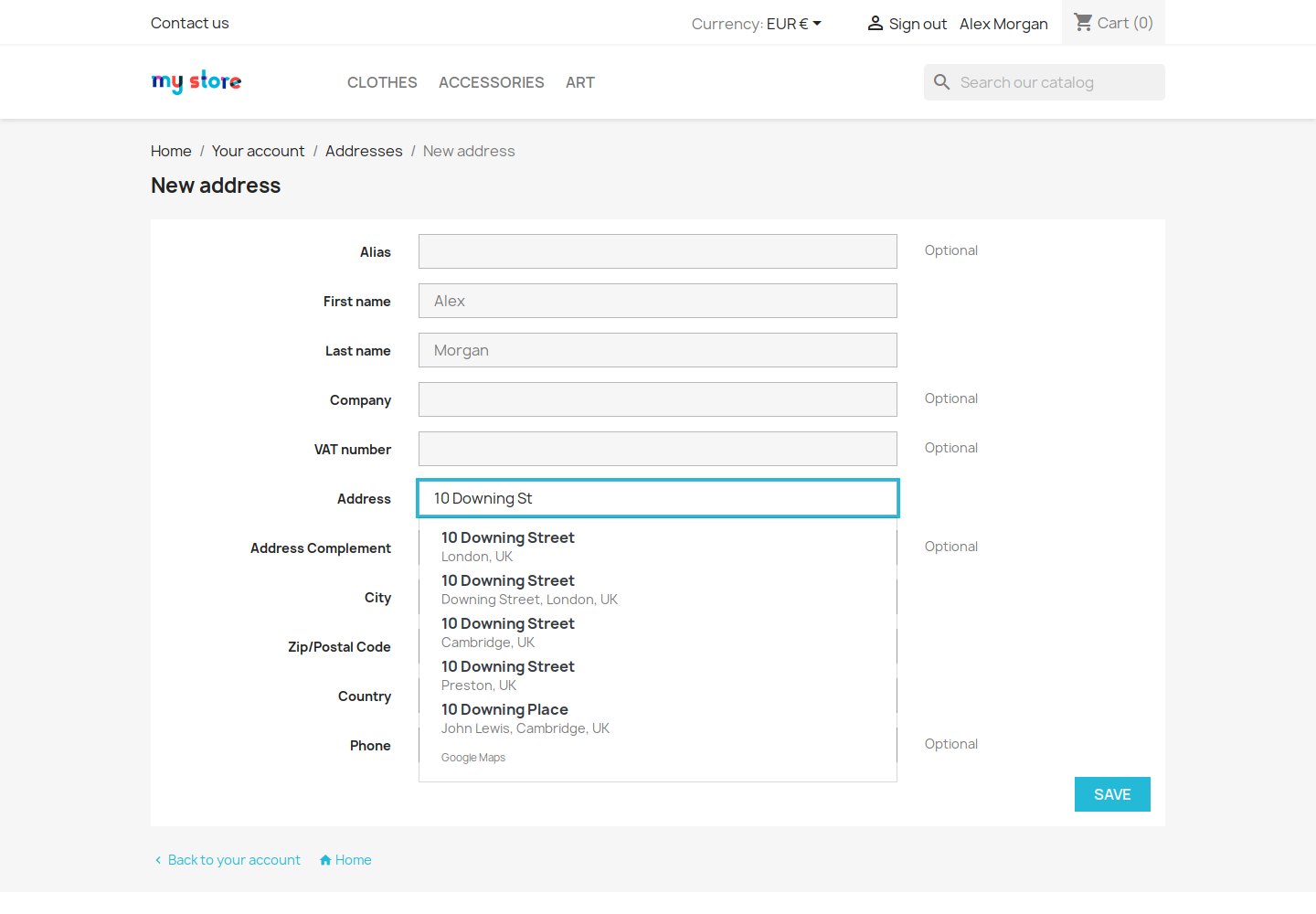
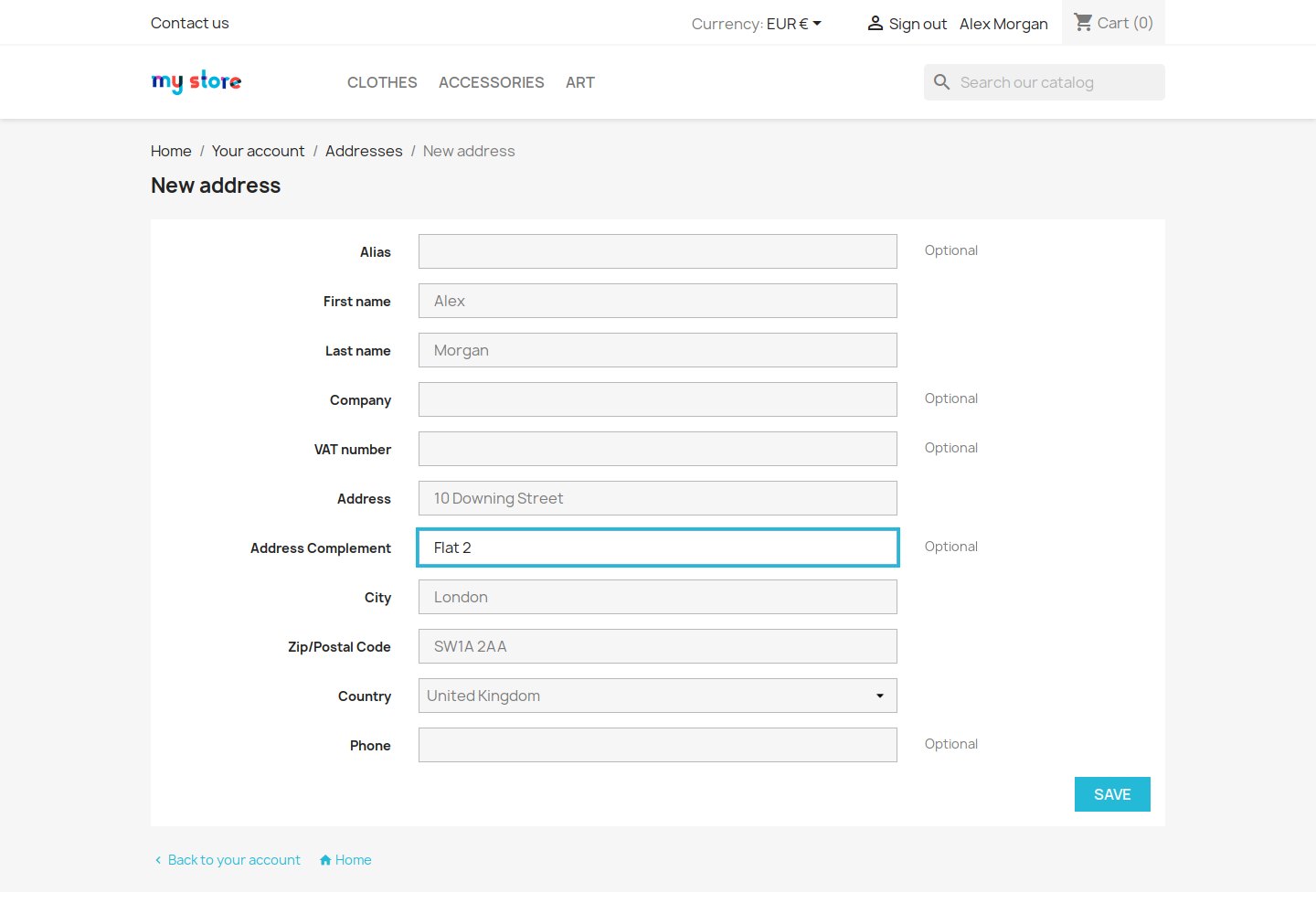
Google Address Autocomplete puts address suggestions under the street field your customers already use. Choosing a result fills the street, postcode, city and any state or province requested by the form in that form. Native account forms and checkout are covered, including guests and a separate invoice address. Customers stay in your existing checkout, while you choose which forms offer the help.

Native PrestaShop account address form with Google suggestions below the street field

What happens when someone chooses a suggestion?

The country stays as selected, and an apartment, floor or entrance already entered on the second line stays intact. Names, company details and telephone numbers are left alone. Customers remain free to edit the result before saving, so the suggestion helps with typing without taking control of the address.

The module asks Google for details only once per chosen address, rather than fetching the details of every suggestion shown. If Google returns a street without a house number, the customer completes it. In countries without postcodes, the postcode may remain empty. Selecting a result helps fill the form; it does not establish that the parcel will reach its destination.

Google selection fills street, postcode, city and state/province where requested

Which countries receive Google suggestions?

The module follows the country chosen in the address form and requests Google Places suggestions for that destination. It works with the countries the shop offers rather than a fixed French-only list. Changing the country changes the search. The results depend on Google’s address data and service availability, so not every street or house number is guaranteed to appear.

When French Address Autocomplete is enabled for the same form, the Base Adresse Nationale supplies mainland France with Corsica, Guadeloupe, Martinique, French Guiana, Réunion and Mayotte. Google supplies the other countries. If the French module is switched off for that form, Google also handles those destinations. The choice follows the country, not the storefront language.

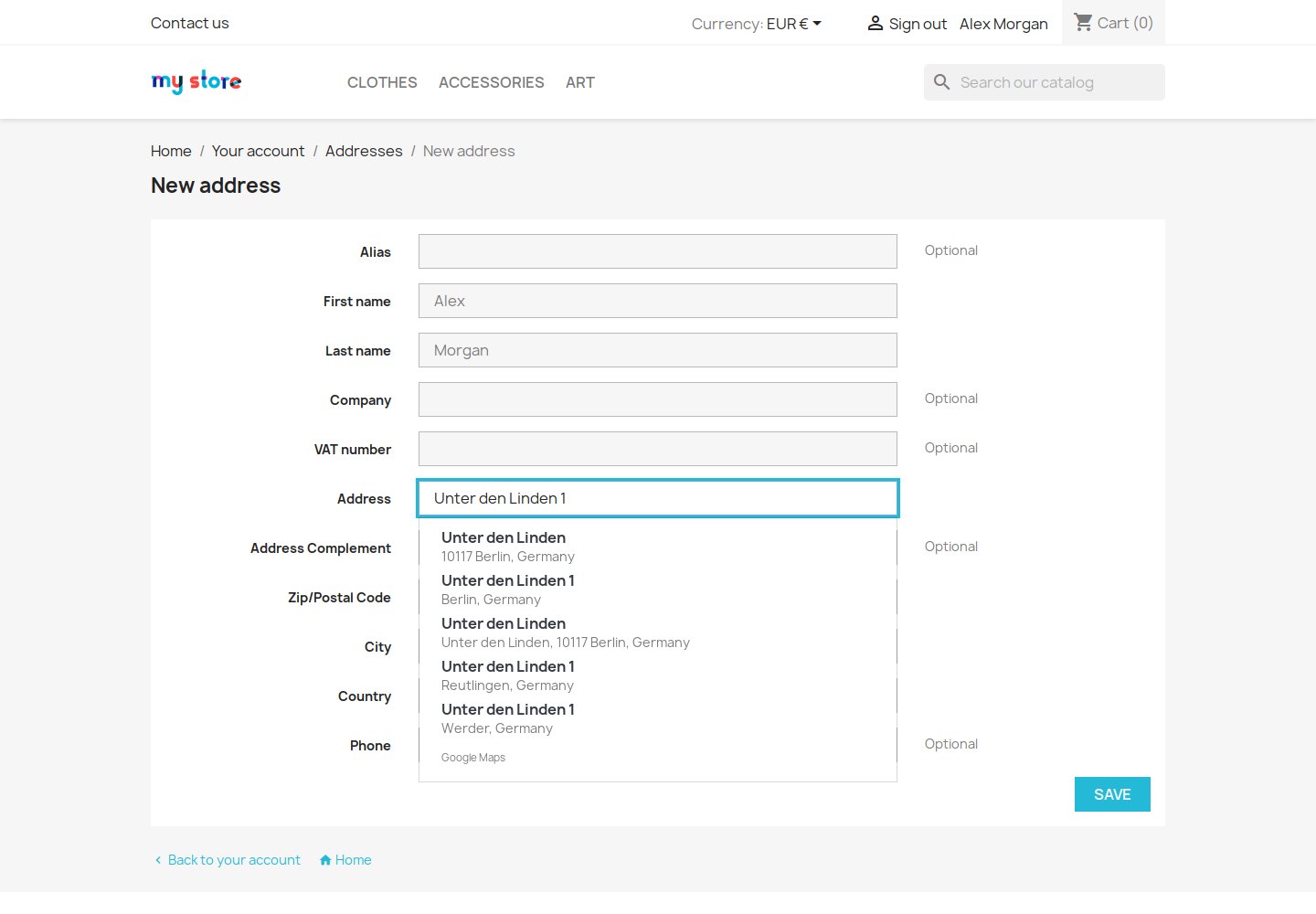
A shop that runs several address modules decides which one answers each country with Use for these countries, for example a UK address service for the United Kingdom and Google everywhere else. A module limited to a list of countries answers there first, so French Address Autocomplete keeps its French destinations. Left empty, Google suggests addresses in every country.

Google address suggestions after selecting another country in the native address form

Where does the back office team receive help?

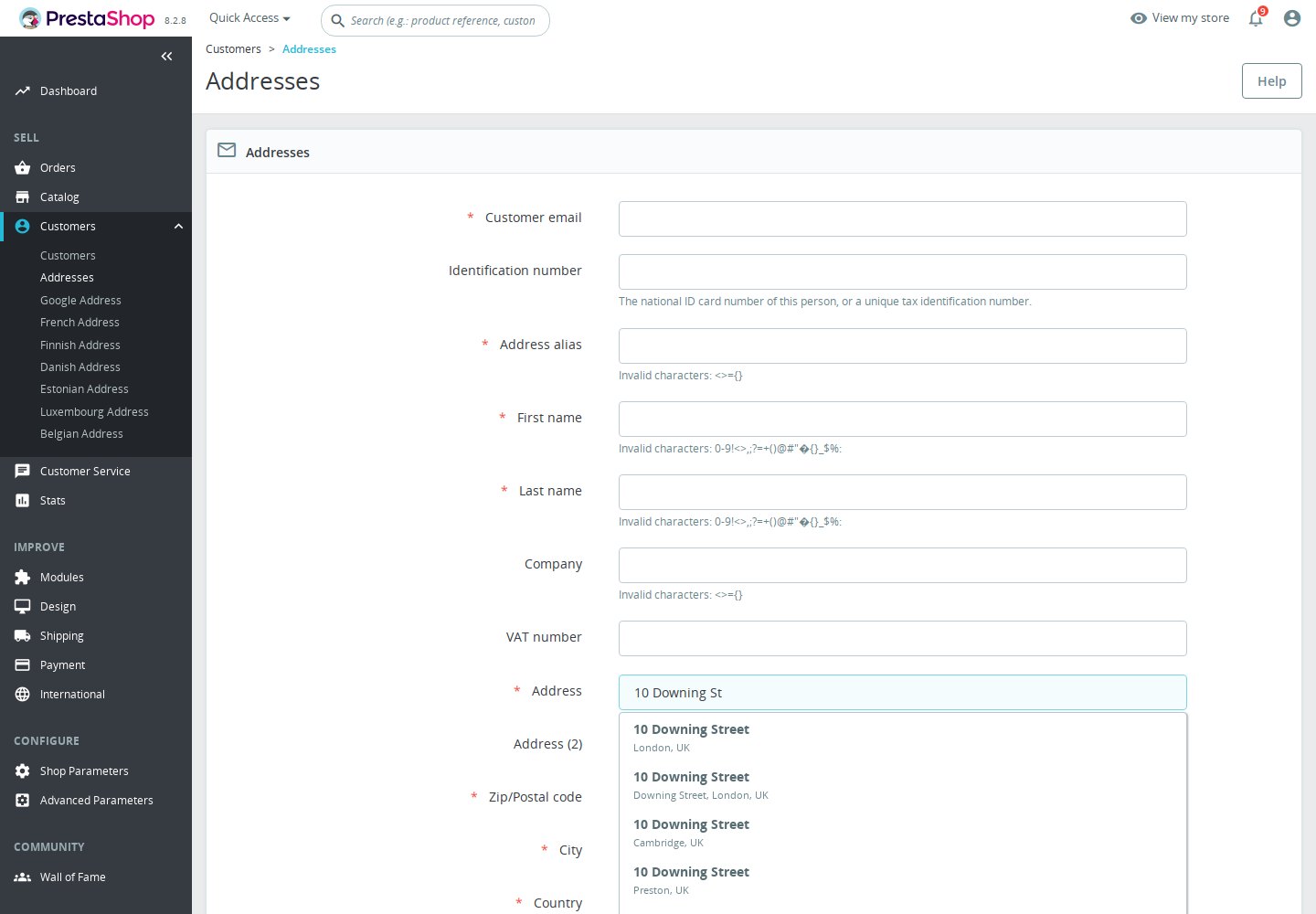
Staff entering a customer address in Customers > Addresses get suggestions in the native street field too. The module fills street, postcode, city and any state or province requested by the form there, helping with addresses entered after a telephone enquiry or while preparing an order. The back office switch is separate from the customer account and checkout switches, so you choose where the assistance belongs.

The integration also targets the native new-order address window when it opens the customer address page. A custom order window or third-party form needs its own check. The back office switch keeps this assistance independent of native checkout.

Google suggestions on the native Customers › Addresses page in the back office

How does the list work on phones and with a keyboard?

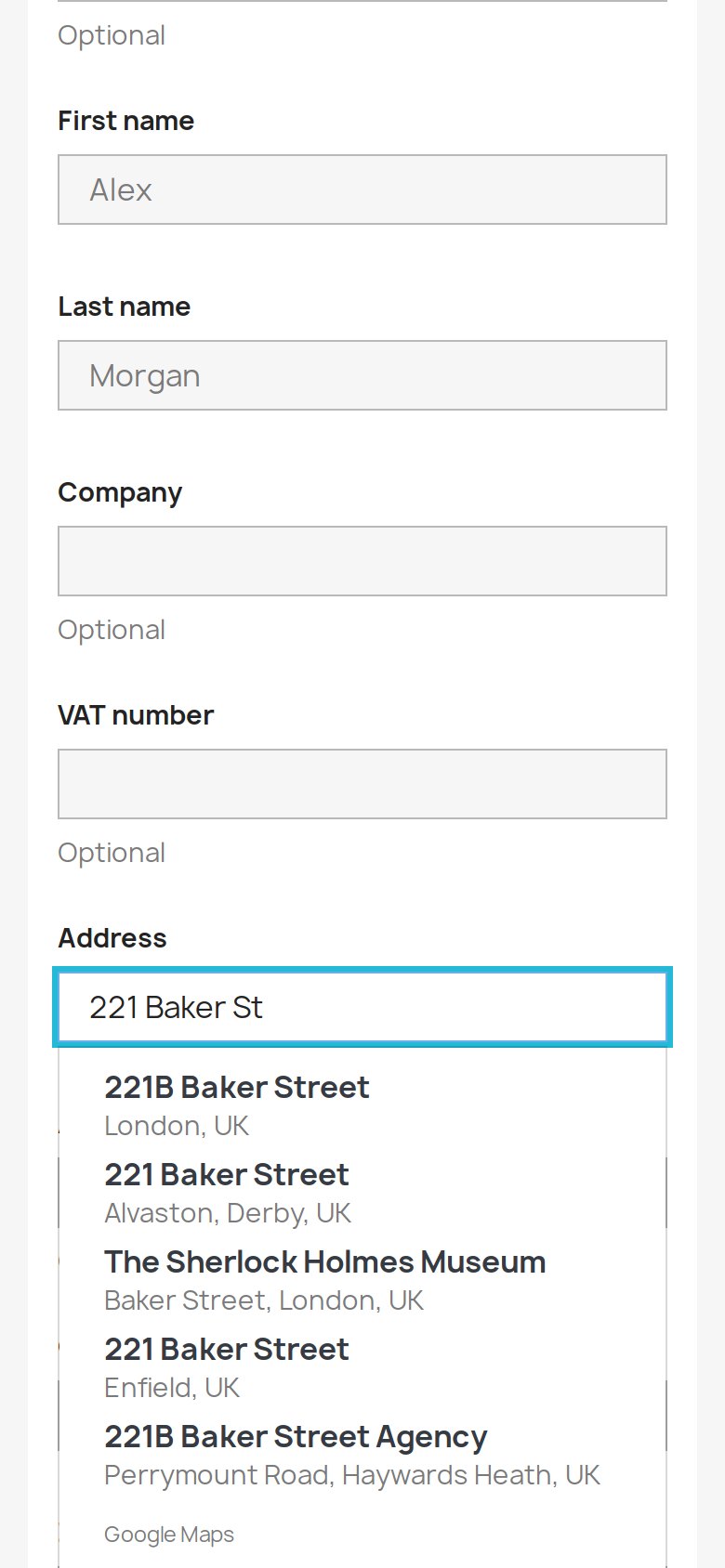
On a phone, the customer taps a suggestion beneath the street field. On a keyboard, the arrows move through the list and Enter selects the highlighted result. Escape or Tab closes it without choosing an address. The dropdown follows the theme’s presentation, keeping the assistance beside the fields people are already completing.

A status message announces the number of results to screen readers, and the list identifies Google Maps as its source. Customers always retain manual entry. When no address matches or the service does not answer, a short message leaves them free to continue typing. Saving the form does not depend on finding a suggestion.

Google street suggestions in the address form at phone width

What does setup involve for the merchant?

You create a Google Cloud project, enable the Maps and Places services, switch billing on and create a key restricted to your shop’s domain. The documentation explains the steps in order. Saving that key starts suggestions on the forms you enable. Google charges your account for use; downloading the free module does not include Google usage.

For the single Settings page, open Configure in Module Manager, or the Google Address entry in the back office menu. An overall switch, separate account, checkout and back office switches, and the key field give you control. During typing, the browser sends the street search to Google. Explain that transfer in your privacy notice.

Google Address Autocomplete settings with the Google key and separate form switches
  • Reference
    mprgoogleaddress
  • Version
    1.0.10
  • Improvements
    31
  • Released
  • Updated
  • PrestaShop Compatibility
    PS 1.6 – 9.x
  • Pricing Model
    Free
  • Module Type
    Front & Back-office
  • GDPR Relevant
    Yes
  • Business Goal
    Streamline Operations
  • External Account Needed
    Yes
  • Module Complexity
    Feature-Rich Module
  • Customer Journey Stage
    Convert to Buyers
  • Works With Platform
    Maps & Location

What customers say about us

Company reviews
5.0 ★ ★ ★ ★ ★ (4 reviews)
Customer Reviews for PrestaShop Modules and Support

No product reviews yet

Be the first to share your experience with this product.

Write a Review

Google Address Autocomplete adds Google Places suggestions to native PrestaShop address forms. It fills address1, postcode, city and, where a matching option exists, the native state or province select after a selection. The module is free; Google bills the merchant’s own account for use. The steps below configure the merchant’s key, not a shared service account.

Quick start

  1. Open Google Cloud Console and create or select a project for the shop.
  2. Link that project to your billing account and enable billing.
  3. In the API library, enable Maps JavaScript API and Places API (New) for the same project.
  4. Create an API key in that project’s credentials area.
  5. Set the application restriction to Websites / HTTP referrers. Allow the actual shop origin, for example https://shop.example/*. Add the www variant only if the shop actually uses it. Include the back office origin if it differs and needs suggestions. Avoid an unrestricted wildcard for all websites.
  6. Restrict the key’s APIs to Maps JavaScript API and Places API (New). Save the restrictions. This is a public browser key; restricting it is part of setup, not a way to hide it.
  7. Upload and install the module ZIP in PrestaShop. Open Configure in Module Manager, or the Google Address entry in the back office menu, select the shop if needed, paste the key into Google Maps API key, choose the form switches and save.
  8. Merge the Google origins into your existing CSP where required, and explain the Google connection in your privacy notice.
  9. Test a selected suggestion and manual entry in the account, guest checkout, separate invoice form and Customers > Addresses. Check the native new-order address window on the version you use. Try another country and phone width, then inspect browser errors and your Google account’s usage.

Features

  • Street suggestions. Google Places results in native account and checkout forms, including guests.
  • Filled together. Street, postcode and city from the selected suggestion, plus state or province when a native option matches.
  • Selected country. Searches follow the destination chosen in the address form.
  • Back office. Address assistance for staff on the native customer address page.
  • Everyday entry. Phone, keyboard and screen-reader access, with manual entry retained.
  • Your Google account. A free module with separate form switches; Google usage is billed to you.

Configuration options

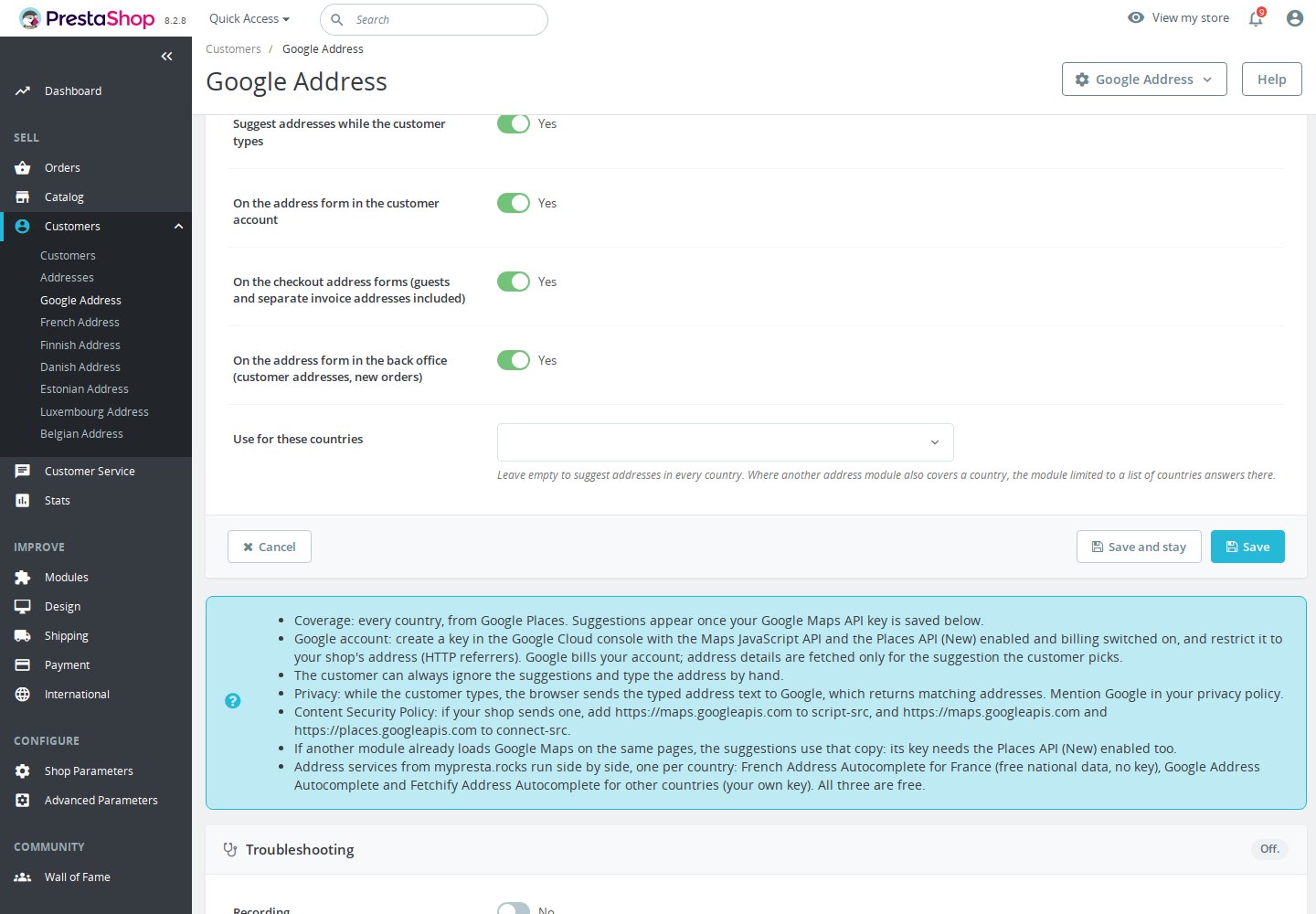
For the single Settings page, open Configure in Module Manager, or the Google Address entry in the back office menu. It contains Configuration, Integrity, License, Update and Support sections; the controls below are in Configuration.

  • Suggest addresses while the customer types: overall switch.
  • On the address form in the customer account: native account address entry.
  • On the checkout address forms (guests and separate invoice addresses included): native checkout, guests and separate invoice addresses.
  • On the address form in the back office (customer addresses, new orders): Customers > Addresses, including a new-order address window served by that page.
  • Use for these countries: leave empty to suggest addresses in every country, or choose the countries Google answers. Where another address module also covers a country, the module limited to a list of countries answers there. The page warns when two enabled address modules both cover every country.
  • Google Maps API key: the merchant’s public browser key.

The switches default to on. Google suggestions still stay off until a key is saved. Clearing the key stops the Google adapter; it does not remove the ordinary address form. Saving checks the format of the key, not whether Google accepts it. There is no live key-test button on this settings page.

In multishop, select a single shop you are allowed to manage. Settings are saved for that shop. The main switch and each form switch work together: turning checkout off leaves enabled account and back office suggestions available.

The page includes coverage, billing, privacy and CSP notes. English is the source language; German, French, Polish, Italian and Spanish settings strings are supplied. This language list describes the module’s settings, not a promise of address data in every language.

Google Address Autocomplete settings with the Google key and separate form switches

Customization examples

Start with staff address entry

Keep the overall and back office switches on, with account and checkout off. Save a properly restricted Google key, then open Customers > Addresses and try an address in the selected country. Enable the customer-facing forms when their own tests are complete. These switches change locations, not the countries you sell to.

Allow Google in a Content Security Policy

If your shop sends a Content Security Policy, add Google's origins to your existing directives. The module loads Google's script from https://maps.googleapis.com and asks for suggestions and for the chosen address through https://maps.googleapis.com and https://places.googleapis.com. The Google SDK can also load dependencies from https://maps.gstatic.com without displaying a map. The example below covers only the sources named in the module; extend your existing policy for the SDK dependencies actually loaded. Keep your other sources and check the browser console while you test suggestions. With French Address Autocomplete enabled as well, also add https://data.geopf.fr to connect-src.

script-src 'self' https://maps.googleapis.com;
connect-src 'self' https://maps.googleapis.com https://places.googleapis.com;

Retain apartment and delivery details

Enter an apartment or floor on address line two, then choose a suggestion. The second line remains unchanged. Check that a result without a house number is completed before saving. No setting makes the suggestion compulsory, and there is no automatic address validation on submission.

Installation

Requirements

  • General PrestaShop range: PS 1.6 – 9.x. The declared exact minimum is PrestaShop 1.6.1.0; PHP 7.1 or later is required.
  • Native address fields and a theme using Bootstrap 3, 4 or 5 for the supported dropdown presentation.
  • Your own Google Cloud project, billing account and browser key. Google usage is billed to you.

If another address module loads an older engine that keeps suggestions off, update the module named on this module’s settings page.

A syntactically accepted key does not prove that the APIs, billing and referrers are configured correctly. If another module has already loaded Google Maps with importLibrary, this module reuses that loader. Its key also needs Places API (New) enabled. Check that existing integration rather than assuming the key saved here replaces it.

Native PrestaShop account address form with Google suggestions below the street field

How it works

Suggestions start after 3 characters and a 300 ms pause, with up to 5 results. These are built-in values, not settings. Google receives suggestion searches while someone types; the “one details request” statement does not mean one Google request for the whole visit. If a request takes longer than 600 ms, “Searching addresses…” appears beneath the street field.

The adapter uses AutocompleteSuggestion.fetchAutocompleteSuggestions and an AutocompleteSessionToken. Only selecting an item calls toPlace() and one fetchFields({fields: ['addressComponents']}). A new token starts for the next search session. This describes the code, not a guaranteed Google billing category or rate. There is no details request for every item merely shown in the list.

What happens when someone chooses a suggestion

The country stays as selected, and an apartment, floor or entrance already entered on the second line stays intact. Names, company details and telephone numbers are left alone. Customers remain free to edit the result before saving, so the suggestion helps with typing without taking control of the address.

Google selection fills street, postcode, city and state/province where requested

Which countries receive Google suggestions

The module follows the country chosen in the address form and requests Google Places suggestions for that destination. It works with the countries the shop offers rather than a fixed French-only list. Changing the country changes the search. The results depend on Google’s address data and service availability, so not every street or house number is guaranteed to appear. Addresses in Japan and Hong Kong also fill, using administrative areas or sublocality for the city when needed; Hong Kong has no postcode.

A shop that runs several address modules decides which one answers each country with Use for these countries, for example a UK address service for the United Kingdom and Google everywhere else. A module limited to a list of countries answers there first, so French Address Autocomplete keeps its French destinations. Left empty, Google suggests addresses in every country.

Google address suggestions after selecting another country in the native address form

Where does the back office team receive help

Staff entering a customer address in Customers > Addresses get suggestions in the native street field too. The module fills street, postcode and city, plus state or province when a native option matches, helping with addresses entered after a telephone enquiry or while preparing an order. The back office switch is separate from the customer account and checkout switches, so you choose where the assistance belongs.

Google suggestions on the native Customers › Addresses page in the back office

How does the list work on phones and with a keyboard

On a phone, the customer taps a suggestion beneath the street field. On a keyboard, the arrows move through the list and Enter selects the highlighted result. Escape or Tab closes it without choosing an address. The dropdown follows the theme’s presentation, keeping the assistance beside the fields people are already completing.

Google street suggestions in the address form at phone width

Requests, saved addresses and privacy

The browser loads Google Maps using the public key. Suggestion calls explicitly send the typed street text, selected country, page language and session token. A selection identifies the chosen place and requests its address components. Google receives the visitor’s IP through the connection and may receive browser/referrer information according to browser policy.

The module does not explicitly include customer name, email, telephone, company or address line two in these lookups. It does not proxy searches through the shop or store search text and results in its own tables. This does not say Google stores nothing. Saving the address afterwards remains PrestaShop’s normal operation. Add the transfer to the shop’s privacy notice; installing the module does not settle consent or other privacy obligations.

The list displays Google Maps attribution. Optional engine diagnostics record technical status, provider, country, timing and result count, not the typed address. They do not turn this module into an address-history tool.

Honest limits

  • Google account required. The free module does not include Google service usage. Billing, enabled APIs and correct website restrictions remain the merchant’s responsibility.
  • Coverage is not completeness. Searches follow the selected country. Google may have no result, an incomplete house number, no postcode or no usable street/city components.
  • Native forms. Custom checkout or address windows and non-Bootstrap themes need their own checks. The new-order integration targets the address window served by AdminAddresses.
  • Manual entry stays. Suggestions do not validate the submitted address or guarantee delivery. Customers check and complete the destination.
  • Preserved values. The second address line, name, company, telephone and selected country stay unchanged.
  • Delayed results. A country change, changed field values, missing required fields or a value longer than the form permits can stop a delayed fill. Complete the form by hand.
  • External service. Network errors, browser policy and account configuration can stop suggestions. There is no automatic switch from a failing BAN request to Google.
  • Shared settings. When Checkout Revolution uses this shared address engine, it uses the same per-shop settings for this service.
  • No map or location request. No coordinates are requested or stored by this module. A shared script may belong to a different integration on the same page.
  • Billing classification. Session tokens and the requested field are verified in source. Current Essentials classification and session-pricing eligibility are not established by this documentation. Check Google’s current terms in your account; no rates or credits are promised.

Troubleshooting

  • No suggestions: check the overall and form switches, then the saved browser key. Enable Maps JavaScript API, Places API (New) and billing in its Google Cloud project; check that the HTTP referrer restrictions allow the actual shop and back office origins used.
  • CSP blocks requests: merge the measured Google sources shown under Customization examples into the existing policy. Check the browser console for blocked requests; the example is not a complete replacement policy.
  • Google error in the console: read the browser's Google error and check the key, enabled APIs, billing and referrer restrictions. If the page already loads Google Maps with importLibrary, check that loader's key too. Saving the module key only checks its format.
  • Country or address not covered: check the selected country in the form. Google data and availability determine the results; a country offered by the form does not guarantee every address is covered. Continue with manual entry if no result matches.
  • No postcode returned: Google may return an address without a postcode, including in countries without postcodes. The postcode field can stay empty; check and complete the address manually where a postcode is required.

Open the full help page

Loading tab content...
30 days return right
Easy return - no questions asked
Plug & Play Modules
Install, set up and take profit
Dedicated Support First
Priority Help & Satisfaction Over Sales

Who builds and maintains this module

Built and maintained by David Miller and mypresta.rocks. David Miller has worked with PrestaShop since 2013, and the company behind this shop has been registered since 3 December 2018. Every module in this catalogue is our own work, so your questions to support reach the people who wrote the code. The changelog on this page lists every update with its date.

About us

More modules

Checkout Revolution

**Google Address Autocomplete helps staff enter native back office addresses** as well as offering suggestions on native storefront forms. Its back office switch covers the customer address page independently of the account and checkout switches. **Checkout Revolution keeps its own address experience**, including its own Google suggestions and settings. Installing this module does not add it to the suite’s address step, transfer the Google settings or change the suite’s separate request behavior. The complementary use is **address assistance for staff alongside the checkout suite**. Your team receives suggestions in Customers > Addresses while Checkout Revolution handles its own customer flow. Configure and test each feature separately; this module does not promise to replace the suite’s account forms or to make its Google use follow this module’s single-details-request path.


Loading...
Back to top