

Install and update your mypresta.rocks modules in the PrestaShop back office
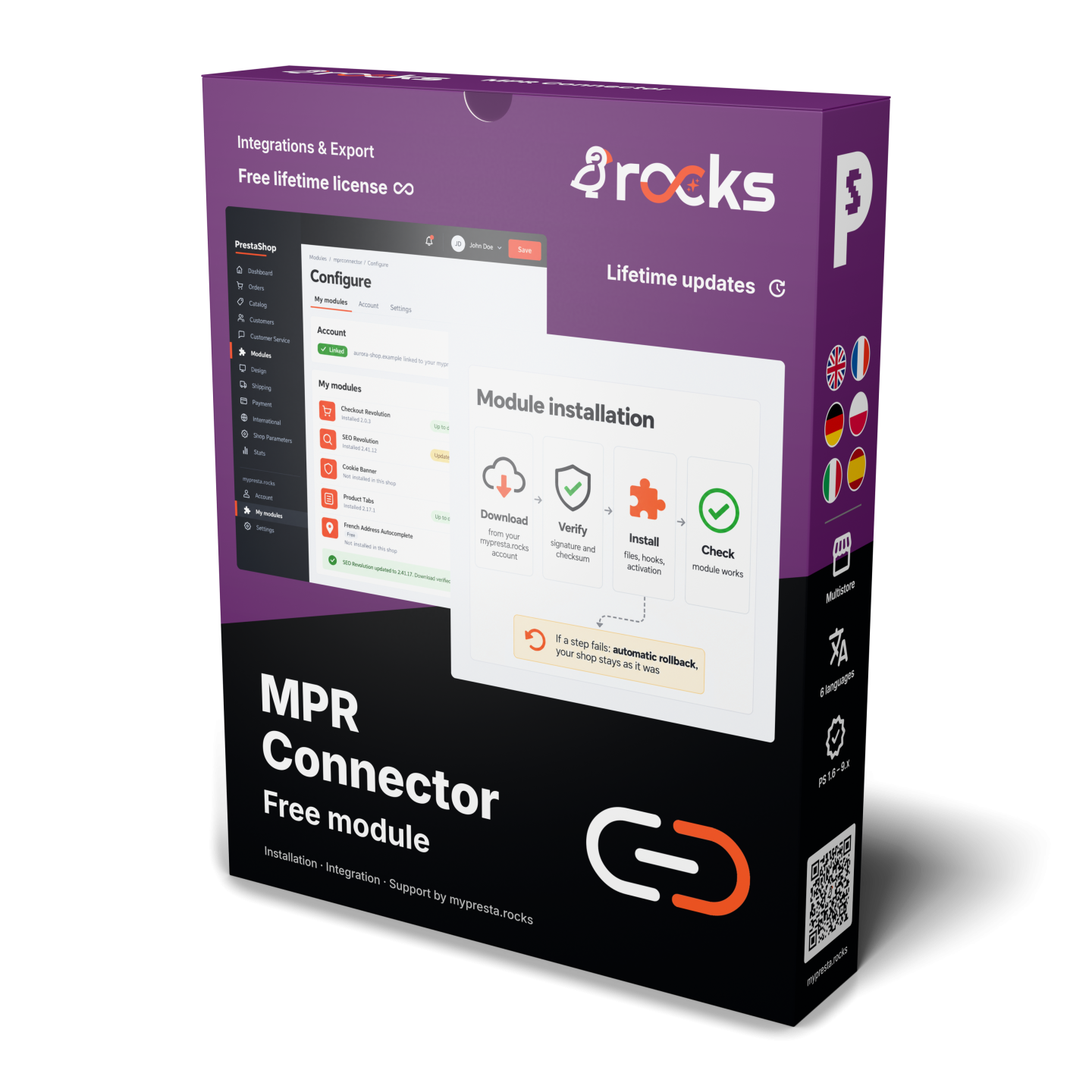
Tired of downloading ZIPs and uploading them for every update? Module Updates & Remote Assist is a free PrestaShop module that brings installation and updates for your mypresta.rocks modules into your back office. You install the module, link your account and open My modules.
Your mypresta.rocks account supplies the modules you own. The module is free with a lifetime licence. Linking the shop gives it access to your account; the licences for your other modules still determine what you install and update.
Setup starts with approval on mypresta.rocks, where you sign in to your account. Your password is never entered into the shop. If the shop lacks HTTPS on every page, you link with a device code approved on mypresta.rocks. You choose which module to install or update, and decide whether the mypresta.rocks menu has its own entry or sits under another menu.
My modules shows what is installed, the installed version and available updates for your licence. Downloads are verified before installation. Before an update replaces files, Module Updates & Remote Assist backs up the current version and automatically rolls back an interrupted installation or update.
You handle your owned modules where you already manage the shop, with fewer files to move and a clearer view of available updates. Each shop in a multistore setup is linked separately, with its own account connection and module state.
Remote assist with your permission. On the Support access page, you approve each grant and choose one of three levels: Look only, Fix settings or Full control. You choose how long it lasts: for 24 hours, for 7 days or until you end it. Add 24 hours extends a timed grant, and End access stops it at any time. The activity list shows which support staff member did what and when.
How do I stop uploading ZIPs for every module update?
- Linked account. The shop connects to your mypresta.rocks account.
- Approval on mypresta.rocks. Your account password stays out of the shop.
- Your modules together. My modules shows owned modules and their state in this shop.
- Installation in the back office. Available actions install the module in the selected shop.
- Updates with safeguards. Downloads are verified, the current version is backed up and interrupted changes are rolled back.
- Your menu placement. Settings puts the entry where it suits the way you work.
Module Updates & Remote Assist brings the modules you own on mypresta.rocks into the PrestaShop back office. After the initial module installation, you install and update those modules without downloading their ZIPs or transferring files yourself. The module is free with a lifetime licence. Your account supplies the modules, and the list shows what each shop has installed.
Where do I approve access to my account?
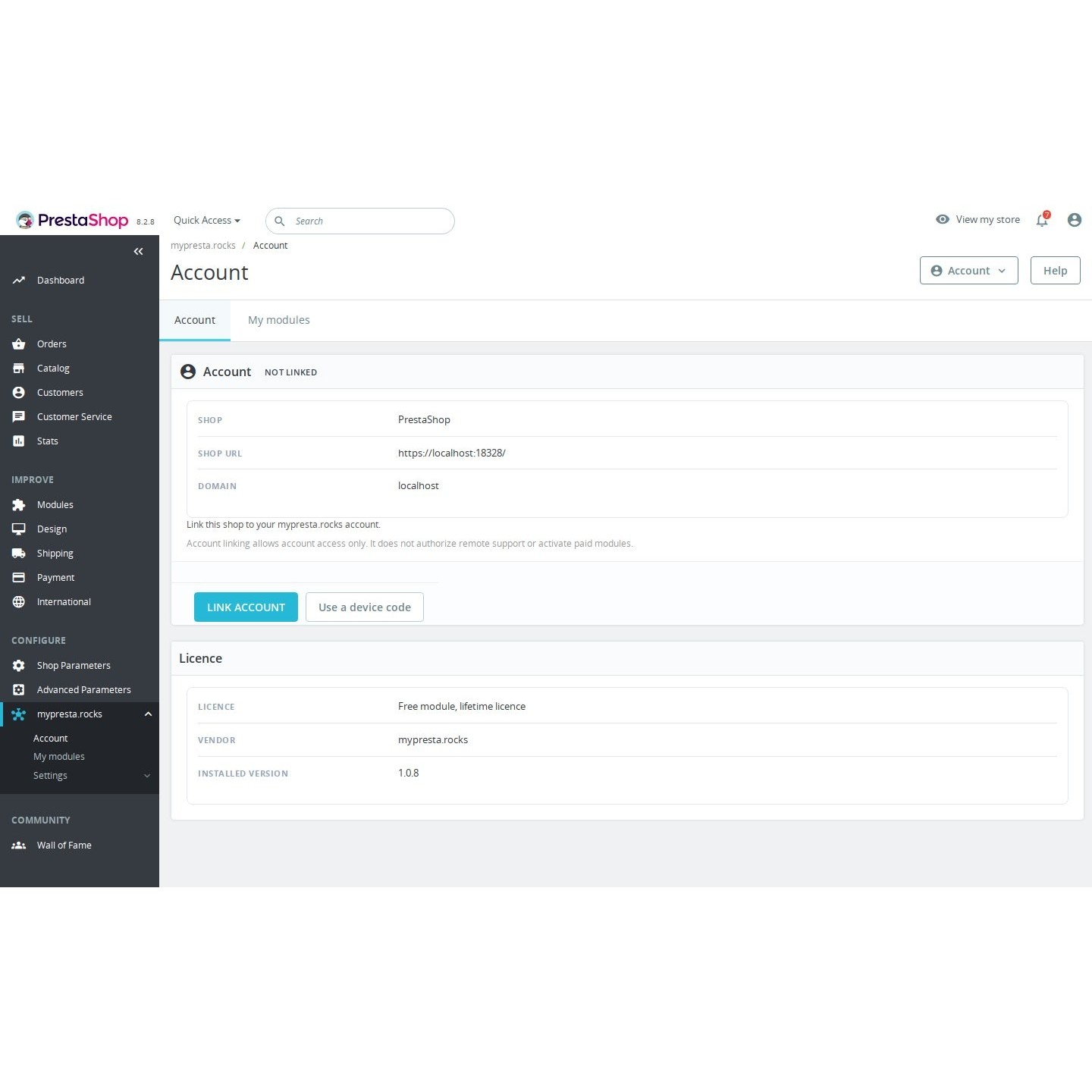
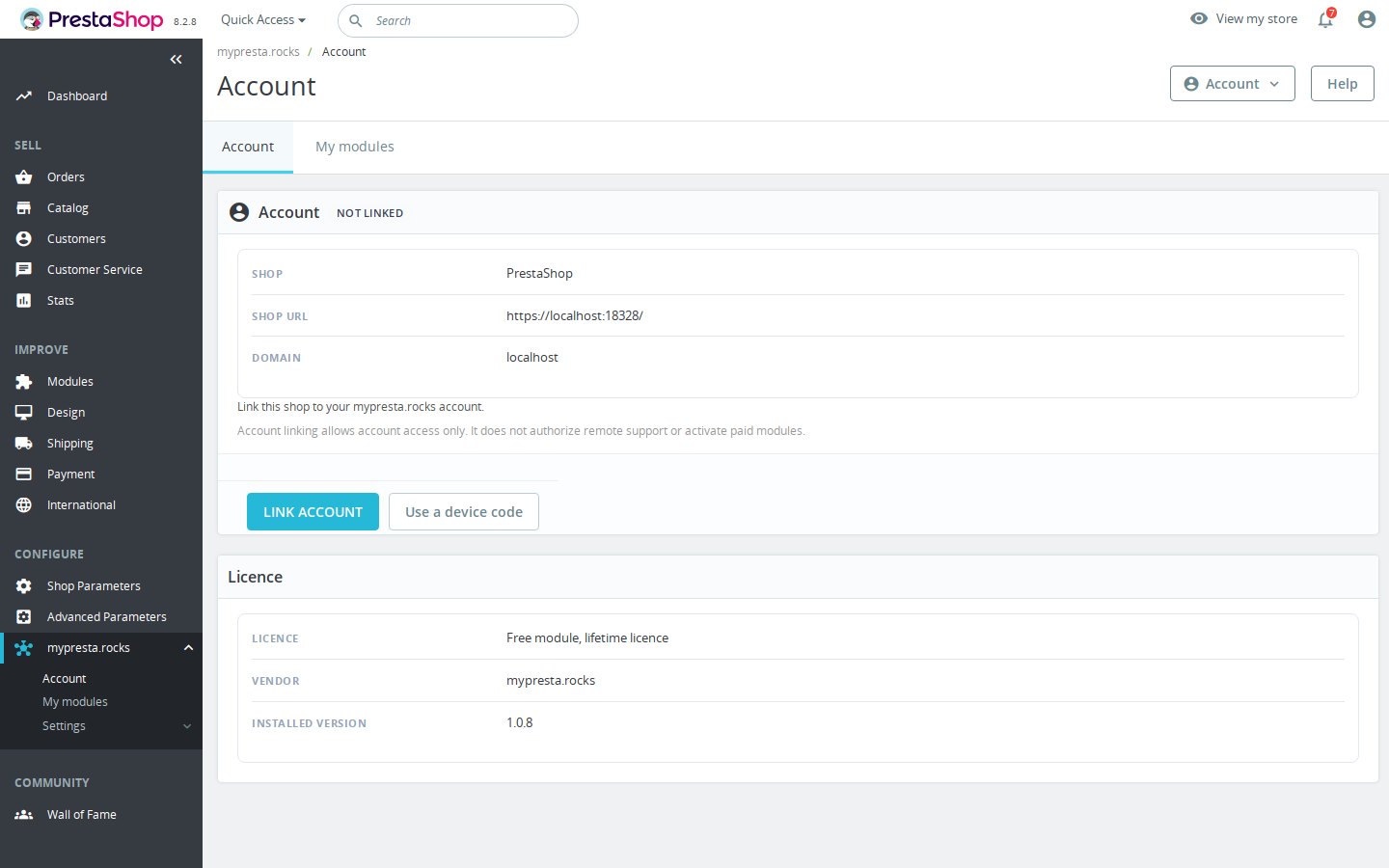
You start linking from Account in the shop, then approve the connection on mypresta.rocks. That is where you sign in. The shop does not ask you to type your mypresta.rocks password into its settings. Linking gives account access for the shop and keeps approval in the place where you manage that account.
For shops without HTTPS on every page, the device-code option provides another way to link. You open the verification page on mypresta.rocks and enter the approval code. Linking the account does not grant remote support access or activate paid modules. You disconnect the shop from Account when needed.
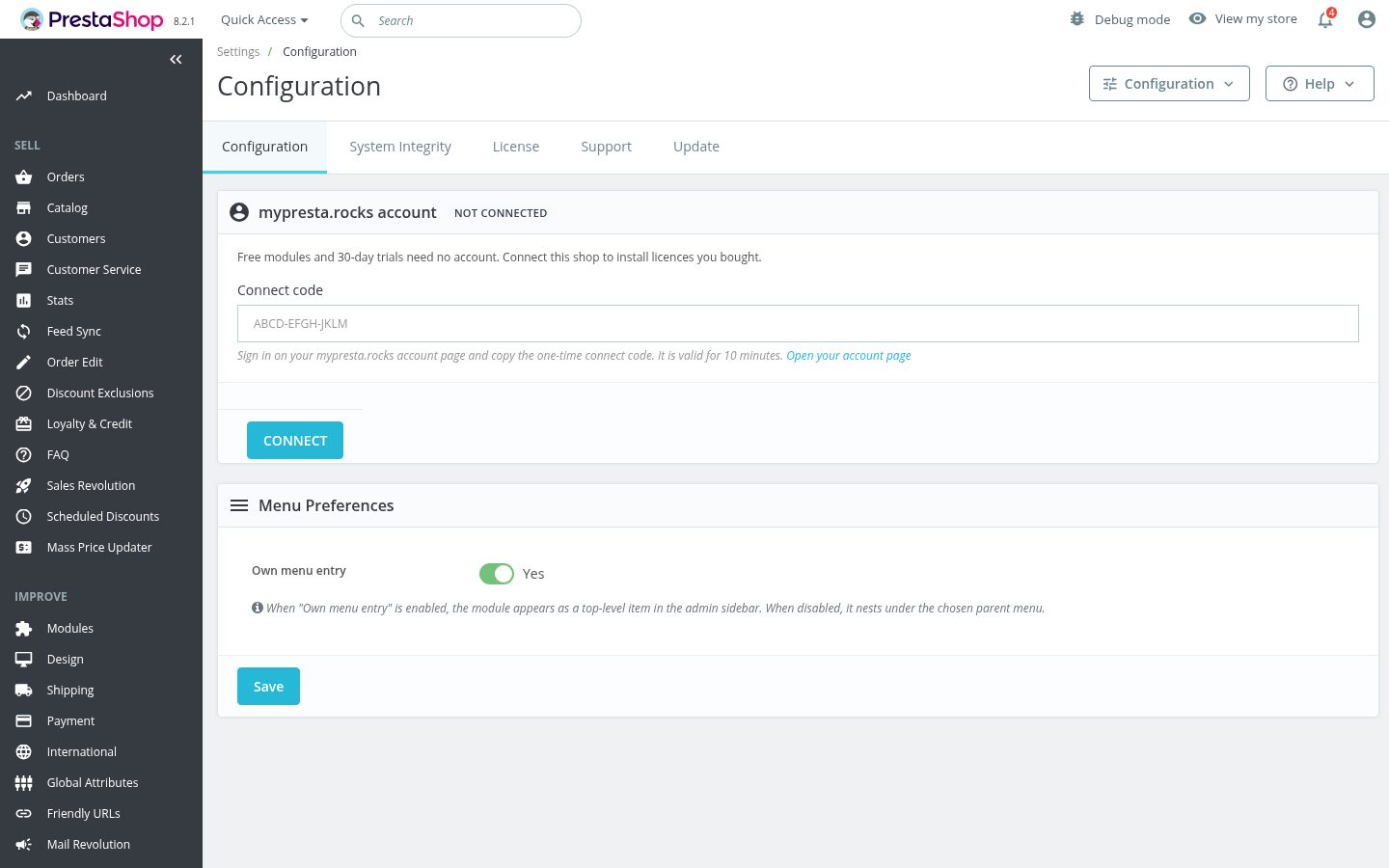
Which of my modules need attention in this shop?
My modules brings together the modules owned by the linked account and their state in the selected shop. You see whether a module is installed, its installed version, whether an update is available and whether it is current for your licence. Free, paid and trial labels describe the modules already associated with the account.
An available update and an eligible update are tied to your module licence. The list gives you the information and actions for that shop, so the next step follows its actual installation state. In a multistore setup, each shop is linked separately; the account connection belongs to the shop you are managing.
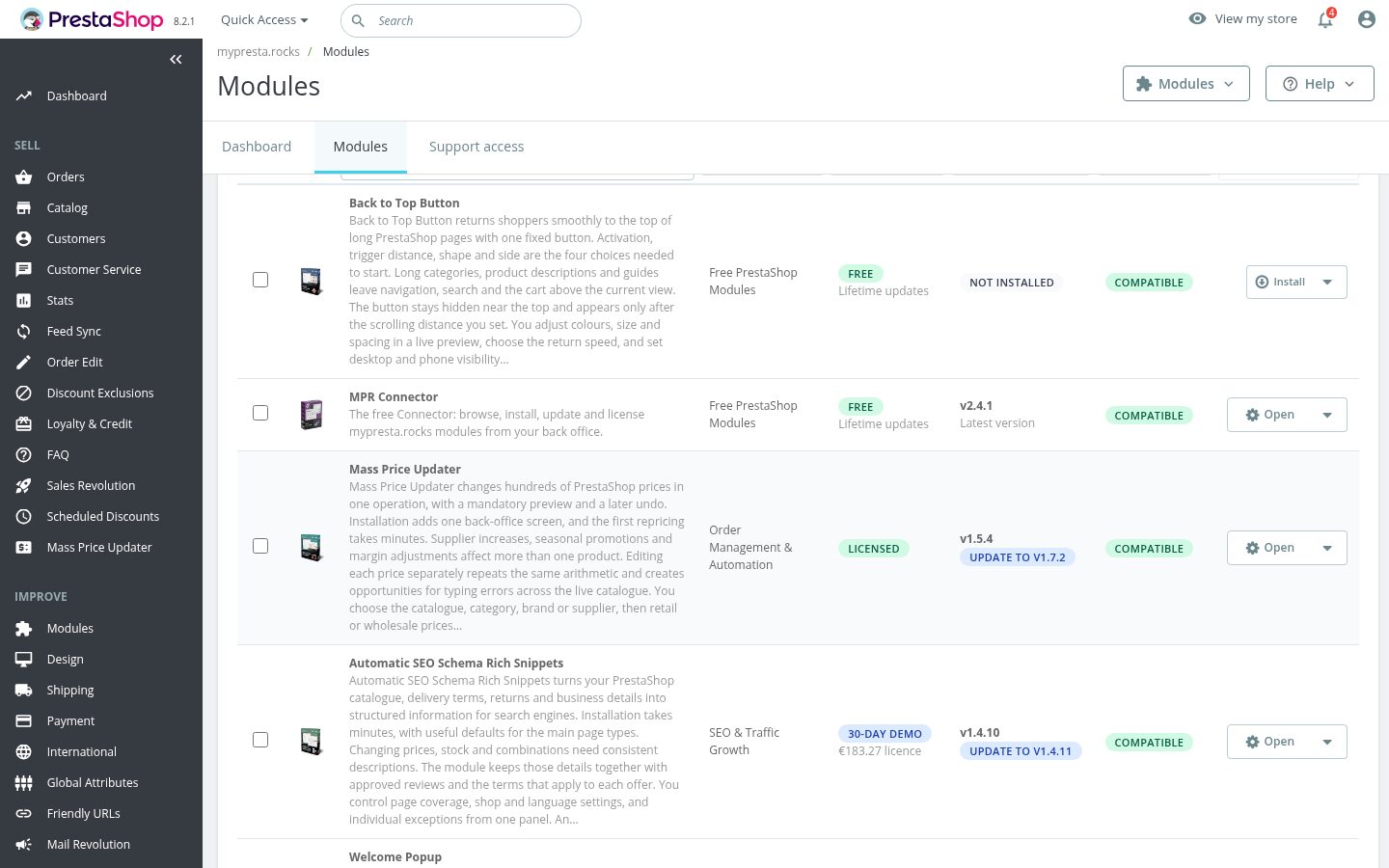
How do I install an owned module from the back office?
You choose the module from My modules and use the installation action offered for the selected shop. Depending on its state, the action installs it in this shop or installs and activates it. Module Updates & Remote Assist handles the download and verifies it before installation, so you do not move the module archive through your own folders.
Connecting the account and installing a module are separate steps. You choose the module action after linking, using the licences attached to the account. This keeps the decision to install in your hands while moving the file handling into the back office. Your everyday installation work starts from the same list that shows the installed versions.
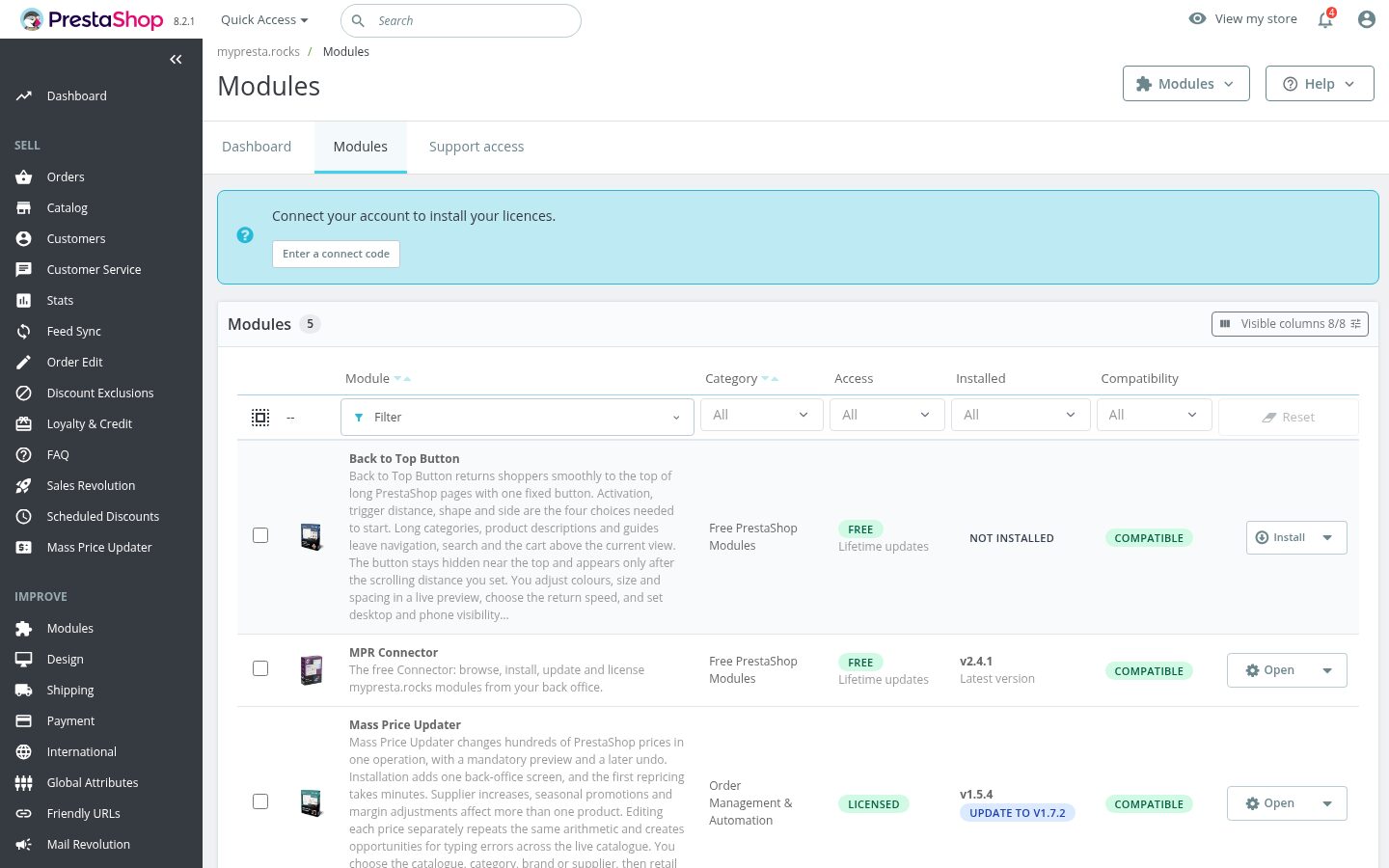
What happens if an installation or update stops?
Module Updates & Remote Assist verifies downloads before installing them and backs up the current version before an update replaces files. If installation or updating stops part way through, it starts automatic rollback. The safeguard is part of the module operation, so an interrupted change has a recovery path visible from My modules.
Progress and recovery status distinguish an ongoing operation, a completed rollback and a case requiring review. When recovery needs attention, you review that state before starting again. The help manual explains how to follow an interrupted operation and check its outcome, keeping the update decision tied to what actually finished.
Where do I place the menu and check the setup?
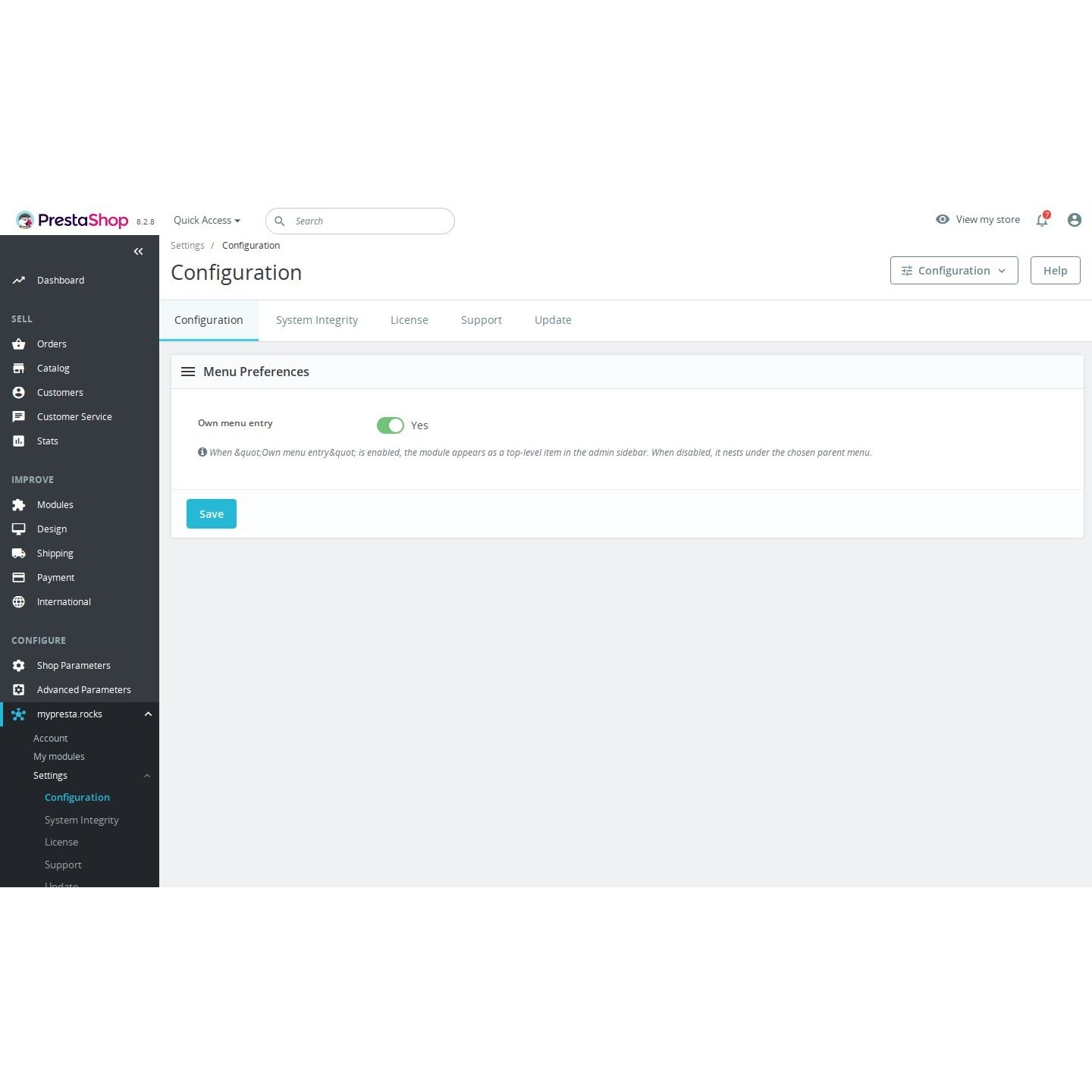
The mypresta.rocks menu brings together Account, My modules and Settings. Configuration lets you keep a separate top-level entry or place it under a parent menu you choose. The same module actions remain accessible from the back office where you manage the shop.
System Integrity is available within Settings for reviewing integrity information. Account handles the shop connection, while My modules handles owned modules and their updates. Each shop in a multistore setup has its own link, so moving between shops also means checking which shop the account and module state refer to.

How do I give support access when I need help?
On the Support access page, you approve each grant and choose one of three levels: Look only, Fix settings or Full control. You choose how long it lasts: for 24 hours, for 7 days or until you end it. Add 24 hours extends a timed grant, and End access stops it at any time. The activity list shows which support staff member did what and when. Support staff use a one-time signed back-office login lasting at most 30 minutes, with no standing credentials. Full control adds Support tools for files, SQL and Run script. Before existing file contents are overwritten or deleted, an encrypted recovery copy is saved.
-
Referencemprconnector
-
Version2.5.5
-
Improvements252
-
Released
-
Updated
-
PrestaShop CompatibilityPS 1.6 – 9.x
-
Pricing ModelFree
-
Module TypeBack-office
-
GDPR RelevantNo
-
Business GoalStreamline Operations
-
External Account NeededYes
-
Module ComplexityLightweight Widget
-
Customer Journey StageManage Store
Module Updates & Remote Assist is a free PrestaShop module with a lifetime licence. It connects the selected shop to your mypresta.rocks account so you install and update modules you own from the back office. This manual follows the current Configuration and Modules screens. Start with the requirements if the module is not installed yet.
Loading tab content...
Loading tab content...
Loading tab content...
 30 days return right
Easy return - no questions asked
 Plug & Play Modules
Install, set up and take profit
 Dedicated Support First
Priority Help & Satisfaction Over Sales
Who builds and maintains this module
Built and maintained by David Miller and mypresta.rocks. David Miller has worked with PrestaShop since 2013, and the company behind this shop has been registered since 3 December 2018. Every module in this catalogue is our own work, so your questions to support reach the people who wrote the code. The changelog on this page lists every update with its date.
More modules


Compliance & Legal
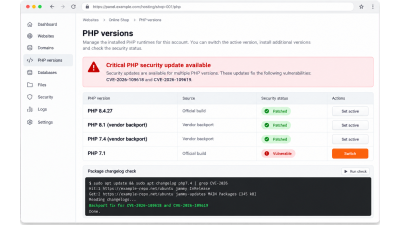
PHP2Shell: what PrestaShop shops should do about CVE-2026-109618 and CVE-2026-109619, even when they cannot upgrade
News & Updates
What's new at mypresta.rocks: September 2026
News & Updates
What's new at mypresta.rocks: August 2026

News & Updates
PrestaShop 9.2 native One Page Checkout: what it does and when you need more

News & Updates
Introducing Expert Services: PrestaShop audits before you buy another module

News & Updates