


Teams Chat Integration
Teams Chat Integration adds a Microsoft Teams Free contact button to your PrestaShop store. Paste your invitation link in the back office, then use the configuration status and test link to check the setup.
Formerly "Skype Chat Integration", the module now connects to Microsoft Teams Free after Microsoft retired consumer Skype in May 2025.
Choose a floating icon or a bar with text, its corner, colour, size, spacing, tooltip and animation. Translate the button text and tooltip for your shop languages. Select all pages or one page type, control mobile visibility and set the maximum wait before the button appears without an interaction.
Customers click the button to open your invitation link in a new tab. You get a contact point with settings in your store dashboard, compatible with PrestaShop 1.6 to 9.
What does Teams Chat Integration add to your store?
Teams Chat Integration gives shoppers a visible contact button that opens your Microsoft Teams Free invitation link in a new tab. You set the destination, appearance and display options in the PrestaShop back office, so customers can find your contact link while browsing an allowed page.
Formerly "Skype Chat Integration", the module now connects to Microsoft Teams Free after Microsoft retired consumer Skype in May 2025.
- One destination: paste the invitation link copied from Teams Free.
- Two formats: choose a floating icon or a bar with your own text.
- Shop languages: translate the bar text and optional tooltip.
- Page choice: show the button everywhere or on one supported page type.
- Display control: adjust mobile visibility, animation and the fallback timer.
- Setup checks: see whether the link format is accepted and open the test link.

How does the button fit your shop?
Choose the lower-left or lower-right corner and use either a floating icon or a bar with text. Change the colour, icon diameter and distance from the screen edge to give the contact button a suitable place alongside your store's other controls. A shop with another button on the right can place this one on the left.
The bar displays the button text you enter. An optional tooltip adds a short prompt when the visitor hovers over the button. Choose a pulse or bounce animation to draw attention to the contact point, or select no animation for a still button. These options are available on the module's configuration page.

Can the wording follow the shop language?
You can enter a different button text and tooltip for each shop language using the language controls in the configuration form. The button uses the text for the visitor's current store language. For example, your English bar can say "Ask us on Teams" while the French version uses its own invitation to get in touch.
An empty translation follows the shop's default language, with the previously stored text as a further fallback. You can therefore start with the default wording and add translations as you prepare each storefront. The destination remains the saved invitation link, while the visible text helps customers recognise the contact option in their language.
Where should customers see the contact option?
The page selector offers all pages, product pages only, category pages only or checkout pages only. Choose one mode for the button. Product-only display puts the contact link beside browsing decisions; category-only display makes it available while customers compare the range. The checkout option covers the cart and supported order and checkout controllers.
A separate mobile switch controls visitors whom PrestaShop detects as using a mobile device. Keep it enabled to offer the link to those shoppers, or turn it off when you prefer to reserve that screen space for other controls. Page and mobile settings are checked before the module returns the widget for the storefront.

When does the button appear?
On an allowed page, the button loads at the visitor's first scroll, click, touch or key press. It also has a fallback timer, so a visitor who stays on the page without interacting can still see the contact option. Set the maximum passive wait in seconds from the configuration page; a value of zero uses the default of 10 seconds.
The timer is a limit on waiting for an interaction, rather than an extra delay after one. This lets you keep the button available to someone reading a product description without touching the page. Once it appears, clicking it opens the saved Teams Free invitation link in a separate browser tab.

What do you need to get started?
Install the module, sign in to Microsoft Teams Free and copy your invitation link from "Invite to Teams". Paste the complete link in the connection settings and save. The module checks that it has the expected Teams Free invitation format, shows a configuration notice and supplies a test link when that format is valid. Open it to check the destination yourself.
The button needs the enable switch, an accepted invitation link and matching page and mobile settings before it can appear. You can then adjust the appearance and translated wording from the same configuration screen. The module supports PrestaShop 1.6 to 9, with the technical identifier retained for installation and updates.

-
Referencemprskypechatintegration
-
Version1.1.66
-
Improvements319
-
Released
-
PrestaShop CompatibilityPS 1.6 – 9.x
-
Pricing ModelOne-time Purchase
-
Module TypeFront-office
-
GDPR RelevantYes
-
Business GoalCustomer Communication
-
External Account NeededYes
-
Module ComplexityLightweight Widget
-
Customer Journey StageEngage Shoppers
-
Works With PlatformChat & Messaging
Quick start
- In Modules > Module Manager, choose Upload a module and install the
mprskypechatintegrationZIP. - Click Configure.
- In Teams Connection, paste your Teams Free invitation link copied from Invite to Teams in Microsoft Teams Free.
- Leave Enable Teams Chat set to Yes and choose the corner in Button Appearance > Position.
- In Display Behavior, leave Show on Pages at All Pages and Fallback Delay (seconds) at
0for the first test. - Click Save. Open an allowed storefront page with JavaScript enabled.
- Scroll or click the page, or wait 10 seconds. Check that the button appears, then click it to open your saved Teams Free invitation link. Customers may need to sign in to Teams.
Requires PrestaShop 1.6 or later and PHP 7.1 or later.
Loading tab content...
Loading tab content...
Loading tab content...
Loading tab content...
 30 days return right
Easy return - no questions asked
 Plug & Play Modules
Install, set up and take profit
 Dedicated Support First
Priority Help & Satisfaction Over Sales
Who builds and maintains this module
Built and maintained by David Miller and mypresta.rocks. David Miller has worked with PrestaShop since 2013, and the company behind this shop has been registered since 3 December 2018. Every module in this catalogue is our own work, so your questions to support reach the people who wrote the code. The changelog on this page lists every update with its date.
More modules




Compliance & Legal
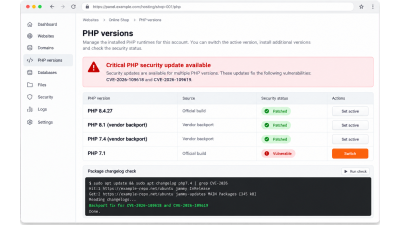
PHP2Shell: what PrestaShop shops should do about CVE-2026-109618 and CVE-2026-109619, even when they cannot upgrade
News & Updates
What's new at mypresta.rocks: September 2026
News & Updates
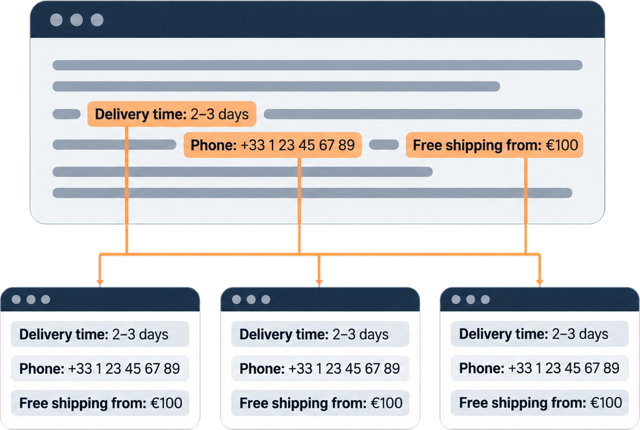
What's new at mypresta.rocks: August 2026

News & Updates
PrestaShop 9.2 native One Page Checkout: what it does and when you need more

News & Updates
Introducing Expert Services: PrestaShop audits before you buy another module

News & Updates