

PrestaShop 9 Migration Guide: Safe Upgrade Checklist
A safe PrestaShop 9 upgrade: current PHP/MySQL requirements, backups, module compatibility, Hummingbird theme migration, testing and rollback.
Why we treat PrestaShop 9 as a different platform, not a version bump
We've migrated our entire 140+ module catalogue to PrestaShop 9 and helped client shops go through the same exercise. The honest summary: PS 9 is the largest break since 1.6 to 1.7. The version number moves by one, the platform underneath moves by a generation. Plan accordingly. For the latest on what shipped with 9.1, see our PrestaShop 9.1 release notes.
Last reviewed: May 24, 2026. Server requirements were cross-checked against the official PrestaShop server configuration guide and the 9.0 module core update notes. Screenshots in this guide are from a real PrestaShop 9.1.0 dev shop we run for module testing, not mockups.
The things you'll actually feel after upgrading:
Symfony 6.4 LTS replacing Symfony 4.4
PS 8 ran on Symfony 4.4. PS 9 jumps to 6.4 LTS, with security patches through November 2027. The practical effect: faster request lifecycle, modern DI container, and access to the Symfony components that the rest of the PHP world has standardised on. For us as module authors, it's the difference between writing 2018-flavoured PHP and writing 2026-flavoured PHP.
PHP 8.1 floor, but don't stop there
PS 9.0 requires PHP 8.1 minimum and supports 8.2, 8.3, 8.4. PS 9.1 adds 8.5. The minimum is the compatibility floor, not the recommendation. On every fresh PS 9 build we've done in 2026, we've targeted PHP 8.4 (PS 9.0) or 8.5 (PS 9.1), but only after every installed module has passed on that PHP version in staging. Reading "PHP 8.1+" as "set staging to PHP 8.1" leaves real performance on the table.
Twig is taking over the admin (but it's not finished)
Most of the back office now renders through Twig, but the migration is not complete. New Symfony-based admin controllers use Twig natively. Legacy admin controllers still work, but they're wrapped by a Symfony LegacyController that pipes their Smarty output into the Twig layout. That wrapper is responsible for most of the "my module's admin page renders but the buttons disappeared" reports we've seen during PS 9 migrations. The fact that the wrapper exists at all tells you the migration is still in progress.
Hummingbird is the direction, but Classic isn't gone yet
Hummingbird is PrestaShop's modern front-office theme. On PS 9.1 it's the default for fresh installations. On PS 9.0 shops that upgraded, your existing theme stays put, and some PS 9 distributions still ship Classic as an available theme. So the real question isn't "is Classic installed?". It's "are your templates, hooks, assets, and child theme strategy ready for Hummingbird?" Because that's where you're headed regardless of where you start.
Hummingbird is built on Bootstrap 5.3, leans on CSS custom properties, and is meaningfully lighter than Classic. We've used it as the base for new builds since it shipped and it's a better foundation for Core Web Vitals than anything PrestaShop has offered before. Pair it with Performance Revolution and a modern PageSpeed score is achievable on a real shop, not just a demo.
Security overhaul
Symfony 6.4 brings a completely revamped security component. Password hashing uses bcrypt/argon2 through Symfony's MigratingPasswordHasher. CSRF protection is tighter. Authentication routes through Symfony's security bundle rather than PrestaShop's legacy cookie path. Several SQL injection and XSS holes in old code paths have been closed off. For us, this means fewer "please patch this one method" tickets from clients in compliance audits. After the upgrade, Security Revolution is the module-level layer we use for admin hardening, 2FA policy and file-integrity changes.
PS 9 is not cosmetic. The platform underneath your shop has been rebuilt. The reward is real (faster, more secure, more maintainable) but only if the migration is done methodically. We've seen rushed PS 9 upgrades take shops down for days. We've also seen well-prepared ones finish in an afternoon. The difference is entirely in the prep.
Prerequisites: don't touch live until every box is ticked
The single biggest cause of failed upgrades we get called in on is "I just ran the 1-Click Upgrade and it broke." Almost always, the upgrade itself didn't fail. The prerequisites did, hours earlier, and nobody checked.
Put the shop in maintenance mode before the risky work
Back Office > Shop Parameters > General > Maintenance is where you disable the store, whitelist your IP, and write the maintenance message. Use it for staging rehearsals and for the short live cutover window, not as a substitute for testing.
This is a real PS9.1 dev-shop screen. The workflow matters here; do not copy the sample IP or text blindly.

Server requirements
- PHP 8.1+: confirm with
php -v. For a PS 9.1 staging environment in 2026, test on PHP 8.4 or 8.5 only once every module passes. - MySQL 5.7+ or MariaDB 10.2+: confirm with
mysql --version. For new infrastructure, MySQL 8.0 or MariaDB 10.11 is the realistic target. - PHP extensions: intl, gd, curl, zip, mbstring, openssl, pdo_mysql, fileinfo, dom, json
- Composer 2.x
- memory_limit at least 256 MB: bump it temporarily to 512 MB for the upgrade run itself if you have a large catalogue
- max_execution_time of 600+ seconds: large databases run long migrations
Quick check from the CLI:
# PHP version
php -v

# Required extensions
php -m | grep -E "(intl|gd|curl|zip|mbstring|openssl|pdo_mysql)"

# Memory and execution limits
php -i | grep -E "(memory_limit|max_execution_time)"

# Database
mysql --version
Practical runtime targets
| Area | PS 9 minimum | What we'd actually deploy |
|---|---|---|
| PHP | 8.1+ | 8.4 on PS 9.0, 8.5 on PS 9.1, after staging passes on every module |
| Database | MySQL 5.7 / MariaDB 10.2 | MySQL 8.0 or MariaDB 10.11, validated on a staging clone first |
| Memory | 256 MB | 512 MB baseline, bump higher temporarily during the upgrade itself |
| Theme | PS 9-compatible | Hummingbird or a Hummingbird child theme for any new PS 9.1 build |
| Modules | Declared PS 9 compatibility | Composer/PHP constraints checked, overrides scanned, full checkout test on staging |
Check the actual runtime, not the hosting brochure
Under PS 9, Advanced Parameters > Information shows exactly what the shop is running: PHP version, database version, memory limit, shop version, active theme. Screenshot this page before you start. When the upgrade goes sideways and you're swapping hosting tickets at 2am, having the pre-upgrade baseline saves hours.
The screenshot below is from a PS 9.1.0 dev shop running PHP 8.5, MySQL 8.0, 512 MB, Hummingbird.

PrestaShop version requirements
- You have to be on PS 8.1 or 8.2 before you can go to 9. Direct upgrades from 1.7.x or older are not supported. Period.
- On PS 1.7.x? Get to 8.2 first, stabilise for a week or two, then go to 9.
- On PS 1.6.x? Stop reading the upgrade path. You need a clean rebuild. We've never seen a 1.6 → 9 in-place upgrade succeed, see the Clean Install section.
Module compatibility: the part that decides whether the upgrade succeeds
This is where most of the upgrades we triage went wrong. Before you touch the upgrade button, you need to know which modules will survive PS 9 and which won't. Not "probably", actually know.
- Pull the full module list from Module Manager.
- For every third-party module, contact the vendor and get a specific answer for PS 9. "It worked on PS 8" is not the answer you need.
- For anything not confirmed: decide upgrade, replace, or remove. Don't carry an unknown.
- Payment modules first. An unconfirmed payment gateway after upgrade means zero revenue until you fix it.
Do not claim PS 9 compatibility for a module because the category looks similar or because a sibling module supports it. We've watched modules that ran fine on 8.2 hard-crash on 9.0 because they call Tools::displayPrice(), a method that was removed, not deprecated. Test, don't hope.
Audit installed modules in the real Module Manager
Back Office > Modules > Module Manager gives you the installed module names, versions, vendors, status and update signals. Build your migration spreadsheet from the real shop state, not from memory or an old FTP copy.
Payment, checkout, shipping, ERP and feed modules, including feed tools such as Smart Google Merchant Feed Manager, deserve first priority because a failure there stops revenue or order processing.

Module triage signals we actually check
| Signal | Why it matters | What to do before upgrade |
|---|---|---|
| Composer + PHP constraints | A module can install on PS 8 and still crash on PHP 8.4/8.5 because its dependencies are too old. | Read composer.json, stage on the target PHP version, cross-reference with our PS 9 module preparation guide. |
| Overrides | The single highest-risk customisation layer. Method signatures shift between PS versions; old overrides crash hard. | Scan every module's override/ directory. For each one, ask whether a hook or service decorator can replace it. The hooks and overrides guide covers what to use instead. |
| Webservice / AdminAPI integrations | ERP, PIM, feed and middleware integrations fail quietly, wrong token format, missing scope, renamed endpoint. | Smoke-test against staging. Keep the Webservice API guide open while verifying permissions. |
| Theme assumptions | Modules that inject front markup often assume Classic selectors, Bootstrap 4 utility classes, or hook positions that changed in Hummingbird. | Test under Hummingbird and a child theme. The child theme guide covers the update-safe pattern. |
| Checkout / shipping / payment | If these break, revenue stops even when the catalogue still looks fine. | Place full staging orders across every carrier, tax zone, voucher, and payment method. If you run a one-page checkout, retest Checkout Revolution end-to-end. |
Theme compatibility
- Running Classic? Treat it as migration debt. Confirm whether your PS 9 distribution still includes it, but plan Hummingbird or a third-party PS 9 theme regardless.
- Running a purchased theme? Email the vendor before anything else. No PS 9 version, no clear timeline, start porting now.
- Custom theme built on Classic? Significant rework. The template structure has changed enough that "find and replace the Bootstrap classes" won't get you there.
- For any custom work going forward, a Hummingbird child theme is the path. Edit the parent and you'll lose your changes on the next theme update.
When to do this
- Never during a sales peak. We've seen it tried. It doesn't end well.
- Midweek, early morning, lowest-traffic window you have.
- Give yourself at least 48 hours of monitoring before the next peak hits.
- Rollback plan ready and tested: covered later in this guide.
Back up everything. Yes, really.
This is the step everyone skims. Don't. The number of "we didn't think we needed a backup" recovery calls we've taken is the only reason this section is as blunt as it is. If the upgrade fails and you don't have a backup, you don't have a store.
Database
The database is the part you cannot rebuild. Products, customers, orders, configurations, module settings: all of it lives there. Use mysqldump with the right flags:
# Works on any server
mysqldump -u root -p --single-transaction --quick --lock-tables=false prestashop > ~/backup_pre_ps9_$(date +%Y%m%d_%H%M%S).sql

# Large database (>1 GB): compress as you go
mysqldump -u root -p --single-transaction --quick --lock-tables=false prestashop | gzip > ~/backup_pre_ps9_$(date +%Y%m%d_%H%M%S).sql.gz
Docker-based shops:
docker exec <your-shop>-db mysqldump -u root -p'YOUR_PASSWORD' --single-transaction --quick prestashop > ~/backup_pre_ps9_$(date +%Y%m%d_%H%M%S).sqlWhat those flags do, and why we use them every time:
--single-transaction: consistent snapshot without locking tables. Essential for InnoDB on a live shop.--quick: streams rows instead of buffering. Without it, large product or order tables can OOM the dump.--lock-tables=false: keeps the store online during the dump.
Now verify the backup actually works. A backup you've never restored is a hope, not a backup:
# Restore into a throwaway database and count rows
mysql -u root -p -e "CREATE DATABASE prestashop_backup_test;"
mysql -u root -p prestashop_backup_test < ~/backup_pre_ps9_XXXXXXXX_XXXXXX.sql
mysql -u root -p prestashop_backup_test -e "SELECT COUNT(*) FROM ps_product; SELECT COUNT(*) FROM ps_orders;"
mysql -u root -p -e "DROP DATABASE prestashop_backup_test;"
Files
Back up the entire PrestaShop tree, PHP, themes, modules, uploaded images:
# Full tarball
tar -czf ~/prestashop_files_pre_ps9_$(date +%Y%m%d_%H%M%S).tar.gz /var/www/html/

# Skip caches and logs (regenerated anyway)
tar -czf ~/prestashop_files_pre_ps9_$(date +%Y%m%d_%H%M%S).tar.gz \
  --exclude='var/cache' \
  --exclude='var/logs' \
  /var/www/html/
For Docker, the mounted volume:
tar -czf ~/prestashop_files_pre_ps9_$(date +%Y%m%d_%H%M%S).tar.gz /path/to/docker/html/Store backups in two places. The server itself plus somewhere offsite, your local machine, an S3 bucket, a different server, anywhere not on the same disk as the live shop. A backup on the same disk that the upgrade just corrupted is not a backup.
Configuration you'll need to know later
Write these down before you start. When the upgrade is half-finished and the back office is unreachable, you don't want to be guessing:
app/config/parameters.php: database credentials, mailer config, cookie key.htaccess: especially any custom rewrite rules you've added- SMTP / email settings from the back office
- Payment gateway API keys and webhook URLs
- Cron job entries (run
crontab -land save it) - Any custom server config: Nginx blocks, PHP-FPM pool settings, Cloudflare rules
Screenshot the critical back office settings pages while they still work. Visual reference of "what it looked like before" is worth its weight in support tickets.
The upgrade itself
Two legitimate paths: the official 1-Click Upgrade module, or a clean install with data migration. Each has its place. We've done both. Neither is "the right one", it depends entirely on the shape of the shop you're upgrading.
Path 1: 1-Click Upgrade (autoupgrade module)
The official path. The autoupgrade module handles file replacement, database migration, and post-upgrade cleanup. Despite the name, it's not literally one click. It's one click plus a checklist.
Preparation
- Install or update the 1-Click Upgrade module to the latest version from the Marketplace.
- Open Modules → 1-Click Upgrade. The module shows your current version and the available targets.
- Run the Pre-upgrade checklist. It checks server compatibility and flags issues. Don't skip past warnings, fix them first.
Maintenance mode on
From the back office: Shop Parameters → General → Maintenance → Enable. Whitelist your own IP. You don't want a customer placing an order while the database migration is rewriting ps_orders.
Run it
- In the 1-Click Upgrade module, pick your target PS 9.x version.
- Choose "Major upgrade" as the channel.
- Tick these options:
- Back up files and database: yes, even though you already did. Belt and suspenders.
- Deactivate non-native modules: yes. This is the option that prevents most "module X crashed the upgrade halfway through" reports.
- Regenerate email templates: only if you haven't customised them.
- Click "Upgrade PrestaShop now".
- Don't close the tab. Don't navigate away. Don't refresh. The module is talking to itself via the browser session. Interrupting it leaves a half-migrated database that is genuinely painful to recover from.
Anywhere from 5 minutes (small shop, few modules) to 30+ minutes (large catalogue, many modules). The progress log shows each step. If it sits on the same step for more than 10 minutes, check PHP error logs in another tab, but do not kill the browser.
After it completes
# Clear caches: every time, no exceptions
rm -rf var/cache/*

# Via CLI (preferred)
php bin/console cache:clear --env=prod
php bin/console cache:warmup --env=prod

# Permissions: the upgrade often runs as a different user
chown -R www-data:www-data /var/www/html/var/
chown -R www-data:www-data /var/www/html/themes/
chmod -R 755 /var/www/html/var/
Re-enable modules methodically
If you let the upgrader deactivate non-native modules (you did, right?), do not bulk-enable them. Enable one at a time:
- Enable the module.
- Check front office and back office for errors.
- If it works, next one. If it breaks something, disable it and note exactly what broke.
This is slow. It's also the only way to know which module caused the problem when something breaks. Looking at a broken shop with 30 modules enabled and trying to guess which one is the culprit is a way to lose an entire afternoon.
Path 2: Clean install with data migration
Sometimes the cleanest move is to start over. Install PS 9 fresh on a new directory or server and migrate your data into it. More work upfront, but you end up with a shop that doesn't carry years of accumulated debt.
When clean install is the right call
- You're on PS 1.6.x. In-place upgrade isn't supported. Don't try.
- The current shop has years of accumulated overrides, half-removed modules, and orphan database tables. The kind of shop where every developer who looks at it says "I'd start over."
- You're switching themes anyway.
- The database is bloated with abandoned carts, old logs, dead data.
- You've tried in-place upgrades before and they failed.
The process
- Install PS 9 fresh on a new directory or staging server.
- Set up the theme (Hummingbird, or a PS 9-compatible third-party theme).
- Install the modules: PS 9-compatible versions only.
- Migrate data, via either CSV import or direct SQL.
- Reconfigure payments, shipping, taxes, email.
- Test everything on the new install while the old shop stays live.
- Switch DNS or swap the document root when you're satisfied.
CSV import
PrestaShop's built-in import (Advanced Parameters → Import) handles categories, products with combinations and stock, customers, addresses, manufacturers, suppliers. Export from the old shop, clean the CSVs, import into the new one. Tedious for large catalogues, but the result is clean.
Direct SQL migration
For larger datasets, direct SQL is faster, but only if you genuinely know the PrestaShop schema:
# Export the tables you need from the old database
mysqldump -u root -p old_prestashop \
  ps_product ps_product_lang ps_product_shop \
  ps_category ps_category_lang ps_category_shop \
  ps_customer ps_address \
  ps_image ps_image_lang ps_image_shop \
  ps_stock_available \
  > ~/migration_data.sql

# Then review and adjust for schema changes between versions
# Column names, table structures, and foreign keys differ between major versions
SQL migration assumes you can read and patch PrestaShop's schema confidently. If you can't, use CSV import or hire someone who can. We've cleaned up enough botched SQL migrations to know that the time saved isn't worth the risk when the foreign keys silently disagree.
Which path?
| Situation | Auto-upgrade | Clean install |
|---|---|---|
| From PS 8.x | Recommended | Optional |
| From PS 1.7.x | Possible via 8.x first | Often cleaner |
| From PS 1.6.x | Not supported | Required |
| 50+ modules | Risky (many failure points | Safer) add gradually |
| Heavy customisation | Overrides will likely break | Rebuild customisations cleanly |
| Clean, well-maintained shop | Fast and fine | Unnecessary work |
| Time to complete | Hours | Days to weeks |
| Downtime | 30-60 minutes | Minimal, DNS swap |
| Order history preserved | Automatically | Manual migration |
| SEO URLs preserved | Automatically | Requires redirect mapping |
For most PS 8.x shops with reasonably maintained modules, auto-upgrade is the right call. Clean install is the answer when you're coming from a very old version or when you want to take the rebuild as an opportunity to clean house.
What breaks in PS 9 (the developer view)
If you maintain modules or have custom code, this section is the one to read carefully. The rest is operations; this is where the actual code breakage lives.
Smarty admin templates are being replaced
The biggest single break. On PS 8, legacy admin controllers rendered Smarty templates directly. On PS 9, new Symfony controllers use Twig natively, and legacy controllers are wrapped by LegacyController which pipes their Smarty output into the Twig layout. The migration is not complete (the wrapper exists because legacy controllers still render Smarty internally), but the surrounding chrome is Twig, and that's what breaks module templates that assumed full Smarty control of the page.
What we hit when migrating our own admin controllers:
AdminController+ Smarty modules still work, but rendered inside the new Twig layout through the compatibility layer. Most "the page loads but the form is missing" reports trace to this.- Admin template overrides in
override/controllers/admin/templates/often don't work as expected. The wrapper doesn't always pick them up. - Smarty variables assigned in
initContent()can vanish:LegacyControllerwraps the render differently, and the Smartycontentvariable needs to be explicitly reassigned in some cases. display()onAdminControlleris no longer called. The wrapper bypasses it. If you customiseddisplay(), that code is dead on PS 9.
Overrides are getting steadily less viable
PrestaShop has been discouraging overrides since 1.7. PS 9 tightens the screws further:
- Class overrides still technically work for legacy
ObjectModel-style classes, but the surface is shrinking as more core moves to Symfony services. - Controller overrides are unreliable: the Symfony routing layer doesn't always load them.
- Template overrides in
override/for admin pages are deprecated. - The supported alternatives are hooks, Symfony service decorators, and event subscribers. We've been replacing every override we own with one of these.
If a module relies heavily on overrides, it is the most likely thing in your stack to break during PS 9 upgrade. Always check the override/ directory of every installed module before pulling the trigger.
Hook changes
- Several legacy admin hooks are removed or renamed as those admin pages migrate to Symfony.
- New hooks exist for Symfony-based admin pages: covered in our hooks guide.
- Most front-office hooks still work, but Hummingbird changes or removes some markup assumptions. Modules that inject content into search results, order detail pages, modals, product blocks, or checkout, retest them all.
- Hook execution order can shift in edge cases. If your module depends on running before or after another module on the same hook, verify it.
Legacy admin controller changes
Several patterns that worked on PS 8 behave differently on PS 9:
$this->l()is removed from admin controllers. Use$this->module->l('string', 'ControllerClassName')instead.Tools::displayPrice()is removed. UseContext::getContext()->getCurrentLocale()->formatPrice($amount, $currencyIsoCode). We wrapped this in ourprestashop-compatpackage so we only had to fix it once across 140+ modules.$this->meta_title,$this->fields_list,$this->bulk_actionsmust now be assigned afterparent::__construct(). The module reference isn't available before that call.- Stop hard-coding the back office directory. Shops rename it, tokens change, and Symfony routes should be generated rather than stitched together as strings.
Auditing a module for PS 9 readiness
For each installed module, in order of fastest checks first:
- Vendor compatibility statement. Look for an explicit PS 9 claim, version, not category.
- Overrides. Check inside
modules/yourmodule/override/. Anything there is a yellow flag. - Removed function calls. Search the module's PHP for the obvious ones:
Tools::displayPrice($this->l(in any admin controller fileAdminControllerclasses that customisedisplay()- Hard-coded admin directory paths
ps_versions_compliancyin the module's main PHP file. Does the upper bound actually include 9.x?
# Run from inside the module directory

# Are there overrides?
find override/ -type f 2>/dev/null && echo "WARNING: module uses overrides"

# Removed function calls
grep -rn "Tools::displayPrice" *.php controllers/ classes/ 2>/dev/null
grep -rn '$this->l(' controllers/admin/ 2>/dev/null

# Declared compatibility
grep -A2 "ps_versions_compliancy" *.php
Treat available module updates as migration work
The Module updates screen shows which modules already need attention before the core upgrade. Update them on staging first, then run checkout, payment, shipping and order tests before touching live.
Avoid a live "upgrade all" click during migration. Module updates belong in the same controlled test matrix as the PrestaShop upgrade itself.

Theme migration: Hummingbird is the direction
PS 9.1 makes Hummingbird the default theme for fresh PS 9.1 installs. PS 9.0 shops keep whatever they had. Some PS 9 distributions still ship Classic as an option. So plan from the actual state of the shop, not from one universal assumption.
Start at Theme & Logo
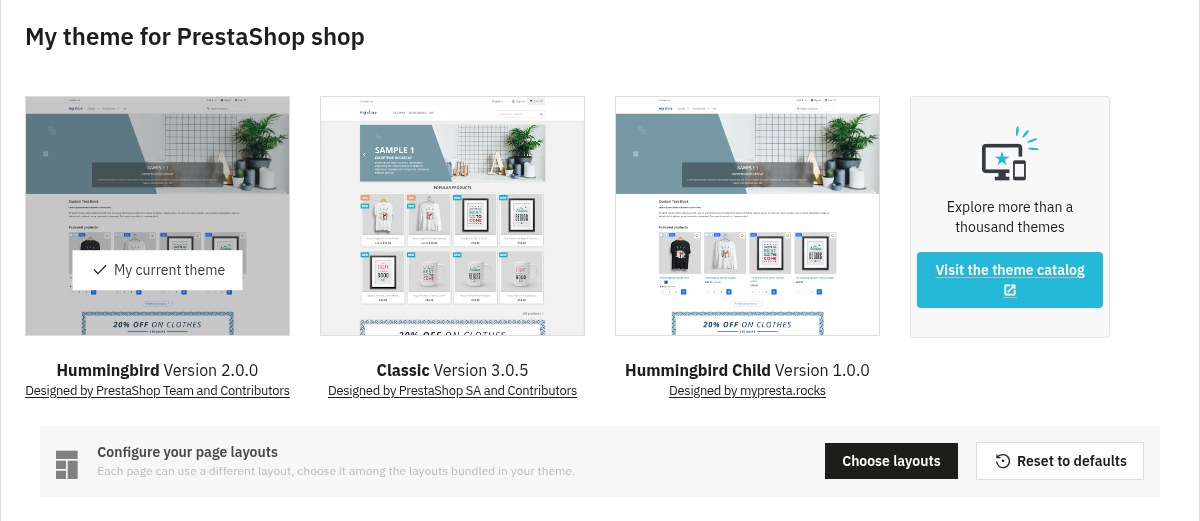
On a real PS 9.1 dev shop, Design > Theme & Logo shows Hummingbird as current, Classic still available, and our Hummingbird child theme installed. That's why the only safe advice is "audit the current shop first, then decide." We've watched migration plans built on assumptions about Hummingbird-only shops fall apart because Classic was still active.
If you maintain custom templates, work in a Hummingbird child theme. Don't edit the parent.
What's different about Hummingbird
- Bootstrap 5.3 instead of Bootstrap 4. Class names, grid system, and utility classes have changed. A theme port is not find-and-replace.
- CSS custom properties for theming. Colours, spacing, typography, all variables, not SCSS partials.
- Less JavaScript. Native browser features over jQuery plugins where possible. Lighter pages.
- Modern build system. Webpack with tree shaking. Smaller bundles.
- Mobile-first. Mobile is the base layout, desktop is the enhancement. Classic was the opposite. The mental model is different.
If you're still on Classic
- Switch to Hummingbird. Simplest. Create a child theme for your customisations.
- Buy a PS 9-compatible theme. Many vendors have shipped PS 9 versions.
- Port your Classic customisations to a Hummingbird child theme. Most work, best long-term result.
Building a Hummingbird child theme
A child theme lets you customise Hummingbird without touching the parent, so your changes survive theme updates:
mkdir -p themes/my-child-theme/assets/css
mkdir -p themes/my-child-theme/templatesthemes/my-child-theme/config/theme.yml:
parent: hummingbird
name: my-child-theme
display_name: My Custom Theme
version: 1.0.0
author:
  name: Your Name
Drop custom styles into themes/my-child-theme/assets/css/custom.css. Hummingbird loads custom.css from the child theme at the lowest priority, so your rules override the parent.
To override a template, copy it from themes/hummingbird/templates/ to the same relative path inside your child. Only copy the files you need to change, everything else falls through to the parent automatically.
If you bought your theme
Email the vendor before you do anything else. The questions that matter:
- Is there a PS 9-compatible version?
- Is it Hummingbird-based or standalone?
- Does your existing licence cover the PS 9 version?
- What's the migration path from the current version?
If the vendor can't give you a PS 9 version and can't give you a date, start planning your Hummingbird switch now. Waiting six months to find out the answer is still "no" is a worse position to be in.
Post-upgrade checklist
The upgrade finished, the back office loads, you can log in. Don't ship it yet. Every critical function needs to be verified before you take the maintenance page down.
Front office
| Test | What to check | Status |
|---|---|---|
| Homepage | Loads, all blocks visible, no broken images | ☐ |
| Category pages | Products display, filters work, pagination works | ☐ |
| Product pages | Images, descriptions, combinations, add to cart | ☐ |
| Search | Returns relevant results, no errors | ☐ |
| Cart | Add, remove, update quantities, apply vouchers | ☐ |
| Customer registration | Account creation works, confirmation email arrives | ☐ |
| Customer login | Existing customers can log in with their current passwords | ☐ |
| Checkout addresses | Form loads, existing addresses selectable | ☐ |
| Checkout shipping | All carriers display, prices correct | ☐ |
| Checkout payment | All payment methods appear and process | ☐ |
| Order confirmation | Order created, confirmation page displays, email sent | ☐ |
| Contact form | Submits, message received | ☐ |
| CMS pages | Terms, about us, privacy, all render | ☐ |
| Mobile | Repeat the critical tests on a phone or emulator | ☐ |
Back office
| Test | What to check | Status |
|---|---|---|
| Dashboard | Loads without errors, statistics display | ☐ |
| Orders | Existing orders visible, details load, status changes work | ☐ |
| Products | Edit, upload images, manage combinations | ☐ |
| Customers | List loads, profiles open | ☐ |
| Modules | Critical modules active and configured | ☐ |
| Send a test from Advanced Parameters → Email | ☐ |
Payment gateways
This deserves its own paragraph because it's the part that decides whether revenue restarts. For every payment method:
- Place a real test order (or sandbox if the gateway has one).
- Verify the payment is captured in the gateway dashboard.
- Verify the order status updates correctly in PrestaShop.
- Test refunds if your workflow uses them.
- Check webhook / IPN URLs: the upgrade can shift URL structure and you'll silently miss callbacks.
Shipping
- Verify carriers display correct rates per zone.
- Test free shipping thresholds.
- For real-time carrier API rate lookup, confirm the integration still authenticates.
- Tracking number entry, notification emails, label printing: all of it.
Cron jobs
Every scheduled task, cart abandonment, stock sync, feed generation, sitemap, currency rates, custom scripts. PS 9 can rename cron URLs:
# Inspect current jobs
crontab -l

# Hit each cron URL and confirm a 200
curl -s -o /dev/null -w "%{http_code}" "https://yourshop.com/modules/yourmodule/cron.php?token=XXXXX"
SEO
- Friendly URLs still resolve.
- Sitemap generates correctly.
robots.txtintact.- Key ranking landing pages still exist at the same URLs.
- If anything moved, set up 301 redirects the same day. Search Console doesn't grant grace periods.
Common upgrade problems
White screen
The most common one. Blank page, no error.
- Turn on debug mode in
config/defines.inc.php:define('_PS_MODE_DEV_', true); - Reload. The real error should now appear.
- If it's still blank, the error is being swallowed before output. Check the logs:
# Apache tail -50 /var/log/apache2/error.log # Nginx + PHP-FPM tail -50 /var/log/php-fpm/error.log # PrestaShop's own log tail -50 /var/www/html/var/logs/prod.log - Usual suspects:
- PHP memory exhausted: raise
memory_limitto 512M. - Missing PHP extension: install it, restart PHP-FPM/Apache.
- File permissions:
chown -R www-data:www-data /var/www/html/var/.
- PHP memory exhausted: raise
Turn debug mode off again the moment you've found the problem. PS 9's debug pages expose database credentials. That isn't a drill.
500 Internal Server Error
Usually .htaccess or PHP configuration after the upgrade.
# Bypass .htaccess to isolate the problem
mv /var/www/html/.htaccess /var/www/html/.htaccess.bak

# If the shop loads, regenerate from back office:
# Shop Parameters → Traffic & SEO → Generate .htaccess file
Also confirm:
- Apache
mod_rewriteenabled:a2enmod rewrite && systemctl restart apache2 - vhost allows
AllowOverride All - Web PHP is actually 8.1+. CLI is often newer than the web pool, confirm both.
Module conflicts
Back office partially loads, errors in specific sections, console JS errors. The fix is the isolation method:
- Disable every non-native module. If the back office is broken too, do it via SQL:
UPDATE ps_module SET active = 0 WHERE name NOT IN ( 'ps_banner','ps_contactinfo','ps_emailsubscription','ps_featuredproducts', 'ps_imageslider','ps_linklist','ps_mainmenu','ps_searchbar', 'ps_sharebuttons','ps_socialfollow','ps_wirepayment','ps_checkpayment' ); - Clear cache:
rm -rf var/cache/* - Confirm the shop works with only native modules.
- Enable modules one at a time, clearing cache between each.
- The one that breaks it is the one to update, replace, or escalate to the vendor.
Missing translations
Some strings disappear or render as raw keys like Modules.YourModule.SomeString.
- Export/import your language pack from International → Translations.
- For module translations, reinstalling the module fixes it, but reinstalling can reset configuration, so back the config up first.
- PS 9 leans harder on Symfony's translation system. Old-style files in
modules/yourmodule/translations/sometimes need converting to the new format.
Cache
Stale cache is behind a surprising number of "the upgrade is broken" reports that aren't actually broken upgrades. When in doubt, clear everything:
# Wipe and rebuild
rm -rf var/cache/*
php bin/console cache:clear --env=prod --no-warmup
php bin/console cache:warmup --env=prod --no-optional-warmers

# Ownership
chown -R www-data:www-data var/

# And clear your browser cache: old CSS/JS will haunt you otherwise
Images not displaying
- Regenerate thumbnails: Design → Image Settings → Regenerate thumbnails.
- Confirm
img/permissions are correct. - If you use a CDN, purge it.
- Verify the image URL format matches what your theme expects, Hummingbird and Classic don't agree on every path.
Admin login broken
PS 9 swapped the password hasher to Symfony's MigratingPasswordHasher (bcrypt/argon2). In most cases existing passwords work, the hasher auto-migrates on first login. If you're locked out:
# Reset admin password: PS 9 requires Symfony's password hasher
# Do NOT use raw MD5 or direct SQL UPDATE on the password field

# Instead, use PrestaShop's CLI (if available):
php bin/console prestashop:user:change-password --email=admin@yourshop.com

# Or create a temporary PHP script to reset the password properly
# (delete this file immediately after use!)
Never leave password reset scripts on your server. Create them, use them, delete them, all in one session. A forgotten reset script is a security vulnerability.
DIY or hire someone
Be honest about where you sit on the technical scale. A failed upgrade can cost more in lost revenue and customer trust than the entire job would have cost in developer hours.
You can probably DIY if
- You're going from PS 8.2 to 9.x: one version jump.
- Fewer than 10 third-party modules, all confirmed PS 9-compatible.
- Standard theme: Classic to Hummingbird, or a purchased theme that already has a PS 9 version.
- You're comfortable on the command line and with database operations.
- You have a working staging environment to test on first.
- No custom overrides or core modifications.
Hire someone if
- You're coming from PS 1.6.x or early 1.7.x.
- You have a module-heavy shop, especially with overrides.
- Custom theme that needs porting.
- Custom core modifications or override files anywhere.
- Command line and database operations are not your day job.
- Daily revenue is significant enough that a day of downtime is meaningful money.
- You already tried it on staging and got stuck.
What to look for in a developer
- PrestaShop-specific experience. Not "PHP" or "e-commerce." A generic PHP developer will spend billable hours learning things a PS specialist already knows.
- Recent PS 9 work. Ask for shops they've actually upgraded to 9.x. Symfony 6.4 has its own gotchas; you want someone who's hit them already.
- A written plan. Audit → staging upgrade → testing → production upgrade → monitoring. Not "I'll figure it out."
- Post-upgrade support. Edge cases surface 1-2 weeks later when a previously-quiet workflow finally runs. Make sure that window is covered.
Rough costs (2025-2026 market)
- Simple upgrade: PS 8.x to 9.x, few modules, standard theme: 500-1500 EUR.
- Medium upgrade: PS 1.7.x to 9.x, custom theme port, moderate module count: 2000-5000 EUR.
- Complex upgrade: PS 1.6.x to 9.x, custom modules, full rebuild: 5000-15000+ EUR.
If someone quotes you 200 EUR for a PS 1.6 to PS 9 upgrade, they either don't understand the scope or they're planning to cut corners that you'll pay for later in a different currency. A major version upgrade is not click-and-done.
Rollback plan
You made backups. Here's how to use them when the upgrade fails badly enough that going forward isn't the right call.
Rollback from auto-upgrade
If you used 1-Click Upgrade and let it make its own backup:
- Modules → 1-Click Upgrade.
- Click Rollback and select the pre-upgrade backup.
- The module restores files and database.
If the back office is completely inaccessible, you're doing it by hand:
Manual database rollback
# Drop and recreate
mysql -u root -p -e "DROP DATABASE prestashop; CREATE DATABASE prestashop;"

# Restore
mysql -u root -p prestashop < ~/backup_pre_ps9_XXXXXXXX_XXXXXX.sql

# Docker
docker exec -i <your-shop>-db mysql -u root -p'PASSWORD' -e "DROP DATABASE prestashop; CREATE DATABASE prestashop;"
docker exec -i <your-shop>-db mysql -u root -p'PASSWORD' prestashop < ~/backup_pre_ps9_XXXXXXXX_XXXXXX.sql
Manual file rollback
# Remove upgraded files
rm -rf /var/www/html/*

# Restore from backup
tar -xzf ~/prestashop_files_pre_ps9_XXXXXXXX_XXXXXX.tar.gz -C /

# Permissions
chown -R www-data:www-data /var/www/html/

# Cache
rm -rf /var/www/html/var/cache/*
Verify the rollback
- Front office loads.
- Back office login works.
- Recent orders look intact.
- Place a real test order through checkout.
- Disable maintenance mode once you're satisfied.
After a rollback, do not immediately retry the upgrade. Diagnose first. Read the upgrade logs, identify the exact failing step, reproduce on staging, fix the root cause there. Retrying production with the same prerequisites is how rollbacks turn into permanent damage.
No backup: the emergency case
It happens. Not often, but it happens. The options when there's no backup:
- Hosting provider backups. Many hosts keep daily snapshots 7-30 days. Open a ticket immediately, they expire.
- MySQL binary logs. If binlogs are on, point-in-time recovery is possible. Needs a competent DBA.
- The autoupgrade module's own backup. Look in
/admin/autoupgrade/backup/. Often forgotten because the back office is broken. - Forward, not back. If recovery genuinely isn't possible, focus on fixing the upgraded shop instead of restoring the old one. Sometimes that's the only path.
The upgrade path, condensed
- Audit: server requirements, every module, theme compatibility.
- Backup: database via mysqldump, files via tar, configuration written down.
- Stage: run the entire upgrade on a staging environment first. Not "I'll just go straight to production."
- Schedule: low-traffic window with real buffer for the things that will go sideways.
- Upgrade: maintenance mode on, run it, clear caches.
- Test: front office, back office, checkout, payments, shipping, emails. Every one.
- Monitor: error logs for 48 hours straight after going live.
- Clean up: debug mode off, temp files gone, documentation updated for the next person.
PS 9 is genuinely better than what came before. Symfony 6.4, PHP 8.1+ baseline, Twig admin, the AdminAPI direction, Hummingbird as the front-office target, it's the platform we've wanted to ship modules against for years. The catch is that getting there from a real-world PS 8 or PS 1.7 shop takes preparation. Skip the prep and you'll be writing the rollback section. Do the prep and the upgrade itself is the easy part.
Related reading
- PrestaShop 9 compatibility across our modules: module-by-module status, useful for third-party risk planning.
- PrestaShop 9.1, Hummingbird and multi-carrier checkout: current PS 9.1 context for merchants.
- PrestaShop Compatibility package: how our shared compat layer handles version differences across 140+ modules.
- PrestaShop troubleshooting guide: recovery steps for white screens, 500s and broken modules.
- PrestaShop performance guide and Performance Revolution: what to do after the upgrade when you're tuning Core Web Vitals.
- Performance tuning on real PrestaShop shops: database, cache and full-page-cache cleanup after migration.
- Hooks and overrides guide: what to use instead of the overrides PS 9 is making harder to keep.
- Webservice API guide: for verifying ERP and integration permissions after upgrade.
- PrestaShop child themes: the update-safe pattern for Hummingbird customisations.
Related questions
- The module shows "this module requires PHP X.Y". Can I still install it?
- How do I enable debug mode in PrestaShop?
- I accidentally broke my .htaccess file. How to fix it?
- The module translation is not working, text stays in English.
- Override not working. My custom template is being ignored.
- Setting up 301 redirects in PrestaShop after a migration