





Installation & Setup
23 answersPractical help to install a PrestaShop module and get it running in your store, even if you're not a developer. This section walks through uploading a module from the back office, activating it, the first configuration steps, and the access (like FTP) you may or may not need.
It also covers the things that go wrong in real life: an upload that fails with "file too large", a blank white screen after install, a module that installs but doesn't show on the front end, and PHP version requirements. For deeper troubleshooting, our knowledge base guides go further.
Questions
To install a PrestaShop module, upload its ZIP file from the back office: go to Modules → Module Manager → Upload a module, drop in the ZIP you downloaded, and PrestaShop unpacks and installs it for you. No FTP needed for the standard case.
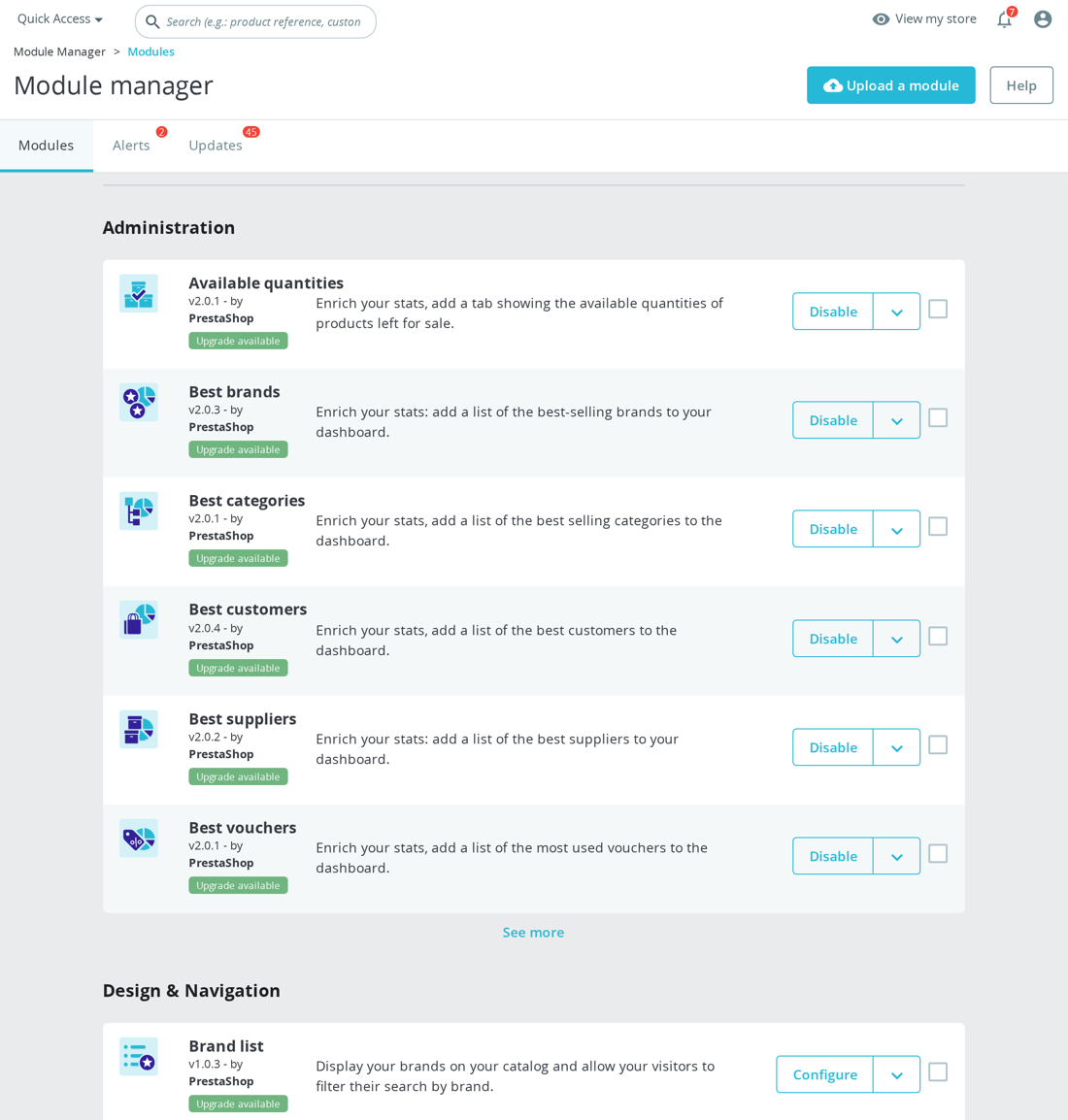
A few things worth knowing before you start:
- Upload the ZIP as-is, don't unzip it first. PrestaShop reads the archive directly.
- If the upload fails on a larger module, your server's
upload_max_filesizeorpost_max_sizeis usually the limit, raise it in PHP settings, or upload the folder via FTP into/modules/and install from the Module Manager. - After it installs, open the module's Configure screen to set it up, installing alone rarely finishes the job.
All of our modules install this way. You can grab the latest ZIP for anything you own from your account, then browse the full range on the mypresta.rocks store.
The important technical detail is that a PrestaShop module is identified by its internal folder and class name, not by the filename you happened to download. In the module source, packages declare a technical name such as mprcanonicalmanager, a version, a tab, a compatibility range and a display name. Keep that top-level folder intact; do not rename it and do not upload a nested folder such as module.zip/mprcanonicalmanager/ by mistake.
Installation also runs module code. Depending on the module, that code may create database tables, register hooks, install admin menu entries and seed default settings. For example, an SEO or internal-linking module can create its own rule tables, register output hooks and add its configuration screens during install(). Copying files into /modules/ is therefore only the first half of an FTP install; the module still needs to be installed from Module Manager so that its setup routine runs.
A safe checklist is:
- Download the newest ZIP from your account.
- Upload the ZIP through Module Manager if your server allows it.
- If PHP upload limits block the ZIP, unzip locally and upload the one module folder to
/modules/. - Find the module in Module Manager, click Install, then open Configure and save the required options.
This is usually a PHP upload limit, not a problem with the module ZIP. PrestaShop receives the ZIP through PHP's normal uploaded-file flow; if PHP rejects the file first, the back office can only show a "file too large" or incomplete-upload error.
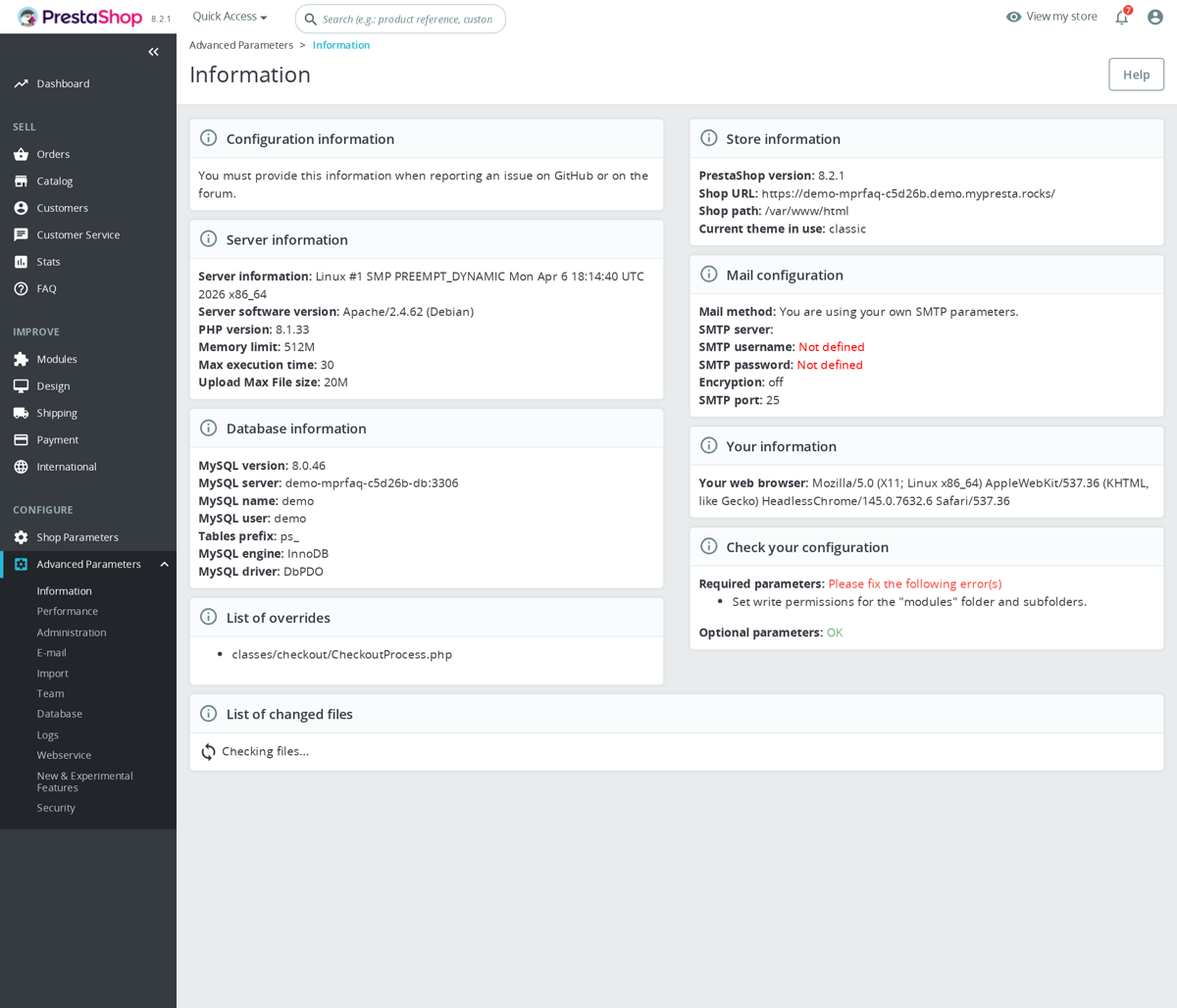
Ask your host to raise upload_max_filesize and post_max_size. Set post_max_size higher than upload_max_filesize, because the whole HTTP POST has overhead. For bigger modules or slow shared hosting, also raise max_execution_time so PHP has time to copy and extract the archive.
; php.ini or .user.ini example
upload_max_filesize = 64M
post_max_size = 80M
max_execution_time = 300
memory_limit = 256M
# Apache + mod_php only, not PHP-FPM
php_value upload_max_filesize 64M
php_value post_max_size 80M
php_value max_execution_time 300After changing PHP settings, restart PHP-FPM or Apache if your host requires it, then reload the PrestaShop back office and try again. If you cannot change those values, upload by FTP/SFTP instead: unzip the module locally, copy the module folder into /modules/, then install it from Modules > Module Manager. The installed result is the same as a successful ZIP upload.
Still stuck? Contact our support team with the ZIP name, file size, PrestaShop version, PHP version and the exact upload error.
When you use FTP/SFTP, make sure you upload the folder that contains the module's main PHP file. For example, a module whose source declares $this->name = 'mprinternallinking' must live as /modules/mprinternallinking/, with mprinternallinking.php and its vendor/, controllers/, views/ or src/ files inside that same folder. An extra wrapper folder is a common reason the module does not appear in Module Manager.
After the files are in place, do not stop there. The install routine is what creates module tables, registers hooks and adds admin controllers. In the inspected modules, install code can also reset opcache, install shared admin config storage and seed defaults. If you only copy files and never click Install, those database tables and hooks are missing.
If a previous failed upload left a half-created folder, remove only that incomplete module folder before retrying, then upload a clean copy. Do not delete unrelated PrestaShop cache or module folders just because the upload failed; the failure usually happened before the module install code even ran.
No, for most modules you never touch PrestaShop FTP at all. The standard path is the back office: Modules → Module Manager → Upload a module, drag in the ZIP, done. FTP is only a fallback for two well-known cases.
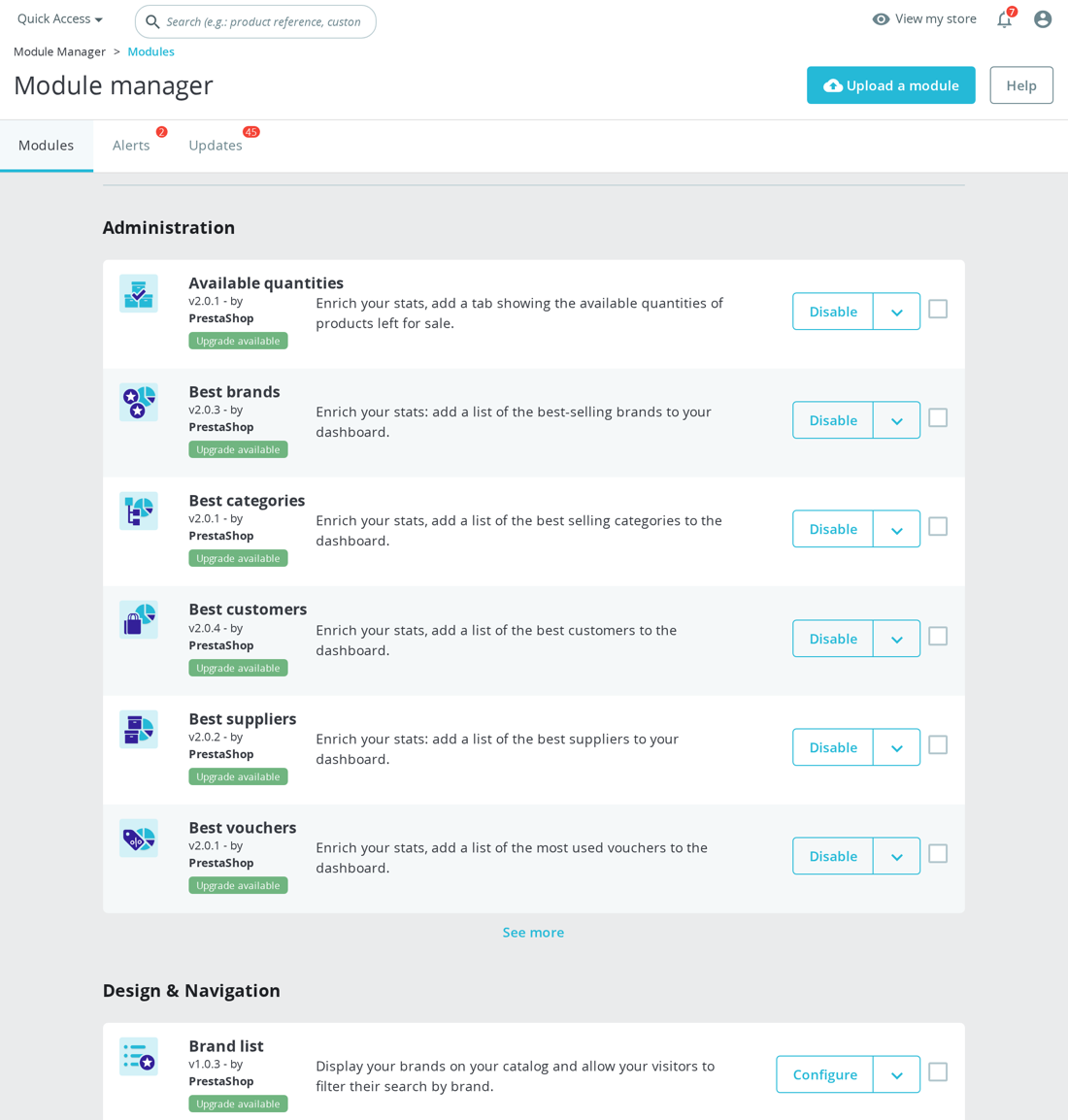
- The ZIP exceeds your PHP upload limit. Shared hosts often cap
upload_max_filesizeandpost_max_sizeat a few megabytes, so larger module ZIPs fail in the browser. Either raise both PHP values in your hosting panel, or upload the module by FTP. - Permission or partial-upload errors. If the back office reports a permission error or a half-installed module, FTP gives you a clean way to recover.
To install a module over FTP: unzip it locally, upload the resulting folder (for example mprseorevolution/) into /modules/ at your shop root, make sure the files are readable by the web-server user (your host can confirm), then open Module Manager, search for the module name and click Install.
Most of our modules are small enough to upload straight through Module Manager, so FTP stays a backup, not a requirement. See also: installing a module on PrestaShop.
The folder name matters. Module classes declare a technical name such as mprcanonicalmanager, mprinternallinking or mprcheckoutrevolution. That folder is what PrestaShop expects under /modules/. Keep the module's main PHP file, composer autoloader, controllers, views and source classes together inside that folder.
FTP does not bypass module setup. It only bypasses the browser upload limit. You still need to click Install so the module can create its tables, register hooks and add its back-office screens. For example, a module may declare database tables for link groups or quote statuses, then create those tables and register hooks during its install method.
Use FTP as a recovery tool, not as a daily workflow. If the back office upload works, it is cleaner because PrestaShop handles the archive, folder placement and install flow in one place. If FTP is required, upload once, install once, then configure the module from its admin page rather than repeatedly overwriting files while it is active.
Yes. The day-to-day use of every module happens in the PrestaShop back office, with clear panels, labelled fields, and inline help. You do not need to touch code, edit templates, or run commands.
What that looks like in practice:
- Install. Upload the module ZIP through Modules → Module Manager. If your hosting plan blocks the upload, FTP is a documented fallback.
- Configure. Each module opens to a settings panel with sensible defaults. Most stores work straight away; toggles and dropdowns cover the rest.
- Stuck? If something blocks you during setup, write to us with what you are seeing and we will help you get it running.
If you can install a theme or change a shop's logo in PrestaShop's back office, you can install and run our modules. For genuinely custom layout changes you may still want a developer, but the standard install-and-configure flow does not need one. See our PrestaShop troubleshooting guide if you hit a snag.
In the overwhelming majority of cases, no. Our modules follow PrestaShop best practices: namespaced PHP classes, isolated CSS and JavaScript, and no files dropped into /override/classes/. That is where almost all module conflicts on PrestaShop come from.
Where conflicts can still appear:
- Hook ordering. Two modules attached to the same hook (e.g.
displayHeaderoractionCartSave) can run in an order that surprises one of them. The Module Manager's hook view lets you reorder them in seconds. - Theme template overrides. If your theme ships a copy of a module's template under
/themes/<name>/modules/<module>/, that copy wins and may not reflect new features after an upgrade. Re-syncing the template fixes it. - Other overrides. A third-party module dropping a class into
/override/classes/can break ours (and many others). PrestaShop disables overrides individually, which usually pinpoints the culprit.
If you hit a real conflict, we investigate and resolve it as part of your support window. At no extra cost, on shops that match the module's stated compatibility. For the step-by-step method, see our PrestaShop troubleshooting guide.
To install a module on PrestaShop 9, go to Modules → Module Manager, click Upload a module in the top-right corner, and drop in the ZIP you downloaded from your account. The path is the same one you already know from PrestaShop 8.x.
Two things are worth checking first on PrestaShop 9:
- Grab the latest build. Older module ZIPs that predate PrestaShop 9 can rely on services that were removed. Always download the most recent release from your account before uploading.
- Check your PHP version. PrestaShop 9 requires PHP 8.1 minimum; PHP 8.2 or 8.3 is a sensible choice if your modules and theme support it.
If the upload fails silently or returns a 500 error, do not raw-delete var/cache/prod/ on PrestaShop 9. That can wipe the back-office Symfony container and lock you out. Clear the cache from Advanced Parameters → Performance instead, or have your host run php bin/console cache:clear --env=prod. No FTP? See our FTP-free install guide.
The reason the newest ZIP matters is visible in module source: modules declare their own PrestaShop compatibility range. Some packages explicitly support wide ranges up to 9.99 or 9.99.99, while others set a minimum PrestaShop version such as 1.7.6. A ZIP built before PrestaShop 9 support was added may install files that are technically present but not compatible with the services, hooks or PHP runtime your shop now uses.
After upload, open the module configuration page and save its settings. PrestaShop 9 can show the module as installed while the useful part still depends on configuration values such as API keys, SEO toggles, quote status defaults, sitemap options, selectors, tracking IDs or cron tokens. Many modules seed defaults during install, but merchant-specific values still belong in the Configure screen.
If the ZIP upload fails because of size, use the same FTP fallback as on PrestaShop 8: unzip locally, upload the one module folder into /modules/, then install it from Module Manager. Keep the folder name exactly as shipped, because the module class name and internal $this->name value are tied to that directory.
Yes, on three independent layers depending on how far you want to go.
- Built-in settings. Most modules expose colours, spacing, layout density and feature toggles in the back office. Start there, it covers most brand-fit changes without writing any CSS.
- CSS in your theme. The module's front-office styles can be overridden from your theme's
custom.css, so you retheme the module without editing module files. Upgrades keep your overrides intact. - Template overrides. For structural HTML changes, copy the module's
.tplinto/themes/<your-theme>/modules/<module>/templates/and edit the copy. PrestaShop loads the theme version automatically.
Do not edit files inside /modules/<module>/ directly. Those get overwritten on upgrade. If you need a change the panel and CSS can't reach, we offer paid customisation; contact us with a screenshot and we'll scope it.
This is almost always one of four things, in order of likelihood:
- It still needs setup. Many modules display nothing until you finish their configuration, open the module's settings page and complete it.
- Your theme doesn't use the module's hook. Go to Design > Positions, find the module and transplant it to a hook your theme actually renders (e.g. a different home or footer hook).
- It's scoped to certain pages or products. Some modules only show on specific page types or for products that meet a condition, check the module's own settings.
- Cache is serving the old page. Clear the PrestaShop cache (Advanced Parameters > Performance) and your browser cache, then reload.
If it still won't show after all four, the module may not register on the page you're viewing at all, check its documentation for which hooks it supports. Browse our module catalog for setup notes per module.
Yes. You can run any of our modules on a local PrestaShop dev environment, Docker, WAMP, MAMP or a plain localhost, without it counting against your license. Your license covers one production domain plus a development/staging subdomain (e.g. dev.example.com), so a local container or VM is always free to use for testing.
That makes a Docker-based local PrestaShop the safe place to trial a module, replay an upgrade, or reproduce a bug before it ever touches your live shop. Install, break things, reset the container, nothing about it affects your production activation.
For a step-by-step setup, see our guide on building a local PrestaShop dev environment with Docker.
Our modules add no PHP requirement of their own. They run on whatever PHP version your PrestaShop release already supports. If your shop runs today, the module runs.
So the practical answer is: use the PHP version your PrestaShop version recommends. Each product page lists the PrestaShop versions it supports, and the PHP requirement follows from that.
If you are on an older PHP version and unsure, send us your exact PrestaShop and PHP versions and we will confirm before you buy. See also our installation & setup guides.
A blank white screen in PrestaShop (the "white screen of death") almost always means a PHP fatal error that is being hidden from view. Turn on debug mode to see the real message: edit /config/defines.inc.php and set _PS_MODE_DEV_ to true, then reload the page.
The usual causes after installing a module are: a PHP version or missing PHP extension the module needs, a memory limit that is too low, or a clash with another module. Send us the exact error line and we will tell you what is wrong.
More fixes: PrestaShop troubleshooting guide.
To update a PrestaShop module, download the latest ZIP from your account, then go to Modules → Module Manager → Upload a module and upload the new file. PrestaShop detects the existing install, overwrites the module files and runs the upgrade scripts shipped with the new version. Your settings survive the update. Module configuration lives in the database, not in the files being replaced.
Two precautions before you upload save most upgrade headaches:
- Back up files and database. Some updates add columns or migrate configuration rows, so a full backup means you can roll back in minutes if anything fails.
- Note your current version. The Module Manager shows the installed version next to the module, write it down before you overwrite.
After the upload finishes, clear the cache under Advanced Parameters → Performance → Clear cache. On current Symfony-based PrestaShop versions, use that same panel rather than deleting var/cache/prod/ by hand. If something looks off afterwards, the Module Manager's Reset action reinstalls hooks and files while keeping your configuration.
That ZIP-upload flow is the same for every module we ship, including heavier ones like Performance Revolution, where the upgrade scripts also refresh its caching setup.
No. Module updates are built to keep your existing settings. Your configuration lives in PrestaShop's database (the ps_configuration table and the module's own tables), and an update doesn't drop those rows. Its upgrade scripts add new columns or options without touching what's already there.
A safe update flow:
- Take a full database backup first (your hosting panel or PrestaShop's DB Backup tool).
- Upload the new module ZIP from the Module Manager. PrestaShop detects the version change and runs the upgrade scripts.
- Clear the cache and open the module's configuration page to confirm everything is intact.
If anything looks off, the backup is your one-step rollback. See our PrestaShop backup guide.
Yes. Every module purchase includes initial setup by us at no extra cost as part of the included support window. We install the module, open the configuration screen, and check that it works on your shop.
To start, after purchase open a ticket with:
- Your store URL.
- Back-office admin credentials (or a temporary admin user) and FTP/SSH if a file upload is needed.
- One sentence about what you want the module to do, so we configure it for your real use case, not a blank default.
We typically respond within one business day. Setup does not cover heavy customisation or conflicts with third-party modules, those fall under our support policy.
No. You need to bring your server's PHP up to at least what the module asks for. Running older PHP than required causes syntax errors or silent failures during install.
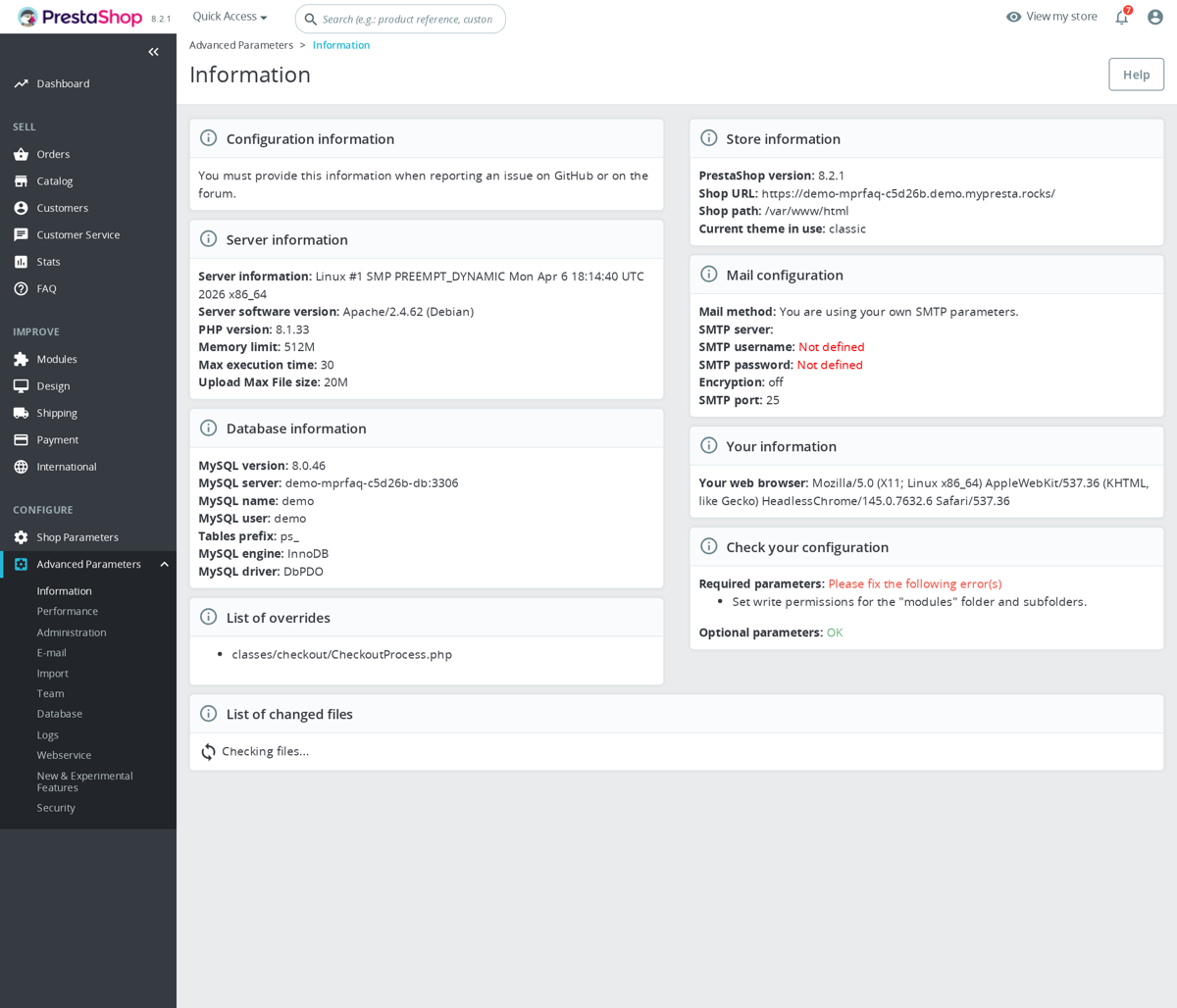
How to fix it:
- Check your current PHP version in PrestaShop Back Office → Advanced Parameters → Information, or with a one-line
<?php phpinfo(); ?>file. - Switch PHP in your hosting panel. On cPanel it's MultiPHP Manager; on Plesk it's Domains → PHP Settings; on managed hosts the switch is in your domain or website settings.
- Pick the version your PrestaShop and your modules support. The module's install message states the minimum it needs. Match that or go higher, within the range your PrestaShop edition runs on.
- Clear the PrestaShop cache (Advanced Parameters → Performance) after switching PHP, then retry the install.
If your host can't offer a recent enough PHP version, that's the moment to move. Running PrestaShop on outdated PHP is also a security risk. See our PrestaShop hosting guide for what to look for.
That message is not a warning you can safely ignore. In the inspected modules, PHP requirements are enforced in code or package metadata. Checkout Revolution's integrity class, for example, defines a minimum PHP version and checks the running PHP_VERSION against it. The shared Internal Linking package also declares a Composer PHP requirement. If the server is below the required version, the module may fail before its admin screen can even render.
Do not solve this by editing the module file to lower the requirement. That only removes the guard; it does not make older PHP understand newer syntax, type declarations or library code. The correct fix is to run a PHP version supported by both your PrestaShop core and the modules installed on the shop.
When changing PHP, check the whole shop, not only the new module. Your theme, payment modules, shipping modules and overrides all run on the same PHP interpreter. After switching, clear cache, open the front office, open the back office, place a small test order if checkout-related modules are involved, and check PHP error logs for fatal errors before calling the update complete.
In most cases yes. Our modules use standard PrestaShop hooks and do not patch core files, which keeps conflict potential low. We cannot guarantee compatibility with every third-party module, though, particularly those that:
- Ship files in
override/(PrestaShop's highest-risk customisation layer). - Modify the same database tables (e.g.
ps_product,ps_order) on hooks likeactionObjectUpdateAfter. - Replace the same Smarty template via
views/templates/hook/on a hook we both attach to.
Quickest way to check: install on a staging copy, enable both modules, click through the affected pages with Debug Mode on (define('_PS_MODE_DEV_', true); in config/defines.inc.php) and watch var/logs/ for exceptions. If you hit a real conflict, send us the other module's name and the error message and we will investigate. Our PrestaShop troubleshooting guide walks through the same checks.
Module installation usually fails because PrestaShop cannot read the archive, cannot write the module files, or the module cannot run on the current server.
Check the ZIP structure first. The archive should contain one module folder at the top level, with the module's main PHP file inside it, for example mymodule/mymodule.php. A common failure is uploading a GitHub-style ZIP that contains an extra wrapper folder, documentation folder, or a nested module folder instead of the actual installable module directory.
zip=module.zip
unzip -Z1 "$zip" | sed -n '1,20p'
unzip -Z1 "$zip" | awk -F/ 'NF{print $1}' | sort -u
find modules -maxdepth 0 -writable -print
php -v
php -m | grep -Ei '^(zip|curl|dom|fileinfo|json|mbstring|openssl|intl)$'
ls -lt var/logs/* 2>/dev/null | head- Check upload limits: the effective limit is controlled by
upload_max_filesizeandpost_max_size. If the ZIP is larger than either value, the back office upload can fail before PrestaShop even installs the module. - Check permissions: the
modules/directory must be writable by the web server user, and cache/log directories must also be writable. - Check PHP compatibility: wrong PHP version or missing PHP extensions such as zip, curl, dom, fileinfo, json, mbstring, openssl or intl can break install or configuration screens.
- Check PrestaShop logs: look in
var/logs/, the back-office error page, and the web server/PHP-FPM error log for the real exception. - Clear cache after fixing a failed install, because PrestaShop may have cached a partially loaded module class.
If the module appears in the module list but will not install, the archive was probably extracted successfully and the failure is inside the module install routine. If it never appears at all, focus first on ZIP structure, upload limits and filesystem permissions.
If the install routine fails after the folder was already extracted, first remove the half-installed module from Module Manager if it is visible, then clear var/cache/ before trying again. If the module row exists in the database but the back office cannot load the module page, do not keep retrying blindly; restore the file/database backup or ask support to check the failed install() step.
When contacting support, send the module ZIP name and version, your PrestaShop version, PHP version, the exact error text, the last lines from var/logs/prod.log or var/logs/dev.log, and whether the module folder now exists under modules/. That tells support whether the failure happened during upload/extraction or inside the module's own installer.
Yes. When you're choosing the best web hosting for PrestaShop, you don't have to worry about our modules: they are standard PrestaShop modules and run on any hosting that runs PrestaShop. Managed platforms like Cloudways, RunCloud or GridPane simply handle the server administration for you, you still install modules through the PrestaShop back office exactly as usual.
The only thing to watch for is a managed host with unusual PHP limits or security rules (for example a low max_execution_time, a tight memory_limit, or rules that block ZIP uploads). If an install or upload fails, raise it with the host's support, it's a server setting, not the module.
For what actually makes good PrestaShop hosting, PHP version, memory, OPcache, database and so on, see our PrestaShop hosting guide.
MPR Cron stores registered tasks, execution logs, trigger hits, durations, statuses, context, due counts, and module summaries. The admin workspace lets you see what is registered, when it last ran, when it is next due, whether recent runs failed, and whether the external trigger is hitting the shop.
The module has separate admin areas for scheduled tasks, modules, hits, logs, and settings. Task rows include type, custom status, schedule, enabled flag, context, priority, timeout, last run, next run, and registration status. Module summaries include detected modules, task counts, enabled counts, due counts, failures in the last 24 hours, last run, and next run. Hit monitoring records source, label, last hit, age, context, task count, duration, status, and whether the hit is recent.
The cron entry point can run from CLI or HTTP with a token, max task count, max seconds, and context. The runner validates the token, checks whether cron is enabled, finds due tasks, executes them, records heartbeat data, and logs task status, duration, context, and result. URL, command, and callable task types are supported, and the runner records failures, timeouts, and response previews so the back office can show more than just whether a cron URL was visited.
Understanding Linux File Permissions
Every file and directory on a Linux server has three sets of permissions: one for the owner, one for the group, and one for others (everyone else). Each set controls three actions: read (r), write (w), and execute (x). These permissions are represented numerically using octal notation, where read equals 4, write equals 2, and execute equals 1. The values are added together for each set, producing a three-digit number like 755 or 644.
For example, a permission of 755 means the owner can read, write, and execute (7 = 4+2+1), while the group and others can only read and execute (5 = 4+0+1). A permission of 644 means the owner can read and write (6 = 4+2+0), while the group and others can only read (4 = 4+0+0). Understanding this system is fundamental to running a secure and functional PrestaShop store.
Beyond the numeric permissions, every file has an owner and a group associated with it. On a web server, the web server process (Apache or Nginx) runs as a specific user, typically www-data on Debian/Ubuntu or apache/nobody on CentOS/RHEL. The web server needs to read your PrestaShop files to serve them, and it needs write access to certain directories for uploads, caching, and configuration.
Correct Permissions for PrestaShop Directories and Files
The general rule for PrestaShop is straightforward: directories should be 755 and files should be 644. This gives the owner full control, while the group and others can read (and execute/traverse in the case of directories) but cannot modify anything. The web server user should be the owner of all PrestaShop files, or at minimum belong to the group that owns them.
To set these permissions across your entire PrestaShop installation, connect to your server via SSH and run:
find /var/www/html/prestashop -type d -exec chmod 755 {} \;
find /var/www/html/prestashop -type f -exec chmod 644 {} \;
Replace /var/www/html/prestashop with the actual path to your PrestaShop installation. The first command finds all directories and sets them to 755. The second finds all files and sets them to 644.
However, certain directories require write access by the web server. These directories need special attention because PrestaShop writes to them during normal operation:
/var/cache/, Smarty compiled templates and Symfony cache/var/logs/, Application log files/upload/, Customer file uploads/download/, Virtual product files/img/, Product images, category images, CMS images/modules/, Module installation and updates/themes/, Theme cache files/translations/, Translation export files/config/, Configuration files (parameters.php)/app/config/, Symfony configuration/app/Resources/translations/, Symfony translations
If the web server user is the owner of these files (which is the recommended setup), then 755/644 permissions are sufficient. If the web server runs as a different user, you may need to adjust group permissions or ownership.
Setting Correct Ownership with chown
Ownership is just as important as permissions. The chown command changes the owner and group of files. For a typical Debian/Ubuntu server running Apache or Nginx, the web server user is www-data:
sudo chown -R www-data:www-data /var/www/html/prestashopThe -R flag applies the change recursively to all files and subdirectories. On CentOS or RHEL systems, replace www-data with apache or nginx depending on your web server.
A common alternative approach is to set the owner to your SSH/FTP user and the group to the web server user. This lets you edit files via FTP or SSH while still allowing the web server to read them:
sudo chown -R yourusername:www-data /var/www/html/prestashopIn this case, directories that need write access by the web server should be set to 775 (group write) and writable files to 664:
find /var/www/html/prestashop/var -type d -exec chmod 775 {} \;
find /var/www/html/prestashop/var -type f -exec chmod 664 {} \;
find /var/www/html/prestashop/img -type d -exec chmod 775 {} \;
find /var/www/html/prestashop/img -type f -exec chmod 664 {} \;
Shared Hosting vs VPS vs Dedicated Server
The hosting environment dramatically affects how file permissions work in practice. Understanding the differences is critical to setting up permissions correctly.
Shared Hosting
On shared hosting, you typically access files via FTP or a file manager in cPanel/Plesk. The PHP execution model varies by host, but most modern shared hosts use PHP-FPM or suPHP, meaning PHP runs as your user account rather than as the global web server user. This simplifies permissions significantly: since PHP runs as your user, it can already read and write to your files with standard 755/644 permissions. You rarely need to change ownership on shared hosting because everything already belongs to your account.
If you encounter permission errors on shared hosting, check with your host whether they use suPHP or PHP-FPM. If they use the older mod_php model, you may need to set some directories to 777 temporarily (though this is not recommended for security reasons). Most reputable hosts have moved away from mod_php precisely because of these permission complications.
VPS (Virtual Private Server)
On a VPS, you have full control. This is the most common setup for serious PrestaShop stores. You should ensure the web server user owns the PrestaShop files or, at minimum, belongs to a group that has read access. The recommended setup is:
- Set the owner to
www-data:www-data(or your web server user) - Use 755 for directories and 644 for files
- Use SSH with sudo for making changes, or add your SSH user to the
www-datagroup
To add your SSH user to the web server group:
sudo usermod -a -G www-data yourusernameThen set the group write bit on directories you need to edit:
chmod g+w /var/www/html/prestashop/themes/your-theme/Dedicated Server
Dedicated servers follow the same principles as VPS setups. The main difference is performance: you have more resources, so you can run PHP-FPM with dedicated pools per site. Each pool can run as a different user, providing better isolation if you host multiple PrestaShop stores on the same server.
PHP Execution Models: suPHP vs mod_php vs PHP-FPM
The way PHP is executed on your server directly determines which user writes files and therefore what permissions are needed.
mod_php (Apache module)
This is the oldest and simplest model. PHP runs as part of the Apache process, meaning all PHP code executes as the Apache user (typically www-data or apache). The problem is that files created by PHP (cache, uploads, etc.) are owned by the web server user, not your account. This can make FTP management difficult and creates security concerns on shared hosts because all sites run as the same user.
With mod_php, PrestaShop files should be owned by the Apache user, and permissions of 755/644 work correctly. However, this model is largely obsolete on modern servers.
suPHP
suPHP runs PHP as the file owner rather than as the web server user. This means if your files are owned by yourusername, PHP also runs as yourusername. This is more secure on shared hosting because each account is isolated. Standard 755/644 permissions work perfectly with suPHP because the PHP process and the file owner are the same user.
One important caveat: suPHP actually rejects files with permissions of 777 or files owned by other users. If you set 777 on a suPHP server, PHP will refuse to execute those files, showing a 500 Internal Server Error instead.
PHP-FPM (FastCGI Process Manager)
PHP-FPM is the modern standard. It runs PHP as a separate process from the web server, with configurable user/group per pool. On a VPS, PHP-FPM typically runs as www-data. On shared hosting with CloudLinux or similar, each account gets its own PHP-FPM pool running as that account's user.
PHP-FPM combined with Nginx is the recommended setup for PrestaShop performance. The standard 755/644 permission scheme works well. Ensure the PHP-FPM pool user matches the file owner or has appropriate group access.
Why 777 Permissions Are Dangerous
Setting permissions to 777 means anyone on the system can read, write, and execute the file. On shared hosting, this means other accounts on the same server could potentially read your database credentials from parameters.php or inject malicious code into your PHP files.
Even on a VPS where you are the only user, 777 is unnecessary and indicates a misconfiguration. If the web server cannot write to a directory with 755 permissions, the fix is to correct the ownership, not to open permissions to the world. Here is what you should do instead of using 777:
- Check who the web server runs as:
ps aux | grep -E "apache|nginx|httpd" - Check file ownership:
ls -la /var/www/html/prestashop/ - Fix ownership:
sudo chown -R www-data:www-data /path/to/directory - Set correct permissions:
chmod 755 /path/to/directory
If you find a tutorial or forum post recommending 777 for PrestaShop, it is outdated and dangerous advice. The only legitimate use of 777 is for /tmp directories that have the sticky bit set (shown as 1777), which is a system-level configuration, not something you apply to PrestaShop files.
Docker Considerations for PrestaShop
Running PrestaShop in Docker introduces additional complexity to file permissions. Inside the container, the web server runs as www-data with a specific UID (often 33 on Debian-based images). On the host system, your user has a different UID. When you use Docker bind mounts to mount your PrestaShop files into the container, the file ownership is determined by the numeric UID, not the username.
This means files created on the host as your user (e.g., UID 1000) will appear inside the container as UID 1000, which is not www-data (UID 33). The web server inside the container may not be able to write to these files.
Approaches for Docker permission issues include:
- Match UIDs: Create a user inside the container with the same UID as your host user, or change the web server to run as your UID.
- Use chown in entrypoint: Add a startup command that runs
chown -R www-data:www-data /var/www/htmlwhen the container starts. This is simple but can be slow for large installations. - Set group permissions: Add your host user and
www-datato the same group (by GID), then use 775/664 permissions. - Named volumes: Use Docker named volumes instead of bind mounts. Docker manages permissions automatically, but you lose direct filesystem access from the host.
For development environments with bind mounts, the most practical approach is to run a chown command after syncing or deploying files:
docker exec your-container chown -R www-data:www-data /var/www/html/modules/your-module/Be aware that operations inside the container (like installing a module) may create files as www-data, while operations on the host create files as your host user. This constant UID mismatch is the most common source of permission problems in Dockerized PrestaShop setups.
Troubleshooting Common Permission Errors
"Failed to open stream: Permission denied"
This error means PHP cannot read or write a file. Check ownership and permissions of the file mentioned in the error. The most common cause is that the web server user does not own the file or directory. Fix it with:
sudo chown www-data:www-data /path/to/file
sudo chmod 644 /path/to/file
"Unable to write to cache directory"
PrestaShop's Smarty template engine and Symfony framework both write cache files. If the var/cache/ directory is not writable, you will see this error. The cache directory must be owned by the web server user:
sudo chown -R www-data:www-data /var/www/html/prestashop/var/cache/
sudo chmod -R 755 /var/www/html/prestashop/var/cache/
After fixing permissions, clear the existing cache by deleting the contents of the cache directories:
sudo rm -rf /var/www/html/prestashop/var/cache/prod/*
sudo rm -rf /var/www/html/prestashop/var/cache/dev/*
"Cannot upload image" or "Cannot install module"
Image uploads go to the img/ directory, and module installations write to the modules/ directory. Both must be writable by the web server user. Additionally, check that the upload_max_filesize and post_max_size PHP settings are large enough for your files, as these can produce similar-sounding errors.
sudo chown -R www-data:www-data /var/www/html/prestashop/img/
sudo chown -R www-data:www-data /var/www/html/prestashop/modules/
"index.php is not writable" during updates
PrestaShop's auto-updater needs write access to nearly every file in the installation. Before running an update, set ownership of the entire installation to the web server user. After the update completes, you can restore more restrictive ownership if desired.
White page after changing permissions
If you see a blank white page after changing permissions, you may have accidentally removed execute permission from directories. Directories need the execute bit to be traversed. A directory with permission 644 (no execute) is effectively inaccessible. Always use 755 for directories, never 644.
You can also check the PHP error log for more details:
sudo tail -50 /var/log/apache2/error.log
# or for Nginx:
sudo tail -50 /var/log/nginx/error.log
Permissions reset after FTP upload
Some FTP clients set their own default permissions when uploading files. Check your FTP client settings for a "default permissions" or "umask" option. Set it to create files as 644 and directories as 755. Alternatively, run the permission fix commands after each FTP upload.
Security Best Practices Beyond Permissions
Correct file permissions are only one layer of security. Consider these additional measures:
- Restrict config file access: The file
app/config/parameters.phpcontains your database credentials. Ensure it is readable only by the web server user (640 permission), not by the world. - Disable directory listing: Add
Options -Indexesto your Apache configuration orautoindex off;to Nginx to prevent visitors from browsing directory contents. - Protect .htaccess files: PrestaShop places
.htaccessfiles in sensitive directories. Do not delete them. - Remove install directory: After installation, delete the
/install/directory completely. PrestaShop warns you about this, but it is worth emphasizing. - Set proper umask: Configure your web server and PHP-FPM with a umask of
0022so new files are created with 644/755 permissions by default.
By understanding Linux permissions, matching them to your hosting environment, and following the guidelines in this article, you will avoid the most common PrestaShop permission problems while maintaining a secure server configuration.
For step-by-step fixes to permission and server errors, see our PrestaShop troubleshooting guide.
PrestaShop has no built-in undo button for a module update, so a downgrade is a controlled rollback of files, database state and cache. Do it slowly; a bad rollback can be worse than the bad update.
- Put the shop in maintenance mode from Shop Parameters > General > Maintenance, especially if the module touches checkout, payment, stock, prices, URLs or tracking.
- Take a full backup first. Back up the whole PrestaShop file tree, the database, and the current
/modules/module_name/folder. Keep the broken version too; support may need it to compare the upgrade. - Record the current state. Note the module name, new version, previous working version, exact error, affected pages and recent order IDs if checkout was involved.
- Get the exact previous ZIP. Use your order history, release archive or support. Do not mix files from two versions.
The safest file rollback is usually to rename the current folder, extract the old ZIP cleanly, and put the old module folder back under /modules/. Example: rename /modules/examplemodule to /modules/examplemodule.bad-update, upload the older examplemodule folder, then check the module version in Module Manager. Avoid clicking Delete. Be careful with Uninstall too: many modules keep their data, but some uninstall routines remove configuration or custom tables by design.
If the update changed database tables, files alone may not be enough. Restore the module's affected tables and configuration keys from the pre-update backup, or ask support for the exact downgrade SQL. Never guess schema changes on a live shop.
After the file and database rollback, clear PrestaShop cache under var/cache/prod and var/cache/dev, clear Smarty cache where applicable, reset OPcache by reloading PHP-FPM or Apache, and purge CDN/Varnish/full-page cache if used. Then test the module's own feature, the relevant front-office pages, back-office configuration save, and checkout end to end.
For modules bought from us, the previous ZIP is normally available from order history, and support can supply an older build when needed. For backup preparation, see our PrestaShop backup guide.
Installing an untested module on a live store is a common cause of downtime, broken checkout and lost sales. A staging environment, a private copy of your store, lets you validate every module before it touches production. Here is the full workflow.
Why staging matters
Staging mirrors your production database, files, theme and modules but is not public. It catches problems that would otherwise hit customers: module conflicts (white screens, JavaScript errors), theme incompatibility, performance regressions, database corruption from poorly written modules, and checkout/payment disruption.
Option 1. Subdomain staging (works on any host)
Create a subdomain such as staging.yourstore.com pointing to a new directory, then:
# Copy production files
cp -r /home/youruser/public_html/* /home/youruser/staging.yourstore.com/

# Dump and import the database
mysqldump -u dbuser -p production_db > /tmp/dump.sql
mysql -u root -p -e "CREATE DATABASE staging_db;"
mysql -u dbuser -p staging_db < /tmp/dump.sql

# Point the staging copy at the staging DB and domain
mysql -u dbuser -p staging_db -e "
  UPDATE ps_shop_url SET domain='staging.yourstore.com', domain_ssl='staging.yourstore.com';
  UPDATE ps_configuration SET value='staging.yourstore.com' WHERE name IN ('PS_SHOP_DOMAIN','PS_SHOP_DOMAIN_SSL');"

# Clear caches
rm -rf var/cache/prod/* var/cache/dev/* var/cache/smarty/compile/*
Then block access: add HTTP basic auth and an X-Robots-Tag: noindex, nofollow header in .htaccess so the staging site stays private and out of search results.
Option 2, Docker staging (closest to production)
Docker lets you match your production PHP and MySQL versions exactly:
# docker-compose.yml (set the image tag to your PrestaShop version)
services:
  prestashop:
    image: prestashop/prestashop
    ports: ["8080:80"]
    volumes: ["./html:/var/www/html"]
    depends_on: [db]
  db:
    image: mysql
    environment:
      - MYSQL_DATABASE=prestashop
      - MYSQL_USER=prestashop
      - MYSQL_PASSWORD=your_password
      - MYSQL_ROOT_PASSWORD=root_password
Import your production dump into the container, then update ps_shop_url and PS_SHOP_DOMAIN to localhost:8080 and disable SSL for local access.
Testing checklist for a new module
- Pre-install: read the docs, unzip and skim the code for suspicious calls (
eval(),base64_decode(), unknown external URLs), and take a DB backup. - Install via Back Office (Module Manager > Upload), check the installed list and the PHP error log, and note which database tables the module created.
- Functional: open and save the config page; verify the front office on home, category, product, cart and checkout; test mobile, each language and multistore if you use them.
- Conflicts: watch the browser console for JavaScript errors, run a full test order through every payment method, and confirm your critical modules still work.
- Performance: time a few key pages with
curl -o /dev/null -s -w "%{time_total}"before and after install. A well-written module adds little. - Uninstall: remove it and confirm its tables, hooks and assets are cleaned up.
Promoting to production
Deploy during low traffic, take a fresh production backup first, upload the exact same ZIP you tested, replicate the same configuration, run an abbreviated checklist, then monitor error logs and conversion for a day or two.
Common pitfalls
- Forgetting to update
ps_shop_url/PS_SHOP_DOMAIN, staging then redirects to production. - Payment gateways left in live mode, switch them to sandbox.
- Emails going to real customers, disable sending or redirect to a test inbox.
- Staging indexed by search engines, block it.
- Cron jobs copied from production, disable any that send emails or hit external services.
For diagnosing issues you uncover, see our PrestaShop troubleshooting guide.
No. Redis Cache Manager & Monitor does not install the Redis server. Redis has to already exist on your hosting - from your provider, VPS, Docker stack or a managed cache service - and the PHP redis extension has to be loaded. If the extension is missing, the module tells you so and the dashboard shows a warning rather than silently failing.
What it does is connect PrestaShop to that existing Redis and let you manage it from the back office. You set the host, port, password, database number and a key prefix (useful when several shops share one Redis instance), then turn on Redis-backed object cache and session storage, watch live monitoring, and browse keys - without touching config files over SSH.
The default connection values are deliberately conservative:
REDIS_HOST=127.0.0.1
REDIS_PORT=6379
REDIS_DB=0
REDIS_PREFIX=ps_
The module tests the connection with the configured host, port, optional password and selected database, then reads Redis server info such as version, uptime, memory usage, connected clients and total key count. Object cache, session cache and full-page cache switches are present but default to off, so installing the module does not suddenly move every cache layer until you choose to enable it.
The key prefix matters when multiple shops share one Redis server. The key browser and prefix flush tools work inside that prefix, and the prefix flush intentionally returns without wiping anything if the prefix is empty. A normal configuration save can also flush the configured prefix when Flush on save is enabled, which helps avoid stale cached data after changing connection or cache settings.
So the honest split: your host (or you) provides the Redis service; Redis Cache Manager & Monitor handles the PrestaShop side safely from admin. A common mistake is buying it expecting a one-click Redis install - confirm Redis and the PHP extension are available first, then this manages the rest.
Other categories
Still have questions?
Can't find what you're looking for? Send us your question and we'll get back to you.