





Checkout & Sales
12 answersThis topic covers the PrestaShop checkout and the sales tools around it, payment restrictions by customer group, currency or cart value, express checkout, estimated delivery and order cutoff times, scheduled discounts, and how specific prices differ from cart rules.
It's for merchants deciding how to set up payment, pricing and delivery information so customers can finish an order with fewer doubts. You'll find clear answers on what each module does, when to choose one approach over another, and the common mistakes to avoid.
Browse the questions below, or see Checkout Revolution for the checkout itself.
Questions
Yes. Checkout Revolution fully supports guest checkout inside its one-page flow, and you choose the policy per store: require account creation, offer it as an optional post-purchase step, or let buyers complete a pure guest checkout with email only.

Allowing guest checkout typically lifts conversion rates on first orders, many shoppers abandon when forced to register, especially on mobile. With the optional post-purchase account creation, you still build a logged-in audience without inserting friction during the buy step.
Guest orders flow through the same one-page UI, abandoned-cart recovery, voucher validation and payment options (Stripe, Apple Pay, Google Pay, PayPal, BNPL, offline methods) as registered orders. For background on why guest checkout matters, see our one-page checkout guide. Supports PrestaShop 1.6 to 9.x.
In the module flow, the contact step exposes a guest-allowed flag to the front end, so the buyer can continue with only an email address when guest checkout is enabled. If the email belongs to an existing account, Checkout Revolution can still show sign-in options and a continue-as-guest path; when an unauthenticated existing-account email is used, the order processor avoids silently logging that customer in after the order. If the buyer sets a password during checkout, the order becomes account-backed; if they do not, the order is processed as a guest and the module can show a post-order registration block.
The operational point is to choose the right policy for your products. High-repeat B2B stores often benefit from account creation or post-order registration; impulse retail usually converts better with pure guest checkout. Guest checkout still needs the usual required address, carrier, payment and legal-consent fields, and some payment modules or anti-fraud rules can still add their own requirements outside Checkout Revolution.
Checkout Revolution supports several B2B essentials but does not ship a multi-step purchase-order approval workflow.

What IS supported: a full quote workflow with custom statuses (colour-coded and customer-visible), email templates bound to each status, and customer-facing accept-and-pay pages so a buyer can convert a quote into a paid order without sales involvement. Company VAT-number capture, net-price display where your tax rules allow it and custom company fields are also covered, and invoices and credit notes can be customised per shop. Tax handling respects PrestaShop's native tax rules, which keeps multi-country B2B clean.
What is NOT included: a true approve → submit → invoice purchase-order workflow (where a buyer's procurement team approves before payment, and you ship on net-30 terms with a separate PO document). That kind of flow needs a dedicated B2B/quotation module or custom development on top of Checkout Revolution.
For automatic VIES-based VAT validation at checkout, pair with our Automatic EU VAT Checker module. Supports PrestaShop 1.6 to 9.x.
Under the hood, the quote system stores quote statuses, quote items, quote messages, quote history and quote-to-order links, with defaults such as QUO-{YEAR}-{ID:5} references, 30-day quote validity and 48-hour payment links. Optional quote fields include phone, company, project reference and attachment; guest quote requests exist but are disabled by default. Price negotiation is also a separate setting, so you can keep quoting simple or allow counter-offers depending on your sales process.
For purchase-order-style data, the practical route is to capture a PO/reference number as a custom checkout or invoice field, or use the credit-account/manual payment method where that fits your process. The module includes credit-account payment handling and a trade-account application handoff, but its own integration notes keep approval workflows, credit limits and company account management as responsibilities for a dedicated trade-account layer. In short: good for quotes, VAT/company fields, credit-account checkout and invoice customisation; not a complete procurement approval system by itself.
Yes. When a campaign is live, Smart Dynamic & Scheduled Discounts shows the urgency cues for you on the storefront:
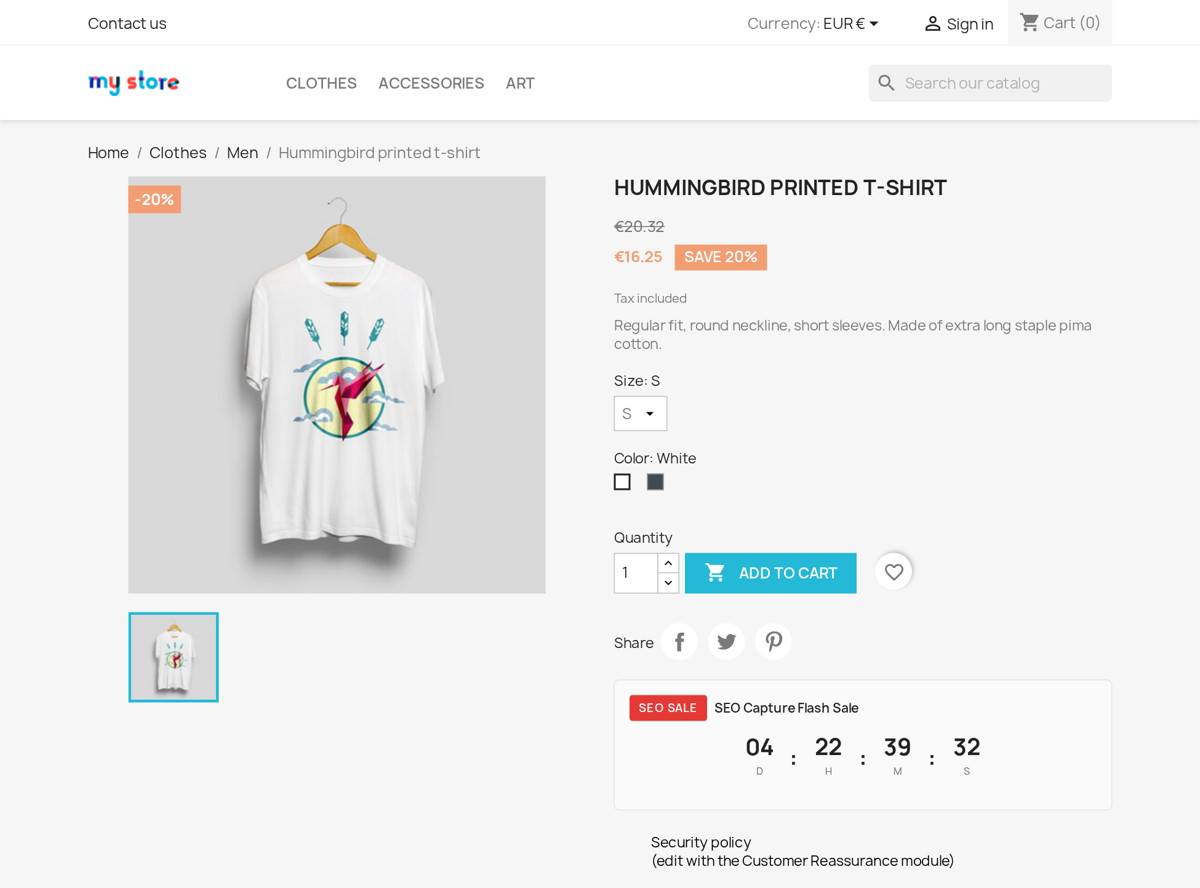
- a countdown timer on the product page that ticks down to the campaign end (simple, flip or circle style);
- a badge on products in category and listing pages;
- the savings shown next to the price, as a percentage and an amount;
- a campaign block in the cart.
Each of these is a separate on/off switch per campaign, so a quiet flash sale and a loud seasonal promotion can look completely different. A common slip is turning the campaign on but leaving every display option off, the discount still applies, but shoppers see no timer or badge to act on. Because the timer reads the campaign's end date, you set the dates once and the storefront keeps itself current.
In setup terms, the display record for a campaign controls show_countdown, show_badge, show_original_price and show_savings, plus badge colours, countdown style and optional custom CSS. The module has separate hooks for the product-page countdown/badge, listing badge, price-block savings and cart campaign bar, so a theme may need those hooks present or equivalent placement in the template.
The discount engine is separate from the visual layer. A valid campaign can still apply its best matching percent, amount or fixed-price discount even if the badge and timer are hidden. Conversely, no timer is shown when there is no active campaign for that product, the campaign has no remaining time, the display switch is off, or the theme does not render the hook. For merchandising, test a product page, a category listing and the cart because each uses a different storefront surface.
Yes. Alongside a one-off scheduled sale, Smart Dynamic & Scheduled Discounts has a recurring campaign type that repeats on a schedule instead of running once. A recurring campaign holds one or more schedule rules, each with:
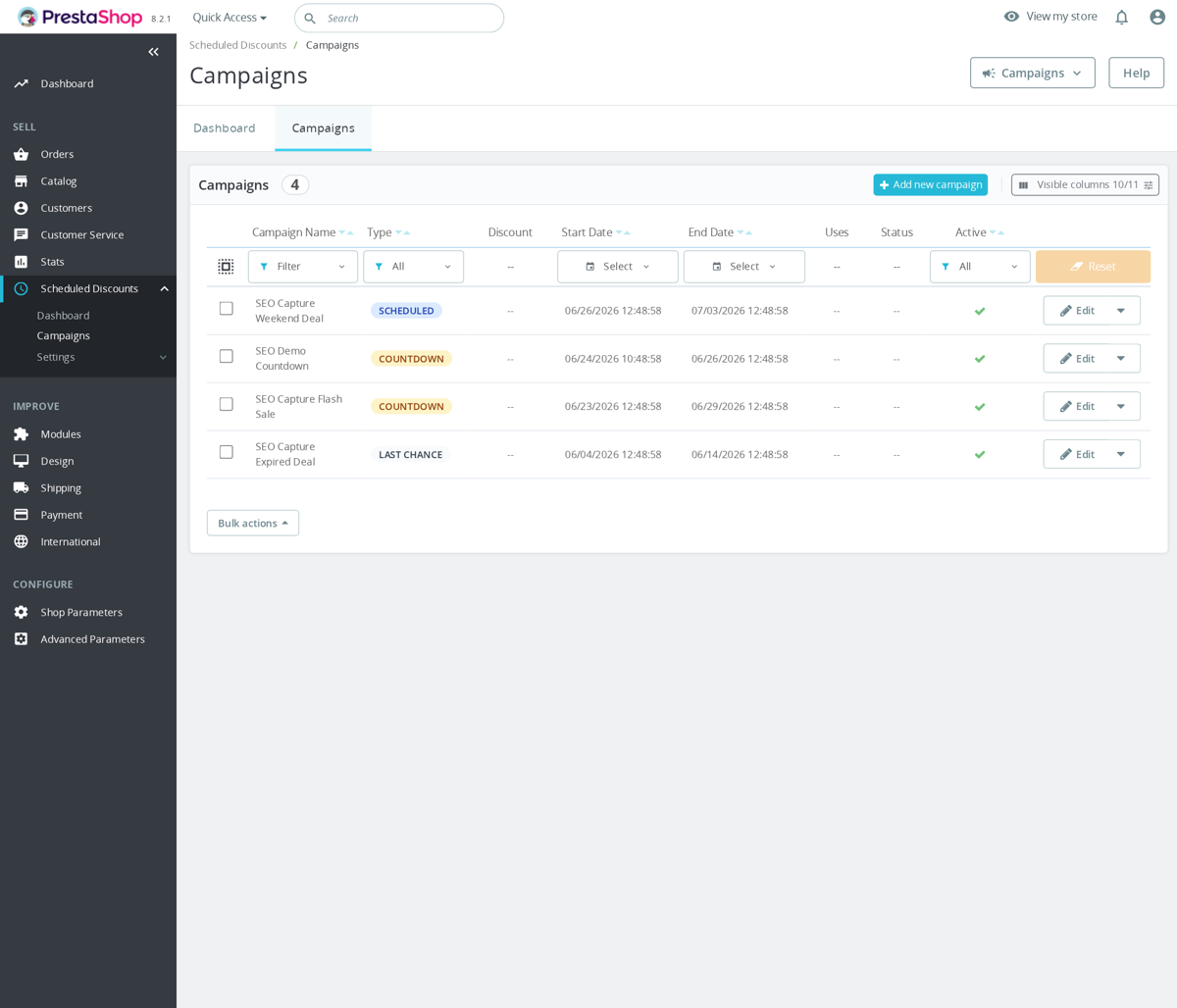
- a type, daily, weekly, monthly or custom;
- the days it runs (days of the week for weekly, days of the month for monthly);
- a start and end time and a timezone;
- an active switch per rule.
Before the discount applies, the module checks the current time against these windows, so a happy hour every Friday 18:00-20:00 runs itself week after week. Watch the timezone field: leave it wrong and the window opens at the wrong local hour. This is the difference between rebuilding the same promotion by hand every week and setting it up once.
There is one important boundary: recurring schedules live inside the campaign's main active flag and global start/end dates. The campaign must still be active and within date_start and date_end; the schedule only decides which hours or days inside that wider window are valid. If a recurring campaign has no schedule rows, the code treats it as active throughout the campaign date range, so add at least one schedule rule when you want a true limited window.
Empty day lists are broad rather than restrictive: a weekly schedule with no selected weekdays can match any weekday during the configured time window, and a monthly schedule with no selected month days can match any day of the month. The timezone is stored per rule and falls back to UTC if it is missing, so use the shop's real local timezone for promotions such as Europe/Warsaw. Example: campaign_type=recurring; schedule_type=weekly; days_of_week=5; time_start=18:00:00; time_end=20:00:00; timezone=Europe/Warsaw.
PrestaShop saves carts in the database, but whether a customer can recover a cart depends on how the cart is linked to the visitor.
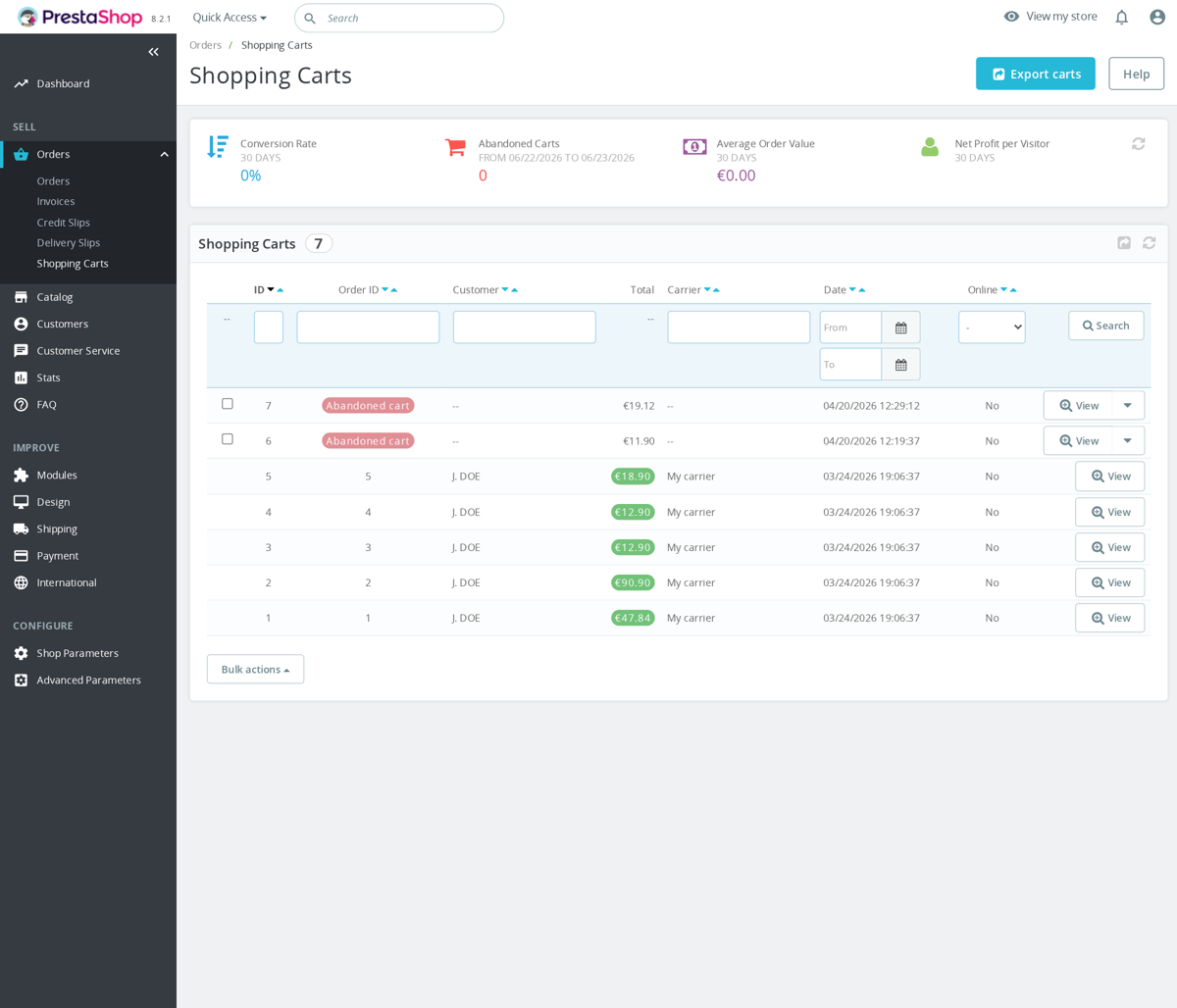
- Logged-in customers: the cart is associated with the customer account. If the cart has not been converted into an order, PrestaShop can usually restore the latest usable cart when the customer returns and logs in.
- Guest visitors: the cart is linked mainly through the front-office cookie that stores the cart identifier. If the visitor returns on the same browser before the cookie expires, the cart can be restored. If they clear cookies, use another device, use private browsing, or the cookie lifetime expires, the shop may still have the cart row in the database but cannot reliably attach it back to that visitor.
- After an order: the ordered cart is no longer treated as the customer open shopping cart. The checkout module also avoids leaving ordered products visible as the current cart after confirmation.
The relevant lifetime is the front-office cookie setting, stored as PS_COOKIE_LIFETIME_FO. That setting controls how long the browser-side cart/customer cookie can survive, not how long abandoned cart records remain in the database.
In PrestaShop 1.7, 8 and 9, check this in Shop Parameters > General: the field is usually labelled Lifetime of front office cookies and maps to PS_COOKIE_LIFETIME_FO. Older shops may show the same setting under Preferences > General.
For email recovery rather than passive cookie restore, use a dedicated abandoned-cart tool such as Sales Revolution, or an email platform integration such as Klaviyo Integration if you want abandoned-cart flows in your marketing system.
Native PrestaShop does not automatically email abandoned cart reminders. For reminders, recovery links, or marketing automation, you need an abandoned-cart module or marketing integration. Checkout Revolution does not replace PrestaShop native cart persistence; it works with the existing cart and checkout flow.
By customer group and currency, yes. By cart value, not with the payment module alone. That one needs PrestaShop's native cart rules. Here is the honest split.
Checkout Revolution stores per-method targeting rules and checks them at runtime against the shopper's context. You can show or hide each payment option by:
- Customer group, e.g. a wire-transfer or "pay on account" option only for your B2B / wholesale group.
- Currency. A regional method appears only when the cart is in its currency.
- Country and language, restrict a method to specific delivery countries or store languages.
- Browser. Used so device wallets land correctly (Apple Pay on Safari, Google Pay on Chrome).
- Page / shop, limit a method to certain checkout contexts or, in a multistore, to specific shops.
What it does not do: there is no built-in "hide cash on delivery over €500" cart-value rule on the payment method itself. For amount thresholds, use PrestaShop's standard tools (cart rules, or a carrier/payment availability condition), Checkout Revolution then renders whatever ends up available. The common mistake is expecting a cart-minimum toggle on the payment option; it lives at the PrestaShop level, not here.
No, and that distinction matters, so here is exactly what each module does.
Estimated Delivery Date does not model per-carrier transit times. It calculates a single estimated delivery date from store-wide rules: a number of processing days, a daily cutoff hour (orders after it add one processing day), automatic weekend exclusion, and a chosen date format. The result shows on product pages under the price, e.g. "Estimated delivery: Monday, January 15". One settings panel drives the whole catalogue. There is no per-carrier or per-country lead time inside this module.
Checkout Revolution doesn't compute transit times either, but it can display them: when you set up shipping methods it reads the delay text you already typed on each PrestaShop carrier (e.g. "2-4 days") and extracts the minimum and maximum days from it, then shows that next to the method at the shipping step. So the number comes from what you configured on the carrier, not from a routing calculation.
If you want a true carrier-and-route ETA (real lead times per carrier and per destination country), that needs a dedicated carrier/transit module, neither of these two performs that calculation. Use Estimated Delivery Date when a clear store-wide "order by X for delivery by Y" message on the product page is what you actually need.
The short rule: use specific prices when the discount should change how a product looks in the catalog, and cart rules when it depends on the whole order or needs a voucher code.
Specific prices, change the price itself
Specific prices override a product's displayed price before it ever reaches the cart. The crossed-out original and the new price show on the product page and in category listings, and they feed Google Shopping and price-comparison feeds. Reach for them when you need:
- A visible sale price or discount badge in the catalog.
- Quantity tiers (buy 5, save 10%) shown on the product page.
- Customer-group pricing, B2B, VIP or wholesale rates that the right customer sees while browsing.
- Per-combination prices for specific sizes, colours or variants.
Cart rules, discount the order
Cart rules apply after products are in the cart and can carry conditions specific prices can't express:
- Voucher codes the customer enters at checkout.
- A minimum order total before the discount kicks in.
- Free shipping as the reward.
- Cross-product conditions (e.g. only when items from two categories are in the cart).
- Total or per-customer usage limits.
Using both together
They can stack: PrestaShop applies the specific price first, then the cart rule on the reduced price, so a 30% specific price plus a 20% cart rule is a 44% total discount, not 50%. Calculate combined discounts before you launch a campaign so they don't quietly cross your margin. One common mistake worth avoiding: running a promotion only through a cart rule means your Google Shopping feed still shows the full price, because feeds read the product price, not cart-level discounts.
Managing both at scale, scheduled campaigns, quantity tiers and group pricing in one place, is what Sales Revolution is built for.
Install Express Checkout and connect your Stripe account. That gives PrestaShop a Stripe-powered express checkout, so a customer can pay in one step without going through the full cart-to-confirmation flow.
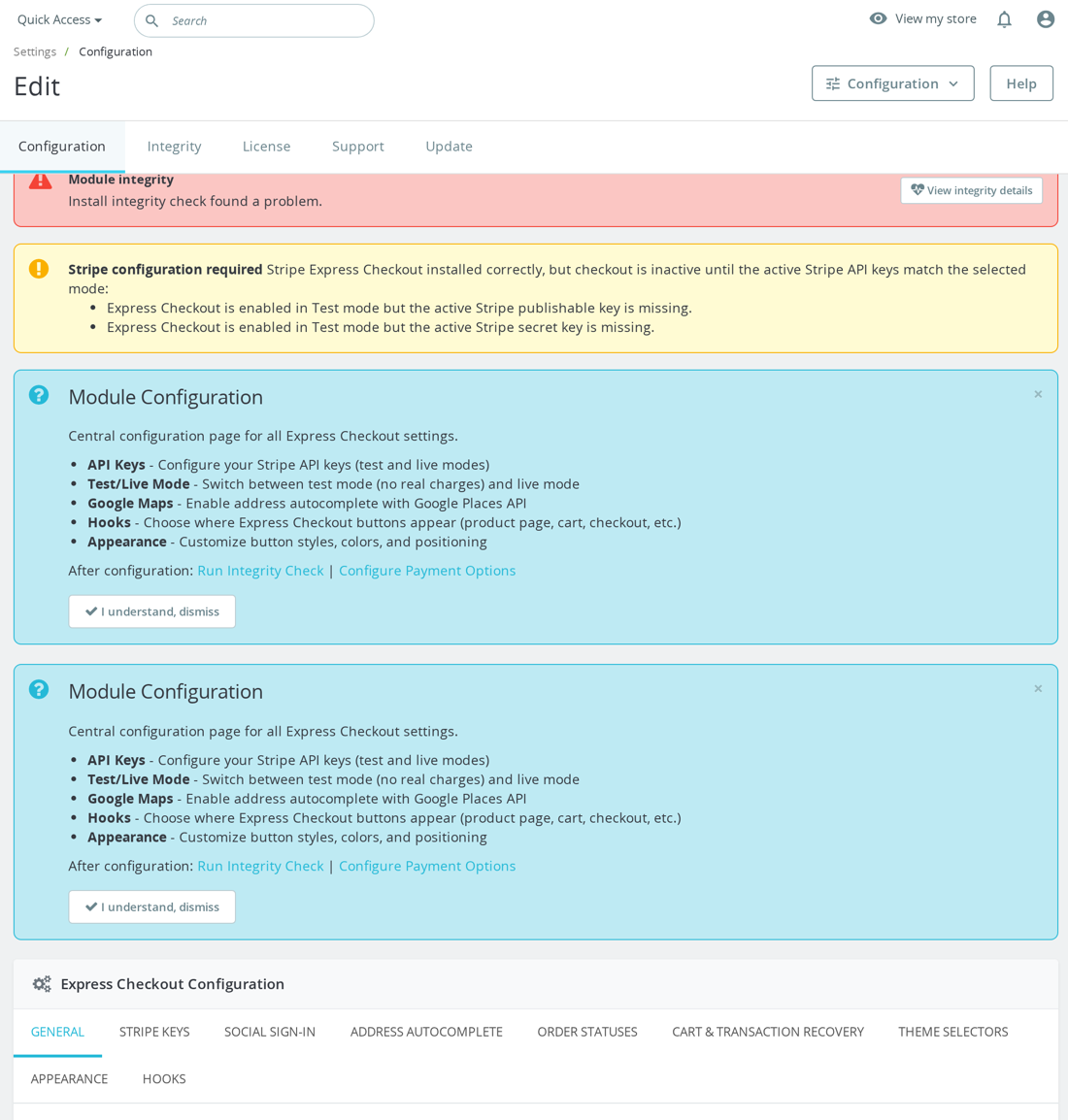
The setup is short:
- install the module and paste your Stripe publishable and secret keys (the secret key is validated against Stripe). Test mode uses
pk_test_/sk_test_keys and live mode usespk_live_/sk_live_; - choose where the express buttons appear, the product page, the listing, the cart, or the standard checkout;
- customers then pay with Apple Pay, Google Pay, PayPal, Link or card, with the wallet showing if the shopper's device and your Stripe dashboard allow it.
The module loads Stripe's own JavaScript and handles the cart, payment status and webhook callbacks for you. One thing to know: the carriers and shipping you set under Express Checkout apply only to the express modal, not to your regular checkout. Configure them or the express purchase has nothing to ship with. An Admin Test Mode also lets logged-in back-office employees test with test keys while the store keeps processing live payments.
Express Checkout owns the wallet and accelerated-payment side: it adds express buttons to the checkout flow you already run. If you want the complete checkout consolidated onto one page instead, look at Checkout Revolution, our separate full one-page checkout module.
Wallets are not just on/off buttons. The payment configuration covers Google Pay, Apple Pay, Link and Samsung Pay; Google Pay is restricted to Chrome, Apple Pay to Safari, and wallet availability is cached from the browser so unavailable wallets can be hidden or disabled instead of flashing and disappearing. The Stripe account country setting is used for Apple Pay / Google Pay eligibility, and if it is empty the module falls back to the shop locale country.
Webhook setup is important because order completion and later payment events depend on it. The module can register Stripe webhooks for the configured test and live modes and checks for events such as payment_intent.succeeded, charge.succeeded, refund.updated and subscription invoice events. It also has a transaction recovery setting, with cron recommended every 5–10 minutes as a backup for webhook failures.
Shipping needs its own check before launch. Express Checkout associates shipping services with payment options, and the front end filters carriers by the selected payment option. A carrier without payment restrictions supports every payment method; if restrictions are set, an incompatible carrier is disabled for that payment option. That is why express checkout can look enabled but still fail commercially if no compatible carrier is available for the wallet or country being tested.
Launch checklist: correct test/live Stripe keys; webhooks paired for the active mode; at least one active Stripe-enabled payment option; at least one compatible carrier; wallet tested on a real supported browser/device.Sales Revolution brings into one dashboard the sales tools a PrestaShop store usually has to assemble from several separate modules:
- Upsell & cross-sell pairs. Set manually or generated from your order history.
- "Frequently bought together" and "customers also viewed" blocks on product pages.
- Product bundles with pack discounts and stock sync (the bundle goes out of stock when a component does).
- Time-limited campaigns with countdown badges, start/stop dates and a seasonal scheduler.
- Dynamic pricing rules by quantity tier and cart value ("buy 3, save 15%", "free shipping over €99").
- Abandoned-cart recovery with email triggers.
- Per-placement analytics tracking impressions, clicks, conversions and revenue, so you can see which offers actually pay off.
It registers standard PrestaShop hooks such as displayProductActions, displayCartModalContent and displayShoppingCartFooter. The right time to add it is when you want to raise average order value from shoppers you already have.
Yes. Estimated Delivery Date has a single daily cutoff hour setting, in 24-hour format, and it works in a straightforward way.
- Order at or after the cutoff hour - the module adds one extra processing day, because that order won't make today's dispatch. The estimated delivery date on the product page shifts forward accordingly.
- Order before the cutoff - the product page can also show how many whole hours are left, e.g. Order within 3 hours, to nudge same-day dispatch.
On top of the cutoff, the date is built from a configurable number of processing days and automatic weekend exclusion (Saturdays and Sundays are skipped, and a date that lands on a weekend rolls to Monday). You choose the date format shown to customers.
The install defaults are enabled, PROCESSING_DAYS=1, CUTOFF_HOUR=14, weekend exclusion on, and DATE_FORMAT=l, F j. With those defaults, a Monday visitor before 14:00 sees the next eligible business day; a Monday visitor at or after 14:00 gets one extra processing day added before the date is displayed.
The module renders in the displayProductAdditionalInfo hook, so it appears only if the product page theme still calls that hook. It does not inspect the selected carrier, delivery country, warehouse, stock status or individual product lead time. The calculation is global for the shop and based on the server-side current time when the product page is generated.
Two honest limits worth knowing: the cutoff is a single store-wide hour - it is not per carrier or per country - and the hours left figure is whole hours, refreshed when the page loads, not a ticking second-by-second timer. If a global order-by-this-hour-for-delivery-by-this-date message on your product pages is what you need, that is exactly what this module does.
B2B Essentials Pack bundles the four PrestaShop modules a B2B store actually needs: VAT validation, deferred payment terms, group-based tax display, and a real trade-account registration workflow. Each module continues to work independently with its own configuration screen.
Modules included:
- EU VAT Number Checker, validates buyer VAT numbers against the official EU VIES service so you can apply the correct intra-community tax treatment.
- B2B Deferred Payment Terms. Adds configurable net payment terms with automatic due-date calculation, overdue tracking and per-group credit limits for approved trade customers.
- Tax Display Switcher. Lets visitors switch between tax-inclusive and tax-exclusive prices, remembering the choice in a cookie; the default can follow the customer group's native price-display setting.
- Trade Account. Adds a dedicated registration form with company fields (company name, VAT number, business type, trade references) and a pending/approval workflow; approved customers are assigned to your trade group with optional tax-free display.
Install it when your shop needs a real B2B layer on top of normal retail checkout, not just "hide prices until login". Each module keeps its own settings, so you configure them once to match your actual workflow. See the full breakdown and current pricing on the B2B Essentials Pack page.
Other categories
Still have questions?
Can't find what you're looking for? Send us your question and we'll get back to you.