





SEO & Marketing
64 answersThis topic gathers our most-asked questions about PrestaShop SEO and marketing modules, from structured data and schema markup to XML and HTML sitemaps, hreflang, canonical and noindex rules, alt tags, and analytics or Meta Pixel tracking.
It's for merchants who want their store to be technically correct for search engines and measurable for marketing, without guesswork. You'll find practical answers on how each capability works, when it actually helps, and how our SEO modules sit alongside tools you may already use.
Browse the questions below, or read our wider PrestaShop guides for the bigger picture.
Questions
PrestaShop schema, also called structured data, is a small extra layer of code that tells search engines what each piece of content on your page represents: a price, a stock state, a product, a rating, a breadcrumb trail or an FAQ entry. Search engines can use that data for eligible rich result features such as product price and stock snippets, review stars where supported, breadcrumb links, or FAQ-style presentation where the search engine still supports it.
Rich results do not push your page higher in the ranking on their own, but they can make the listing more useful and easier to trust. For a store, the schema types that usually matter are Product, Offer, AggregateRating/Review, BreadcrumbList, Organization, WebSite, CollectionPage, Article and, where appropriate, FAQPage.
Our Automatic SEO Schema Rich Snippets module attempts to add Product, Offer, rating/review, breadcrumb, Organization, WebSite, category and CMS-page markup without template editing. The same schema functionality is also part of the Smart SEO Revolution Suite if you also want sitemaps, canonicals and meta-tag automation in one place.
Important current-code caveat: the module outputs JSON-LD from hookDisplayHeader, but clean_existing_jsonld is enabled by default and the final-output cleanup preserves only JSON-LD scripts containing the <!-- mprschema --> marker. The header hook currently emits unmarked JSON-LD, so with JSON-LD cleanup active the final HTML can remove the module's own schema. Until the renderer marks its scripts or the cleanup logic is disabled/fixed, verify the final page source before treating the JSON-LD as reliably present.
On product pages, the Product schema can include the product name, URL, description, SKU, GTIN/UPC/ISBN/MPN identifiers, manufacturer/supplier/feature-based brand data, images, item condition, offer data, weight, category and review data when the shop has that data. The brand generator uses the configured catalogue source, such as manufacturer, supplier or a feature named like Brand, with a manufacturer fallback; the declared override-brand field is not used by the current generator. Offer data can include price, currency, availability, seller, shipping details and return policy. For products with combinations, the implementation can build aggregate offer data instead of pretending every variant has one identical offer.
Category pages are handled differently: they are rendered as CollectionPage data with a category name, URL, description, image, number of items and an ItemList sample of products. CMS pages are rendered as Article schema with headline, URL, description, article body, word count, dates, author, publisher, logo, language and main entity URL.
The practical merchant rule is to fill the underlying data, not just switch schema on. If a product has no identifier, weak images, no stock state, no reviews or an empty description, the schema can only describe that weak data. Structured data works best when your catalogue data is already clean, and in the current module you should also check that cleanup settings are not removing the JSON-LD you expect to publish.
Four front-office forms: contact, registration, login and newsletter. Each one is switched on or off individually, so you can protect just the forms that actually attract spam and leave the rest untouched.
You choose one provider for all of them, Google reCAPTCHA v2, reCAPTCHA v3 (with a score threshold you set, default 0.5) or hCaptcha. The real protection happens server-side: every protected submission is re-checked against the provider before it goes through, so a bot can't skip the widget by posting straight to PrestaShop. Protection stays off until you enable the module and paste both the site key and secret key. A common mistake is adding only one key and wondering why nothing is blocked.
Form protection is part of our Store Launch Kit, the set of essentials to lock down before opening your store.
No. The licenses are independent, so you can install the whole Store Launch Kit in an afternoon or only what your launch needs first and add the rest later. Each module keeps its own small settings screen, and supported PrestaShop versions vary per module, so check each module's product page before you install.
Yes. When it can identify a single safe breadcrumb in your theme, or your theme uses the standard breadcrumb hook, it takes over cleanly. It recognises Hummingbird, Classic, Warehouse and legacy markup out of the box and supports a custom selector for bespoke themes. If the target is missing or ambiguous, it leaves your theme's breadcrumb alone rather than risk breaking the page.
The Store Launch Kit is a pack of independent module licences bought together in a single order. Each module installs and configures on its own screen, so you can set up only what your launch needs first. For the exact list of included modules, see the pack product page.
Yes. Cookie Banner supports Google Consent Mode v2 signals for Google tags. The important point is that Consent Mode communicates consent state to Google; it does not automatically stop every third-party script on the site from loading.

With the safer default-denied setup, the module sends denied consent for advertising and analytics storage until the visitor accepts cookies. Functional and security storage remain granted in the default Consent Mode call. When the visitor accepts, the banner updates the Google consent state to granted. When the visitor denies or closes the banner, it updates those same advertising and analytics consent fields to denied.
gtag('consent','default',{ad_storage:'denied',ad_user_data:'denied',ad_personalization:'denied',analytics_storage:'denied',functionality_storage:'granted',personalization_storage:'granted',security_storage:'granted'});
// Accept button: gtag('consent','update',{ad_storage:'granted',ad_user_data:'granted',ad_personalization:'granted',analytics_storage:'granted'});
// Deny or close: gtag('consent','update',{ad_storage:'denied',ad_user_data:'denied',ad_personalization:'denied',analytics_storage:'denied'});
The module stores the visitor choice in its first-party consent cookie and dispatches a front-end consent event. After enabling GCM v2, verify with Google Tag Assistant that the default state fires before Google tags and that the update event fires after Accept/Deny.
The settings behind that behavior are GCM_ENABLED and DEFAULT_CONSENT. On install, the module enables GCM, sets DEFAULT_CONSENT to denied, enables the banner, sets a 365-day consent lifetime, uses the bottom-left position, and stores multilingual banner, accept, deny and policy-link text. The admin can switch the default state to granted, but the module's own integrity check marks that as an opt-out model and warns that GDPR markets usually require opt-in.
The default Consent Mode call is injected from displayHeader, while the banner HTML is rendered once from footer hooks and the front JavaScript is registered at the bottom. That ordering matters: the default denied or granted state is available before later Google tags, then the browser-side script updates the state after the visitor acts. If the visitor already has the mprcookie_consent cookie, the banner is not shown and the stored value is sent to Google again on page load.
The stored cookie value is only granted or denied. It is written as a first-party cookie named mprcookie_consent with path=/, SameSite=Lax, and Secure when the shop is served over HTTPS. The expiry comes from COOKIE_EXPIRY; the integrity check treats empty or non-positive values as an error and warns above 730 days.
- Accept sends
grantedforad_storage,ad_user_data,ad_personalizationandanalytics_storage. - Deny, the close button, and a center-modal backdrop click send
deniedfor those same four fields. - The module does not update
functionality_storage,personalization_storageorsecurity_storageafter the initial default call; those are granted in the default call. - The custom
mprcookie:consentevent fires when the visitor makes a new choice, withevent.detail.consentcontaining the new state.
document.addEventListener('mprcookie:consent', function (event) {
  if (event.detail.consent === 'granted') {
    // load or unlock your optional non-Google script here
  }
});
A practical gotcha: because the module is intentionally lightweight, it does not scan the page, categorize cookies, rewrite script tags, or block non-Google scripts by itself. If a Facebook pixel, chat widget or analytics script loads before checking consent, Consent Mode will not stop that script. Wire those scripts to your own consent checks or to the mprcookie:consent event, and keep only one cookie consent module active because installation blocks running this module alongside mprcookiesrevolution.
For testing, clear mprcookie_consent, reload the page, confirm the default Consent Mode call appears in the head, then click Accept and Deny in separate tests to confirm the update call changes the four advertising and analytics fields. Reload once the cookie exists to confirm the banner stays hidden but the stored state is still pushed to Google.
Yes. With the Product Canonical Manager you set per-entity rules for products, categories, manufacturers, suppliers and CMS pages, and it writes noindex and nofollow into the page's robots meta tag. The same module regenerates hreflang tags from your active shop languages and adds x-default for your default language, so each language version points at the right alternates.

In the page <head> the rules render as the standard tags search engines read, a single canonical, the robots directive, and one hreflang alternate per language plus x-default:
<link rel="canonical" href="https://yourshop.com/en/blue-widget" />
<meta name="robots" content="noindex, follow" />
<link rel="alternate" hreflang="en" href="https://yourshop.com/en/blue-widget" />
<link rel="alternate" hreflang="de" href="https://yourshop.com/de/blaues-widget" />
<link rel="alternate" hreflang="fr" href="https://yourshop.com/fr/widget-bleu" />
<link rel="alternate" hreflang="x-default" href="https://yourshop.com/en/blue-widget" />
This keeps thin or duplicate pages (filtered listings, internal search, account pages) out of Google's index while your real products stay indexable, and it tells Google which language to serve to which audience. A common mistake is adding noindex and a canonical that point in different directions on the same URL; decide per page whether you want it indexed-but-canonicalised or fully noindexed, not both at cross purposes.
The Smart SEO Revolution Suite shares the same canonical, hreflang and noindex engine, so the same per-entity rules are available there too.
Rules have a priority and shop scope. The lookup accepts the exact entity ID or entity ID 0, and exact or shop-global rules can be ordered by priority. That lets you create a broad rule for all products, then override one important product, category or CMS page without duplicating every setting.
The robots tag is built only from the directives you choose. If you tick noindex, the module adds noindex; if you tick nofollow, it adds nofollow; if neither is selected, it does not invent a robots tag just to be visible. Existing robots tags are replaced when a rule applies, so you avoid two conflicting robots meta tags in the same head.
Hreflang generation only makes sense on multilingual shops. The module checks active languages, generates alternate URLs for each active language and adds x-default for the configured default language. It also removes existing hreflang tags before inserting its own, which helps avoid duplicate alternate clusters from the theme and the module both trying to own the same signal.
Use noindex carefully with sitemaps. A noindexed URL should not be promoted as an indexable sitemap URL, and the SEO Suite's policy tables include separate index, hreflang, sitemap and schema overrides for that reason. Keep the signals aligned: indexable pages get canonical and hreflang; intentionally hidden pages get noindex and should normally stay out of the XML sitemap.
There are dedicated trails for products, categories, CMS pages, manufacturers, suppliers and search. When the matching MyPresta modules are installed it also covers your blog, FAQ, knowledge base and documentation, and it connects account and checkout pages that themes usually leave without a trail. You choose which page types are active from the settings screen.
That is exactly what it prevents. On eligible pages it keeps one breadcrumb list, reusing an existing one if it already matches what visitors see, otherwise emitting its own, and safely removes the parseable duplicates from your theme or other modules while leaving Product and Organization data intact. Anything it cannot safely read is preserved untouched, so it never damages unknown data.
An XML sitemap is a machine-readable file written for search engines. It lists URLs together with metadata (last-modified date, hreflang alternates, image references) and is submitted to Google Search Console or Bing Webmaster Tools. Its job is discovery: helping crawlers find and prioritise pages they might otherwise miss.
An HTML sitemap is an ordinary page on your shop, made for human visitors. It lists links to categories, products, CMS pages and manufacturers in a readable structure. Its job is navigation and internal linking. It gives visitors a backup index and gives crawlers another set of links into deeper pages.
You generally want both: the XML sitemap is the one search engines actually consume, while the HTML sitemap is optional but handy on large catalogues. Our Advanced SEO Sitemap Builder generates XML sitemaps with hreflang alternates and image entries, automatically splits large catalogues at the 50,000-URL search-engine limit into a sitemap index, and can publish an HTML sitemap page as well.
The sitemap builder is not just a URL dump. Its module description and pipeline are built around verified XML sitemaps: URLs can be crawled and checked for HTTP status, canonical and noindex before being written. The stored URL rows include entity type, language, shop, status, canonical and image/hreflang metadata, so the final sitemap can be based on URLs that passed verification rather than every possible catalogue URL.
For XML output, the writer includes the standard sitemap namespace and adds image and XHTML namespaces when image or hreflang output is enabled. Each URL can receive <loc>, <lastmod>, <changefreq>, <priority>, image entries and alternate-language links. Large output is split by the configured maximum URL count and file size, and a sitemap index points crawlers at the generated files.
The HTML sitemap is different by design. It uses verified URLs for the current shop and language, groups them by type such as home, product, category, CMS, manufacturer, supplier, core, hook or custom, and renders them as a normal page. In the inspected front controller the HTML sitemap page is marked noindex, so treat it mainly as a user navigation and internal-linking page, not as another landing page you expect to rank.
For merchants, the practical setup is: enable the entity types you actually want indexed, keep image and hreflang output on for multilingual/image-heavy catalogues, submit the XML sitemap index in Search Console, and link the HTML sitemap only where it helps visitors.
Be realistic: an SEO module puts the technical signals in place, schema markup, cleaner URLs, canonical tags and internal linking, but when those changes show up in search results depends on Google, not the module. Google has to recrawl and reprocess your pages first, and that timing varies from store to store: it can be days for some pages and much longer for others, depending on how often Google revisits your store. No one can put a fixed date on it.
A few things help the early signals along: submitting a fresh XML sitemap, fixing 404s and redirecting old URLs so crawl budget lands on pages that matter. Those are exactly the levers our Smart SEO Revolution Suite handles. What no module can do is promise rankings on a fixed date. Anyone selling overnight results is misleading you. We run shops too, so we set expectations honestly: SEO is a long game, and a good module shortens the technical part of it, not Google's clock.
The module officially targets PrestaShop 1.7 through 9.x, and it is built to run on PHP 7.1 and up. It also carries legacy code paths for 1.6, if you are on 1.6 or an unusual setup, order it and we will make sure your install works.
It is careful, but let us be honest: building a trail and checking the page's structured data does a little work. Category, product-switcher and Home lookups are cached with targeted invalidation so the result is computed once and reused, and the storefront code sets no cookies or tracking. We do not publish a magic “zero impact” number because that would not be truthful.
Yes. Blog Revolution gives every post a clean, keyword-readable URL and the technical SEO markup search engines look for, so your blog isn't a dead end for your store.
What it handles for you:
- Friendly URLs for posts, categories and tags, readable paths, not query strings.
- Per-post meta title, meta description and canonical, so you control how each page appears and avoid duplicate-content issues.
- Open Graph and JSON-LD blog schema for tidy social previews and structured data (both can be switched off if another module already provides them).
- hreflang on indexable blog pages and rel=prev/next on paginated lists.
- RSS autodiscovery and automatic inclusion of published posts in your XML sitemap.
Common mistake: leaving the meta description blank, Blog Revolution falls back to the excerpt, but a written description reads better in results. If your store also runs our Smart SEO Revolution Suite, let one module own the blog schema to avoid duplicates.
The module registers routes for the blog index, categories, tags, authors, archives, search, RSS, author list and individual posts. Post URLs are built from stored slugs rather than raw query parameters, and the post controller redirects bad slugs, wrong-language URLs or extra path variants back to the canonical form.
Each post stores its own link_rewrite, meta title, meta description, meta keywords and optional canonical. If the custom canonical is empty, the controller uses the current generated URL. Preview pages are marked noindex, and paginated blog lists can be marked noindex on page two and beyond while still exposing rel prev/next links.
For content quality, the post controller can process shortcodes, normalize accidental H1 headings to H2, calculate reading time and build a table of contents from H2/H3 headings. That is not just cosmetic: it keeps blog posts more consistent with a product-store template where the page already has one main H1.
For feeds and discovery, the module can output RSS with post title, link, GUID, content, publication date, author, category and image enclosure. The sitemap hook adds the blog listing and published post detail pages, including featured image data where available. Drafts and unpublished posts are not pushed into the sitemap.
Schema output also has a guard: Blog Revolution checks whether SEO Revolution is already configured to provide blog schema and skips its own native BlogPosting JSON-LD when needed. That is the right pattern for structured data: one clean owner per schema type, not two modules emitting competing BlogPosting blocks.
Category crumbs can show sibling categories, child categories or both; the Home crumb can list your top-level categories; and a product crumb can show other active, catalog-visible products from its category. Manufacturer, supplier and content-section peers can appear too. Everything respects the current shop, language and customer-group access.
Yes. That is exactly how it works. Automatic SEO Images Alt Tags does not write alt text into your database when you install it. It sets the alt (legend) on the fly, every time a product, listing or category page is rendered, by hooking into PrestaShop's presenter layer. Upload a new product image and it is covered automatically. No re-run, no batch job.
Templates combine tokens like {product_name}, {category}, {category_name}, {manufacturer}, {image_position} and product identifiers ({reference}, {ean13}, {isbn}, {upc}, {mpn}), with a separate template per shop language so each storefront gets a localised alt tag.
One safety rule: by default the module never overwrites alt text you typed by hand, it only fills empty fields. You can switch on override if you want every image driven by the template. The default max length is 125 characters.
The module registers presenter hooks for product pages, product listings and category pages. On a product page it updates the cover image, default image and gallery images. On listings it updates the presented product cover/default image and image list. On category pages it updates the category image legend. Because this happens in the presented data, it stays compatible with cache and does not require scanning or rewriting rendered HTML.
The default templates are simple and safe: product pages use {product_name} - {manufacturer}, listing pages use {product_name} - {category}, and category pages use {category_name}. You can change them to include references or identifiers, but keep the result readable. Search engines and screen readers both prefer useful text over a stuffed list of attributes.
The builder cleans the generated alt text before returning it: it replaces variables, strips HTML, decodes entities, collapses repeated spaces and trims separators left empty by missing variables. It then truncates to the configured maximum length at a word boundary where possible. That means a missing manufacturer should not leave an ugly dangling template, and a very long product name should not produce an oversized alt attribute.
The practical workflow is to set a product template, listing template and category template once, leave override off unless you want to replace hand-written legends, then check a product page and a listing page in the browser source. Future images follow the same rules automatically because the hook runs every time the page is presented.
Yes. They are rendered as real server-side links, so search engines crawl them without opening the menu, which adds genuine internal linking between sibling pages. At the same time they never enter your BreadcrumbList schema, that stays a clean, linear trail.
Short version: Yoast is a WordPress plugin and has no PrestaShop equivalent, so there's nothing to integrate with there. If you mean another PrestaShop SEO module, our modules can run alongside it. The thing to manage is overlap.
The risk with any two SEO tools is duplicate output: two canonical tags, two sets of Open Graph tags, two JSON-LD blocks. Search engines dislike that. So decide, per feature, which tool is the source of truth and turn the duplicate off in the other.
Our own modules are built to cooperate, not collide. The Smart SEO Revolution Suite actively de-duplicates against the theme: when it renders its own hreflang or Open Graph tags, it strips the theme's matching tags from the page head, and it can optionally clean foreign JSON-LD too. Blog Revolution goes further and hands blog structured data over to SEO Revolution when that module is set to emit it, so you never get two blog schemas.
Common mistake: enabling the same feature in two modules and assuming "more is better." Pick one owner per feature and you'll have clean, single output.
It follows the WAI-ARIA disclosure pattern: a real button with aria-expanded and aria-controls, ordinary link lists, visible focus states, and keyboard support (Enter and Space, arrow keys, Home/End and Escape). The current page uses aria-current, reduced-motion is respected, and the menu works with a screen reader and on touch.
Partly, and it depends on the reason Google lists next to each URL. Be honest with yourself first: no module can force Google to index a page. What we can do is fix the technical reasons Google often gives.
- Discovered/crawled, not indexed, or missing sitemap: the Advanced SEO Sitemap Builder generates a verified XML sitemap and can ping Google and Bing when it changes, so good URLs are easy to find.
- Duplicate / alternate page with canonical: handled by the canonical and noindex rules in the Smart SEO Revolution Suite, which also manages 301/302 redirects for URLs that moved.
The rest is content and server work the module can't do for you: thin or near-empty pages, pages Google judges low value, or server errors. Open the exact reason in Search Console per URL, fix that cause, then resubmit. A common mistake is keeping pages in the sitemap that you've also set to noindex, the sitemap builder skips noindexed and non-200 URLs so you don't send Google mixed signals.
For chosen product pages you can author the exact ancestor path, for example to place a campaign or landing product under a specific category route. A rule matches by product, category or SEO filter page, then either replaces the ancestors or inserts your own category, CMS, filter or custom-link steps. Home and the current product always stay locked in place, and an invalid definition simply falls back to the normal trail.
Yes. Facebook Pixel lets you define browser-side custom Meta Pixel events from the module configuration. The module supports rules based on clicks, URL matches, PrestaShop controller/module context, or a DOM event.
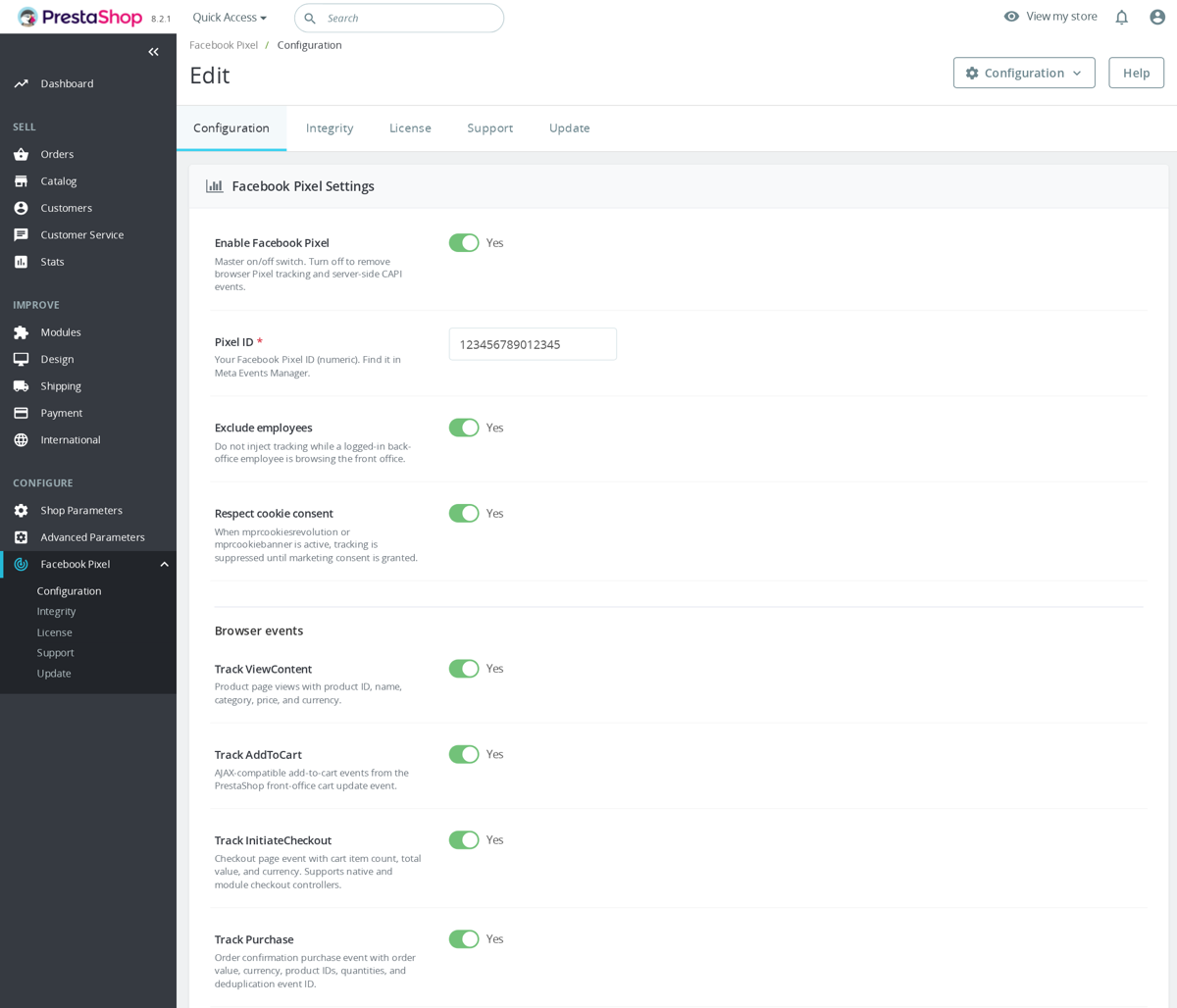
Use a custom event name only for something that is not already a standard Meta event. The module rejects standard/reserved names such as Purchase, AddToCart, Search, ViewContent and InitiateCheckout. Custom names must start with a letter and use only letters, numbers or underscores, with a 50-character limit.
Example: send a custom event when a shopper opens a size guide on a product page.
[{"event":"SizeGuideOpen","trigger":"click","selector":"#size-guide-link, .js-size-guide","once":true,"params":{"placement":"product_page","source":"faq_example"}}]That rule sends fbq('trackCustom', 'SizeGuideOpen', ...) when the clicked element matches the selector, and it includes the parameters from the rule payload. Test the event in Meta Pixel Helper or Events Manager after saving, because a selector that does not exist in the active theme will never fire.
The module validates custom rules before saving. It accepts either a plain events array or a wrapped object format, ignores disabled rules, enforces trigger-specific required fields, and caps the distinct custom event names at 50. Click rules need a selector, URL rules need a contains value, controller rules need controller context, and DOM-event rules need the event name to listen for.
Parameter handling is intentionally defensive. Custom parameters are sanitized, invalid keys are dropped, nested depth and total parameter count are limited, and sensitive or reserved fields such as email, phone, IP and event ID are not accepted from custom-event params. That keeps custom events useful for behavior tracking without turning the config box into a place to leak personal data.
Custom browser events only run when Pixel tracking itself is active. The module checks that tracking is enabled, that a numeric Pixel ID exists, and that employee exclusion and marketing-consent rules allow tracking. The header script waits for the consent gate when configured, initializes Pixel once, sends PageView and page-specific standard events, then binds AddToCart, wishlist and custom-event listeners.
Do not use custom events to duplicate standard ecommerce events. The module already has standard browser-side events and a separate server-side CAPI purchase queue with event IDs for deduplication. Use custom events for theme-specific interactions such as size-guide opens, finance calculator use, quote-button clicks or configurator steps that Meta does not already model as a standard event.
Yes. Labels, entity links, group headings, trail overrides and custom URLs are all language-aware, and configuration, dropdown groups, definable trails and caches are scoped per shop.
Yes. Internal Linker can automatically insert links when the page is rendered, based on link groups that map keywords to a target URL. It does not need you to manually edit every product, category, CMS, or blog description, and it does not rewrite the saved text in the database.
A typical link group could look like this:
Group name: Shower screen SEO
Target URL: /en/shower-screens
Keywords: shower screen, walk-in screen, glass shower panel, shower enclosure|shower partition, shower*
Page types: product, category, cms
Content zones: product description, category description, CMS content
Max links from this group: 2
Link position: first
Keywords can be comma-separated, language-specific, and can use variants with |. Wildcard-style terms such as shower* are supported by the module keyword configuration.
The module also has safeguards to keep the output natural: it can skip the current URL, avoid headings, avoid already-linked text, prevent duplicate target URLs, and limit the total number of links per page or per group. This makes it useful for SEO linking patterns such as linking repeated product terms to important category or guide pages without creating excessive internal links.
The module runs on actionOutputHTMLBefore, so it receives the final storefront HTML and modifies only the response sent to the visitor. It skips non-front-office output, AJAX requests, non-HTML responses and content that does not look like HTML. The shared injector then extracts the <body> and works inside configured content regions, leaving the <head>, scripts and JSON-LD alone.
Default settings are conservative: max_links_per_page is 5, max_links_per_group is 3, default selectors include product descriptions, description blocks, page content and post content, and default allowed tags are p, div, span, blockquote, li and td. The default class for generated links is mpr-autolink, current-page targets are skipped, headings are excluded, and multiple autolinks in the same element are prevented.
Content zones make the setup easier than writing selectors by hand. The resolver maps merchant labels such as product description, category description, CMS content, blog content, manufacturer description and supplier description to common theme selectors, and it filters them by page type. You can still override CSS selectors and HTML tags per group if your theme has unusual markup.
The injector counts existing links inside the target content regions and reduces the available budget for a group when the page already links to the same target URL. It also supports link placement strategies: first, middle, last and spread. This is useful when a keyword appears many times in a long guide and you want only one natural link rather than every occurrence becoming an anchor.
For target URLs, you can enter a URL manually or choose a PrestaShop entity. The admin form supports products, categories, CMS pages, manufacturers and suppliers, and can resolve the selected entity to its front-office URL. Language-specific keyword and target URL overrides are available, so a multilingual store can use local anchor text instead of forcing one language's phrases into every storefront.
Hreflang tags fix one specific problem well: they tell Google which language or country version of a page to show each visitor, so your translated pages stop competing with each other as near-duplicate content. For a multilingual PrestaShop store they are not optional, but they are one part of the job, not the whole of it.

What hreflang will not do is rescue thin or machine-quality translations, fill in pages that only exist in one language, or fix inconsistent URL structures across your shops. Those need real content and clean URLs underneath the tags. Our Smart SEO Revolution Suite generates hreflang automatically for every active language, adds a proper x-default, stays multi-shop aware, and also includes the same references inside your XML sitemap. Get those signals right and Google can match the correct version to each searcher; the translation quality is still your call.
In the SEO Suite, hreflang output is part of the header hook. When HREFLANG_ENABLED is on, the module calls its Hreflang manager and renders <link rel='alternate' hreflang='...'> tags for the alternate URLs it can build. If more than one alternate exists, it also adds an x-default URL. If the current robots decision contains noindex, the suite returns no hreflang output for that page, which keeps noindexed pages from sending mixed signals.
<!-- MPR SEO Revolution - Hreflang Tags -->
<link rel="alternate" hreflang="en-US" href="https://example.com/en/product.html" data-mpr-seo="1" />
<link rel="alternate" hreflang="fr-FR" href="https://example.com/fr/produit.html" data-mpr-seo="1" />
<link rel="alternate" hreflang="x-default" href="https://example.com/en/product.html" data-mpr-seo="1" />

<url>
  <loc>https://example.com/en/product.html</loc>
  <xhtml:link rel="alternate" hreflang="fr-FR" href="https://example.com/fr/produit.html" />
</url>
The sitemap side is separate but aligned. The sitemap writer can emit xhtml:link rel='alternate' entries when it finds matching URLs for the same entity in other languages. The sitemap configuration has an INCLUDE_HREFLANG switch, so header hreflang and XML sitemap hreflang can both be controlled deliberately.
There are still real limits. Hreflang works only when there is a real alternate URL to point to. If a product exists in English but the French product is missing, disabled, noindexed or has poor translated content, the tag cannot create a good French landing page for you. Likewise, hreflang does not replace canonical tags; each language page should normally canonicalize to itself and then list its alternates.
A good multilingual SEO checklist is: keep each language URL crawlable, use self-referencing canonicals, publish complete translations for important products and categories, keep language switcher URLs consistent, include alternates in the XML sitemap, and avoid noindex on pages that are meant to participate in the hreflang cluster.
No. When the final page or its headers say noindex, or a page is marked schema-ineligible, it emits no breadcrumb schema and removes its own and recognised native breadcrumb data, while preserving unknown third-party data. You still get the on-page trail for visitors.
Yes. The Smart SEO Revolution Suite is our all-in-one SEO module for PrestaShop: it pulls our main SEO line into one back-office dashboard, under a single licence and one update channel, so you are not juggling several modules that each want their own settings page.
The Suite ships what these standalone modules do, plus extras:
- Advanced SEO Sitemap Builder, XML/HTML sitemaps, hreflang and image entries, with automatic splitting at the 50,000-URL limit.
- Automatic SEO Schema Rich Snippets, Product, Offer, BreadcrumbList, Organization, Article, FAQ and Review markup.
- Product Canonical Manager, canonicals, hreflang and noindex/nofollow control.
- Automatic Internal SEO Linker, keyword-to-URL internal linking suggestions across your content.
On top of that it adds meta title/description templates with token placeholders, a 301/302/410 redirect manager with hit logging, 404 monitoring, robots.txt and llms.txt editors, Open Graph and Twitter Card output, Google Search Console import, and AI bulk meta generation that can use OpenAI, Claude or Gemini.
The buying logic is simple: if you only need one feature in isolation, say, just canonicals, the matching standalone module may be the leaner choice. The Suite bundles these SEO features into one module and dashboard, so compare it against the standalone modules based on the features you actually need.
Yes. It uses logical CSS properties, reverses directional separators and edge fades, aligns dropdown panels by computed direction and scrolls correctly in RTL.
No. The module ships enabled by default, with the x-default tag switched on and the x-default language set to your PrestaShop default language. On a store that already has more than one active language it starts emitting hreflang tags immediately, with nothing to fill in.
There are only three settings: Enabled, Add x-default Tag, and Default Language. You would only touch them to turn the output off, disable the x-default fallback, or point x-default at a different language than the shop default. Everything else is automatic.
The storefront breadcrumb sets no cookies, no browser storage and no tracking identifiers. It only reads your existing PrestaShop customer and group context to avoid showing links a visitor cannot access, so it does not add any new consent requirement.
The module builds alternate URLs with PrestaShop own Link class, so it covers the standard translatable entities: products, categories, CMS pages, manufacturers and suppliers. For other core controllers it tries getPageLink() and adds the alternate when that succeeds.
It is deliberately defensive: if a route cannot be built safely (some PS 9 module routes throw), it simply skips that alternate rather than break the page. Tags are only rendered when the current shop has more than one active language, so single-language stores stay untouched.
Usually it comes down to a few fixable things, and the most common is missing or empty alt text. Google leans heavily on the alt attribute and surrounding context to understand what an image shows, so images with no descriptive alt rarely surface in Image search. Walk through this list:
- Empty or generic alt text, the biggest factor; fix this first.
- robots.txt blocks the image folder, Google can't index what it can't fetch.
- Images only loaded by lazy-loading JavaScript the crawler doesn't run (less common now with native lazy loading).
- No image entries in your sitemap, so discovery is slower.
- Very small or low-quality images Google may choose not to index.
Start with the alt text. Automatic SEO Images Alt Tags generates it from your catalog data, product name, manufacturer, category, reference and more, and can fill only the empty legends or replace existing ones. Note it gives Google clean alt text to read; it does not guarantee indexing or rankings.
In the module, the default product template is {product_name} - {manufacturer}, listing pages use {product_name} - {category}, categories use {category_name}, and the default maximum length is 125 characters. You can add placeholders such as {reference}, {ean13}, {mpn} and {image_position} to make gallery images more distinct. The builder removes empty separators and cuts long text at a word boundary, so a template like {product_name} - {manufacturer} - {reference} stays readable even when one field is missing.
The module fills the image legend/alt value at presentation time for product cover images, product gallery images, listing images and supported category images. By default it fills empty values without overwriting hand-written legends; enable replacement only after checking that your manual alt text is not better. After changing templates, clear cache and inspect the rendered img alt attributes on a product and category page. This is not an image sitemap generator and it cannot force Google to index an image, but it removes one of the main catalog-side blockers.
Yes. On each request it reads the active languages of the current shop, not a global list, so every store in a multistore group emits alternates only for the languages that store actually serves.
The x-default fallback follows the same logic and points to your configured default language. Because URLs come from PrestaShop Link class, each shop domain and language prefix is resolved correctly per store, which keeps the hreflang cluster consistent across a multistore setup.
Yes, from one screen: pick a display preset (Minimal, Boxed, Pill or Underline), choose the separator (chevron, slash, arrow, dot, pipe, dash or none) and the dropdown indicator, decide whether the current page is shown, truncated or hidden, and set the alignment wrapper for your theme. No template editing required.
Run one of your product URLs through Google's Rich Results Test - it shows which structured data Google finds on the page and flags errors or warnings. You can also monitor coverage over time in Google Search Console under the Enhancements reports. After installing our Schema & Rich Snippets module, test a few product, category and CMS pages before relying on the storefront output.
In the module back office, the preview screen lets you choose a page type and generate JSON-LD before you rely on the live page. Product, Organization, WebSite, Breadcrumb, Category and CMS schema are enabled by default, while FAQ markup is off by default because FAQ content must match visible page content. Product schema uses catalog data such as manufacturer/brand, SKU-style identifiers, condition, reviews, variants and up to five images unless you change the image-limit setting.
Important current-code caveat: live storefront schema should be verified with existing JSON-LD cleanup disabled, or after the module output is marked so the cleaner preserves it. The module outputs JSON-LD scripts in displayHeader, but the cleanup step runs on the final HTML and removes application/ld+json blocks unless they contain the module marker comment. The current header output does not include that marker, so default cleanup can remove the schema the module just rendered.
That means you should validate both the preview output and the real public URL after cache, theme hooks and other SEO modules have run. If cleanup is enabled, check the actual page source to confirm the JSON-LD is still present. Warnings for optional fields do not always block eligibility, but errors in required Product fields should be fixed before expecting rich results. Even valid schema is not a guarantee that Google will show rich results; it only makes the page eligible.
The visible trail and the JSON-LD come from one ordered source, so they always match. The schema uses an absolute, fragment-free URL and sequential positions for each step, is encoded with HTML-safe flags, and contains only the linear trail, never the sibling dropdown links. If fewer than two steps remain, or the page is not eligible, no schema is emitted.
Yes. The TikTok Pixel & Events API module for PrestaShop runs on PrestaShop 9 and other current versions without overrides or theme edits.
It tracks the standard TikTok commerce events used for ad optimisation and audience building, ViewContent, AddToCart, InitiateCheckout, Purchase/CompletePayment mapping, CompleteRegistration, Search, Subscribe and AddToWishlist. Each event has its own toggle in the back office, so you fire only what you actually need.
Completed purchases are also sent server-side through TikTok's Events API using the same event_id as the browser pixel, so TikTok deduplicates the two Purchase signals instead of double-counting. That keeps purchase reporting honest when iOS, ad blockers or a flaky connection drop the browser pixel. Employee exclusion can stop logged-in staff visits, and consent gating holds firing until marketing consent is granted, so a built-in integrity check confirms the hooks are registered and the pixel actually fires.
To go live: paste your Pixel Code and access token, confirm the events in TikTok Ads Manager's Test Events tool, and you are tracking.
The x-default hreflang value tells search engines which page to show visitors whose language you do not explicitly target. When enabled, the module adds it pointing to your default language, and only when the page has more than one alternate to choose from.
For most international stores it is worth keeping on: it gives Google a sensible fallback instead of letting it guess. You can switch it off from the configuration, or set the x-default language to something other than the PrestaShop default if your main audience differs from your default catalogue language.
Yes. The module records old URLs when product/category/CMS/manufacturer/supplier URLs change and serves redirects from the history table. That is exactly for protecting indexed Google URLs after slug or pattern changes. Use 301 redirects for permanent moves, keep redirect history enabled, and avoid changing URL patterns repeatedly unless you are ready to manage the redirect chain.
The history table stores the old URL, new URL, redirect type, entity type, entity ID, shop ID, active flag, hit count, last hit date, and change reason. The lifecycle handler captures old URLs before entity updates, compares them after the update, and records URL changes for products, categories, CMS pages, manufacturers, and suppliers. It also has delete and disable behavior that can redirect to a parent, homepage, 410 Gone, or nothing, depending on configuration.
At request time, the router checks overrides and history entries and returns the configured redirect URL and redirect type when an old URL is matched. For SEO migrations, keep the old history rows enabled long enough for search engines and external links to settle, prefer 301 for permanent slug changes, and test important indexed URLs with a direct HTTP request to confirm they return one clean redirect to the final destination.
As many as your shop needs. Advanced SEO Sitemap Builder does not use a fixed number of sitemap files, and it does not name child files by entity type. It collects the enabled URL sources, verifies them, writes chunked XML files, then writes a sitemap index for the shop.
By default the module includes products, categories, CMS pages, core pages, product images and hreflang alternates. Manufacturers and suppliers are available URL sources too, but they are disabled by default in the module defaults. The writer splits output when the configured URL limit is reached, with 50,000 URLs per file as the default, and also protects the sitemap protocol's 50 MB file-size limit.
Example generated files for shop ID 1:
modules/mprsitemapbuilder/sitemaps/sitemap_index_1.xml
modules/mprsitemapbuilder/sitemaps/sitemap_1_1.xml
modules/mprsitemapbuilder/sitemaps/sitemap_1_2.xml
modules/mprsitemapbuilder/sitemaps/sitemap_1_3.xml
<sitemapindex xmlns='http://www.sitemaps.org/schemas/sitemap/0.9'>
<sitemap>
<loc>https://www.example.com/modules/mprsitemapbuilder/sitemaps/sitemap_1_1.xml</loc>
<lastmod>2026-06-17T10:00:00+00:00</lastmod>
</sitemap>
<sitemap>
<loc>https://www.example.com/modules/mprsitemapbuilder/sitemaps/sitemap_1_2.xml</loc>
<lastmod>2026-06-17T10:00:00+00:00</lastmod>
</sitemap>
</sitemapindex>Submit only the index URL in Google Search Console. Google reads the child files from the index, so you do not have to manage each generated XML file by hand. On multistore installations, each shop gets its own shop-ID-based index and child files.
A missing markup warning means the tool did not find the schema type or required field on that URL. In Schema Revolution, first check that the schema type is enabled for that page type, then compare the module preview with the final page source after cache is cleared, and finally test the live URL in Google's Rich Results Test or Schema.org's validator.

The module builds JSON-LD based on the detected page type. Depending on configuration it can output Organization and WebSite on the homepage, BreadcrumbList on non-home pages, Product schema on product pages, CollectionPage for categories, and Article for CMS pages. Product schema can include name, URL, description, SKU, GTIN, MPN, brand from the configured catalogue source, images, condition, offers, availability, shipping details, return policy, ratings, reviews, weight and category data when the shop has that data available.
{
  "@context": "https://schema.org",
  "@type": "Product",
  "name": "Example product",
  "url": "https://example.com/product.html",
  "description": "Short product description",
  "sku": "REF-123",
  "gtin13": "1234567890123",
  "offers": {
    "@type": "Offer",
    "price": "29.99",
    "priceCurrency": "EUR",
    "availability": "https://schema.org/InStock"
  }
}
If Google reports missing fields, compare three things: the module preview, the final HTML source after PrestaShop and external caches are cleared, and the live URL fetched by the test tool. A field can be absent because the schema type is disabled, the page detector does not identify the page as expected, the product lacks source data such as brand or GTIN, cached HTML is still being served, or another theme/module changes the final output.
Be careful with the cleanup options. They are intended to remove older microdata and duplicate JSON-LD, but the current JSON-LD cleanup preserves only scripts marked with <!-- mprschema -->, while the module's header output is unmarked. With clean_existing_jsonld enabled, including its default state, the cleanup can remove the module's own schema from the final HTML. If tools show missing schema, disable/fix JSON-LD cleanup or add the expected marker before assuming another module is at fault.
In the module configuration, open Schema Revolution > Configuration > Schema Types. Enable the missing type there: Product Schema, Organization Schema, WebSite Schema, Breadcrumb Schema, Category Schema or CMS Article Schema, depending on the URL being tested.
If the schema exists in preview but disappears from the final HTML, disable Remove Existing JSON-LD in the same Schema Types tab while testing. That option removes unmarked application/ld+json scripts from the page before output, so it is the first setting to check when validators report that all JSON-LD is missing.
What Is Robots.txt and Why It Matters for PrestaShop
The robots.txt file sits at the root of your PrestaShop installation and acts as the first point of communication between your store and search engine crawlers. It tells bots like Googlebot, Bingbot, and others which parts of your site they may crawl and which they should skip. While it is not a security mechanism (it does not prevent access, only advises crawlers), it is one of the most important tools for managing your crawl budget. The number of pages a search engine will crawl on your site within a given timeframe.
For PrestaShop stores, this matters enormously. A typical PrestaShop installation can generate thousands of URL variations through filters, sorting options, pagination, currency switching, and search queries. If left unchecked, search engine bots will waste their crawl budget on these low-value pages instead of discovering and indexing your actual product and category pages.
How PrestaShop Generates Its Robots.txt
PrestaShop includes a built-in robots.txt generator accessible from the Back Office. Navigate to Shop Parameters > Traffic & SEO and scroll to the bottom where you will find the "Robots file generation" section. Clicking the generate button creates a robots.txt file at your store's root directory.
The default generated file typically includes rules like these -
User-agent: *
Disallow: /classes/
Disallow: /config/
Disallow: /download/
Disallow: /mails/
Disallow: /modules/
Disallow: /translations/
Disallow: /tools/
Disallow: /*?orderby=
Disallow: /*?orderway=
Disallow: /*?tag=
Disallow: /*?id_currency=
Disallow: /*?search_query=
Disallow: /*?back=
Disallow: /*?n=
Disallow: /*&orderby=
Disallow: /*&orderway=
Disallow: /*&tag=
Disallow: /*&id_currency=
Disallow: /*&search_query=
Disallow: /*&back=
Disallow: /*&n=
Sitemap: https://yourstore.com/sitemap.xml
While this is a reasonable starting point, it is far from complete. Many critical URL patterns that waste crawl budget are not included.
What You Must Block in PrestaShop
1. Cart, Checkout, and Account Pages
These pages are user-specific and provide zero SEO value. They should always be blocked -
Disallow: /*?controller=cart
Disallow: /*?controller=order
Disallow: /*?controller=authentication
Disallow: /*?controller=my-account
Disallow: /*?controller=identity
Disallow: /*?controller=addresses
Disallow: /*?controller=address
Disallow: /*?controller=history
Disallow: /*?controller=order-detail
Disallow: /*?controller=password
Disallow: /*?controller=discount
Disallow: /*?controller=order-return
Disallow: /*?controller=order-follow
Disallow: /*?controller=guest-tracking
Disallow: /cart
Disallow: /order
Disallow: /login
Disallow: /my-account
Disallow: /password-recovery
2. Faceted Navigation and Layered Filters
Faceted navigation is the single biggest crawl budget killer for e-commerce stores. When a customer uses filters like color, size, or price range, PrestaShop generates unique URLs for every combination. A category with 5 colors, 4 sizes, and 3 price ranges can produce hundreds of URL combinations. None of which should be in Google's index.
# Block layered navigation filter parameters
Disallow: /*?q=
Disallow: /*&q=
Disallow: /*?selected_filters=
Disallow: /*&selected_filters=
Disallow: /module/ambjolisearch/jolisearch

# Block price filter combinations
Disallow: /*?price=
Disallow: /*&price=

# Block attribute and feature filters
Disallow: /*?id_attribute_group=
Disallow: /*&id_attribute_group=
Disallow: /*?id_feature=
Disallow: /*&id_feature=
3. Internal Search Results
Internal search result pages are thin content and should never be indexed. They frequently create near-duplicate pages and are a known source of quality issues -
Disallow: /*?controller=search
Disallow: /*?s=
Disallow: /*&s=
Disallow: /search
Disallow: /*?search_query=
Disallow: /*&search_query=
4. Pagination Parameters
While category pages themselves should be crawlable, the pagination parameters that generate sort/page variants should be controlled -
Disallow: /*?page=
Disallow: /*&page=
Disallow: /*?p=
Disallow: /*&p=
Important note - Be careful with pagination. If you block /*?page= entirely, you may prevent crawlers from reaching products that only appear on deeper pages. A better approach is to implement rel="canonical" tags pointing paginated pages to the first page, or to use rel="next" and rel="prev" pagination signals.
5. Comparison Pages and Wishlists
Disallow: /*?controller=comparison
Disallow: /comparison
Disallow: /*?controller=wishlist
Disallow: /module/blockwishlist/
6. Admin and System Directories
Disallow: /admin*/
Disallow: /app/
Disallow: /bin/
Disallow: /cache/
Disallow: /classes/
Disallow: /config/
Disallow: /controllers/
Disallow: /docs/
Disallow: /download/
Disallow: /img/tmp/
Disallow: /localization/
Disallow: /mails/
Disallow: /override/
Disallow: /pdf/
Disallow: /src/
Disallow: /tools/
Disallow: /translations/
Disallow: /upload/
Disallow: /var/
Disallow: /vendor/
Disallow: /webservice/
7. URL Tracking Parameters
Marketing campaign parameters create duplicate content when bots crawl tagged URLs -
Disallow: /*?utm_source=
Disallow: /*?utm_medium=
Disallow: /*?utm_campaign=
Disallow: /*&utm_source=
Disallow: /*&utm_medium=
Disallow: /*&utm_campaign=
Disallow: /*?fbclid=
Disallow: /*?gclid=
Disallow: /*?ref=
What You Must Allow in PrestaShop
1. Product and Category Pages
These are the core of your store and must always remain crawlable. Do not block your main content directories.
2. CSS, JavaScript, and Image Files
Google needs to render your pages to evaluate content quality. Blocking CSS or JS files prevents rendering and can hurt rankings -
Allow: /themes/*/assets/
Allow: /themes/*/css/
Allow: /themes/*/js/
Allow: /js/
Allow: /img/
Allow: /modules/*/views/css/
Allow: /modules/*/views/js/
3. CMS Pages
Your legal pages, about pages, and content marketing pages should be fully crawlable. Ensure they are not accidentally caught by broad Disallow rules.
4. Manufacturer and Supplier Pages (If Used)
If you maintain rich manufacturer or supplier pages with unique content, keep them crawlable. If they are thin auto-generated pages, consider blocking them.
Handling AI Crawlers
The rise of AI services has introduced a new category of crawlers that scrape content for training purposes. If you want to prevent your product descriptions, images, and other content from being used by AI models, you can add specific rules -
# Block AI training crawlers
User-agent: GPTBot
Disallow: /

User-agent: ChatGPT-User
Disallow: /

User-agent: CCBot
Disallow: /

User-agent: anthropic-ai
Disallow: /

User-agent: Google-Extended
Disallow: /

User-agent: FacebookBot
Disallow: /

User-agent: Bytespider
Disallow: /
Note that blocking Google-Extended prevents Google from using your content for AI training (Gemini) while still allowing regular Googlebot to crawl and index your pages normally.
Complete Recommended Robots.txt for PrestaShop
Here is a comprehensive robots.txt file that you can adapt for your PrestaShop store -
# Main search engine crawlers
User-agent: *

# Allow static assets
Allow: /themes/*/assets/
Allow: /themes/*/css/
Allow: /themes/*/js/
Allow: /js/
Allow: /img/
Allow: /modules/*/views/css/
Allow: /modules/*/views/js/

# Block system directories
Disallow: /app/
Disallow: /bin/
Disallow: /cache/
Disallow: /classes/
Disallow: /config/
Disallow: /controllers/
Disallow: /docs/
Disallow: /download/
Disallow: /img/tmp/
Disallow: /localization/
Disallow: /mails/
Disallow: /override/
Disallow: /pdf/
Disallow: /src/
Disallow: /tools/
Disallow: /translations/
Disallow: /upload/
Disallow: /var/
Disallow: /vendor/
Disallow: /webservice/

# Block cart, checkout, account
Disallow: /cart
Disallow: /order
Disallow: /login
Disallow: /my-account
Disallow: /password-recovery
Disallow: /guest-tracking
Disallow: /*?controller=cart
Disallow: /*?controller=order
Disallow: /*?controller=authentication
Disallow: /*?controller=my-account
Disallow: /*?controller=identity
Disallow: /*?controller=history
Disallow: /*?controller=password

# Block filters and sorting
Disallow: /*?orderby=
Disallow: /*?orderway=
Disallow: /*?n=
Disallow: /*?q=
Disallow: /*?selected_filters=
Disallow: /*?id_currency=
Disallow: /*?tag=
Disallow: /*?back=
Disallow: /*&orderby=
Disallow: /*&orderway=
Disallow: /*&n=
Disallow: /*&q=
Disallow: /*&selected_filters=
Disallow: /*&id_currency=
Disallow: /*&tag=
Disallow: /*&back=

# Block search
Disallow: /*?controller=search
Disallow: /*?search_query=
Disallow: /*&search_query=
Disallow: /*?s=
Disallow: /*&s=
Disallow: /search

# Block tracking parameters
Disallow: /*?utm_source=
Disallow: /*?utm_medium=
Disallow: /*?utm_campaign=
Disallow: /*&utm_source=
Disallow: /*?fbclid=
Disallow: /*?gclid=

# Block comparison and wishlist
Disallow: /*?controller=comparison
Disallow: /comparison

# Sitemap
Sitemap: https://yourstore.com/1_index_sitemap.xml

# Block AI training crawlers
User-agent: GPTBot
Disallow: /

User-agent: ChatGPT-User
Disallow: /

User-agent: CCBot
Disallow: /

User-agent: Google-Extended
Disallow: /
Common Mistakes to Avoid
Blocking the Modules Directory Entirely
The default PrestaShop robots.txt blocks /modules/. While you do not want module PHP files crawled, many modules serve critical CSS and JavaScript from this directory. The blanket block can prevent Google from rendering your pages correctly. Instead, block /modules/ but explicitly allow CSS and JS subdirectories as shown above.
Using Robots.txt Instead of Noindex
A critical misunderstanding - robots.txt tells bots not to crawl a URL, but it does not prevent indexing. If another site links to a page you have blocked in robots.txt, Google may still index it (showing "A description for this result is not available due to this site's robots.txt"). For pages you want completely removed from search results, use the noindex meta tag or the X-Robots-Tag HTTP header instead.
Forgetting the Sitemap Reference
Always include your sitemap URL at the bottom of robots.txt. This helps crawlers find your sitemap immediately. If you use a module that generates multiple sitemaps, reference the sitemap index file.
Using Overly Broad Rules
A rule like Disallow: /*? would block every URL with any query parameter, which would be catastrophic. Be specific with your rules and test them using Google Search Console's robots.txt tester before deploying.
Testing Your Robots.txt Configuration
- Google Search Console - Use the Robots.txt Tester tool (found under the legacy tools) to check specific URLs against your rules
- Manual testing - Visit yourstore.com/robots.txt directly in your browser to verify the file is accessible and correctly formatted
- Coverage report - After deploying changes, monitor the Coverage report in Google Search Console for any unexpected increases in "Excluded" pages
- Log file analysis - Check your server logs to verify that bots are actually respecting your rules and not wasting crawl budget on blocked URLs
Multistore Considerations
If you run a PrestaShop multistore setup, each store (domain) needs its own robots.txt file at its root. The PrestaShop generator creates rules for all shops in a single file, but if your stores are on different domains, you need to split them accordingly. Each store's robots.txt should reference its own sitemap and have rules appropriate to its URL structure.
When to Regenerate Your Robots.txt
You should regenerate or update your robots.txt whenever you -
- Add new modules that create public-facing URLs (search modules, filter modules)
- Change your URL structure or enable/disable friendly URLs
- Switch themes (different themes may serve assets from different paths)
- Add or remove languages (which changes URL prefixes)
- Enable or disable the multistore feature
- Notice unusual crawl patterns in your server logs or Google Search Console
Remember - always keep a backup of your working robots.txt before regenerating. The PrestaShop generator overwrites the file completely, and any custom rules you have added manually will be lost unless you re-add them after generation.
If you would rather not hand-edit rules every time your catalogue changes, Advanced SEO Sitemap Builder keeps your sitemap in sync and gives crawlers a clean map of the URLs you do want indexed.
"Crawled. Currently not indexed" means Google fetched the page and chose not to index it, almost always a quality or priority judgement, not a technical error. On PrestaShop stores the usual triggers are:
- Thin or duplicate content, product pages with only the manufacturer's copy, or near-identical variant pages. This is the biggest cause; give each page unique, useful text.
- Weak internal linking, pages buried deep with few links look unimportant. Cross-link related products and link from CMS/blog content.
- Crawl budget wasted on filter, search and session-parameter URLs, leaving little attention for your real pages.
- Long-term out-of-stock products. Keep the page live with OutOfStock schema, or 301 discontinued items to the closest alternative.
- Canonical / response issues, wrong canonicals, redirect chains or soft 404s. Verify with the URL Inspection tool.
Fix the content and linking first, then request re-indexing for your priority URLs. Tooling like our Smart SEO Revolution Suite helps with canonicals, structured data and sitemaps so Google sees clean signals.
SEO Revolution's sitemap verification follows the same idea before URLs reach XML. It skips URLs that return non-200 responses, redirect to a different final URL, contain noindex in headers or meta tags, or declare a canonical that does not match the requested URL. Server errors are left pending for retry rather than being published as healthy URLs.
That matters because forcing bad URLs into the sitemap can make this Search Console status worse. If the page is a filtered duplicate, a thin internal search page or a canonicalized duplicate, the right fix is usually to keep it out of the sitemap and strengthen the canonical target instead of repeatedly requesting indexing.
For search-result landing pages, Search Revolution is conservative by default: ordinary search pages output noindex, follow, and generated SEO search pages start inactive and non-indexable. Only curated search pages with unique content and a real merchandising purpose should be made indexable and included in sitemaps.
Good candidate: curated /search/walk-in-shower-trays with unique copy, products and internal links.
Poor candidate: raw ?s=shower query page with duplicate listings and no unique content.Selling in your customers' own language genuinely helps, but translating a PrestaShop store with raw machine output usually costs more than it saves. The damage is quiet: awkward phrasing that reads as untrustworthy, mistranslated product specs that drive returns, and thin, near-duplicate pages that search engines don't rank.
Machine translation is fine as a first pass for low-stakes text. Where it fails e-commerce is exactly where money is made: product names and attributes, size and material descriptions, legal and shipping pages, and anything carrying brand voice. A wrong word on a spec sheet isn't a typo, it's a return, a chargeback, or a lost sale.
A workable approach is hybrid: machine-translate the bulk, then have a native speaker review and rewrite the pages that convert (top products, categories, checkout and policy text). PrestaShop already gives you per-language fields and a built-in translation tool, so you control each language rather than relying on an on-the-fly auto-translate layer that produces unindexable content.
If you're adding languages to grow internationally, browse our PrestaShop modules for the SEO and content tools that support a multilingual catalogue, and budget for human review where it counts.
Lighthouse, built into Chrome DevTools, scores a page 0–100 across four categories, Performance, Accessibility, Best Practices and SEO. Treat the numbers as a to-do list, not a grade: each one breaks down into specific checks you can fix.
What each score tells you
- Performance is the hardest for PrestaShop because themes and modules load a lot of CSS and JavaScript. It is driven by Core Web Vitals: Largest Contentful Paint (usually your product image), Cumulative Layout Shift (images and banners without reserved space) and Interaction to Next Paint (heavy scripts on filters and combinations).
- Accessibility flags missing image alt text, low colour contrast and form fields without labels.
- Best Practices catches console errors, mixed HTTP content and missing security headers.
- SEO is the easiest, valid title and meta description, a viewport tag, descriptive links and indexable pages.
Lab vs. field data
The DevTools score is lab data from a throttled simulation. Google ranks on field data (real visitors) in Search Console's Core Web Vitals report. They often disagree, so fix issues that show up in the field first and use lab runs to debug specific changes.
Quick wins on PrestaShop
Enable CCC (Combine, Compress, Cache) under Performance, set width and height on theme images, defer non-critical JavaScript, and remove modules you no longer use.
One common drag is duplicated tracking. If you run analytics through several places, consolidate on one, our Google Analytics GA4 and Google Tag Manager modules load their tags cleanly so a measurement setup is not what is dragging your scripts down.
A product feed is a structured file (XML, CSV or JSON) listing every product's data, which platforms like Google Shopping and Meta (Facebook/Instagram) read to show your items. Getting the feed right is what keeps products approved and shown rather than rejected.
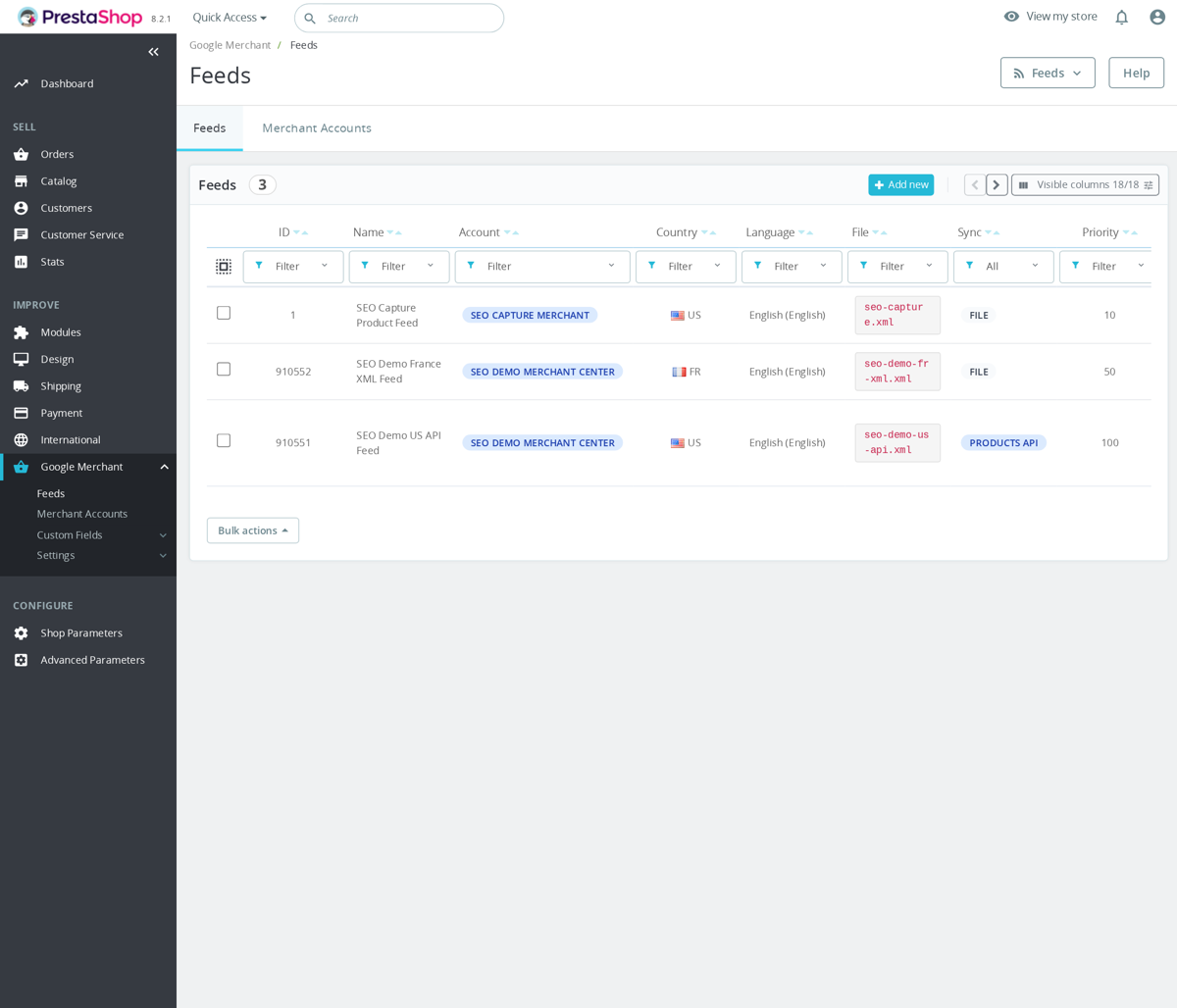
What the platforms need
The core attributes both Google and Meta expect: id, title, description, link, image_link, price (with currency), availability, brand, and product identifiers, gtin (EAN-13/UPC) or mpn where a GTIN exists. For Google you also map each PrestaShop category to a google_product_category.
<item>
  <g:id>123-45</g:id>
  <g:item_group_id>123</g:item_group_id>
  <g:title>Example Product - Blue / M</g:title>
  <g:link>https://example.com/product.html</g:link>
  <g:image_link>https://example.com/img/p/1/2/3/123-large_default.jpg</g:image_link>
  <g:availability>in_stock</g:availability>
  <g:price>29.99 EUR</g:price>
  <g:brand>Example Brand</g:brand>
  <g:gtin>1234567890123</g:gtin>
  <g:mpn>REF-123-BLU-M</g:mpn>
</item>
Setting up a Google Shopping feed in PrestaShop
- Create a Google Merchant Center account and verify/claim your store domain. A Google Ads account is only needed for paid Shopping campaigns, not free listings.
- Generate the feed. The official "Google & YouTube" PrestaShop module connects to Merchant Center via OAuth and maps your attributes. Third-party feed modules add custom attribute mapping, category/stock filtering and scheduled (cron) regeneration. For full control you can also output a custom XML feed and refresh it on a cron.
- Map attributes and choose which products to include (exclude by category, stock or price), then set a regeneration schedule.
Facebook / Instagram catalog
In Meta Commerce Manager, create an e-commerce catalog, choose "Data feed", and point a scheduled feed URL at your PrestaShop feed. Meta's required fields mirror Google's. For dynamic ads you also need the Meta Pixel firing ViewContent, AddToCart and Purchase events.
Avoiding the common rejections
- Missing identifiers, fill EAN-13 and manufacturer on every product; if an item genuinely has no GTIN, set
identifier_existstofalse. - Price mismatch, feed price (with/without tax, wrong currency, or stale after a promo) must match the product page; regenerate often enough to stay current.
- Image rejection, no watermarks or promotional text, product fills most of the frame, reasonable resolution.
Variants
Submit each PrestaShop combination as its own item with a unique id, grouped under a shared item_group_id, plus the specific color/size and that variant's price.
See our Smart Google Merchant Feed Manager.
Smart SEO Revolution Suite is one module that owns the main technical-SEO jobs together, instead of stitching several single-purpose modules into a chain. You configure it from one place and the pieces share one set of rules.
What's bundled in the one module:
- Meta title and description templates for products, categories, CMS and more.
- XML sitemap, robots.txt editor and canonical handling.
- Schema.org structured data, Open Graph and Twitter Cards, and hreflang for multi-language stores.
- 301/302 redirects and 404 monitoring.
- Image SEO, internal-linking tools and SEO scoring.
Separate modules make sense when you genuinely need only one narrow job, say image alt text, or just a sitemap. The advantage of the suite is that these features know about each other: because one module renders the head, it can strip duplicate theme tags and keep a single clean canonical, hreflang and schema set. With several independent modules you have to coordinate that yourself, and duplicate-tag conflicts are the usual result.
Common mistake: buying the suite and a standalone overlapping module, then enabling the same feature in both. Let one own each job. See the Smart SEO Revolution Suite.
The SEO Technical Pack is the PrestaShop SEO module bundle aimed at the technical signals Google uses to crawl, understand and consolidate your store. It groups four of our modules: Advanced SEO Sitemap Builder for XML/HTML sitemaps, Automatic SEO Schema Rich Snippets for Schema.org structured data, Product Canonical Manager for canonical and noindex control, and Hreflang Tags Manager for multilingual targeting.
It differs from the full Smart SEO Revolution Suite because it sticks to infrastructure, not every SEO workflow. Pick this pack when your priority is crawl discovery, structured data, duplicate-content control and correct language targeting, and you would rather not buy each technical module on its own.
The SEO Content Pack is the PrestaShop SEO module bundle that strengthens on-page content signals across your catalogue, rather than the technical plumbing. It groups our content modules: automatic image alt tags, image lazy loading, Automatic Internal SEO Linker for keyword-to-URL internal links, SEO subtitles, and a second category description block.
It is built for stores that already have products and categories online but want more out of the content they own, better image SEO, internal links that pass authority between pages, richer category text and extra context on product pages. If you also need sitemaps, schema or canonicals, those live in the SEO Technical Pack or, all together, in the Smart SEO Revolution Suite.
Automatic SEO Schema Rich Snippets generates JSON-LD per page type, using the data PrestaShop actually holds, and each type has its own on/off switch so you decide what each page emits:
- Product on product pages - name, image, SKU/reference, brand, GTIN, plus an Offer with price, currency and availability, and rating/review when that data exists.
- Organization and WebSite on the homepage.
- BreadcrumbList on the inner pages.
- Category on category pages and CMS markup on CMS pages.
Product schema is the deepest part: it can include reference as SKU, EAN/UPC/ISBN identifiers, supplier reference as MPN, product images up to the configured image limit, manufacturer/supplier/feature-based brand, item condition, and offer availability as InStock, BackOrder or OutOfStock. When combinations are enabled, product variants can be represented as offers, and shipping/return policy fields are added when those settings are enabled.
The homepage output is intentionally limited to Organization and WebSite schema, including the WebSite search action. Category pages are emitted as a collection-style page with description, category image, product count and a short item list. CMS pages are emitted as article-style content with headline, description/content, word count, dates, author/publisher organization and language.
Cleanup is part of the module's job. With the default cleanup settings enabled, it removes theme or core microdata and existing JSON-LD before injecting its own JSON-LD, so testing tools see one consistent source instead of duplicate product or breadcrumb markup. The generated scripts are added in the page head as application/ld+json.
One practical limit: there is a stored enable_faq configuration key, but the current renderer code does not output FAQ schema. Treat the active output set as product, organization, website, breadcrumb, category and CMS/article schema unless the module code is extended.
A preview screen lets you inspect the exact JSON-LD before Google recrawls, and a cleanup step removes duplicate microdata or JSON-LD left by your theme so tools see one clean copy. Correct markup makes pages eligible for rich results; Google still decides whether to show them. See Automatic SEO Schema Rich Snippets.
The Advanced SEO Sitemap Builder doesn't just list your catalog - it checks each URL before deciding it's sitemap-ready. During generation it sends a request to every candidate URL and reads three things: the HTTP status, any noindex signal (robots meta or X-Robots-Tag header), and the page's canonical target. URLs that return a non-200 (redirects, 404s), carry noindex, or point their canonical at a different address are skipped instead of submitted.
The verification flow is more cautious than a simple crawl. It uses HEAD first, skips URLs that already fail there, then GETs the remaining 200 responses so it can parse the page head for canonical and robots meta. Redirects are followed up to the configured limit, request timeout has a minimum safety floor, and concurrency is capped at three requests so generation does not hammer the shop.
Every skip is written to a log with its reason and HTTP code, so you can see why a URL was left out. Large catalogs are split across multiple files with a sitemap index (up to 50,000 URLs per file), and you can switch on image entries and hreflang alternates when your store needs them.
The module stores candidate URL state in its own URL table: pending, verified, skipped or error, with fields for skip reason, HTTP code, canonical URL, noindex flag, image URLs and verification date. If URL verification is disabled, pending URLs can be marked verified directly; if it is enabled, only URLs that pass the checks are written to the sitemap. Product, category and CMS changes mark the matching URLs pending again, so changed pages are rechecked on the next generation.
The writer also avoids a common operational mistake: it writes to temporary files first, then swaps the live sitemap files. If no verified URLs are available, it does not overwrite an existing working sitemap with an empty one. Sitemap files are split by URL count and size, and the index file is used when multiple language or split files exist.
Why it matters: a clean sitemap means you only point Google at pages you actually want indexed, and you catch URL problems here instead of waiting weeks for Search Console to surface them. The common mistake it prevents is shipping a sitemap full of redirected or noindexed URLs that quietly waste crawl budget.
Automatic SEO Schema Rich Snippets requires no theme or .tpl edits. It attaches to the standard PrestaShop page-header hook and prints its structured data as application/ld+json in the page head automatically, so it works with any theme, including custom ones, without you touching a single template.
Before it adds its own markup, the module can clean up conflicting structured data: with the default cleanup enabled it strips existing microdata and ld+json blocks left by your theme or core, so Google and testing tools see one authoritative copy instead of duplicate Product or Breadcrumb markup. You control everything from the module configuration - which page types emit schema, image limits, and whether cleanup runs - and nothing is hard-coded into your theme, so removing or updating the module never leaves orphan markup behind. See Automatic SEO Schema Rich Snippets.
Yes. The alt text is template-driven, so you decide how generated image legends read. Automatic SEO Images Alt Tags has separate templates for product detail pages, product listings such as category/search/homepage blocks, and category cover images.
The module builds those values at PrestaShop presenter level, not by parsing rendered HTML and not by writing image legends back to the database on each page load. It fills the presented image legend field when allowed by your settings. You can choose whether it only fills empty legends or overrides existing ones.
Available product variables are {product_name}, {manufacturer}, {category}, {reference}, {ean13}, {isbn}, {upc}, {mpn} and {image_position}. Category image templates can use {category_name} and {category_description}. The default maximum length is 125 characters, and the builder trims at a word boundary where possible.
Product page template:
{product_name} - {manufacturer} | {category}

Product listing template:
{product_name} in {category} - {reference}

Category cover template:
{category_name} - online collection
Use catalog fields that are actually populated. If a product has no manufacturer or reference, the builder removes empty placeholders and cleans up separators, but the best SEO result still comes from complete product data and a template that accurately describes the image.
Yes. Product Canonical Manager strips tracking parameters out of your PrestaShop canonical tags, so search engines see one clean address instead of dozens of campaign-tagged variants of the same page.
The default strip list is utm_source, utm_medium, utm_campaign, utm_term, utm_content, fbclid, gclid and msclkid - the usual Google, Meta and Microsoft ad parameters. The list is a plain comma-separated field, so you can add or remove parameters to match your own campaigns.
One implementation detail matters: the current front-office output hook applies the comma-separated strip list to the canonical tag. The module has a strip_pagination configuration value, but in the code path inspected here pagination is not removed by a separate hook branch. If you want p or page removed today, add those names to the strip-parameter list.
One thing to be clear about: the cleanup rewrites the <link rel="canonical"> tag in the page head, not the URL the visitor is on. The shopper still lands on the tagged link and your analytics still records the campaign - only the canonical you hand to Google is cleaned. That is exactly what you want: tracking keeps working, while duplicate-URL signals are consolidated onto one canonical address.
The same output pass can also force lowercase paths, add or replace robots meta tags, apply rule-based custom canonicals, and regenerate hreflang tags for active languages with an x-default pointing at the configured default language. Lowercase normalization is applied to the path, not to every query value.
You configure it in the back office, but it runs during front-office page output, with no theme or template edits. If you also need hreflang and noindex/nofollow control across products, categories, CMS, brands and suppliers, that lives in the same module.
Link groups are how Automatic Internal SEO Linker does SEO internal linking across your PrestaShop store automatically. A link group bundles a set of anchor variants with one destination URL: the module scans your content, finds any of those anchors and turns them into a link to that target, sitewide, without you editing individual descriptions.
Each group lets you configure:
- Anchor variants. Multiple keyword phrases that should all point to the same target.
- Destination, a product, category, CMS page or external URL.
- Content zones. Where matches are allowed: product and short descriptions, category descriptions, CMS bodies, and the page types you choose.
- Over-linking limits, a max per page and an optional overall cap, so one keyword does not tip into stuffing.
- Position policy, first match only or all matches.
- Case sensitivity, link attributes (target,
rel, CSS class) and an active toggle for testing. - Priority. Decides which group wins when two could match the same text.
What works in practice: focused groups for important categories, guides and landing pages, with conservative limits. Linking every repeated word produces noise; a few intentional links per page keep the structure clean. Internal SEO Linker is also part of the Smart SEO Revolution Suite.
The Tracking & Analytics Pack is a licence bundle for tracking and analytics modules, sold together for less than buying the same modules separately. Each module is a purpose-built module with its own settings screen, installed and configured independently with its own account IDs and consent behaviour.
For the current list of included modules, and the PrestaShop version each one supports, see the Tracking & Analytics Pack product page.
Subtitles Manager renders a short supporting line directly after the main H1, and it is not limited to product pages. The same engine targets product, category, CMS, manufacturer and supplier pages, so a category or a brand can carry its own subtitle too.
Rendering goes through the displayMprSubtitle hook, which the module places right after the H1 by injecting the hook call into your theme templates during a scan. If you prefer to control the position yourself, you can call the hook anywhere in the theme; there is also a displayProductSubtitle alias for themes that already use that name. In product listings you can pass an explicit product ID so each card gets its own subtitle.
The wrapping tag is yours to choose: H2 by default, or H3, H6, <p>, <span> or <div> when your theme already uses the lower headings. The module validates the tag against that fixed list and falls back to H2 if anything else is passed, and it sanitises the CSS class, so a template typo can't inject arbitrary markup.
Targeting is rule-based: set a subtitle on one product, a category, CMS page, manufacturer or supplier, or apply one to all products in a chosen category, with priority deciding which wins when several rules match. Each language has its own field, and placeholders let one wording cover many products while the tokens fill in the specifics. Use it for concise long-tail context, product type, compatibility, size, use case, not a restatement of the product name.
Yes. Smart SEO Friendly URL Manager strips the default numeric IDs from product, category, CMS, manufacturer and supplier URLs and routes the old paths through 301 redirects, so existing inbound links and bookmarks keep resolving.
Safety comes from four built-in mechanisms. Collision handling prevents two entities from ending up on the same final URL by appending a suffix when needed, instead of letting a duplicate overwrite the cache. A URL history table records every old URL with a hit counter, so you can see which legacy paths still receive traffic before you retire them. A manual override lets you pin a specific URL outside the pattern - handy for important pages you do not want auto-regenerated. And the redirect code is configurable (301, 302, 307, or 410 Gone) so you can send the right signal per migration.
The URL pattern system is configurable per entity. Product URLs can use placeholders such as {name}, {category}, {categories}, {brand}, {reference}, {ean13}, {supplier} and {rewrite}. Category, CMS, manufacturer and supplier URLs have their own placeholder sets. The default pattern is conservative: {rewrite}, lowercase enabled, accent removal enabled, special-character cleanup enabled and no suffix.
When a generated URL collides with another cached URL or manual override, the module can add a suffix based on the entity ID, reference/SKU, EAN13 or an incrementing number. That is safer than blocking a product save, because the product can still be routed while the duplicate is visible in the regeneration workflow.
Redirect history is created when link rewrites change, and deletion or disable actions can redirect to a parent, homepage or return 410 Gone, depending on the per-entity setting. The router also handles exact cache matches, manual overrides, history redirects, pattern matches and legacy ID-prefix redirects, while preserving query strings on redirects.
Run the bulk regenerate with its preview first, review the proposed changes, and recheck your top URLs in Search Console before you apply. If mprseorevolution is installed and enabled, this module is designed to defer to it by default so two SEO URL routers do not fight over the same request.
Yes. Filter Revolution renders filtered category pages with clean, readable URLs such as /category/color:blue/size:l instead of raw query-string parameters, so selected filter combinations can be exposed as crawlable, indexable landing pages. When compact URL mode is enabled and a value slug is globally unique, the module can shorten the path further by omitting the group slug.
It separates fast browsing from indexable SEO. Shoppers get AJAX faceted navigation that updates results without a page reload - price sliders, colour swatches, size chips, brand multi-select and hierarchical category trees. For the combinations worth indexing, you pin a specific facet set, give it a clean URL slug, and write its own title, meta description and H1, so only the high-value pages enter the index.
The SEO page table stores the controller, category ID, encoded facet path, a normalized facet hash, active/indexable flags, meta title, meta description, URL segment, H1, top and bottom descriptions, and an optional image URL. Matching is order-independent because facet parts are normalized before the hash is compared, so size:l/color:blue and color:blue/size:l resolve to the same SEO target.
For ordinary filtered pages that do not have a custom SEO page, the SEO settings decide whether they are noindexed and whether canonical points back to the unfiltered listing. Deep facet links can be marked nofollow, and robots.txt path blocking is available but off by default so search engines can still crawl a filtered URL and see the noindex/canonical signal.
Zero-product facet combinations can be hidden or greyed out, keeping thin and empty pages out of the crawl. A precomputed facet index keeps response times steady on large catalogs, with product, category, attribute, feature and aggregate tables used for fast filtering. The module also caps products-per-page values and supports category, search, manufacturer, supplier, best-sales, new-products and prices-drop listing controllers. The module runs on PrestaShop 1.7.6 and current versions.
Yes. The Facebook Pixel module holds tracking until a visitor grants marketing consent, so you can run the Pixel without firing it before someone has agreed.
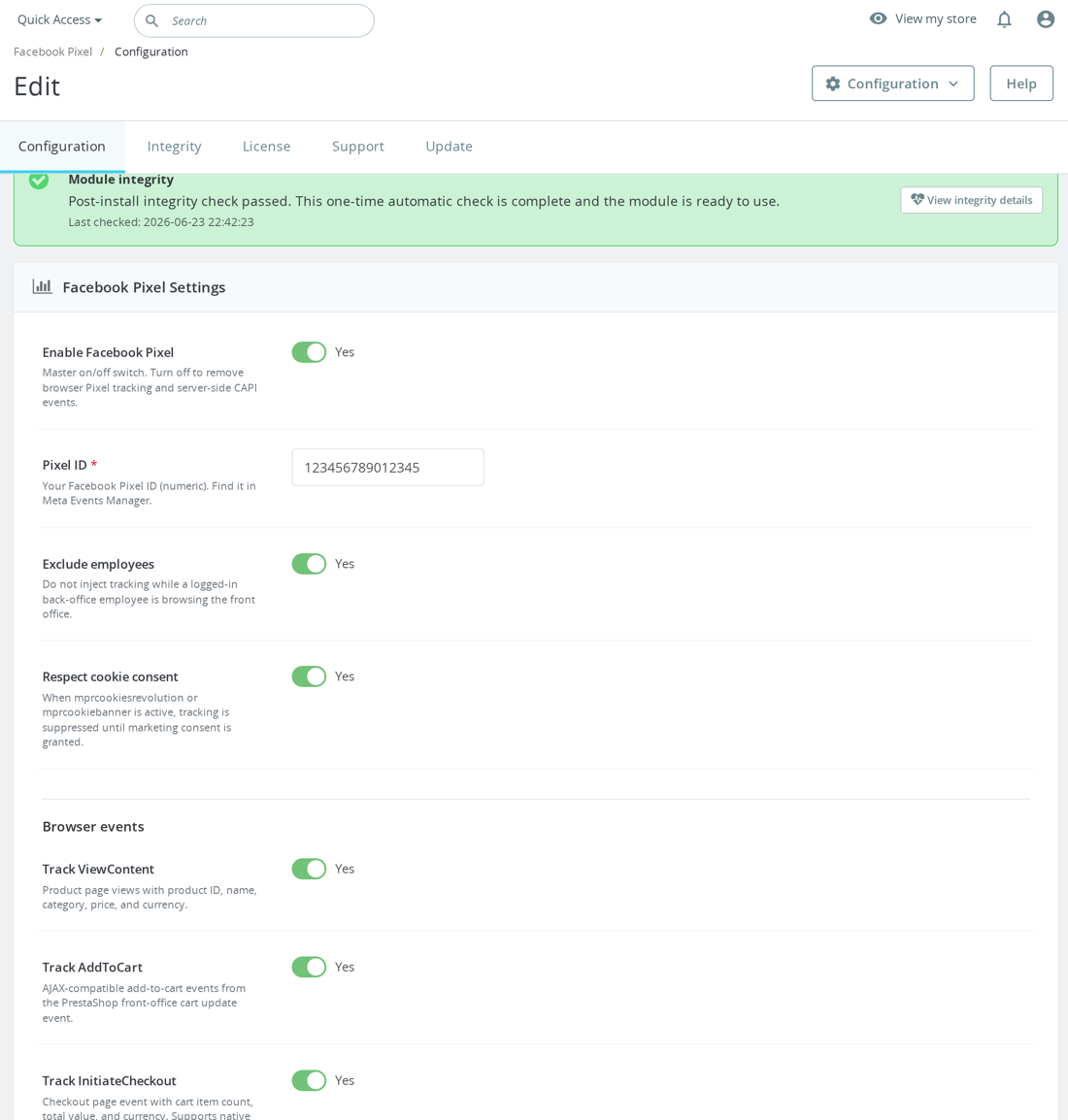
Turn on the Respect cookie consent setting and the module checks your consent banner before any event fires. It reads consent from our own Cookies Revolution or Cookie Banner modules - both the browser pixel and the page-load events stay suppressed until the marketing category is granted, then they fire normally.
The browser script uses a client-side consent gate when a supported consent module is active. It checks window.MPRCR.isGranted('marketing') when available, falls back to the mprcr_consent cookie for Cookies Revolution, and then to mprcookie_consent for the lightweight banner. It also listens for mprcr:consent and mprcookie:consent, so a visitor who accepts marketing cookies can start tracking without a full page reload.
One honest limit worth knowing: this gate works with a supported consent module. If you have not granted (or denied) consent through Cookies Revolution or Cookie Banner, the module falls back to the banner's default consent state; and if no supported consent module is active, the Pixel tracks as usual - it does not invent a consent layer of its own. So pair it with a banner if your store needs a GDPR consent gate.
The same consent check covers the server-side Conversions API Purchase event, so a held visitor is not tracked through the back door either. CAPI only queues when the Pixel ID, access token and purchase tracking are configured, and it uses the same generated event ID as the browser purchase so Meta can deduplicate browser and server events.
The module also has practical safeguards: Pixel ID must be numeric, employees can be excluded from front-office tracking, standard events can be switched individually, and custom browser events are limited and validated so they do not duplicate Meta's reserved event names.
Yes. The GA4 module tracks standard ecommerce events including product views, add to cart, remove from cart, cart view, checkout start, and purchase. It also supports simpler non-ecommerce events such as search, login, and sign up, plus custom browser events configured by rules.
A purchase event sent to GA4 uses the standard ecommerce payload pattern:
window.dataLayer.push({ 'ecommerce': null });
gtag('event', 'purchase', {
  transaction_id: 'PS-100012',
  value: 129.90,
  currency: 'EUR',
  items: [{
    item_id: '42-5',
    item_name: 'Shower tray 120x90',
    item_category: 'Shower trays',
    price: 64.95,
    quantity: 2
  }]
});
The module builds the ecommerce payload server-side, assigns it to the hook template, clears the previous ecommerce object in the data layer, and then fires the GA4 event. For order confirmations, it can also queue a Measurement Protocol purchase fallback when the Measurement ID and API Secret are configured, which helps preserve purchase tracking when the browser event is blocked or interrupted.
The exact hooks are split by journey stage: product pages emit view_item, cart pages emit view_cart, cart quantity changes can emit add_to_cart or remove_from_cart, carrier/checkout steps emit begin_checkout, and order confirmation emits purchase. Login and registration are stored as one-time pending browser events, then consumed on the next page load.
Tracking only runs when the module is enabled and a valid GA4 Measurement ID such as G-XXXXXXXXXX is present. It skips non-front-office requests, known bots, visitors with the mpr_notrack=1 cookie, and logged-in employees when employee exclusion is enabled. Optional user ID tracking hashes the PrestaShop customer ID with a per-shop salt before sending it to GA4.
Consent handling is also deliberate. If Cookies Revolution is installed, the module positions its header hook after the CMP so Consent Mode defaults exist before gtag('config'). If no CMP is present, it emits a fallback Consent Mode default block with analytics and ad storage denied, so the page still has a clear baseline.
For the best reporting, make sure your theme still renders the relevant product, cart, checkout, and order-confirmation hooks, and test the events with GA4 DebugView or Tag Assistant after installing the module. If you enable Measurement Protocol purchases, add a valid API Secret and keep the shared cron worker running so queued events can be retried.
The Google Tag Manager module for PrestaShop pushes GA4-format ecommerce events into dataLayer, so tags inside your GTM container can read structured shop data without editing theme templates.
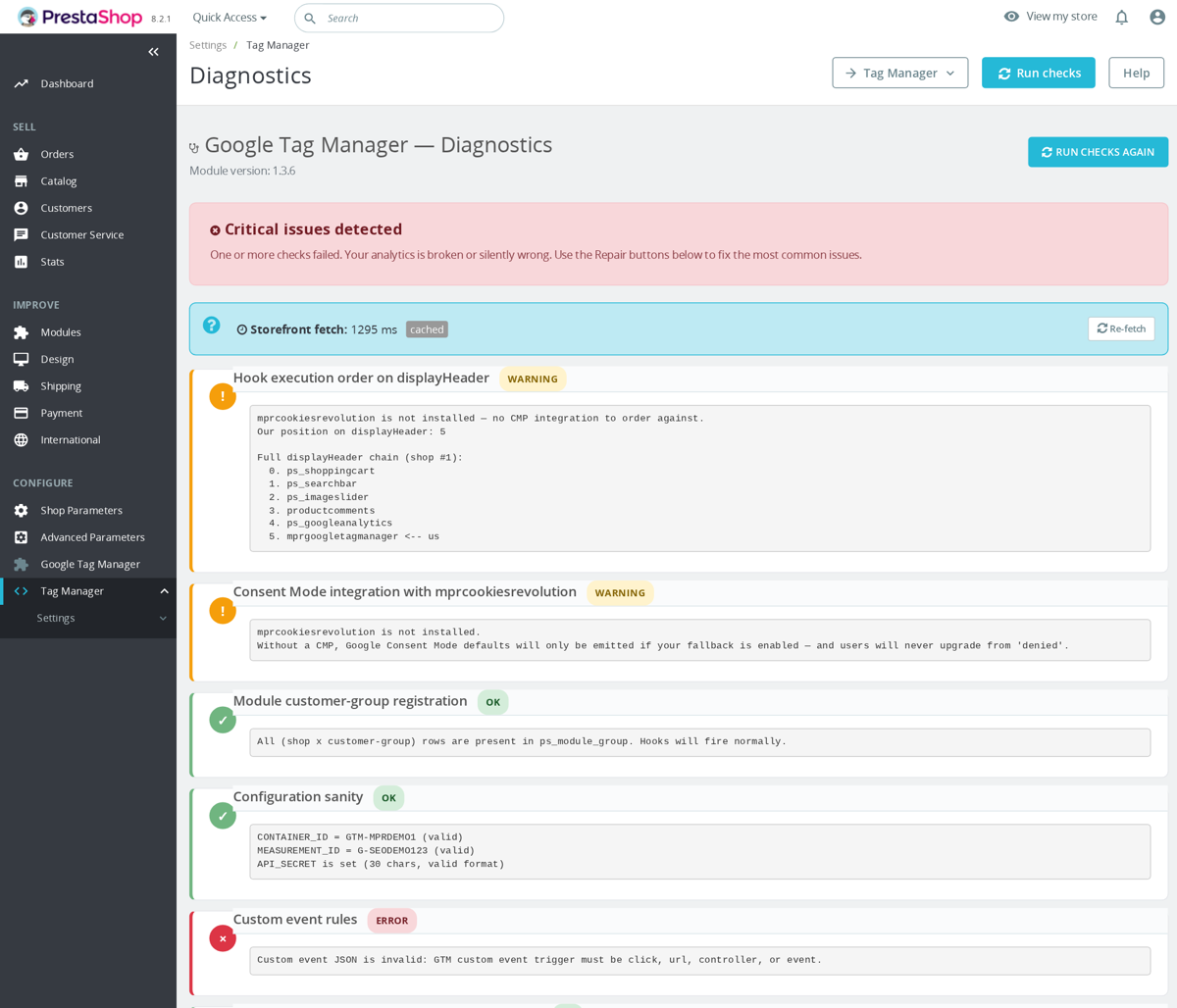
The module emits browser-side ecommerce events including view_item, add_to_cart, remove_from_cart, view_cart, begin_checkout and purchase. It also supports simple non-ecommerce events such as search, login and sign-up, plus configurable custom dataLayer rules. Before each ecommerce event it pushes {ecommerce: null}, which is the GA4-safe reset pattern.
window.dataLayer = window.dataLayer || [];
window.dataLayer.push({'ecommerce': null});
window.dataLayer.push({
  'event': 'purchase',
  'ecommerce': {
    'transaction_id': 'ABCDXYZ',
    'affiliation': 'Example Shop',
    'value': 129.90,
    'tax': 21.65,
    'shipping': 4.90,
    'currency': 'EUR',
    'coupon': 'WELCOME10',
    'items': [{
      'item_id': '42',
      'item_name': 'Premium Shower Tray',
      'item_brand': 'Example Brand',
      'item_category': 'Bathroom',
      'item_variant': '90x90',
      'price': 125.00,
      'quantity': 1
    }]
  }
});
The GTM container script is injected in the page header, and the noscript iframe is injected after the opening body tag when the theme exposes that hook. Consent Mode handling is designed to work with mprcookiesrevolution: when that CMP is installed, the module moves its header hook after the CMP; when no CMP is present, it can emit a default denied Consent Mode v2 fallback before GTM loads.
Tracking is skipped for non-front requests, known bots, logged-in employees when that option is enabled, and visitors with the mpr_notrack=1 opt-out cookie. The optional server-side Measurement Protocol fallback sends purchase data on actionValidateOrder when a valid GA4 Measurement ID and API Secret are configured; GA4 deduplicates by transaction_id.
Yes. TikTok Pixel ships browser-side tracking (ttq.load + ttq.page) and server-side Events API delivery in one configuration, with a shared event_id so TikTok deduplicates instead of double-counting. The tracked storefront events include ViewContent, AddToCart, InitiateCheckout, PlaceAnOrder, CompletePayment, Search and Subscribe, with a consent guard, automatic exclusion of logged-in employees and CIDR-based office-IP filtering.
The same browser-plus-server design powers our Facebook Pixel module for PrestaShop: the browser pixel (fbq) and the server-side Conversions API fire with a shared event_id so Meta deduplicates the two, which keeps conversions reported even when a browser hit is blocked.
The Facebook Pixel module tracks ViewContent, AddToCart, AddToWishlist, InitiateCheckout, Purchase, Search, Lead and CompleteRegistration with the content_ids, content_type, value and currency fields Meta expects. A consent guard holds firing until your CMP signals marketing consent, employees and internal IP ranges are excluded, and an integrity panel verifies hook registration so a missing hook does not silently break attribution.
Use Hreflang Tags Manager as soon as your PrestaShop store runs more than one language, so search engines can match the right page to the right audience and stop serving English to French shoppers (or vice versa).
For each page, the module adds a <link rel="alternate" hreflang="..."> tag for every active language of that page, with an optional x-default fallback for visitors whose language you do not target. It covers products, categories, CMS pages, manufacturers and the homepage, and it stays out of the way on single-language shops - if only one language is active, no tags are added.
The default configuration is enabled, x-default enabled, and the x-default language set to PrestaShop's default language. The tag value comes from each language's language_code, and the URL is generated through PrestaShop's Link class for the current entity: product, category, CMS, manufacturer or supplier. For other core pages, the module tries getPageLink() and skips the alternate if PrestaShop cannot safely build that route.
This means the module is best suited to normal translated PrestaShop entities where each language version already exists. It does not check whether the translated product name or CMS content is complete, and it does not create missing translations. It only emits the alternate links for active shop languages using PrestaShop's own URL builder.
One thing to be clear about: the module does not translate your content. It only tells search engines which translated version of a page already exists, using the languages you have set up in PrestaShop. If your catalogue is already multilingual but Google keeps showing the wrong language in results, this is the piece that fixes it.
Other categories
Still have questions?
Can't find what you're looking for? Send us your question and we'll get back to you.