
Solutions to common technical issues: white screens, 500 errors, module conflicts, cache problems, and performance bottlenecks. Step-by-step guides to diagnose and fix problems in your PrestaShop store.
No questions match your search.
Step 1: Enable debug mode — edit /config/defines.inc.php and set define('_PS_MODE_DEV_', true);. Reload the page to see the actual PHP error. Step 2: If you cannot access the back office, use FTP to rename the problematic module's folder (e.g., rename /modules/modulename/ to /modules/modulename_disabled/). This disables the module without needing admin access. Step 3: Share the error message with us and we will fix it.
Learn more: our troubleshooting guide.
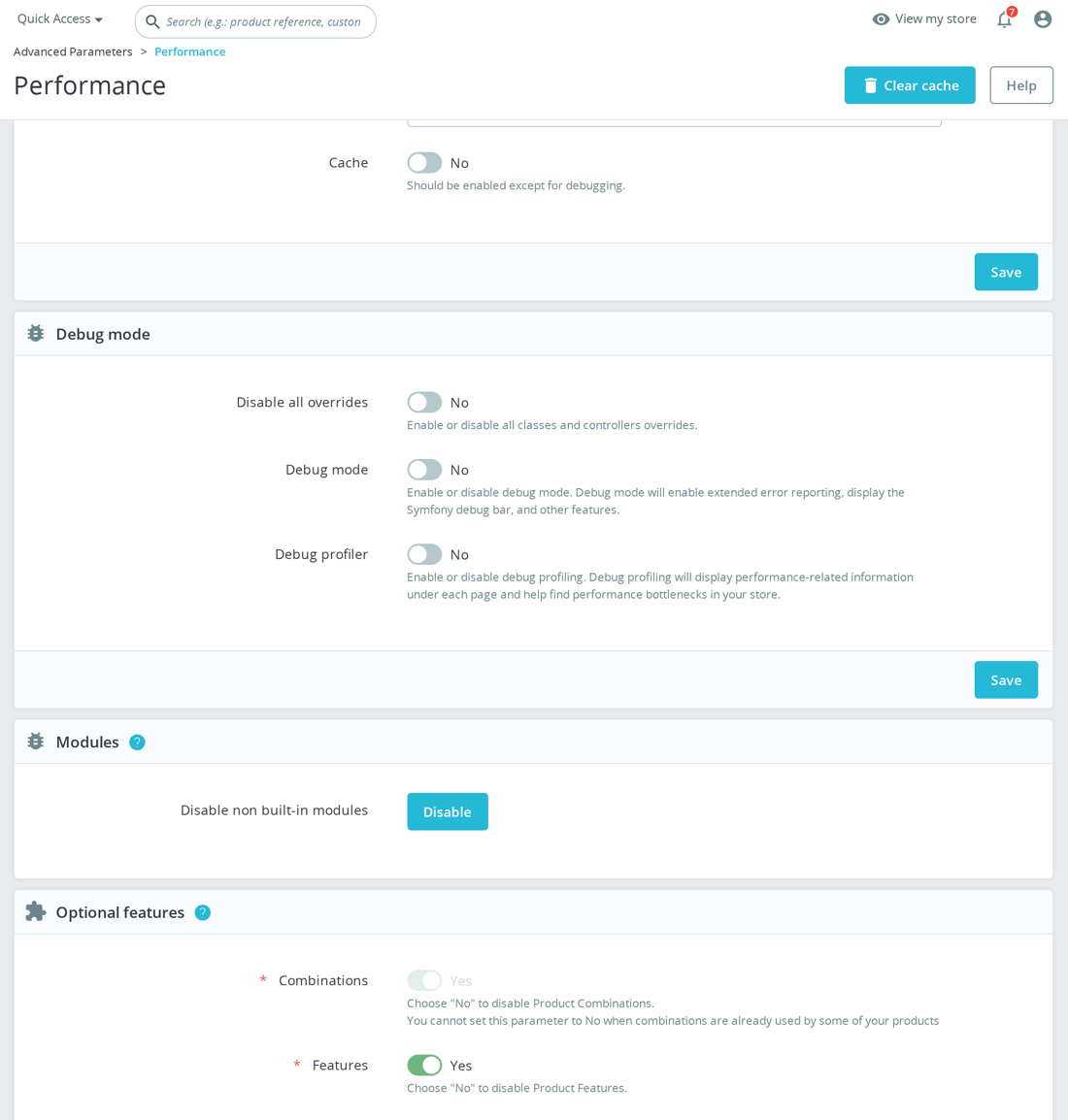
Edit the file /config/defines.inc.php in your PrestaShop root directory. Find the line define('_PS_MODE_DEV_', false); and change false to true. Save the file and reload the page. You will now see detailed PHP errors instead of blank pages or generic error messages. Remember to disable debug mode after troubleshooting — leaving it on in production exposes sensitive information and slows down your store.
Learn more: our troubleshooting guide.
Use your browser's Developer Tools (F12 → Network tab) to identify what is slow. Common causes: (1) A module loading heavy external scripts (fonts, analytics, chat widgets). (2) A module making slow database queries — check the Symfony profiler bar in debug mode. (3) Too many modules registered on the same hook (e.g., displayHeader). (4) OPcache disabled on the server. (5) Hosting resources maxed out. Disable modules one by one to identify the culprit.
The most common causes: (1) Different PHP versions between test and production — check both. (2) OPcache caching old code on production — clear OPcache after deploying (this is a very common gotcha). (3) Different file permissions — modules need write access to their own directories. (4) Different PrestaShop versions or configurations. (5) Another module installed on production that conflicts. Compare phpinfo() output from both environments to find discrepancies.
Learn more: our troubleshooting guide.
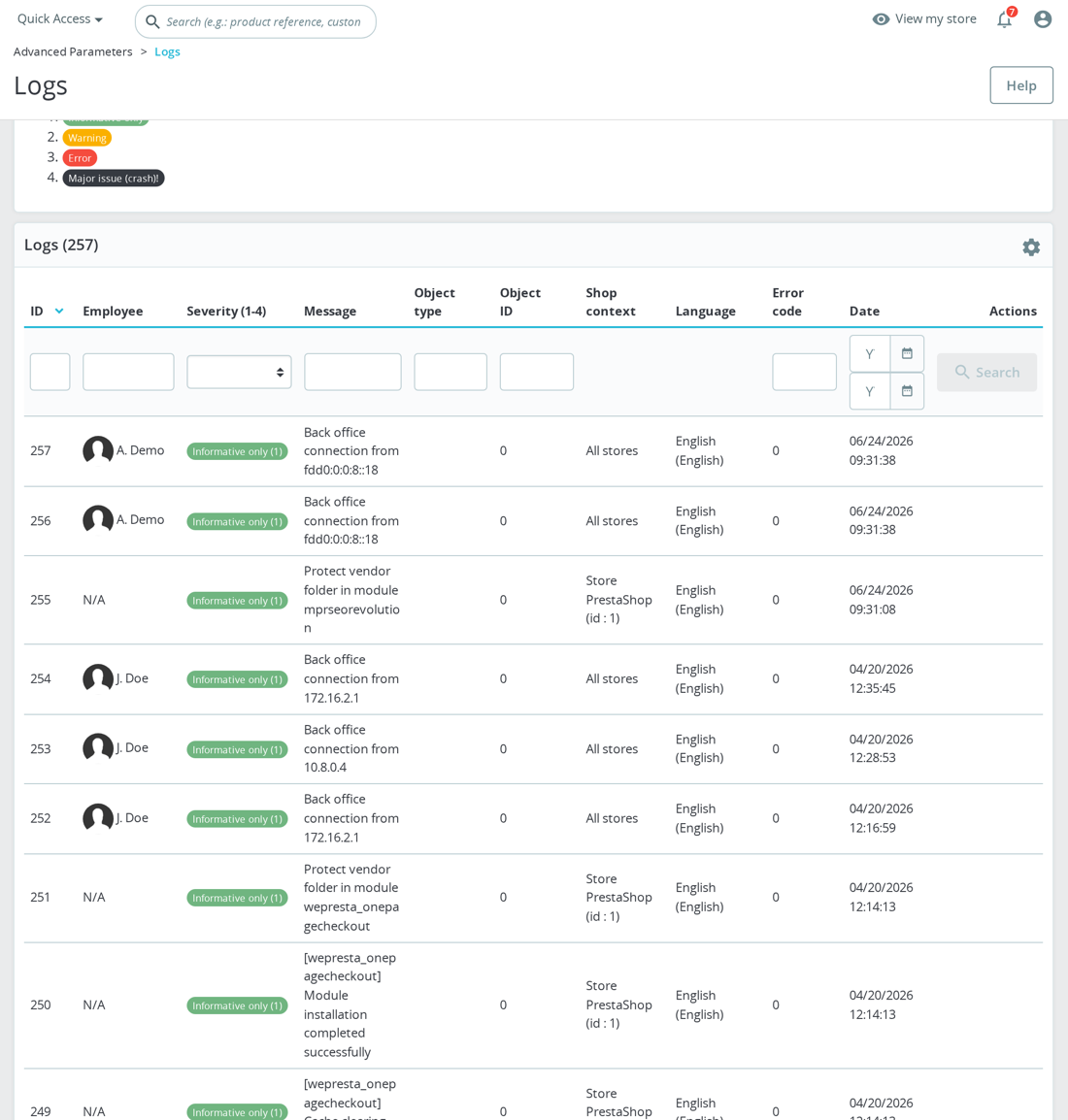
A 500 error means something crashed on the server side. Check these in order: (1) Your server's PHP error log — this is the most important one, it will contain the actual error. Ask your host where it is located. (2) PrestaShop's log at /var/logs/. (3) Apache/Nginx error log. (4) Enable debug mode to see the error in the browser. If you see "500" but no error details anywhere, it is likely an .htaccess issue or a mod_security rule blocking the request.
Learn more: our troubleshooting guide.
Check the following: (1) Are there JavaScript errors on the page? Open browser Developer Tools → Console. JS errors can prevent form submission. (2) Is the token valid? PrestaShop uses security tokens — try clearing your browser cache or using a different browser. (3) Is the module configuration table properly created? Some modules store config in custom tables that may not have been created during installation. Contact us with the specific module and we will investigate.
Learn more: contact our support team.
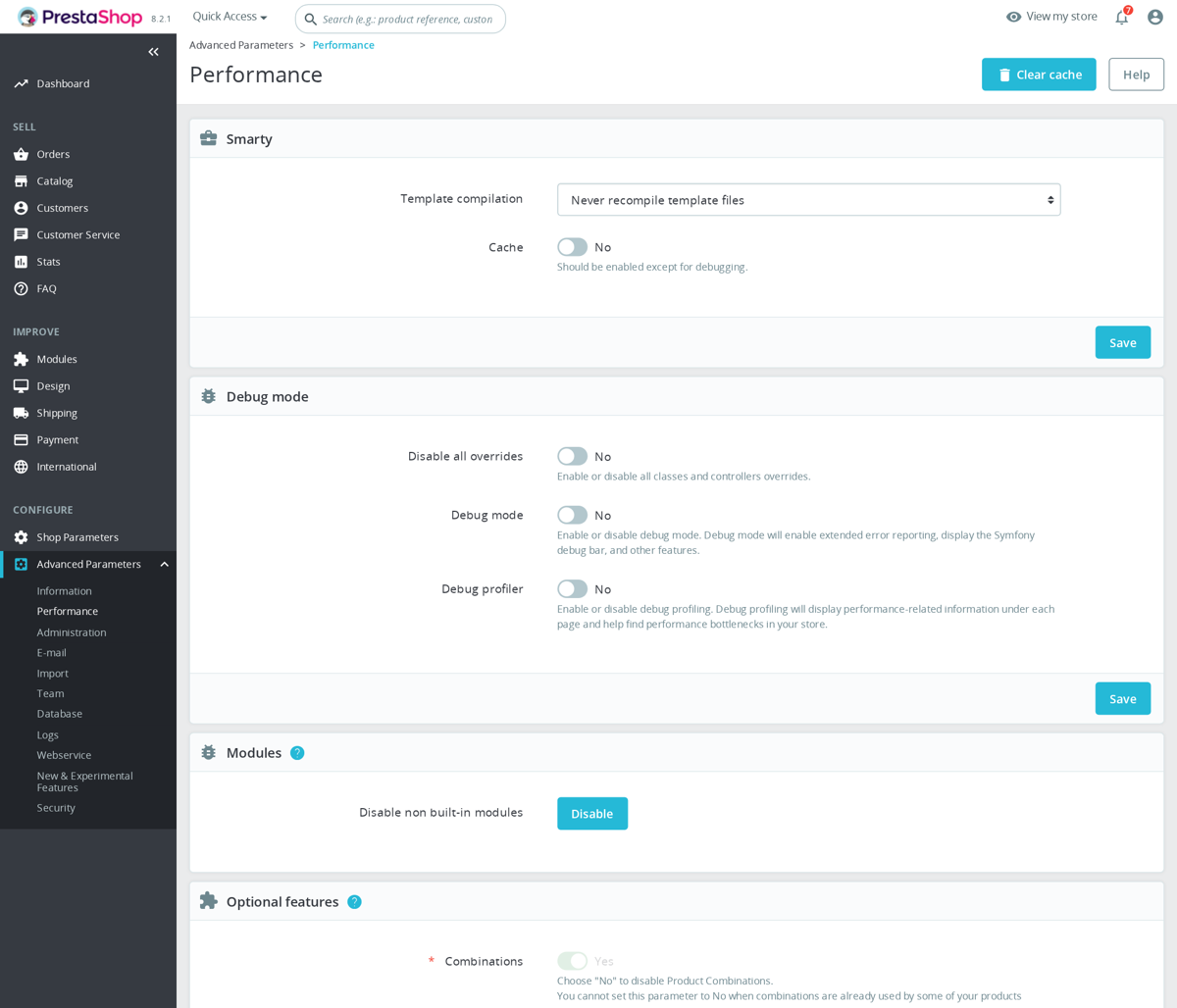
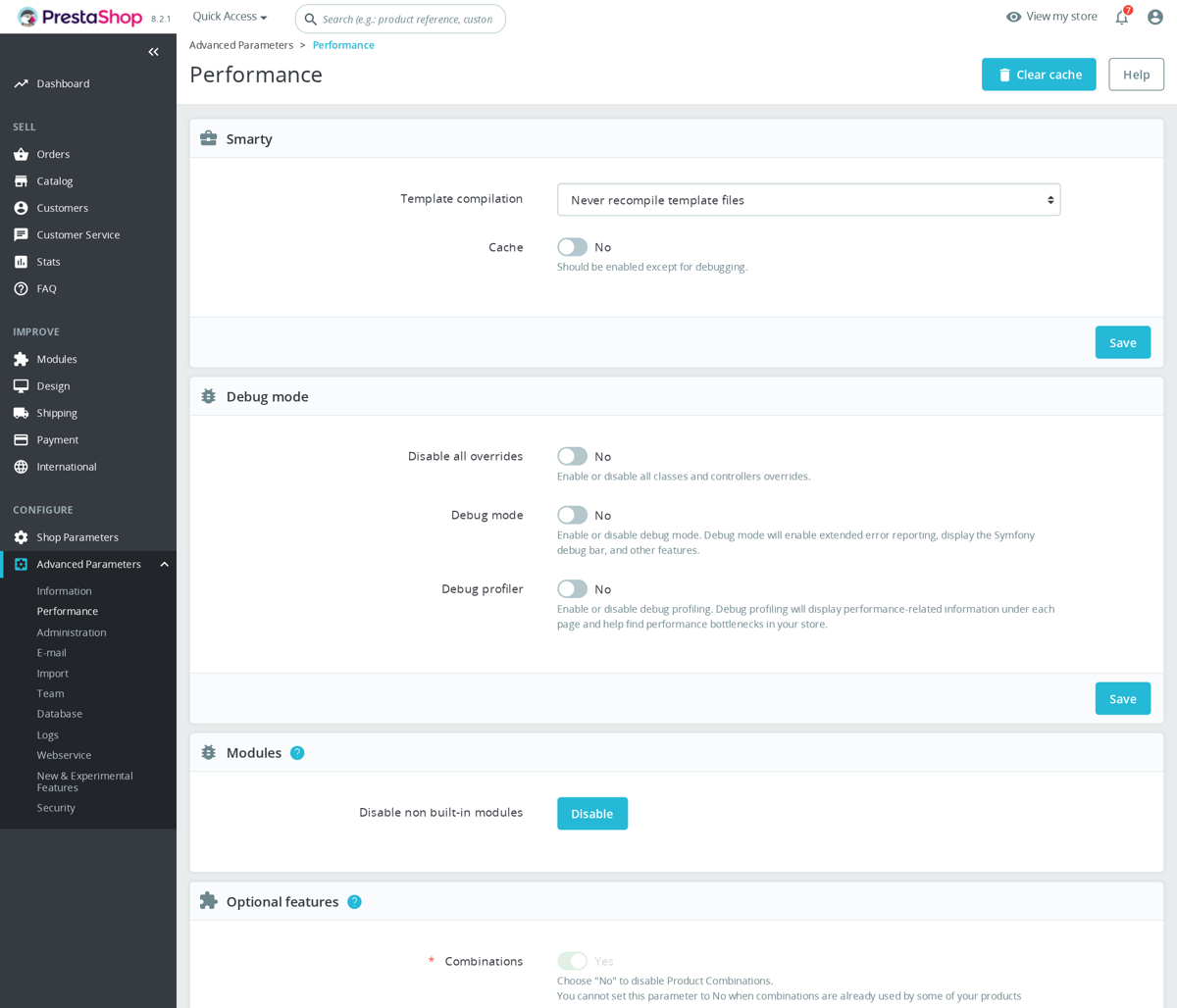
Disabling cache entirely will make your store noticeably slower. Instead, clear the cache properly: Advanced Parameters → Performance → Clear cache. If problems persist after clearing: delete the contents of /var/cache/prod/ and /var/cache/dev/ manually. For Smarty cache: check if "Force compile" is set to "Yes" (it should be "No" in production). If a specific module misbehaves with cache, report it to the module developer — it is a bug that should be fixed.
If your site is completely down: use FTP to replace the .htaccess file. PrestaShop can regenerate it: go to Shop Parameters → Traffic & SEO and click "Generate .htaccess file". If you cannot access the admin: rename the broken .htaccess to .htaccess_backup, create a minimal .htaccess file, access the admin panel, and regenerate the proper one. The minimal file just needs RewriteEngine On and RewriteBase / (adjust the base path as needed).
Learn more: our troubleshooting guide.
This is almost always a caching issue. Clear in this order: (1) PrestaShop cache: Advanced Parameters → Performance → Clear cache. (2) If using CCC (Combine, Compress, Cache): disable it, clear cache, make your changes, re-enable CCC. (3) Browser cache: Ctrl+Shift+R for a hard refresh, or clear browser cache entirely. (4) If your host uses Varnish, Cloudflare, or another CDN: purge that cache too. (5) If using OPcache with validate_timestamps=0: restart PHP-FPM.
Learn more: PrestaShop performance and caching.
Check: (1) Have you actually translated the strings? Go to International → Translations → Translate modules, select the module and your language, and translate the strings. (2) Smarty cache may be serving the old version — clear cache. (3) Some modules use their own translation system instead of PrestaShop's — check the module documentation. (4) If the module uses {l s='...' mod='modulename'} in templates, the translation must be in the module's own translation file, not PrestaShop's global translations.
Learn more: our troubleshooting guide.
Go to Design → Positions in the back office. Find the module in the hook list and either: (1) Change its position within the current hook using drag-and-drop. (2) Unhook it from the current hook and transplant it to a different one. Note that not all hooks are available in all themes — if you transplant to a hook that your theme does not display, nothing will appear. Check your theme's documentation for supported hooks.
Learn more: PrestaShop hooks guide.
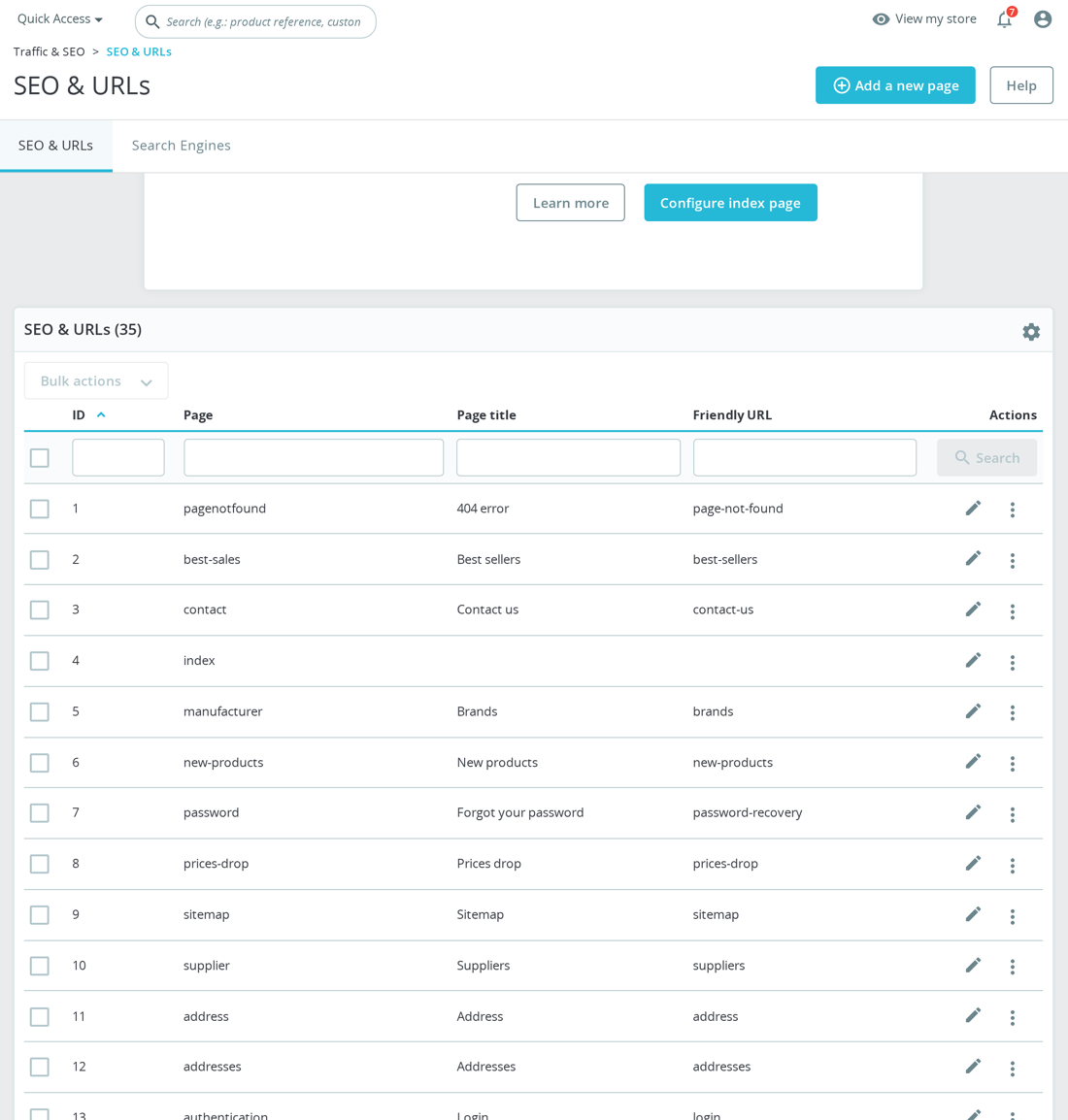
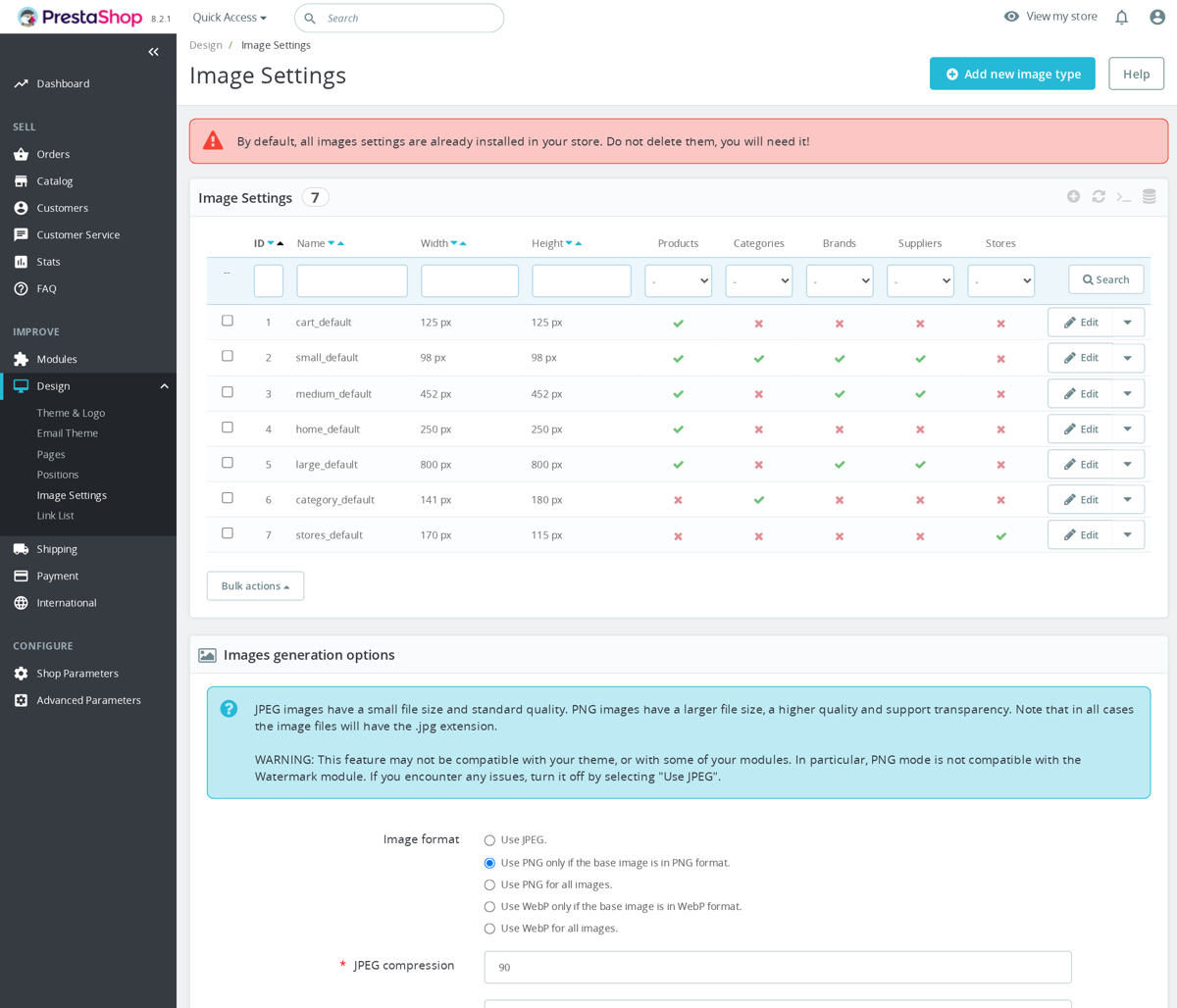
The most common cause: image regeneration needed. Go to Design → Image Settings and click "Regenerate thumbnails". Also check: (1) File permissions on the /img/ directory (should be writable). (2) The .htaccess rewrite rules for images may need updating — regenerate .htaccess from SEO & URLs settings. (3) If using a CDN, update the CDN configuration to point to the new server.
Learn more: our troubleshooting guide.
This is usually caused by: (1) A long-running import or update process. (2) Missing database indexes (common after PrestaShop upgrades). (3) A module running inefficient queries. To diagnose: run SHOW PROCESSLIST; in phpMyAdmin to see active queries. Kill any stuck queries. For prevention: ensure your MySQL/MariaDB is properly configured (innodb_buffer_pool_size should be ~70% of available RAM for a dedicated server). Contact your host if you cannot access MySQL administration.
See also: Cleanup Revolution — advanced database maintenance for PrestaShop
Go to Advanced Parameters → E-mail and check your email settings. If using SMTP: verify the server, port, username, and password are correct. Click "Send a test email" to check. Common issues: (1) Your hosting provider blocks outgoing SMTP connections (common on shared hosting). (2) SPF/DKIM records not set up, causing emails to go to spam. (3) PHP mail() disabled on the server. For reliable email delivery, use an external SMTP service like Mailgun, SendGrid, or even Gmail SMTP.
Learn more: Support Revolution — complete helpdesk for PrestaShop
Common causes: (1) Too many modules with back-office hooks — each one adds load to every admin page. (2) Debug mode left enabled — this adds massive overhead. (3) MySQL slow queries — check the Symfony profiler. (4) Large product catalog with many combinations slowing down listings. (5) Server running out of RAM. Quick wins: disable debug mode, enable OPcache, and check which modules are loading on every admin page via Design → Positions → displayBackOfficeHeader.
Learn more: PrestaShop performance guide.
This usually means the module's autoloader is not working. Causes: (1) The vendor/ directory inside the module is missing or incomplete — re-upload the module from the original ZIP. (2) Your PHP version is too old for the namespaces used in the module. (3) OPcache is serving a cached version of the old code — clear OPcache. (4) File permissions prevent PHP from reading the class files. Try: delete the module folder, re-extract from ZIP, and reinstall.
Learn more: our troubleshooting guide.
Try these in order: (1) Clear browser cookies for your domain. (2) Try a different browser or incognito mode. (3) Delete the contents of /var/cache/. (4) Check that your PS_SHOP_DOMAIN matches the actual domain you are accessing. (5) If using SSL, ensure PS_SSL_ENABLED is correct. (6) Check .htaccess for incorrect redirect rules. As a last resort: disable all overrides by setting _PS_CACHE_ENABLED_ and _PS_MODULES_DIR_ defines to troubleshoot.
Learn more: PrestaShop security guide.
This happens when the update introduces changes that your theme is not prepared for. Steps: (1) Switch to the default theme temporarily (Classic or Hummingbird) to confirm it is a theme issue. (2) Check if your theme developer has released an update compatible with the new PrestaShop version. (3) If using a child theme, check which template files need updating. (4) If the theme is discontinued, you may need to migrate to a different theme — a painful but sometimes necessary process. Never update PrestaShop without checking theme compatibility first.
Learn more: PrestaShop child themes guide.
The systematic approach: (1) Disable all third-party modules (not PrestaShop's built-in ones). (2) Check if the problem disappears. (3) Re-enable modules one by one, testing after each. (4) When the problem returns, you have found the culprit. This is tedious but reliable. For performance-specific issues, the Symfony profiler (available in debug mode) shows which hooks and modules take the longest to execute.
Learn more: our troubleshooting guide.
Check: (1) The override file path is correct. For theme overrides: /themes/your-theme/modules/modulename/views/templates/... must mirror the module's directory structure exactly. (2) Clear Smarty cache — PrestaShop caches template file paths. (3) Check that your theme is actually active (not a different theme). (4) Some modules do not support theme overrides if they use direct fetch() calls instead of display() — check the module documentation.
Learn more: PrestaShop hooks and overrides.
Large imports hit PHP execution time limits. Solutions: (1) Increase max_execution_time in php.ini to 300 or higher. (2) Increase memory_limit to 512M or higher. (3) Split your CSV into smaller batches (1000-2000 products each). (4) Run the import during low-traffic hours. (5) For very large imports (50,000+ products), consider using a CLI import script instead of the back-office import — it does not have the web server timeout limitations.
Learn more: PrestaShop performance guide.
The /var/cache/ and /var/smarty/compile/ directories need to be writable by the web server user. After migration, file ownership often changes. Fix: chmod -R 775 var/cache var/smarty and chown -R www-data:www-data var/cache var/smarty (replace www-data with your web server user). Also delete the contents of these directories to force a clean regeneration.
Learn more: our troubleshooting guide.
This is usually caused by: (1) Multiple email modules active simultaneously (e.g., PrestaShop's built-in email + a custom email module). (2) A payment module that triggers the order confirmation twice due to a webhook + redirect both confirming the payment. (3) The customer clicking the "Pay" button twice quickly. Check your module list for duplicate email functionality, and check your payment module's webhook configuration. If the problem is intermittent, it is likely a double-click or double-webhook issue.
Learn more: PrestaShop email deliverability guide.
Module translations are language-specific. If you see English text in a module's back office when your admin language is set to French, it means the French translation for that module is not installed or incomplete. Go to International → Translations → Translate modules, select the module and your language, and translate the missing strings. Some modules also include translation files that need to be imported — check the module documentation.
Learn more: our troubleshooting guide.
The Problem: You Need the Module, But Not Its Assets on Every Page
There are many situations where you want to keep a PrestaShop module installed and active but prevent it from loading its CSS or JavaScript files on specific pages, or even on all pages. Perhaps you have a module whose functionality you need but whose styling conflicts with your theme. Perhaps a module loads a heavy JavaScript library that you have already included through your theme. Perhaps you want to replace a module's default styles with your own custom CSS without the original styles interfering. Or perhaps you have identified through a performance audit that a module loads assets on pages where it has no visible output, and you want to eliminate that waste.
Uninstalling the module is not an option because you need its core functionality: its hooks, its database tables, its configuration, its back office features. You just need to surgically remove specific CSS or JavaScript files from the front office output. PrestaShop provides several mechanisms to accomplish this, and this article covers all of them in detail, from the simplest to the most powerful.
Method 1: Using Theme.yml to Remove Module Assets
The simplest and most maintainable way to remove a module's CSS or JavaScript in PrestaShop 1.7 and later is through the theme's configuration file, theme.yml. This file, located in the root of your theme directory, controls which assets the theme loads and which module assets it removes.
Open your theme.yml file and look for the assets section. If it does not exist, you can create it. Within the assets section, you can specify CSS and JavaScript files to remove by their asset ID. Every asset registered through registerStylesheet or registerJavascript has an ID, which is typically the module name followed by a descriptive suffix.
To find the asset IDs used by a module, inspect your page source and look for the stylesheet link tags and the elements. PrestaShop adds an id attribute to these elements in debug mode, or you can find the IDs in the module's source code where it calls registerStylesheet or registerJavascript.
In your theme.yml file, add a section like this under assets, then css, then all. Add an entry with the asset ID and set it to false. For example, if a module registers a stylesheet with the ID modulename-style, you would add modulename-style with a value of false under the css all section. Do the same for JavaScript files under the js all section.
After modifying theme.yml, you need to clear your PrestaShop cache from Advanced Parameters, Performance. The theme.yml changes take effect after the cache is rebuilt. This approach persists across module updates because the removal is defined in your theme, not in the module itself. However, it removes the assets from all pages. If you need the assets on some pages but not others, you will need a more targeted approach.
Method 2: Media::unregisterStylesheet and Media::unregisterJavascript
PrestaShop 1.7 introduced the Media class methods unregisterStylesheet and unregisterJavascript, which allow you to programmatically remove specific assets that were registered by other modules. These methods are powerful because you can call them conditionally, removing assets only on specific pages while keeping them on others.
To use this approach, you need a custom module or a modification to an existing module. In your module's hookActionFrontControllerSetMedia method, call Media::unregisterStylesheet with the asset ID of the CSS file you want to remove. Similarly, call Media::unregisterJavascript with the asset ID of the JavaScript file. You can wrap these calls in conditional logic to only remove assets on specific page types.
For example, if you want to remove a slider module's assets from every page except the homepage, you would check whether the current controller is IndexController. If it is not the homepage, you call the unregister methods. If it is the homepage, you do nothing and let the assets load normally.
The key consideration with this approach is hook execution order. Your module's hookActionFrontControllerSetMedia must execute after the module whose assets you want to remove. PrestaShop executes hook callbacks in the order modules are registered on the hook, which you can control through the Design, Positions page in the back office. Move your custom module below the target module on the actionFrontControllerSetMedia hook to ensure your unregister calls happen after the target module registers its assets.
If the offending module uses the older addCSS and addJS methods instead of registerStylesheet and registerJavascript, the unregister methods may not work because the older methods do not use the same asset management system. In that case, you need a different approach.
Method 3: Custom Module to Block Specific Assets
When you need fine-grained control over which assets load on which pages, creating a dedicated asset manager module is the most flexible solution. This module acts as a central place where you define rules for blocking or allowing specific module assets.
Create a new module with a hookActionFrontControllerSetMedia method. Inside this method, define an array of asset rules. Each rule specifies a module name, the asset IDs to block, and the conditions under which to block them. The conditions can be based on controller name, page type, or any other criteria available in the PrestaShop context.
Your module iterates through the rules on every page load, checks the conditions, and calls Media::unregisterStylesheet or Media::unregisterJavascript for each asset that should be blocked on the current page. This centralized approach is much easier to maintain than scattering asset removal logic across multiple modules or theme files.
You can enhance this module with a back office configuration page that lets you manage the rules through the PrestaShop admin interface instead of editing code. A simple form with fields for module name, asset ID, and a multiselect for page types where the asset should be blocked gives you a user-friendly way to manage asset loading without touching any code after the initial setup.
This approach works with both the new registerStylesheet system and the older addCSS system, though you may need to use different techniques for each. For assets registered with the new system, use the Media::unregister methods. For assets added with the older system, you can manipulate the controller's css_files and js_files arrays directly in the hookActionFrontControllerSetMedia method.
Method 4: The Hook Unhooking Approach
A more aggressive but sometimes necessary approach is to completely unhook a module from the hooks where it registers its assets. Go to Design, then Positions in your back office. Find the module on the displayHeader or actionFrontControllerSetMedia hook. Click the delete or unhook button to remove the module from that hook entirely.
This prevents the module from loading any assets at all, on any page. The module's other hooks, such as displayProductAdditionalInfo or displayFooter, continue to work normally. However, the module's front office output may break if it depends on its CSS for styling or its JavaScript for interactive behavior.
This approach is most useful when you plan to replace the module's styling entirely with your own custom CSS. You unhook the module from displayHeader to prevent its CSS from loading, then write your own styles in your theme's custom CSS file that target the module's HTML elements. This gives you complete control over the module's appearance without any conflict between the original styles and your customizations.
For JavaScript, unhooking is riskier. If the module relies on its JavaScript for core functionality like AJAX calls, form validation, or dynamic content loading, removing the JavaScript will break those features. Only unhook JavaScript if you are certain the module's front office output does not depend on it, or if you are providing a replacement implementation through your theme.
One important caveat: if you update the module, the update process may re-register the module on the hooks you removed it from. After every module update, check Design, Positions to verify your unhooking is still in effect. Some modules explicitly register their hooks during the update process, which overrides your manual unhooking.
Method 5: Overriding Module Assets Through Your Theme
PrestaShop's theme system allows you to override module template files by placing them in your theme's modules directory. While this is primarily used for template overrides, you can also use it to control asset loading indirectly.
If a module loads its assets through its template files using Smarty functions like script or stylesheet tags directly in TPL files rather than through PHP hooks, you can override those templates in your theme and remove the asset references. Copy the module's template file to your theme's modules directory, maintaining the same directory structure, and edit the copy to remove the unwanted CSS or JavaScript references.
This approach is theme-specific, meaning it only affects the current theme. If you switch themes, the overrides do not carry over. It also requires maintenance: when the module updates its templates, you need to update your overrides to match any structural changes while keeping your asset removal modifications.
For modules that load assets through PHP hooks rather than templates, theme template overrides do not help with asset blocking. In that case, use one of the other methods described in this article.
PrestaShop 1.7 vs 8.x: Differences in Approach
PrestaShop 8.x refined the asset management system introduced in 1.7, but the fundamental approaches remain the same. The main differences are in the internal implementation and some additional features.
In PrestaShop 1.7, the asset management system uses registerStylesheet and registerJavascript with a priority system. The Media::unregisterStylesheet and Media::unregisterJavascript methods work reliably for assets registered through this system. However, modules that still use the legacy addCSS and addJS methods (which are deprecated but still functional) do not go through the new asset management system, making them harder to remove cleanly.
PrestaShop 8.x improved backward compatibility so that even assets added through the legacy methods are processed through the new asset pipeline. This means Media::unregister methods work more consistently across all modules, regardless of which registration method they use. If you are running PrestaShop 8.x, the unregister approach is the most reliable method for all modules.
PrestaShop 8.x also introduced better cache-busting for assets, which means that when you remove or modify assets, the changes take effect immediately after clearing the cache, without customers seeing stale cached versions. In PrestaShop 1.7, you sometimes needed to clear both the PrestaShop cache and the browser cache, or wait for the Combine, Compress, Cache (CCC) system to regenerate combined files.
Both versions support the theme.yml approach for asset removal, and the syntax is identical. If you are writing a custom module for asset management, the same code works on both 1.7 and 8.x with minimal differences.
Measuring Performance Gains After Disabling Assets
After disabling module assets, you should measure the performance improvement to confirm that your changes had the expected effect. Use a combination of tools for a comprehensive measurement.
Start with Chrome DevTools' Network tab. Compare the total number of requests and total transferred size before and after your changes. Filter by CSS and JS to see the specific reduction in stylesheet and JavaScript file counts and sizes. A meaningful optimization should show a clear reduction in both the number of requests and the total size.
Run a Lighthouse performance audit before and after. Focus on the metrics most affected by CSS and JavaScript loading: First Contentful Paint is affected by render-blocking CSS, Largest Contentful Paint is affected by overall resource loading, and Total Blocking Time is affected by JavaScript parsing and execution. Record these metrics from at least three runs and compare the averages.
Use the Coverage tab in Chrome DevTools to measure CSS and JavaScript usage. Open the Coverage tab from the three-dot menu under More Tools, then reload the page. The Coverage tab shows you how much of each CSS and JavaScript file is actually used on the current page. Files with high unused percentages (shown in red) are candidates for removal or conditional loading. After disabling module assets, the remaining files should show higher usage percentages, indicating that you have successfully removed waste.
Also consider real-world metrics from your analytics platform. If you use Google Analytics or a similar tool, compare page load times for a week before and after your optimization. Real-world data from actual visitors across different devices and network conditions gives you the most accurate picture of the performance improvement.
Risks and Compatibility Concerns
Disabling module assets carries risks that you need to understand and manage. The most common risk is visual breakage. When you remove a module's CSS, its HTML elements lose their styling and may display incorrectly. This can range from minor cosmetic issues like wrong colors or spacing to major layout problems like overlapping elements or invisible content.
JavaScript removal carries higher risk. Modern modules often depend on their JavaScript for core functionality. Removing JavaScript can cause features to stop working entirely: buttons that do not respond to clicks, forms that do not submit, popups that do not open, AJAX content that does not load. Always test every feature of a module after removing its JavaScript.
There is also a compatibility risk with module updates. When a module is updated, the developer may add new CSS or JavaScript files with different asset IDs. Your removal rules, whether in theme.yml or a custom module, may not catch the new assets because they target the old asset IDs. After every module update, verify that your asset blocking is still working correctly and update your rules if necessary.
Some modules perform feature detection in their JavaScript and behave differently when their CSS is not loaded. A module might check for the existence of specific CSS classes or computed styles before initializing its JavaScript functionality. Removing the CSS in this case does not just change the appearance but also breaks the JavaScript behavior that depends on those CSS-defined states.
Finally, be aware of dependencies between modules. Module A might load a JavaScript library like a lightbox plugin that Module B also uses but does not load itself because it assumes Module A provides it. Removing Module A's JavaScript files would break both modules in this scenario. Check for shared dependencies before removing any assets.
A Practical Workflow for Safe Asset Removal
Follow this workflow to safely disable module assets without breaking your store. First, document your current state. Take screenshots of every page type where the module displays content. Record Lighthouse scores and Network tab statistics. This gives you a baseline to compare against and a reference for how the module should look and function.
Second, identify the specific assets you want to remove. Use DevTools to find the exact file names and asset IDs. Determine which pages need the assets and which do not.
Third, implement the removal using the most appropriate method from this article. For simple global removal, use theme.yml. For conditional removal based on page type, create a custom module with Media::unregister calls. For complete asset replacement, unhook the module and provide your own styles.
Fourth, test thoroughly. Check every page type where the module should display content. Verify that the module's visual appearance is correct and all interactive features work. Check pages where you removed the assets to confirm they are no longer loading. Test on multiple browsers and devices.
Fifth, measure the performance improvement. Run Lighthouse audits and compare with your baseline. Check the Network tab for reduced request counts and sizes. If the improvement is significant, your optimization was successful. If the improvement is minimal, the assets you removed may not have been the main performance bottleneck, and you should investigate other optimization opportunities.
Sixth, document your changes. Record which assets you removed, which method you used, and which pages are affected. This documentation is essential for troubleshooting future issues, especially after module updates, and for knowledge transfer if someone else maintains the store.
By following this systematic approach, you can safely reduce your store's page weight and improve loading times without sacrificing the module functionality your store depends on. The key is always testing and measurement: never assume that removing an asset is safe, and always verify the results with concrete data.
For more details, read our guides: Custom CSS and JavaScript in PrestaShop Without Breaking Updates and Page Speed and SEO: How Slow Loading Kills Your Google Rankings.
Understanding PHP memory_limit
The memory_limit directive in PHP controls how much RAM a single PHP process can consume before the engine terminates it with a fatal error. When you see the message "Allowed memory size of X bytes exhausted" in PrestaShop, it means a specific PHP request tried to use more memory than the configured limit allows.
Every page load in PrestaShop runs PHP code that loads the framework, connects to the database, processes data, renders templates, and sends HTML to the browser. Each of these steps consumes memory. The memory_limit acts as a safety net: it prevents a single runaway process from consuming all available server RAM, which would crash other processes and potentially bring down the entire server.
The default memory_limit in PHP is typically 128M (128 megabytes). PrestaShop officially recommends at least 256M, and many stores require 512M or more depending on catalog size, installed modules, and traffic. Understanding what drives memory consumption helps you determine the right value for your store rather than blindly increasing the limit.
How to Check Your Current Memory Limit
There are several ways to verify what memory limit your PrestaShop installation is currently using.
From the PrestaShop Back Office
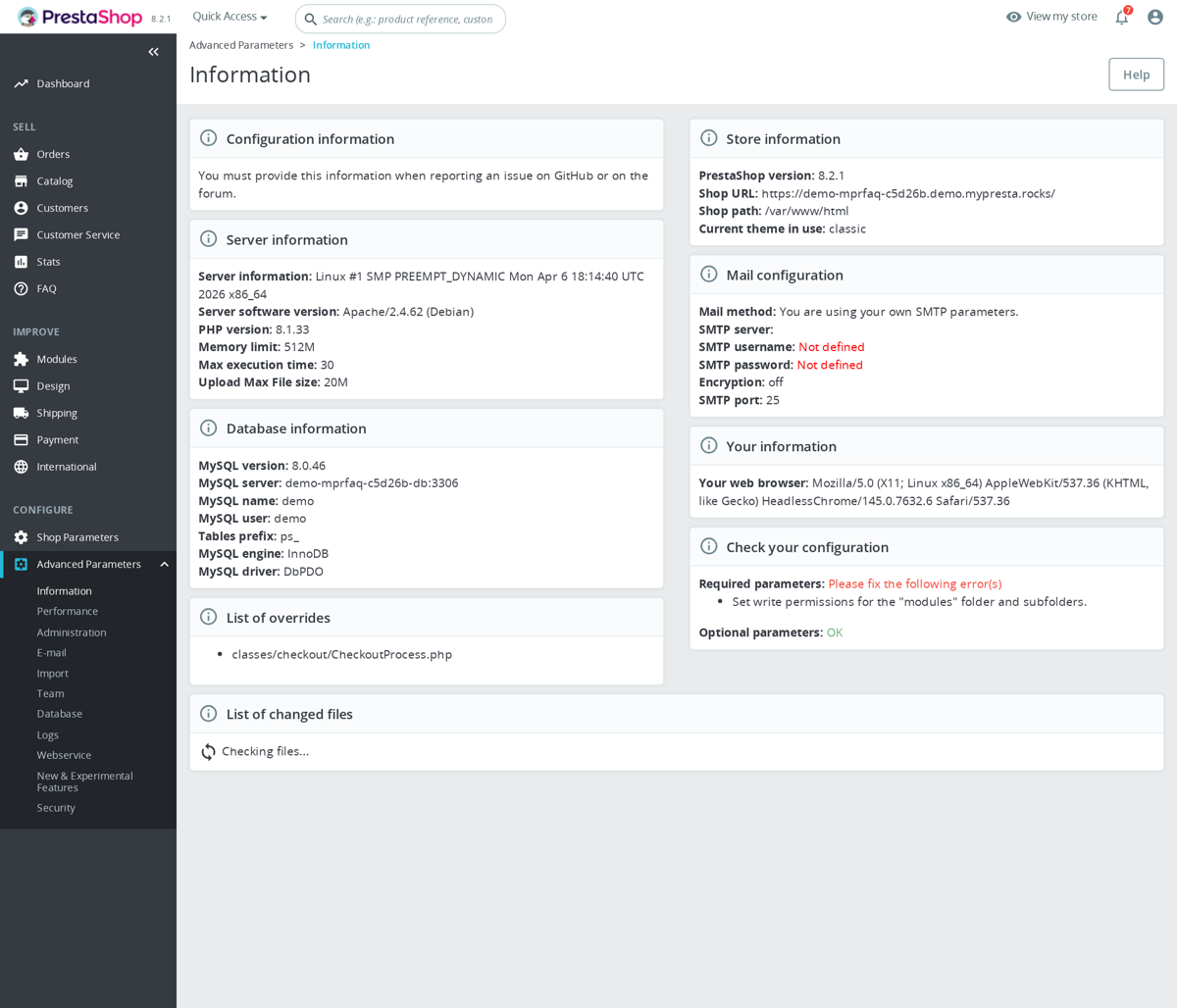
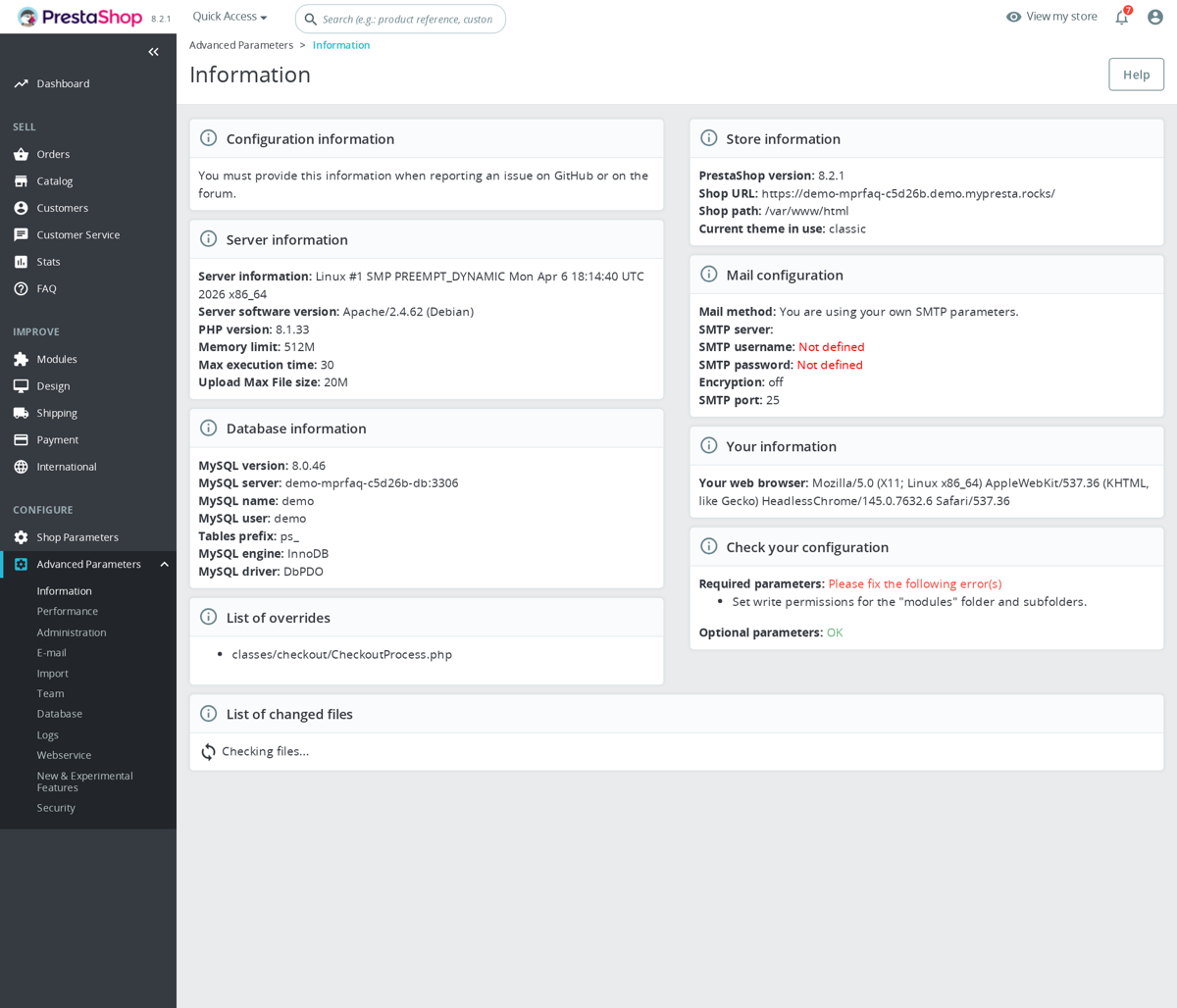
Navigate to Advanced Parameters > Information. This page displays your server's PHP configuration, including the current memory_limit value. PrestaShop will also show warnings if the value is below its recommended minimum.
Using phpinfo()
Create a temporary file called info.php in your PrestaShop root directory with this content:
<?php phpinfo(); ?>Access it via your browser at yourdomain.com/info.php. Search the page for "memory_limit" to see both the Local Value (what is actually active) and the Master Value (what is set in php.ini). The local value may differ from the master value if an .htaccess, .user.ini, or the application itself overrides it.
Important: Delete this file immediately after checking. A phpinfo() page exposes detailed server configuration that attackers can exploit.
Via Command Line
If you have SSH access, run:
php -i | grep memory_limitNote that the CLI PHP configuration may differ from the web server configuration. To check the web-facing value, use the phpinfo() method or the PrestaShop back office.
Common Causes of Memory Limit Errors
Large Product Imports
Importing products via CSV is one of the most memory-intensive operations in PrestaShop. Each row in the import file is loaded into memory, processed, validated, and inserted into the database. A CSV file with 10,000 products, each with multiple combinations, images, and descriptions, can easily require 512MB or more of memory.
PrestaShop's import tool processes products in batches, but the batch size and the amount of data per product determine the total memory footprint. Large text fields (descriptions with HTML), many columns, and UTF-8 encoded files with special characters all increase memory usage per row.
To reduce memory consumption during imports:
- Split large CSV files into smaller chunks (1,000-2,000 rows each)
- Import products without images first, then import images separately
- Disable non-essential modules during import (statistics, search indexing)
- Use the command-line import if available, which avoids web server timeout limits
Products with Many Combinations
Products with many attributes (size, color, material) generate combinations exponentially. A product with 5 sizes, 10 colors, and 3 materials creates 150 combinations. Each combination is a separate database record with its own price, reference, stock, and image associations. When PrestaShop loads a product page for editing in the back office, it loads all combinations into memory at once.
Products with 500+ combinations are a known pain point. At 1,000+ combinations, you will almost certainly hit memory limits with the default configuration. Solutions include:
- Increasing
memory_limitto 512M or 1G for the back office - Restructuring products to reduce combination count (separate products instead of mega-combinations)
- Using modules that handle combinations more efficiently through pagination
Bloated or Poorly Coded Modules
Third-party modules are a frequent source of memory problems. Common issues include:
- Loading entire database tables into PHP arrays: A module that runs
SELECT * FROM ps_orderswithout a LIMIT clause loads every order ever placed into memory. For a store with 100,000 orders, this can consume hundreds of megabytes. - Memory leaks in loops: Modules that process items in a loop but accumulate objects without freeing them. PHP's garbage collector handles simple cases, but circular references and stored references can prevent cleanup.
- Excessive logging: Debug logging that writes large arrays or objects to log files, using
var_export()orprint_r()on complex PrestaShop objects, can consume enormous amounts of memory. - Unoptimized image processing: Modules that resize or watermark images using GD or ImageMagick load the entire uncompressed image into memory. A 5000x5000 pixel image at 24-bit color depth requires approximately 75MB of RAM just for the pixel data.
To identify which module is causing memory issues, check the error message carefully. It usually includes a file path that points to the responsible module. You can also enable PrestaShop's debug mode to get more detailed stack traces.
Large Catalogs and Complex Queries
Stores with tens of thousands of products, many categories, and complex attribute structures put more pressure on memory during normal operation. Category pages with layered navigation (faceted search) are particularly demanding because the filter engine must calculate available attribute values across thousands of products.
The back office product listing, order listing, and customer listing pages all load data into memory for display. With very large datasets, even the basic list view can hit memory limits, especially when modules add extra columns or calculations to these lists.
Smarty Template Compilation
PrestaShop uses the Smarty template engine, which compiles templates into PHP files for faster rendering. The compilation process itself consumes memory, and complex templates with many includes, loops, and conditional blocks require more memory to compile. After the first compilation, cached versions are used, so this is primarily an issue when the cache is cleared or during development.
How to Increase the Memory Limit
Method 1: php.ini
The most reliable method is editing the PHP configuration file directly. The location depends on your setup:
- Debian/Ubuntu:
/etc/php/8.x/fpm/php.ini(PHP-FPM) or/etc/php/8.x/apache2/php.ini(mod_php) - CentOS/RHEL:
/etc/php.inior/etc/php.d/ - cPanel: MultiPHP INI Editor in WHM or cPanel
Find the memory_limit line and change it:
memory_limit = 512MAfter saving, restart PHP-FPM or Apache:
# PHP-FPM
sudo systemctl restart php8.2-fpm
# Apache with mod_php
sudo systemctl restart apache2Method 2: .htaccess (Apache with mod_php only)
Add this line to the .htaccess file in your PrestaShop root directory:
php_value memory_limit 512MThis method only works with Apache running mod_php. If you use PHP-FPM (which is more common on modern setups), this directive is silently ignored or may cause a 500 error. To check which PHP handler you are using, look at the Server API line in your phpinfo() output.
Method 3: .user.ini (PHP-FPM)
Create or edit a file called .user.ini in your PrestaShop root directory:
memory_limit = 512MPHP-FPM reads .user.ini files from the document root. Note that changes take effect after the user_ini.cache_ttl period (default 300 seconds / 5 minutes), so you may need to wait or restart PHP-FPM for the change to take effect immediately.
Method 4: Within PrestaShop's Code
PrestaShop sets its own memory limit in the file config/defines.inc.php. Look for a line like:
@ini_set('memory_limit', '256M');You can increase this value directly in the code. However, this approach has a limitation: the ini_set() function can only increase the memory limit up to the value set in php.ini. If php.ini sets memory_limit = 128M and your code tries to set it to 512M, the actual limit will remain 128M (unless the master value allows overrides, which depends on the PHP_INI_ALL vs PHP_INI_SYSTEM classification).
Method 5: Per-Pool Configuration (PHP-FPM)
If you manage your own server, you can set memory limits per PHP-FPM pool. Edit the pool configuration file (e.g., /etc/php/8.2/fpm/pool.d/www.conf) and add:
php_admin_value[memory_limit] = 512MUsing php_admin_value makes this setting immutable — it cannot be overridden by .user.ini or ini_set(). This is useful for enforcing limits in multi-tenant environments.
Per-Process vs Shared Memory
It is important to understand that memory_limit applies to each individual PHP process, not to PHP as a whole. If you set memory_limit = 512M and your server runs 20 concurrent PHP processes, the theoretical maximum memory consumption by PHP is 10GB (20 x 512MB).
This is why blindly increasing the memory limit can cause problems. On a server with 4GB of RAM, setting memory_limit = 1G with 10 PHP-FPM workers means PHP alone could try to use 10GB, causing the system to swap heavily or trigger the Linux OOM killer, which forcefully terminates processes to free memory.
The correct approach is to balance the memory limit with the number of PHP workers:
- Available RAM for PHP = Total RAM - OS overhead - MySQL memory - web server memory - other services
- Max PHP workers = Available RAM for PHP / memory_limit
For example, on a 4GB VPS: 4GB total - 0.5GB OS - 1GB MySQL - 0.25GB Nginx = 2.25GB for PHP. With memory_limit = 256M, you can safely run 8-9 PHP-FPM workers. With memory_limit = 512M, you can only run 4 workers, meaning fewer concurrent requests can be served.
Configure the PHP-FPM pool to match:
pm = dynamic
pm.max_children = 8
pm.start_servers = 3
pm.min_spare_servers = 2
pm.max_spare_servers = 5Diagnosing Memory Leaks and Excessive Usage
If increasing the memory limit only delays the error rather than fixing it, you likely have a memory leak or an inefficient process. Here is how to diagnose the root cause.
Enable PrestaShop Debug Mode
Edit config/defines.inc.php and set:
define('_PS_MODE_DEV_', true);This enables detailed error reporting, including the exact file and line number where the memory limit was exceeded. The stack trace shows the chain of function calls that led to the error, helping you identify the responsible module or core function.
Monitor Memory Usage in Code
You can add memory monitoring to specific code sections to pinpoint where memory spikes occur:
error_log('Memory before operation: ' . memory_get_usage(true) / 1024 / 1024 . ' MB');
// ... operation ...
error_log('Memory after operation: ' . memory_get_usage(true) / 1024 / 1024 . ' MB');
error_log('Peak memory usage: ' . memory_get_peak_usage(true) / 1024 / 1024 . ' MB');The memory_get_usage(true) function returns the actual amount of memory allocated by the OS to PHP, while memory_get_peak_usage(true) returns the maximum amount allocated at any point during the request.
Use Xdebug Profiling
Xdebug's profiler generates detailed reports of function calls, execution time, and memory consumption. Enable it temporarily in your PHP configuration:
xdebug.mode = profile
xdebug.output_dir = /tmp/xdebugOpen the generated cachegrind files in a tool like KCacheGrind or Webgrind to visualize which functions consume the most memory. This is the most thorough diagnostic approach but should only be used on development servers due to the significant performance overhead.
Check Slow Queries and MySQL
Sometimes what appears to be a PHP memory issue is actually a MySQL problem. A slow query that returns millions of rows will cause PHP to allocate memory for the entire result set. Check MySQL's slow query log:
sudo tail -100 /var/log/mysql/slow-query.logIf you see queries with large result sets, add proper LIMIT clauses or implement pagination in the responsible module.
OPcache Memory
OPcache is a PHP extension that caches compiled PHP bytecode in shared memory, eliminating the need to parse and compile PHP files on every request. OPcache has its own memory allocation, separate from memory_limit.
The default OPcache memory (opcache.memory_consumption) is 128MB. PrestaShop with several modules installed can easily exceed this. When OPcache runs out of memory, it starts evicting cached entries and recompiling files on every request, causing significant performance degradation.
Check OPcache status from the command line:
php -r "print_r(opcache_get_status());"Or look at the opcache section in your phpinfo() output. Key values to monitor:
- opcache.memory_consumption: Total memory allocated for OPcache (increase to 256M for PrestaShop)
- opcache.max_accelerated_files: Maximum number of files OPcache can cache (increase to 20000 for PrestaShop)
- Used memory vs Free memory: If free memory is near zero, increase
memory_consumption - Cache hit rate: Should be above 99%. Below 95% indicates memory pressure or frequent cache invalidation
Recommended OPcache configuration for PrestaShop:
opcache.enable = 1
opcache.memory_consumption = 256
opcache.max_accelerated_files = 20000
opcache.validate_timestamps = 1
opcache.revalidate_freq = 0
opcache.interned_strings_buffer = 16Note that OPcache memory is shared across all PHP processes, unlike memory_limit which is per-process. Increasing OPcache memory does not multiply by the number of workers.
MySQL Memory Configuration
MySQL has its own memory configuration that indirectly affects PrestaShop performance and can contribute to overall server memory pressure. Key MySQL memory settings include:
- innodb_buffer_pool_size: The main memory buffer for InnoDB tables. Set to 50-70% of available RAM on a dedicated database server, or 25-50% on a shared server running both PHP and MySQL. This is the single most important MySQL performance setting.
- sort_buffer_size and join_buffer_size: Per-connection buffers for sorting and joining. Keep these at default values unless you have specific slow queries that benefit from larger buffers. Setting them too high wastes memory because they are allocated per connection.
- query_cache_size: Deprecated in MySQL 8.0 and removed entirely. If you are still on MySQL 5.7, a small query cache (64M) can help, but large query caches cause contention and reduce performance.
If MySQL consumes too much memory, it leaves less for PHP, potentially forcing you to reduce PHP-FPM workers or the memory limit. Use mysqladmin status or SHOW GLOBAL STATUS to monitor MySQL memory consumption.
When to Upgrade Your Hosting
Sometimes increasing the memory limit and optimizing your code is not enough. Here are signs that you need a more powerful server:
- You are constantly running at the maximum memory limit: If your processes regularly use 90%+ of the allocated memory, even after optimization, you need more RAM.
- The server swaps frequently: Check with
free -horvmstat 1. If swap usage is consistently high, you do not have enough physical RAM. - Reducing PHP workers is hurting performance: If you had to reduce PHP-FPM workers to 3-4 to accommodate the memory limit, your site cannot handle concurrent visitors effectively.
- Your catalog keeps growing: A store that worked fine with 1,000 products may struggle with 10,000. Memory needs scale with catalog size, especially for search indexing, category listing, and back office operations.
- You need memory_limit above 1G: If a single PHP process needs more than 1GB of memory for normal operations (not imports), something is fundamentally wrong with either your code or your hosting capacity. Investigate the root cause before simply increasing the limit further.
When upgrading, prioritize more RAM over more CPU cores for PrestaShop. A server with 8GB RAM and 2 cores will serve PrestaShop better than one with 4GB RAM and 4 cores. Also consider separating MySQL onto its own server or using a managed database service, which frees up the application server's RAM entirely for PHP.
Quick Reference: Recommended Settings by Store Size
The following recommendations serve as starting points. Monitor your actual usage and adjust accordingly.
- Small store (under 1,000 products, few modules):
memory_limit = 256M, 2GB RAM, 4-6 PHP workers - Medium store (1,000-10,000 products, 20+ modules):
memory_limit = 512M, 4GB RAM, 6-8 PHP workers - Large store (10,000+ products, many combinations):
memory_limit = 512M-1G, 8GB+ RAM, 8-16 PHP workers, separate database server - During imports: Temporarily increase to
1Gor2G, then restore the normal value
Remember that the memory limit is a safety ceiling, not a target. A well-optimized PrestaShop store should rarely use more than 128-256MB per request for normal page loads. If normal operations consistently need 512MB or more, investigate and fix the underlying cause rather than continuing to increase the limit.
For more details, read our guides: What Actually Makes PrestaShop Slow: Database, Modules and Hosting and Choosing Hosting for PrestaShop: What Matters and What Is Marketing.
Understanding max_input_vars in PrestaShop
If you have ever tried to save a product with dozens or hundreds of combinations in PrestaShop and received a silent failure, a partial save, or a cryptic error, the culprit is almost certainly the PHP max_input_vars directive. This setting controls how many individual form fields PHP will accept in a single POST request. When PrestaShop submits a product form that exceeds this limit, every field beyond the threshold is silently discarded, leading to incomplete saves, missing combinations, or data that simply vanishes without any visible error message.
By default, most PHP installations ship with max_input_vars set to 1000. For a simple blog or brochure site, that is more than enough. For PrestaShop, however, product editing pages can generate thousands of form fields, especially when combinations, multi-language fields, and custom features are involved. Understanding this directive, knowing how to calculate the value your store actually needs, and applying the fix correctly will save you hours of debugging.
Why PrestaShop Needs High max_input_vars Values
PrestaShop's product editing form is one of the most complex forms in any e-commerce platform. Each combination of a product generates multiple input fields: one for the price impact, one for the weight impact, one for the quantity, one for the reference, one for the EAN-13, one for the UPC, one for the MPN, one for the minimum quantity, one for the low stock threshold, one for the availability date, and several more depending on your configuration. A single combination can easily produce 15 to 25 form fields.
Now multiply that by the number of combinations. A t-shirt available in 5 sizes and 10 colors has 50 combinations. At 20 fields per combination, that is already 1,000 fields just for the combinations tab. Add the base product fields, SEO fields for each language, feature values, specific prices, and other tabs, and you can easily reach 1,500 to 2,000 fields for a moderately complex product.
For stores selling products with extensive attribute sets, such as electronics with different storage capacities, colors, RAM options, and regional variants, a single product can have 200 or more combinations, generating 4,000+ form fields. The default limit of 1,000 is not even close to sufficient.
Symptoms of max_input_vars Being Too Low
The most frustrating aspect of hitting the max_input_vars limit is that PHP does not throw an error. It silently truncates the input data. This means you will see a variety of confusing symptoms without any clear indication of what went wrong.
The most common symptom is that combinations disappear after saving. You create 80 combinations, click save, and when the page reloads only 40 are present. The form submitted all 80, but PHP only processed the first portion of the POST data before hitting the limit, so the remaining combinations were never received by the server.
Another common symptom is that product data partially saves. The basic information tab saves correctly, but the pricing, SEO, or combinations data is lost. This happens because the form fields are submitted in a specific order, and whichever fields come after the cutoff point are discarded.
You may also experience the product page simply reloading without saving at all, or PrestaShop displaying a generic error such as "An error occurred while updating the product." In PrestaShop 1.7 and 8.x, the Symfony-based product page may show validation errors for required fields that were actually filled in but truncated by PHP.
A less obvious symptom affects multi-language stores. If your store supports 5 languages, every text field is multiplied by 5. A product that saves fine on a single-language store fails on a multi-language one because the additional language fields push the total past the limit.
How to Check Your Current max_input_vars Value
Before making changes, verify your current setting. Create a PHP file in your PrestaShop root directory (remember to delete it afterward for security):
<?php phpinfo(); ?>
Access this file through your browser and search for max_input_vars. You will see both the Local Value (what is currently active) and the Master Value (the default from php.ini). Pay attention to the Local Value, as it may differ from the Master Value if an .htaccess or per-directory configuration overrides it.
Alternatively, you can check from the PrestaShop back office. Navigate to Advanced Parameters, then Information. The PHP configuration section displays key PHP settings including max_input_vars. PrestaShop 1.7.7 and later versions also display a warning on this page if the value is considered too low.
Calculating the max_input_vars Value You Need
Rather than blindly setting a high number, you can estimate the value your store requires. Use this formula as a baseline:
Required value = (number of combinations x fields per combination) + base product fields + (text fields x number of languages) + safety margin
For a practical example, consider a store with 3 languages and a product that has 100 combinations. The calculation would look like this: 100 combinations multiplied by 20 fields each equals 2,000. The base product fields across all tabs contribute roughly 200. Text fields (name, description, meta title, meta description, link rewrite, and others) multiplied by 3 languages add another 150. Adding a 20% safety margin brings the total to approximately 2,820.
For most PrestaShop stores, setting max_input_vars to 10000 provides ample headroom. Stores with products that have 300+ combinations or that operate in 5+ languages should consider 20000 or even 50000. The memory overhead of a higher value is negligible on modern servers.
How to Increase max_input_vars
Method 1: php.ini (Recommended)
If you have access to your server's PHP configuration, editing php.ini is the cleanest approach. Locate your php.ini file (the phpinfo() output tells you exactly which file is loaded) and find or add the following line:
max_input_vars = 10000
After saving the file, restart your web server or PHP-FPM service for the change to take effect. On Apache with mod_php, restart Apache. On Nginx with PHP-FPM, restart the php-fpm service. The exact command depends on your operating system and PHP version.
Method 2: .htaccess (Apache with mod_php or mod_fcgid)
If you do not have access to php.ini, such as on shared hosting, you can try adding the directive to the .htaccess file in your PrestaShop root directory:
php_value max_input_vars 10000
This method only works if PHP is running as an Apache module (mod_php). If your host uses PHP-FPM or CGI, this directive will cause a 500 Internal Server Error. In that case, remove the line immediately and try the next method.
Method 3: .user.ini (PHP-FPM / CGI)
For servers running PHP-FPM, create or edit a .user.ini file in your PrestaShop root directory:
max_input_vars = 10000
Note that .user.ini changes are not immediate. PHP caches this file for a period defined by user_ini.cache_ttl, which defaults to 300 seconds (5 minutes). Wait at least 5 minutes after saving the file before testing.
Method 4: Hosting Control Panel
Many hosting providers expose PHP settings through their control panel. In cPanel, navigate to "Select PHP Version" or "MultiPHP INI Editor" and look for max_input_vars. In Plesk, go to PHP Settings for your domain. DirectAdmin and other panels have similar options. This is often the easiest method on shared hosting.
The Suhosin Patch Complication
Suhosin is a PHP security patch that was common on older servers, particularly those running PHP 5.x. It imposes its own set of input limits that override the standard max_input_vars setting. Even if you increase max_input_vars to 10000, Suhosin may still enforce a lower limit through its own directives.
The Suhosin-specific settings you need to adjust are:
suhosin.post.max_vars = 10000suhosin.request.max_vars = 10000
These must be set in addition to the standard max_input_vars. If your phpinfo() output shows a Suhosin section, you are affected and must adjust all three values. Suhosin settings can typically only be changed in php.ini, not in .htaccess or .user.ini.
On modern PHP 7.x and 8.x installations, Suhosin is rarely present. If you are running a recent PHP version, you almost certainly do not need to worry about it. However, if you are on an older shared hosting account that has not been updated, it is worth checking.
Alternative Approaches for Products With 500+ Combinations
While increasing max_input_vars solves the immediate problem, stores with extremely large numbers of combinations per product should consider alternative approaches that reduce the form field count or avoid the limitation entirely.
Import Combinations via CSV
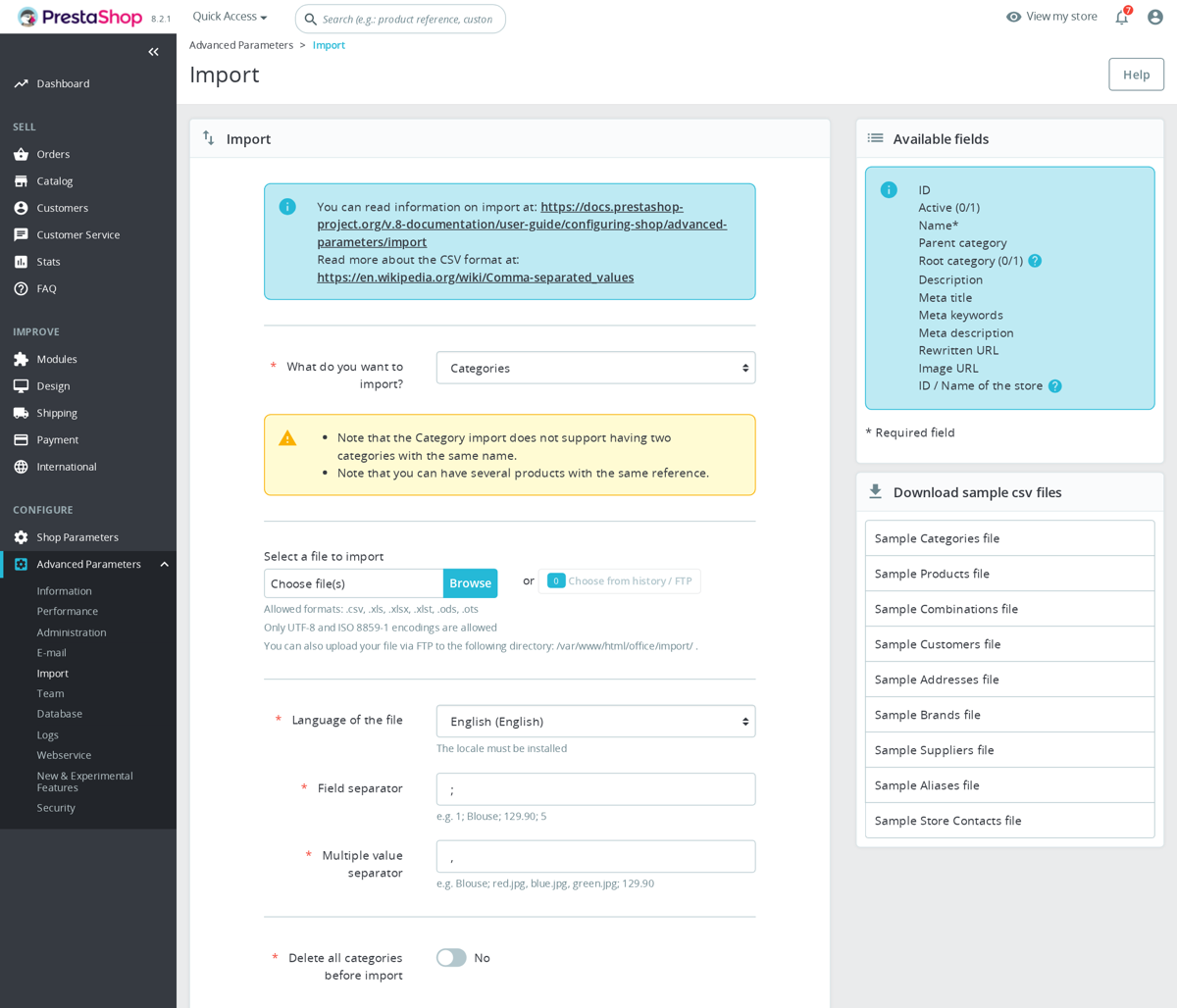
PrestaShop's built-in import functionality processes combinations through file upload rather than form submission, completely bypassing the max_input_vars limit. Prepare a CSV file with your combination data and import it through the back office under Advanced Parameters, Import. This is often the most practical approach for products with hundreds of combinations.
Use the PrestaShop Webservice API
The PrestaShop webservice API allows you to create and update combinations programmatically. API requests are not subject to max_input_vars because they use structured XML or JSON payloads rather than form-encoded POST data. This approach requires technical knowledge but scales to any number of combinations.
Split Large Products
In some cases, it makes more business sense to split a product with 500+ combinations into multiple products. A product with 5 sizes and 100 colors could be split into 5 products, one per size, each with 100 color options. This not only avoids the technical limitation but often improves the customer experience as well.
Manage Combinations in Batches
If you must use the back office form, create combinations in smaller batches. Generate 50 combinations at a time, save, then generate the next 50. This is tedious but avoids hitting the limit without requiring any server configuration changes.
Verifying the Fix
After increasing max_input_vars, verify that the change took effect. Check phpinfo() again and confirm the Local Value matches what you set. Then test by editing your most complex product, making a small change, and saving. All combinations and data should be preserved.
If the problem persists after increasing the value, check for these additional possibilities. Your hosting provider may be overriding your settings with a global configuration. The PHP instance serving your website may be different from the one shown in a CLI phpinfo(). There may be a web server limit such as Apache's LimitRequestBody or Nginx's client_max_body_size that is also truncating the request. Some web application firewalls (WAF) or security plugins (like ModSecurity) impose their own limits on POST data size and number of parameters.
Related PHP Settings to Check
While you are adjusting max_input_vars, review these related settings that can also cause issues with large product forms:
post_max_size: This sets the maximum size of POST data in bytes. If your form data exceeds this limit (typically when products have many large text fields across multiple languages), the entire POST is discarded. Set this to at least 32M for PrestaShop.
memory_limit: Processing thousands of form fields requires memory. If PHP runs out of memory while parsing the input, the request fails. A value of 256M or 512M is recommended for PrestaShop.
max_execution_time: Saving a product with many combinations involves numerous database queries. If the save operation takes longer than the allowed execution time, it will be terminated mid-process, leading to partial saves. Set this to at least 300 seconds for stores with complex products.
max_input_nesting_level: PrestaShop uses nested arrays in its form data (for example, multi-language fields use arrays like name[1], name[2]). The default nesting level of 64 is usually sufficient, but if you encounter issues with deeply nested form structures, increase it to 128 or 256.
PrestaShop Version-Specific Notes
In PrestaShop 1.6, the product page is entirely legacy PHP with a traditional form submission. The max_input_vars issue affects all operations on the product page. There is no workaround other than increasing the limit or using imports.
PrestaShop 1.7 introduced a partially Symfony-based product page. While the architecture changed, the underlying form submission still uses POST data and is still subject to the same PHP limits. The Symfony form component may display more informative error messages when fields are missing, but the root cause is the same.
PrestaShop 8.x features a completely redesigned product page with a new Symfony form structure. The combination management was significantly reworked, with combinations now managed through a dedicated interface that loads and saves data via AJAX in smaller batches. This architectural change naturally reduces the impact of max_input_vars for combination data, though the main product form can still be affected in multi-language stores with many features.
PrestaShop 9.x continues the trend toward AJAX-based data handling, further reducing the dependency on massive form submissions. However, max_input_vars remains relevant for bulk operations and legacy modules that still use traditional form submissions.
Preventing Future Issues
Set max_input_vars to a generous value during your initial PrestaShop installation rather than waiting for problems to appear. A value of 20000 is safe for virtually all scenarios and has no meaningful performance impact. Document the setting in your server configuration notes so that future server migrations preserve it.
If you are a hosting provider or system administrator managing multiple PrestaShop installations, consider setting max_input_vars = 20000 as a default in your PHP configuration templates. This single change eliminates one of the most common support requests related to PrestaShop product management.
Monitor your error logs after making changes. While max_input_vars truncation itself does not generate PHP errors, some PrestaShop versions log warnings when they detect that received data does not match expected data. These log entries can help you identify if the limit is still being hit despite your increase.
For more details, read our guides: Product Combinations and Variants: When Your Store Needs Them and Choosing Hosting for PrestaShop: What Matters and What Is Marketing.
Why Blank Pages Happen After PrestaShop Updates
A blank white page, often called the White Screen of Death (WSOD), is one of the most common and alarming issues PrestaShop store owners face after updating the core software. You initiate an update from 1.7.8.7 to 1.7.8.8, or from 8.1.0 to 8.1.5, the process appears to complete, and then your entire store, both front office and back office, displays nothing but a white screen. No error message, no partial content, just emptiness.
Understanding why this happens requires understanding what a PrestaShop core update does. The update process replaces hundreds of PHP files, modifies database tables, regenerates class indexes, clears caches, and potentially runs migration queries. Any failure at any point in this chain can leave the store in an inconsistent state where PHP encounters a fatal error but has no way to display it because error reporting is disabled in production mode.
The most common causes fall into several categories: incompatible modules that reference removed or changed core classes, PHP version mismatches between the old and new PrestaShop versions, override file conflicts where custom overrides collide with changed core files, insufficient server resources causing the update to terminate mid-process, and database migration failures that leave tables in an inconsistent state.
Step 1: Enable Debug Mode
The very first action when facing a blank page is to make errors visible. PrestaShop suppresses error output in production mode to prevent exposing sensitive information to visitors. You need to temporarily enable debug mode to see what is actually going wrong.
The fastest method is to edit the file /config/defines.inc.php. Look for the line that defines _PS_MODE_DEV_ and change it:
define('_PS_MODE_DEV_', true);
If you cannot access files via FTP or SSH because your hosting panel is also inaccessible, some hosting providers offer a file manager through their control panel (cPanel, Plesk, DirectAdmin) that operates independently of your PrestaShop installation.
In PrestaShop 8.x, you can also enable debug mode through the .env file in the root directory. Change APP_ENV=prod to APP_ENV=dev and set APP_DEBUG=1. This activates the Symfony debug toolbar and detailed error pages.
After enabling debug mode, reload the page. Instead of a blank screen, you should now see a detailed error message with a file path, line number, and stack trace. This error message is the key to diagnosing and fixing the problem.
Step 2: Check Error Logs
If enabling debug mode still shows a blank page (which can happen if the error occurs before PHP even loads the PrestaShop framework), check your server's error logs directly.
On Apache servers, the error log is typically located at /var/log/apache2/error.log or /var/log/httpd/error_log. On Nginx with PHP-FPM, check /var/log/nginx/error.log and /var/log/php-fpm/error.log (or /var/log/php8.1-fpm.log depending on your PHP version). On shared hosting, error logs are usually accessible through the hosting control panel or in a logs directory within your hosting account.
PrestaShop also maintains its own log files in the /var/logs/ directory (PrestaShop 1.7) or /var/log/ directory (PrestaShop 8.x). Look for files named with the current date. These Symfony-based logs can contain detailed information about what went wrong during the update process.
Additionally, check the /log/ directory in your PrestaShop root for any error log files. Some PrestaShop versions write critical errors here when they cannot display them on screen.
Common Cause 1: Incompatible Modules
Modules are the most frequent cause of blank pages after updates. A module that worked perfectly on PrestaShop 1.7.8.7 may crash the entire store on 1.7.8.8 if it uses internal core classes or methods that changed in the update.
The error message typically looks like: Fatal error: Class 'SomeClassName' not found or Fatal error: Call to undefined method ClassName::methodName() or Fatal error: Declaration of ModuleClass::hookMethod() must be compatible with CoreClass::hookMethod().
To fix this, you need to identify and disable the problematic module. If you can access the back office (sometimes only the front office crashes), go to Modules and disable recently installed or updated modules one by one until the problem resolves.
If the back office is also inaccessible, disable modules through the database. Connect to your database using phpMyAdmin or a MySQL client and run:
UPDATE ps_module SET active = 0 WHERE name = 'problematic_module_name';
If you do not know which module is causing the problem, you can disable all third-party modules at once by setting their active column to 0. First, identify which modules are third-party by checking the /modules/ directory for non-PrestaShop modules. Then selectively disable them.
A more aggressive approach is to rename the module's directory. For example, rename /modules/somemodule/ to /modules/somemodule_disabled/. PrestaShop cannot load a module whose directory does not match its registered name, effectively disabling it without touching the database.
Common Cause 2: PHP Version Incompatibility
Each PrestaShop version requires a specific PHP version range. PrestaShop 1.7.6 and earlier require PHP 7.1 to 7.3. PrestaShop 1.7.7 to 1.7.8 support PHP 7.2 to 8.0. PrestaShop 8.0 requires PHP 7.2 to 8.1. PrestaShop 8.1 requires PHP 8.0 to 8.2. PrestaShop 9.0 requires PHP 8.1 or higher.
If your hosting environment changed PHP versions during or alongside the PrestaShop update, you may encounter syntax errors or deprecated function calls. Common PHP compatibility errors include: Deprecated: Function create_function() is deprecated (PHP 7.2+ with code written for PHP 5.x), Fatal error: Uncaught Error: Call to undefined function mysql_connect() (PHP 7.0+ removed the mysql extension), and Fatal error: Array and string offset access syntax with curly braces is no longer supported (PHP 8.0+).
Check your current PHP version by looking at the phpinfo() output or running php -v on the command line. If the version is outside the supported range for your PrestaShop version, switch to a compatible PHP version through your hosting control panel.
Common Cause 3: Override Conflicts
PrestaShop's override system allows modules and developers to modify core behavior by placing modified class files in the /override/ directory. During an update, the core classes change, but the override files remain. If an override references a method signature that changed, a property that was removed, or a class that was renamed, the override causes a fatal error.
The class index file at /var/cache/prod/class_index.php (or /cache/class_index.php in older versions) maps class names to their file locations, including overrides. A stale or corrupted class index can load the wrong file for a class, causing immediate crashes.
To test if overrides are the problem, temporarily disable the override system. Edit /config/defines.inc.php and add or modify:
define('_PS_HOST_MODE_', false);
Then delete the class index file to force PrestaShop to regenerate it without overrides. If the store loads after this change, the problem is in one of your override files.
To identify the specific problematic override, look in the /override/classes/ and /override/controllers/ directories. Remove override files one at a time, deleting the class index after each removal, until you find the one causing the crash. Once identified, either update the override to be compatible with the new core version or remove it entirely if it is no longer needed.
Common Cause 4: Cache and Compiled Files
PrestaShop generates compiled Smarty templates, Symfony container caches, class maps, and various other cached files that become invalid after an update. If the update process did not properly clear these caches, the store attempts to use cached files that reference the old code structure.
Clear all caches manually by deleting the contents of these directories (delete the contents, not the directories themselves):
/var/cache/prod/ and /var/cache/dev/ for the Symfony cache. Delete everything inside these directories. PrestaShop will regenerate them on the next page load.
/cache/smarty/compile/ and /cache/smarty/cache/ for Smarty template caches. Stale compiled templates are a very common cause of blank pages after updates.
/var/cache/prod/class_index.php (or /cache/class_index.php) for the class map. This file must be regenerated after any update.
On PHP-FPM setups, also reset OPcache. OPcache stores compiled PHP bytecode in memory, and it may serve the old code even after files have been replaced. Restart the PHP-FPM service, or if you cannot do that, create a small PHP file that calls opcache_reset() and access it through your browser.
Common Cause 5: Database Migration Failures
PrestaShop updates often include database schema changes: new columns, modified indexes, new tables, or data migrations. If the update process was interrupted (timeout, memory limit, connection drop), the database may be in a partially migrated state.
Check the PrestaShop database for the ps_configuration table and look for the PS_VERSION_DB value. If this value does not match the version of the files on disk, the update did not complete properly. PrestaShop may attempt to re-run migrations on the next load, or it may simply fail.
Database migration failures are the most difficult to recover from without a backup. If you have a database backup from before the update, restoring it and re-running the update is often the safest path. If you do not have a backup, you may need to manually apply the missing SQL migration files found in the /install/upgrade/sql/ directory.
Step-by-Step Recovery Procedure
Follow this sequence when recovering from a blank page after a core update. The order matters because each step either fixes the problem or eliminates a possible cause.
Step 1: Enable debug mode in /config/defines.inc.php by setting _PS_MODE_DEV_ to true. Reload the page and read the error message.
Step 2: Delete the contents of /var/cache/prod/, /var/cache/dev/, /cache/smarty/compile/, and /cache/smarty/cache/. Delete class_index.php. Reload the page.
Step 3: If the error points to a specific module, disable that module by renaming its directory or setting active = 0 in the ps_module database table. Reload the page.
Step 4: If the error points to an override file, move the contents of the /override/ directory to a temporary backup location. Delete class_index.php again. Reload the page.
Step 5: Verify that your PHP version is compatible with the PrestaShop version you updated to. Check phpinfo() or php -v. Switch PHP versions if needed.
Step 6: Check file permissions. The update process may have created files with incorrect ownership. All PrestaShop files should be readable by the web server user, and the /var/, /cache/, /img/, /upload/, /download/, /translations/, /themes/, and /modules/ directories should be writable.
Step 7: If none of the above resolves the issue and you have a database backup, restore the database and files from backup, then attempt the update again after addressing any issues you identified during the diagnosis.
Safe Update Procedure for Future Updates
Prevention is far better than recovery. Follow this procedure for every PrestaShop core update to minimize the risk of blank pages and data loss.
Before the update: Create a complete backup of both the database and all files. Not just the database, not just the files, but both. Store these backups in a location outside your hosting account if possible. Test that you can actually restore from these backups before proceeding.
Disable all third-party modules. This is the single most effective step you can take to prevent blank pages. Core modules (those that ship with PrestaShop) are designed to be compatible with the update, but third-party modules are not guaranteed to be. Disable them before the update and re-enable them one by one afterward, testing the store after each re-activation.
Disable the override system. If you have custom overrides, disable them before the update. Re-evaluate each override after the update to determine if it is still compatible and still necessary.
Check the release notes. Every PrestaShop release includes notes about compatibility requirements, known issues, and breaking changes. Read them before updating, not after something breaks.
Put the store in maintenance mode. This prevents customers from placing orders during the update and encountering errors. Navigate to Shop Parameters, General, Maintenance in the back office and enable maintenance mode.
During the update: Monitor the update process. Do not close the browser tab or navigate away. If the update takes longer than expected, check your server error logs for timeout or memory errors. If the process appears stuck, wait at least 10 minutes before taking any action, as large stores may have significant database migrations to process.
After the update: Clear all caches. Verify that the back office loads correctly. Check the front office. Re-enable modules one by one, checking the store after each one. Re-enable overrides one by one if applicable. Disable maintenance mode. Monitor error logs for the next 24 hours.
Rollback Strategies
When recovery is not possible or too time-consuming, rolling back to the previous version may be the best option. However, PrestaShop does not have a built-in rollback mechanism, so you need to plan for this possibility before starting the update.
Full rollback from backup: Restore both the database and files from your pre-update backup. This is the cleanest approach but requires that you made a complete backup before the update. After restoring, verify that the store functions correctly and that no orders or customer data created during the failed update period are lost (if the store was in maintenance mode, nothing should have changed).
Partial file rollback: If only the files are corrupted but the database is fine, you can replace the PrestaShop files with the previous version while keeping the current database. Download the exact previous version of PrestaShop from the official release archive, extract it, and overwrite the files on your server. Keep your custom modules, themes, and configuration files. This approach is risky because the database may have been partially migrated, creating an inconsistency between the files and the database schema.
Forward fix: Sometimes the fastest path is not to roll back but to fix the specific error. If the error is caused by a single incompatible module or override, fixing or removing that one component may take minutes compared to hours for a full rollback. This approach is best when you have clearly identified the cause from the error message.
The Importance of Database Backups
Every section of this guide mentions backups, and for good reason. A PrestaShop database contains every product, every order, every customer account, every configuration setting, and every piece of content in your store. Losing it means losing your business data.
Automated daily backups are not optional for a production PrestaShop store. Configure your hosting provider's backup system, use a database backup module, or set up a cron job that runs mysqldump at regular intervals. Store backups in multiple locations. Test your restore procedure periodically to ensure backups are actually usable.
Before any update, create a manual backup in addition to your automated backups. Name it clearly with the date and the PrestaShop version, so you can identify it immediately if you need to restore.
When to Seek Professional Help
If you have followed all the steps in this guide and still face a blank page, or if the error messages point to deep core issues that require code-level fixes, it may be time to engage a PrestaShop developer. Provide them with the error messages you collected, the PrestaShop versions involved (before and after the update), your PHP version, and any actions you have already taken. This information will significantly reduce the time needed to diagnose and resolve the issue.
Attempting to manually edit core PrestaShop files without understanding the framework architecture can create additional problems. If the error message references Symfony containers, dependency injection, or kernel configuration, these are areas where incorrect changes can cascade into multiple failures.
For more details, read our guides: Debugging PrestaShop: The Complete Developer Toolkit and PrestaShop 1.7 vs 8 vs 9: Which Version Should You Be Running?.
How Cart Updates Work in PrestaShop
Before diving into troubleshooting, it helps to understand how PrestaShop handles cart operations. When a customer clicks "Add to Cart," the front-end JavaScript sends an AJAX request to the server. The server processes the request, updates the cart in the database and session, then returns a JSON response containing the updated cart summary. The JavaScript receives this response and updates the cart block, product page, and any other cart-dependent elements on the page without a full reload.
This AJAX-driven approach, introduced fully in PrestaShop 1.7, replaced the older page-reload method used in PrestaShop 1.6. While it provides a much smoother shopping experience, it also introduces more potential points of failure. A cart update can break at the JavaScript level, the AJAX request level, the server processing level, or the response rendering level. Each failure point produces different symptoms and requires different diagnostic approaches.
In PrestaShop 1.7 and 8.x, the core JavaScript file responsible for cart operations is core.js, which uses jQuery to send AJAX requests to the cart controller. The cart controller processes the request and dispatches events that modules can hook into. The response triggers a page-wide event (updateCart) that all cart-aware components listen for to refresh their displayed data.
Symptom: Clicking Add to Cart Does Nothing
When clicking the Add to Cart button produces absolutely no response, no animation, no spinner, no error, the problem is almost always a JavaScript error that prevents the click handler from executing. The button's click event is never captured, so no AJAX request is sent to the server.
Open your browser's Developer Tools (F12 or Ctrl+Shift+I in Chrome, Firefox, and Edge) and switch to the Console tab. Reload the product page and look for red error messages. Common errors include $ is not defined or jQuery is not defined (jQuery failed to load), Uncaught TypeError: Cannot read property of undefined (a module's JavaScript references something that does not exist), or Uncaught SyntaxError (a JavaScript file has a syntax error, often from a module that was not properly minified).
A single JavaScript error on the page can halt execution of all subsequent JavaScript, including the core cart functionality. If a module loaded before PrestaShop's core JavaScript throws an error, the entire cart system breaks even though the module has nothing to do with the cart.
To identify the offending module, look at the file name in the error message. It will typically reference a path like /modules/somemodule/views/js/somefile.js. Disable that module temporarily to confirm it is the cause, then contact the module developer for a fix.
Symptom: Add to Cart Spins but Never Completes
If clicking Add to Cart triggers the loading animation but it spins indefinitely, the AJAX request was sent but either received no response or received an error response. Switch to the Network tab in Developer Tools, click Add to Cart, and look for the AJAX request. It will typically be a POST request to a URL containing controller=cart or cart in the path.
Click on the request to inspect it. Check the Status column: a 200 status with an empty or malformed response body indicates a PHP error on the server that was caught before output. A 500 status indicates an unhandled server error. A 403 status may indicate a security module or WAF blocking the request. A 408 or timeout indicates the server took too long to respond.
If the status is 200 but the response body contains HTML instead of JSON (look for HTML tags in the response), it means PHP encountered a warning or notice that was output before the JSON response, breaking the JSON parsing. This is extremely common and is caused by modules or overrides that output text (even a blank line before the opening PHP tag) during the cart processing hooks.
Symptom: Cart Updates but Shows Wrong Data
Sometimes the cart appears to work: the animation plays, the cart icon updates, but the displayed quantities, prices, or products are wrong. This is typically a caching issue where the customer sees stale data instead of the freshly calculated cart.
PrestaShop has multiple caching layers, each of which can serve outdated cart information. Understanding and systematically checking each layer is essential for diagnosing this type of issue.
Browser Cache Issues
The browser itself may cache AJAX responses or static JavaScript files. While AJAX POST requests should not be cached by browsers, some aggressive caching configurations or service workers can interfere.
Test by opening an incognito or private browsing window. If the cart works correctly in incognito mode, the issue is browser-cache related. Instruct the customer to clear their browser cache, or more precisely, try a hard refresh with Ctrl+Shift+R (Windows/Linux) or Cmd+Shift+R (Mac).
If your PrestaShop theme uses a service worker for progressive web app (PWA) functionality, the service worker may be intercepting and caching AJAX requests. Check the Application tab in Developer Tools, then Service Workers, to see if one is registered. Unregister it temporarily to test if it is causing the issue.
Static JavaScript files can also be cached. If you recently updated a module that modifies cart behavior, the customer's browser may still be using the old JavaScript file. PrestaShop appends a version query string to JavaScript URLs (like cart.js?v=1.0.0), but this only works if the module properly increments its version number on update.
Smarty Cache Conflicts
PrestaShop uses the Smarty template engine to render HTML on the server side. Smarty has its own compilation and caching system that can serve stale template output.
If cart-related templates were modified (by a theme update, module installation, or manual edit) but the Smarty cache was not cleared, the old template continues to be served. The compiled templates are stored in /var/cache/prod/smarty/compile/ and cached output in /var/cache/prod/smarty/cache/. Deleting the contents of both directories forces Smarty to recompile all templates from the current source files.
You can also clear the Smarty cache from the back office. Navigate to Advanced Parameters, then Performance, and click the "Clear cache" button. In PrestaShop 8.x, you can also use the "Clear Symfony cache" button which clears both the Symfony container cache and the Smarty cache.
A subtler Smarty issue involves the "Force compile" and "Cache" settings under Advanced Parameters, Performance, Smarty. During development or debugging, set Template Compilation to "Force compilation" and Cache to "No." This ensures every page load uses the latest template files. Remember to restore these to "Recompile templates if the files have been updated" and "Yes" after debugging, as force compilation significantly impacts performance.
CCC Settings and Their Impact
PrestaShop's CCC (Combine, Compress, Cache) feature, found under Advanced Parameters, Performance, merges and minifies CSS and JavaScript files to improve page load times. While beneficial for performance, CCC can cause cart issues in several ways.
When CCC is enabled, PrestaShop combines multiple JavaScript files into a single cached file. If a module's JavaScript depends on loading order (it must execute after jQuery but before another module's code), the combination process may reorder the files incorrectly, causing the dependent code to fail.
CCC also caches the combined files aggressively. After installing, updating, or removing a module, the old combined file may still be served. The fix is to manually clear the CCC cache by going to Advanced Parameters, Performance, and clicking "Clear cache" or by deleting the cached files in /themes/your_theme/cache/.
A particularly frustrating CCC issue occurs when one module's JavaScript file contains a syntax error. When CCC combines it with other files, the syntax error breaks the entire combined JavaScript bundle, disabling all JavaScript functionality on the page, including the cart. Without CCC, only the one module's JavaScript would fail while the rest continues to work. Disabling CCC temporarily can help isolate this type of issue.
To test if CCC is causing your cart issue, disable all three CCC options (Smart cache for CSS, Smart cache for JavaScript, and Apache optimization) under Performance settings. Clear all caches. If the cart starts working, re-enable the options one by one to identify which one causes the conflict.
CDN Cache Issues
If your PrestaShop store uses a CDN (Content Delivery Network) such as Cloudflare, KeyCDN, or CloudFront, the CDN may be caching responses that should not be cached. CDNs are designed to cache static content, but misconfigurations can cause them to cache dynamic AJAX responses or session-dependent pages.
Cloudflare in particular has been known to cache POST request responses when certain page rules or cache-everything rules are configured too broadly. The cart AJAX endpoint returns customer-specific data that must never be cached by a CDN.
To test if the CDN is involved, temporarily bypass it. In Cloudflare, you can pause the CDN or add a page rule to bypass cache for your entire domain temporarily. If the cart works correctly without the CDN, review your caching rules to ensure that AJAX endpoints and dynamic pages are excluded from caching.
For Cloudflare specifically, ensure that the "Cache Everything" page rule does not cover your entire domain. If you must use it, add a rule with higher priority that bypasses cache for URLs containing controller=cart, ajax=true, and the checkout path. Also verify that the "Browser Cache TTL" is not set too high for dynamic assets.
Cookie and Session Problems
PrestaShop uses cookies to maintain the shopping session, including the cart. If cookies are not working correctly, the cart cannot persist between requests. Each AJAX cart update creates a new session instead of updating the existing one, resulting in a cart that appears empty after every page load.
Common cookie issues include: the cookie domain is misconfigured (the cookie is set for www.example.com but the AJAX request goes to example.com without the www prefix, or vice versa), the cookie path is wrong, the SameSite attribute is set to Strict which blocks cookies in certain cross-origin scenarios, or the cookie is too large and is being rejected by the browser (browsers typically limit cookie size to 4KB).
Check cookies in the Application tab of Developer Tools. Look for the PrestaShop session cookie (named PrestaShop-[hash] in newer versions). Verify that it has the correct domain, path, and that it is being sent with AJAX requests (check the Cookie header in the Network tab for the cart AJAX request).
On multi-domain or multi-shop setups, cookie issues are especially common. If the store is accessible via both http and https, or via both www and non-www versions, the cookie may not be shared between these variations. Ensure that your store uses a single canonical URL and that all other variations redirect to it.
SSL certificate issues can also prevent cookies from working. If the Secure flag is set on the cookie but the page is loaded over HTTP (or mixed content), the browser will not send the cookie. Ensure your entire store is served over HTTPS consistently.
Module Conflicts: Diagnosis Process
Module conflicts are the most common cause of cart issues in PrestaShop. Two or more modules may hook into the same cart events and interfere with each other, or a single module may have a bug that corrupts the cart response.
The systematic approach to diagnosing module conflicts involves disabling modules in groups. Start by disabling all third-party modules (keep PrestaShop's native modules active). If the cart works, re-enable modules in groups of 5. When the problem reappears, you have narrowed it down to 5 modules. Disable those 5 and re-enable them one at a time to find the exact culprit.
Pay special attention to modules that hook into these PrestaShop hooks, as they directly affect cart behavior: actionCartSave, actionCartUpdate, displayShoppingCart, displayShoppingCartFooter, actionBeforeCartUpdateQty, actionAfterCartUpdateQty, displayHeader (modules that add JavaScript here can conflict with cart JS), and actionFrontControllerSetMedia.
To see which modules are registered on cart-related hooks, check the database:
SELECT h.name, m.name FROM ps_hook_module hm JOIN ps_hook h ON h.id_hook = hm.id_hook JOIN ps_module m ON m.id_module = hm.id_module WHERE h.name LIKE '%cart%' ORDER BY h.name, hm.position;
This query lists all modules hooked into cart-related hooks, along with their execution order. Conflicts often arise when two modules both try to modify the cart total or apply discounts in incompatible ways.
Debugging with Browser DevTools: A Detailed Walkthrough
Browser Developer Tools are your most powerful weapon for diagnosing cart issues. Here is a step-by-step walkthrough of how to use them effectively.
Step 1: Open DevTools and go to the Console tab. Clear all existing messages. Reload the product page. Note any errors or warnings that appear. These are pre-existing issues that may or may not be related to the cart problem but should be documented.
Step 2: Switch to the Network tab. Check the "Preserve log" checkbox so requests are not cleared on page navigation. Filter by "XHR" or "Fetch" to see only AJAX requests. Click the Add to Cart button.
Step 3: Examine the AJAX request. Click on the cart request that appears. In the Headers sub-tab, verify the Request URL is correct and the Status Code is 200. In the Request payload or Form Data sub-tab, verify that the correct product ID, quantity, and attribute combination are being sent.
Step 4: Check the Response. Switch to the Response or Preview sub-tab. The response should be valid JSON. If you see HTML mixed in, a PHP error or warning is being output. If the response is empty, the server-side processing crashed before generating output. If the JSON is valid but contains error messages, read them for clues.
Step 5: Check the Console after the AJAX response. JavaScript errors that occur during processing of the AJAX response will appear in the Console after the network request completes. These errors indicate that the response was received but could not be properly processed by the front-end JavaScript.
PrestaShop 8.x Specific Considerations
PrestaShop 8.x uses a significantly updated front-end architecture compared to 1.7. The cart JavaScript has been refactored, and some previously jQuery-dependent code now uses vanilla JavaScript or updated jQuery methods. Modules written for PrestaShop 1.7 that manipulate the cart DOM directly may fail on 8.x because the HTML structure and CSS class names have changed.
The Symfony integration in PrestaShop 8.x also means that cache clearing is more involved. The Symfony container cache, located in /var/cache/prod/ and /var/cache/dev/, can contain compiled service definitions and route mappings that affect how cart controllers process requests. Clearing only the Smarty cache is not sufficient; you must also clear the Symfony cache.
PrestaShop 8.x also introduced stricter Content Security Policy (CSP) headers in some configurations. If your server or a security module adds CSP headers that restrict inline JavaScript or AJAX requests to specific domains, the cart AJAX calls may be blocked. Check the Console for CSP violation messages, which appear as red errors mentioning "Content Security Policy."
Server-Side Issues: PHP Sessions and Configuration
PHP session configuration can cause cart issues that are difficult to diagnose because they appear intermittent. If the session storage directory is full, has incorrect permissions, or is on a filesystem that does not support file locking, sessions may be lost or corrupted between requests.
Check your PHP session configuration: session.save_path must point to a writable directory with sufficient disk space. session.gc_maxlifetime controls how long sessions are kept; if set too low, customers lose their carts during long browsing sessions. session.cookie_lifetime should match or exceed the gc_maxlifetime value.
On shared hosting with many sites, the session directory may contain millions of files from all hosted sites, making session file access slow. If your hosting provider supports it, configure a per-site session directory or use database-based sessions.
For stores using multiple web servers behind a load balancer, sessions must be shared between servers. If session storage is file-based and local to each server, a customer's subsequent request may hit a different server that does not have their session, resulting in an empty cart. Use a shared session store such as Redis, Memcached, or database sessions in load-balanced environments.
Step-by-Step Diagnosis Checklist
When a customer reports that the cart is not updating, work through this checklist in order:
1. Reproduce the issue. Try to replicate the problem in an incognito window using the same product and browser the customer reported. If you cannot reproduce it, ask the customer for their browser version, device type, and exact steps.
2. Check the browser console for JavaScript errors. Any red error message is potentially the cause, even if it seems unrelated to the cart.
3. Check the network request. Verify the AJAX request is sent, returns a 200 status, and contains valid JSON.
4. Clear all caches: Smarty compile cache, Smarty cache, Symfony cache, CCC cache, OPcache, and CDN cache if applicable.
5. Disable CCC. If the cart works with CCC disabled, a JavaScript combination error is the cause.
6. Test with the default theme. Switch temporarily to PrestaShop's default classic theme. If the cart works on the default theme, the issue is in your custom theme's JavaScript or templates.
7. Disable third-party modules. If the cart works with all third-party modules disabled, use the binary search method to identify the conflicting module.
8. Check PHP error logs. Server-side errors that do not reach the browser are logged here.
9. Verify cookie and session configuration. Check the session cookie in DevTools and verify PHP session settings on the server.
10. Test on a different device and network. This eliminates local browser issues, network proxies, and device-specific JavaScript compatibility problems as potential causes.
For more details, read our guides: Reducing Cart Abandonment in PrestaShop: Proven Strategies and Module Conflicts: Why Two Good Modules Sometimes Break Each Other.
Why PrestaShop Error Logs Matter
Every PrestaShop store generates errors. Some are harmless notices that never affect your customers. Others are critical failures that bring your entire checkout to a halt. The difference between a store owner who spends days waiting for support and one who fixes problems in minutes often comes down to a single skill: reading error logs.
Error logs are the diagnostic output of your server and your PrestaShop application. They record every PHP error, every failed database query, every permission problem, and every uncaught exception. When something goes wrong, the answer is almost always sitting in a log file. The challenge is knowing where to look, what to look for, and how to interpret what you find.
This guide covers the complete landscape of PrestaShop error logging. You will learn where every type of log lives, how to enable detailed error reporting, how to read stack traces, and how to use command-line tools to find the needle in the haystack. Whether you are debugging a white screen of death or tracking down an intermittent checkout failure, this is the knowledge you need.
Where PrestaShop Logs Live
PrestaShop generates logs at multiple levels, and each level has its own log files. Understanding which log to check first saves enormous amounts of time.
PrestaShop Application Logs (var/logs)
Starting with PrestaShop 1.7, the application uses the Symfony framework for its back office and core routing. Symfony writes its own logs to the var/logs/ directory in your PrestaShop root. You will find files named according to the current environment:
var/logs/dev.log contains logs when PrestaShop runs in development mode. This file is extremely verbose and records everything from routing decisions to database queries. It can grow to hundreds of megabytes quickly.
var/logs/prod.log contains logs from production mode. This file is much less verbose by default, recording only warnings and errors. This is the file you should check first when something breaks on a live store.
These log files follow the Monolog format, which is the standard logging library in Symfony. Each line includes a timestamp, the log channel (like request, security, or doctrine), the severity level, and the message. A typical entry looks like this:
[2024-03-15 14:22:33] request.CRITICAL: Uncaught PHP Exception Symfony\Component\HttpKernel\Exception\NotFoundHttpException: "No route found for GET /admin/nonexistent" at /var/www/html/vendor/symfony/http-kernel/EventListener/RouterListener.php line 136
The severity levels, from least to most severe, are: DEBUG, INFO, NOTICE, WARNING, ERROR, CRITICAL, ALERT, and EMERGENCY. When troubleshooting, filter for ERROR and CRITICAL first.
PHP Error Log
PHP itself maintains an error log that is separate from PrestaShop's application logs. This log catches errors that happen before PrestaShop's logging framework initializes, or errors in code that does not use the Symfony logger. The location of this file depends on your server configuration.
On most Linux servers with Apache, the PHP error log is at /var/log/php_errors.log or /var/log/php/error.log. On shared hosting with cPanel, it is often at /home/username/logs/error.log or in the public_html directory as error_log.
You can find the exact location by checking your PHP configuration. Create a temporary PHP file with phpinfo(); and look for the error_log directive. Alternatively, run php -i | grep error_log from the command line.
PHP error logs capture fatal errors, parse errors, warnings, and notices. A fatal error entry typically looks like this:
[15-Mar-2024 14:22:33 UTC] PHP Fatal error: Uncaught Error: Class 'SomeModule\SomeClass' not found in /var/www/html/modules/somemodule/somemodule.php:45
Web Server Logs (Apache and Nginx)
Your web server maintains its own set of logs that are independent of PHP and PrestaShop. These logs are essential for diagnosing 500 errors, 404 errors, and performance issues.
Apache logs are typically found at:
/var/log/apache2/error.log for the error log on Debian and Ubuntu systems./var/log/httpd/error_log for the error log on CentOS and RHEL systems./var/log/apache2/access.log for the access log, which records every HTTP request.
Nginx logs are typically found at:
/var/log/nginx/error.log for the error log./var/log/nginx/access.log for the access log.
If your site uses a virtual host configuration, the logs might be in a site-specific location defined by the ErrorLog (Apache) or error_log (Nginx) directive in your virtual host file.
Web server error logs capture issues like permission denied errors when PHP tries to write to a directory, configuration syntax errors after an .htaccess change, and proxy timeout errors if you are running PHP-FPM behind Nginx. These are the logs to check when you see a generic 500 Internal Server Error with no details in the PHP or PrestaShop logs.
PrestaShop Legacy Logs (Back Office)
PrestaShop also maintains a log viewer within the back office under Advanced Parameters > Logs. This interface shows log entries stored in the ps_log database table. These logs capture events that PrestaShop explicitly records, such as failed login attempts, module installation errors, and email sending failures.
While the back office log viewer is convenient, it has significant limitations. It does not capture PHP errors, web server errors, or most fatal errors that prevent the page from loading. Consider it a supplement to the file-based logs, not a replacement.
Enabling Debug Mode in PrestaShop
By default, PrestaShop runs in production mode and hides detailed error messages from visitors. This is correct for a live store, but it makes debugging nearly impossible. When something breaks, your first step should be enabling debug mode.
Method 1: The defines.inc.php File
Open the file config/defines.inc.php and look for the line that sets _PS_MODE_DEV_. Change it from false to true:
define('_PS_MODE_DEV_', true);
This single change has several effects. PHP error reporting is set to its maximum level, showing all errors, warnings, and notices. Smarty template caching is disabled, so template changes appear immediately. The Symfony profiler toolbar appears at the bottom of back office pages. And most importantly, error details are displayed on screen instead of showing a generic error page.
Method 2: The Debug Profiling Mode
For deeper analysis, you can also enable profiling. In the same file, set:
define('_PS_DEBUG_PROFILING_', true);
This adds detailed timing and memory usage information to the bottom of every page, showing you which hooks take the longest, which modules consume the most memory, and how many database queries each page generates. This is invaluable for performance debugging but should never be left on in production.
Security Warning
Debug mode exposes sensitive information including file paths, database credentials in stack traces, and internal application structure. Never leave debug mode enabled on a production store that is accessible to the public. If you need to debug a live store, consider restricting debug mode to your IP address by wrapping the define in an IP check, or use a staging environment.
Reading Stack Traces
When PrestaShop encounters a fatal error or uncaught exception in debug mode, it displays a stack trace. A stack trace is a snapshot of the call chain that led to the error, reading from the point of failure back to the original entry point. Learning to read stack traces is the single most valuable debugging skill you can develop.
Anatomy of a Stack Trace
A typical PrestaShop stack trace looks like this:
PHP Fatal error: Uncaught TypeError: Argument 1 passed to Product::getProductProperties() must be of the type int, null given, called in /var/www/html/classes/Product.php on line 4523
Stack trace:
#0 /var/www/html/classes/Product.php(4523): Product::getProductProperties(NULL, Array)
#1 /var/www/html/modules/somemodule/somemodule.php(127): Product::getProductProperties(1, Array)
#2 /var/www/html/classes/Hook.php(523): SomeModule->hookDisplayHome(Array)
#3 /var/www/html/classes/Hook.php(460): Hook::coreCallHook(Object(SomeModule), 'hookDisplayHome', Array)
#4 /var/www/html/classes/Hook.php(408): Hook::exec('displayHome', Array)
Read the stack trace from top to bottom. The first line tells you what went wrong: a function expected an integer but received null. The #0 line tells you where the error occurred. The #1 line tells you what called the code at #0. The #2 line tells you what called #1, and so on.
In this example, the chain is clear: PrestaShop executed the displayHome hook, which called the hookDisplayHome method in SomeModule, which called Product::getProductProperties() with a null value where an integer was expected. The bug is in the module at line 127, where it passes an incorrect value.
Finding the Relevant Frame
Stack traces in PrestaShop can be long, sometimes 20 or 30 frames deep. The key is finding the frame that contains your code or the module causing the problem. Look for paths containing /modules/ or /themes/ because these are the most likely sources of bugs. Frames that reference /classes/, /src/, or /vendor/ are core PrestaShop or third-party library code, which is less likely to be the source of the problem unless you have modified core files.
Common PrestaShop Error Patterns
After reading thousands of PrestaShop error logs, certain patterns emerge repeatedly. Recognizing these patterns lets you diagnose problems in seconds instead of hours.
Class Not Found Errors
PHP Fatal error: Uncaught Error: Class 'ModuleName\ClassName' not found
This means the autoloader cannot find the specified class. Common causes include: a missing vendor/autoload.php file (the module needs composer install), a mismatched namespace declaration, a file that was not included in the module ZIP during installation, or a case sensitivity issue on Linux servers where ClassName.php and classname.php are different files.
Permission Denied Errors
Warning: file_put_contents(/var/www/html/var/cache/prod/some_file): failed to open stream: Permission denied
These occur when the web server user (usually www-data on Debian/Ubuntu or apache on CentOS) does not have write permission to a file or directory. Fix this by correcting ownership: chown -R www-data:www-data var/cache/ and permissions: chmod -R 775 var/cache/.
Memory Limit Errors
PHP Fatal error: Allowed memory size of 134217728 bytes exhausted (tried to allocate 65536 bytes)
The number 134217728 bytes equals 128MB, which is the default PHP memory limit. PrestaShop recommends at least 256MB. Increase it in your php.ini file: memory_limit = 512M. If the error persists even with high memory limits, the code likely has a memory leak, often caused by loading too many products or categories in a single query without pagination.
Database Connection Errors
Link to database cannot be established: SQLSTATE[HY000] [2002] Connection refused
This means PrestaShop cannot connect to the MySQL server. Check that the database server is running, that the credentials in app/config/parameters.php are correct, and that the database host is reachable from the web server.
Smarty Template Errors
SmartyException: Unable to load template file 'module:somemodule/views/templates/hook/display.tpl'
The template file is missing, misspelled, or in the wrong directory. Verify the file exists at the expected path and that the filename matches exactly, including case.
CSRF Token Errors
Invalid token. Please try to log in again.
This appears in the back office when a form submission includes an expired or missing security token. It typically happens when a session expires during a long editing session, when multiple tabs are open to the same admin page, or when a module generates its form URLs incorrectly.
Using grep to Find Errors
When log files are large, scrolling through them manually is impractical. The grep command is your best friend for finding relevant entries quickly.
Basic Error Searching
To find all fatal errors in the PHP error log:
grep 'Fatal error' /var/log/php_errors.log
To find errors from a specific module:
grep 'somemodule' /var/www/html/var/logs/prod.log
To find errors from today only (assuming date format in the log):
grep '2024-03-15' /var/www/html/var/logs/prod.log | grep 'ERROR\|CRITICAL'
Advanced Filtering
To see errors with surrounding context (3 lines before and after each match):
grep -C 3 'Fatal error' /var/log/php_errors.log
To count how many times each unique error occurs:
grep 'Fatal error' /var/log/php_errors.log | sort | uniq -c | sort -rn | head -20
This pipeline sorts the errors, counts duplicates, sorts by count in descending order, and shows the top 20. This is incredibly useful for identifying the most frequent errors that need attention first.
To search across multiple log files simultaneously:
grep -r 'Fatal error' /var/log/ --include='*.log'
The -r flag searches recursively, and --include limits the search to files with the .log extension.
Real-Time Log Monitoring with tail -f
When you are actively debugging a problem, you need to see errors as they happen. The tail -f command follows a log file in real time, displaying new entries as they are written.
Basic Real-Time Monitoring
To watch the PrestaShop production log in real time:
tail -f /var/www/html/var/logs/prod.log
To watch the PHP error log:
tail -f /var/log/php_errors.log
To watch multiple log files at once:
tail -f /var/www/html/var/logs/prod.log /var/log/php_errors.log /var/log/apache2/error.log
Filtered Real-Time Monitoring
To watch only error-level entries in real time, combine tail with grep:
tail -f /var/www/html/var/logs/prod.log | grep --line-buffered 'ERROR\|CRITICAL'
The --line-buffered flag is important here. Without it, grep buffers its output and you may not see matches immediately.
To highlight specific keywords while showing all output:
tail -f /var/www/html/var/logs/prod.log | grep --color=always -E 'ERROR|CRITICAL|$'
This highlights ERROR and CRITICAL in color while still displaying all lines.
The Debugging Workflow
The most effective debugging workflow combines real-time monitoring with active testing. Open one terminal window with tail -f running on the relevant log files. In your browser, reproduce the action that causes the error. Watch the terminal for new log entries that appear at the exact moment you trigger the problem. This approach eliminates guesswork and shows you precisely what happens when the error occurs.
Log Rotation and Management
Log files grow continuously and can consume all available disk space if left unmanaged. Most Linux servers use logrotate to manage this automatically, but PrestaShop's own logs in var/logs/ may not be included in the default logrotate configuration.
Understanding Logrotate
The logrotate utility runs daily (usually via cron) and handles log file rotation, compression, and deletion. Configuration files live in /etc/logrotate.d/. Apache and Nginx log rotation is typically configured out of the box.
For PrestaShop's var/logs directory, you may need to create a custom logrotate configuration:
/var/www/html/var/logs/*.log {
daily
missingok
rotate 14
compress
delaycompress
notifempty
create 0640 www-data www-data
}
This rotates logs daily, keeps 14 days of history, compresses old logs, and creates new log files with correct permissions.
Manual Log Cleanup
If a log file has grown extremely large and you need to clear it without losing the file handle (important if a process is actively writing to it):
truncate -s 0 /var/www/html/var/logs/prod.log
Do not delete the file and recreate it, because any process that has the file open will continue writing to the deleted file's inode until it is restarted. The truncate approach clears the contents while preserving the inode.
Understanding PrestaShop-Specific Error Contexts
PrestaShop errors often come with context that is unique to the platform. Understanding this context helps you locate and fix problems faster.
Hook-Related Errors
When an error occurs inside a hook, the stack trace will include references to Hook::exec() and Hook::coreCallHook(). The hook name tells you exactly when in the page rendering process the error occurs. For example, displayHome errors happen on the homepage, actionValidateOrder errors happen during checkout, and displayBackOfficeHeader errors happen when loading any back office page.
If a hook error crashes a page, you can temporarily disable the offending module from the database:
UPDATE ps_module SET active = 0 WHERE name = 'somemodule';
This lets you access the back office to properly diagnose and fix the issue.
Override Conflicts
PrestaShop's override system allows modules to extend core classes, but conflicts arise when two modules override the same class. The error typically appears as a method signature conflict or an unexpected behavior change. Check the override/ directory to see which overrides are active, and check the cache/class_index.php file which maps classes to their override files. Deleting this cache file forces PrestaShop to regenerate the override map.
Cache-Related Errors
Many PrestaShop errors are caused by stale cache files. If you see errors that do not match the current code (for example, an error referencing a line number that does not exist in the file), the cache is likely outdated. Clear it by deleting the contents of var/cache/prod/ and var/cache/dev/. On PrestaShop 1.6, clear cache/smarty/compile/ and cache/smarty/cache/ instead.
Module Installation and Upgrade Errors
Module installations can fail silently, leaving the module in a partially installed state. Check var/logs/prod.log for entries during the installation timestamp. Common issues include missing database tables (the module's install() method SQL failed), missing hooks (the registerHook() call failed), and duplicate entry errors in the ps_authorization_role table when reinstalling a module that was not fully uninstalled.
Building a Debugging Checklist
When you encounter a PrestaShop error, follow this systematic checklist to find the cause efficiently:
First, identify the error type. Is it a white screen (500 error), a specific error message, a broken layout, or unexpected behavior? Each type points to different log files.
Second, check the most specific log first. For PHP errors, check the PHP error log. For HTTP errors, check the web server error log. For application errors, check var/logs/prod.log.
Third, enable debug mode if the logs do not reveal enough information. Change _PS_MODE_DEV_ to true and reproduce the error.
Fourth, use tail -f on the relevant logs and reproduce the error in your browser. This gives you a real-time view of exactly what happens.
Fifth, read the stack trace from top to bottom. Find the frame that references your module or theme code. That is where the fix needs to happen.
Sixth, search for the error message in PrestaShop's GitHub issues and forums. Chances are good that someone has encountered and solved the same problem before.
Seventh, after applying a fix, clear all caches and monitor the logs to confirm the error is gone. A fix that does not produce a clean log is not a complete fix.
Summary
Reading PrestaShop error logs is not a mysterious art reserved for senior developers. It is a practical skill built on knowing where logs live, how to filter them, and how to interpret what they contain. The logs at var/logs/, the PHP error log, and the web server error log each serve a different purpose and together give you a complete picture of any problem. Enabling debug mode gives you detailed error messages. Stack traces show you the exact chain of function calls that led to the failure. Tools like grep and tail -f make it possible to find and monitor errors efficiently even in large, busy log files. Master these techniques and you will solve problems faster, with less frustration, and with much less dependence on external support.
For more details, read our guide: Debugging PrestaShop: The Complete Developer Toolkit.
Understanding HTTP Error Codes in PrestaShop
HTTP error codes are standardized responses from your web server that indicate something went wrong when a browser or search engine bot tried to access a page. For PrestaShop store owners, these errors can mean lost sales, frustrated customers, and damaged SEO rankings. Understanding what each code means and how to fix it is essential for maintaining a healthy online store.
This guide covers the four most common HTTP errors you will encounter with PrestaShop - 403, 404, 500, and 503 - with detailed explanations of their causes and step-by-step solutions for each.
Error 403 - Forbidden
A 403 error means the server understood your request but refuses to authorize it. The server is saying "I know what you want, but I will not give it to you." This is typically a permissions or access control issue.
Common Causes in PrestaShop
1. Incorrect File and Directory Permissions
PrestaShop requires specific file permissions to function correctly. Directories should be set to 755 (read, write, execute for owner; read and execute for group and others) and files should be set to 644 (read and write for owner; read for group and others).
# Fix permissions via SSH
find /var/www/html/prestashop -type d -exec chmod 755 {} \;
find /var/www/html/prestashop -type f -exec chmod 644 {} \;
# Ensure web server user owns the files
chown -R www-data:www-data /var/www/html/prestashop2. .htaccess Rules Blocking Access
An overly restrictive .htaccess file can block legitimate requests. Check for rules that deny access based on IP addresses, user agents, or file patterns. Common problematic rules include -
# This blocks everyone - remove or modify it
Deny from all
# This might block legitimate bots
RewriteCond %{HTTP_USER_AGENT} ^$ [OR]
RewriteCond %{HTTP_USER_AGENT} ^-3. ModSecurity or WAF Blocking Requests
Web Application Firewalls (WAF) like ModSecurity, Sucuri, or Cloudflare can produce false positives, blocking legitimate admin requests or module operations. Check your hosting control panel for security logs that show blocked requests.
4. IP-Based Access Restrictions
Some hosting providers or security configurations restrict access to the admin panel based on IP addresses. If your IP has changed, you may be locked out.
How to Fix 403 Errors
- Check and fix file permissions (755 for directories, 644 for files)
- Review your .htaccess file for overly restrictive rules
- Check hosting security logs for WAF blocks
- Verify your IP is not on a blocklist
- If all else fails, temporarily rename .htaccess to .htaccess_backup and test
Error 404 - Not Found
A 404 error means the server cannot find the requested page. The URL points to a resource that does not exist or has been moved without a proper redirect.
Common Causes in PrestaShop
1. Disabled or Misconfigured Friendly URLs
PrestaShop's friendly URLs feature rewrites technical URLs (like index.php?id_product=42&controller=product) into clean URLs (like /shower-drain-600mm.html). If friendly URLs are enabled but the .htaccess file is missing or misconfigured, every friendly URL will return a 404.
Fix - Go to Shop Parameters > Traffic & SEO, ensure Friendly URLs is enabled, and click Save. This regenerates the .htaccess file. If that does not work, check that the Apache mod_rewrite module is enabled on your server.
2. Deleted Products or Categories Without Redirects
When you delete a product or category in PrestaShop, the URL stops working but may still be indexed by Google or linked from other sites. Always set up 301 redirects when removing content.
In PrestaShop, go to the product editing page and under the SEO tab, set the redirect type to "301 - Moved permanently" and choose a target product or category.
3. Changed URL Structure
If you change the URL format pattern (e.g., from {rewrite}.html to {rewrite}), all existing URLs will break. Set up redirects for the old patterns.
4. Missing or Corrupted .htaccess
A missing .htaccess file means Apache does not know how to handle PrestaShop's URL rewriting, resulting in 404 errors for all non-default URLs.
# Generate a fresh .htaccess by visiting
# Shop Parameters > Traffic & SEO and clicking Save
# Or manually copy the default .htaccess from a fresh PrestaShop install5. Module URLs Not Working
Some modules register custom front-end controllers with their own URLs. If the module is disabled or improperly installed, those URLs will return 404s.
How to Fix 404 Errors
- Verify .htaccess exists and is properly configured
- Check that mod_rewrite is enabled on your server
- Regenerate the .htaccess from Shop Parameters > Traffic & SEO
- Set up 301 redirects for deleted or moved content
- Check Google Search Console for crawl errors and fix them systematically
Error 500 - Internal Server Error
A 500 error is the most generic and most frustrating server error. It means something went wrong on the server side, but the server cannot be more specific about what the problem is. This is PrestaShop's "something broke" message.
Common Causes in PrestaShop
1. PHP Memory Limit Exceeded
PrestaShop requires significant PHP memory, especially with many modules installed. If the memory limit is too low, operations will fail with a 500 error.
# In php.ini, increase the memory limit
memory_limit = 512M
# Or in .htaccess
php_value memory_limit 512M
# Or in .user.ini for PHP-FPM
memory_limit = 512M2. PHP Syntax Errors or Fatal Errors
A bug in a module, theme, or PrestaShop core file can cause a PHP fatal error. To diagnose, enable error display temporarily -
# In config/defines.inc.php, change:
define('_PS_MODE_DEV_', false);
# To:
define('_PS_MODE_DEV_', true);This will display the actual PHP error instead of a generic 500 page. Remember to disable this after debugging as it exposes sensitive information.
3. Corrupted or Incompatible .htaccess
An .htaccess file with invalid directives will cause Apache to return a 500 error for every request. Test by temporarily renaming the file.
4. PHP Version Incompatibility
PrestaShop versions have specific PHP requirements. Running PrestaShop 1.7 on PHP 8.2+ or PrestaShop 8.x on PHP 7.1 will cause fatal errors. Check the compatibility matrix -
| PrestaShop | PHP Minimum | PHP Recommended |
|---|---|---|
| 1.7.x | 7.1 | 7.4 |
| 8.x | 7.2 | 8.1 |
| 9.x | 8.1 | 8.2+ |
5. Database Connection Issues
If PrestaShop cannot connect to the MySQL database, it will show a 500 error. Check app/config/parameters.php (or config/settings.inc.php for older versions) to verify the database credentials are correct.
6. Module Conflicts
A newly installed or updated module can cause 500 errors. If you cannot access the admin panel, disable the module via FTP by renaming its folder.
# Rename the problematic module folder
mv modules/problematic_module modules/problematic_module_disabled7. Max Execution Time Exceeded
Long-running operations (product imports, large catalog operations) can exceed the PHP max execution time and trigger a 500 error.
# In php.ini
max_execution_time = 300
max_input_time = 300How to Fix 500 Errors
- Enable debug mode to see the actual error
- Check the PHP error log (location varies by hosting)
- Check the PrestaShop error log at
/var/logs/ - Test with a renamed .htaccess file
- Increase PHP memory limit and execution time
- Verify PHP version compatibility
- Disable recently installed or updated modules
- Verify database connection settings
Error 503 - Service Unavailable
A 503 error means the server is temporarily unable to handle the request. This is often a capacity or maintenance issue.
Common Causes in PrestaShop
1. Maintenance Mode Still Active
After performing maintenance, if you forget to disable maintenance mode, customers will see a 503 error (or maintenance page). PrestaShop sometimes does not properly clear maintenance mode after an upgrade.
Fix - Go to Shop Parameters > General > Maintenance and disable it. If you cannot access the admin, change the value directly in the database -
UPDATE ps_configuration SET value = '0' WHERE name = 'PS_SHOP_ENABLE';2. Server Overload
During traffic spikes (sales events, viral social media posts), your server may not have enough resources to handle all requests. Solutions include -
- Upgrading your hosting plan
- Enabling PrestaShop's built-in caching
- Using a CDN like Cloudflare
- Optimizing database queries
- Enabling OPcache for PHP
3. PHP-FPM Worker Exhaustion
If all PHP-FPM workers are busy processing requests, new requests will receive a 503 error. This is common on shared hosting or underprovisioned VPS servers.
# In php-fpm pool configuration
pm = dynamic
pm.max_children = 50
pm.start_servers = 10
pm.min_spare_servers = 5
pm.max_spare_servers = 204. Failed Update Leaving Residual Files
A failed PrestaShop update can leave the store in a broken state with a 503 error. Check for a maintenance file in the root directory and delete it if present.
5. Cron Jobs or Heavy Operations
Scheduled tasks like product imports, sitemap generation, or email sending can temporarily overload the server. Schedule heavy operations during off-peak hours.
How to Fix 503 Errors
- Check if maintenance mode is enabled and disable it
- Monitor server resources (CPU, RAM, disk I/O)
- Check PHP-FPM logs for worker exhaustion
- Review cron job scheduling for conflicts
- Consider upgrading hosting if traffic has grown
- Enable caching and optimize performance
General Debugging Tips for All Errors
Check Server Logs
The most reliable way to diagnose any error is to check the server logs -
- Apache error log -
/var/log/apache2/error.log - Nginx error log -
/var/log/nginx/error.log - PHP-FPM log -
/var/log/php-fpm/error.log - PrestaShop log -
/var/logs/in your PrestaShop directory
Enable PrestaShop Debug Mode
For 500 errors especially, enabling debug mode is the fastest way to identify the problem. Edit config/defines.inc.php and set _PS_MODE_DEV_ to true.
Test in a Clean Environment
If you suspect a module conflict, try disabling all non-essential modules and re-enabling them one by one to isolate the culprit.
Clear All Caches
After any fix, clear all caches - PrestaShop cache, OPcache, CDN cache, and browser cache. Stale cached data is a common source of persistent errors after a fix has been applied.
For more details, read our guides: Debugging PrestaShop: The Complete Developer Toolkit and PrestaShop .htaccess: Security and Performance Rules You Need.
How PrestaShop Uses Cookies
Every PrestaShop store relies on cookies to function. They maintain customer sessions, remember cart contents, store language and currency preferences, track logged-in status, and enable the back office to authenticate administrators. Without cookies, a PrestaShop store cannot maintain state between page loads, which means no shopping cart, no customer login, and no admin access.
PrestaShop uses two primary cookies. The front office cookie, typically named after your store (like PrestaShop-abc123), handles everything the customer-facing side needs. The back office cookie, with a similar naming pattern but different scope, handles administrator authentication. Both cookies store serialized data directly in the cookie value, which is a design decision that has significant implications for performance, security, and GDPR compliance.
PrestaShop Cookie Structure and Contents
Unlike many web applications that store only a session ID in the cookie and keep all session data on the server, PrestaShop stores substantial data directly in the cookie itself. The front office cookie contains fields including the customer ID, customer name and email, whether the customer is logged in, the cart ID, the selected language, the selected currency, the last visited category, the last visited product, the checkout step, and various other state information.
This data is serialized using PrestaShop's own cookie class (Cookie.php in the classes directory). The cookie value is encrypted using a key derived from your _COOKIE_KEY_ constant in config/settings.inc.php (PrestaShop 1.6/1.7) or app/config/parameters.php (PrestaShop 8.x). This encryption prevents tampering and protects sensitive data like the customer ID and email from being readable in the browser.
Why PrestaShop Stores Data in the Cookie
The historical reason for this design is performance. By storing session data in the cookie, PrestaShop avoids a server-side session lookup on every request. There is no need to read from a session file, query a database, or connect to a session server. The data arrives with the request, already available.
However, this approach has downsides that become more relevant as stores grow. The cookie size increases with the amount of stored data, and every HTTP request (including requests for images, CSS, and JavaScript files) sends the full cookie to the server. A 4 KB cookie sent with 30 asset requests per page means 120 KB of unnecessary upload bandwidth per page load. This overhead is measurable on mobile connections and at scale.
Cookie Size and Performance Impact
Browser cookies have a practical size limit of around 4,096 bytes per cookie. PrestaShop's front office cookie can approach or exceed this limit, especially when modules add their own data to the cookie through the hookActionBeforeSubmitAccount or by directly modifying the cookie object.
Measuring Cookie Size Impact
To see how cookies affect your store's performance, open your browser's developer tools and go to the Network tab. Look at the request headers for any request to your domain. The Cookie header shows all cookies being sent. Note its size. Now look at the request headers for a static asset (an image or CSS file) on the same domain. The same cookies are sent with that request too, adding overhead for no reason.
Reducing Cookie Overhead for Static Assets
The most effective way to eliminate cookie overhead for static files is to serve them from a different domain (a cookieless domain). In PrestaShop, you can configure media servers in the back office under Advanced Parameters > Performance. When you set a media server like static.yourdomain.com, PrestaShop serves images, CSS, and JavaScript from that domain. Since cookies are domain-specific, no cookies are sent with requests to the media domain.
Alternatively, a CDN like Cloudflare, Fastly, or CloudFront can serve your static assets. CDN edge servers typically strip cookies from cached responses, so even if cookies are sent in the request, the response comes from cache without the overhead of a round trip to your origin server.
Module Cookie Bloat
Third-party modules sometimes add data to the PrestaShop cookie without considering size implications. Each module that stores a value in the cookie increases its size and the overhead on every request. If your cookie is unusually large, check what data modules have added by examining the decrypted cookie contents or by reviewing module code for calls to $this->context->cookie->mymodule_value = ....
Well-designed modules use server-side storage (database or cache) and store at most a small identifier in the cookie. Poorly designed modules dump full data structures into the cookie, inflating its size. If you identify a problematic module, contact the developer or replace the cookie storage with database-backed storage using a session identifier.
Session Handling: Files, Database, and Redis
While PrestaShop stores some data directly in cookies, PHP also maintains its own session system. PrestaShop's back office relies more heavily on PHP sessions than the front office. The session handler determines where session data is stored on the server side.
File-Based Sessions (Default)
By default, PHP stores sessions as files in the session.save_path directory (typically /tmp or /var/lib/php/sessions). Each session creates a file. For a store with thousands of active sessions, this means thousands of small files. File-based sessions work well for small to medium stores but can cause problems at scale.
Common issues with file-based sessions include slow session garbage collection when the session directory contains too many files, file locking that can cause request serialization (two requests from the same session cannot be processed simultaneously), and shared hosting environments where the session directory fills up or has restrictive permissions.
Database Sessions
PrestaShop supports storing sessions in the database. This is configured in PHP settings or through PrestaShop's session handler. Database sessions eliminate the file system issues but add a database query to every request. For stores that already have high database load, this can worsen performance. However, database sessions have the advantage of being shared across multiple web servers in a load-balanced setup.
Redis or Memcached Sessions
For high-traffic PrestaShop stores, Redis is the optimal session storage backend. Redis stores session data in memory, providing sub-millisecond access times. It supports automatic expiration (session timeout), and session data is shared across all web server instances.
To configure PHP to use Redis for sessions, set session.save_handler = redis and session.save_path = "tcp://127.0.0.1:6379" in your php.ini or PHP-FPM pool configuration. If your Redis instance requires authentication, add the password to the save path: "tcp://127.0.0.1:6379?auth=yourpassword".
PrestaShop already supports Redis for object caching (configured in the back office under Advanced Parameters > Performance). Using the same Redis instance for both sessions and object caching simplifies your infrastructure while providing excellent performance for both.
SameSite, Secure, and HttpOnly Attributes
Modern browsers enforce cookie security attributes that directly affect how PrestaShop cookies behave. Misconfigured cookie attributes cause login failures, lost carts, and payment processing errors.
SameSite Attribute
The SameSite attribute controls whether a cookie is sent with cross-site requests. It has three possible values:
SameSite=Strict means the cookie is never sent with cross-site requests. This is too restrictive for PrestaShop because customers clicking a link to your store from an email or social media post would not have their session cookie sent, effectively logging them out.
SameSite=Lax is the default in modern browsers. The cookie is sent with top-level navigations (clicking a link) but not with cross-site subrequests (images, iframes, AJAX). This works well for PrestaShop's front office cookie in most cases.
SameSite=None means the cookie is always sent, including with cross-site requests. This must be paired with the Secure attribute. It is needed when your store is embedded in an iframe on another site or when third-party payment gateways need to redirect back to your store with the session intact.
Payment Gateway Issues
Many PrestaShop payment problems are caused by SameSite cookie issues. The typical scenario is: a customer checks out, is redirected to the payment gateway's site, completes payment, and is redirected back to your store. If the session cookie has SameSite=Lax, it may not be sent on the redirect back from the payment gateway, depending on how the redirect is implemented. If the gateway uses a POST redirect (common with 3D Secure), the Lax policy blocks the cookie, and PrestaShop loses the session. The customer sees an empty cart or a generic error page instead of the order confirmation.
The fix is to set the PrestaShop cookie to SameSite=None; Secure. In PrestaShop 1.7.7+ and 8.x, this can be configured in the cookie settings. For older versions, you may need to modify the Cookie class or add headers through your web server configuration. Always test payment flows after changing SameSite settings.
Secure Attribute
The Secure attribute ensures the cookie is only sent over HTTPS connections. If your store runs on HTTPS (which it should), this attribute prevents the cookie from being transmitted over an unencrypted connection, protecting it from interception. PrestaShop sets this attribute when the store detects an HTTPS connection.
A common problem occurs with mixed HTTP/HTTPS configurations. If your back office is on HTTPS but some front office pages are on HTTP, cookies marked as Secure will not be sent on HTTP pages, breaking the session. The solution is to enforce HTTPS everywhere, which you should be doing anyway for security and SEO reasons.
HttpOnly Attribute
The HttpOnly attribute prevents JavaScript from accessing the cookie through document.cookie. This is a critical security measure against cross-site scripting (XSS) attacks. If an attacker injects malicious JavaScript into your store (through a vulnerable module, for example), the HttpOnly attribute prevents that code from stealing session cookies.
PrestaShop sets the HttpOnly flag on its cookies by default. Do not disable this unless you have a very specific reason and understand the security implications.
Debugging Session and Cookie Issues
Cookie and session problems manifest as mysterious symptoms: customers randomly logged out, carts that empty themselves, admin sessions that expire immediately, checkout processes that fail silently. Systematic debugging requires checking several layers.
Browser Developer Tools
Open the Application tab (Chrome) or Storage tab (Firefox) and navigate to Cookies. Find your store's domain and examine all cookies. Check the Name, Value, Domain, Path, Expires, Size, HttpOnly, Secure, and SameSite columns. Look for cookies that are unexpectedly large, that have incorrect domain settings (a cookie for www.example.com will not be sent to example.com), or that are missing security attributes.
Server-Side Session Verification
If sessions are stored in files, check the session directory for the presence and age of session files. If a customer reports being logged out, find their session file (the filename is the session ID from the PHPSESSID cookie) and check when it was last modified. If the file is missing, the session was either garbage collected or never created properly.
For Redis sessions, use redis-cli to check if the session key exists: EXISTS PHPREDIS_SESSION:session_id. Check the TTL to see if it is about to expire: TTL PHPREDIS_SESSION:session_id.
Common Causes of Random Logouts
The _COOKIE_KEY_ changed. If this key changes (during a misconfigured deployment, a settings file overwrite, or an upgrade), all existing cookies become unreadable because they were encrypted with the old key. Every customer is effectively logged out. The fix is to restore the original key from a backup.
Session garbage collection is too aggressive. PHP's session.gc_maxlifetime determines how long (in seconds) a session file is considered valid. If this is set too low (the default is 1440 seconds, or 24 minutes), sessions for customers who browse slowly are deleted. For a store, set this to at least 3600 (1 hour) or higher.
Load balancer without session affinity. If your store runs on multiple web servers behind a load balancer and sessions are stored in files, each server has its own session directory. A customer whose requests alternate between servers will lose their session on each switch. The solution is either session affinity (sticky sessions) on the load balancer, or shared session storage using Redis or a database.
Cookie domain mismatch. If your store is accessible at both www.example.com and example.com, but the cookie domain is set to www.example.com, customers who access the site without the www prefix will not have the cookie. Ensure consistent domain usage with a redirect and verify the cookie domain in PrestaShop's settings.
GDPR Cookie Compliance
The General Data Protection Regulation (GDPR) and the ePrivacy Directive require informed consent before setting non-essential cookies on a user's browser. PrestaShop stores must comply with these regulations, and failure to do so can result in significant fines.
Essential vs Non-Essential Cookies
GDPR distinguishes between cookies that are strictly necessary for the website to function and cookies that serve other purposes like analytics, marketing, or personalization. PrestaShop's session cookie is essential because the store cannot function without it. A customer cannot add products to a cart or complete a purchase without a session cookie. Essential cookies do not require consent under GDPR.
However, many other cookies commonly found on PrestaShop stores are non-essential and require explicit consent before being set. These include Google Analytics tracking cookies (_ga, _gid), Facebook Pixel cookies, advertising cookies from remarketing platforms, live chat widget cookies, social media sharing button cookies, and any cookies set by third-party modules for tracking or personalization purposes.
Implementing Cookie Consent
PrestaShop does not include a built-in cookie consent mechanism that meets GDPR requirements. You need either a PrestaShop module designed for cookie consent or integration with a third-party consent management platform (CMP) like Cookiebot, Osano, or Usercentrics.
A proper cookie consent implementation must present a clear choice to the user before any non-essential cookies are set. It must allow the user to accept or reject individual categories of cookies (analytics, marketing, etc.), not just offer an all-or-nothing choice. It must remember the user's choice and not ask again until the consent expires. It must actually prevent the blocked cookies from being set, not just record the preference while still loading tracking codes.
The last point is critical and often mishandled. A consent banner that shows up but loads Google Analytics anyway regardless of the user's choice provides no legal protection. The implementation must conditionally load tracking and marketing resources based on the user's consent.
Technical Implementation of Consent
The technical approach to consent-based cookie management involves wrapping non-essential code in consent checks. For inline JavaScript that sets cookies or loads tracking pixels, replace the direct execution with a consent-gated loader. The tracking code is stored but not executed until the user gives consent.
For third-party modules that set cookies, the implementation is more complex. Some modules provide hooks or configuration options for consent integration. Others load their cookies unconditionally and must be modified or replaced. Audit every module on your store for cookie usage and determine which ones set non-essential cookies.
Cookie Consent and Caching
Full-page caching creates a conflict with cookie consent. If a page is cached with Google Analytics loaded and served to a user who has not given consent, you are violating GDPR. There are two approaches to handle this.
The first approach is to cache the page without any non-essential resources and dynamically inject them via JavaScript after checking consent. This works well with PrestaShop's CCC (Combine, Compress, Cache) system and with Varnish or other reverse proxy caches.
The second approach is to not cache pages for users who have not yet made a consent choice (first-time visitors). This hurts performance for new visitors but ensures compliance. Most consent management platforms use the first approach because it preserves caching benefits.
Cookie-Related Security Concerns
Beyond the HttpOnly and Secure attributes already discussed, there are additional security considerations for PrestaShop cookies.
Cookie Theft and Session Hijacking
If an attacker obtains a valid PrestaShop session cookie, they can impersonate the customer or administrator. The primary protection is HTTPS everywhere (prevents interception), HttpOnly cookies (prevents XSS theft), and the Secure attribute (prevents transmission over HTTP). PrestaShop also binds sessions to IP addresses in some configurations, which provides an additional layer of protection but can cause problems for users whose IP addresses change (mobile users, VPN users).
Cookie Key Security
The _COOKIE_KEY_ in your PrestaShop configuration is the master key for cookie encryption. If this key is compromised, an attacker can decrypt any PrestaShop cookie and forge valid session cookies. Protect this key by restricting access to your configuration files, never committing it to public repositories, and never sharing it in support requests.
Cookie Fixation Prevention
Session fixation attacks involve an attacker setting a known session ID in a victim's browser before the victim logs in. When the victim logs in, the attacker's pre-set session ID becomes authenticated. PrestaShop mitigates this by regenerating the session ID upon login. Ensure that session ID regeneration is functioning correctly and has not been disabled by any module or configuration change.
Troubleshooting Common Cookie Problems
Admin Panel Login Loop
The symptom is entering valid credentials in the PrestaShop back office, briefly seeing the dashboard, and being redirected back to the login page. This is almost always a cookie problem. Check that the cookie domain is correct, that the admin directory name has not changed, that HTTPS is properly configured (mixed content can prevent the Secure cookie from being sent), and that the session storage directory is writable by the web server.
Cart Emptying on Page Navigation
If the cart empties when the customer navigates to another page, the session cookie is not being maintained. Common causes include a missing or incorrect cookie domain setting, a misconfigured session.cookie_lifetime in PHP (set to 0 means the cookie expires when the browser closes, which is correct, but some configurations set it to a very short time), or a CDN or caching layer that strips the Set-Cookie header from responses.
Checkout Failure After Payment
When customers complete payment but see an error or empty cart on the return to your store, the SameSite cookie policy is usually the cause, as described in the payment gateway section above. Test the full checkout flow with browser developer tools open, watching the cookies in each step to identify where the session is lost.
Multiple Stores on the Same Domain
If you run multiple PrestaShop installations on the same domain (for example, in subdirectories), their cookies can conflict. Each installation uses a similar cookie name, and if the cookie path is set to /, one store's cookie overwrites the other's. Set unique cookie names for each installation through the _COOKIE_KEY_ (which affects the cookie name) or configure the cookie path to match each installation's subdirectory.
Optimizing Cookie Configuration for Performance
A well-optimized PrestaShop cookie configuration minimizes overhead while maintaining functionality. Use a cookieless domain or CDN for static assets to avoid sending cookies with image, CSS, and JavaScript requests. Keep the cookie size small by preventing modules from storing unnecessary data in it. Set appropriate session timeouts that balance security (shorter is more secure) with user experience (longer means fewer re-logins). Use Redis for session storage to combine fast access with shared state across server instances. Enable the Secure and HttpOnly attributes to protect cookie integrity without affecting performance. Implement proper cookie consent to avoid loading unnecessary tracking cookies that add overhead and legal risk.
Each of these optimizations is small individually, but together they create a meaningful improvement in both performance and compliance. Cookie management is not glamorous work, but it underlies every interaction between your store and your customers, making it worth getting right.
For more details, read our guides: Cookie Consent for PrestaShop: What the Law Actually Requires and GDPR and Cookie Compliance for PrestaShop: What You Actually Need.
Why Database Performance Matters in PrestaShop
PrestaShop is a database-heavy application. Every product page, category listing, search result, cart update, and checkout step involves multiple database queries. A typical product page can generate 50 to 200 or more SQL queries depending on the number of modules installed, the complexity of the product (combinations, features, attachments), and the theme. When any of these queries run slowly, the entire page slows down, and the effect compounds under load.
The challenge is identifying which queries are actually slow. With hundreds of queries per page load, you cannot simply guess. You need data. The MySQL slow query log is the most direct and reliable tool for collecting this data. It records every query that exceeds a time threshold you define, giving you a clear picture of where your database spends the most time.
This guide covers how to enable and configure the slow query log, how to analyze the results, how to interpret query execution plans, and how to apply the most common optimizations for PrestaShop databases.
Enabling the Slow Query Log
The slow query log is a MySQL feature that writes queries exceeding a specified execution time to a log file. It is disabled by default on most installations because it adds a small amount of I/O overhead, but the performance cost is negligible compared to the diagnostic value it provides.
Configuration via my.cnf
To enable the slow query log permanently, add the following lines to your MySQL configuration file. On most Linux systems, this file is located at /etc/mysql/my.cnf, /etc/my.cnf, or in a directory like /etc/mysql/conf.d/:
slow_query_log = 1 enables the feature.
slow_query_log_file = /var/log/mysql/slow-query.log specifies where the log is written. Make sure the MySQL process has write permissions to this directory.
long_query_time = 1 sets the threshold in seconds. Any query that takes longer than this value is logged. Start with 1 second to catch the most egregious offenders, then lower it to 0.5 or even 0.1 seconds as you optimize the worst queries and want to find more subtle bottlenecks.
log_queries_not_using_indexes = 1 logs queries that do not use any index, regardless of how long they take. This is extremely useful for PrestaShop because many performance problems are caused by full table scans on large tables. However, this can generate a lot of log entries on a busy store, so you may want to enable it temporarily during analysis and disable it afterward.
After editing the configuration file, restart MySQL for the changes to take effect.
Enabling at Runtime
You can also enable the slow query log without restarting MySQL by running SQL commands. Connect to MySQL as root and execute:
SET GLOBAL slow_query_log = 'ON';
SET GLOBAL long_query_time = 1;
SET GLOBAL log_queries_not_using_indexes = 1;
Runtime changes take effect immediately but do not persist across MySQL restarts. This approach is useful for temporary analysis sessions where you want to collect data for a specific period and then disable logging.
Choosing the Right Threshold
The long_query_time value determines what gets logged. Setting it too high means you miss moderately slow queries that collectively impact performance. Setting it too low floods the log with entries that are not individually problematic.
For an initial analysis, start at 1 second. This catches queries that are clearly too slow. After optimizing those, lower the threshold to 0.5 seconds, then 0.2 seconds. On a well-optimized PrestaShop database, the goal is for no query to take longer than 0.1 seconds, but reaching that level requires significant optimization work.
Keep in mind that query execution time varies with server load. A query that takes 0.3 seconds under normal load might take 2 seconds during a traffic spike because of CPU contention, disk I/O bottlenecks, or lock contention. The slow query log captures actual execution times, so analyzing logs from peak traffic periods gives you the most realistic picture.
Analyzing the Slow Query Log
The raw slow query log is a text file with entries that look like this:
# Time: 2024-03-15T14:22:33.456789Z# User@Host: prestashop[prestashop] @ localhost []# Query_time: 3.456123 Lock_time: 0.000234 Rows_sent: 1 Rows_examined: 847293SET timestamp=1710511353;SELECT * FROM ps_product WHERE active = 1 AND id_product NOT IN (SELECT id_product FROM ps_category_product WHERE id_category = 2);
The key fields are Query_time (how long the query took), Lock_time (how long it waited for a lock), Rows_sent (how many rows were returned), and Rows_examined (how many rows MySQL had to look at to find the result). A query that examines 847,293 rows to return 1 row is a clear sign of a missing index or inefficient query structure.
Using mysqldumpslow
Reading the raw log file is impractical for busy stores that generate thousands of slow query entries. The mysqldumpslow tool, included with MySQL, aggregates and summarizes slow query log entries. It groups identical queries together (abstracting away specific values) and sorts them by various criteria.
To find the 10 slowest queries by average time: mysqldumpslow -s at -t 10 /var/log/mysql/slow-query.log
To find the queries with the most total execution time: mysqldumpslow -s t -t 10 /var/log/mysql/slow-query.log
To find the queries that examined the most rows: mysqldumpslow -s r -t 10 /var/log/mysql/slow-query.log
The -s flag specifies the sort order: at for average time, t for total time, c for count (how many times the query appeared), r for rows examined. The -t flag limits the output to the top N queries.
The most useful sort for initial analysis is by total time (-s t), which shows you which queries consume the most database time overall. A query that takes 0.5 seconds but runs 1000 times per hour consumes more total time than a query that takes 5 seconds but runs once per hour.
Using pt-query-digest
For more detailed analysis, Percona Toolkit's pt-query-digest is the industry standard tool. It provides far more detailed statistics than mysqldumpslow, including percentile distributions of query times, variance analysis, and table-level statistics.
Basic usage: pt-query-digest /var/log/mysql/slow-query.log
The output starts with a profile section that ranks queries by total time, similar to mysqldumpslow but with more detail. Each query then gets a detailed section showing the minimum, maximum, mean, median, and 95th percentile execution times, plus the distribution of rows examined and rows sent.
The 95th percentile is particularly important for PrestaShop performance. It tells you the execution time that 95% of executions fall below. If the average is 0.3 seconds but the 95th percentile is 2.5 seconds, you have a consistency problem: most of the time the query is acceptable, but 5% of users experience a much slower response.
You can install Percona Toolkit on Debian and Ubuntu with apt install percona-toolkit or download it from the Percona website. It is worth installing on any server where you run PrestaShop.
Common Slow Queries in PrestaShop
Certain query patterns appear repeatedly in PrestaShop slow query logs. Knowing these patterns helps you diagnose issues faster.
Full Table Scans on ps_product
Queries against the ps_product table without proper index usage are among the most common slow queries. As your catalog grows beyond a few thousand products, any query that scans the entire product table becomes problematic. Look for queries with WHERE clauses on columns that are not indexed, or queries that join ps_product with ps_product_lang and ps_product_shop without using the primary keys efficiently.
Category Product Listings with Many Filters
When customers use layered navigation (faceted search) to filter products by attributes, features, or price ranges, PrestaShop generates complex queries that join multiple tables. The ps_layered_* tables used by the faceted search module can become performance bottlenecks if indexes are missing or if the indexing process has not run recently.
Search Queries
PrestaShop's built-in search uses the ps_search_word and ps_search_index tables. On stores with large catalogs and many search terms, these tables grow large and queries against them slow down. The search query typically involves a full-text operation or multiple LIKE conditions, both of which are inherently slower than index lookups.
Cart and Order Queries
Queries that aggregate cart or order data can be slow on stores with a long history. If your ps_cart table has millions of rows (which is common because PrestaShop creates a new cart for almost every visitor), queries that scan this table become slow. The same applies to ps_orders and ps_order_detail on high-volume stores.
Statistics and Reporting Queries
Back office statistics modules often run aggregate queries (SUM, COUNT, GROUP BY) across large tables like ps_orders, ps_connections, and ps_page_viewed. These queries can be extremely slow because they scan large datasets. On stores that have been running for years, these tables may contain millions of rows, and statistics queries that worked fine on a small dataset now take minutes.
Module-Generated Queries
Third-party modules frequently generate inefficient queries because module developers often test against small datasets. A module that works perfectly with 100 products may generate catastrophically slow queries with 10,000 products. The slow query log helps you identify which modules are responsible because the query text often includes table names or patterns that point to specific modules.
Using EXPLAIN to Analyze Queries
Once you have identified slow queries from the log, the next step is understanding why they are slow. The EXPLAIN statement shows you how MySQL plans to execute a query, including which indexes it uses, how many rows it expects to examine, and what join strategies it employs.
Reading EXPLAIN Output
Run EXPLAIN followed by the slow query. The output shows one row per table in the query, with these important columns:
type: How MySQL accesses the table. Values from best to worst: system/const (single row, essentially free), eq_ref (one row per join, using unique index), ref (multiple rows, using non-unique index), range (index range scan), index (full index scan), ALL (full table scan). If you see ALL on a table with more than a few thousand rows, that is almost certainly your bottleneck.
key: Which index MySQL actually chose for this table. If this is NULL, no index is being used, and MySQL is scanning the entire table.
rows: The estimated number of rows MySQL needs to examine. This is an estimate, not exact, but it gives you a sense of scale. If the estimated rows value is close to the total number of rows in the table, you have a full table scan.
Extra: Additional information about the execution plan. Watch for Using filesort (MySQL must sort results without an index, which is slow for large datasets), Using temporary (MySQL creates a temporary table, often for GROUP BY or DISTINCT operations), and Using where (MySQL is filtering rows after reading them, which means the index does not fully cover the WHERE clause).
EXPLAIN Example
Consider a slow query: SELECT p.id_product, pl.name FROM ps_product p LEFT JOIN ps_product_lang pl ON p.id_product = pl.id_product WHERE pl.id_lang = 1 AND p.active = 1 AND p.price > 100 ORDER BY p.date_add DESC LIMIT 20
Running EXPLAIN on this query might show that the ps_product table is accessed with type ALL (full table scan), no key is used, and the Extra column shows Using where; Using filesort. This tells you that MySQL is reading every row in the product table, filtering by active status and price, and then sorting the results by date. On a table with 50,000 products, this involves reading and sorting thousands of rows to return just 20.
The fix would be creating a composite index on (active, price, date_add) or restructuring the query to take better advantage of existing indexes.
Index Optimization for PrestaShop
Adding the right indexes is the most effective way to speed up slow queries. An index allows MySQL to find rows without scanning the entire table, similar to how a book's index lets you find a topic without reading every page.
When to Add an Index
Add an index when EXPLAIN shows a full table scan (type ALL) on a table with many rows, when a query runs frequently and consistently appears in the slow query log, and when the query's WHERE clause, JOIN condition, or ORDER BY clause references columns that are not currently indexed.
Do not add indexes blindly. Every index speeds up reads but slows down writes (INSERT, UPDATE, DELETE) because MySQL must update the index on every data modification. PrestaShop performs many writes (cart updates, order creation, statistics tracking), so excessive indexing creates its own performance problems.
Composite Indexes
For PrestaShop queries, composite (multi-column) indexes are often more effective than single-column indexes. A composite index on (id_shop, id_lang, active) lets MySQL efficiently handle queries that filter by all three columns. The order of columns in the index matters: MySQL uses the index from left to right, so the most selective column (the one that filters out the most rows) should generally come first.
PrestaShop's multishop and multilanguage architecture means many queries include id_shop and id_lang conditions. These columns appear in virtually every query against product, category, and CMS tables. If you are adding custom indexes, including these columns is often necessary for the index to be useful.
Covering Indexes
A covering index contains all the columns that a query needs, so MySQL can satisfy the entire query from the index without reading the actual table data. This is shown in EXPLAIN as Using index in the Extra column. Covering indexes provide the best possible performance because reading from an index is faster than reading from the table itself (indexes are smaller and more likely to fit in memory).
Common Index Additions for PrestaShop
Several indexes that are not present in a default PrestaShop installation can significantly improve performance on large stores. These include indexes on the date_add column in ps_cart and ps_orders for queries that filter or sort by date, composite indexes on ps_product_attribute for combination-heavy queries, and indexes on custom columns added by modules that run frequent queries against them.
Before adding any index, verify the improvement by running the slow query with and without the index. Use EXPLAIN to confirm that MySQL actually uses the new index. An unused index wastes disk space and slows down writes without providing any benefit.
Connection Management and Query Optimization
Connection Pooling
PrestaShop uses a single database connection per request by default. Each PHP process opens a connection to MySQL, executes its queries, and closes the connection when the request completes. On busy stores with many concurrent visitors, this creates a high rate of connection creation and teardown, which has overhead.
MySQL's max_connections setting limits how many simultaneous connections are allowed. If your store runs out of connections, visitors see "Too many connections" errors. The default value is often 151, which may be insufficient for high-traffic stores running many PHP-FPM workers.
To determine the right value, check the Max_used_connections status variable, which tells you the peak number of simultaneous connections since MySQL started. Set max_connections to at least 20% above this peak to provide headroom during traffic spikes.
Query Optimization Techniques
Beyond indexing, several query-level optimizations can improve PrestaShop database performance:
Avoid SELECT *: Queries that select all columns transfer more data than necessary between MySQL and PHP. PrestaShop core sometimes uses SELECT * for convenience, but custom queries should specify only the columns needed.
Limit subqueries: MySQL's optimizer handles subqueries less efficiently than JOINs in many cases. If you see slow queries with IN (SELECT ...) patterns, rewriting them as JOINs often improves performance. This applies particularly to queries generated by modules.
Use LIMIT wisely: For paginated listings, PrestaShop typically uses LIMIT offset, count. For large offsets (like page 500 of a product listing), this becomes slow because MySQL must read and discard all rows up to the offset. A more efficient approach is keyset pagination, where you filter by the last seen ID instead of using an offset.
Batch operations: Modules that process products in loops often execute one query per product. Rewriting these as batch queries (using IN clauses or CASE statements for updates) dramatically reduces the number of round trips to the database.
Monitoring and Ongoing Optimization
Database optimization is not a one-time task. As your catalog grows, traffic patterns change, and you install new modules, new slow queries emerge. Establish a routine for monitoring database performance.
Enable the slow query log permanently with a reasonable threshold (0.5 to 1 second). Review the log weekly or monthly using pt-query-digest. Pay attention to new queries that appear in the log and to existing queries whose execution time increases over time.
Monitor MySQL's key performance metrics: the buffer pool hit rate (should be above 99%), the number of slow queries per hour, the average query time, and the connection usage. These metrics give you early warning of performance degradation before it impacts users.
When you add or update modules, check whether they introduce new slow queries. Run the module's functionality while monitoring the slow query log to catch problems before they affect production traffic. A module that generates efficient queries on a test store with 50 products may create severe bottlenecks on a production store with 50,000 products. Testing with production-scale data is the only reliable way to verify module performance.
Summary
The MySQL slow query log is your most valuable tool for finding and fixing database bottlenecks in PrestaShop. Enable it, set an appropriate threshold, and use analysis tools like mysqldumpslow or pt-query-digest to identify the worst offenders. Use EXPLAIN to understand why specific queries are slow, and apply targeted indexes to eliminate full table scans. Monitor your database performance continuously, because optimization is an ongoing process as your store grows. The combination of slow query log analysis, EXPLAIN-driven optimization, and proper indexing can transform a sluggish PrestaShop store into one that handles large catalogs and high traffic with responsive page loads.
For more details, read our guides: Database Cleanup: Why Your PrestaShop Store Gets Slower Over Time and Performance Tuning Your PrestaShop Store: From Database Queries to Full Page Cache.
When PrestaShop Combinations Kill Performance: Limits and Workarounds
PrestaShop's combination system allows you to create product variants - different sizes, colors, materials, and other attributes. It works perfectly for products with a handful of variants. But when products have hundreds or thousands of combinations, performance degrades dramatically. Product pages take 10-30 seconds to load, the back office becomes unusable, and category listing pages crawl. This guide explains exactly why combinations cause performance problems, where the practical limits are, and what you can do about it.
Why Combinations Cause Performance Problems
Database Architecture
PrestaShop stores combination data across multiple tables:
ps_product_attribute- One row per combination (e.g., Red-XL, Red-L, Blue-XL, Blue-L = 4 rows)ps_product_attribute_combination- Links each combination to its attribute valuesps_product_attribute_shop- Per-shop combination data (multistore)ps_stock_available- Stock level for each combinationps_specific_price- Price overrides per combinationps_product_attribute_image- Image assignments per combination
A product with 5 sizes and 10 colors creates 50 combinations. That means 50 rows in ps_product_attribute, 100 rows in ps_product_attribute_combination (2 attributes per combination), 50 rows in ps_stock_available, and potentially 50+ rows in ps_specific_price if you have custom pricing.
A product with 3 attributes (size: 10 options, color: 15 options, material: 4 options) creates 10 x 15 x 4 = 600 combinations. The database rows multiply accordingly.
The Exponential Growth Problem
| Attributes | Values per Attribute | Total Combinations | Approximate DB Rows |
|---|---|---|---|
| 2 | 5 x 5 | 25 | ~175 |
| 2 | 10 x 10 | 100 | ~700 |
| 3 | 5 x 10 x 4 | 200 | ~1,400 |
| 3 | 10 x 15 x 8 | 1,200 | ~8,400 |
| 4 | 5 x 10 x 4 x 3 | 600 | ~4,200 |
| 4 | 10 x 15 x 8 x 5 | 6,000 | ~42,000 |
With 6,000 combinations per product and 100 such products, you are looking at 4.2 million database rows just for combination data. This is where performance falls off a cliff.
Front Office Performance Impact
When a customer visits a product page with many combinations, PrestaShop must:
- Query all combinations from the database
- Calculate the price for each combination (applying tax rules, specific prices, group prices, cart rules)
- Check stock availability for each combination
- Generate the JSON data structure that powers the attribute selector
- Render the HTML for the attribute dropdowns or swatches
For a product with 1,000+ combinations, this process can take 5-30 seconds depending on server hardware.
Back Office Performance Impact
Editing a product with many combinations in the back office is often even worse than the front office. The combination tab loads all combinations at once, and saving changes triggers updates across multiple tables for every combination.
Practical Limits
| Combination Count | Front Office | Back Office | Verdict |
|---|---|---|---|
| 1-50 | Fast (< 1s) | Fast | No issues |
| 50-200 | Acceptable (1-3s) | Acceptable | Manageable |
| 200-500 | Slow (3-8s) | Slow | Needs optimization |
| 500-1000 | Very slow (8-15s) | Very slow | Consider restructuring |
| 1000+ | Unusable (15-30s+) | Often crashes | Restructure required |
These numbers assume a typical shared hosting environment. Dedicated servers with SSD storage, OPcache, and proper MySQL tuning can push the limits higher, but the underlying architecture still degrades linearly with combination count.
Workaround 1 - Restructure Your Product Catalog
The most effective solution is to reduce the number of combinations per product by restructuring how you organize products.
Split Products by Key Attribute
Instead of one product "T-Shirt" with combinations for every color and size, create separate products for each color:
- "T-Shirt - Red" (sizes: S, M, L, XL, XXL = 5 combinations)
- "T-Shirt - Blue" (sizes: S, M, L, XL, XXL = 5 combinations)
- "T-Shirt - Black" (sizes: S, M, L, XL, XXL = 5 combinations)
Instead of 1 product with 50 combinations (10 colors x 5 sizes), you have 10 products with 5 combinations each. The front office is fast, the back office is manageable, and you get better SEO because each color has its own indexed page.
Use PrestaShop's Product Pack Feature
For products that are genuinely different items sold together (like a furniture set with configurable pieces), consider using product packs instead of combinations.
Workaround 2 - Database and Server Optimization
Add Database Indexes
PrestaShop's default indexes may not be optimal for stores with many combinations. Add these indexes:
ALTER TABLE ps_product_attribute
ADD INDEX idx_product_default (id_product, default_on);
ALTER TABLE ps_product_attribute_combination
ADD INDEX idx_attribute (id_attribute);
ALTER TABLE ps_stock_available
ADD INDEX idx_product_attribute (id_product, id_product_attribute);
ALTER TABLE ps_specific_price
ADD INDEX idx_product_combo (id_product, id_product_attribute, id_shop);MySQL Configuration Tuning
# my.cnf optimizations for combination-heavy stores
innodb_buffer_pool_size = 2G # Adjust based on available RAM
innodb_log_file_size = 256M
query_cache_type = 1
query_cache_size = 128M
query_cache_limit = 4M
join_buffer_size = 4M
sort_buffer_size = 4M
tmp_table_size = 256M
max_heap_table_size = 256MEnable OPcache
opcache.enable = 1
opcache.memory_consumption = 256
opcache.interned_strings_buffer = 32
opcache.max_accelerated_files = 16229
opcache.revalidate_freq = 60Workaround 3 - Lazy Loading Combinations
Instead of loading all combinations on page load, implement lazy loading that fetches combination data only when the customer selects an attribute. This requires custom module development or a module that overrides the default behavior.
The approach works like this:
- On initial page load, show only the first attribute group (e.g., Color)
- When the customer selects a color, make an AJAX request to fetch the available sizes for that color
- When the customer selects a size, fetch the price, stock, and image for that specific combination
This reduces the initial page load from loading all 1,000 combinations to loading only the first attribute group (perhaps 10-15 items), then incrementally loading data as needed.
Workaround 4 - Caching Strategies
Full Page Cache
Implement a full-page cache (Varnish, LiteSpeed Cache, or Nginx FastCGI Cache) for product pages. The first visitor triggers the slow combination load, but subsequent visitors get the cached version instantly. Limitations:
- Cart-specific information (logged-in customer prices, group prices) complicates caching
- Pages with customer-specific content cannot be fully cached
- Cache invalidation when prices or stock change
Redis or Memcached for Object Caching
Configure PrestaShop to use Redis or Memcached instead of file-based caching:
# In config/defines.inc.php or via Back Office
# Advanced Parameters > Performance > Caching
# Select Memcached or Redis as cache typeWorkaround 5 - Custom Combination Loading with Override
For developers, you can override the combination loading logic to paginate results or pre-compute combination data:
// Pre-compute combination data into a JSON file
// Run this via cron whenever products are updated
$products = Product::getProducts($id_lang, 0, 0, 'id_product', 'ASC');
foreach ($products as $product) {
$combinations = $product['id_product'];
$combData = Product::getProductProperties($id_lang, $product);
// Save to a JSON file per product
file_put_contents(
_PS_MODULE_DIR_ . 'yourcache/product_' . $product['id_product'] . '.json',
json_encode($combData)
);
}When to Avoid Combinations Entirely
Some use cases are fundamentally incompatible with PrestaShop's combination system:
- Configurable products with 4+ attributes and 10+ values each - Use a product configurator module instead
- Products with unique serial numbers - Use a stock management module with serial tracking
- Dimensional products (custom width x height x depth) - Use a custom dimensions module that calculates price on-the-fly
- Print-on-demand products with customer uploads - Use a product designer module
Monitoring Combination Performance
Use PrestaShop's built-in profiling to identify combination-related bottlenecks:
// In config/defines.inc.php
define('_PS_DEBUG_PROFILING_', true);This adds a profiling bar at the bottom of every page showing SQL query count, execution time, and memory usage. Look for:
- Pages with 500+ SQL queries (normal is 50-150)
- Single queries taking more than 100ms
- Total page generation time above 3 seconds
Summary of Recommendations
| Combination Count | Recommended Action |
|---|---|
| Under 100 | No action needed - PrestaShop handles this fine |
| 100-300 | Add database indexes, enable OPcache, use Redis caching |
| 300-1000 | Split products by primary attribute, add indexes, consider lazy loading |
| Over 1000 | Restructure catalog, use product configurator module, or implement custom lazy-load AJAX |
For more details, read our guides: Product Combinations and Variants: When Your Store Needs Them and What Actually Makes PrestaShop Slow: Database, Modules and Hosting.
PrestaShop Admin Performance: Why the Back Office Is Slow
A slow PrestaShop back office is one of the most frustrating problems for store administrators. Product editing takes forever, order management pages lag, and simple configuration changes become an exercise in patience. The worst part is that front office performance can be perfectly fine while the back office crawls. This guide identifies the most common causes of back office slowness and provides concrete fixes for each one.
The Most Common Causes
1. PrestaShop Addons API Connection
This is the number one cause of back office slowness that most store owners never discover. PrestaShop's back office makes HTTP requests to addons.prestashop.com on multiple pages to check for module updates, display notifications, and validate licenses. When PrestaShop's API is slow or unresponsive, your entire back office waits for these requests to time out.
Symptoms - The dashboard takes 10-20 seconds to load. The modules page is extremely slow. Other back office pages that load module information are affected.
Fix - Disconnect from PrestaShop Addons in your back office. Go to Modules > Module Manager and look for the option to sign out from your Addons account. Alternatively, disable the module update checking:
-- Disable addons API calls
UPDATE ps_configuration SET value = '0' WHERE name = 'PS_ADDONS_API_MODULE_CHANNEL';2. Debug Mode Left Enabled
When debug mode is enabled, PrestaShop disables all caching, recompiles Smarty templates on every request, and logs detailed error information. This is essential for development but catastrophic for performance.
Symptoms - Everything is slow, not just specific pages. Performance improved dramatically in the past and suddenly got worse.
Fix - Check config/defines.inc.php:
// Make sure these are set to false in production
define('_PS_MODE_DEV_', false);
define('_PS_DEBUG_PROFILING_', false);Also check Advanced Parameters > Performance:
- Template compilation - set to "Never recompile template files" in production
- Cache - set to "Yes"
- Cache type - "File system" is default, Redis or Memcached is better
3. Too Many Installed Modules
Every installed module adds overhead to the back office, even if it is disabled. Modules hook into back office pages, add menu items, load assets, and make database queries. A fresh PrestaShop installation has 50+ modules. Many stores accumulate 100-150 modules over time.
Fix - Audit your modules and uninstall (not just disable) anything you do not use. Pay special attention to:
- Statistics modules - Many stores have 5-10 statistics modules they never check. If you use Google Analytics, you probably do not need the built-in stats modules.
- Gamification module - Makes external API calls on every back office page load. Uninstall it.
- Welcome module (ps_welcome) - Displays a dashboard widget that loads external content. Uninstall after initial setup.
- Unused payment modules - Each loads configuration and validation code even when disabled.
4. Large Database Without Optimization
Over time, PrestaShop databases accumulate bloat - old cart data, expired guest sessions, search statistics, log entries, and abandoned cart records.
Fix - Clean up database bloat regularly:
-- Delete old carts (older than 30 days, not converted to orders)
DELETE FROM ps_cart WHERE id_cart NOT IN (
SELECT id_cart FROM ps_orders
) AND date_add < DATE_SUB(NOW(), INTERVAL 30 DAY);
-- Delete old connections/guest data
DELETE FROM ps_connections WHERE date_add < DATE_SUB(NOW(), INTERVAL 30 DAY);
DELETE FROM ps_guest WHERE id_guest NOT IN (
SELECT id_guest FROM ps_connections
);
-- Delete old search statistics
DELETE FROM ps_statssearch WHERE date_add < DATE_SUB(NOW(), INTERVAL 90 DAY);
-- Delete old mail logs
DELETE FROM ps_mail WHERE date_add < DATE_SUB(NOW(), INTERVAL 90 DAY);
-- Delete old page views
DELETE FROM ps_page_viewed WHERE date_add < DATE_SUB(NOW(), INTERVAL 30 DAY);
-- Optimize tables after cleanup
OPTIMIZE TABLE ps_cart, ps_connections, ps_guest, ps_statssearch, ps_mail, ps_page_viewed;5. Shared Hosting Limitations
Shared hosting environments have limited CPU, RAM, and I/O resources. When other accounts on the same server are busy, your PrestaShop back office suffers.
Symptoms - Performance varies throughout the day. Sometimes fast, sometimes extremely slow with no changes on your end.
Fix - Upgrade to VPS or dedicated hosting. Minimum recommended specifications for a PrestaShop back office to feel responsive:
- 2 CPU cores (4 recommended)
- 4 GB RAM (8 GB recommended)
- SSD storage
- PHP 8.1+ with OPcache enabled
- MySQL 8.0 with InnoDB buffer pool sized to fit your database in memory
6. OPcache Not Enabled or Misconfigured
OPcache caches compiled PHP code in memory, eliminating the need to reparse PHP files on every request. Without OPcache, every back office page load recompiles hundreds of PHP files.
Fix - Enable and configure OPcache:
opcache.enable = 1
opcache.memory_consumption = 256
opcache.interned_strings_buffer = 32
opcache.max_accelerated_files = 16229
opcache.revalidate_freq = 60
opcache.fast_shutdown = 1
opcache.enable_cli = 07. Slow Dashboard Widgets
The PrestaShop dashboard loads multiple widgets that query the database for statistics, recent orders, best sellers, and more. With large databases, these queries can take several seconds each.
Fix - Simplify your dashboard. Remove widgets you do not use regularly. In the Dashboard, click the gear icon on each widget and disable those you do not need. Consider reducing the date range for dashboard statistics from "this year" to "this month."
8. Large Product Catalog
Stores with 10,000+ products experience slower product listing pages in the back office. The product list page loads all product data for display, including images, categories, and stock levels.
Fix - Adjust products per page in the back office to 20-50 instead of 100+. Use the search and filter features instead of browsing large product lists.
Performance Optimization Checklist
- Disable debug mode in
config/defines.inc.php - Set template compilation to "Never recompile" in Performance settings
- Enable caching (Redis or Memcached preferred over file system)
- Enable OPcache with adequate memory allocation
- Disconnect from PrestaShop Addons API
- Uninstall unused modules (especially statistics and gamification)
- Clean database bloat (old carts, connections, logs)
- Simplify dashboard widgets
- Upgrade to VPS/dedicated hosting with SSD
- Use PHP 8.1+ for significant performance gains
Measuring Back Office Performance
To quantify improvements, measure your back office page load times before and after each optimization:
# Time the dashboard load
curl -o /dev/null -s -w "Total: %{time_total}s\n" -b "cookie.txt" \
https://yourstore.com/admin-folder/index.php?controller=AdminDashboard
# Time the products page
curl -o /dev/null -s -w "Total: %{time_total}s\n" -b "cookie.txt" \
https://yourstore.com/admin-folder/index.php?controller=AdminProductsTarget times: Dashboard under 3 seconds, product listing under 2 seconds, product editing under 2 seconds.
For more details, read our guides: What Actually Makes PrestaShop Slow: Database, Modules and Hosting and Database Cleanup: Why Your PrestaShop Store Gets Slower Over Time.
Other categories
Still have questions?
Can't find what you're looking for? Send us your question and we'll get back to you quickly.