
General PrestaShop knowledge, version differences, hosting recommendations, PHP requirements, and best practices for running a successful online store. Practical advice from a decade of PrestaShop experience.
No questions match your search.
It depends on your situation. If your store is running well on 1.7 and all your modules are compatible, there is no urgent need to upgrade — 1.7 still receives security patches. However, PrestaShop 8.x and 9.x bring real improvements: better performance, Symfony 6.4 under the hood, and improved admin interface. The upgrade process is not trivial — it requires careful planning, module compatibility checking, and thorough testing on a staging copy. Do not upgrade production without testing first.
Learn more: our PrestaShop 9 migration guide.
PrestaShop 9.x requires PHP 8.1 or higher. PHP 8.2 or 8.3 is recommended for best performance and security. If you are upgrading from an older PrestaShop version, you will likely need to upgrade PHP simultaneously, which means checking that all your modules support the new PHP version as well.
Learn more: PrestaShop 9 migration guide.
Go to Advanced Parameters → Performance and click "Clear cache". This clears Smarty compiled templates and Symfony cache. For a more thorough clear: also delete the contents of /var/cache/ manually (both prod and dev folders). If you are using OPcache, you may also need to restart PHP-FPM or Apache to clear the opcode cache. Simply clearing the PrestaShop cache does not clear OPcache.
PrestaShop 9 is a significant architectural update: it moves to Symfony 6.4 (from 4.4 in PS 8), drops many legacy components, and modernises the admin interface. Some backward-compatible APIs were removed, which means some older modules need updates. For store owners, the visible changes include a refreshed back office, better performance, and improved security. For developers, it means adopting modern Symfony practices.
Learn more: PrestaShop 9 migration guide.
For small to medium stores: any decent shared hosting with PHP 8.1+, MySQL 5.7+, and at least 256MB PHP memory limit. For larger stores (1000+ products, high traffic): a VPS or dedicated server with SSD storage, Redis for caching, and OPcache enabled. Avoid ultra-cheap hosting that oversells resources. Specific recommendations depend on your region and budget — we are happy to advise if you describe your needs.
Learn more: our hosting recommendations.
PrestaShop itself runs fine with 256MB PHP memory limit for most stores. However, if you have many modules installed, large product catalogs, or run import/export operations, you may need 512MB or more. The server itself should have at least 2GB RAM for a small store, 4GB+ for medium stores with caching enabled. These are minimums — more is always better.
Yes, for the right use case. PrestaShop is excellent if you want full control over your store, self-hosted with no recurring platform fees. It is widely used in Europe (especially France, Spain, Poland, Italy). The ecosystem has thousands of modules and a large developer community. It is not the right choice if you want zero technical involvement — in that case, a hosted platform like Shopify is simpler. PrestaShop requires some technical knowledge or a reliable developer.
Learn more: why we chose PrestaShop.
You need to back up two things: (1) Files — your entire PrestaShop directory, including modules, themes, uploads, and configuration files. Use FTP, SSH, or your hosting panel's file manager. (2) Database — export your MySQL database using phpMyAdmin, command line (mysqldump), or your hosting panel. Do both regularly, and always before installing or updating modules. Automated backup solutions are worth the investment for production stores.
Learn more: PrestaShop backup guide.
Yes. PrestaShop works on Nginx, but it requires manual URL rewriting configuration since PrestaShop uses .htaccess rules designed for Apache. You need to convert the rewrite rules to Nginx format. There are guides available in the PrestaShop documentation and community forums. Many high-traffic PrestaShop stores run on Nginx for better performance.
There is no hard limit. We have seen stores running well with 50,000+ products. Performance depends more on your server resources, database optimisation, and how you manage attributes/combinations than on raw product count. For very large catalogs (100,000+), you will need proper server infrastructure (dedicated database server, Redis caching, Elasticsearch for search) and optimised queries. Stock PrestaShop on cheap hosting will struggle above 10,000 products with many attributes.
PrestaShop's built-in CMS is fine for static pages (About Us, Terms, Privacy Policy) but is not designed for blogging. It lacks categories, tags, post scheduling, RSS feeds, and proper SEO features that a blog needs. For actual content marketing, use a dedicated blog module like our Blog Revolution which integrates a full blog engine directly into PrestaShop with proper SEO, social sharing, and content management features.
First, install an SSL certificate on your server (many hosts offer free Let's Encrypt certificates). Then in PrestaShop, go to Shop Parameters → General and enable "Enable SSL" and "Enable SSL on all pages". Clear the cache. If you see mixed content warnings, some resources (images, scripts) are still loaded over HTTP — check your theme and modules for hardcoded HTTP URLs. Do not change the PS_SHOP_DOMAIN or PS_SHOP_DOMAIN_SSL values unless you know exactly what you are doing.
Learn more: Security Revolution — complete security suite for PrestaShop
OPcache is a PHP extension that caches compiled PHP code in memory, so PHP does not have to recompile it on every request. You should absolutely enable it — it can improve PrestaShop performance by 30-50% with zero downsides for production. Most hosting providers have it enabled by default. The important setting is opcache.validate_timestamps: set to 1 on development, but many production servers set it to 0 for maximum performance (which means you need to manually reset OPcache after deploying code changes).
A child theme inherits from a parent theme and lets you customise templates and CSS without modifying the parent directly. In PrestaShop 1.7+: create a new folder in /themes/, add a theme.yml file that references the parent theme, and add a config/ directory with your overrides. When the parent theme updates, your customisations are preserved. This is the recommended approach for any theme modifications.
Learn more: our PrestaShop child themes guide.
Yes, urgently. PHP 7.4 reached end-of-life in November 2022 and no longer receives security patches. You are running unpatched software with known vulnerabilities. Upgrade to at least PHP 8.1, ideally 8.2 or 8.3. Before upgrading: check that all your modules and your theme are compatible with the new PHP version. Test on a staging copy first. Most well-maintained modules support PHP 8.x already.
Learn more: PrestaShop 9 migration guide.
Both work well. PrestaShop officially supports MySQL 5.7+ and MariaDB 10.x+. MariaDB is often slightly faster for read-heavy workloads (which e-commerce stores tend to be). Most hosting providers offer one or the other. If you have a choice, MariaDB 10.11 LTS is a solid option. The performance difference is minimal for most stores — focus on proper indexing and query optimisation rather than the database engine choice.
The proper way: (1) Copy all files to a subdomain (e.g., staging.example.com). (2) Create a new database and import a copy of your production database. (3) Update /config/parameters.php with the new database credentials. (4) In the database, update ps_shop_url and ps_configuration entries for domain and SSL to match the staging domain. (5) Clear the cache. This gives you an independent copy where you can test modules, updates, and changes without affecting your live store.
Learn more: setting up a PrestaShop staging site.
Generally yes, but with caution. Before deleting: (1) Make sure the module is actually disabled and not just deactivated in the back office — some modules add database tables and hooks that need proper uninstallation. (2) Use PrestaShop's "Uninstall" button first, which runs the module's uninstall script and cleans up database entries. (3) Then delete the module folder. Do not just delete the folder without uninstalling first — you will leave orphaned data in the database.
Learn more: PrestaShop troubleshooting.
By default, it is yourdomain.com/admin but it gets renamed to a random string during installation (e.g., /admin4521xyz/) for security. Check your server's file system — there should be a directory in the PrestaShop root starting with "admin". If you have SSH/FTP access: ls -d admin* in the PrestaShop root will show it. Never rename it back to just "admin" — the random suffix is a security measure.
Learn more: PrestaShop security tips.
Yes. You can either use PrestaShop's multistore feature (one installation, multiple shops) or run completely separate PrestaShop installations on different directories or subdomains. Multistore is more convenient for managing shared catalogs but adds complexity. Separate installations are simpler and more isolated but require separate maintenance. The choice depends on whether your stores share products and customers.
Learn more: PrestaShop hosting guide.
Free performance wins: (1) Enable OPcache in PHP (massive impact, zero cost). (2) Enable PrestaShop's Smarty cache and CCC (Combine, Compress, Cache). (3) Disable unused modules — each active module adds overhead even if it does not output anything visible. (4) Optimise your images before uploading (use tinypng.com or similar). (5) Enable MySQL query cache. (6) Make sure you are not running in debug mode. These alone can double your page speed.
Overrides let you modify PrestaShop core behavior without editing core files directly. They work by replacing specific classes or controllers with your custom version. The problem: only one override per class is possible. If two modules override the same class, one will break the other. This is the #1 cause of module conflicts in PrestaShop. Modern modules use hooks and Symfony services instead. When evaluating modules, prefer those that do not require overrides.
Learn more: hooks vs overrides in PrestaShop.
In Design → Image Settings, configure appropriate sizes for each image type — do not use huge images where thumbnails suffice. Enable image compression in your server (mod_pagespeed, or a CDN with image optimisation). Before uploading product images, compress them using tools like TinyPNG, ShortPixel, or Squoosh. Our Lazy Loading module also helps by deferring off-screen images. WebP format is supported in newer PrestaShop versions and offers 25-35% smaller files than JPEG at equivalent quality.
Learn more: PrestaShop performance guide.
Yes, but it is not a one-click process. Products, categories, and customers can be exported from Shopify/WooCommerce as CSV and imported into PrestaShop. Orders and order history are harder — PrestaShop's import tool handles products and customers but not orders natively. For a complete migration including orders, you would need a dedicated migration tool or service. The biggest challenge is usually recreating your theme/design, as templates are not transferable between platforms.
Learn more: PrestaShop migration guide.
In the back office: look at the bottom-right corner of any admin page — the version number is displayed there. You can also check the file /config/settings.inc.php or /app/AppKernel.php which contains the version constant. Via the database: SELECT value FROM ps_configuration WHERE name = 'PS_VERSION_DB';
Learn more: PrestaShop troubleshooting guide.
Hooks are designated extension points in PrestaShop's code where modules can inject content or behavior. They are the preferred way to extend functionality because multiple modules can use the same hook without conflicting. Overrides replace entire classes or controllers — only one override per class is possible, and they can break when PrestaShop updates. Think of hooks as plug-in sockets (many plugs can connect) and overrides as rewiring (only one rewiring per wire). Always prefer hooks.
Learn more: our PrestaShop hooks guide.
Generally yes — CCC combines multiple CSS files into one and multiple JS files into one, reducing HTTP requests and improving load times. However, CCC can cause issues if a module's CSS/JS has specific loading order requirements or uses defer/async attributes. If you enable CCC and something breaks (usually a visual glitch or a JS error), check which module's assets are causing the problem and configure that module to keep its assets separate.
The short version: (1) Copy all files to the new server/location. (2) Update ps_shop_url table in the database with the new domain. (3) Update PS_SHOP_DOMAIN and PS_SHOP_DOMAIN_SSL in ps_configuration. (4) Update /config/parameters.php if database credentials changed. (5) Clear all caches. (6) Set up 301 redirects from old domain to new domain. (7) Update Google Search Console, Google Analytics, and any advertising accounts with the new domain. Do not skip the 301 redirects — they preserve your SEO authority.
Learn more: PrestaShop troubleshooting guide.
Why Migrations Are Dangerous for SEO
Migrating a PrestaShop store is one of the highest-risk operations you can perform from an SEO perspective. Whether you are moving to a new server, changing domains, upgrading from PrestaShop 1.6 to 1.7 or 8.x, or restructuring your URL patterns, every migration carries the potential to destroy months or years of accumulated search engine rankings.
The reason is straightforward. Google and other search engines have indexed your current URLs, assigned authority to them, and built a map of how your site is structured. When you change anything about those URLs, their structure, or their accessibility, search engines must re-evaluate everything. If the transition is handled poorly, Google interprets the change as your old content disappearing and new, unproven content appearing. The result is a rankings drop that can take months to recover from, if full recovery happens at all.
The good news is that migrations can be done safely. With proper planning, correct redirect implementation, and careful monitoring, you can preserve the vast majority of your rankings through a migration. This guide walks through every step of the process, from the initial SEO audit through post-migration monitoring.
Pre-Migration SEO Audit
Before you touch a single configuration file, you need a complete picture of your current SEO state. This audit serves two purposes: it gives you a baseline to compare against after the migration, and it identifies the most valuable pages that must be handled with absolute care.
Crawl Your Current Site
Use a crawling tool like Screaming Frog, Sitebulb, or the free version of Screaming Frog (limited to 500 URLs) to crawl your entire site. Export the full list of URLs, their HTTP status codes, page titles, meta descriptions, canonical tags, and internal linking structure. Save this data. You will need it after migration to verify that nothing was lost.
Export Google Search Console Data
Google Search Console is your most reliable source of truth for which pages actually receive organic traffic. Go to Performance > Search Results and export data for the last 16 months (the maximum available). Pay special attention to:
Pages with the most clicks and impressions. These are your money pages. A redirect failure on any of these pages will have an immediate and visible impact on traffic.
Queries that drive the most traffic. After migration, you will monitor these queries to verify rankings are stable.
Pages with high impressions but low clicks. These pages are on the verge of ranking well and are especially sensitive to disruption.
Document Your URL Structure
PrestaShop generates URLs based on your friendly URL settings, category structure, and product configurations. Document the patterns. For example, are your product URLs structured as /category/product-name.html or just /product-name.html? Do your category URLs include IDs like /3-category-name? Are CMS pages at /content/5-page-name?
Understanding these patterns is essential because your new installation may generate different URL structures by default, and every changed URL needs a redirect.
Check Existing Backlinks
Use a backlink checking tool like Ahrefs, Moz, or Google Search Console's Links report to identify which external sites link to your store and which specific pages they link to. These backlinked pages carry the most authority, and losing them means losing the SEO value of every backlink pointing to them.
Building Your URL Mapping
The URL mapping is the most critical document in your entire migration. It is a spreadsheet that maps every old URL to its corresponding new URL. Every single URL that has ever received traffic, has backlinks, or appears in your sitemap must have a mapping.
Generating the URL List
Combine URLs from your site crawl, Google Search Console export, backlink report, and XML sitemap. Remove duplicates and sort by importance (traffic and backlink value). Your final list should include:
All product URLs. In PrestaShop, these are generated from the product name and your friendly URL configuration. If you are changing your URL structure (for example, removing .html extensions or changing the category path format), every product URL changes.
All category URLs. PrestaShop category URLs often include the category ID, and this ID may be different in the new installation if you reimport categories.
All CMS page URLs. These include your about page, terms and conditions, privacy policy, and any other content pages.
All manufacturer and supplier URLs, if you use these features.
Paginated URLs for categories with many products.
Creating the Mapping
For each old URL, determine what the corresponding new URL will be. If the URL structure is not changing (same domain, same friendly URL settings, same IDs), many URLs may map to themselves and no redirect is needed. But verify this. Even small changes like a different category tree depth or a trailing slash difference create new URLs that need redirects.
If you are changing URL patterns systematically (for example, removing all .html extensions), you can use regex-based redirects instead of mapping every URL individually. But always verify the regex against your actual URL list before going live.
Implementing 301 Redirects
A 301 redirect tells search engines that a page has permanently moved to a new location. It transfers the vast majority of the SEO value (link equity) from the old URL to the new one. This is the mechanism that preserves your rankings through a migration.
Where to Place Redirects
For PrestaShop on Apache, redirects go in the .htaccess file in your document root. Place your redirect rules before the PrestaShop rewrite rules (before the section that starts with # Dispatcher).
For PrestaShop on Nginx, redirects go in your server block configuration. You may need to reload Nginx after changes: sudo nginx -t && sudo systemctl reload nginx.
Redirect Rule Syntax
For Apache .htaccess, individual redirects use this format:
Redirect 301 /old-path/old-product.html https://www.newdomain.com/new-path/new-product
For pattern-based redirects using mod_rewrite:
RewriteEngine On
RewriteRule ^old-category/(.*)$ /new-category/$1 [R=301,L]
For Nginx, individual redirects:
location = /old-path/old-product.html {
return 301 https://www.newdomain.com/new-path/new-product;
}
Handling Large Numbers of Redirects
PrestaShop stores with thousands of products need a more scalable approach than writing individual redirect rules. Options include using a RewriteMap in Apache (which reads from a text file or database), using a PrestaShop module designed for managing redirects, or implementing redirects at the application level through a custom module that intercepts 404 errors and checks a redirect table.
The application-level approach has the advantage of being manageable through the back office but adds a small performance overhead to every 404 request. The .htaccess approach is faster but harder to manage at scale.
XML Sitemap Updates
Your XML sitemap tells search engines which URLs exist on your site and should be crawled. After a migration, the sitemap must reflect the new URL structure immediately.
Generating a New Sitemap
PrestaShop includes built-in sitemap generation, but many store owners use a module like Google Sitemap or a third-party SEO module for more control. After migration, generate a fresh sitemap that includes all new URLs. Verify that the sitemap does not contain any old URLs that now redirect.
Submitting the Updated Sitemap
Go to Google Search Console, navigate to Sitemaps, and submit your new sitemap URL (typically https://www.yourdomain.com/1_index_sitemap.xml for PrestaShop). If the sitemap URL itself has changed, remove the old sitemap entry and add the new one.
A fresh sitemap submission signals to Google that your site structure has changed and encourages faster crawling of the new URLs. Combined with proper 301 redirects from the old URLs, this gives Google a clear picture of what happened.
Google Search Console Migration Steps
Same Domain Migration (Server Move or Upgrade)
If your domain is not changing, there is no special Search Console action needed beyond submitting the updated sitemap and monitoring. Google will discover the changes through normal crawling.
Domain Change Migration
If you are changing domains, use the Change of Address tool in Google Search Console. This requires that both the old and new domains are verified in Search Console. The steps are:
First, set up and verify the new domain in Google Search Console. Second, ensure all 301 redirects are in place from the old domain to the new domain. Third, go to the old domain's property in Search Console and use Settings > Change of Address. Fourth, follow the prompts to specify the new domain.
This tells Google explicitly that your site has moved, which speeds up the transition significantly. Without this step, Google eventually figures it out through the 301 redirects, but it takes longer.
DNS Propagation Considerations
If your migration involves changing DNS records (pointing your domain to a new server), be aware that DNS propagation is not instant. Different DNS resolvers around the world update at different times, and full propagation can take 24 to 72 hours.
Minimizing Downtime
Before the migration, reduce your DNS TTL (Time To Live) to a low value like 300 seconds (5 minutes). Do this at least 48 hours before the actual migration so the old, high TTL expires everywhere. When you change the DNS records, resolvers will check for updates every 5 minutes instead of every few hours.
After the migration is complete and verified, increase the TTL back to a normal value like 3600 (1 hour) or higher to reduce DNS query load.
Running Both Servers in Parallel
During the propagation window, some visitors will reach the old server and some will reach the new one. Keep the old server running with a copy of the site (or at least with the redirect rules in place) until propagation is complete. Shutting down the old server immediately causes downtime for visitors whose DNS has not updated yet.
Monitoring Rankings Post-Migration
The work does not end when the migration goes live. Post-migration monitoring is essential to catch problems before they cause lasting damage.
Immediate Checks (Day 1)
Verify that all critical pages load correctly on the new site. Test every redirect from your URL mapping to confirm it works. Check Google Search Console for any new crawl errors. Run a fresh site crawl and compare it against your pre-migration crawl data.
First Week Monitoring
Check Google Search Console daily for crawl errors, indexing issues, and any traffic drops. Look at the Coverage report for pages that are no longer indexed or that returned errors. Monitor your core keyword rankings using a rank tracking tool. Some fluctuation is normal in the first week, but large drops on important keywords indicate a redirect problem.
First Month Monitoring
Compare organic traffic in Google Analytics or your analytics platform against the same period before migration. Check that all important pages are being re-indexed by searching site:yourdomain.com/specific-page in Google. Verify that the old URLs are being removed from the index (they should redirect to the new URLs, and Google should eventually replace them in its index).
Three Month Assessment
By three months post-migration, your organic traffic should have stabilized at or near pre-migration levels. If it has not, investigate which specific pages or queries have lost rankings and check their redirect chains, content quality, and technical health.
Common Migration Mistakes
Using 302 Instead of 301 Redirects
A 302 redirect tells search engines that the move is temporary. Search engines do not transfer full link equity through 302 redirects. Always use 301 for permanent migrations. This is the single most common and most damaging mistake.
Forgetting to Redirect Non-www to www (or Vice Versa)
If your old site used www.example.com and your new site uses example.com (or the reverse), you need redirects for both the URL structure change and the www/non-www change. Forgetting one of these creates a situation where some old URLs return 404 errors.
Not Updating Internal Links
After migration, your internal links should point directly to the new URLs, not to the old URLs that redirect. While redirects preserve SEO value for external links, internal links that redirect create unnecessary redirect chains and slow down crawling.
Losing HTTPS
If your old site used HTTPS and your new site does not (or vice versa), Google treats these as different URLs. Make sure your SSL certificate is properly configured on the new server before going live, and that all redirects use the correct protocol.
Changing Multiple Things at Once
If you change your domain, your URL structure, your content, and your site design all at the same time, it becomes impossible to diagnose what caused any ranking drops. Change as few things as possible during the migration itself. Content and design updates can happen after rankings have stabilized.
Migration Timeline
A well-planned PrestaShop migration follows this timeline:
4 weeks before: Complete SEO audit, export all data, begin URL mapping. Lower DNS TTL if changing servers.
2 weeks before: Finalize URL mapping, write all redirect rules, set up the new site on a staging environment, and test thoroughly.
1 week before: Test all redirects on staging. Verify the new XML sitemap is correct. Run a full crawl of the staging site and compare against the old site's crawl data.
Migration day: Deploy the new site, activate redirects, update DNS if needed, submit the new sitemap to Search Console, use Change of Address if changing domains.
Week 1: Monitor Search Console daily, fix any crawl errors immediately, verify redirect functionality.
Month 1: Weekly Search Console reviews, compare traffic against baseline, check indexing progress.
Month 3: Full assessment against pre-migration baseline. Address any remaining issues.
Summary
A successful PrestaShop migration that preserves Google rankings requires three things: thorough preparation, correct redirect implementation, and diligent post-migration monitoring. The pre-migration audit gives you a baseline and identifies your most valuable pages. The URL mapping and 301 redirects ensure that every page's SEO value transfers to the new location. The sitemap update and Search Console configuration help Google discover and process the changes quickly. And post-migration monitoring catches problems before they become permanent. Skip any of these steps and you risk losing rankings that took months or years to build. Follow them all and your migration becomes a controlled transition rather than an SEO disaster.
Further reading: Moving from Shopify to PrestaShop: When and Why It Makes Sense and Moving from WooCommerce to PrestaShop: A Practical Migration Guide.
Understanding Redirects and Why 301 Is the Only Correct Choice
When you migrate a PrestaShop store, URLs change. Products that lived at one address now live at another. Categories that had one slug now have a different one. Without redirects, every old URL becomes a dead end, returning a 404 error to both visitors and search engines. The cumulative effect is devastating: lost traffic, lost rankings, and lost sales.
A redirect is an instruction from your server that tells browsers and search engine crawlers that a page has moved. When a visitor or Googlebot requests the old URL, the server responds with the new location, and the client automatically follows it. But not all redirects are equal, and using the wrong type can undermine your entire migration.
301 vs 302: A Critical Distinction
A 301 redirect signals a permanent move. It tells search engines to transfer the accumulated link equity (the SEO value built through backlinks, content quality, and user engagement) from the old URL to the new one. Over time, Google replaces the old URL in its index with the new one. This is what you want after a migration.
A 302 redirect signals a temporary move. It tells search engines that the old URL will return eventually, so they should keep the old URL in the index and not transfer link equity. Using 302 redirects after a permanent migration means Google keeps trying to index your old URLs, your new URLs struggle to gain authority, and you lose rankings unnecessarily.
There is also the 307 redirect, which is the HTTP/1.1 equivalent of 302, and the 308 redirect, which is the HTTP/1.1 equivalent of 301. For PrestaShop SEO purposes, 301 is the standard and universally supported choice.
The rule is simple: if the page has permanently moved, use 301. After a migration, the page has permanently moved. Always use 301.
Setting Up Redirects in .htaccess (Apache)
Most PrestaShop installations run on Apache, and the .htaccess file is where you configure redirects. This file sits in your PrestaShop root directory alongside index.php.
Placement Matters
PrestaShop's .htaccess file contains rewrite rules that handle friendly URLs, force HTTPS, and route requests to the correct controllers. Your redirect rules must be placed before the PrestaShop rewrite rules. If you place them after, the PrestaShop rules may intercept the request first and your redirects will never execute.
Look for the comment line that says # Dispatcher or the block starting with RewriteRule ^api. Your custom redirects go above this section but after RewriteEngine On.
Individual Page Redirects
The simplest form of redirect maps one specific old URL to one specific new URL:
Redirect 301 /old-category/old-product.html https://www.example.com/new-category/new-product
The Redirect directive is part of Apache's mod_alias module. The first argument is the HTTP status code (301), the second is the old path (relative to the document root), and the third is the full new URL.
Important details: the old path must start with a forward slash and must not include the domain name. The new URL must be a full URL including the protocol and domain. The old path is matched exactly, including trailing slashes and file extensions.
Pattern-Based Redirects with RewriteRule
When many URLs follow a predictable pattern change, individual redirects become impractical. Apache's mod_rewrite lets you write pattern-based rules using regular expressions:
RewriteEngine On
RewriteRule ^old-category/(.*)$ /new-category/$1 [R=301,L]
This rule captures everything after old-category/ and appends it to new-category/. The $1 is a backreference to the first captured group (the part in parentheses). The [R=301,L] flags specify a 301 redirect and that this is the last rule to process if matched.
Common pattern-based redirect scenarios for PrestaShop migrations:
Removing .html extensions:
RewriteRule ^(.+)\.html$ /$1 [R=301,L]
Changing from ID-based category URLs to name-based:
RewriteRule ^3-old-category-name(.*)$ /new-category-name$1 [R=301,L]
Redirecting an entire subdirectory:
RewriteRule ^shop/(.*)$ /$1 [R=301,L]
Conditional Redirects
Sometimes you need redirects that only apply under certain conditions. RewriteCond provides this capability:
RewriteCond %{HTTP_HOST} ^olddomain\.com$ [NC]
RewriteRule ^(.*)$ https://www.newdomain.com/$1 [R=301,L]
This redirects all requests from olddomain.com to newdomain.com, preserving the path. The [NC] flag makes the condition case-insensitive.
To redirect only if the requested file does not exist on the new server (useful during a gradual migration):
RewriteCond %{REQUEST_FILENAME} !-f
RewriteCond %{REQUEST_FILENAME} !-d
RewriteRule ^old-path/(.*)$ /new-path/$1 [R=301,L]
Setting Up Redirects in Nginx
If your PrestaShop runs on Nginx, redirects are configured in the server block configuration file, typically located at /etc/nginx/sites-available/yourdomain.conf or /etc/nginx/conf.d/yourdomain.conf.
Individual Redirects
location = /old-category/old-product.html {
return 301 https://www.example.com/new-category/new-product;
}
The = modifier specifies an exact match. Without it, Nginx treats the location as a prefix match, which could redirect more URLs than intended.
Pattern-Based Redirects
location ~ ^/old-category/(.*)$ {
return 301 /new-category/$1;
}
The ~ modifier enables regex matching. The captured group $1 works the same way as in Apache.
Map-Based Redirects for Large Lists
Nginx's map directive is ideal for managing hundreds or thousands of individual redirects without cluttering the server block:
map $request_uri $redirect_target {
/old-product-1.html /new-product-1;
/old-product-2.html /new-product-2;
/old-product-3.html /new-product-3;
}
server {
if ($redirect_target) {
return 301 $redirect_target;
}
}
The map block is evaluated only once per request and is highly efficient even with thousands of entries. You can even load the map from an external file using the include directive.
Remember to test your configuration with nginx -t and reload with systemctl reload nginx after any changes.
Bulk Redirects with CSV
For migrations involving thousands of products, manually writing redirect rules is not feasible. A CSV-based approach streamlines the process.
Creating the CSV
Export your old URLs from your pre-migration crawl data or database. Export your new URLs from the new installation. Match them in a spreadsheet with two columns: old URL path and new URL path. Save as CSV.
Your CSV might look like this:
/3-old-category,/new-category
/old-category/old-product-1.html,/new-category/new-product-1
/old-category/old-product-2.html,/new-category/new-product-2
/content/5-about-us,/content/about-us
Converting CSV to .htaccess Rules
A simple approach is to convert each CSV line into a Redirect directive. Using a text editor with find-and-replace or a simple command-line tool:
awk -F',' '{print "Redirect 301 " $1 " https://www.example.com" $2}' redirects.csv >> .htaccess
This reads the CSV file, splits each line by comma, and generates a Redirect directive for each line.
Using a Database Table
For very large redirect lists (10,000+ entries), consider storing redirects in a database table and handling them at the application level. Create a table with columns for old path and new path, and write a small PrestaShop module or override that intercepts 404 errors, checks the table, and returns a 301 redirect if a match is found. This approach is easier to manage through an admin interface but adds a small database query to each 404 response.
Module-Based Redirect Solutions
Several PrestaShop modules provide redirect management through the back office, eliminating the need to edit server configuration files directly.
Benefits of Module-Based Redirects
A redirect module offers a user-friendly interface for adding, editing, and deleting redirects. It typically includes import/export functionality for bulk operations, logging to track which redirects are being used, and the ability for non-technical team members to manage redirects without server access.
How Module-Based Redirects Work
Most redirect modules work by hooking into PrestaShop's request handling process. When a request comes in that would normally result in a 404 error, the module intercepts it, checks its redirect database for a matching old URL, and if found, sends a 301 redirect response to the new URL.
Some modules go further by automatically creating redirects when you change a product's friendly URL in the back office. This prevents the common problem of breaking old links when you optimize your URL slugs.
Performance Considerations
Module-based redirects add a small overhead to every 404 request because they must query the database. For most stores this is negligible, but if you have thousands of redirects and significant bot traffic hitting old URLs, the database queries can add up. Consider using a caching layer or moving the most-used redirects to .htaccess for optimal performance.
Regex Redirects: Power and Danger
Regular expression redirects are powerful tools that can handle complex URL transformations with a single rule. They are also the most common source of redirect errors and infinite loops.
When to Use Regex Redirects
Use regex redirects when the URL change follows a consistent, predictable pattern. Good candidates include: removing or adding file extensions across all URLs, changing a URL prefix for an entire section of the site, removing or adding language prefixes, and stripping query parameters.
Common Regex Patterns for PrestaShop
Removing the category ID prefix that PrestaShop 1.6 adds to category URLs:
RewriteRule ^([0-9]+)-(.+)$ /$2 [R=301,L]
This matches URLs like /3-shoes and redirects to /shoes.
Adding a language prefix:
RewriteCond %{REQUEST_URI} !^/(en|de|fr)/
RewriteRule ^(.+)$ /en/$1 [R=301,L]
Removing duplicate slashes:
RewriteRule ^(.*)//(.*)$ /$1/$2 [R=301,L]
Testing Regex Rules Safely
Before deploying regex redirects to production, test them thoroughly. Use an online regex tester (like regex101.com) to verify your pattern matches the URLs you intend and does not match URLs it should not.
Start with a 302 redirect during testing. This prevents search engines from caching incorrect redirects. Once you have verified the rule works correctly, change it to 301.
Test edge cases: URLs with query parameters, URLs with special characters, URLs with multiple matching patterns. Each of these can reveal problems that are not obvious with simple test URLs.
Testing Redirects
Deploying redirects without thorough testing is a recipe for disaster. Here are the methods you should use to verify your redirects before and after going live.
Command-Line Testing with curl
The curl command is the most reliable way to test redirects because it shows you exactly what the server returns:
curl -I https://www.example.com/old-product.html
The -I flag requests only the headers. In the response, look for:
HTTP/1.1 301 Moved Permanently
Location: https://www.example.com/new-product
Verify that the status code is 301 (not 302) and that the Location header points to the correct new URL.
To follow the redirect chain and see every hop:
curl -IL https://www.example.com/old-product.html
The -L flag tells curl to follow redirects, showing you the headers at each step.
Bulk Testing
For large redirect lists, automate testing with a loop:
while IFS=, read -r old new; do
status=$(curl -s -o /dev/null -w "%{http_code}" "https://www.example.com$old")
echo "$old -> $status"
done < redirects.csv
This reads your CSV file, tests each old URL, and prints the HTTP status code. Any URL that does not return 301 needs attention.
Browser Testing
Open your browser's developer tools (F12), go to the Network tab, and navigate to an old URL. The Network tab shows the request chain, including all redirects. Verify the status code, the redirect target, and the final page that loads.
Google Search Console Inspection
After deployment, use the URL Inspection tool in Google Search Console to check how Google sees your redirected URLs. Enter an old URL and see if Google recognizes the redirect and has discovered the new URL.
Redirect Chains and How to Avoid Them
A redirect chain occurs when one redirect leads to another redirect, which may lead to yet another. For example: URL A redirects to URL B, which redirects to URL C, which finally serves the content. Each hop adds latency and dilutes link equity.
Why Redirect Chains Are Harmful
Google has stated that it will follow redirect chains, but with limits. After a certain number of hops (typically 5-10), Googlebot gives up and treats the URL as an error. Even for shorter chains, each hop delays page delivery and loses a small amount of link equity.
For visitors, each redirect adds 50-200 milliseconds of latency, depending on network conditions and server response time. A chain of 3 redirects can add half a second or more to the perceived load time.
Common Causes of Redirect Chains in PrestaShop
The most common chain occurs when a migration adds redirects on top of existing redirects. For example, you might have old redirects from a previous URL structure change, and the new migration adds another layer. URL A redirects to URL B (from the first migration), and URL B redirects to URL C (from the second migration).
Another common cause is the interaction between PrestaShop's built-in canonical redirect and your custom redirects. PrestaShop may redirect from a non-canonical URL to the canonical version, and if your custom redirect also matches, you get a chain.
HTTPS enforcement adds another potential hop. If your redirect points to an HTTP URL, and the server then redirects to HTTPS, that is a two-step chain.
Fixing Redirect Chains
Audit your redirects regularly using a crawling tool that detects chains. When you find a chain, update the first redirect to point directly to the final destination. URL A should redirect directly to URL C, bypassing URL B entirely.
When adding new redirects during a migration, always check if the target URL is itself a redirect. If it is, set the new redirect to point to the final destination instead.
Common Pitfalls and How to Avoid Them
Infinite Redirect Loops
An infinite loop occurs when URL A redirects to URL B, and URL B redirects back to URL A. The browser detects this and displays an ERR_TOO_MANY_REDIRECTS error. Common causes include conflicting rules in .htaccess (one rule redirects www to non-www while another redirects non-www to www), conflicting redirects between .htaccess and a redirect module, and regex rules that are too broad and match their own target URLs.
To fix a loop, start by disabling all custom redirects and re-enabling them one at a time until the loop reappears. This identifies the conflicting rule.
Forgetting Query Parameters
By default, Apache's Redirect directive passes query parameters through to the new URL. However, RewriteRule does not pass query parameters unless you add the [QSA] (Query String Append) flag. If your old URLs include important query parameters (like ?id_product=123), make sure they are handled correctly.
Case Sensitivity
On Linux servers, URLs are case-sensitive. /Product.html and /product.html are different URLs. If your old site had mixed-case URLs and your new site normalizes to lowercase, you need redirects that handle both cases. Use the [NC] flag in RewriteRule for case-insensitive matching.
Not Redirecting All URL Variations
A single product page might be accessible via multiple URLs: with and without trailing slash, with and without .html extension, with and without the category path prefix, with and without www. Each variation that was indexed needs its own redirect to the new canonical URL.
Leaving Redirects in Place Forever
While redirects should remain in place for at least 12 months after a migration (Google recommends at least one year), they should not remain indefinitely. After a year or more, the old URLs should no longer appear in search results or receive significant traffic. Audit your redirect logs, remove rules that are no longer being triggered, and keep your configuration clean.
Summary
Setting up 301 redirects correctly is the single most important technical task in a PrestaShop migration. Every old URL that had traffic, backlinks, or search engine visibility must redirect to its new counterpart with a 301 status code. The implementation method depends on your server (Apache .htaccess or Nginx configuration), the number of URLs (individual rules, regex patterns, or database-backed modules), and your team's technical capabilities. Test every redirect before going live using curl or browser developer tools. Watch for redirect chains, infinite loops, and case sensitivity issues. Monitor Google Search Console after deployment to verify that Google is processing your redirects correctly. And remember that a 302 where a 301 should be is never harmless. It is always the wrong choice for a permanent migration.
For more details, read our guides: What Are Friendly URLs and Why Every PrestaShop Store Needs Them and PrestaShop .htaccess: Security and Performance Rules You Need.
Why Theme Quality Matters More Than Appearance
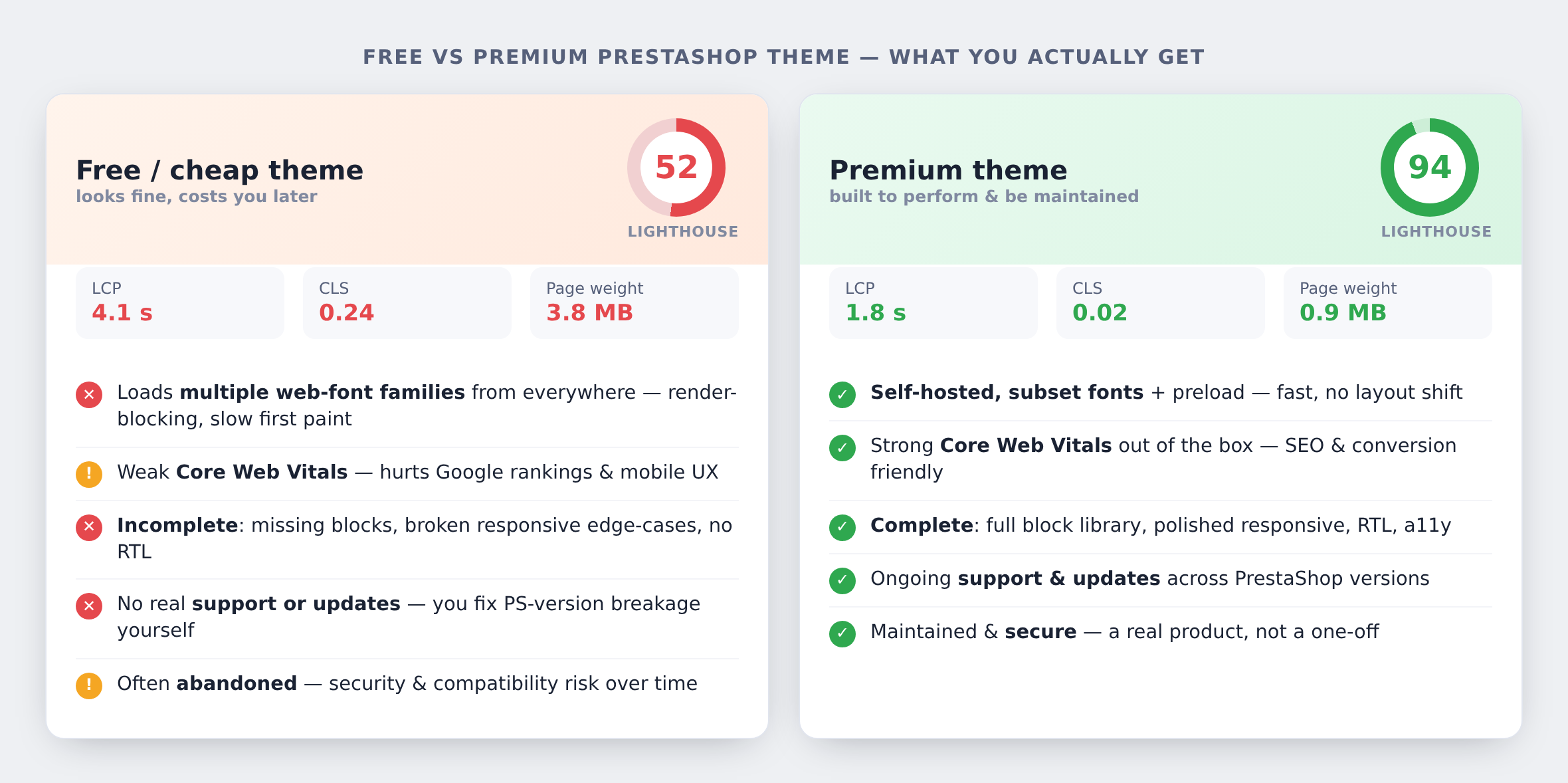
Choosing a PrestaShop theme is one of the most consequential decisions a store owner makes. A theme controls not just how your store looks, but how it performs, how accessible it is to customers with disabilities, how well search engines can crawl it, and how easily you can extend it with modules. A poorly built theme creates problems that compound over time. What looks like a small annoyance during setup becomes a performance bottleneck under load, a maintenance nightmare during updates, or a customer experience failure that silently kills conversions.
The problem is that theme marketplaces are flooded with themes that look impressive in their demo screenshots but are built with minimal attention to coding standards, performance, or compatibility. Many theme developers optimize for visual appeal in the preview, knowing that most buyers evaluate themes based on how they look rather than how they are built. This guide teaches you to look beyond the surface and identify the red flags that separate a well-built PrestaShop theme from one that will cause you problems.
Excessive HTTP Requests
One of the most reliable indicators of a poorly built theme is an excessive number of HTTP requests. Every CSS file, JavaScript file, image, font, and external resource that a page loads requires a separate request to the server. While modern browsers can handle multiple requests in parallel via HTTP/2, each request still adds latency, especially on mobile connections.
A well-built PrestaShop theme should load with no more than 30 to 50 requests on a typical product or category page, assuming no additional modules are installed. Poorly built themes routinely exceed 80 or even 100 requests. The most common causes are loading multiple CSS files instead of combining them, including JavaScript libraries that are not used on every page, loading web fonts from multiple providers, and embedding external widgets or tracking pixels directly in the theme rather than through modules.
To check this before buying a theme, open the theme demo in Chrome, open Developer Tools (F12), go to the Network tab, and reload the page. Look at the total number of requests shown at the bottom of the panel. Then look at what is being loaded. Are there dozens of individual CSS files? Are there multiple versions of jQuery? Are there requests to third-party domains you do not recognize? These are red flags.
Pay special attention to requests that block rendering. CSS and synchronous JavaScript in the document head prevent the browser from displaying any content until they finish loading. A well-built theme defers non-critical CSS and JavaScript so the page starts rendering quickly. A poorly built theme loads everything upfront, creating a blank screen that lasts for seconds.
Inline Styles and Hardcoded Design
Professional theme developers use CSS classes and stylesheets to control the visual appearance of a theme. This approach is maintainable, overridable, and performant because browsers cache external stylesheets. Poorly built themes, by contrast, scatter inline styles throughout their Smarty templates and PHP files. You will find things like style="color: #333; font-size: 14px; margin-top: 20px;" directly on HTML elements.
Inline styles are problematic for several reasons. They cannot be cached separately from the HTML. They are extremely difficult to override with CSS, requiring the !important declaration everywhere. They make the theme nearly impossible to customize without editing template files directly, which means your customizations are lost every time the theme is updated. And they increase the HTML document size, which affects performance on every page load.
A related red flag is finding design values hardcoded in PHP files. If you see color codes, font sizes, or layout dimensions defined in PHP rather than in CSS or a configuration panel, the theme developer took shortcuts. Any design change will require editing PHP code, which is error-prone and makes updates dangerous.
To check for inline styles, right-click on various elements in the theme demo and choose Inspect Element. Look at the Styles panel in Developer Tools. If you see a large number of styles listed under element.style rather than coming from CSS classes, the theme relies heavily on inline styling. Some inline styles are normal and acceptable (for example, dynamic background images set by the CMS), but if the majority of styling is inline, that is a clear red flag.
Missing Responsive Design
In 2026, more than 60 percent of e-commerce traffic comes from mobile devices. A theme that does not work well on mobile is not just inconvenient. It directly costs you sales and search rankings, because Google uses mobile-first indexing, meaning it evaluates your site based on the mobile version.
But responsive design is not just about whether the theme has a mobile view. Many themes claim to be responsive but implement it poorly. Red flags for bad responsive design include text that overflows its container on small screens, buttons and links that are too small to tap reliably, horizontal scrolling on mobile, images that do not resize and force the user to scroll horizontally, navigation menus that are difficult or impossible to use on touch devices, and checkout forms that are unusable on phones.
Test the theme demo on an actual phone, not just by resizing your browser window. Browser resizing does not replicate touch interactions, actual network conditions, or the rendering behavior of mobile browsers. Try the entire purchase flow on your phone: browse categories, open a product, add to cart, and go through checkout. If any step is frustrating or broken, the theme fails the most basic test of mobile readiness.
Also check whether the theme uses proper responsive images. A well-built theme serves different image sizes for different screen sizes using the srcset attribute or the <picture> element. A poorly built theme serves the same large desktop image to mobile devices and relies on CSS to shrink it visually, wasting bandwidth and slowing down mobile page loads.
Hardcoded Text Without Translations
PrestaShop has a robust translation system that allows every string displayed to the user to be translated into any language. A properly built theme uses this system for every piece of visible text, from button labels to error messages to heading text. The Smarty syntax looks like {l s='Add to cart' d='Shop.Theme.Actions'}, which makes the string available in the back office translation interface.
Poorly built themes hardcode text directly in their templates. Instead of using the translation function, they write plain HTML like <button>Add to cart</button>. This means the text cannot be translated, which makes the theme useless for multilingual stores and problematic even for single-language stores that want to customize button labels or messages.
To check this, look at the theme demo and note specific text strings like button labels, section headings, and placeholder text. Then try to find the theme's translation files. A well-built theme includes translation catalogues or uses PrestaShop's translation domains consistently. If the theme documentation makes no mention of translations or multilingual support, that is a concern. If you can access any of the theme's template files (some marketplaces provide file previews), search for plain text strings that should be translatable. Every user-facing string should be wrapped in a translation function call.
jQuery Conflicts and JavaScript Problems
PrestaShop includes jQuery as part of its core front-end framework. A well-built theme works with the version of jQuery that PrestaShop provides. A poorly built theme either bundles its own version of jQuery (creating conflicts), loads additional JavaScript libraries that duplicate functionality already available in the core, or uses JavaScript techniques that are incompatible with other modules.
jQuery conflicts are one of the most common problems with third-party themes. When a theme loads its own jQuery version, it can break modules that depend on the core version. Symptoms include modules that fail silently (buttons that do not respond to clicks, forms that do not submit, AJAX features that do not work), JavaScript errors in the browser console, and features that work in the theme demo (where no other modules are installed) but break in your actual store.
To check for jQuery conflicts before purchasing, open the theme demo, open the browser console (F12, Console tab), and type jQuery.fn.jquery to see which version is loaded. Then look in the Network tab for multiple jQuery files being loaded. If you see more than one jQuery file, or if the version does not match what PrestaShop ships (jQuery 3.x for PrestaShop 1.7 and 8.x), the theme is likely to cause conflicts.
Also look for JavaScript errors in the console while navigating the demo. Errors on the demo site, where conditions are controlled and only default modules are installed, are a very strong red flag. If the theme cannot run cleanly in its own demo environment, it will definitely have problems in a real store with additional modules.
Missing Hook Support
PrestaShop's hook system is the primary mechanism for modules to integrate with your store. Hooks are predefined points in the theme's templates where modules can insert their content. The standard PrestaShop hooks include displayHeader, displayTop, displayHome, displayFooter, displayLeftColumn, displayRightColumn, displayProductAdditionalInfo, and many more.
A well-built theme supports all standard PrestaShop hooks, ensuring that any module designed for PrestaShop will work correctly. A poorly built theme removes hooks to simplify its layout, replaces standard hooks with custom proprietary hooks, or positions hooks in locations that break the expected layout.
Missing hooks mean that modules you install will have nowhere to display their content. A payment module that relies on displayPaymentReturn will not show its confirmation message. A product customization module that uses displayProductAdditionalInfo will be invisible on product pages. You end up either modifying the theme templates manually to add the missing hooks (which breaks on theme updates) or choosing modules specifically designed for that theme (which limits your options and creates vendor lock-in).
To check hook support, look at the theme's documentation for a list of supported hooks. If no such list exists, that itself is a concern. In the demo, install or imagine installing a module that uses a standard hook and check whether the theme's layout accommodates it. You can also examine the theme's template files if accessible, searching for {hook h='displayHome'} and other standard hook names.
No Child Theme Support
PrestaShop 1.7 and later versions support child themes, which allow you to customize a theme without modifying its original files. A child theme inherits everything from the parent theme and only contains the files you want to override. When the parent theme is updated, your customizations remain intact because they live in separate files.
A theme that does not support child themes forces you to make all customizations directly in the theme's files. Every time the theme developer releases an update, you face a choice: skip the update and miss bug fixes and new features, or apply the update and lose all your customizations. Neither option is acceptable for a production store.
Check the theme's documentation and its theme.yml file for child theme support. The theme.yml file is the central configuration file for a PrestaShop theme, and it should include a parent field or documentation explaining how to create a child theme. If the theme developer does not mention child themes in their documentation, ask them directly before purchasing. A developer who does not support child themes either does not understand modern PrestaShop development or does not care about the long-term maintainability of their product.
Poor Accessibility
Web accessibility means that people with disabilities can use your store. This includes people who use screen readers, people who navigate with a keyboard instead of a mouse, people with low vision who use screen magnification, and people with color blindness. Accessibility is not just ethically important. In many countries, including those in the European Union and the United States, e-commerce sites are required by law to meet accessibility standards (WCAG 2.1 Level AA).
A poorly built theme ignores accessibility entirely. Common accessibility failures include images without alt attributes (screen readers cannot describe them), form fields without associated labels (screen readers cannot tell the user what to type), insufficient color contrast between text and background (people with low vision cannot read the text), interactive elements that cannot be reached or activated with a keyboard, focus indicators removed for aesthetic reasons (keyboard users cannot see where they are on the page), and ARIA attributes used incorrectly or not at all.
To perform a basic accessibility check on a theme demo, try navigating the site using only the keyboard (Tab to move between elements, Enter to activate buttons and links). If you cannot reach all interactive elements or if there is no visible focus indicator showing which element is currently selected, the theme fails basic accessibility. Also run the page through a free tool like the WAVE Web Accessibility Evaluation Tool or use the Lighthouse Accessibility audit in Chrome DevTools (go to the Lighthouse tab, check only Accessibility, and run the audit). A well-built theme should score at least 80 out of 100 on the Lighthouse accessibility audit.
Bloated File Sizes
A theme's file size directly affects how quickly your store loads. Bloated themes include unnecessary assets, unoptimized images, unminified CSS and JavaScript, and entire libraries used for a single feature. It is common to find themes that ship with several megabytes of CSS (when the actually used CSS is a fraction of that), multiple icon fonts loaded in full when only a handful of icons are used, uncompressed demo images left in the theme directory, and JavaScript libraries like Moment.js or Lodash included in their entirety when only one or two functions are needed.
To evaluate file sizes, check the total transfer size in the Network tab of Chrome DevTools when loading the theme demo. A well-optimized theme should load under 1 MB of total resources on a typical page (excluding product images, which vary). If the theme demo loads 2 to 3 MB or more of CSS, JavaScript, and fonts, the theme is bloated. Pay special attention to CSS file sizes. PrestaShop themes that use Bootstrap or a similar framework should only include the Bootstrap components they actually use, not the entire library. A 500 KB CSS file on a single page is almost certainly bloated.
Also check whether the theme minifies its production CSS and JavaScript. Minification removes whitespace, comments, and unnecessary characters, typically reducing file sizes by 20 to 40 percent. View the source of the CSS files in the demo. If they contain readable, formatted code with comments, they are not minified, which suggests the developer did not implement a proper build process.
How to Evaluate a Theme Before Buying
Checking theme.yml
The theme.yml file is the configuration heart of a PrestaShop theme. It defines the theme's name, version, compatibility, supported hooks, layout configuration, and asset management. Look for a clear declaration of PrestaShop version compatibility, a list of registered hooks and their assigned modules, layout definitions for different page types (product, category, CMS, checkout), and asset declarations specifying which files load globally versus on specific pages. If the theme.yml file is minimal or missing key sections, the theme was built without following PrestaShop's theme development guidelines.
Testing with Debug Mode
If you can install the theme in a test environment, enable PrestaShop's debug mode immediately by setting _PS_MODE_DEV_ to true in config/defines.inc.php. This reveals PHP errors, warnings, and notices hidden in production mode. A well-built theme should generate zero errors and minimal warnings. If debug mode produces a flood of errors, the theme has code quality problems that will cause issues in production.
Checking the Developer's Track Record
Research the developer before purchasing. Check how many themes they have published, how recently their themes were updated, and what reviews say. Pay attention to negative reviews mentioning bugs, broken features after updates, or unresponsive support. A detailed changelog documenting bug fixes and compatibility updates indicates active maintenance. An absent changelog suggests the theme may be abandoned after the initial sale.
Compatibility Verification
Always verify that the theme explicitly states compatibility with your exact PrestaShop version. Phrases like compatible with PrestaShop 1.7 and above are too vague. You want specific version numbers listed as tested. Verify by checking when the theme was last updated. If the theme claims compatibility with PrestaShop 8.1 but was last updated before that version was released, the claim is unverified at best.
The Real Cost of a Bad Theme
A badly built theme has concrete, measurable costs. Performance problems reduce your PageSpeed score, affecting rankings and conversions (each additional second of load time reduces conversions by 7 to 10 percent). Missing hook support forces paid developer work for every new module. Poor accessibility creates legal liability. Lack of child theme support turns every update into a manual merge. jQuery conflicts break modules, causing lost sales from broken add-to-cart buttons and failing payment forms.
When evaluating themes, consider total cost of ownership. A cheap theme requiring hundreds of euros in developer time is far more expensive than a pricier theme that works correctly from the start.
Summary Checklist
Before purchasing any PrestaShop theme, run through this checklist. Open the demo and check the Network tab for excessive HTTP requests (over 50 is concerning, over 80 is a red flag). Inspect elements for inline styles that should be in CSS classes. Test the entire purchase flow on an actual mobile device. Look for hardcoded text that cannot be translated. Check the browser console for JavaScript errors and multiple jQuery versions. Verify that standard PrestaShop hooks are present in the templates. Confirm that child theme creation is documented and supported. Run a Lighthouse accessibility audit and check for keyboard navigability. Review total transfer sizes for CSS, JavaScript, and fonts. Read the theme.yml file for proper configuration structure. Check the developer's update history and support responsiveness. Verify explicit compatibility with your PrestaShop version.
A theme that passes all these checks is not guaranteed to be perfect, but it has passed the basic quality bar that separates professional work from amateur development. A theme that fails multiple checks will cause you problems. The time spent evaluating before purchase saves far more time, money, and frustration than dealing with the consequences of a poorly built theme after it is already running your store.
For more details, read our guides: How to Choose the Right PrestaShop Theme for Your Business and Page Speed and SEO: How Slow Loading Kills Your Google Rankings.
The Hidden Cost of Font Bloat in PrestaShop Themes
Open your browser's DevTools, switch to the Network tab, filter by "Font," and reload your PrestaShop store. If you see more than three or four font files downloading, you have a problem that is silently costing you customers. Most PrestaShop themes ship with a staggering number of font resources that the average store never uses, and every single one of them delays the moment your visitors can actually read your content.
Font bloat is one of the most overlooked performance issues in PrestaShop. Store owners spend hours optimizing images, enabling CCC (Combine, Compress, Cache), and tweaking server configurations, yet they ignore the fact that their theme is loading 800KB or more of font files on every single page load. This article explains exactly why this happens, how to audit your font loading, and what to do about it.
How PrestaShop Themes Bundle Fonts
PrestaShop themes are distributed as self-contained packages. When a theme developer builds a theme, they want it to work out of the box for as many stores as possible. This means they include every font variant and icon library they might conceivably need. The result is a theme that ships with far more font resources than any single store will ever use.
A typical PrestaShop theme includes three categories of fonts. First, there are display fonts used for headings, body text, and UI elements. These are usually Google Fonts like Roboto, Open Sans, Lato, or Montserrat. Second, there are icon fonts like FontAwesome, Material Icons, or theme-specific icon sets. Third, there are fallback or decorative fonts that the theme uses for specific components like banners, badges, or promotional sections.
The problem compounds because each font family typically ships in multiple weights and styles. A single font like Roboto might include Regular (400), Medium (500), Bold (700), and their italic variants, each as a separate WOFF2 file. Multiply that across two or three font families plus an icon library, and you quickly reach 12 to 15 individual font files loading on every page.
The FontAwesome Problem
FontAwesome deserves its own section because it is the single biggest font-related performance offender in PrestaShop themes. The full FontAwesome 5 library weighs approximately 150KB for the webfont file alone, plus another 60-80KB for its CSS. FontAwesome 6 is even larger. The library contains over 1,600 icons, but the average PrestaShop store uses maybe 20 to 30 of them.
That means you are forcing every visitor to download over 200KB of font and CSS data just so you can display a shopping cart icon, a search magnifying glass, and a few social media logos. This is an absurd trade-off, and it happens because theme developers find it easier to include the entire library than to subset it for each store's specific needs.
The Classic theme in PrestaShop 1.7 and 8.x includes FontAwesome 4.7, which is slightly smaller but still contains hundreds of icons you will never use. The Hummingbird theme in PrestaShop 8.x moved away from FontAwesome in favor of SVG icons, which is a significant improvement, but many third-party themes and modules still rely on FontAwesome and load their own copy on top of whatever the theme provides.
Google Fonts and the Performance Tax
Google Fonts are the most popular web font service, and PrestaShop themes make heavy use of them. However, loading Google Fonts the default way creates a chain of performance-killing requests.
When your theme loads Google Fonts via the standard link tag, the browser must first connect to fonts.googleapis.com to download the CSS file. That CSS file then tells the browser to download the actual font files from fonts.gstatic.com. Each of these connections requires DNS resolution, TCP handshake, and TLS negotiation. On mobile connections, this chain can add 300-500ms of delay before a single character of text renders on screen.
Even worse, Google Fonts CSS uses the font-display descriptor set to "swap" by default since 2019, but many older themes still reference Google Fonts CSS URLs that predate this change. Without font-display: swap, the browser may hide all text on the page until the font downloads, creating the dreaded Flash of Invisible Text (FOIT) where visitors see a blank page for one to three seconds.
There is also a privacy concern. Loading fonts from Google's CDN means Google receives information about every visitor to your store, including their IP address and the pages they visit. Under GDPR, this requires explicit consent, and a German court ruled in January 2022 that using Google Fonts without consent violates GDPR, resulting in fines.
How to Audit Your Font Loading
Before you can fix the problem, you need to understand exactly what fonts your theme is loading and which ones you actually need. Here is a systematic approach.
Open Chrome DevTools (F12), go to the Network tab, and check the "Disable cache" checkbox. Reload your page and filter by "Font" in the filter bar. You will see every font file the browser downloads. Note the file names, sizes, and the initiator column which tells you which CSS file requested each font.
Next, use the Coverage tab in DevTools (Ctrl+Shift+P, then type "Coverage"). Start a coverage recording and navigate through your store. The Coverage tab shows you exactly how much of each CSS file is actually used. For FontAwesome's CSS, you will typically see 90% or more marked as unused.
You can also use the Lighthouse audit in DevTools. Run a performance audit and look for the "Reduce unused CSS" and "Ensure text remains visible during webfont load" opportunities. Lighthouse will specifically call out font-related performance issues.
For a more thorough analysis, use WebPageTest (webpagetest.org) to run a test from a mobile connection. Look at the waterfall chart and find the font requests. Note when they start loading relative to other resources and how long they take. On a 3G connection, font loading delays become painfully obvious.
Removing Unused Fonts Step by Step
Once you know which fonts your theme loads and which ones you actually need, it is time to remove the excess. The approach differs depending on your theme's architecture.
For themes that load Google Fonts via a link tag in the header template, find the template file that contains the Google Fonts reference. In most themes, this is in templates/layout/head.tpl or a similar file. If you are using a child theme, copy this template to your child theme directory before editing. Remove or modify the Google Fonts link to include only the weights and families you actually use.
For FontAwesome, check whether your theme loads it via a CSS file in the assets/css directory or via a CDN link. If it is a local file, you have two options. You can replace the full FontAwesome package with a subset that contains only the icons you use, or you can replace icon font usage with inline SVGs entirely.
To subset FontAwesome, use a tool like IcoMoon (icomoon.io) or Fontello (fontello.com). These tools let you select only the specific icons you need and generate a custom font file that might be 5-10KB instead of 150KB. You will need to update the CSS class names if the tool generates different ones, but most allow you to keep the original FontAwesome class names.
For Google Fonts, check every CSS file in your theme for @font-face declarations. Theme developers sometimes import fonts directly in CSS rather than through the head template. Use your DevTools search (Ctrl+Shift+F) to search across all loaded resources for "@font-face" and "fonts.googleapis.com."
Implementing font-display: swap
If you keep any web fonts, make absolutely sure they use the font-display: swap descriptor. This tells the browser to immediately show text using a fallback system font while the web font downloads in the background. Once the web font is ready, the browser swaps it in. This eliminates FOIT and ensures your content is readable instantly.
For Google Fonts loaded via CDN, add the display=swap parameter to the URL. For example, change fonts.googleapis.com/css2?family=Roboto:wght@400;700 to fonts.googleapis.com/css2?family=Roboto:wght@400;700&display=swap. Note that Google added this parameter by default in 2019, but many PrestaShop themes still use older URL formats.
For self-hosted fonts with @font-face declarations in your CSS, add font-display: swap to each @font-face block. Open your theme's CSS file containing the @font-face rules and add the property. It goes inside the @font-face block alongside font-family, src, and font-weight.
Be aware that font-display: swap can cause a Flash of Unstyled Text (FOUT) where text briefly appears in the fallback font before switching to the web font. This is a much better experience than invisible text, but you can minimize the visual jarring by choosing fallback fonts that closely match your web font's metrics. The CSS size-adjust, ascent-override, and descent-override properties help with this.
Self-Hosting Fonts vs CDN Loading
Self-hosting your fonts rather than loading them from Google's CDN offers several significant advantages for PrestaShop stores.
Performance improves because you eliminate the extra DNS lookup and connection to Google's servers. Your fonts load from the same domain as your other assets, which means the browser can reuse existing connections. With HTTP/2 or HTTP/3, all your font files can download simultaneously over a single connection.
Privacy compliance becomes simpler because visitor data no longer gets sent to Google. This eliminates a GDPR concern entirely, and you do not need to add Google Fonts to your cookie consent banner.
Reliability improves because you are not dependent on an external service. If Google's CDN has an issue (rare but it happens), your fonts still load.
To self-host Google Fonts, use the google-webfonts-helper tool (gwfh.mranftl.com/fonts) which provides a simple interface to download any Google Font in WOFF2 format with the correct @font-face CSS. Download only the weights and styles you need, place the files in your theme's assets/fonts directory, and add the @font-face CSS to your theme stylesheet.
The only potential disadvantage of self-hosting is that you lose the possibility of a cache hit if the visitor has already loaded the same font from Google's CDN on another site. However, browsers have largely eliminated this cross-site caching for privacy reasons since 2020, so this advantage no longer exists in practice.
Font Subsetting: The Nuclear Option
Font subsetting means removing characters you do not need from a font file. A typical Latin web font includes characters for dozens of languages, many of which your store does not use. By subsetting to only the characters your store needs, you can reduce font file sizes by 50-70%.
The tool pyftsubset from the fonttools Python library is the most reliable way to subset fonts. You can specify exactly which Unicode ranges to include. For a store that operates only in English, you might subset to Basic Latin (U+0020-007F) plus Latin-1 Supplement (U+00A0-00FF) for currency symbols and accented characters.
For stores operating in multiple languages, you need to be more careful. Include the Unicode ranges for all languages your store supports. Google Fonts CSS actually does this automatically with unicode-range descriptors, loading character subsets on demand, but self-hosted fonts need manual subsetting.
A simpler approach is to use the WOFF2 format exclusively and drop support for older formats. WOFF2 uses Brotli compression and produces files 30% smaller than WOFF. Every modern browser supports WOFF2, so unless you need to support Internet Explorer 11, there is no reason to include WOFF, TTF, or EOT formats. Many PrestaShop themes still ship with all four formats for backward compatibility that is no longer necessary.
System Font Stacks: The Zero-Cost Alternative
The most radical solution to font performance is to not use web fonts at all. Modern operating systems ship with high-quality fonts that look excellent on screen. A system font stack uses whatever font the operating system provides, which means zero font files to download and instant text rendering.
The modern system font stack looks like this: font-family: -apple-system, BlinkMacSystemFont, "Segoe UI", Roboto, "Helvetica Neue", Arial, sans-serif. This gives you San Francisco on Apple devices, Segoe UI on Windows, and Roboto on Android. All of these are clean, modern, highly readable sans-serif fonts.
GitHub, Bootstrap 5, and many high-performance websites use system font stacks. The visual difference between a system font and a Google Font like Open Sans or Roboto is minimal, especially for body text. Most of your customers will not notice or care whether your store uses Roboto loaded from a server or Roboto already installed on their Android phone.
To implement a system font stack in PrestaShop, you need to modify your theme's CSS to replace the existing font-family declarations, remove the @font-face rules and Google Fonts link tags, and delete the font files from your theme's assets directory. If you are using a child theme, you can override the parent theme's font declarations without modifying the parent theme files.
What About Icon Fonts?
If you remove FontAwesome or another icon font, you need an alternative for displaying icons. The best modern approach is inline SVG. SVG icons render crisply at any size, can be styled with CSS, and only add weight for the specific icons you use rather than loading an entire icon library.
PrestaShop's Hummingbird theme uses SVG icons natively, which is one of the reasons it performs better than Classic. If your theme uses FontAwesome, you can replace individual icons with SVGs from sources like Heroicons, Feather Icons, or even FontAwesome's own SVG files (which are available separately from the font version).
For a PrestaShop store, you typically need fewer than 30 unique icons: cart, search, user account, heart/wishlist, arrows, social media logos, and a few category-specific icons. As inline SVGs, these might total 10-15KB, compared to 150-200KB for the full FontAwesome font and CSS.
Measuring the Impact
After removing unused fonts, measure the improvement. Run Lighthouse before and after, comparing the Performance score, First Contentful Paint (FCP), and Largest Contentful Paint (LCP). Font optimization typically improves FCP by 200-500ms on mobile connections.
Check the total transfer size in DevTools Network tab. A well-optimized PrestaShop store should transfer fewer than 50KB of font data total. If you switch to system fonts, that number drops to zero.
Also verify that your store still looks correct. Check every page type: homepage, category, product, cart, and checkout. Some themes use specific fonts for specific elements, and removing a font might cause unexpected fallback rendering. Always test thoroughly before deploying font changes to production.
Summary: A Font Loading Checklist
Audit your current font loading with DevTools Network tab filtered to fonts. Identify which fonts are actually used by checking CSS coverage. Remove any Google Fonts families or weights you do not use. Replace full icon fonts with subsetted versions or inline SVGs. Add font-display: swap to all remaining @font-face declarations. Self-host your fonts instead of loading from Google's CDN. Consider WOFF2-only to eliminate older, larger formats. Evaluate whether system fonts could replace your web fonts entirely. Measure before and after with Lighthouse and WebPageTest. The goal is simple: load only what you need, load it efficiently, and never make your visitors wait for fonts they cannot see.
For more details, read our guides: Page Speed and SEO: How Slow Loading Kills Your Google Rankings and Is Your Store Slow? How to Check and What to Do About It.
Two Official Themes, Two Different Philosophies
PrestaShop ships with two official themes: Classic and Hummingbird. Classic has been the default theme since PrestaShop 1.7 was released in 2016. Hummingbird arrived with PrestaShop 8.x as a modern alternative designed for performance and future-readiness. Choosing between them is not simply a matter of which looks better. The two themes represent fundamentally different approaches to front-end architecture, and your choice affects performance, module compatibility, customization effort, and long-term maintainability.
This article provides a thorough comparison based on architecture, real performance data, practical considerations, and the specific situations where each theme makes sense. Whether you are starting a new store or considering a migration, this will help you make an informed decision.
Architecture: What Changed and Why
Classic was built on Bootstrap 4, jQuery, and Smarty templates. It follows a traditional server-rendered approach where the server generates full HTML pages and sends them to the browser. JavaScript is used primarily for interactive elements like the cart, product page, and checkout. The CSS is compiled from Sass files and delivered as a single large stylesheet.
Hummingbird was built as a ground-up reimagining. It uses Bootstrap 5, drops jQuery in favor of vanilla JavaScript, and introduces a component-based architecture. The CSS is more modular, the JavaScript is lighter, and the overall asset footprint is significantly smaller.
The removal of jQuery is the most consequential architectural change. jQuery added approximately 87KB (30KB gzipped) to every page load and encouraged a coding style where modules freely manipulated the DOM without coordination. Hummingbird replaces jQuery with modern browser APIs like fetch, querySelector, classList, and event delegation. This means the theme itself is faster, but modules that depend on jQuery need updates.
Bootstrap 5 brings its own changes. It drops jQuery as a dependency (aligning with Hummingbird's approach), uses CSS custom properties (variables) for easier theming, improves the grid system with better responsive utilities, and updates component markup patterns. Moving from Bootstrap 4 to 5 affects any custom CSS or template overrides that reference Bootstrap-specific classes.
Performance Comparison: Real Numbers
Performance is the primary reason PrestaShop created Hummingbird, and the numbers support the decision. Testing both themes on an identical PrestaShop 8.1 installation with the same products, modules, and server configuration reveals meaningful differences.
On a typical product page measured with Lighthouse on a simulated mobile connection, Classic scores in the 45-55 range for Performance, while Hummingbird scores in the 65-75 range. The specific metrics tell a clearer story.
First Contentful Paint (FCP) improves by roughly 0.5 to 1.0 seconds with Hummingbird. This is primarily due to the smaller CSS payload and the absence of render-blocking jQuery. Largest Contentful Paint (LCP) improves by a similar margin because the critical rendering path is shorter.
Total Blocking Time (TBT) sees the most dramatic improvement. Classic's jQuery-based JavaScript creates significant main thread blocking as the browser parses and executes the library plus all jQuery-dependent module scripts. Hummingbird's vanilla JavaScript approach reduces TBT by 40-60% in typical configurations.
Cumulative Layout Shift (CLS) is roughly equivalent between the two themes when properly configured, as layout stability depends more on image dimensions and lazy loading implementation than on the framework choice.
The total transfer size tells another part of the story. A default Classic installation transfers approximately 350-450KB of CSS and JavaScript on the first page load. Hummingbird brings this down to 200-300KB. The difference compounds across the entire browsing session as visitors navigate through your store.
These numbers assume a clean installation. In practice, third-party modules often add their own CSS and JavaScript, which can narrow or widen the gap depending on how well those modules are optimized for each theme.
Module Compatibility: The Elephant in the Room
This is where Hummingbird's advantages come with a significant caveat. Many PrestaShop modules were built with Classic's architecture in mind. They depend on jQuery, they use Bootstrap 4 markup patterns, and they assume specific template structures that Classic provides.
When you install these modules on Hummingbird, several things can break. JavaScript functionality that relies on jQuery will fail silently or throw errors. Modal dialogs, dropdowns, and other Bootstrap 4 components may not render correctly with Bootstrap 5's changed markup and class names. Template overrides that assume Classic's template structure will not work with Hummingbird's reorganized templates.
The severity of this issue depends on your module stack. Core PrestaShop modules are compatible with both themes. Well-maintained third-party modules from active developers typically support Hummingbird. However, older modules, niche modules, or modules from developers who have stopped updating their products may only work with Classic.
Before choosing Hummingbird, you should test every module you plan to use. Install them on a staging environment with Hummingbird active and thoroughly test every feature. Pay special attention to JavaScript-dependent functionality like AJAX carts, product customization fields, quick views, and checkout steps.
Some module developers ship separate template files for Classic and Hummingbird. When you see directories like views/templates/hook/classic/ and views/templates/hook/hummingbird/ in a module, that module explicitly supports both themes. This is the gold standard for compatibility.
Smarty vs Twig: Future-Proofing Considerations
PrestaShop has announced its intention to transition from Smarty to Twig as the template engine for the front office. This transition has been discussed for years and is partially implemented in the back office already. Hummingbird is designed with this transition in mind, though as of PrestaShop 8.x and 9.x, both themes still use Smarty for front-office templates.
The relevance for your theme choice is indirect but important. Hummingbird's template structure is organized in a way that will make the eventual Smarty-to-Twig migration smoother. If you build extensive customizations on Classic's template structure, you may face a larger migration effort when (not if) PrestaShop completes the Twig transition.
That said, this transition has been "coming soon" for several years now. Making a decision today based solely on a future template engine change is premature. Choose based on current, concrete needs and accept that some migration effort will be required regardless of which theme you choose when the Twig transition happens.
Customization Approach
Customizing Classic is well-documented and widely understood. There are hundreds of tutorials, thousands of forum posts, and years of community knowledge about modifying Classic. The theme uses straightforward Sass for styling, traditional jQuery for interactivity, and Smarty templates that are easy to read and modify.
Customizing Hummingbird requires updated skills. You need to be comfortable with modern CSS (custom properties, modern selectors, container queries), vanilla JavaScript (no jQuery crutch), and Bootstrap 5's utility-first approach. The learning curve is steeper if your team is accustomed to jQuery-based development.
However, Hummingbird's CSS custom properties make certain types of customization much easier than they were with Classic. Want to change the primary color across the entire theme? Modify a single CSS custom property. With Classic, you needed to track down every Sass variable, recompile, and deal with specificity conflicts.
Hummingbird also uses a more semantic HTML structure, which makes it easier to target elements with CSS selectors and improves accessibility. The template files are better organized with clearer separation of concerns.
Child Theme Support
Both themes support child themes, which is the recommended way to customize a PrestaShop theme without modifying the parent theme files directly. Child themes allow you to override specific templates, add custom CSS and JavaScript, and maintain your customizations across theme updates.
Classic's child theme mechanism is mature and well-tested. You create a child theme directory, define a theme.yml that references Classic as the parent, and selectively override the files you need to change. This workflow has been stable since PrestaShop 1.7.
Hummingbird's child theme support works the same way at the framework level but has some practical differences. Because Hummingbird's templates are structured differently, child theme overrides from a Classic-based child theme cannot be reused. You need to create new overrides based on Hummingbird's template structure.
PrestaShop 8.x improved child theme handling in general, making it easier to override assets (CSS and JavaScript) and partial templates. These improvements benefit both Classic and Hummingbird child themes equally.
If you are commissioning a custom theme from a developer, starting with Hummingbird as the parent is the better long-term choice. The cleaner architecture means less technical debt, and the modern CSS approach means fewer overrides are needed for common customizations.
Migration Path: Classic to Hummingbird
If you are currently running Classic and considering a switch to Hummingbird, here is what the migration actually involves.
Template overrides need to be rebuilt from scratch. You cannot simply copy your Classic template overrides into a Hummingbird child theme. The template file structure, variable names, and block names are different. You need to examine each override, understand what it accomplishes, and recreate it using Hummingbird's template structure.
Custom CSS needs review and likely significant revision. If your CSS targets Bootstrap 4 classes, those class names may have changed in Bootstrap 5. If your CSS uses jQuery-dependent patterns (like styling elements based on jQuery-added classes), those will break. If your CSS uses theme-specific class names from Classic, those may not exist in Hummingbird.
Custom JavaScript needs to be rewritten. Any jQuery code must be converted to vanilla JavaScript. This is often the most time-consuming part of the migration because jQuery code tends to be deeply intertwined with DOM manipulation patterns that need to be rethought.
Module compatibility needs to be verified for every installed module. As discussed above, modules that depend on jQuery or Bootstrap 4 may need updates or replacements.
A realistic timeline for migrating a moderately customized Classic store to Hummingbird is 40-80 hours of developer time. This is not a weekend project. Plan it as a proper development effort with a staging environment, thorough testing, and a rollback plan.
When to Choose Classic
Choose Classic when your store depends on older third-party modules that have not been updated for Hummingbird compatibility. Choose it when your development team is more comfortable with jQuery and Bootstrap 4 and you do not have the budget for retraining or hiring. Choose it when you are building on a tight deadline and need the widest possible selection of compatible themes and modules from the PrestaShop marketplace.
Classic is also the safer choice for stores running PrestaShop 1.7.x or early 8.0.x versions. Hummingbird was introduced later in the 8.x cycle and may not be fully available or stable on older PrestaShop versions.
If your store is already running on Classic with extensive customizations and performing adequately, there may be no compelling reason to migrate. The performance gains from Hummingbird are real but may not justify the migration effort if your store already loads quickly and converts well.
When to Choose Hummingbird
Choose Hummingbird when you are starting a new PrestaShop 8.x or 9.x store from scratch. The performance advantages are free when you do not have legacy customizations to migrate. Choose it when performance is a top priority for your business, particularly if your audience is primarily mobile users on slower connections where every kilobyte matters.
Choose Hummingbird when you want to future-proof your store. As PrestaShop continues to evolve toward modern front-end practices, Hummingbird will receive the most development attention and be the first to benefit from new features.
Choose it when you have developers comfortable with modern JavaScript and CSS. Hummingbird's architecture is cleaner and more maintainable for teams with current front-end skills.
And choose it when you care about accessibility. Hummingbird's semantic HTML, ARIA attributes, and keyboard navigation support are noticeably better than Classic's. If your store needs to meet WCAG accessibility standards, Hummingbird gives you a better starting point.
The Third-Party Theme Question
Many store owners skip both official themes entirely and purchase a third-party theme from the PrestaShop Addons marketplace or independent sellers. These themes are almost always based on Classic's architecture because Classic has been available far longer and represents the larger installed base.
If you are using a third-party theme, the Classic vs Hummingbird question is largely academic for your current store. Your theme's developer made the architectural decisions for you. However, when evaluating new third-party themes, check whether they are built on Classic or Hummingbird foundations. Themes built on Hummingbird will perform better and maintain compatibility longer.
Be wary of third-party themes that claim to be "based on Hummingbird" but actually just borrow its visual style while keeping Classic's jQuery-dependent architecture underneath. Check the theme's JavaScript dependencies and CSS framework to verify.
Verdict: There Is No Wrong Answer, But There Is a Better One
For new stores on PrestaShop 8.x or later, Hummingbird is the clear recommendation. It is faster, more modern, better maintained, and more future-proof. The module compatibility concern is diminishing as the ecosystem catches up, and starting fresh means you do not have legacy migration costs.
For existing stores running Classic with significant customizations, the decision requires a cost-benefit analysis. Calculate the migration effort honestly, measure your current performance to understand the potential gain, and decide whether the improvement justifies the investment. Sometimes the answer is yes, sometimes it is not, and sometimes the right answer is to wait for your next major redesign to switch.
Regardless of which theme you choose, the principles of good front-end performance apply equally: minimize asset sizes, lazy-load below-the-fold content, optimize images, and regularly audit your page speed. A well-optimized Classic store will outperform a poorly configured Hummingbird store every time. The theme provides the foundation, but execution determines the result.
For more details, read our guides: Child Themes in PrestaShop: Why You Should Never Edit the Parent Theme and How to Choose the Right PrestaShop Theme for Your Business.
Your Theme Is Probably Slower Than You Think
Every PrestaShop store owner has an opinion about their theme's speed, but very few have actual data. Saying "my store feels fast" is meaningless when Google is measuring your Core Web Vitals down to the millisecond and using those numbers to determine your search ranking. To understand your theme's real performance impact, you need a systematic measurement approach that isolates the theme's contribution from server performance, module overhead, and network conditions.
This article walks through a complete performance measurement methodology. You will learn how to use Lighthouse, WebPageTest, Chrome DevTools, and real user monitoring to quantify exactly how much your theme costs in loading time, interactivity, and visual stability. More importantly, you will learn how to separate theme performance from everything else so you can make informed decisions about optimization or replacement.
Why Theme Performance Matters More Than You Think
Your theme controls the entire front-end experience. It determines which CSS files load, how much JavaScript executes, how images are rendered, how fonts are loaded, and how the layout is constructed. A poorly built theme can add 2-5 seconds to your page load time regardless of how fast your server is or how well your modules are coded.
Google's Core Web Vitals directly measure aspects of the user experience that your theme controls. Largest Contentful Paint (LCP) measures how quickly the main content becomes visible. First Input Delay (FID) and its successor Interaction to Next Paint (INP) measure how quickly the page responds to user interaction. Cumulative Layout Shift (CLS) measures visual stability as the page loads. All three metrics are heavily influenced by theme architecture.
The business impact is concrete. Research consistently shows that each additional second of page load time reduces conversion rates by 7-10%. A theme that adds 2 seconds of unnecessary loading time could be costing you 15-20% of your potential sales. That makes theme performance measurement not a technical exercise but a business-critical analysis.
Setting Up Your Testing Environment
Before you start measuring, you need a controlled testing environment. Measuring performance on your live store while customers are browsing and server load fluctuates will produce inconsistent results. You need to minimize variables.
Ideally, set up a staging copy of your PrestaShop store. This should be an identical copy of your production store running on the same server hardware or a similar configuration. Install the same modules, import the same products, and use the same theme configuration. The only difference should be that no real customers are accessing it.
If a full staging environment is not possible, run your tests during off-peak hours when server load is minimal. Run each test at least three times and average the results to account for network and server variability.
Disable any caching proxy (like Cloudflare) for your testing, or use the staging URL that bypasses the CDN. CDN caching masks the true performance of your theme by serving cached content. You want to measure what happens when a visitor hits your origin server with an empty browser cache.
Document your baseline configuration. Note the PHP version, PrestaShop version, active modules, CCC settings (Combine, Compress, Cache), and server specs. You will need this information to reproduce results and compare measurements over time.
Lighthouse: Your Starting Point
Google Lighthouse is built into Chrome DevTools and provides the most accessible performance audit available. It simulates a mobile device on a throttled connection and measures the key metrics that Google uses for search ranking.
To run a Lighthouse audit, open Chrome DevTools (F12), navigate to the Lighthouse tab, select "Performance" as the category, choose "Mobile" as the device, and click "Analyze page load." Lighthouse will reload the page in a simulated environment and generate a detailed report.
The Performance score (0-100) is a weighted composite of six metrics: First Contentful Paint (10%), Speed Index (10%), Largest Contentful Paint (25%), Total Blocking Time (30%), Cumulative Layout Shift (25%). Note that Total Blocking Time and Largest Contentful Paint together account for 55% of the score, so these are the metrics most likely to be affected by theme quality.
Run the audit on at least four page types: your homepage, a category page, a product page, and the cart or checkout page. Each page type has different DOM complexity and asset requirements, and your theme may perform very differently across them.
Important caveat: Lighthouse runs in a simulated environment with CPU and network throttling. The absolute numbers it produces do not match real-world performance. They are useful for comparison (before vs after, theme A vs theme B) but should not be taken as the actual experience your customers have. For real-world numbers, you need Real User Monitoring, covered later in this article.
Record every Lighthouse result in a spreadsheet. Include the URL tested, the date and time, the overall Performance score, and each individual metric value. This creates a baseline you can reference as you make changes.
WebPageTest: Deep Dive Analysis
WebPageTest (webpagetest.org) is a free tool that provides far more detail than Lighthouse. It runs real browsers on real hardware from locations around the world, giving you a more accurate picture of what your customers experience.
Start a test by entering your store URL, selecting a test location close to your primary audience, and choosing a connection speed. For European stores, use a Frankfurt or London test location with a Cable or 4G connection profile. Run at least three tests to get median results.
The waterfall chart is the most valuable output from WebPageTest. It shows every single resource your page loads, in chronological order, with the time each resource takes to download. This visualization makes it immediately obvious which resources are blocking rendering and which are loading unnecessarily.
Look for these patterns in the waterfall. Render-blocking CSS and JavaScript appears as long bars at the top of the chart before any content renders. Large font files downloading before critical content indicates poor font loading strategy. Third-party requests (analytics, social widgets, chat plugins) that block or delay your theme's assets.
WebPageTest also provides a filmstrip view that shows screenshots of your page at 100ms intervals during loading. This is incredibly useful for understanding the visual loading experience. You can see exactly when text appears, when images render, and when layout shifts occur.
The "Content Breakdown" view shows the total weight of your page broken down by content type: HTML, CSS, JavaScript, images, fonts, and other resources. For a well-optimized theme, CSS should be under 100KB compressed, JavaScript under 150KB compressed, and fonts under 50KB. If your numbers are significantly higher, your theme is carrying excess weight.
Chrome DevTools Performance Tab: Frame-by-Frame Analysis
The Performance tab in Chrome DevTools provides the most granular analysis available. It records a detailed timeline of everything the browser does during page load, including JavaScript execution, layout calculations, paint operations, and compositing.
To use it, open DevTools (F12), go to the Performance tab, check "Screenshots" and "Web Vitals," select the "Slow 3G" network throttle and "4x slowdown" CPU throttle, then click the record button and reload the page. Stop recording once the page has fully loaded.
The resulting timeline shows several lanes of information. The Network lane shows resource requests. The Frames lane shows screenshots at key moments. The Main lane shows JavaScript execution on the main thread. The Web Vitals markers show exactly when FCP, LCP, and CLS events occur.
Focus on the Main thread lane. Long yellow blocks are JavaScript execution. Look for JavaScript tasks that take longer than 50ms, as these are "long tasks" that block user interaction and contribute to Total Blocking Time. Identify which scripts cause these long tasks by clicking on them to see the call stack. If the long tasks come from your theme's JavaScript files, that is a theme performance problem.
Red blocks in the Main lane indicate layout thrashing, where the browser is forced to recalculate layout multiple times in rapid succession. This often happens when JavaScript reads layout properties (offsetHeight, getBoundingClientRect) and then modifies the DOM in a loop. Theme code that causes layout thrashing is a common source of poor INP scores.
The "Bottom-Up" and "Call Tree" tabs below the timeline let you sort JavaScript execution by total time or self time. This shows you which specific functions consume the most CPU time during page load. If theme functions dominate this list, your theme is the performance bottleneck.
Network Waterfall Analysis for Theme Assets
The Network tab in DevTools provides a different view of resource loading. Filter by resource type (CSS, JS, Font, Img) to isolate theme-specific assets and understand their impact.
Start by identifying all resources that belong to your theme. These typically load from paths like /themes/your-theme/assets/ or similar. Note the total number and combined size. Then identify resources loaded by modules (from /modules/ paths) to understand the module contribution separately.
Enable the "Disable cache" checkbox and reload. This simulates a first-time visitor. Note the total transfer size and the time to DOMContentLoaded and Load events. Then reload without the checkbox to see the cached (repeat visitor) experience. The difference tells you how much your theme benefits from browser caching.
Look at the "Initiator" column to understand the dependency chain. A CSS file loaded by your theme's head template is a critical resource that blocks rendering. A JavaScript file loaded with the async or defer attribute is non-blocking. Understanding these dependencies helps you identify which theme resources are on the critical path and which could be deferred.
Use the "Priority" column (enable it via the column header right-click menu) to see how the browser prioritizes each resource. Resources with "Highest" or "High" priority are the ones the browser considers most important. If your theme loads non-critical resources at high priority, that is an optimization opportunity.
The With/Without Theme Comparison
To truly isolate your theme's performance impact, you need a comparison. The most rigorous approach is to test your store with your current theme and then switch to PrestaShop's default minimal theme and test again.
On your staging environment, run a full set of measurements with your current theme active. Record all metrics. Then switch the theme to PrestaShop's Classic theme (or Hummingbird if you are on PrestaShop 8.x+) and run the same measurements. The difference represents your theme's incremental impact relative to the default.
This comparison is not perfect because the default theme does not have your customizations, and the visual output is different. But it gives you a ceiling for how much performance improvement is possible through theme optimization. If your current theme scores 30 points lower than the default on Lighthouse, you know there is significant room for improvement.
A more controlled comparison involves progressively disabling theme features. Start with all features enabled, measure, then disable custom fonts and measure again. Disable the theme's JavaScript effects and measure. Remove the theme's icon font. Each step shows you the incremental cost of that specific feature.
Core Web Vitals: What Google Actually Measures
Core Web Vitals are the three metrics Google uses for ranking purposes. They are measured on real users through the Chrome User Experience Report (CrUX), not through lab tools like Lighthouse. Understanding the difference between lab and field measurements is critical.
Lab measurements (Lighthouse, WebPageTest) use simulated conditions. Field measurements (CrUX, Real User Monitoring) capture actual user experiences across different devices, networks, and locations. Your Lighthouse score might be 75, but if most of your customers are on older phones with slow connections, your field data might tell a very different story.
To see your field data, use Google Search Console's Core Web Vitals report or PageSpeed Insights (pagespeed.web.dev). PageSpeed Insights shows both lab and field data when available. If your site has enough traffic, you will see real user data alongside the Lighthouse simulation.
The thresholds for good Core Web Vitals are: LCP under 2.5 seconds, INP under 200 milliseconds, and CLS under 0.1. Google evaluates the 75th percentile of your users, meaning 75% of your users need to have a good experience for a metric to be classified as "good." This is a high bar because your worst-performing visitors (old phones, slow networks) heavily influence the 75th percentile.
Your theme directly impacts all three metrics. LCP is affected by CSS file size (which blocks rendering), font loading strategy, and hero image implementation. INP is affected by JavaScript execution, event handler efficiency, and how the theme responds to clicks and scrolls. CLS is affected by image placeholders, dynamic content insertion, and font loading.
Real User Monitoring: The Ground Truth
Real User Monitoring (RUM) captures performance data from your actual visitors as they browse your store. This is the most accurate measure of your theme's real-world performance impact because it reflects the actual devices, networks, and usage patterns of your audience.
Google Analytics 4 captures Core Web Vitals automatically if you have the gtag.js snippet on your site. You can view this data in GA4 under Reports, User Experience, or by creating a custom exploration.
For more detailed RUM, dedicated services like SpeedCurve, Datadog, or the free web-vitals JavaScript library provide granular data. The web-vitals library (available on npm) is particularly useful because you can add it to your theme and send performance data to any analytics endpoint.
With RUM data, you can segment performance by device type (mobile vs desktop), browser (Chrome vs Safari vs Firefox), country, and page type. This segmentation often reveals that your theme performs very differently for different audience segments. A theme might score well for desktop Chrome users but poorly for mobile Safari users due to differences in JavaScript engine performance or CSS rendering.
Track RUM data over time to correlate performance changes with theme updates, module installations, or configuration changes. If your LCP suddenly increases by 500ms, check what changed in your theme or module stack on that date.
Server-Side Profiling: Separating Backend from Frontend
Sometimes poor page speed is blamed on the theme when the real problem is server-side processing time. Before optimizing your theme, verify that the server is generating HTML quickly.
PrestaShop includes a built-in profiler that you can enable in the back office under Advanced Parameters, Performance, Debug Mode. The profiler adds a debug bar at the bottom of each page showing SQL query count, SQL execution time, page generation time, and memory usage.
A well-configured PrestaShop installation should generate most pages in under 500ms on the server side. If server generation takes more than a second, the problem is not your theme but your server, database queries, or module hooks. Fixing the theme will not help if the server takes 3 seconds just to generate the HTML.
You can also measure server response time (Time to First Byte, TTFB) from the Network tab in DevTools. Click on the HTML document request and look at the Timing section. The "Waiting (TTFB)" value shows how long the browser waited for the server to respond. Subtract the network latency (which you can estimate from the "Connection" value) to get the approximate server processing time.
If your TTFB is high but your theme assets are fast, focus on server optimization (PHP OPcache, MySQL query cache, Redis/Memcached, PrestaShop object caching) rather than theme optimization. If your TTFB is fast but the page still loads slowly, the theme is likely the bottleneck.
The Before/After Benchmarking Framework
When making theme performance changes, you need a rigorous before/after comparison to verify the change actually helped. Here is a framework that produces reliable results.
Before making any change, run five Lighthouse audits on each target page and record the median score and individual metrics. Also run three WebPageTest tests and record the median values. Save the full reports, not just the scores, because you may need to examine the details later.
Make your change. Clear all caches, including PrestaShop's Smarty cache, OPcache, and any CDN cache. Wait at least 60 seconds for OPcache to fully reset if you changed PHP files.
Run the same five Lighthouse audits and three WebPageTest tests on the same pages. Compare the median results. A change is meaningful if it produces a consistent improvement across all test runs. If some runs show improvement and others show regression, the change's impact is within the margin of measurement error.
Be skeptical of small improvements. Lighthouse scores can vary by plus or minus 5 points between identical runs due to simulated network and CPU throttle variability. A change that improves your score from 62 to 65 might not be a real improvement. A change from 62 to 75 almost certainly is.
For the most rigorous comparison, use WebPageTest's visual comparison feature. Enter your staging URL (before change) and production URL (after change), or run the same URL at different times and compare the saved tests. WebPageTest generates a side-by-side filmstrip and highlights the differences.
Common Theme Performance Problems and How to Detect Them
Through measurement, you will identify specific performance problems. Here are the most common theme-related issues and the metrics that reveal them.
Render-blocking CSS appears as a high FCP and LCP with a long gap between TTFB and FCP in the waterfall. The fix is to inline critical CSS and defer non-critical stylesheets. Excessive JavaScript shows up as high TBT and poor INP scores. Long tasks in the Performance tab timeline confirm this. Unoptized font loading manifests as FOIT (invisible text) in the filmstrip or a gap between FCP and the moment text actually appears. Layout shift from images without dimensions or dynamically injected content appears as high CLS scores.
Each problem has a specific measurement signature. Learning to read these signatures is what transforms performance work from guessing into engineering. Measure first, diagnose based on data, fix the specific problem, then measure again to verify the fix worked.
Building a Performance Monitoring Routine
Performance measurement should not be a one-time activity. Build a routine that catches regressions before they affect your customers and search rankings.
Weekly, run Lighthouse on your four key page types and log the results. Monthly, run a full WebPageTest analysis and compare to the previous month. After every theme update or module installation, run a before/after comparison. Set up Core Web Vitals monitoring in Google Search Console and review it monthly.
Consider automating this with tools like Lighthouse CI (for automated Lighthouse runs in your deployment pipeline) or SpeedCurve (for continuous monitoring with alerts). These tools notify you immediately when performance degrades, allowing you to identify and fix the cause before it affects your search rankings.
The goal is not a perfect Lighthouse score. The goal is understanding exactly where your time and resources go on every page load, and making deliberate, data-driven decisions about what to optimize, what to keep, and what to remove.
For more details, read our guides: Is Your Store Slow? How to Check and What to Do About It and Performance Tuning Your PrestaShop Store: From Database Queries to Full Page Cache.
The Real Debate Behind Theme Pricing
Every PrestaShop store owner faces this question at some point: should you use a free theme or invest in a premium one? The answer seems obvious on the surface. Free saves money, premium costs money. But the actual cost of a theme extends far beyond its purchase price. A free theme that requires hundreds of euros in customization work, causes performance problems, or lacks critical features can end up costing far more than a premium theme that works correctly out of the box.
This guide breaks down the real differences between free and premium PrestaShop themes, examines the hidden costs on both sides, and helps you make an informed decision based on what you actually need rather than what the price tag says.
What Free Themes Actually Offer
PrestaShop ships with a default theme. In PrestaShop 1.7 and 8.x, this is the Classic theme. PrestaShop 9 introduces Hummingbird as the new default. These official themes are genuinely well-built. They follow PrestaShop's coding standards, support all standard hooks, work correctly with the translation system, and receive updates alongside the core platform. For a store owner who needs a clean, functional design and is willing to customize it with CSS, the default theme is a legitimate starting point.
Beyond the official themes, the free theme landscape is much more varied in quality. Free themes from third-party developers fall into several categories. Some are stripped-down versions of premium themes, designed to give you a taste of the developer's work and encourage you to upgrade. These are typically functional but limited, missing features like advanced product page layouts, mega menus, or configurable color schemes. Others are hobby projects or portfolio pieces created by individual developers. These vary wildly in quality, from surprisingly good to barely functional. And then there are themes that are free because they serve a purpose other than being a good theme, such as themes bundled with adware, themes that include hidden backlinks to the developer's site, or themes that collect usage data without disclosure.
The official PrestaShop Addons marketplace does offer some free themes, and these must pass a basic review process. Free themes from unknown sources outside the official marketplace carry significantly higher risk and should be evaluated with extra scrutiny.
What Premium Themes Provide
Premium PrestaShop themes typically range from 60 to 300 euros, with most falling in the 80 to 150 euro range. For this price, you generally receive a theme with a polished visual design that includes multiple pre-built page layouts and color schemes, a configuration panel in the back office that lets you customize colors, fonts, layouts, and other visual elements without editing code, a collection of companion modules (mega menu, custom product pages, image sliders, blog functionality) that are designed to work seamlessly with the theme, documentation explaining setup, configuration, and customization, a period of technical support (typically 3 to 12 months depending on the marketplace and seller), and compatibility updates for new PrestaShop versions.
The value proposition of a premium theme is not just the design. It is the development time saved. Building a custom mega menu module, a configurable product page layout system, and a back office theme configurator from scratch would cost thousands of euros in development time. A premium theme bundles all of this for a fraction of the cost.
Quality Differences in Code
The most significant difference between free and premium themes is often invisible to the buyer: code quality. Premium theme developers who sell themes as their primary business have a financial incentive to write clean, maintainable code. Bad reviews and support requests cost them time and money, so they invest in quality upfront. Free theme developers have no ongoing financial relationship with their users, no support cost for bad code, and no reputation risk from abandonware. The official PrestaShop themes have excellent code quality, but the average quality of free third-party themes is significantly lower.
Specific differences include template organization (premium themes use logical hierarchies with partials; free themes often use monolithic templates), CSS architecture (premium themes use BEM or similar methodologies with proper custom properties; free themes have unstructured CSS with specificity conflicts), and JavaScript quality (premium themes use modern practices and work with PrestaShop's asset management; free themes load libraries redundantly and create module conflicts).
Support and Updates
When something breaks in your theme, whether because of a PrestaShop update, a module conflict, or a customization that went wrong, you need help. This is where the free versus premium divide becomes most tangible.
Premium themes purchased through official marketplaces include a defined support period. During this period, you can contact the developer with technical questions, bug reports, and compatibility issues. The quality of support varies between developers, but the contractual obligation exists. You paid for a product, and the seller has a responsibility to ensure it works as described.
Free themes come with no support obligation. If you encounter a bug, your options are to fix it yourself, hire a developer to fix it, or abandon the theme. The original developer has no incentive to respond to your bug report, investigate your issue, or release a fix. Some free theme developers do provide community support through forums or GitHub issues, but this is voluntary and unreliable.
Updates follow the same pattern. Premium theme developers release updates when new PrestaShop versions come out, when bugs are discovered, and when new features are added. These updates are delivered through the marketplace and can be applied through the back office. Free themes may never receive an update after their initial release. When PrestaShop 8 introduced changes to the template system, premium themes were updated. Many free themes built for PrestaShop 1.7 were simply abandoned, leaving their users stuck on an old PrestaShop version or scrambling to find a new theme.
Security Risks of Free Themes
Security is an area where free themes carry genuinely elevated risk. A theme has access to your entire front office. It controls what HTML, CSS, and JavaScript is delivered to your customers' browsers. A malicious or compromised theme can inject cryptocurrency mining code, redirect customers to phishing sites, steal form data including payment information, create hidden admin accounts, or install backdoors that persist even after the theme is removed.
Premium themes from established marketplaces go through a review process that checks for known security issues. The PrestaShop Addons marketplace, ThemeForest, and other reputable platforms scan submitted themes for malicious code, known vulnerabilities, and compliance with basic security standards. This review is not perfect, and vulnerabilities can still exist, but it provides a baseline level of protection.
Free themes downloaded from random websites have no such protection. You are trusting an unknown developer with access to your store's front end. Even if the developer has good intentions, their code may contain unintentional security vulnerabilities like cross-site scripting (XSS) holes, SQL injection points in theme-specific AJAX handlers, or insecure file upload handling in theme configuration panels.
The safest free theme is the official PrestaShop default theme, because it is maintained by the PrestaShop core team and receives security updates alongside the platform itself.
The Danger of Nulled Themes
Nulled themes are premium themes that have been pirated and distributed for free. They are the single most dangerous category of PrestaShop themes. Using a nulled theme is not just an intellectual property violation. It is a direct security threat to your business and your customers.
Nulled themes are modified before distribution. The license verification code is removed (that is what makes them nulled), but other modifications are often added at the same time. Common modifications include backdoor access that allows the distributor to access your store's admin panel at any time, data harvesting that sends your customers' personal information and order data to external servers, SEO spam injection that adds hidden links to gambling, pharmaceutical, or adult content sites in your store's HTML (damaging your search rankings and potentially violating advertising regulations), cryptomining JavaScript that uses your customers' devices to mine cryptocurrency while they browse your store, and redirect chains that send a percentage of your traffic to competitor sites or scam pages.
These modifications are designed to be invisible. They are obfuscated, triggered only under certain conditions (for example, only for visitors from specific countries or only after the store has been running for a certain period), and hidden in files that store owners rarely inspect. You can run a nulled theme for months before discovering that it has been sending your customer data to a server in another country.
No legitimate reason exists to use a nulled theme. If you cannot afford a premium theme, use the official free theme. It is better in every measurable way than a nulled premium theme.
Performance Comparison
Theme performance directly affects your store's conversion rate and search engine rankings. Google uses Core Web Vitals as a ranking factor, and these metrics are heavily influenced by theme quality.
The official PrestaShop Classic and Hummingbird themes are optimized for performance. They load minimal CSS and JavaScript, use efficient template structures, and support PrestaShop's built-in performance features like CCC (Combine, Compress, Cache) for CSS and JavaScript files. A store running the default theme with proper server configuration typically achieves good Core Web Vitals scores without additional optimization work.
Premium themes vary in performance. The best premium themes match or exceed the performance of the default theme while offering significantly more features. They achieve this through techniques like lazy loading of images and below-the-fold content, conditional loading of JavaScript (only loading carousel code on pages that have carousels, for example), optimized CSS that avoids unused rules, and efficient use of web fonts with proper font-display settings. The worst premium themes, however, sacrifice performance for visual complexity, loading multiple sliders, animation libraries, and icon fonts on every page regardless of whether they are needed.
Free third-party themes (excluding the official default) tend to perform poorly. Without the commercial incentive to optimize, free theme developers often include all features on all pages, use unoptimized images for demo content that gets carried into production, load full library builds instead of cherry-picking needed components, and skip minification and concatenation of assets.
Before choosing any theme, test its demo with Google PageSpeed Insights and check the Core Web Vitals scores. A theme that scores below 50 on mobile in its own optimized demo environment will perform even worse in your real store with additional modules, more products, and real hosting conditions.
Customization Options
Customization determines how much you can change your store's appearance without writing code. The official PrestaShop theme offers minimal built-in customization: logo, favicon, and a few basic settings. Any visual changes beyond these basics require editing CSS files or Smarty templates.
Premium themes typically include a theme configurator module providing a graphical interface for colors, typography, layout options, header and footer configuration, product page layout, and category page display. These options let a non-technical store owner create a visually distinct store without touching code. Free themes sometimes include basic customization options, but they are typically limited to a few color choices and a logo upload. The gap is substantial.
Marketplace vs Independent Sellers
Where you buy a premium theme matters as much as whether you buy one. The three main channels for PrestaShop themes are the official PrestaShop Addons marketplace, general-purpose theme marketplaces like ThemeForest, and independent theme developers selling through their own websites.
The PrestaShop Addons marketplace provides the highest level of buyer protection. Themes are reviewed for PrestaShop compatibility, code quality, and security. The marketplace handles payments, provides a dispute resolution process, and enforces support obligations. The downside is a smaller selection compared to general marketplaces and sometimes higher prices.
ThemeForest and similar marketplaces offer a much larger selection at competitive prices. However, the review process for PrestaShop-specific quality is less rigorous. A theme can pass ThemeForest's general review while still having PrestaShop-specific problems like missing hooks, incompatible template structures, or conflicts with common modules. Support is provided by the theme developer, not by the marketplace, and the quality varies significantly between sellers.
Independent sellers offer themes through their own websites. This can be the best or worst option depending on the specific developer. Established PrestaShop theme developers with a portfolio of well-reviewed themes, active blogs or tutorials, and visible community involvement are often the best source of high-quality themes. They understand PrestaShop deeply and build themes specifically for the platform. Unknown developers selling a single theme through an obscure website, however, represent the highest risk category for premium themes.
Regardless of where you buy, always check whether the seller offers a refund policy, what the support terms are (duration, response time, what is covered), and whether updates are included in the purchase price or require an additional subscription.
What to Look for in Theme Documentation
Documentation quality is one of the most reliable predictors of overall theme quality. A developer who invests time in creating thorough documentation also invests time in writing clean code, testing thoroughly, and maintaining the product over time.
Good theme documentation includes an installation guide that covers server requirements, step-by-step installation instructions, and troubleshooting for common installation problems. It includes a configuration guide that explains every option in the theme's configuration panel, with screenshots showing what each setting changes. It includes a customization guide that explains how to create a child theme, which template files control which parts of the store, and how to override specific elements safely. It includes a hooks reference listing all supported hooks and where they appear in the layout. It includes a changelog documenting every update with dates, version numbers, and descriptions of what changed. And it includes compatibility information specifying which PrestaShop versions have been tested.
Poor documentation is a single PDF with a few screenshots showing the installation wizard. If the developer cannot be bothered to document their own product, they cut corners elsewhere too.
Total Cost of Ownership
The true cost of a theme is not its purchase price. It is the total amount of money you spend on the theme over the lifetime of your store, including the purchase price, customization costs, developer time for fixes and workarounds, performance optimization work, and the opportunity cost of lost sales due to theme-related problems.
Consider two scenarios. In scenario one, you choose a free theme. You spend zero on the theme itself, but you need a developer to customize the design (500 euros), fix mobile layout issues (200 euros), add missing hooks for two modules (300 euros), and work around a jQuery conflict (150 euros). After a PrestaShop update breaks the theme (because it is no longer maintained), you spend 400 euros migrating to a new theme. Total cost: 1,550 euros plus downtime and lost sales during the migration.
In scenario two, you choose a premium theme for 120 euros. The built-in configurator handles your design customization (zero additional cost). The theme supports all standard hooks (zero additional cost). The developer releases an update for the new PrestaShop version (zero additional cost, included in your purchase). You contact support to resolve a minor configuration question (zero additional cost, covered by your support period). Total cost: 120 euros.
These numbers are illustrative, not universal. Some free themes require zero additional investment, and some premium themes require extensive customization despite their price tag. But the pattern holds. The cheaper option upfront is often the more expensive option over time.
Real Examples of Hidden Costs
Hidden costs appear in areas invisible during initial evaluation. Module incompatibility is common: a free theme that removes the displayProductExtraContent hook makes it impossible to use modules that add tabs to product pages. You discover this only after purchasing the module, then face paid theme modifications, limited module alternatives, or switching themes entirely.
SEO damage from poor HTML structure is another hidden cost. Themes using heading tags incorrectly (multiple H1 tags, skipped heading levels) harm rankings in ways that are difficult to diagnose and expensive to fix through template rewrites.
Performance costs are significant. A one-second increase in page load time on a store doing 100,000 euros per year costs approximately 7,000 to 10,000 euros annually in lost conversions. If a free theme loads slower than an optimized premium theme, the free option costs thousands per year in invisible lost revenue.
Making the Right Choice
The official PrestaShop default theme is the right choice if you have development skills, want maximum control, and plan to invest in custom development. A premium theme is the right choice if you need a polished store quickly, lack technical skills, and want bundled modules with support. A free third-party theme is rarely the right choice. The only valid use case is a temporary test store or proof-of-concept where the theme will be replaced before production.
Never use a nulled theme under any circumstances. The security risks are real, the legal risks are real, and the financial damage from a compromised store far exceeds the cost of any legitimate premium theme.
Final Recommendations
Start with the official PrestaShop theme if you are unsure. It is free, well-maintained, secure, and compatible with everything. You can always switch to a premium theme later when you have a clearer picture of your needs. If you decide to buy a premium theme, prioritize themes from the official PrestaShop Addons marketplace or from established developers with a proven track record. Read reviews carefully, focusing on mentions of support quality, update frequency, and compatibility issues. Test the demo thoroughly on mobile devices and check performance with PageSpeed Insights before purchasing.
Whatever theme you choose, keep your purchase receipt and license information, create a child theme for your customizations instead of editing the theme directly, document any manual changes you make to theme files, test theme updates on a staging environment before applying them to production, and maintain regular backups so you can recover quickly if a theme update causes problems. The theme is the foundation of your store's front end. Investing time in choosing the right one, whether free or premium, prevents problems that are expensive and disruptive to fix later.
For more details, read our guides: The Real Cost of Free Modules: What You Get When You Pay Nothing and How to Choose the Right PrestaShop Theme for Your Business.
Why Module Bloat Is the Silent Killer of PrestaShop Performance
Every PrestaShop store starts fast. Then you install five modules, ten modules, thirty modules, and suddenly your homepage takes four seconds to load. The culprit is rarely one massive module. Instead, it is dozens of small modules each adding their own CSS file, their own JavaScript file, and their own database queries to every single page load. This cumulative weight is what we call module bloat, and it is the number one reason PrestaShop stores become slow over time.
The problem is that most store owners never audit what their modules actually load. They install a module for product labels, another for social sharing buttons, another for a newsletter popup, another for analytics, and each one silently registers itself on hooks like displayHeader and actionFrontControllerSetMedia. Even if a module only displays content on product pages, it may still load its CSS and JavaScript files on the homepage, category pages, cart page, and checkout. That means your customers are downloading assets they will never use on that particular page.
A proper module audit reveals exactly what each module contributes to your page weight. It tells you which modules are the heaviest offenders, which ones load assets unnecessarily, and which ones you can optimize or remove entirely. This article walks you through the complete process of auditing your PrestaShop modules for performance, using browser DevTools, PrestaShop debug mode, and systematic analysis.
Step 1: Enable PrestaShop Debug Mode and Performance Profiling
Before you open your browser tools, you need to enable PrestaShop's built-in profiling capabilities. PrestaShop has a debug mode that reveals detailed information about hook execution, module loading times, and database queries. To enable it, you need to modify two settings.
First, go to Advanced Parameters, then Performance in your back office. Set Debug Mode to Yes. This enables error reporting and additional logging that helps identify problematic modules. However, the real power comes from the profiling feature.
To enable full profiling, you need to edit the file defines.inc.php located in your PrestaShop config directory. Find the line that defines _PS_DEBUG_PROFILING_ and set it to true. In PrestaShop 1.7 and 8.x, this constant controls whether the profiling bar appears at the bottom of every front office page. Once enabled, reload any page on your store and you will see a detailed profiling panel showing execution times for every hook, every module, and every SQL query.
The profiling panel is divided into several sections. The hooks section shows you every hook that was executed on the current page, which modules are attached to each hook, and how long each module took to execute. The SQL section shows every database query, its execution time, and which module or core function triggered it. The modules section gives you a summary of total execution time per module across all hooks.
Pay special attention to the total execution time column. A well-optimized module should contribute less than 10 milliseconds to a page load. If you see a module taking 50, 100, or even 500 milliseconds, that is a serious performance problem that needs investigation.
Step 2: Using Browser DevTools to Map Module Assets
PrestaShop's built-in profiling tells you about server-side performance, but it does not show you the full picture of what happens in the browser. For that, you need your browser's Developer Tools. Open Chrome or Firefox, press F12, and navigate to the Network tab.
Reload your homepage with the Network tab open. You will see every request the browser makes: HTML, CSS files, JavaScript files, images, fonts, and AJAX calls. The goal is to identify which of these requests come from modules.
In PrestaShop, module assets follow a predictable URL pattern. CSS files from modules are typically served from paths like /modules/modulename/views/css/filename.css or /modules/modulename/css/filename.css. JavaScript files follow the same pattern with js instead of css. Use the filter bar in the Network tab to filter by "modules/" and you will instantly see every asset loaded from your installed modules.
For each module asset you find, note the following information: the file name, its size (both transferred and uncompressed), and whether it loads on the current page type. You want to build a spreadsheet or simple list that maps each module to its assets. A typical audit might reveal something like this: module A loads two CSS files totaling 45 KB and one JavaScript file of 120 KB on every page, but it only displays content on product pages. That means category pages, the homepage, and the cart are all loading 165 KB of unnecessary assets.
The Network tab also shows you the waterfall view, which reveals when each asset starts loading and how long it takes. Assets that block rendering (render-blocking CSS and synchronous JavaScript) are particularly damaging because they prevent the browser from displaying any content until they finish loading. Look for module JavaScript files that load in the head without async or defer attributes, as these are the worst offenders for perceived load time.
Step 3: Analyzing the Network Waterfall Per Module
The waterfall view in DevTools deserves its own section because it reveals performance problems that raw file sizes do not. When you look at the waterfall, you want to identify three types of problems.
First, look for render-blocking resources from modules. These appear as bars that start early in the waterfall and delay the first paint event (the vertical green or blue line). In PrestaShop, CSS files added via the displayHeader hook or through addCSS in setMedia are typically render-blocking. If a module adds a large CSS file that is only needed on specific pages, it blocks rendering on every page for no reason.
Second, look for sequential loading chains. Some modules load a JavaScript file that then triggers loading of additional resources: more JavaScript files, CSS files, web fonts, or external API calls. Each link in this chain adds latency. A module that loads jQuery UI, then a jQuery UI theme CSS, then a custom widget script, then the widget's CSS creates a chain of four sequential requests that could take 200 to 400 milliseconds even on a fast connection.
Third, look for external requests. Some modules make calls to external servers for analytics, tracking, font loading, social media widgets, or API data. These requests are particularly dangerous because you have no control over the external server's response time. A social sharing module that calls Facebook, Twitter, and Pinterest APIs on every page load can add 500 milliseconds or more of latency, and if any of those servers is slow or unreachable, it can block your entire page from finishing its load.
To quantify the impact per module, use Chrome DevTools' blocking feature. Right-click on a request from a specific module and choose "Block request domain" or "Block request URL." Then reload the page and compare the load time. This gives you a direct measurement of how much that module's assets contribute to your total page load time. Repeat this for each module to build a ranking of heaviest to lightest.
Step 4: Hook Execution Analysis
Understanding which hooks each module uses is critical for identifying unnecessary loading. PrestaShop's hook system is the mechanism by which modules inject their content, assets, and logic into pages. The most performance-relevant hooks for front office pages are displayHeader, actionFrontControllerSetMedia, displayTop, displayHome, displayFooter, displayProductAdditionalInfo, and displayProductListFunctionalButtons.
The displayHeader hook is the most commonly abused hook in the PrestaShop ecosystem. Modules register on this hook to add their CSS and JavaScript to the page head. The problem is that displayHeader fires on every single front office page. If a module registers on displayHeader without checking which page the customer is currently viewing, it loads its assets everywhere.
To see which modules are registered on each hook, go to Design, then Positions in your back office. This page shows every hook and every module attached to it. Look specifically at displayHeader and actionFrontControllerSetMedia. Count how many modules are registered there. In a typical store with 30 or more modules installed, you might find 15 to 20 modules on displayHeader alone. Each one is adding at least one CSS or JavaScript file to every page.
Now cross-reference this with your DevTools findings. For each module on displayHeader, check whether that module actually needs to load on the current page. A product reviews module only needs its assets on product pages. A wishlist module only needs its assets on product and account pages. A size chart module only needs its assets on product pages. Yet all of them are loading on your homepage, your category pages, your CMS pages, and your checkout.
The profiling data from Step 1 adds another dimension to this analysis. Some modules not only load unnecessary assets but also execute expensive PHP code on every hook call. A module that runs database queries in its hookDisplayHeader method to check configuration values or fetch data is wasting server resources on every page, even when its output is not needed.
Step 5: Identifying the Heaviest Modules
With data from profiling, DevTools, and hook analysis, you can now rank your modules by their performance impact. Create a list with the following columns: module name, number of CSS files loaded, total CSS size, number of JavaScript files loaded, total JavaScript size, server execution time from profiling, number of database queries, and pages where the module actually displays content.
The modules that score highest across these metrics are your heaviest offenders. In our experience auditing hundreds of PrestaShop stores, the following categories of modules are consistently the worst performers.
Page builder modules are often the heaviest. They load large CSS frameworks, multiple JavaScript libraries for their visual editor, and sometimes even load editor assets on the front office. A page builder that loads 300 KB of CSS and 500 KB of JavaScript on every page is not unusual.
Social media modules that embed widgets from Facebook, Instagram, or Twitter load external scripts that are both large and unpredictable in their loading time. A single Instagram feed widget can add 1 MB or more of JavaScript to your page.
Analytics and tracking modules that use multiple tracking pixels load scripts from external domains. Each tracking pixel typically adds 20 to 50 KB of JavaScript plus additional network requests for pixel images and API calls.
Slider and carousel modules load large JavaScript libraries like Slick, Owl Carousel, or Swiper along with their CSS. Even if the slider only appears on the homepage, the assets often load on every page.
Live chat modules load substantial JavaScript bundles for the chat widget interface, typically 100 to 300 KB, plus they establish WebSocket connections that consume resources throughout the browsing session.
Step 6: Measuring Performance Before and After
Before you start disabling hooks or removing modules, establish a baseline measurement. Use multiple tools to get a comprehensive picture.
In Chrome DevTools, go to the Lighthouse tab and run a performance audit. Record the Performance Score, First Contentful Paint (FCP), Largest Contentful Paint (LCP), Total Blocking Time (TBT), and Cumulative Layout Shift (CLS). Run the audit three times and average the results to account for variability.
Use the Performance tab in DevTools to record a page load trace. This gives you a flame chart showing exactly what the browser is doing at every millisecond. Look for long tasks (blocks longer than 50 milliseconds) and identify which module scripts cause them.
Also measure your page weight. In the Network tab, look at the total number of requests and total transferred size at the bottom of the panel. Filter by CSS and JS separately to get module-specific totals.
Record all these numbers before making any changes. Then, as you optimize modules by unhooking them from unnecessary hooks or disabling them entirely, re-run the same measurements. The difference tells you exactly how much performance you gained from each change.
A well-executed module audit typically reduces page weight by 30 to 50 percent and improves load times by one to two seconds. On stores with many poorly optimized modules, the improvement can be even more dramatic.
Step 7: Disabling Unnecessary Hooks
Once you have identified which modules load assets on pages where they are not needed, you have several options for optimization. The simplest approach is unhooking modules from hooks where they do not need to be.
Go to Design, then Positions in your back office. Find the module on the hook you want to remove it from. Click the trash icon or the unhook button to remove the module from that specific hook. This prevents the module from executing on that hook entirely.
However, be careful with this approach. Some modules use displayHeader not only to load CSS and JavaScript but also to perform essential initialization tasks. Unhooking such a module from displayHeader might break its functionality on pages where it is actually needed. Always test on a staging environment or at minimum test the specific pages where the module should still work after unhooking.
A better long-term approach is to contact the module developer and request conditional asset loading. A well-coded module should check the current controller or page type before loading its assets. For example, a product reviews module should only load its CSS and JavaScript when the current controller is ProductController. This way, the module stays hooked to displayHeader for compatibility but only loads assets when they are actually needed.
If you are comfortable editing module code, you can add conditional checks yourself. In the module's hookDisplayHeader or hookActionFrontControllerSetMedia method, add a check for the current controller name. If the controller is not one where the module displays content, return early without adding any assets. This is the most targeted and effective optimization you can make.
Practical Checklist for Your Module Audit
To summarize the entire audit process, here is a practical checklist you can follow. Start by enabling PrestaShop debug profiling. Open DevTools Network tab and reload your homepage. Filter requests by modules path and list every module asset. Note the size and type of each asset. Check Design, then Positions for modules on displayHeader. Cross-reference hook registrations with where modules actually display content. Use DevTools request blocking to measure per-module impact. Record baseline Lighthouse scores. Unhook modules from hooks where they are not needed. Add conditional loading to modules that load globally. Re-measure Lighthouse scores after each change. Document your findings and changes for future reference.
This systematic approach ensures you do not miss any performance opportunities and gives you concrete data to justify every change you make. Module bloat is not a mystery. It is a measurable, solvable problem, and every PrestaShop store benefits from a thorough module audit at least once a year.
For more details, read our guides: What Actually Makes PrestaShop Slow: Database, Modules and Hosting and Why Module Quality Matters More Than Module Quantity.
The Root Cause: How PrestaShop's Hook System Handles Assets
If you have ever inspected your PrestaShop store's source code and wondered why a module that only shows a widget on product pages is loading its CSS and JavaScript on your homepage, your category pages, and even your checkout, you are not alone. This is one of the most common performance problems in the PrestaShop ecosystem, and it stems from how the hook system works combined with lazy development practices.
PrestaShop uses a hook-based architecture to let modules inject content, assets, and logic into different parts of a page. When a module needs to add CSS or JavaScript files to the page, it typically does so through one of two hooks: displayHeader or actionFrontControllerSetMedia. Both of these hooks fire on every front office page without exception. There is no built-in mechanism in the hook system itself to restrict a hook call to specific page types. It is entirely the module developer's responsibility to check which page is being loaded and decide whether to add assets or not.
The problem is that many module developers take shortcuts. Instead of writing conditional logic that checks the current controller, they simply register their assets in every hook call. The reasoning is simple: if the assets are always loaded, the module will always work regardless of where its content appears. This fire-and-forget approach guarantees that the module functions correctly, but it guarantees poor performance as well.
How displayHeader Hook Abuse Creates Page Bloat
The displayHeader hook is the primary mechanism by which modules add content to the HTML head section of every page. When a module implements the hookDisplayHeader method, PrestaShop calls that method on every front office page load. Inside this method, modules typically call $this->context->controller->addCSS() and $this->context->controller->addJS() to register their asset files.
Here is what happens in a typical store with 25 installed modules. Fifteen of those modules have a hookDisplayHeader method. Each one adds between one and four CSS and JavaScript files. That means every single page on your store loads 15 to 60 additional HTTP requests just from modules, regardless of whether those modules display anything on the current page.
Consider a concrete example. A module that adds a size guide popup to product pages needs one CSS file for the popup styling and one JavaScript file for the popup behavior. If the developer registers these assets in hookDisplayHeader without any conditional check, those two files load on the homepage, on every category page, on the cart page, on the checkout page, and on every CMS page. The size guide will never appear on any of those pages, but the browser still downloads, parses, and processes the CSS and JavaScript files.
Multiply this by every module that follows the same pattern, and you begin to understand why some PrestaShop stores load 2 MB or more of module assets on pages where most of those assets are completely unnecessary.
The actionFrontControllerSetMedia Hook
PrestaShop 1.7 introduced the actionFrontControllerSetMedia hook as a more modern alternative to displayHeader for asset registration. This hook was designed specifically for registering CSS and JavaScript files using the new registerStylesheet and registerJavascript methods. These methods offer advantages over the older addCSS and addJS functions, including the ability to set loading priority, specify async or defer attributes, and control the position (head or bottom) of script tags.
However, actionFrontControllerSetMedia suffers from the exact same fundamental problem as displayHeader: it fires on every page. A module that registers assets in hookActionFrontControllerSetMedia without checking the current controller loads those assets everywhere, just like the older approach.
The only difference is the registration method, not the loading scope. Whether a developer uses addCSS in displayHeader or registerStylesheet in actionFrontControllerSetMedia, the result is the same if they do not add conditional logic. The assets load globally.
Proper Conditional Loading: What Good Modules Do
A well-developed module checks which page the customer is viewing before loading any assets. The standard way to do this in PrestaShop is to check the controller name. Every front office page is served by a specific controller: IndexController for the homepage, CategoryController for category pages, ProductController for product pages, CartController for the cart, and so on.
Inside the hookDisplayHeader or hookActionFrontControllerSetMedia method, the developer can access the current controller through $this->context->controller. By checking the class name or the php_self property of the controller, the module can decide whether to load its assets. A product reviews module, for instance, should check if the current page is a product page and only load its CSS and JavaScript in that case.
This conditional approach is not difficult to implement. It adds perhaps five to ten lines of code to the hook method. Yet a surprising number of modules, including popular paid modules on the PrestaShop Addons marketplace and well-known free modules, skip this check entirely. The reason is a combination of developer convenience and the fact that PrestaShop does not enforce or even encourage conditional loading in its module development documentation.
Some developers argue that loading assets globally ensures compatibility with custom themes or unusual page configurations where the module's content might appear unexpectedly. While this argument has a grain of truth, it does not justify the performance cost. A better approach is to load assets conditionally by default and provide a configuration option to enable global loading for stores that need it.
The setMedia Method: Best Practices for Module Developers
For module developers reading this article, here are the best practices for asset loading that respect your users' site performance.
First, always use the actionFrontControllerSetMedia hook instead of displayHeader for asset registration in PrestaShop 1.7 and later. The newer hook provides better control over asset loading behavior and keeps your asset registration separate from HTML output.
Second, always check the current controller before registering assets. Use a whitelist approach: define the list of controllers where your module displays content, and only register assets when the current controller is in that list. This is more maintainable than a blacklist approach because new page types added in future PrestaShop versions will not accidentally load your assets.
Third, use registerStylesheet and registerJavascript instead of addCSS and addJS. The newer methods let you specify an id for each asset, which makes it possible for themes and other modules to override or remove your assets cleanly. They also support priority settings that control the order in which assets load.
Fourth, consider whether your JavaScript truly needs to load in the head or whether it can load at the bottom of the page with the defer attribute. JavaScript in the head blocks rendering, meaning the browser cannot display any content until your script finishes downloading and parsing. Moving scripts to the bottom or adding defer eliminates this render-blocking behavior.
Fifth, minimize your asset file sizes. Minify your CSS and JavaScript files before distributing your module. Remove unused CSS rules. Avoid bundling entire libraries like jQuery UI or Bootstrap when you only use a small portion of their functionality. Every kilobyte counts when your module's assets load on thousands of page views per day.
Measuring the Performance Impact of Global Assets
To understand how much global asset loading costs your store, you need concrete measurements. Open Chrome DevTools on your homepage and go to the Network tab. Reload the page and filter requests by the path /modules/. Count the total number of requests and their combined size. This is your module asset overhead on a page where most modules do not display any content.
Now do the same on a product page, where many modules legitimately need their assets. Compare the numbers. On a well-optimized store, the product page should load significantly more module assets than the homepage because that is where most modules display their content. On a poorly optimized store, the numbers are nearly identical because every module loads everything everywhere.
A concrete benchmark from real-world audits: a store with 35 installed modules was loading 1.8 MB of module CSS and JavaScript on the homepage. After implementing conditional loading on all modules, the homepage module assets dropped to 340 KB. The product page, where most modules legitimately needed their assets, went from 2.1 MB to 1.4 MB. The homepage load time improved by 1.3 seconds and the Lighthouse performance score went from 42 to 71.
These numbers are not unusual. Global asset loading is one of the single largest sources of unnecessary page weight in PrestaShop stores, and fixing it often produces the most dramatic performance improvements.
How to Identify Offending Modules in Your Store
Finding which modules load assets globally requires a systematic approach. Start with the Network tab in DevTools as described above. For each module asset you find loading on the homepage, ask yourself: does this module display any content on the homepage? If the answer is no, that module is loading assets unnecessarily.
Another approach is to use PrestaShop's debug profiling mode. When profiling is enabled (by setting _PS_DEBUG_PROFILING_ to true in your config/defines.inc.php), PrestaShop displays detailed hook execution data at the bottom of every page. This data shows you exactly which modules execute on each hook and how long they take. Any module that executes on displayHeader or actionFrontControllerSetMedia but does not execute on any display hook that produces visible output on the current page is a candidate for optimization.
You can also check programmatically by examining each module's source code. Look at the hookDisplayHeader and hookActionFrontControllerSetMedia methods in the module's main PHP file. If the method contains addCSS, addJS, registerStylesheet, or registerJavascript calls without any conditional checks on the controller name, that module loads assets globally.
For stores with many modules, this manual review can be time-consuming. A practical shortcut is to focus on the largest assets first. Sort the module assets in the Network tab by size, and start investigating the largest files. A 200 KB JavaScript file loading globally is a much bigger problem than a 3 KB CSS file, so prioritize accordingly.
Requesting Fixes from Module Developers
When you identify a module that loads assets globally, your first step should be to contact the developer and request a fix. Most professional module developers are receptive to performance improvement requests, especially when you can provide specific data about the impact.
Write a clear, technical message that explains the problem. Mention that the module's hookDisplayHeader method loads CSS and JavaScript on every page without checking the current controller. Specify which pages actually need the assets and which pages are loading them unnecessarily. Include the file sizes and the estimated performance impact. If you have Lighthouse scores showing the before and after when the module's assets are blocked, include those.
If the developer is responsive, they will typically release an update within a few weeks that adds conditional loading. If the developer is unresponsive or dismisses the concern, you have several options: implement the conditional loading yourself by editing the module code, use a performance module that can selectively block assets on specific pages, or find an alternative module that follows better development practices.
Workarounds When You Cannot Modify the Module
Sometimes you cannot modify a module directly. It might be encrypted with IonCube, it might be a module you do not want to maintain a fork of, or the module might overwrite your changes on every update. In these cases, you need workarounds.
One effective workaround is to create a small custom module that unhooks the offending module from displayHeader and actionFrontControllerSetMedia, then re-adds the assets only on the pages where they are needed. This custom module would use the actionFrontControllerSetMedia hook with a high priority (so it executes after the offending module) and call Media::unregisterStylesheet and Media::unregisterJavascript to remove the globally loaded assets. Then, on pages where the assets are actually needed, it would re-register them.
Another workaround is to use the Theme.yml file to override module assets. In PrestaShop 1.7 and later, the theme's theme.yml configuration file can remove specific module assets from loading. This is a theme-level solution that persists across module updates. However, it removes the assets from all pages, not selectively, so you would need to combine it with re-adding the assets on specific pages through a custom module or theme template.
A third option, available in PrestaShop 8.x, is to use the asset management system's built-in priority and removal features. PrestaShop 8 improved the asset pipeline to give themes more control over which module assets load. Check your theme's documentation for specific instructions on how to leverage these features.
Regardless of which approach you choose, always test thoroughly after making changes. Removing a module's CSS can break its visual appearance, and removing its JavaScript can break interactive features. Test every page type where the module should still function correctly.
Prevention: Evaluating Modules Before Installation
The best way to avoid global asset loading problems is to evaluate modules before you install them. While this is not always possible, there are checks you can perform.
If the module provides a demo store, visit it and inspect the homepage with DevTools. Check whether the module's assets load on pages where the module does not display content. If assets load globally on the demo, they will load globally on your store too.
If you have access to the module's source code before purchasing (some marketplaces provide code previews), look at the hookDisplayHeader and hookActionFrontControllerSetMedia methods. Check for conditional loading logic. The absence of any controller check is a red flag.
Read the module's reviews and support forum. Performance-conscious users often report global asset loading issues in reviews. If multiple users have complained about the module slowing down their store, take that feedback seriously.
Finally, consider the developer's overall code quality. Developers who follow best practices in one area tend to follow them in others. If a module's code is clean, well-documented, and follows PrestaShop coding standards, it is more likely to handle asset loading correctly. If the code is messy and poorly structured, global asset loading is probably just one of many problems.
For more details, read our guides: PrestaShop Hooks Explained: How Modules Talk to Your Store and Why Module Quality Matters More Than Module Quantity.
Why Use Cloudflare with PrestaShop?
Cloudflare sits between your visitors and your PrestaShop server, acting as a reverse proxy that provides DDoS protection, a Web Application Firewall (WAF), a global CDN for static assets, and SSL/TLS termination. When configured correctly, Cloudflare can dramatically improve your store's page load times, reduce server bandwidth, and block malicious traffic before it ever reaches your hosting. However, a misconfigured Cloudflare setup is one of the most common causes of redirect loops, broken checkouts, incorrect customer IPs, and caching disasters in PrestaShop. This guide walks you through every step of a correct configuration.
Step 1: DNS Configuration
After adding your domain to Cloudflare, you need to configure your DNS records. The most important decision is which records should be proxied (orange cloud) versus DNS-only (grey cloud).
Proxied records (orange cloud):
- Your main A or AAAA record pointing to your server IP (e.g.,
example.comandwww.example.com) - Any CNAME for subdomains serving web content
DNS-only records (grey cloud):
- MX records (mail) — these must never be proxied
- Records used for FTP, SSH, or other non-HTTP services
- Records pointing to mail servers (e.g.,
mail.example.com)
Important: If you use a subdomain for your PrestaShop back office (e.g., admin.example.com), you can proxy it, but be mindful of caching rules discussed later. Never create a DNS record that exposes your real server IP unnecessarily — once your main domain is proxied, attackers who know the real IP can bypass Cloudflare entirely. Consider changing your server IP after enabling Cloudflare if it was previously public.
Step 2: SSL/TLS Configuration — Use Full (Strict)
This is the single most critical setting. Navigate to SSL/TLS > Overview in your Cloudflare dashboard.
Always use Full (Strict) mode. Here is what each mode does and why the others are wrong for PrestaShop:
- Off: No encryption at all. Never use this for an e-commerce store.
- Flexible: Encrypts traffic between the visitor and Cloudflare, but sends unencrypted HTTP to your server. This causes infinite redirect loops in PrestaShop because the server sees HTTP, sets
force_ssl = 1, redirects to HTTPS, Cloudflare delivers it over HTTPS, but the next request hits the server as HTTP again. This is the number one Cloudflare mistake with PrestaShop. - Full: Encrypts end-to-end but does not validate your server's SSL certificate. Acceptable but not recommended.
- Full (Strict): Encrypts end-to-end and validates your origin certificate. This is correct. If you do not have a paid SSL certificate, use a free Cloudflare Origin Certificate (valid for 15 years) installed on your server.
To install a Cloudflare Origin Certificate: go to SSL/TLS > Origin Server > Create Certificate. Download the certificate and private key, install them in your web server (Apache or Nginx), and restart the service. This certificate is only valid for traffic coming through Cloudflare — it will show as invalid if accessed directly.
Under SSL/TLS > Edge Certificates, enable:
- Always Use HTTPS: Yes
- Automatic HTTPS Rewrites: Yes (fixes mixed content by rewriting HTTP URLs to HTTPS)
- Minimum TLS Version: TLS 1.2
Step 3: Caching Configuration
Cloudflare's default caching behavior works well for static assets but can cause serious problems if it caches dynamic PrestaShop pages. Navigate to Caching > Configuration.
Recommended settings:
- Caching Level: Standard
- Browser Cache TTL: Respect Existing Headers (let PrestaShop control browser caching via its CCC settings)
- Always Online: Disable this for e-commerce stores — showing stale product pages with wrong prices or out-of-stock items is worse than showing an error page
What Cloudflare caches by default: Only static file extensions like .js, .css, .png, .jpg, .gif, .svg, .woff2, .ico. It does NOT cache HTML pages by default, which is correct for PrestaShop. Do not enable "Cache Everything" without proper bypass rules, or your customers will see other people's carts, sessions, and personal data.
Step 4: Page Rules and Cache Rules
Page Rules (or the newer Cache Rules) let you customize Cloudflare's behavior for specific URL patterns. For PrestaShop, you need rules that protect the admin panel and checkout from caching while optimizing static content delivery.
Rule 1: Bypass Cache for Admin Panel
Create a rule matching example.com/admin* (replace "admin" with your actual back office directory name):
- Cache Level: Bypass
- Disable Performance: Yes (disables Rocket Loader, Mirage, and other optimizations that can break the admin JS)
- Security Level: High
Rule 2: Bypass Cache for Checkout and Cart
Create a rule matching example.com/order* and another for example.com/cart* (or use example.com/*order* if you use friendly URLs):
- Cache Level: Bypass
- Disable Performance: Yes
If your PrestaShop uses module-generated checkout URLs (like those from express checkout modules), add rules for those paths as well.
Rule 3: Bypass Cache for Customer Account
Match example.com/my-account* or example.com/identity* and any other customer-facing authenticated pages:
- Cache Level: Bypass
Rule 4: Cache Static Assets Aggressively
Match example.com/themes/* and example.com/js/* and example.com/modules/*/views/css/*:
- Cache Level: Cache Everything
- Edge Cache TTL: 1 month
- Browser Cache TTL: 1 week
Note on the newer Rules system: Cloudflare is migrating from Page Rules to separate Cache Rules, Configuration Rules, and Transform Rules. The logic is the same — create a Cache Rule with a custom filter expression like (http.request.uri.path contains "/admin") and set the action to bypass cache.
Step 5: Rocket Loader — Disable It
Rocket Loader is Cloudflare's feature that defers loading of all JavaScript on your pages. Navigate to Speed > Optimization > Content Optimization and disable Rocket Loader.
While it sounds beneficial, Rocket Loader causes severe problems with PrestaShop:
- Broken add-to-cart buttons: PrestaShop relies on inline JavaScript blocks and jQuery ready handlers that must execute in order. Rocket Loader defers and reorders them.
- Payment module failures: Payment gateways like PayPal, Stripe, and Mollie inject their own JavaScript that Rocket Loader interferes with, causing checkout failures and lost orders.
- Admin panel breakage: The back office uses extensive inline JavaScript for form validation, AJAX calls, and module configuration pages. Rocket Loader breaks all of it.
- Cookie consent and GDPR modules: These rely on blocking certain resources until consent is given. Rocket Loader undermines this by rewriting how all external resources load.
Even if you set a Page Rule to disable performance features on /admin*, the front office will still break. The safest approach is to disable Rocket Loader globally.
Step 6: Real IP Restoration
When Cloudflare proxies traffic, your server sees Cloudflare's IP addresses instead of your visitors' real IPs. This breaks PrestaShop in several ways: order records show Cloudflare IPs, fraud detection fails, geo-location is wrong, rate limiting does not work, and analytics data is useless.
Apache (mod_remoteip)
Install and enable the module:
sudo a2enmod remoteip
sudo systemctl restart apache2Add to your Apache configuration (virtual host or global):
RemoteIPHeader CF-Connecting-IP
RemoteIPTrustedProxy 173.245.48.0/20
RemoteIPTrustedProxy 103.21.244.0/22
RemoteIPTrustedProxy 103.22.200.0/22
RemoteIPTrustedProxy 103.31.4.0/22
RemoteIPTrustedProxy 141.101.64.0/18
RemoteIPTrustedProxy 108.162.192.0/18
RemoteIPTrustedProxy 190.93.240.0/20
RemoteIPTrustedProxy 188.114.96.0/20
RemoteIPTrustedProxy 197.234.240.0/22
RemoteIPTrustedProxy 198.41.128.0/17
RemoteIPTrustedProxy 162.158.0.0/15
RemoteIPTrustedProxy 104.16.0.0/13
RemoteIPTrustedProxy 104.24.0.0/14
RemoteIPTrustedProxy 172.64.0.0/13
RemoteIPTrustedProxy 131.0.72.0/22Cloudflare publishes their IP ranges at cloudflare.com/ips — check periodically and update your configuration if they change.
Nginx
Use the ngx_http_realip_module (usually compiled in by default):
set_real_ip_from 173.245.48.0/20;
set_real_ip_from 103.21.244.0/22;
# ... add all Cloudflare ranges ...
real_ip_header CF-Connecting-IP;PrestaShop Configuration
Even with mod_remoteip, some PrestaShop modules read the IP from $_SERVER['HTTP_CF_CONNECTING_IP'] or $_SERVER['HTTP_X_FORWARDED_FOR']. If you still see Cloudflare IPs in orders after configuring mod_remoteip, check your PrestaShop's config/defines.inc.php for any IP-related overrides or add the following (not always needed if mod_remoteip is working):
if (isset($_SERVER['HTTP_CF_CONNECTING_IP'])) {
$_SERVER['REMOTE_ADDR'] = $_SERVER['HTTP_CF_CONNECTING_IP'];
}Step 7: WAF (Web Application Firewall) Rules
Cloudflare's WAF protects your store from SQL injection, XSS, and other attacks. On the free plan, you get basic protection. On Pro and higher, you get the managed rulesets.
Recommended WAF Settings
- Security Level: Medium (under Security > Settings). "High" may trigger challenges for legitimate customers on mobile networks or VPNs.
- Challenge Passage: 30 minutes (how long a visitor stays verified after solving a challenge)
- Bot Fight Mode: Enable with caution — it can block payment gateway callbacks (IPNs) from PayPal, Stripe, etc. If you enable it, add WAF exceptions for known webhook paths like
/module/paypal/notify.
Custom WAF Rules for PrestaShop
Create these firewall rules under Security > WAF > Custom Rules:
Block direct access to sensitive files:
Expression: (http.request.uri.path contains "config/settings.inc.php") or (http.request.uri.path contains ".env") or (http.request.uri.path contains "composer.json") or (http.request.uri.path contains "var/logs/")
Action: Block
Rate limit login attempts:
Use Rate Limiting Rules to restrict requests to your admin login URL (e.g., /adminXYZ/index.php) to 5 requests per minute per IP. This prevents brute force attacks on the back office.
Whitelist payment provider IPs:
If you use Bot Fight Mode, create an Allow rule for your payment provider's webhook IPs so their server-to-server callbacks are never challenged.
Step 8: Performance Settings
Navigate to Speed > Optimization and configure:
- Auto Minify: Enable for JavaScript, CSS, and HTML. PrestaShop's CCC (Combine, Compress, Cache) does its own minification, so there may be double-minification, but this is usually harmless. If you see rendering issues, disable Cloudflare's CSS minification and rely on PrestaShop's CCC instead.
- Brotli: Enable — better compression than gzip, supported by all modern browsers
- Early Hints: Enable — tells browsers to preload critical assets before the HTML is fully delivered
- HTTP/2: Enabled by default on all Cloudflare plans
- HTTP/3 (QUIC): Enable for better performance on mobile networks
Mirage (Pro plan): If available, enable it. Mirage lazy-loads images and serves appropriately sized images based on the visitor's device. It works well with PrestaShop product images.
Polish (Pro plan): Enable with "Lossy" compression for product images, or "Lossless" if image quality is critical (e.g., art prints). Polish compresses images on the fly at the edge without modifying your originals.
Step 9: Purging Cloudflare Cache
When you update your store's design, add new products, or change CSS/JS files, you need to purge Cloudflare's cache so visitors see the latest version.
Methods to purge:
- Purge Everything: Dashboard > Caching > Configuration > Purge Everything. Use sparingly — it forces all assets to be re-fetched from your server.
- Purge by URL: Purge specific files like
example.com/themes/your-theme/assets/css/theme.css - Purge by Tag / Prefix: Available on Enterprise plans
- API-based purge: Use Cloudflare's API to automate cache purging after deployments. You can integrate this into your PrestaShop module deployment workflow.
PrestaShop's CCC system appends version strings to CSS and JS files (e.g., theme.css?v=12345), which naturally busts Cloudflare's cache when files change. If you rely on CCC properly, you rarely need manual cache purges for static assets.
Common Mistakes and How to Avoid Them
Mistake 1: SSL Set to Flexible
Symptoms: Infinite redirect loop, ERR_TOO_MANY_REDIRECTS, white page. Fix: Change SSL mode to Full (Strict) and install an origin certificate on your server.
Mistake 2: Caching Dynamic Pages
Symptoms: Customer A sees Customer B's cart or account details, wrong prices displayed, logged-in users see logged-out content. Fix: Never use "Cache Everything" as a global setting. Only cache static asset paths. Always bypass cache for /order, /cart, /my-account, and the admin panel.
Mistake 3: Rocket Loader Enabled
Symptoms: Add to cart does not work, payment forms do not load, back office modules throw JavaScript errors, product page galleries are broken. Fix: Disable Rocket Loader globally.
Mistake 4: Not Restoring Real IPs
Symptoms: All orders show the same IP address (a Cloudflare IP), geolocation modules show wrong countries, rate limiting bans Cloudflare instead of attackers. Fix: Configure mod_remoteip or ngx_http_realip_module as described above.
Mistake 5: Bot Fight Mode Blocking Webhooks
Symptoms: Payment confirmations never arrive, orders stay in "Awaiting payment" status, IPN/webhook logs show 403 or challenge responses. Fix: Create WAF exception rules for payment provider webhook URLs and IP ranges.
Mistake 6: Email Problems After Setup
Symptoms: Emails stop working, SPF/DKIM validation fails. Cause: Email-related DNS records (MX, SPF TXT, DKIM) were accidentally set to proxied (orange cloud). Fix: All email DNS records must be DNS-only (grey cloud). Proxying only works for HTTP/HTTPS traffic.
Mistake 7: Development Mode Left On
Symptoms: Cache never works, high origin server load. Cause: Development Mode was enabled during setup and forgotten. Fix: Disable Development Mode in Caching > Configuration once your setup is complete. Development Mode automatically disables after 3 hours, but check anyway.
Troubleshooting Checklist
When something goes wrong with Cloudflare and PrestaShop, work through this checklist:
- Redirect loops: Check SSL mode (must be Full or Full Strict), check
.htaccessfor duplicate HTTPS redirects, verify PrestaShop'sPS_SSL_ENABLEDis set to 1 in the database. - Mixed content warnings: Enable Automatic HTTPS Rewrites in Cloudflare, check for hardcoded
http://URLs in your theme or CMS pages. - Slow TTFB (Time to First Byte): Cloudflare does not cache HTML by default. Slow TTFB is your origin server being slow — optimize PrestaShop (enable CCC, configure OPcache, check database queries) rather than blaming Cloudflare.
- CSS/JS not updating: Clear PrestaShop's CCC cache (back office > Performance), then purge Cloudflare cache. Check that CCC is appending version strings to file URLs.
- Admin panel slow or broken: Ensure your Page Rule bypasses cache and disables performance features for the admin directory. Check that Cloudflare's WAF is not blocking admin AJAX requests.
- Customers getting challenged: Lower Security Level to Medium or Low. Check Under Attack Mode is not enabled (it should only be used during active DDoS attacks). Review firewall events in Security > Events to see what rules are triggering.
- API calls failing: If your store has REST API endpoints or web services, ensure Cloudflare is not challenging or blocking API requests. Create a WAF rule to allow requests to
/api/*from known IP ranges. - Images not loading: Check if Hotlink Protection is enabled and accidentally blocking your own domain. Verify that image URLs are using HTTPS.
Cloudflare with PrestaShop Multistore
If you run PrestaShop multistore with multiple domains, each domain must be added to Cloudflare separately (on the free plan, each domain is a separate zone). Ensure that:
- SSL mode is set to Full (Strict) on every zone
- Page Rules are duplicated for each domain
- Real IP restoration covers all domains (mod_remoteip is global, so one configuration handles all virtual hosts)
Recommended Cloudflare Plan for PrestaShop
The free plan covers most needs: DNS, CDN, basic WAF, and SSL. The Pro plan (approximately 20 USD/month) adds Mirage, Polish, WAF managed rulesets, and more Page Rules. For high-traffic stores, the Business plan adds custom WAF rules and additional performance features. Most small to medium PrestaShop stores run perfectly well on the free or Pro plan.
Summary
Setting up Cloudflare with PrestaShop correctly comes down to a few critical decisions: use Full (Strict) SSL, disable Rocket Loader, bypass cache on dynamic pages, restore real visitor IPs, and protect payment webhooks from bot protection. Get these right from the start and Cloudflare becomes a powerful ally for your store's performance and security. Get them wrong and you will spend hours debugging redirect loops, broken checkouts, and phantom orders. Take the time to configure it properly once, and your PrestaShop store will benefit from faster load times worldwide, reduced server load, and robust protection against attacks.
For more details, read our guides: How to Set Up SSL and HTTPS on PrestaShop and PrestaShop Cache: Full Page Cache Modules Explained.
What Is WebP and Why It Matters for PrestaShop
WebP is a modern image format developed by Google that provides both lossy and lossless compression for web images. Compared to traditional formats like JPEG and PNG, WebP typically delivers 25-35% smaller file sizes at equivalent visual quality. For an e-commerce store running PrestaShop, where product pages often contain dozens of images, switching to WebP can dramatically reduce page weight, improve loading times, and boost Core Web Vitals scores—all of which directly impact SEO rankings and conversion rates.
Unlike older next-gen formats that struggled with adoption, WebP has reached near-universal browser support. As of 2026, every major browser—Chrome, Firefox, Safari, Edge, Opera, and their mobile counterparts—fully supports WebP. Even legacy holdouts like older Safari versions on macOS Catalina are now statistically irrelevant, accounting for less than 0.3% of global traffic. This means you can confidently serve WebP images to virtually all visitors without worrying about compatibility issues.
For PrestaShop merchants, the performance gains are substantial. A typical product catalog with 1,000 products and 5 images each can see total image payload reduced from 500 MB to under 350 MB. On product listing pages showing 20-40 thumbnails, this translates to 200-400 KB saved per page load—enough to meaningfully improve Time to First Contentful Paint and Largest Contentful Paint metrics.
Enabling WebP in PrestaShop 1.7 and 8.x
PrestaShop 1.7.8+ and all 8.x versions include native WebP support. The feature is built into the image regeneration system and can be enabled through the back office. Here is how to activate it:
- Navigate to Design > Image Settings (in PS 8.x) or Preferences > Images (in PS 1.7).
- Look for the Image Generation Options section at the bottom of the page.
- Find the Image format setting and select one of the WebP-related options. PrestaShop typically offers: JPEG only, PNG only, WebP only, or JPEG/PNG + WebP (generates both formats).
- Select JPEG/PNG + WebP if you want fallback compatibility, or WebP only if you are certain all your visitors use modern browsers.
- Set the WebP quality slider. A value between 80 and 85 provides an excellent balance between file size and visual quality for product photography.
- Click Save, then click Regenerate thumbnails to create WebP versions of all existing images.
The regeneration process can take significant time on large catalogs. For a store with 5,000+ products, expect the process to run for 30 minutes to several hours depending on server resources. It is highly recommended to run regeneration during off-peak hours or via CLI to avoid PHP timeout issues.
CLI Regeneration for Large Catalogs
For stores with thousands of products, the browser-based regeneration will likely time out. Use the CLI approach instead:
php bin/console prestashop:image:regenerate --format=allThis command runs without the web server timeout constraints. You can also target specific image types:
php bin/console prestashop:image:regenerate --type=products --format=all
php bin/console prestashop:image:regenerate --type=categories --format=allOn PrestaShop 1.7 versions that lack the console command, you can increase PHP timeout limits and run the regeneration through the admin panel, or use a custom PHP script that calls the ImageManager class directly.
Server Configuration: Apache .htaccess Rules
Even after enabling WebP generation in PrestaShop, your server must be configured to serve the correct format. PrestaShop generates WebP files alongside the original JPEG/PNG files, but the server needs to know when to serve which format.
For Apache servers, add the following rules to your .htaccess file in the PrestaShop root directory or in the img/ directory:
<IfModule mod_rewrite.c>
RewriteEngine On
# Serve WebP images if the browser supports them and the file exists
RewriteCond %{HTTP_ACCEPT} image/webp
RewriteCond %{REQUEST_FILENAME} (.+)\.(jpe?g|png)$
RewriteCond %1.webp -f
RewriteRule (.+)\.(jpe?g|png)$ $1.webp [T=image/webp,E=REQUEST_image,L]
</IfModule>
# Set correct MIME type for WebP
<IfModule mod_mime.c>
AddType image/webp .webp
</IfModule>
# Vary header to prevent caching issues
<IfModule mod_headers.c>
Header append Vary Accept env=REQUEST_image
</IfModule>These rules work as follows: when a browser requests a JPEG or PNG file, the server checks whether the browser sends an Accept: image/webp header. If it does, and a .webp version of the file exists on disk, the server transparently serves the WebP file instead. The Vary: Accept header ensures that caching proxies store separate versions for WebP-capable and non-WebP browsers.
Make sure mod_rewrite, mod_mime, and mod_headers are enabled on your Apache installation. Most shared hosting environments have these enabled by default, but you can verify with your hosting provider.
Nginx Configuration
For stores running on Nginx, the configuration goes in your server block or a location block within your site configuration file:
map $http_accept $webp_suffix {
default "";
"~*image/webp" ".webp";
}
server {
# ... existing configuration ...
location ~* ^(/img/.+)\.(jpe?g|png)$ {
set $img_path $1;
add_header Vary Accept;
try_files $img_path$webp_suffix $uri =404;
}
}The map directive at the http level checks whether the client sends a WebP-compatible Accept header and sets a variable accordingly. The location block then uses try_files to first attempt serving the WebP version, falling back to the original format if the WebP file does not exist.
After modifying Nginx configuration, always test before reloading:
nginx -t
nginx -s reloadCDN Considerations
If you use a CDN like Cloudflare, KeyCDN, or Bunny.net in front of your PrestaShop store, WebP delivery requires additional attention.
Cloudflare
Cloudflare offers built-in WebP conversion through its Polish feature (available on Pro plans and above). When Polish is enabled with WebP conversion, Cloudflare automatically converts images to WebP at the edge—meaning you do not need to generate WebP files on your server at all. However, be aware of these caveats:
- Polish only works for images served through Cloudflare's proxy (orange cloud enabled).
- It does not convert images larger than 10 MB or images with certain color profiles.
- The initial conversion adds latency on the first request; subsequent requests are served from cache.
- If you also generate WebP locally, you may end up double-converting, which can slightly degrade quality.
If you prefer to serve your own WebP files through Cloudflare, make sure the Vary: Accept header is handled correctly. By default, Cloudflare strips the Vary header. You may need to create a Cache Rule or use a Worker to ensure proper content negotiation.
Other CDNs
Most modern CDNs support content negotiation based on the Accept header, but you must explicitly enable it. Check your CDN's documentation for "Vary header support" or "content negotiation." Some CDNs require you to enable "Cache by Accept header" in your caching rules. Without this, the CDN may cache the first version it sees (JPEG or WebP) and serve it to all visitors regardless of browser support.
Image Quality Settings
Choosing the right WebP quality setting is crucial. Too high, and you lose the file-size benefits; too low, and product images look blurry or show compression artifacts—a deal-breaker for e-commerce.
Here are recommended quality settings by image type:
- Product images (large/detail views): Quality 82-88. Product photos need to look sharp, especially for items where texture and detail matter (fashion, jewelry, electronics). At quality 85, a typical 800x800 product image compresses from ~120 KB (JPEG) to ~80 KB (WebP) with no visible quality loss.
- Category banners and hero images: Quality 78-82. These are typically viewed at larger sizes but with less scrutiny of fine detail.
- Thumbnails and listing images: Quality 75-80. At small display sizes, lower quality is less noticeable. A thumbnail at quality 75 can be 50-60% smaller than its JPEG equivalent.
- Logos and graphics with sharp edges: Use lossless WebP or keep as PNG. Lossy compression creates visible artifacts around text and hard-edged graphics.
PrestaShop applies a single quality setting globally. If you need different quality levels for different image types, you would need to modify the ImageManager class or use a third-party module that provides more granular control.
Fallback Strategies
While browser support for WebP is near-universal in 2026, implementing a fallback strategy is still considered best practice, especially if your store serves customers using older devices or restricted corporate environments.
Server-Side Content Negotiation
The .htaccess and Nginx rules described above implement server-side content negotiation. This is the recommended approach because it is transparent to the application layer. The browser requests the original URL, and the server decides which format to deliver based on the Accept header. No changes to templates or front-end code are required.
The HTML Picture Element
An alternative approach uses the <picture> element to let the browser choose the best format:
<picture>
<source srcset="image.webp" type="image/webp">
<img src="image.jpg" alt="Product name">
</picture>This requires modifying PrestaShop templates (Smarty or Twig depending on your version). While it gives you explicit control, it is more invasive and harder to maintain across theme updates. Server-side negotiation is generally preferred for PrestaShop deployments.
PrestaShop's Built-In Fallback
When you select the "JPEG/PNG + WebP" option in PrestaShop's image settings, the system generates both formats. PrestaShop 8.x handles the fallback automatically in its core templates, checking whether the WebP file exists before referencing it. If you use a custom theme, verify that the theme's product image templates support this dual-format approach.
Common Pitfalls and How to Fix Them
1. Broken Images After Enabling WebP
The most common issue after enabling WebP is broken images across the store. This usually happens because:
- WebP files were not generated. Enabling the setting only affects newly uploaded images. You must click "Regenerate thumbnails" to create WebP versions of existing images. For large catalogs, use the CLI command.
- File permissions are wrong. The web server user (typically
www-data) must have write permissions to theimg/directory tree. After regeneration, verify permissions:find img/ -name "*.webp" -exec ls -la {} \; - .htaccess rules conflict. PrestaShop's default .htaccess contains rewrite rules that may conflict with WebP rewrite rules. Place WebP rules before PrestaShop's default rewrite block to ensure they are evaluated first.
2. Missing GD or Imagick Extensions
WebP generation requires PHP to have either the GD library or ImageMagick extension compiled with WebP support. To check:
php -r "echo gd_info()['WebP Support'] ? 'GD WebP OK' : 'GD WebP MISSING';"Or for ImageMagick:
php -r "echo in_array('WEBP', Imagick::queryFormats()) ? 'Imagick WebP OK' : 'Imagick WebP MISSING';"If WebP support is missing, you need to recompile PHP with the appropriate flags or install the correct packages. On Debian/Ubuntu: apt-get install libwebp-dev followed by recompiling the GD extension, or install a PHP version that includes WebP support (PHP 7.4+ typically includes it by default).
On shared hosting, if your PHP build lacks WebP support, contact your hosting provider. Most modern hosting environments include WebP support in PHP 8.x installations.
3. Cache Issues
Cache-related problems are among the most frustrating WebP issues:
- Browser cache: After enabling WebP, browsers may continue showing cached JPEG/PNG versions. Advise users to hard-refresh (Ctrl+Shift+R), but this resolves itself as cached images expire.
- Server-side cache: If you use Varnish, Redis, or any full-page caching, the cache must be purged after enabling WebP. Otherwise, cached pages will reference old image URLs or MIME types.
- CDN cache: Purge your CDN cache completely after enabling WebP. Pay special attention to CDN cache keys—if the CDN does not vary caching by Accept header, it may serve WebP to browsers that do not support it (or vice versa).
- OPcache: If you modified PHP files as part of enabling WebP (for example, custom ImageManager overrides), reset OPcache to ensure the new code takes effect.
- PrestaShop Smarty cache: Clear the Smarty cache from the back office (Advanced Parameters > Performance) or delete the
var/cache/directory contents.
4. Incorrect MIME Types
If your server does not recognize the .webp extension, browsers will fail to render the images even though the files are valid. Ensure your server configuration includes the correct MIME type mapping: image/webp for .webp files. The AddType directive in the Apache section above handles this.
5. Image Upload Issues in the Back Office
PrestaShop's back office validates uploaded image formats. In some versions, uploading a WebP image directly through the product editor may fail with a validation error. This is because the upload validator whitelist may not include WebP. Check the allowed extensions in Advanced Parameters > Administration or the relevant configuration.
6. Third-Party Module Incompatibility
Some third-party modules (especially sliders, gallery modules, and product image zoom modules) hardcode image file extensions or do not support WebP. After enabling WebP, test all modules that display images. Common symptoms include missing thumbnails in slider modules or broken zoom functionality. Contact the module developer for updates, or ensure your server-side content negotiation handles the fallback correctly.
Testing WebP Delivery
After configuration, verify that WebP images are actually being served. Here are several methods:
Browser Developer Tools
- Open your store in Chrome or Firefox.
- Open DevTools (F12) and go to the Network tab.
- Filter by Img type.
- Reload the page.
- Click on any image request and check the Response Headers. The
Content-Typeshould beimage/webp. - Also check the Type column in the network list—it should show "webp" for converted images.
Command-Line Testing
Use curl to verify content negotiation works correctly:
# Request with WebP support
curl -s -I -H "Accept: image/webp,image/*" https://yourstore.com/img/p/1/2/3/456-home_default.jpg | grep Content-Type
# Expected: Content-Type: image/webp
# Request without WebP support
curl -s -I -H "Accept: image/jpeg" https://yourstore.com/img/p/1/2/3/456-home_default.jpg | grep Content-Type
# Expected: Content-Type: image/jpegOnline Tools
Google PageSpeed Insights and Lighthouse both flag images that are not served in next-gen formats. Run a Lighthouse audit on your product pages—if WebP is properly configured, you should not see the "Serve images in next-gen formats" recommendation.
Performance Impact
The real-world performance impact of WebP on a PrestaShop store depends on the catalog size and page composition, but typical improvements include:
- Total page weight reduction: 15-30% on product listing pages and 10-20% on product detail pages, where images make up the majority of downloaded bytes.
- Largest Contentful Paint (LCP): Improvement of 200-600ms on average, as the hero product image loads faster. This is one of the three Core Web Vitals and directly affects search rankings.
- Time to Interactive (TTI): Marginal improvement, since image loading competes with JavaScript execution for bandwidth but not for CPU.
- Server bandwidth savings: For a store serving 100,000 pageviews per month, WebP can reduce monthly bandwidth usage by 20-50 GB, potentially lowering hosting costs.
- Mobile performance: The most significant gains are on mobile connections, where reduced image sizes translate directly to faster load times on 4G/5G networks. Google's mobile-first indexing makes this especially important.
Keep in mind that WebP generation adds CPU load during image processing (uploads and regeneration). On underpowered shared hosting, regenerating thumbnails for a large catalog can temporarily slow down the server. Schedule regeneration during low-traffic periods.
Summary Checklist
To successfully deploy WebP on your PrestaShop store, follow this checklist:
- Verify PHP has GD or ImageMagick with WebP support.
- Enable WebP generation in PrestaShop image settings (use JPEG/PNG + WebP for safety).
- Set quality to 82-85 for optimal balance.
- Regenerate all thumbnails (use CLI for large catalogs).
- Add server-side content negotiation rules (.htaccess or Nginx config).
- Configure your CDN to vary cache by Accept header.
- Purge all caches (browser, server, CDN, Smarty, OPcache).
- Test delivery using browser DevTools and curl.
- Verify third-party modules display images correctly.
- Run a Lighthouse audit to confirm no "next-gen formats" warnings remain.
WebP is no longer optional for competitive e-commerce. With PrestaShop's built-in support and straightforward server configuration, there is no reason to continue serving oversized JPEG and PNG files. The setup takes under an hour, and the performance benefits are immediate and measurable.
For more details, read our guides: Image Optimization for PrestaShop: Faster Loading Without Losing Quality and PrestaShop Image Optimization: Alt Tags, Lazy Loading and Page Speed.
What Is Critical CSS and Why Does It Matter for PrestaShop?
Critical CSS refers to the minimum set of CSS rules required to render the above-the-fold content of a web page. When a browser loads your PrestaShop store, it must download, parse, and apply every CSS file before it can display anything on screen. This means that a typical PrestaShop installation with a theme stylesheet, module stylesheets, and possibly a CSS framework can force visitors to stare at a blank page for several seconds while the browser processes hundreds of kilobytes of CSS that may not even be relevant to what the visitor sees first.
The concept behind critical CSS is straightforward: extract only the styles needed for the initial viewport, inline them directly into the HTML document, and defer everything else. This allows the browser to begin rendering the page almost immediately, dramatically improving perceived load time and several key performance metrics.
How Render-Blocking CSS Hurts Core Web Vitals
Google's Core Web Vitals are a set of metrics that directly influence search rankings. Render-blocking CSS negatively affects multiple metrics simultaneously.
Largest Contentful Paint (LCP) measures when the largest visible element finishes rendering. Since CSS blocks rendering entirely, every millisecond spent downloading and parsing CSS adds directly to your LCP score. A PrestaShop store loading 300KB of CSS before rendering anything will consistently fail the 2.5-second LCP threshold, especially on mobile connections.
First Contentful Paint (FCP) tracks when the browser first renders any content. Render-blocking CSS delays FCP because the browser cannot paint a single pixel until all blocking stylesheets are processed. Stores with numerous modules each injecting their own CSS files often see FCP times exceeding 3-4 seconds on 3G connections.
Cumulative Layout Shift (CLS) can also be affected indirectly. When CSS loads late or asynchronously without proper critical CSS in place, elements may render unstyled and then shift position once styles are applied. This creates visual instability that frustrates users and increases CLS scores.
Interaction to Next Paint (INP) suffers because the main thread is occupied parsing large CSS files instead of responding to user input. Even after the initial render, the browser must still process deferred stylesheets, and if this happens during user interaction, it creates noticeable lag.
Identifying Render-Blocking Resources in PrestaShop
Before you can eliminate render-blocking CSS, you need to identify exactly which resources are causing problems. Several tools can help with this analysis.
Google PageSpeed Insights provides a specific audit called "Eliminate render-blocking resources" that lists every CSS and JavaScript file blocking the initial render. Run your PrestaShop homepage and key category/product pages through this tool. Pay attention to the estimated savings column, which shows how many milliseconds you could recover by deferring each resource.
Chrome DevTools Coverage Tab is invaluable for understanding CSS utilization. Open DevTools, navigate to the Coverage tab (Ctrl+Shift+P, then type "coverage"), and reload the page. This shows you exactly how much of each CSS file is actually used during the initial render. In a typical PrestaShop store, you will find that 70-85% of CSS loaded on any given page is unused for that specific page.
WebPageTest offers filmstrip and waterfall views that clearly show when CSS files are requested, when they finish loading, and when the first render occurs. The gap between the HTML arriving and the first render is largely caused by render-blocking CSS.
A typical PrestaShop 1.7 or 8.x store loads the following CSS resources that block rendering: the theme stylesheet (often 200-400KB), a Bootstrap framework file (150KB+), Font Awesome or icon fonts (50-100KB), and anywhere from 3 to 15 module-specific stylesheets. Combined, this can easily exceed 500KB of render-blocking CSS.
Manual Critical CSS Extraction
Manual extraction involves identifying the CSS rules needed for above-the-fold content and separating them from the rest. While labor-intensive, this approach gives you the most control over the result.
Start by identifying what appears above the fold on each page type. For a PrestaShop store, the key page templates are: homepage, category listing, product page, cart, and checkout. Each has different above-the-fold content. The homepage typically shows the header, navigation, and a hero banner or slider. Category pages show the header, breadcrumbs, and the first row of products. Product pages show the header, product image, title, and price.
Use the Chrome DevTools Coverage tab to identify which CSS rules are applied to above-the-fold elements. You can also use the "Computed" panel in the Elements tab to see exactly which rules affect each visible element.
Extract these rules into a separate file or inline block. A typical critical CSS payload for a PrestaShop page should be between 10KB and 30KB (before gzip). If your critical CSS exceeds 50KB, you are likely including too many rules. Focus strictly on layout (grid, flexbox), typography (font-family, font-size, line-height for visible text), colors and backgrounds for visible elements, the header and navigation structure, and the primary content area layout.
The manual approach is best suited for stores with a fixed design that rarely changes. If you frequently update your theme or add modules, the maintenance burden of manual critical CSS becomes unsustainable.
Automated Critical CSS Tools
Automated tools generate critical CSS by rendering your page in a headless browser and extracting only the styles applied to elements within the viewport. Two tools dominate this space.
Critters (by Google Chrome Labs)
Critters is a Webpack plugin that inlines critical CSS at build time. Unlike other tools, Critters does not use a headless browser. Instead, it parses the HTML and CSS statically, identifying which selectors match elements present in the HTML document. This makes it faster and more predictable than browser-based approaches.
For PrestaShop integration, Critters works well when incorporated into a custom build pipeline. It processes the rendered HTML output and inlines the critical styles while converting remaining stylesheet links to load asynchronously. The key advantage of Critters is its speed and reliability during build processes. Since it does not need a running browser instance, it can process pages quickly and consistently.
Configuration considerations for Critters in PrestaShop include setting the appropriate viewport width (typically 1350px for desktop, 375px for mobile), excluding certain selectors that are dynamically generated (such as module-specific classes added via JavaScript), and handling font-face declarations correctly to avoid flash of invisible text (FOIT).
Critical (by Addy Osmani)
The Critical npm package uses a headless browser (Puppeteer) to render pages and extract above-the-fold CSS. It produces more accurate results than static analysis because it sees the page exactly as a real browser would, including JavaScript-rendered content and dynamically applied styles.
To use Critical with PrestaShop, you would create a build step that fetches each page type from your live or staging store, extracts the critical CSS, and injects it into your theme templates. This approach requires careful handling of authentication for pages behind login (checkout, account pages) and consideration of different viewports for responsive critical CSS.
Critical can be run as a post-deployment step. After deploying a theme update, you regenerate the critical CSS for each page type and update the inline styles accordingly. This ensures critical CSS stays synchronized with your actual theme styles.
PrestaShop CCC Settings: Combine, Compress, Cache
PrestaShop includes built-in CSS optimization through its CCC (Combine, Compress, Cache) feature, accessible in the Back Office under Advanced Parameters > Performance. Understanding these settings is essential before implementing critical CSS, as they interact with your optimization strategy.
Combine CSS files merges all CSS files into a single combined file. This reduces the number of HTTP requests, which was crucial in HTTP/1.1 environments. With HTTP/2 and HTTP/3, the benefit of combining is reduced because multiple files can be downloaded in parallel. However, combining still helps with render-blocking because the browser needs to wait for only one file instead of potentially dozens.
Compress CSS (minification) removes whitespace, comments, and unnecessary characters from CSS files. This typically reduces CSS file size by 15-25%. Always enable this in production.
Cache CSS adds a unique hash to combined CSS filenames, enabling aggressive browser caching while ensuring visitors get updated styles after changes. This works with both PrestaShop's built-in system and CDN configurations.
When implementing critical CSS alongside CCC, the recommended configuration is to enable all three CCC options. The combined and minified CSS file becomes your deferred (non-critical) stylesheet, while the critical CSS is inlined in the HTML head. This gives you the best of both worlds: immediate rendering from inline critical CSS, and efficient caching of the full stylesheet for subsequent page loads.
One important caveat: after enabling or changing CCC settings, you must clear the PrestaShop cache. Navigate to Advanced Parameters > Performance and click "Clear cache," or delete the contents of the /var/cache/prod/ and /var/cache/dev/ directories. Smarty compiled templates in /var/cache/smarty/compile/ should also be cleared.
Implementing Inline Critical CSS in PrestaShop
The actual implementation of critical CSS in PrestaShop involves modifying your theme's head template to inline critical styles and defer the remaining CSS.
In your theme's _partials/head.tpl file (or the equivalent in your theme), you need to add the critical CSS inline within a style tag in the document head. This replaces the normal stylesheet link for above-the-fold styles. The critical CSS should be placed immediately after the meta tags and before any other resources.
A practical approach is to create a Smarty template that includes the critical CSS inline. Create a file in your theme at _partials/critical-css.tpl that contains the critical styles wrapped in a style element. Then include this partial in your head template. This keeps the critical CSS maintainable and separate from your main template logic.
For different page types, you can conditionally load different critical CSS. PrestaShop provides the $page.page_name variable in Smarty that tells you which page type is being rendered. Use this to load page-specific critical CSS: one set for the homepage, another for category pages, another for product pages, and a generic fallback for all other pages.
Async Loading of Remaining CSS
Once critical CSS is inlined, the remaining CSS must load without blocking rendering. There are several techniques for this.
The media attribute swap technique is the most widely supported approach. Change the stylesheet link's media attribute to "print" and add an onload handler that switches it to "all" once loaded. This tells the browser the stylesheet is only for print, so it downloads it with low priority and does not block rendering. Once loaded, the onload handler switches the media type to "all," applying the styles to the screen. Include a noscript fallback with the original link for users without JavaScript.
The rel="preload" approach uses link preloading to fetch the stylesheet with high priority but without blocking rendering. Add rel="preload" and as="style" to the link element, along with an onload handler that changes the rel to "stylesheet." This approach provides better loading priority than the media swap technique but has slightly less browser support in older browsers.
The loadCSS library by Filament Group provides a robust JavaScript solution for asynchronous CSS loading with broad browser support. It handles edge cases and fallbacks that manual implementations might miss. For PrestaShop stores that need to support older browsers, this is the safest choice.
Whichever technique you choose, always include a <noscript> fallback containing the normal stylesheet link. This ensures the site remains functional for the small percentage of visitors with JavaScript disabled.
Module-Specific CSS Issues in PrestaShop
PrestaShop modules are one of the biggest sources of render-blocking CSS, and they present unique challenges for critical CSS optimization.
Module CSS injection patterns: Most PrestaShop modules register their CSS through the hookDisplayHeader or via the module's setMedia() method, which calls $this->context->controller->addCSS(). These stylesheets are added to the page head and block rendering by default. When CCC is enabled, PrestaShop combines these module stylesheets with the theme CSS, which means they cannot be individually deferred.
Unnecessary module CSS on irrelevant pages: A common problem is modules loading their CSS on every page even when the module's functionality is only used on specific pages. A payment module loading its CSS on the homepage, or a product comparison module loading CSS on the checkout page, wastes bandwidth and increases render-blocking time. Audit your modules and ensure each one only loads CSS on pages where it is actually needed. Many modules provide a configuration option for this. For those that do not, you can override the module's header hook to add page-type conditions.
Third-party module CSS quality: Third-party modules often include poorly optimized CSS. You may find modules shipping 50KB+ CSS files when they only need 5KB. Some include entire CSS frameworks bundled within the module. Others include unminified development CSS. Identify these modules using the Coverage tab in Chrome DevTools, and consider creating optimized versions of their stylesheets in your theme's module override directory at /themes/your-theme/modules/module-name/views/css/.
Module CSS load order: PrestaShop loads module CSS in the order modules are registered for hooks. If a critical module's CSS is loaded last in the combined file, the browser must parse all preceding CSS before reaching the essential styles. You can influence load order through the module positions page in the Back Office (Design > Positions), moving essential modules higher in the displayHeader hook.
Measuring Improvement: Before and After
Measuring the impact of critical CSS implementation requires consistent testing methodology and the right metrics.
Tools for measurement: Use Google PageSpeed Insights for lab and field data, WebPageTest for detailed waterfall analysis, and Chrome DevTools Lighthouse for quick local audits. Run tests from multiple locations and connection speeds. Mobile performance on 3G connections typically shows the most dramatic improvement from critical CSS because the render-blocking delay is proportional to connection speed.
Key metrics to track: First Contentful Paint is the metric most directly improved by critical CSS, as it measures the first render event. LCP should also improve because the browser can begin rendering and loading visible images sooner. Time to Interactive may improve slightly because the main thread spends less time on initial CSS parsing.
Testing methodology: Always run at least 5 tests before and 5 tests after implementation, then compare medians rather than individual runs. Network conditions, server load, and CDN caching can cause significant variation between individual test runs. Tools like WebPageTest allow you to specify the number of runs and automatically calculate medians.
Real-World Performance Numbers
Based on real PrestaShop store optimizations, here are the performance improvements you can typically expect from implementing critical CSS properly.
First Contentful Paint: Typical improvement of 1.2 to 2.5 seconds on mobile 3G connections. A store that previously had an FCP of 4.2 seconds can realistically achieve 1.8 to 2.0 seconds with properly implemented critical CSS. On desktop with broadband connections, improvement is typically 0.3 to 0.8 seconds.
Largest Contentful Paint: Improvement of 0.8 to 2.0 seconds is common. LCP benefits because the browser can begin loading images and other large elements sooner when CSS no longer blocks rendering. A PrestaShop store with LCP of 5.1 seconds on mobile can often bring this below 3.0 seconds with critical CSS combined with image optimization.
PageSpeed Score: Mobile PageSpeed scores typically increase by 15 to 30 points after eliminating render-blocking CSS. A store scoring 35-45 on mobile can realistically achieve 60-75 with critical CSS alone. Combined with other optimizations (image compression, JavaScript deferral, server-side caching), scores above 85 are achievable.
Total Blocking Time: Reduction of 200 to 500 milliseconds is typical, as the main thread spends less time parsing CSS during the critical loading phase.
These numbers assume a well-configured PrestaShop installation with a modern theme, reasonable server response times (under 500ms TTFB), and proper CDN configuration. Stores with extremely slow hosting, excessive module counts, or heavily customized themes may see different results.
Implementation Checklist
To summarize the complete process for implementing critical CSS in your PrestaShop store, follow these steps in order. First, audit your current CSS landscape using Chrome DevTools Coverage to understand how much CSS is loaded and how much is actually used above the fold. Second, enable PrestaShop CCC settings (Combine, Compress, Cache) as a baseline optimization. Third, choose your critical CSS generation method: manual extraction for simple, stable themes, or automated tools like Critters or Critical for complex or frequently updated stores. Fourth, generate critical CSS for each major page type: homepage, category, product, cart, and checkout. Fifth, implement the inline critical CSS in your theme head template with conditional loading per page type. Sixth, configure async loading for the remaining combined CSS file using the media swap or preload technique. Seventh, audit module CSS to eliminate unnecessary stylesheet loading on irrelevant pages. Eighth, measure the results using PageSpeed Insights, WebPageTest, and Lighthouse, comparing before and after metrics. Ninth, set up a process for regenerating critical CSS after theme updates or significant module changes. Finally, monitor Core Web Vitals in Google Search Console to verify real-world improvements for actual visitors over time.
Critical CSS optimization is one of the highest-impact performance improvements you can make to a PrestaShop store. While the initial implementation requires effort, the resulting improvement in Core Web Vitals, user experience, and search rankings makes it well worth the investment.
For more details, read our guides: Page Speed and SEO: How Slow Loading Kills Your Google Rankings and Performance Tuning Your PrestaShop Store: From Database Queries to Full Page Cache.
Why You Should Change the Default Admin URL
Every PrestaShop installation creates an admin directory with a name like admin1234 — the digits are randomly generated during installation. This directory is where you access the back office of your store. While the random suffix provides some basic obscurity, it is not a strong security measure. Automated bots and attackers routinely scan for common admin URL patterns across thousands of websites. Changing your admin URL to something unpredictable adds a meaningful layer of defense.
The primary reason to change the admin folder name is to reduce exposure to brute-force login attacks. If an attacker cannot find your login page, they cannot attempt to guess your password. This is not a replacement for strong passwords and other security measures, but it is an effective first step that costs nothing and takes only minutes to implement.
Additionally, a custom admin URL makes your store look more professional if employees or clients need to access the back office. A URL like yourdomain.com/manage-store/ is easier to remember and communicate than yourdomain.com/admin7382pqxz/.
How PrestaShop Admin URLs Work
PrestaShop's admin directory is a physical folder on your server. When you type yourdomain.com/admin1234/ in your browser, the web server looks for the admin1234 directory and serves the index.php file inside it. This means changing the admin URL is primarily a matter of renaming the directory on your server's filesystem.
Inside the admin directory, PrestaShop stores controller files, template files, and configuration that references the admin path. In PrestaShop 1.7 and 8.x, the admin directory also contains Symfony routing components. The internal configuration stores the admin directory name in the file app/config/parameters.php (or config/parameters.php on older versions) under the key ps_admin_dir. This value must match the actual directory name for the back office to function correctly.
Step-by-Step: Renaming the Admin Directory
Method 1: Via FTP or File Manager
This is the safest and most straightforward method. It works on all hosting types and all PrestaShop versions from 1.6 through 8.x and 9.x.
- Connect to your server via FTP (FileZilla, WinSCP) or use your hosting control panel's file manager (cPanel, Plesk).
- Navigate to your PrestaShop root directory — this is where you see folders like
classes/,modules/,themes/, and your current admin folder. - Identify your current admin folder. It will be named something like
admin1234oradmin-dev(on development installations). Do not confuse it with theadmin-dev/folder if you have the source code version installed. - Rename the folder to your desired name. Right-click the folder in your FTP client and select "Rename." Choose a name that is hard to guess but easy for you to remember. Good examples:
manage-xyz,backoffice-abc,control-2024. Avoid obvious names likeadmin,administrator,backend,dashboard, ormanage. - Update the configuration file. Open
app/config/parameters.phpin a text editor and find the line containingps_admin_dir. Change the value to match your new directory name exactly. - Clear the cache. Delete the contents of
var/cache/prod/andvar/cache/dev/(if it exists). The old cache contains references to the previous admin directory name. - Test the new URL. Open your browser and navigate to
yourdomain.com/your-new-admin-name/. You should see the PrestaShop login page.
Method 2: Via SSH (Command Line)
If you have SSH access to your server, you can rename the directory with a single command:
cd /var/www/html/prestashop
mv admin1234 your-new-nameThen update the configuration:
sed -i "s/admin1234/your-new-name/g" app/config/parameters.phpAnd clear the cache:
rm -rf var/cache/prod/* var/cache/dev/*This method is faster and less error-prone than using FTP, especially if the directory name appears in multiple places in the configuration file.
Differences Between PrestaShop Versions
PrestaShop 1.6
In PrestaShop 1.6, the admin directory name is stored in config/settings.inc.php rather than app/config/parameters.php. Look for a line like:
define('_PS_ADMIN_DIR_', '/var/www/html/prestashop/admin1234');Change the path to match your new directory name. The app/ directory structure does not exist in 1.6 because it predates the Symfony integration. Otherwise, the process of renaming the directory is identical.
PrestaShop 1.7
PrestaShop 1.7 introduced the Symfony framework, which added the app/config/parameters.php file. However, 1.7 still maintains backward compatibility with some legacy admin routing. After renaming, clear both the Smarty cache (var/cache/) and the Symfony cache. The admin directory name is stored in parameters.php under the parameters array:
'parameters' => array(
// ...
'ps_admin_dir' => 'your-new-name',
// ...
)PrestaShop 8.x
PrestaShop 8.x continues the 1.7 architecture with deeper Symfony integration. The process is the same as 1.7, but the parameters.php file may use Symfony's YAML-based configuration in some setups. Check both app/config/parameters.php and app/config/parameters.yml if present. After renaming, always clear the cache completely.
PrestaShop 9.x
PrestaShop 9.x further refines the Symfony integration. The admin directory concept remains, but the routing is more heavily Symfony-based. The parameters.php or parameters.yml file still contains the admin directory reference. The renaming process is unchanged, but pay extra attention to clearing all cache layers, as the Symfony routing cache is more aggressive in 9.x.
Updating .htaccess After Renaming
In most cases, you do not need to modify the .htaccess file in your PrestaShop root directory after renaming the admin folder. PrestaShop's .htaccess rules typically do not reference the admin directory by name. The rewrite rules handle the front office (customer-facing) URLs, and the admin directory is accessed directly without rewriting.
However, there are exceptions. If you have added custom security rules to .htaccess that reference the old admin directory name, you must update those rules. For example, if you previously added IP whitelisting for the admin area:
# Old rule
<Directory /var/www/html/prestashop/admin1234>
Order Deny,Allow
Deny from all
Allow from 203.0.113.50
</Directory>This needs to be updated to reference the new directory name. Similarly, check any security plugins (like mod_security rules) or CDN configurations (Cloudflare page rules) that may reference the old admin path.
Also check the .htaccess file inside the admin directory itself. PrestaShop places one there for internal routing. This file usually does not need modification because it uses relative paths, but verify it after renaming to make sure nothing is broken.
Common Pitfalls and What NOT to Do
Do Not Use Symlinks as a Shortcut
Some administrators create a symbolic link from a new name to the old admin directory instead of actually renaming it. This defeats the purpose entirely because the old directory still exists and is accessible. Always perform a true rename, not a symlink.
Do Not Forget to Update parameters.php
The single most common mistake is renaming the directory but forgetting to update the configuration file. When this happens, you will see a white page or a 500 error when trying to access the admin panel. PrestaShop internally references the admin directory name from the configuration, and a mismatch causes immediate failure.
Do Not Choose Obvious Names
Renaming your admin directory from admin1234 to admin or administrator is counterproductive. Automated scanners check these obvious names first. Choose something that combines words and numbers in a way that is not easily guessable: store-mgmt-7x9, bo-access-42, or even a completely random string like kx9m4p2q.
Do Not Rename While Users Are Logged In
Active back office sessions will break immediately when you rename the directory. Any admin user currently logged in will see an error and lose unsaved work. Perform the rename during a low-traffic period and notify any staff who use the back office.
Do Not Forget Bookmarks and Saved Links
After renaming, update any bookmarks, browser saved passwords, password manager entries, and documentation that reference the old admin URL. Notify all staff members who access the back office about the new URL.
Do Not Use Special Characters or Spaces
The admin directory name must be a valid URL path component. Use only lowercase letters, numbers, and hyphens. Avoid spaces, underscores (though they work, hyphens are cleaner), accented characters, and any special characters.
Module Conflicts and Third-Party Considerations
Most well-written PrestaShop modules use internal PrestaShop functions to determine the admin directory path rather than hardcoding it. These modules will continue to work after renaming without any intervention. However, some poorly coded modules may hardcode the admin path in their configuration files, JavaScript, or AJAX endpoints.
After renaming your admin directory, test the following in your back office:
- All installed modules — open each module's configuration page
- Any module that uses AJAX calls (check the browser console for 404 errors)
- Payment module callbacks and webhooks
- Any custom integrations or ERP connections that reference the admin URL
- Cron jobs that call admin-side scripts
If a module breaks after renaming, check its configuration files for hardcoded admin paths. Many modules store their settings in the ps_configuration database table, and some of these values may contain the old admin directory name.
To search your database for references to the old admin directory:
SELECT * FROM ps_configuration WHERE value LIKE '%admin1234%';Replace admin1234 with your old directory name and ps_ with your actual database prefix.
Additional Security Measures for the Admin Area
Renaming the admin directory is a good first step, but it should be part of a comprehensive security strategy. Consider these additional measures:
IP Address Whitelisting
If you and your team always access the back office from fixed IP addresses, you can restrict access at the web server level. For Apache, add to your admin directory's .htaccess:
Order Deny,Allow
Deny from all
Allow from 203.0.113.50
Allow from 198.51.100.25For Nginx, add to your server block:
location /your-admin-name/ {
allow 203.0.113.50;
allow 198.51.100.25;
deny all;
}This is extremely effective because even if an attacker discovers your admin URL, they cannot access the login page from an unauthorized IP address.
Two-Factor Authentication (2FA)
PrestaShop 8.x does not include built-in 2FA, but several modules provide this functionality. Two-factor authentication requires a second verification step (typically a code from a mobile app like Google Authenticator) in addition to the password. This makes brute-force attacks essentially impossible even if the attacker knows both the admin URL and the password.
SSL/TLS Certificate
Always access your admin panel over HTTPS. This encrypts the login credentials in transit, preventing man-in-the-middle attacks. Most hosting providers offer free SSL certificates through Let's Encrypt. PrestaShop's back office should be configured to force SSL in Shop Parameters > General > Enable SSL and Enable SSL on all pages.
Login Attempt Limiting
PrestaShop includes basic brute-force protection that locks out IP addresses after a certain number of failed login attempts. Ensure this is enabled in your security settings. You can also implement rate limiting at the web server level using modules like mod_evasive for Apache or limit_req for Nginx.
Regular Password Rotation
Ensure all admin accounts use strong, unique passwords. A good password is at least 16 characters and includes a mix of letters, numbers, and symbols. Use a password manager to generate and store these passwords. Rotate passwords periodically, especially when an employee leaves the company or a security incident occurs.
Audit Admin Accounts
Regularly review the list of admin accounts in Advanced Parameters > Team > Employees. Remove or disable accounts for employees who no longer need access. Each person should have their own account rather than sharing credentials, which makes it possible to track who made which changes.
What Happens If You Lose Access
If you rename the admin directory and cannot access the back office, do not panic. Connect to your server via FTP or SSH and either rename the directory back to its original name or check the parameters.php file to ensure the directory name matches. If you have lost track of both the directory name and the configuration, look at the actual directory listing on your server — the admin directory is the one containing files like ajax-tab.php, init.php, and a themes/ subdirectory with the back office theme.
You can also find the admin directory name in the database:
SELECT value FROM ps_configuration WHERE name = 'PS_ADMIN_DIR';However, note that not all PrestaShop versions store this value in the configuration table. The parameters.php file is the authoritative source.
Automating Admin URL Changes with a Script
If you manage multiple PrestaShop installations, you can create a simple shell script to automate the renaming process:
#!/bin/bash
OLD_NAME="$1"
NEW_NAME="$2"
PS_ROOT="/var/www/html/prestashop"
if [ -z "$OLD_NAME" ] || [ -z "$NEW_NAME" ]; then
echo "Usage: $0 old-admin-name new-admin-name"
exit 1
fi
mv "$PS_ROOT/$OLD_NAME" "$PS_ROOT/$NEW_NAME"
sed -i "s/$OLD_NAME/$NEW_NAME/g" "$PS_ROOT/app/config/parameters.php"
rm -rf "$PS_ROOT/var/cache/prod/*" "$PS_ROOT/var/cache/dev/*"
echo "Admin directory renamed from $OLD_NAME to $NEW_NAME"
echo "Please verify access at: yourdomain.com/$NEW_NAME/"Save this as rename-admin.sh, make it executable with chmod +x rename-admin.sh, and run it with the old and new directory names as arguments. Always test the new URL immediately after running the tool.
By following these steps and combining the admin URL change with additional security measures, you significantly reduce the attack surface of your PrestaShop store's back office.
For more details, read our guides: PrestaShop Security Hardening: The Complete Checklist and Two-Factor Auth, Password Policies and Admin Security for PrestaShop.
The Template Engine Transition in PrestaShop
PrestaShop is undergoing one of its most significant architectural changes in recent history — the migration from Smarty to Twig as its primary template engine. This transition, which began with PrestaShop 1.7 and reached a major milestone with PrestaShop 9.0 (released June 2025), affects every developer, theme designer, and module creator working with the platform.
Understanding this change is essential whether you are maintaining an existing store, planning an upgrade, or developing new modules and themes. This guide covers what has changed, what is still changing, and how to prepare your PrestaShop projects for the Twig era.
What Are Smarty and Twig?
Smarty - The Legacy Engine
Smarty is a PHP template engine that has powered PrestaShop since its early days. It separates PHP business logic from HTML presentation, allowing designers to create template files (.tpl) without needing deep PHP knowledge. Smarty has been reliable and well-understood by the PrestaShop community for over a decade.
Key characteristics of Smarty -
- Template files use the
.tplextension - Variables are accessed using curly braces and dollar signs -
{$variable} - Modifiers use pipe syntax -
{$variable|escape:'html'} - Blocks use paired tags -
{block name='content'}{/block} - Template inheritance through
{extends file='parent.tpl'}
Twig - The Modern Engine
Twig is the template engine built by SensioLabs, the same company behind the Symfony framework. Since PrestaShop has been progressively adopting Symfony components, moving to Twig is a natural alignment. Twig is the standard template engine in the Symfony ecosystem and is used by millions of applications worldwide.
Key characteristics of Twig -
- Template files use the
.html.twigextension - Variables use double curly braces -
{{ variable }} - Filters use pipe syntax -
{{ variable|escape('html') }} - Blocks use paired tags -
{% block content %}{% endblock %} - Template inheritance through
{% extends 'parent.html.twig' %}
Syntax Comparison - Side by Side
The syntax differences between Smarty and Twig are relatively minor, which makes the learning curve manageable for experienced PrestaShop developers.
Outputting Variables
| Feature | Smarty | Twig |
|---|---|---|
| Simple variable | {$product.name} | {{ product.name }} |
| Array access | {$products[0].name} | {{ products[0].name }} |
| Object method | {$product->getName()} | {{ product.getName() }} |
| Default value | {$var|default:'N/A'} | {{ var|default('N/A') }} |
Control Structures
<!-- Smarty: if/else -->
{if $product.active}
<span class="badge badge-success">Active</span>
{elseif $product.pending}
<span class="badge badge-warning">Pending</span>
{else}
<span class="badge badge-danger">Inactive</span>
{/if}
<!-- Twig: if/else -->
{% if product.active %}
<span class="badge badge-success">Active</span>
{% elseif product.pending %}
<span class="badge badge-warning">Pending</span>
{% else %}
<span class="badge badge-danger">Inactive</span>
{% endif %}Loops
<!-- Smarty: foreach loop -->
{foreach $products as $product}
<div class="product">
<h3>{$product.name}</h3>
<p>{$product.price|number_format:2:',':'.'}</p>
</div>
{foreachelse}
<p>No products found.</p>
{/foreach}
<!-- Twig: for loop -->
{% for product in products %}
<div class="product">
<h3>{{ product.name }}</h3>
<p>{{ product.price|number_format(2, ',', '.') }}</p>
</div>
{% else %}
<p>No products found.</p>
{% endfor %}Template Inheritance
<!-- Smarty: child template -->
{extends file='parent.tpl'}
{block name='content'}
<h1>{$page_title}</h1>
{$HOOK_PRODUCT_FOOTER}
{/block}
<!-- Twig: child template -->
{% extends 'parent.html.twig' %}
{% block content %}
<h1>{{ page_title }}</h1>
{{ renderhooksarray('displayProductFooter') }}
{% endblock %}Including Templates
<!-- Smarty -->
{include file='./product-card.tpl' product=$product}
<!-- Twig -->
{% include 'catalog/product-card.html.twig' with {'product': product} %}
<!-- Twig (modern embed approach) -->
{{ include('catalog/product-card.html.twig', {product: product}) }}What Has Already Changed - The Timeline
PrestaShop 1.7 (2016)
The migration began. The back office started adopting Symfony controllers for new pages, with those pages using Twig templates. Legacy pages continued using Smarty through the AdminController system. The front office remained entirely Smarty-based.
PrestaShop 8.x (2022-2024)
More back office pages were migrated to Symfony and Twig. Key admin pages including Products, Orders, and Customers received Twig-based rewrites. However, many admin pages still used Smarty through the legacy AdminController framework. The front office (themes) continued using Smarty exclusively.
PrestaShop 9.0 (June 2025)
A major milestone. The back office is now fully migrated to Symfony controllers and Twig templates. All administrative pages use Twig. However, Smarty is still present in the codebase because -
- The front office (themes) still primarily uses Smarty
- Many third-party modules still use Smarty templates for their front-end output
- Module admin pages using legacy AdminControllers still rely on Smarty
Impact on Store Owners
If You Are Running PrestaShop 1.7 or 8.x
Nothing changes immediately. Your current themes and modules will continue working as they do today. However, you should begin planning for the eventual upgrade to PrestaShop 9.0 and beyond.
If You Are Upgrading to PrestaShop 9.0
The most significant impact is on modules that modify back office pages. Modules that use Smarty-based admin templates or hook into legacy AdminControllers may need updates to work with the new Twig-based admin interface. Contact your module developers to verify compatibility before upgrading.
Your front office theme should continue working if it is a standard Smarty-based theme designed for PrestaShop 8.x, as the front office Smarty rendering is still supported.
For the Long Term
The direction is clear - PrestaShop will eventually move entirely to Twig for both front and back office. New theme frameworks will likely be Twig-based. If you are investing in a new custom theme, consider working with a developer who understands both Smarty and Twig to future-proof your investment.
Impact on Module Developers
Back Office Module Templates
If your module adds admin pages, you now have two approaches depending on your target PrestaShop versions -
For PrestaShop 8.x compatibility (legacy approach) -
// Legacy AdminController using Smarty
class AdminMyModuleController extends ModuleAdminController
{
public function renderList()
{
$this->context->smarty->assign([
'my_data' => $this->getMyData(),
]);
return $this->display(__FILE__, 'views/templates/admin/list.tpl');
}
}For PrestaShop 9.0+ (modern approach) -
// Symfony Controller using Twig
class MyModuleAdminController extends FrameworkBundleAdminController
{
public function listAction(): Response
{
return $this->render('@Modules/mymodule/views/templates/admin/list.html.twig', [
'my_data' => $this->getMyData(),
]);
}
}Front Office Module Templates
For now, front office module templates continue using Smarty. You can still create .tpl files in your module's views/templates/front/ and views/templates/hook/ directories. This will not change in the near term.
Supporting Multiple PrestaShop Versions
If your module needs to work across PrestaShop 8.x and 9.x, you will need to include both Smarty and Twig templates and detect the PrestaShop version at runtime -
// Detect which template engine to use
if (version_compare(_PS_VERSION_, '9.0.0', '>=')) {
// Use Twig template
return $this->render('@Modules/mymodule/admin/config.html.twig', $params);
} else {
// Use Smarty template
$this->context->smarty->assign($params);
return $this->display($this->file, 'views/templates/admin/config.tpl');
}Impact on Theme Developers
Current State
PrestaShop front office themes currently use Smarty templates. The default theme (classic in 1.7/8.x, hummingbird in later versions) is built with Smarty .tpl files. Theme overrides in themes/your-theme/modules/ use Smarty files.
Future Direction
PrestaShop is working toward Twig-based front office themes. When this transition completes -
- Theme files will use
.html.twiginstead of.tpl - Theme template structure will align more closely with Symfony conventions
- Template variables will be passed through Twig context rather than Smarty assigns
- Theme inheritance and overrides will use Twig's block system
Preparing Themes for Migration
If you are developing a new theme today, you can prepare by -
- Keeping your template logic simple and avoiding complex Smarty plugins
- Using standard Smarty features rather than custom modifiers
- Organizing templates with clear inheritance and reusable blocks
- Documenting which variables each template expects
Advantages of Twig Over Smarty
Better Security
Twig auto-escapes output by default, meaning you have to explicitly mark content as safe using the |raw filter. This significantly reduces the risk of XSS (Cross-Site Scripting) vulnerabilities caused by forgetting to escape user input.
<!-- Twig: auto-escaped by default -->
{{ user_input }} <!-- HTML entities escaped automatically -->
{{ trusted_html|raw }} <!-- Explicitly marked as safe -->
<!-- Smarty: manual escaping needed -->
{$user_input|escape:'html'} <!-- Must remember to escape -->
{$user_input} <!-- DANGEROUS: no escaping -->Symfony Integration
Since PrestaShop uses Symfony, Twig integrates natively with Symfony's routing, form rendering, translation system, and security components. This eliminates the "glue code" needed to connect Smarty templates with Symfony services.
Better Error Messages
Twig provides clear, developer-friendly error messages that point to exact line numbers and explain what went wrong. Smarty errors can sometimes be cryptic, especially when dealing with nested includes and variable scope issues.
Modern Tooling
Twig has excellent IDE support with syntax highlighting, auto-completion, and linting available in PhpStorm, VS Code, and other editors. The Symfony Debug Toolbar also provides template rendering insights that are not available with Smarty.
Sandboxed Execution
Twig supports sandboxed template execution, allowing you to safely render user-provided templates without risking PHP code execution. This is particularly important for marketplace environments where third-party code is involved.
Common Migration Patterns
Translating Strings
<!-- Smarty -->
{l s='Add to cart' mod='mymodule'}
<!-- Twig -->
{{ 'Add to cart'|trans({}, 'Modules.Mymodule.Shop') }}Hook Rendering
<!-- Smarty -->
{hook h='displayProductButtons'}
<!-- Twig -->
{{ renderhook('displayProductButtons') }}Asset URLs
<!-- Smarty -->
<link rel="stylesheet" href="{$module_dir}views/css/style.css">
<img src="{$img_dir}logo.png" alt="Logo">
<!-- Twig -->
<link rel="stylesheet" href="{{ asset('modules/mymodule/views/css/style.css') }}">
<img src="{{ asset('img/logo.png') }}" alt="Logo">Form Rendering
<!-- Smarty: manual form HTML -->
<form action="{$action_url}" method="post">
<input type="text" name="name" value="{$config.name|escape:'html'}">
<button type="submit">{l s='Save'}</button>
</form>
<!-- Twig: Symfony form rendering -->
{{ form_start(form) }}
{{ form_row(form.name) }}
<button type="submit" class="btn btn-primary">
{{ 'Save'|trans({}, 'Admin.Actions') }}
</button>
{{ form_end(form) }}Back Office Template Overrides in PrestaShop 9
In PrestaShop 9.0, modules can override back office Twig templates by recreating the same directory structure. For example, to override the product catalog page template -
# Original template location
# src/PrestaShopBundle/Resources/views/Admin/Product/CatalogPage/catalog.html.twig
# Module override location
modules/mymodule/views/PrestaShop/Admin/Product/CatalogPage/catalog.html.twigYou can extend the original template using the @PrestaShopCore namespace -
{# modules/mymodule/views/PrestaShop/Admin/Product/CatalogPage/catalog.html.twig #}
{% extends '@PrestaShopCore/Admin/Product/CatalogPage/catalog.html.twig' %}
{% block product_catalog_tools %}
{{ parent() }}
<div class="my-custom-toolbar">
<!-- Additional toolbar content -->
</div>
{% endblock %}Practical Advice for Store Owners
Do Not Panic
The migration is gradual. Smarty is not being removed overnight. Your existing store, theme, and modules will continue to work. Plan your migration at a comfortable pace.
Check Module Compatibility Before Upgrading
Before upgrading to PrestaShop 9.0, verify that every module you use is compatible. Check with module developers and look for updated versions. This is the single most important step in a successful upgrade.
Consider Professional Help for Complex Stores
If your store has extensive customizations, custom theme modifications, or many third-party modules, consider hiring a PrestaShop developer experienced with both Smarty and Twig to plan and execute your migration.
Test Everything in a Staging Environment
Never upgrade your production store directly. Set up a staging environment, perform the upgrade there, test every page and function, and only go live once everything works correctly.
Why Server Migration Requires Planning
Moving a PrestaShop store to a new server is one of the most critical operations you can perform. A poorly planned migration can result in hours or even days of downtime, lost orders, broken images, email delivery failures, and SEO damage from search engines encountering errors on your site. With proper planning, you can reduce downtime to minutes — or even achieve a seamless transition with zero visible downtime for your customers.
This guide walks you through the entire process, from pre-migration preparation to post-migration verification.
Pre-Migration Checklist
Before touching anything, complete this checklist -
- Verify new server requirements - Confirm the new server meets PrestaShop's PHP version, MySQL version, required PHP extensions (gd, curl, intl, mbstring, zip, etc.), and has enough disk space and RAM
- Document current configuration - Note your current PHP version, php.ini settings, database credentials, cron jobs, email settings, and any custom server configurations
- List all domains and subdomains - Include the main domain, any multistore domains, and subdomains used for static content or CDN origins
- Identify custom files - Note any files outside the standard PrestaShop structure (custom PHP files, .htaccess rules, etc.)
- Check SSL certificate - Plan for SSL installation on the new server before switching DNS
Phase 1 - Prepare the New Server
Install Required Software
Set up the new server with the same software stack as the old one, or better -
# Example for Ubuntu/Debian
sudo apt update
sudo apt install apache2 mysql-server php8.1 php8.1-mysql \
php8.1-gd php8.1-curl php8.1-intl php8.1-mbstring \
php8.1-zip php8.1-xml php8.1-bcmath
# Enable required Apache modules
sudo a2enmod rewrite ssl headers expiresConfigure PHP Settings
Match or improve the PHP settings from your old server -
# In php.ini
memory_limit = 512M
max_execution_time = 300
max_input_time = 300
post_max_size = 64M
upload_max_filesize = 64M
max_input_vars = 10000Create the Database
# Log into MySQL and create database
mysql -u root -p
CREATE DATABASE prestashop CHARACTER SET utf8mb4 COLLATE utf8mb4_general_ci;
CREATE USER 'ps_user'@'localhost' IDENTIFIED BY 'strong_password_here';
GRANT ALL PRIVILEGES ON prestashop.* TO 'ps_user'@'localhost';
FLUSH PRIVILEGES;Install SSL Certificate
Install Let's Encrypt or your commercial SSL certificate on the new server before migration. You can use the HTTP-01 challenge with a temporary domain or the DNS-01 challenge to get a certificate without pointing your domain to the new server yet.
# Using certbot with DNS challenge
sudo certbot certonly --manual --preferred-challenges dns \
-d yourdomain.com -d www.yourdomain.comPhase 2 - Transfer Files
Create a Complete File Backup on the Old Server
# On the old server, create a compressed archive
cd /var/www/html
tar czf /tmp/prestashop_files_$(date +%Y%m%d).tar.gz prestashop/Transfer Files to the New Server
Use rsync for efficient file transfer - it is faster than FTP and can resume interrupted transfers -
# Transfer files from old server to new server
rsync -avz --progress -e ssh \
/var/www/html/prestashop/ \
user@new-server:/var/www/html/prestashop/Set Correct Permissions
# On the new server
find /var/www/html/prestashop -type d -exec chmod 755 {} \;
find /var/www/html/prestashop -type f -exec chmod 644 {} \;
chown -R www-data:www-data /var/www/html/prestashopPhase 3 - Transfer the Database
Export the Database from the Old Server
# On the old server
mysqldump -u root -p --single-transaction --routines --triggers \
prestashop > /tmp/prestashop_db_$(date +%Y%m%d).sqlTransfer and Import to the New Server
# Transfer the SQL file
scp /tmp/prestashop_db_*.sql user@new-server:/tmp/
# Import on the new server
mysql -u ps_user -p prestashop < /tmp/prestashop_db_*.sqlPhase 4 - Update Configuration
Update Database Connection Settings
Edit app/config/parameters.php on the new server -
'database_host' => '127.0.0.1',
'database_port' => '',
'database_name' => 'prestashop',
'database_user' => 'ps_user',
'database_password' => 'strong_password_here',Do NOT Change Shop URLs Yet
Keep the shop URLs pointing to the same domain. Do not change PS_SHOP_DOMAIN or PS_SHOP_DOMAIN_SSL — the domain stays the same, only the server behind it changes.
Phase 5 - Test on the New Server
Before switching DNS, test the new server by modifying your local hosts file -
# On your computer, edit the hosts file
# Windows: C:\Windows\System32\drivers\etc\hosts
# Mac/Linux: /etc/hosts
# Add this line (use the new server's IP)
203.0.113.50 yourdomain.com www.yourdomain.comNow browse to your domain in a browser. You will see the site running on the new server while everyone else still sees the old server. Test thoroughly -
- Homepage, category pages, product pages
- Add to cart and checkout process
- Admin panel login and navigation
- Image loading (check for broken images)
- Module functionality
- Email sending (if possible)
Phase 6 - The Switchover (Minimizing Downtime)
This is the critical phase. Here is how to minimize downtime -
The Zero-Downtime Approach
- Lower DNS TTL in advance - At least 48 hours before migration, lower your DNS TTL to 300 seconds (5 minutes). This ensures DNS changes propagate quickly.
- Put the old store in maintenance mode - This prevents new orders from being placed on the old server that would be lost.
- Do a final database sync - Export the database again from the old server and import it on the new server to capture any orders or changes since the initial transfer.
- Do a final file sync - Run rsync again to catch any file changes.
- Switch DNS - Update your domain's A record to point to the new server's IP address.
- Take the new store out of maintenance mode - Your store is now live on the new server.
# Final sync commands (run during switchover window)
# 1. Put old store in maintenance mode (in old server's DB)
mysql -u root -p prestashop -e \
"UPDATE ps_configuration SET value='1' WHERE name='PS_SHOP_ENABLE';"
# 2. Final database export from old server
mysqldump -u root -p --single-transaction prestashop > /tmp/final_sync.sql
# 3. Transfer and import to new server
scp /tmp/final_sync.sql user@new-server:/tmp/
mysql -u ps_user -p prestashop < /tmp/final_sync.sql
# 4. Final file sync
rsync -avz --delete -e ssh \
/var/www/html/prestashop/ \
user@new-server:/var/www/html/prestashop/
# 5. Enable store on new server
mysql -u ps_user -p prestashop -e \
"UPDATE ps_configuration SET value='0' WHERE name='PS_SHOP_ENABLE';"Phase 7 - Post-Migration Verification
Clear All Caches
# On the new server
rm -rf /var/www/html/prestashop/var/cache/prod/*
rm -rf /var/www/html/prestashop/var/cache/dev/*Regenerate the .htaccess File
Log into the admin panel on the new server, go to Shop Parameters > Traffic & SEO, and click Save to regenerate the .htaccess file.
Verify SSL
Check that your SSL certificate is working correctly on the new server. Visit your store with https:// and verify the padlock icon appears.
Test Email Delivery
Send a test order or contact form submission to verify that email delivery works from the new server. Update SMTP settings if needed.
Check Cron Jobs
Recreate any cron jobs that existed on the old server (sitemap generation, module-specific crons, etc.).
Monitor for Issues
Keep both servers running for at least 48-72 hours after the switch. Monitor -
- Server error logs for any issues
- Google Search Console for crawl errors
- Order processing to ensure nothing is lost
- Email delivery from the new server
Keep the Old Server as Fallback
Do not cancel the old hosting immediately. Keep it for at least a week in case you need to switch back quickly. If problems arise, you can simply change DNS back to the old server's IP.
Common Migration Pitfalls
Hardcoded Paths in Module Files
Some modules store absolute file paths in the database or configuration files. If the installation path on the new server differs from the old one (e.g., /home/user/public_html vs /var/www/html), these modules may break. Search the database for the old path and update it.
Email Configuration
If the old server used a local SMTP server for sending emails, the new server needs the same configuration. Consider switching to an external SMTP service like Gmail, Amazon SES, or Mailgun to avoid this issue entirely.
Image URLs
Verify that all product images load correctly. PrestaShop stores image file paths relative to the installation directory, but some themes or modules may use absolute URLs. Check the page source for any URLs pointing to the old server.
Mixed Content After SSL
If the new server has a different SSL configuration, you may get mixed content warnings. Ensure all internal URLs use HTTPS by checking the store URL settings and running a mixed content scanner.
For more details, read our guides: Backup Your PrestaShop Store: Complete Data Protection Guide and Choosing Hosting for PrestaShop: What Matters and What Is Marketing.
Why Understanding the Database Matters
PrestaShop stores everything — products, orders, customers, settings, translations, images, prices — in a MySQL database. While you can manage most things through the admin panel, understanding the database structure gives you superpowers. You can diagnose problems faster, perform bulk operations that would take hours through the UI, recover from errors that break the admin panel, and make informed decisions about optimization and scaling.
PrestaShop's database uses a prefix system (default ps_) for all table names. This prefix can be customized during installation, so your tables might use a different prefix. In this guide, we use the default ps_ prefix.
Product Tables
ps_product
The core product table. Contains one row per product with fundamental product data -
| Column | Purpose |
|---|---|
| id_product | Unique product identifier |
| id_category_default | Default category for the product |
| price | Base price (tax excluded) |
| wholesale_price | Cost/purchase price |
| reference | Product reference/SKU |
| ean13 | EAN-13 barcode |
| quantity | Stock quantity (legacy, see ps_stock_available) |
| active | Whether the product is enabled (1) or disabled (0) |
| date_add | Creation date |
| date_upd | Last modification date |
ps_product_lang
Contains language-specific product data - name, description, meta title, meta description, link_rewrite (URL slug). One row per product per language per shop.
-- Find products missing descriptions in a specific language
SELECT p.id_product, pl.name
FROM ps_product p
JOIN ps_product_lang pl ON p.id_product = pl.id_product
WHERE pl.id_lang = 1
AND (pl.description IS NULL OR pl.description = '');ps_product_shop
Multistore-specific product data. Contains price, active status, and visibility settings per shop. In single-store setups, this mirrors ps_product.
ps_stock_available
The actual stock tracking table. This is where PrestaShop reads stock quantities from (not ps_product.quantity, which is legacy).
-- Check stock for a specific product
SELECT * FROM ps_stock_available
WHERE id_product = 42 AND id_product_attribute = 0;ps_product_attribute
Product combinations/variants. Each row represents a specific combination of attributes (e.g., Size: L, Color: Blue). Contains price impact, weight impact, reference, and EAN for each combination.
ps_specific_price
Discounts and special prices. Handles percentage discounts, fixed-amount discounts, prices per customer group, date ranges, and quantity-based pricing.
Category Tables
ps_category
Category tree structure using nested sets (nleft, nright, level_depth). Key columns include id_parent, active, position, and date_add.
ps_category_lang
Language-specific category data - name, description, meta title, meta description, link_rewrite.
ps_category_product
Many-to-many relationship between products and categories. Each row links a product to a category with a position value for ordering.
-- Find all products in a specific category
SELECT p.id_product, pl.name, cp.position
FROM ps_category_product cp
JOIN ps_product p ON cp.id_product = p.id_product
JOIN ps_product_lang pl ON p.id_product = pl.id_product AND pl.id_lang = 1
WHERE cp.id_category = 5
ORDER BY cp.position;Order Tables
ps_orders
The most important commerce table. Each row is a completed order. Key columns -
| Column | Purpose |
|---|---|
| id_order | Unique order ID |
| reference | Order reference code (e.g., ABCDEF123) |
| id_customer | Customer who placed the order |
| id_cart | Cart that became this order |
| current_state | Current order status ID |
| payment | Payment method name |
| total_paid | Total amount paid |
| total_paid_tax_incl | Total with tax |
| total_products_wt | Products total with tax |
| total_shipping_tax_incl | Shipping cost with tax |
| date_add | Order date |
ps_order_detail
Individual line items within an order. Contains product_id, product_name, product_quantity, product_price, unit_price_tax_incl, and total_price_tax_incl.
-- Get order summary with line items
SELECT o.reference, o.date_add, o.total_paid_tax_incl,
od.product_name, od.product_quantity, od.unit_price_tax_incl
FROM ps_orders o
JOIN ps_order_detail od ON o.id_order = od.id_order
WHERE o.id_order = 12345;ps_order_state and ps_order_state_lang
Define order statuses (Awaiting payment, Payment accepted, Shipped, Delivered, etc.) and their translated names.
ps_order_history
A log of all status changes for each order, with timestamps. Useful for tracking order processing speed.
Customer Tables
ps_customer
Customer accounts. Key columns include email, passwd (hashed), firstname, lastname, id_default_group, newsletter (subscription status), active, and date_add.
-- Find customers who registered but never ordered
SELECT c.id_customer, c.email, c.firstname, c.lastname, c.date_add
FROM ps_customer c
LEFT JOIN ps_orders o ON c.id_customer = o.id_customer
WHERE o.id_order IS NULL
AND c.active = 1;ps_address
Customer addresses. Linked to customers via id_customer. Contains company, firstname, lastname, address1, address2, postcode, city, id_country, id_state, phone, phone_mobile.
ps_guest
Tracks anonymous visitors before they register or log in. Linked to carts for guest checkout scenarios.
Cart Tables
ps_cart
Shopping carts. Contains id_customer, id_address_delivery, id_address_invoice, id_currency, id_lang, and date_add. Not every cart becomes an order — abandoned carts remain here.
ps_cart_product
Products in each cart, with quantities and selected attributes/combinations.
-- Find abandoned carts from the last 7 days with products
SELECT c.id_cart, cu.email, c.date_add,
GROUP_CONCAT(pl.name SEPARATOR ', ') AS products
FROM ps_cart c
JOIN ps_customer cu ON c.id_customer = cu.id_customer
JOIN ps_cart_product cp ON c.id_cart = cp.id_cart
JOIN ps_product_lang pl ON cp.id_product = pl.id_product AND pl.id_lang = 1
LEFT JOIN ps_orders o ON c.id_cart = o.id_cart
WHERE o.id_order IS NULL
AND c.date_add > DATE_SUB(NOW(), INTERVAL 7 DAY)
GROUP BY c.id_cart;Configuration Tables
ps_configuration
PrestaShop's key-value store for all settings. Every option you configure in the back office is stored here. Key columns are name (setting key) and value (setting value).
-- Check your shop's current settings
SELECT name, value FROM ps_configuration
WHERE name IN ('PS_SHOP_DOMAIN', 'PS_SHOP_DOMAIN_SSL',
'PS_SSL_ENABLED', 'PS_SHOP_ENABLE', 'PS_LANG_DEFAULT');ps_configuration_lang
Language-specific configuration values. Some settings (like email templates) have different values per language.
Module and Hook Tables
ps_module
List of all installed modules with their version numbers. One row per module.
ps_hook
All available hooks in the system. Hooks are extension points where modules can inject content or behavior.
ps_hook_module
Maps which modules are attached to which hooks, with their display position. This controls the execution order when multiple modules use the same hook.
-- Find all modules attached to a specific hook
SELECT h.name AS hook_name, m.name AS module_name, hm.position
FROM ps_hook_module hm
JOIN ps_hook h ON hm.id_hook = h.id_hook
JOIN ps_module m ON hm.id_module = m.id_module
WHERE h.name = 'displayHeader'
ORDER BY hm.position;SEO and URL Tables
ps_meta and ps_meta_lang
URL patterns and meta information for controller pages (index, category, product, cms, etc.).
ps_shop_url
Maps domains and URIs to shops. Critical for multistore setups and should never be modified carelessly.
Image Tables
ps_image
Product images with position and cover flag. Links to ps_product via id_product.
ps_image_lang
Language-specific image alt text and legend.
Common Database Operations
Bulk Price Updates
-- Increase all prices by 10%
UPDATE ps_product SET price = price * 1.10;
UPDATE ps_product_shop SET price = price * 1.10;Bulk Enable/Disable Products
-- Disable all out-of-stock products
UPDATE ps_product p
JOIN ps_stock_available sa ON p.id_product = sa.id_product
AND sa.id_product_attribute = 0
SET p.active = 0
WHERE sa.quantity <= 0;Find and Fix Orphaned Data
-- Find products that exist but have no language data
SELECT p.id_product FROM ps_product p
LEFT JOIN ps_product_lang pl ON p.id_product = pl.id_product
WHERE pl.id_product IS NULL;Database Safety Rules
- Always back up before modifying data
- Never modify ps_shop_url directly — use the admin panel
- Never change employee passwords directly — use the password reset feature
- Never drop tables created by modules — uninstall the module instead
- Always use transactions for multi-table updates
- Test queries with SELECT before running UPDATE or DELETE
For more details, read our guides: Database Cleanup: Why Your PrestaShop Store Gets Slower Over Time and Performance Tuning Your PrestaShop Store: From Database Queries to Full Page Cache.
What Are Hooks in PrestaShop?
Hooks are PrestaShop's extension mechanism — the points in the code where modules can attach themselves to add functionality, modify behavior, or inject content into pages. Think of hooks as named connection points scattered throughout PrestaShop's codebase. When the system reaches a hook point during page rendering or processing, it calls every module registered on that hook, in a specific order.
Understanding hooks is fundamental to customizing PrestaShop without modifying core files. Every module you install uses hooks to do its work, and the order in which modules execute on shared hooks can significantly affect your store's behavior and appearance.
Two Types of Hooks
Display Hooks
Display hooks (prefixed with display) inject HTML content into the page. Their output is visible to the user. Examples -
displayHeader— inside the HTML<head>section (for CSS, meta tags)displayTop— top of the page (header area)displayHome— homepage content areadisplayLeftColumn/displayRightColumn— sidebar columnsdisplayFooter— footer areadisplayProductAdditionalInfo— product page additional info sectiondisplayShoppingCartFooter— below the shopping cart
Action Hooks
Action hooks (prefixed with action) execute logic without returning HTML. They are triggered during business operations and are used for data processing, validation, or synchronization. Examples -
actionCartSave— when a cart is savedactionOrderStatusUpdate— when an order status changesactionProductAdd— when a product is createdactionCustomerAccountAdd— when a new customer registersactionPaymentConfirmation— when payment is confirmedactionValidateOrder— when an order is validated
How Execution Order Works
When PrestaShop encounters a hook, it looks up all modules registered on that hook in the ps_hook_module table. The modules are executed in the order determined by the position column — position 1 runs first, position 2 runs second, and so on.
-- View execution order for the displayHeader hook
SELECT hm.position, m.name AS module_name, h.name AS hook_name
FROM ps_hook_module hm
JOIN ps_module m ON hm.id_module = m.id_module
JOIN ps_hook h ON hm.id_hook = h.id_hook
WHERE h.name = 'displayHeader'
ORDER BY hm.position ASC;What Determines Position?
When a module is installed and registers itself on a hook, it is assigned the next available position (appended to the end). The position can be changed in two ways -
- Through the Back Office - Go to Design > Positions. Here you can drag and drop modules to reorder them on each hook, or use the position editing interface.
- Through the database - Directly update the position value in
ps_hook_module.
Why Position Matters
For display hooks, position determines the visual order. A module at position 1 renders its HTML before a module at position 2. If you want a banner module to appear above a menu module in the header, the banner module needs a lower position number.
For action hooks, position determines processing order. This is critical when -
- Multiple modules modify the same data (e.g., price calculation hooks)
- One module depends on another module's processing being complete first
- A module needs to validate data before another module acts on it
Registering Hooks in Your Module
Modules register hooks during installation through the registerHook() method -
public function install()
{
return parent::install()
&& $this->registerHook('displayHeader')
&& $this->registerHook('displayProductAdditionalInfo')
&& $this->registerHook('actionCartSave')
&& $this->registerHook('actionOrderStatusUpdate');
}
// Handler methods must follow the naming convention
public function hookDisplayHeader($params)
{
// Return HTML for the section
$this->context->controller->addCSS($this->_path . 'views/css/style.css');
$this->context->controller->addJS($this->_path . 'views/js/front.js');
}
public function hookDisplayProductAdditionalInfo($params)
{
$product = $params['product'];
$this->context->smarty->assign([
'my_product_data' => $this->getProductData($product['id_product']),
]);
return $this->display(__FILE__, 'views/templates/hook/product-info.tpl');
}
public function hookActionCartSave($params)
{
// Process cart data - no HTML return
$cart = $params['cart'];
$this->logCartActivity($cart);
}Managing Hook Positions in the Back Office
The Positions Page
Navigate to Design > Positions to see all hooks and their attached modules. This page shows -
- Every hook that has at least one module attached
- The modules on each hook, in their current execution order
- Controls to reorder, unhook, or transplant modules
Transplanting Modules
Transplanting means moving a module from one hook to another. Click "Transplant a module" at the top of the Positions page, select the module and the target hook. This is useful when -
- A module is displaying in the wrong location
- You want to move content from the left column to the right column
- A theme uses different hook names than the module expects
Exceptions
You can configure a module to appear on specific pages only. Click the module's edit icon on the Positions page to set exceptions (pages where the module should NOT appear).
Common Hook Execution Issues
Module Conflict Through Shared Hooks
When two modules both hook into displayProductAdditionalInfo and both try to add an "Add to Cart" button, you get duplicate buttons. Solutions -
- Reorder the modules so the correct one appears first
- Unhook the conflicting module from that hook
- Use CSS to hide the duplicate element (quick fix)
CSS/JS Loading Order
Modules that add CSS through displayHeader load their styles in hook position order. If Module A adds a CSS reset and Module B adds component styles, Module A must have a lower position so its CSS loads first. Use addCSS() with the media parameter and priority controls when available.
Performance Impact
Every module on displayHeader or actionDispatcher runs on every page load. If you have 30 modules on displayHeader, that is 30 function calls per page. Check which modules you actually need on performance-critical hooks and unhook unnecessary ones.
-- Count modules per hook to find potential performance issues
SELECT h.name, COUNT(*) AS module_count
FROM ps_hook_module hm
JOIN ps_hook h ON hm.id_hook = h.id_hook
GROUP BY h.name
ORDER BY module_count DESC
LIMIT 20;Important Hooks for Store Owners
Hooks That Affect Checkout
displayPayment/paymentOptions— where payment methods appeardisplayOrderConfirmation— the thank-you page after purchaseactionValidateOrder— fires when order is created (used by stock, email, analytics modules)
Hooks That Affect SEO
displayHeader— where meta tags, canonical URLs, and schema markup are injectedfilterHtmlContent— can modify page HTML before outputactionDispatcher— fires on every request, used by URL rewrite and redirect modules
Hooks That Affect Product Display
displayProductAdditionalInfo— additional info on product pagedisplayProductListReviews— review snippets in category listingsdisplayAfterProductThumbs— below product image gallery
Debugging Hook Issues
If you suspect a hook-related problem, enable PrestaShop's debug mode and check -
- Which modules are attached to the relevant hook (Design > Positions or the SQL query above)
- The execution order of those modules
- Whether any module is returning errors or unexpected HTML
- Whether transplanting or reordering resolves the issue
For advanced debugging, you can temporarily add logging to specific hook methods to trace execution flow and identify which module is causing the problem.
For more details, read our guides: PrestaShop Hooks Explained: How Modules Talk to Your Store and Mastering PrestaShop Hooks: A Developer Reference for 1.7, 8.x and 9.x.
GDPR and Ecommerce: What Store Owners Must Understand
The General Data Protection Regulation (GDPR) came into effect in May 2018 and fundamentally changed how ecommerce businesses handle personal data. If your PrestaShop store serves customers in the European Economic Area, you are subject to GDPR regardless of where your business is physically located. The regulation grants individuals specific rights over their personal data, and your store must have the technical and organizational capacity to fulfill those rights.
For PrestaShop store owners, the most operationally demanding aspects of GDPR are Subject Access Requests (SARs) and erasure requests. A SAR is when a customer asks you to provide a copy of all personal data you hold about them. An erasure request, also known as the right to be forgotten, is when a customer asks you to delete their personal data. Both must be handled within strict timelines, and failure to comply can result in significant fines.
This article covers the practical side: what data PrestaShop stores, how to export it, how to delete or anonymize it, what you must retain for legal reasons, and how to build a reliable process around these requests.
What Personal Data Does PrestaShop Store
Before you can respond to any data subject request, you need to know exactly where personal data lives in your PrestaShop installation. Personal data is any information that can identify a natural person, directly or indirectly. In a typical PrestaShop store, personal data is spread across many database tables and potentially across third-party modules.
Core PrestaShop Tables Containing Personal Data
The ps_customer table stores the core customer record: name, email address, date of birth, creation date, IP address at registration, and opt-in flags for marketing. The ps_address table stores delivery and invoice addresses including full name, street address, city, postcode, country, and phone numbers. A single customer can have multiple addresses.
The ps_orders table contains order history linked to customers, including payment methods and delivery details. The ps_order_detail table holds line items for each order. The ps_cart table stores shopping cart data, which includes product selections and can be linked back to a customer. The ps_message and ps_customer_message tables contain messages exchanged between the customer and your store through the contact form or order messaging system.
The ps_connections and ps_connections_source tables track visitor connections including IP addresses and referrer URLs. The ps_guest table stores guest visitor data linked to cookies. The ps_customer_session table (in newer versions) tracks login sessions.
Data in Third-Party Modules
Any module that collects or processes customer data creates additional data storage locations. Newsletter modules store email addresses. Review modules store customer names and review text. Wishlist modules link product preferences to customer accounts. Loyalty and reward modules track purchase behavior. Analytics modules may store browsing patterns. Each of these modules must be considered when responding to a data subject request.
This is why maintaining a data processing inventory, a document listing every place personal data is stored, is not just good practice but a GDPR requirement. Without it, you cannot guarantee completeness when responding to a SAR.
The PrestaShop GDPR Module
PrestaShop provides an official GDPR compliance module (psgdpr) that handles the basic requirements of data subject requests. This module is available for PrestaShop 1.7 and later versions and can be installed from the module catalog in your back office.
What the Module Does
The GDPR module adds a consent management framework to your store, allowing you to track when and where customers gave consent for data processing. It adds consent checkboxes to registration forms, contact forms, and newsletter signup forms. Each consent action is logged with a timestamp.
For data subject requests, the module provides two key features. The data export function generates a PDF or CSV file containing all personal data associated with a customer's email address. The data erasure function anonymizes or removes personal data for a given customer.
The module also adds a section to the customer's account page in the front office where customers can view and download their own data and submit erasure requests directly.
Module Configuration
After installation, navigate to the module configuration page. You will find sections for managing consent checkboxes (which forms require consent and what text to display), configuring which modules are GDPR-aware (the module can query compatible modules for their stored data), and setting up the customer-facing data portability and erasure pages.
The module hooks into other GDPR-compliant modules through a standardized interface. When a module implements the GDPR hooks, the psgdpr module can automatically include that module's data in export and erasure operations. Check which of your installed modules support this integration, because modules that do not support it will need to be handled manually.
Handling Subject Access Requests (SARs)
When a customer requests access to their personal data, you have one calendar month to respond. This deadline starts from the day you receive the request, and it includes the time needed to verify the requester's identity. If the request is complex or you receive a high volume of requests, you can extend this by an additional two months, but you must inform the customer of the extension within the first month.
Verifying Identity
Before releasing any personal data, you must verify that the person making the request is who they claim to be. If the request comes from a logged-in customer account, that is generally sufficient verification. If the request comes via email, you should ask the requester to confirm details that only the account holder would know, such as recent order numbers or the address on file. Do not ask for excessive verification documents, as this itself could be a GDPR violation (data minimization principle), but do enough to prevent unauthorized data disclosure.
Using the GDPR Module for Export
In the PrestaShop back office, go to the GDPR module configuration and find the personal data management section. Enter the customer's email address and use the export function. The module will generate a file containing data from the core PrestaShop tables and from any GDPR-compatible modules.
Review the exported data before sending it to the customer. The export should include: customer account details (name, email, date of birth, registration date), all addresses on file, order history with order details, cart history, messages and communication records, consent logs, and any module-specific data (newsletter subscriptions, reviews, wishlists).
What the Export Must Include
Under GDPR Article 15, the data export must include not just the raw data but also information about how the data is processed. Specifically, you should provide: the categories of personal data you process, the purposes of processing, any third parties the data has been shared with (payment processors, shipping carriers, marketing platforms), the retention period or criteria for determining it, and information about the customer's rights (rectification, erasure, restriction, objection).
The GDPR module handles the raw data export, but the contextual information about processing purposes and third-party sharing typically needs to come from your privacy policy. Consider including a link to your privacy policy alongside the data export or attaching a cover letter that summarizes this information.
Manual Export for Non-Integrated Modules
For modules that do not integrate with the GDPR module, you need to manually extract the data. This typically involves querying the module's database tables directly. For example, a product review module might store data in a table like ps_product_comment with the customer ID as a foreign key. You would need to export all rows associated with the customer's ID.
Document these manual steps in your SAR handling procedure so that they are not missed when a different team member handles a request.
Right to Erasure: Anonymization vs. Full Deletion
The right to erasure (Article 17) allows customers to request that their personal data be deleted. However, this right is not absolute. There are legitimate reasons to retain certain data, and understanding these exceptions is critical to handling erasure requests correctly.
When You Must Delete
If a customer requests erasure and none of the exemptions apply, you must delete or anonymize their personal data without undue delay (the same one-month timeline as SARs). The data must be removed from all systems, including backups if technically feasible. You must also notify any third parties you have shared the data with (payment processors, marketing tools) so they can delete their copies.
When You Can Refuse Deletion
GDPR Article 17(3) lists several exemptions where you can refuse an erasure request. The most relevant for ecommerce are:
Legal obligation: Tax law in most EU countries requires you to retain invoices and financial records for a specific period, typically between 5 and 10 years depending on the jurisdiction. This means you cannot delete order data that is needed for tax compliance, even if the customer requests erasure. You must retain the invoice data (name, address, order details, amounts) for the legally required period.
Legal claims: If there is an ongoing dispute, warranty claim, or potential legal action related to a customer's orders, you can retain the data necessary to establish, exercise, or defend against legal claims.
Contractual obligation: If an order is still being processed, shipped, or is within a return/warranty period, you have a legitimate reason to retain the associated data until the transaction is fully complete.
The Anonymization Approach
The practical solution for most ecommerce stores is anonymization rather than full deletion. Anonymization means replacing personal data with non-identifying placeholders while retaining the transactional records needed for accounting and legal compliance.
For example, instead of deleting an order record entirely, you would replace the customer name with something like "Anonymized Customer" or a hash, replace the email with a placeholder like "deleted@anonymized.invalid", replace the address with generic values ("Address Removed", "City Removed"), and remove phone numbers. The order itself, including product details, quantities, prices, and tax amounts, remains intact for accounting purposes, but it can no longer be linked to an identifiable individual.
The PrestaShop GDPR module uses this anonymization approach by default. When you process an erasure request through the module, it replaces personal identifiers with anonymized values rather than deleting records outright.
What Gets Anonymized vs. Deleted
In a typical GDPR erasure operation on PrestaShop, the following happens. The customer account is deactivated and personal fields are anonymized (name becomes anonymous, email becomes a hash, date of birth is cleared). All addresses associated with the customer are anonymized (names, street addresses, and phone numbers replaced). The customer's carts are deleted entirely since they have no legal retention requirement. Messages and customer service communications are anonymized or deleted. Newsletter subscriptions are removed. Guest records and connection logs associated with the customer are purged.
Order records are anonymized but retained: the customer name and address on the order are replaced with anonymous values, but the order details (products, prices, taxes) remain for accounting compliance. The invoices generated from these orders continue to exist but with anonymized customer data.
Technical Steps for Processing an Erasure Request
Step 1: Verify Identity and Document the Request
Before processing any erasure, verify the requester's identity using the same methods described for SARs. Log the request with a timestamp, the requester's identity, and the verification method used. This log is itself a compliance requirement. You need to demonstrate that you processed the request and when.
Step 2: Check for Retention Exemptions
Review the customer's order history. If they have orders within your legal retention period (check your local tax law requirements), those order records must be retained in anonymized form. If there are open orders, ongoing disputes, or active warranty claims, the erasure of related data should be postponed until these are resolved.
Step 3: Process the Erasure
Use the GDPR module's erasure function for the core data. Enter the customer's email address in the module's administration panel and execute the erasure. The module will anonymize the data across core tables and any GDPR-integrated modules.
For modules not integrated with the GDPR module, you will need to handle erasure manually. This might involve running SQL queries to anonymize or delete data in module-specific tables, or using the module's own administration interface to remove the customer's data.
Step 4: Handle Third-Party Data Processors
Identify all third-party services that have received the customer's data. This typically includes your payment processor (Stripe, PayPal, Mollie), shipping carriers who received delivery addresses, email marketing platforms (Mailchimp, Sendinblue), and any analytics services that process personal data. Contact each processor and request erasure of the customer's data. Most major processors have their own GDPR data deletion processes. Document each communication.
Step 5: Confirm Completion
Send a confirmation to the customer (at their email address, before you anonymize it, or through whatever communication channel they used for the request) stating that their data has been erased. Include the date of erasure and a note about any data that was retained under legal exemptions, explaining the legal basis for retention.
Order Data Retention Requirements
The intersection of GDPR's right to erasure and tax law retention requirements is one of the most commonly misunderstood areas. Here is a practical breakdown by major EU jurisdictions.
Germany: Commercial and tax records must be retained for 10 years (Section 147 AO, Section 257 HGB). This includes invoices, accounting records, and related correspondence.
France: Commercial documents must be retained for 10 years (Article L123-22 Code de Commerce). Tax-related documents for 6 years after the last tax-relevant operation.
Netherlands: Tax administration records must be retained for 7 years (Article 52 AWR).
Italy: Civil code requires 10 years for commercial records (Article 2220 CC). Tax documents for 5 years minimum.
Spain: Commercial records for 6 years (Article 30 Codigo de Comercio). Tax documents for 4 years.
In all cases, what must be retained is the financial and transactional record, not the marketing profile. You must keep the invoice data (what was bought, for how much, taxes paid) but you can anonymize the personal identifiers once the contractual relationship is fully concluded (all deliveries made, return periods expired, payments settled).
A practical approach is to implement a two-stage process: immediate anonymization of non-essential data (marketing preferences, browsing history, newsletter subscriptions, cart data) combined with scheduled anonymization of order-related personal data once the legal retention period expires.
Building an Audit Trail
GDPR requires that you be able to demonstrate compliance, not just achieve it. This means maintaining records of every data subject request received and how it was handled.
What to Log
For every request, record the following: the date the request was received, the type of request (access, erasure, rectification, etc.), the identity of the requester and how their identity was verified, the date the request was processed, what actions were taken (data exported, data anonymized, etc.), any exemptions applied and the legal basis for them, any third parties notified, and the date the requester was informed of the outcome.
Where to Store the Log
The request log should be stored separately from the customer data. If the customer's data is erased, you need to retain the log entry showing that you processed the erasure request. However, the log itself should contain minimal personal data. Record the request using a reference number rather than storing the customer's full name and email in the log. A reference like "GDPR-2026-0042" linked to a securely stored original request document is preferable to repeating personal data across multiple systems.
The PrestaShop GDPR module maintains its own log of data operations, which you can access in the module's administration section. Supplement this with your own records if your process involves manual steps or third-party communications.
Response Timelines and Practical Workflow
The One-Month Rule
You have one calendar month from receipt of the request to respond. This means if you receive a request on March 15, you must respond by April 15. If a request arrives on January 31, the deadline is February 28 (or 29 in a leap year). If the deadline falls on a weekend or public holiday, it extends to the next business day.
Extension for Complex Requests
If the request is particularly complex (for example, the customer has an extensive order history across many years) or if you receive a high volume of requests simultaneously, you can extend the deadline by two additional months. But you must inform the requester within the first month that you are taking the extension and explain why.
Building an Internal Workflow
For stores receiving regular GDPR requests, establish a standardized workflow. Designate a responsible person or team for handling requests. Create a shared inbox or ticketing system where requests are logged. Develop step-by-step checklists for each type of request. Set internal deadlines that are shorter than the legal deadline to allow for review and quality checking. Conduct periodic training so that customer service staff recognize data subject requests (customers do not always use legal terminology).
A customer might say "I want my account deleted" or "send me everything you know about me" without ever mentioning GDPR or data subject rights. Your team must recognize these as formal requests and route them appropriately.
Front Office Self-Service
The PrestaShop GDPR module adds a section to the customer account area where logged-in customers can view their stored data and initiate requests themselves. This self-service approach has several advantages.
It reduces the manual workload on your team because customers can export their own data without involving your staff. It provides an immediate response for data access requests since the export is generated on the spot. And it creates a documented trail of the request and fulfillment.
However, erasure requests submitted through the self-service portal should still be reviewed before processing. An automated immediate erasure could cause problems if the customer has open orders or if there are retention requirements that need to be evaluated. Configure the module to treat self-service erasure requests as requests that require your review and approval rather than automatic execution.
Handling Edge Cases
Guest Checkouts
Customers who checked out as guests (without creating an account) can still submit data subject requests. Their data is linked to their email address rather than a customer account ID. The GDPR module can search by email address to find guest order data. The same export and anonymization procedures apply.
Customers with Multiple Accounts
Some customers create multiple accounts using different email addresses. When processing a request, verify whether the customer has additional accounts. The customer should be able to tell you which email addresses they have used. Process each account separately unless you can verify that all accounts belong to the same person.
Data in Backups
GDPR acknowledges that deleting data from backups may not always be technically feasible. If your database backups contain personal data that has been erased from the live system, document this in your records. If a backup is ever restored, you must re-process any erasure requests that were fulfilled after the backup was taken. Maintain your GDPR request log separately from the database so it survives a backup restoration.
Employees Accessing Customer Data
GDPR requires that personal data be accessible only to those who need it for their role. Review your PrestaShop employee permissions to ensure that only authorized staff can access customer data, run data exports, or process erasure requests. The employee profile system in PrestaShop allows you to restrict access to specific back office sections.
Consequences of Non-Compliance
The enforcement of GDPR is handled by national Data Protection Authorities (DPAs). Fines can reach up to 20 million euros or 4% of global annual turnover, whichever is higher. In practice, fines for small to medium ecommerce businesses have been significantly lower, but they are not negligible. DPAs have issued fines in the tens of thousands of euros range for failures to respond to data subject requests within the required timeframe.
Beyond fines, failing to handle data subject requests properly damages customer trust. Customers who feel their privacy rights are being ignored will take their business elsewhere and may file complaints with their national DPA, which triggers investigations that consume time and resources regardless of the outcome.
Summary and Checklist
Handling GDPR data subject requests in PrestaShop requires preparation, not just reaction. Install and configure the official GDPR module. Create a data processing inventory that maps every location where personal data is stored, including third-party modules and external services. Establish a documented workflow for receiving, verifying, processing, and responding to requests. Understand your local data retention requirements so you know what must be kept and for how long. Implement anonymization rather than full deletion for data with legal retention obligations. Maintain an audit trail of every request and action taken. Train your team to recognize data subject requests even when they are phrased informally.
GDPR compliance is not a one-time setup but an ongoing operational commitment. Regular reviews of your data processing activities, module integrations, and handling procedures ensure that you remain compliant as your store evolves and as regulatory guidance develops.
For more details, read our guides: GDPR for Online Stores: What You Must Do (and What You Can Skip) and GDPR and Cookie Compliance for PrestaShop: What You Actually Need. For a real-world example, see our privacy policy.
Why the Web Server Choice Matters for PrestaShop
PrestaShop is a PHP application that generates HTML pages dynamically, serves static assets like images, CSS, and JavaScript files, and handles AJAX requests from both the front office and the back office. The web server sits between your visitors and the PHP application, handling every single HTTP request. Its architecture directly affects how many concurrent visitors your store can handle, how fast pages load, and how much server memory each visitor consumes.
Apache and Nginx are the two dominant web servers for hosting PrestaShop. Apache has been the default choice since PrestaShop's earliest versions, and PrestaShop ships with .htaccess files designed specifically for Apache. Nginx has gained massive adoption over the past decade because of its superior handling of concurrent connections and lower memory footprint. Both can run PrestaShop effectively, but they differ in ways that matter for store performance, configuration complexity, and operational overhead.
Architecture: Process Model vs Event Loop
The fundamental difference between Apache and Nginx is how they handle incoming connections. This architectural difference drives every performance difference between the two.
Apache's Process/Thread Model
Apache traditionally uses a process-based model through its prefork MPM (Multi-Processing Module). In this model, Apache spawns a pool of worker processes, and each process handles one request at a time. When a request comes in, one process is assigned to it. That process reads the request, executes the PHP code (if using mod_php), sends the response, and only then becomes available for the next request.
The worker MPM uses threads instead of separate processes, allowing more concurrent connections with less memory. The event MPM goes further by using an event-driven approach for keepalive connections while still using threads for active request processing. Modern Apache installations typically use the event MPM, but the fundamental model still involves dedicating a thread to each active request.
The practical implication is that Apache's concurrency is limited by the number of configured worker threads or processes. If you configure 150 workers and 151 requests arrive simultaneously, the last request waits in a queue. Each worker consumes memory (typically 10-30 MB per process with mod_php, less with PHP-FPM), so the maximum number of workers is constrained by available RAM.
Nginx's Event-Driven Model
Nginx uses an asynchronous, event-driven architecture. A small number of worker processes (typically one per CPU core) handle thousands of connections simultaneously using an event loop. When a request arrives, Nginx processes it in a non-blocking manner. If Nginx needs to wait for something (a response from PHP-FPM, a file read from disk, a response from a backend server), it does not block the worker. Instead, it moves on to handle other connections and comes back when the waited-on operation completes.
This means an Nginx worker process handling 1,000 concurrent connections uses roughly the same memory as when handling 10 connections. The memory footprint is determined by the number of worker processes (a handful), not the number of connections (potentially thousands). This is why Nginx excels under high concurrency and why it is the preferred choice for high-traffic sites.
.htaccess vs Server Configuration
One of the most significant practical differences between Apache and Nginx is how URL rewriting, access control, and other per-directory configurations are handled.
Apache and .htaccess
Apache supports .htaccess files, which are per-directory configuration files that can override server-wide settings. PrestaShop relies heavily on .htaccess for its friendly URL rewriting, access control, caching headers, and security headers. When you enable friendly URLs in PrestaShop, it generates an .htaccess file with mod_rewrite rules that translate clean URLs like /shoes/running-shoe into the internal dispatcher URL.
The advantage of .htaccess is convenience. You do not need root access to modify web server behavior, and changes take effect immediately without restarting the server. PrestaShop can write its own .htaccess file from the back office, which means features like friendly URLs, media server configuration, and certain security settings work out of the box.
The disadvantage is performance. Every request causes Apache to search for and parse .htaccess files in every directory from the document root to the requested file's directory. On a typical PrestaShop request, Apache might check for .htaccess in /, /var, /var/www, /var/www/html, and more. This adds disk I/O and processing time to every request. For a site handling hundreds of requests per second, this overhead is measurable.
If you have root access to the Apache configuration, you can move all .htaccess directives into the VirtualHost configuration and disable .htaccess processing with AllowOverride None. This eliminates the per-request overhead while keeping the same functionality. However, changes then require an Apache reload to take effect.
Nginx Configuration
Nginx does not support .htaccess files. All configuration lives in the server block configuration files, typically under /etc/nginx/sites-available/ or /etc/nginx/conf.d/. Every URL rewriting rule, access control directive, and caching header must be defined in these files.
This means that when you set up PrestaShop on Nginx, you must manually translate PrestaShop's .htaccess rules into Nginx configuration syntax. The rewrite rules are fundamentally different between the two servers. Apache uses RewriteRule with regex patterns and flags like [L,R=301], while Nginx uses location blocks with try_files, rewrite, and return directives.
The advantage of centralized configuration is performance (no per-request file scanning) and clarity (all rules in one place). The disadvantage is that PrestaShop cannot generate the Nginx configuration for you. You must write and maintain it yourself, and any change requires running nginx -t to test the syntax and systemctl reload nginx to apply it.
PHP Integration
Both web servers need to execute PHP code to generate PrestaShop pages. The method of PHP integration affects performance, stability, and resource management.
Apache with mod_php
The traditional approach is Apache with mod_php, where PHP runs as a module inside each Apache process. This is simple to set up and has zero inter-process communication overhead because PHP executes in the same process that handles the HTTP request. However, every Apache worker process carries the full PHP runtime in memory, even when serving static files like images or CSS. This wastes memory because the majority of requests to a PrestaShop store are for static assets, not PHP pages.
Apache or Nginx with PHP-FPM
PHP-FPM (FastCGI Process Manager) runs PHP as a separate process pool. The web server communicates with PHP-FPM over a Unix socket or TCP connection using the FastCGI protocol. When a request requires PHP processing, the web server forwards it to PHP-FPM. When the PHP processing is complete, PHP-FPM sends the result back to the web server, which sends it to the client.
With PHP-FPM, the web server processes that handle static files do not carry the PHP runtime, saving significant memory. PHP-FPM also offers its own process management with features like dynamic pool sizing, slow log (logging when a request takes longer than a threshold), and the ability to run multiple PHP versions simultaneously for different sites.
Nginx exclusively uses PHP-FPM because its event-driven architecture is incompatible with embedding PHP. Apache can use PHP-FPM through mod_proxy_fcgi. In modern deployments, PHP-FPM is the recommended approach for both servers.
PHP-FPM Configuration for PrestaShop
Regardless of which web server you choose, PHP-FPM configuration significantly affects PrestaShop performance. Key settings include:
pm = dynamic is usually the best process manager mode. It starts a base number of workers and spawns more under load, up to a configured maximum. This balances memory usage and responsiveness.
pm.max_children determines the maximum number of PHP processes. Each PrestaShop request typically uses 30-80 MB of memory, so divide your available RAM (minus what the web server and OS need) by 80 to get a conservative maximum. For a server with 4 GB of usable RAM, 50 children is a reasonable starting point.
pm.max_requests = 500 recycles each worker after 500 requests, preventing memory leaks from accumulating. PrestaShop modules occasionally have minor memory leaks, and this setting prevents them from becoming a problem.
Static File Serving
A PrestaShop store serves large numbers of static files: product images, CSS stylesheets, JavaScript files, fonts, and media uploads. Static file serving performance directly affects page load times and server resource usage.
Apache Static File Performance
Apache serves static files through its worker processes. Each static file request occupies a worker for the duration of the transfer. For small files (CSS, JS, small images), this is fast. For large files or slow client connections, the worker is tied up for longer. With mod_php loaded, each worker carries unnecessary PHP memory overhead even for static requests.
Apache supports sendfile, which allows the kernel to transfer files directly from disk to the network socket without copying data through user space. This is enabled by default and helps with large file transfers. Apache also supports content negotiation, byte ranges, and conditional requests (If-Modified-Since) out of the box.
Nginx Static File Performance
Nginx excels at static file serving because its event-driven model can handle thousands of concurrent file transfers without proportionally increasing resource usage. A single Nginx worker process can serve hundreds of simultaneous static file requests. Combined with Nginx's efficient use of the sendfile system call and its built-in support for open file cache (caching file descriptors for frequently accessed files), static file serving is remarkably fast.
For PrestaShop stores with many product images (which is most stores), Nginx's static file performance advantage is significant. Product pages with 5-10 images, plus CSS, JavaScript, and font files, generate 20-30 static file requests per page load. Under high traffic, Nginx handles these with substantially fewer resources than Apache.
SSL/TLS Termination
Every PrestaShop store should run on HTTPS, and the web server handles the SSL/TLS encryption and decryption (termination). Both servers support modern TLS well, but there are differences in configuration and performance.
Apache configures SSL through mod_ssl, with directives like SSLEngine on, SSLCertificateFile, and SSLProtocol in the VirtualHost block. OCSP stapling, session caching, and cipher suite selection are all configurable.
Nginx configures SSL in the server block with directives like ssl_certificate, ssl_protocols, and ssl_ciphers. Nginx also supports OCSP stapling and session caching, and its configuration tends to be more concise.
Performance-wise, the TLS handshake is CPU-intensive due to the asymmetric encryption involved. Nginx's ability to handle many concurrent connections with few worker processes means it can handle more TLS handshakes per second with less memory. For stores that receive large bursts of new visitors (during a sale, for example), Nginx's TLS performance advantage can prevent connection queuing.
Reverse Proxy and Load Balancing
For high-traffic PrestaShop stores, a reverse proxy architecture separates concerns and improves scalability. The most common setup uses Nginx as a reverse proxy in front of either Apache or another Nginx instance running PHP-FPM.
Nginx as a Reverse Proxy for Apache
This hybrid setup combines the strengths of both servers. Nginx sits in front, handling all incoming connections, serving static files directly, managing SSL termination, and forwarding only PHP requests to Apache. Apache handles the PHP processing, and because it only receives PHP requests (not static file requests), it needs far fewer worker processes.
This architecture gives you Nginx's connection handling efficiency and static file performance while preserving Apache's .htaccess support for PrestaShop's generated rewrite rules. It is a common migration path for stores that want Nginx's performance without rewriting all their Apache configuration.
The Nginx proxy configuration uses the proxy_pass directive to forward requests to Apache, typically running on a non-standard port like 8080. Static files are served directly by Nginx using a location block that matches file extensions like .jpg, .css, .js, and .png.
Full Nginx Setup
For maximum performance, Nginx serves everything: static files and PHP requests (via PHP-FPM). There is no Apache in the stack. This eliminates the inter-process communication between Nginx and Apache and removes the memory overhead of running two web servers. However, it requires manually creating and maintaining the Nginx configuration for PrestaShop's URL rewriting, which is more initial work.
Recommended Nginx Configuration for PrestaShop
A production Nginx configuration for PrestaShop needs to handle friendly URLs, admin panel access, static file caching, PHP-FPM communication, and security. The key elements include a server block listening on ports 80 and 443, an SSL configuration block with your certificates, a root directive pointing to your PrestaShop installation, and several location blocks.
The main location block uses try_files $uri $uri/ /index.php?$args to handle PrestaShop's friendly URLs. This tries to serve the request as a static file first, then as a directory, and finally passes it to the PrestaShop dispatcher through index.php.
A location block matching ~ \.php$ forwards PHP requests to PHP-FPM using fastcgi_pass. It includes the standard FastCGI parameters and sets the SCRIPT_FILENAME to the correct path.
A location block for static assets sets long cache expiration headers and turns off access logging to reduce I/O. Matching patterns like \.(jpg|jpeg|gif|png|svg|css|js|ico|woff|woff2|ttf|eot)$ capture the common static file types.
Security-related location blocks deny access to sensitive files and directories: .htaccess, .git, config/ (except config/xml/ which PrestaShop needs), vendor/, app/config/, and other directories that should never be web-accessible.
Recommended Apache Configuration for PrestaShop
Apache with the event MPM and PHP-FPM provides the best Apache-based PrestaShop hosting. The VirtualHost configuration should enable the modules rewrite, headers, expires, deflate, and proxy_fcgi.
The DocumentRoot points to your PrestaShop installation. AllowOverride All enables .htaccess processing, which is needed unless you move all PrestaShop's rewrite rules into the VirtualHost config.
PHP-FPM integration uses either SetHandler or ProxyPassMatch to forward .php requests to the PHP-FPM socket. The SetHandler approach with proxy:unix:/run/php/php-fpm.sock|fcgi://localhost is simpler and is recommended for most setups.
Enable gzip compression with mod_deflate for text-based content types: HTML, CSS, JavaScript, JSON, XML, and SVG. Enable browser caching with mod_expires, setting long expiration times for static assets and shorter times for HTML.
Performance Benchmarks and Real-World Differences
Raw benchmark numbers vary enormously based on hardware, configuration, PHP version, and PrestaShop version. Rather than presenting specific numbers that would be misleading out of context, here are the patterns that consistently emerge in PrestaShop hosting benchmarks.
For static file serving, Nginx is consistently 2-3 times faster than Apache and uses significantly less memory. This gap widens as concurrency increases. At 100 concurrent connections, the difference might be 20%. At 1,000 concurrent connections, Nginx might use 10 times less memory.
For PHP request processing, the web server is not the bottleneck. PHP-FPM processing time dominates the request lifecycle, and both web servers add negligible overhead compared to the time PHP spends executing PrestaShop code, querying the database, and rendering templates. The difference in PHP request handling between Apache with PHP-FPM and Nginx with PHP-FPM is typically under 5%, which is within measurement noise for most stores.
For mixed workloads (the realistic scenario), Nginx's advantage comes from its efficient handling of static files alongside PHP requests. A page load generates one PHP request and 20-30 static file requests. Nginx handles the 20-30 static requests with trivial resource usage, while Apache assigns a worker thread to each one. Under high traffic, this difference in resource consumption means Nginx can sustain higher concurrency before performance degrades.
The practical conclusion is that for stores with fewer than 50 concurrent visitors, the web server choice makes almost no noticeable difference. For stores approaching or exceeding 100 concurrent visitors, Nginx's architectural advantages become meaningful.
Migration Guide: Apache to Nginx
Migrating an existing PrestaShop store from Apache to Nginx involves translating the configuration, testing thoroughly, and switching over.
Step 1: Translate the .htaccess Rules
Open your PrestaShop .htaccess file and identify all the active rewrite rules. The critical section is the friendly URL rewriting, which typically starts with RewriteCond %{REQUEST_FILENAME} !-f and RewriteRule .* - [E=REWRITEBASE:/]. These translate to the Nginx try_files directive mentioned in the configuration section above.
Media server rewrites, language prefix handling, and any custom redirects also need translation. Each Apache RewriteRule and RewriteCond pair must be converted to the equivalent Nginx location, rewrite, or return directive.
Step 2: Set Up Nginx Alongside Apache
Install Nginx and configure it to listen on a different port (like 8080) while Apache continues running on port 80. This lets you test the Nginx configuration without affecting the live site. Point Nginx at the same document root as Apache so it serves the same files.
Step 3: Test Everything
Access the site through Nginx's port and test every aspect: the front page, category pages, product pages, the cart, checkout, the admin panel, friendly URLs, image loading, and multilingual URL routing. Pay particular attention to URL patterns that involve special characters or query parameters.
Step 4: Switch Over
Once testing is complete, stop Apache and reconfigure Nginx to listen on port 80 and 443. Reload Nginx and verify the live site works correctly. Keep Apache's configuration intact for a few days in case you need to roll back.
Common Migration Issues
The most common issue is missing rewrite rules for PrestaShop's multilingual URL routing. If your store uses multiple languages with language codes in the URL (like /en/, /de/, /fr/), make sure the Nginx configuration handles these prefixes correctly.
Another common issue is file upload size limits. Apache uses LimitRequestBody while Nginx uses client_max_body_size. If you import products with large images, set client_max_body_size to at least 20M.
Admin panel AJAX requests that rely on .htaccess rewriting may break if the corresponding Nginx rules are missing. Test the admin panel thoroughly, including product editing, order management, and module configuration.
Which Should You Choose
Choose Apache if you are on shared hosting where you do not control the web server, if you rely heavily on .htaccess for configuration (module-generated rules, security plugins), or if you are not comfortable writing and maintaining Nginx configuration files. Apache with the event MPM and PHP-FPM is a solid, well-supported setup for PrestaShop stores of moderate traffic.
Choose Nginx if you have root access to your server, your store handles significant traffic (hundreds or thousands of concurrent visitors), you want the lowest possible resource usage for a given traffic level, or you are setting up a new server and prefer the long-term benefits of Nginx's architecture. The initial configuration effort is a one-time cost that pays dividends in performance and resource efficiency.
Choose the Nginx reverse proxy in front of Apache approach if you want Nginx's performance for static files and connection handling but need Apache's .htaccess support for compatibility with PrestaShop modules that generate or depend on .htaccess rules.
For most new PrestaShop installations on a VPS or dedicated server, Nginx with PHP-FPM is the recommended choice. The configuration is well-documented, the performance advantages are real, and the operational simplicity of a single web server stack reduces maintenance overhead. For existing stores on Apache that are performing adequately, migration to Nginx is a worthwhile optimization but not an urgent necessity unless you are hitting performance limits.
For more details, read our guides: Choosing Hosting for PrestaShop: What Matters and What Is Marketing and Performance Tuning Your PrestaShop Store: From Database Queries to Full Page Cache.
How PrestaShop Search Works Internally
PrestaShop includes a built-in product search engine that operates on a full-text index stored directly in the MySQL database. Unlike external search services, this index lives alongside your product data in the same database, which means it is fast to query but requires explicit maintenance to stay current. Understanding how this search system works is the first step to diagnosing and fixing search problems.
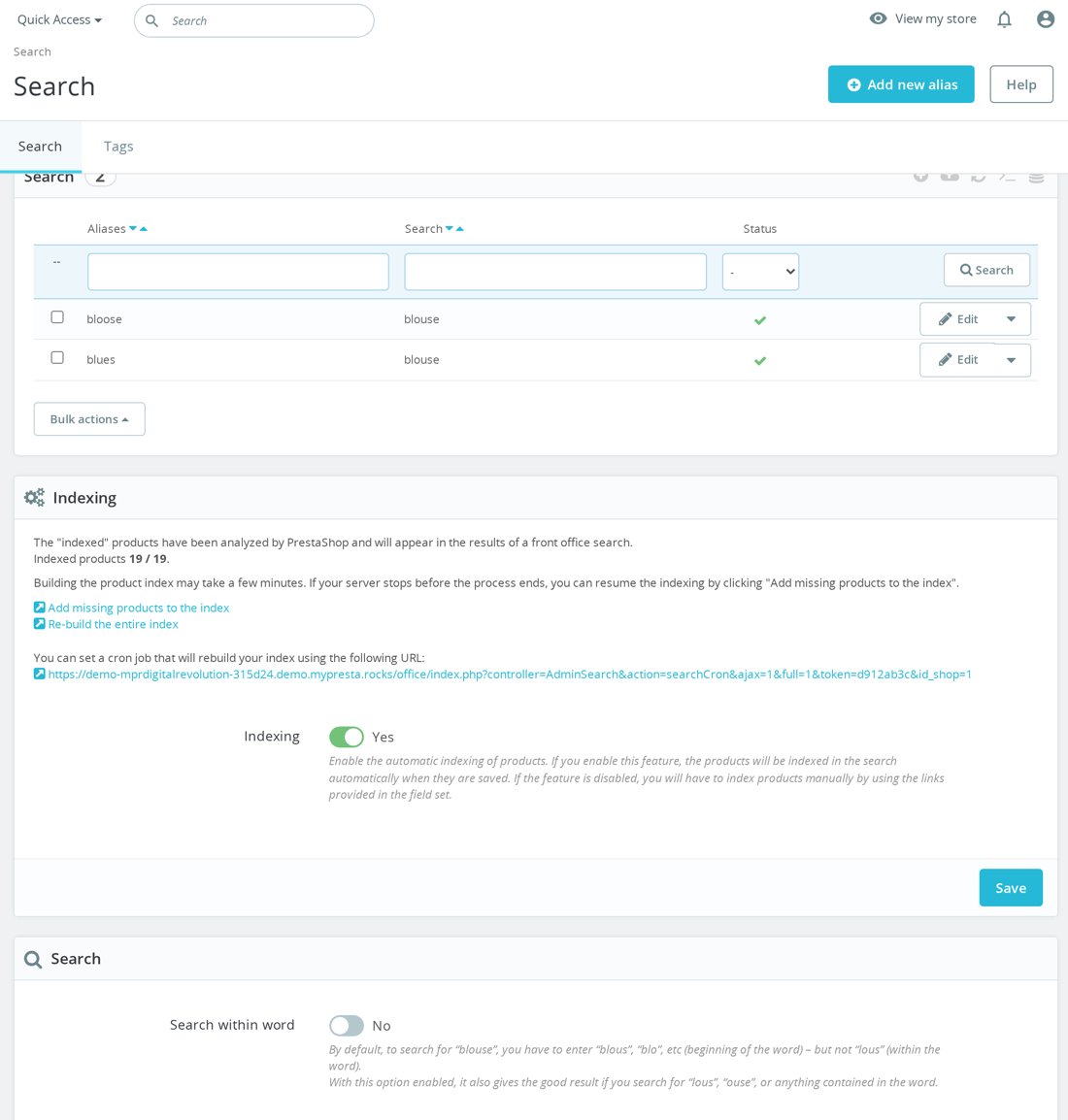
When a customer types a query into the search bar on your store, PrestaShop does not scan through every product name and description in real time. Instead, it looks up the query terms in a pre-built index that maps individual words to products. This index is constructed by breaking down product text fields into individual words (tokenization), normalizing them (lowercasing, removing accents), and storing the relationship between each word and the products it appears in, along with a relevance weight.
This approach is fundamentally the same as how search engines like Google work, just on a much smaller scale. The tradeoff is that the index must be rebuilt whenever product data changes in ways that the automatic indexing does not catch, which is the root cause of most search problems in PrestaShop.
The Search Database Tables
PrestaShop's search index is spread across several database tables, each serving a specific purpose in the search pipeline.
ps_search_word
This table stores every unique word that has been extracted from your product data, along with the language it belongs to. Each word gets an id_word that serves as a reference key. The table is language-aware, meaning the word "shoe" in your English catalog and "Schuh" in your German catalog are separate entries, each linked to their respective language ID.
When you look at this table, you will see thousands or tens of thousands of rows depending on the size of your catalog and the number of languages. Every distinct word from every indexed product field is represented here.
ps_search_index
This is the core mapping table. Each row links a product (id_product) to a word (id_word) with a weight value. The weight determines how relevant that word is to that product. A word appearing in the product name carries more weight than the same word appearing in the description, and the weight values are configurable in the back office.
When a customer searches for "blue leather wallet", PrestaShop looks up each word in ps_search_word, finds the corresponding id_word values, then queries ps_search_index for products that match those word IDs. Products are ranked by the sum of their weights for the matching words, with higher total weights appearing first in the results.
ps_search_engine
This table stores referrer search engine patterns used for tracking which search engines send traffic to your store. It is not directly related to the internal search functionality but is often confused with it due to the similar naming.
ps_alias
The alias table stores search term aliases, which are alternative spellings or synonyms that should map to a canonical search term. For example, you might configure "sneakers" as an alias for "trainers" so that customers searching for either term get the same results. Aliases are configured in the back office under Shop Parameters > Search > Search > Aliases.
When and Why Reindexing Is Needed
PrestaShop has an automatic indexing feature that updates the search index whenever a product is saved through the back office. When you edit a product and click Save, PrestaShop re-indexes that specific product, updating its entries in ps_search_word and ps_search_index. This works well for day-to-day product management.
However, automatic indexing does not cover every scenario. There are several common situations where a full reindex is necessary.
Bulk Product Imports
When you import products via CSV, the import process may not trigger the search indexing hooks for every product. This is especially common with large imports where performance optimizations skip non-essential processing steps. After a bulk import, new products may exist in the catalog but be completely invisible to site search.
Direct Database Modifications
If you or a module modifies product data directly in the database (bypassing the PrestaShop object model), the search index will not be updated. This includes SQL updates to product names, descriptions, or other indexed fields. Any database migration, data cleanup, or external synchronization tool that writes directly to ps_product_lang will leave the search index stale.
Language Changes
Adding a new language to your store requires a full reindex because the search index is language-specific. Existing products need their content in the new language to be tokenized and added to the index. Similarly, if you edit product content in a specific language (especially through bulk operations), a reindex ensures the changes are reflected in search.
Search Weight Configuration Changes
When you change the weight values assigned to different product fields (more on this below), the existing index entries retain their old weights. A reindex recalculates all weights using the new configuration.
Module Installations or Updates
Some modules modify product data structures or add searchable fields. After installing or updating such modules, a reindex ensures that any new or modified data is included in the search index.
Corrupted Index
Database crashes, failed migrations, or interrupted indexing operations can leave the search index in an inconsistent state. Symptoms include products that should appear in search results but do not, products appearing for completely wrong search terms, or search returning no results at all. A full reindex rebuilds the index from scratch, resolving these inconsistencies.
How to Reindex Products
Back Office Method
Navigate to Shop Parameters > Search in your PrestaShop back office. At the top of the page, you will find an "Indexing" section with options to rebuild the search index. There are typically two options: add products to the index that have not yet been indexed (incremental), or rebuild the entire index from scratch (full reindex).
For most troubleshooting scenarios, choose the full rebuild. The incremental option only adds missing products and does not update existing entries that may have stale data.
The back office method works well for small to medium catalogs (up to a few thousand products). For larger catalogs, it may time out due to PHP execution time limits, which is where the CLI method becomes necessary.
CLI Reindex Command
For large catalogs or automated workflows, use the command line to trigger a reindex. In PrestaShop 1.7 and later, the command is:
php bin/console prestashop:search-index:rebuild
For PrestaShop 1.6, you would call the search indexing script directly. The exact path depends on your installation, but the indexing logic lives in the Search class.
The CLI method does not have the same timeout constraints as the web interface. For very large catalogs (tens of thousands of products across multiple languages), the reindex can take several minutes. You can monitor progress through the output.
If you are running PrestaShop in Docker, execute the command inside the container context where PHP and the PrestaShop codebase are available. Make sure to run it as the web server user to avoid file permission issues with any cache files that get generated during the process.
Automating Reindexing
If your store relies on automated product imports or external data synchronization, schedule periodic reindexing as a cron job. A nightly reindex ensures that any products added or modified through automated processes are searchable the next day. The cron entry would call the same CLI command on a schedule.
Be aware that reindexing locks the search tables briefly during the rebuild. On a busy store, schedule the reindex during low-traffic hours to avoid impacting search availability for active customers.
Weight Configuration: Controlling Search Relevance
PrestaShop allows you to configure how much weight different product fields carry in search results. This is one of the most powerful and most underused features of the built-in search system.
Available Weight Fields
The weight configuration is found in Shop Parameters > Search. You can assign a weight (typically 1 to 10, though higher values work) to each of these product fields:
Product name: This should typically have the highest weight. When a customer searches for a product by name, the product with that exact name should appear first.
Reference: Product reference codes are often used by B2B customers who know the exact SKU they need. A moderate weight ensures reference-based searches work well without overpowering name-based searches.
Short description: The short description often contains key selling points and product characteristics. A moderate weight is appropriate.
Description: The full description contains the most text and therefore the most potential keyword matches. However, because it contains so much text, a high weight can cause irrelevant matches where a search term appears incidentally in a long description. A lower weight relative to the product name is recommended.
Category: Including category names in search allows customers to find products by category terms even when those terms do not appear in the product's own text.
Brand (manufacturer): Customers often search by brand name. A moderate to high weight ensures brand searches return relevant results.
Tags: Tags are explicitly assigned search terms for products. A high weight for tags gives you direct control over which products appear for specific search queries.
Attributes: Product attribute values (size, color, material) can be included in the search index. This allows searches like "red XL" to return products with those attribute combinations.
Features: Product feature values (weight, dimensions, material type) can also be indexed.
Weight Strategy
A reasonable starting configuration might be: product name at 6, reference at 4, short description at 3, description at 1, category at 2, manufacturer at 3, tags at 4, attributes at 2, features at 2. But the optimal weights depend entirely on your catalog and your customers' search behavior.
If your customers frequently search by SKU or reference number, increase the reference weight. If brand searches are important, increase the manufacturer weight. If you find that long descriptions are causing irrelevant results to rank highly, reduce the description weight or set it to zero to exclude descriptions from the index entirely.
After changing weights, always perform a full reindex for the new values to take effect across all products.
Common Search Problems and Solutions
Products Not Appearing in Search Results
This is the most common search complaint. A product exists in the catalog but searching for it by name returns no results. Causes include: the product was added through an import that did not trigger indexing, the product is disabled or out of stock and the search is configured to exclude such products, or the search index is corrupted.
Solution: First, verify the product is active and visible. Then run a full reindex. If the product still does not appear, check whether the product name contains special characters that might be stripped during tokenization, and check whether the minimum word length setting (in Search configuration) is excluding short words from the product name.
Wrong Products Ranking First
When a search for "blue widget" returns a product called "widget holder" before the actual "blue widget" product, it is usually a weight configuration issue. The product that ranks higher has accumulated more total weight across all indexed fields. Perhaps "widget" appears many times in the description of the holder product, and with a high description weight, those occurrences outweigh a single match in the product name.
Solution: Adjust field weights to prioritize the product name. Set the product name weight significantly higher than the description weight. Reindex after making changes.
Search Returns Too Many Irrelevant Results
This happens when the description weight is too high or when common words appear in many product descriptions. A search for "premium" returns every product whose description contains the word "premium" even when it is not a defining characteristic of those products.
Solution: Reduce the description weight or use the blacklisted words feature to exclude common non-discriminating words from the index. The blacklist is configured in Shop Parameters > Search and allows you to specify words that should be ignored during indexing.
Search Does Not Find Partial Matches
PrestaShop's built-in search does not support true fuzzy matching. If a customer searches for "shoe" they will not find products that only contain the word "shoes" unless the stemming or alias features handle the variation. This is a fundamental limitation of the word-based index approach.
Solution: Use the alias feature to map common variations ("shoe" to "shoes", "TV" to "television"). For more comprehensive partial matching, consider an external search solution like Elasticsearch.
Accented Characters Causing Misses
PrestaShop normalizes accented characters during indexing (for example, converting "cafe" and "café" to the same base form). If this normalization is not working correctly, searches with or without accents may produce different results.
Solution: Verify that the search configuration has accent-stripping enabled. Reindex after verifying. If the problem persists, check the database character set and collation, as mismatched encodings can interfere with text normalization.
Search Performance Optimization
For stores with large catalogs (10,000+ products), search performance can become an issue. The built-in search performs database queries against the index tables on every search request, and with a large index, these queries can become slow.
Database Indexing
Ensure that the ps_search_word and ps_search_index tables have proper database indexes. PrestaShop creates these by default, but if the tables have been altered or rebuilt, indexes may be missing. The key indexes are on id_word and id_lang in ps_search_word, and on id_product and id_word in ps_search_index.
Minimum Word Length
The minimum word length setting controls the shortest word that gets indexed. The default is usually 3 characters, meaning one and two-character words are excluded. Increasing this to 4 reduces the index size and can improve search speed, but it means searches for short terms like "XL" or "TV" will not work. Balance index size against your search requirements.
Blacklisted Words
Adding common words ("the", "and", "for", "with") to the blacklist reduces the index size significantly because these words appear in almost every product description. Smaller index tables mean faster queries.
Table Optimization
After a full reindex, run OPTIMIZE TABLE ps_search_word, ps_search_index in MySQL. The reindex process deletes and reinserts large numbers of rows, which can leave the tables fragmented. Optimization reclaims that space and improves query performance.
Elasticsearch as an Alternative
For stores that have outgrown PrestaShop's built-in search, Elasticsearch provides a significant upgrade in both search quality and performance. Elasticsearch is a dedicated search engine that runs as a separate service and offers features that the built-in MySQL-based search cannot match.
What Elasticsearch Adds
Fuzzy matching allows Elasticsearch to find results even when the search term is misspelled. A search for "leahter" will still find "leather" products. Stemming reduces words to their root form, so "running", "runs", and "ran" all match products containing any of these variations. Synonym support lets you define relationships between words ("sofa" and "couch") at the search engine level rather than through manual aliases.
Faceted search (filtering results by attributes like price range, color, brand) is dramatically faster with Elasticsearch because it is designed for exactly this type of aggregation query. Auto-complete suggestions and "did you mean" features are also native Elasticsearch capabilities.
Performance-wise, Elasticsearch handles large catalogs (100,000+ products) with sub-second response times because it uses inverted indexes optimized for full-text search, unlike MySQL which is primarily designed for relational data.
Integration with PrestaShop
Several PrestaShop modules provide Elasticsearch integration. These modules typically replace the default search controller with one that queries Elasticsearch instead of the MySQL search tables. Product data is synchronized from PrestaShop to Elasticsearch either in real-time (on product save) or via periodic batch synchronization.
Running Elasticsearch requires a dedicated server or container with adequate RAM (minimum 2GB for small catalogs, more for larger ones). It adds operational complexity since you now have another service to monitor and maintain. For many small to medium stores, the built-in search with proper weight configuration and regular reindexing is sufficient.
When to Consider Elasticsearch
Consider Elasticsearch when your catalog exceeds 10,000 products and search performance is degrading, when customers frequently misspell search terms and expect fuzzy matching, when you need advanced features like auto-complete or faceted filtering, or when search quality is a competitive differentiator for your business (B2B stores with complex product catalogs, for example).
The Reindexing Checklist
When search is not working correctly in your PrestaShop store, follow this diagnostic and resolution process. First, verify that the problem products are active, visible, and in stock (if your search excludes out-of-stock products). Second, check the search weight configuration and ensure it matches your priorities. Third, run a full search index rebuild from the back office or CLI. Fourth, clear the PrestaShop cache after reindexing. Fifth, test the search with specific terms to verify the fix. Sixth, if problems persist, check the ps_search_word and ps_search_index tables directly to verify that the problem products have entries. Seventh, if the index appears correct but search still fails, investigate the search controller logic and any modules that override it.
Regular reindexing, combined with thoughtful weight configuration and a well-maintained alias list, keeps PrestaShop's built-in search working reliably for the majority of stores. For those that need more, Elasticsearch provides an upgrade path without requiring a platform change.
For more details, read our guides: Smart Search for PrestaShop: When Default Search Is Not Good Enough and PrestaShop SEO: The Complete Guide to Ranking Higher.
Understanding the Three Caching Layers in PrestaShop
PrestaShop uses multiple caching mechanisms to deliver pages quickly. Each layer operates at a different level of the stack, and understanding what each one does, when it kicks in, and when you need to clear it is essential for both performance tuning and troubleshooting. The three most important caching layers are Smarty template cache, PHP OPcache, and browser cache. They work together, but they solve different problems and require different management approaches.
When a customer visits your store, the request passes through all three layers in reverse order. The browser checks its local cache first. If it has a fresh copy of the resource, it never contacts your server at all. If the browser does send a request, PHP processes it. OPcache ensures that PHP files are compiled once and reused from memory rather than being re-parsed on every request. Finally, Smarty cache ensures that template rendering, which involves parsing template syntax and executing template logic, happens only when necessary rather than on every page load.
Problems arise when these layers serve stale content. You change a template file, but the page looks the same. You update a PHP file, but the old behavior persists. You modify CSS, but the browser still shows the old styles. Each of these symptoms points to a different caching layer, and clearing the wrong one wastes time without solving the problem.
Smarty Template Cache: How It Works
Smarty is the template engine that PrestaShop uses to render HTML. Every .tpl file in your theme and modules goes through Smarty before it becomes HTML that gets sent to the browser. Smarty caching operates in two distinct phases: compilation and output caching.
Template Compilation
When Smarty encounters a .tpl file for the first time, it compiles it into a PHP file. This compiled file is stored in the /var/cache/prod/smarty/compile/ directory (or /var/cache/dev/smarty/compile/ in debug mode). The compiled file contains the template logic translated into pure PHP, which executes much faster than parsing the Smarty syntax on every request.
Smarty checks whether the compiled version is up to date by comparing timestamps. If the source .tpl file is newer than the compiled version, Smarty recompiles it automatically. This is controlled by the compile_check setting. In production, you can disable compile checking for maximum performance, which means Smarty assumes compiled templates are always current and never checks the source files.
Template Output Caching
Beyond compilation, Smarty can also cache the rendered output of templates. When output caching is enabled, Smarty stores the final HTML output of a template and serves it directly on subsequent requests without executing any of the template logic. This is more aggressive than compilation caching because it skips not just the parsing step but also the data processing and logic execution within the template.
Output caching in PrestaShop is managed per module hook. Each module can declare whether its hook output is cacheable, and PrestaShop assigns cache keys based on factors like the current language, shop, currency, and customer group. This means a French customer and an English customer get separate cached versions.
Smarty Cache Settings in PrestaShop
You configure Smarty caching in the back office under Advanced Parameters > Performance. The relevant settings are:
Template compilation: This controls how Smarty handles template compilation. The options are typically "Never recompile" (fastest, uses compiled version always), "Recompile if changed" (checks file timestamps, good balance), and "Force compile" (recompiles every request, for development only). In production, use "Recompile if changed" unless you are certain your templates never change between deployments, in which case "Never recompile" provides a small additional performance gain.
Cache: This toggles Smarty output caching. When enabled, Smarty stores the rendered HTML output and serves it without re-executing template logic. This provides significant performance benefits for stores with complex templates or many module hooks. The cache type can be set to filesystem (default) or a custom caching handler.
Multi-front optimizations: This enables caching across multiple front-end servers. Only relevant for clustered setups.
Clear cache: Options include "Never clear cache files," "Clear cache every time something is modified," and specific clearing strategies. For most stores, clearing on modification is the right choice because it ensures updates are visible immediately while still benefiting from caching between changes.
Clearing Smarty Cache
To clear Smarty cache manually, you can use the "Clear cache" button in the Performance page of the back office. This deletes compiled templates and cached output from the /var/cache/ directory. You can also clear it by deleting files directly from the server:
Delete compiled templates: remove contents of var/cache/prod/smarty/compile/
Delete cached output: remove contents of var/cache/prod/smarty/cache/
You need to clear Smarty cache when you modify .tpl template files (if compile checking is disabled), when you install or update a module that changes templates, when you switch themes, or when you modify template-related configuration. If you change a .tpl file and the change does not appear on the front end, Smarty compile cache is almost always the cause.
PHP OPcache: How It Works
PHP OPcache is a bytecode cache built into PHP. When PHP executes a script, it goes through three stages: lexing (breaking the source code into tokens), parsing (building an abstract syntax tree), and compiling (generating bytecode that the PHP engine executes). OPcache stores the compiled bytecode in shared memory so that subsequent requests for the same script skip the lexing, parsing, and compilation stages entirely.
This is different from Smarty cache. Smarty caches template rendering output (HTML). OPcache caches PHP compilation output (bytecode). They operate at completely different levels. A Smarty template that has been compiled into a PHP file by Smarty still benefits from OPcache because that compiled PHP file itself gets cached as bytecode by OPcache.
OPcache Configuration for PrestaShop
OPcache is configured in your php.ini file. The most important settings for PrestaShop are:
opcache.enable=1 turns OPcache on. This should always be enabled in production. The performance difference is dramatic: PHP execution becomes 2 to 5 times faster with OPcache enabled.
opcache.memory_consumption=256 sets the amount of shared memory (in megabytes) available for storing compiled bytecode. PrestaShop with several modules can easily consume 128MB or more. If this is set too low, OPcache evicts older entries to make room for new ones, which defeats the purpose. Set this to 256MB or higher for stores with many modules. You can check usage with opcache_get_status() to see how much memory is actually consumed.
opcache.max_accelerated_files=20000 sets the maximum number of PHP files that can be cached. PrestaShop core plus modules can easily have 10,000 or more PHP files. The actual value used by OPcache is rounded up to the next prime number from a predefined set, so setting 20000 results in an actual limit of 20479. Check opcache_get_status() to verify you are not hitting this limit.
opcache.validate_timestamps=1 tells OPcache to check whether source files have changed. When enabled, OPcache checks the file modification time at intervals defined by revalidate_freq. In production, you can set this to 0 (disabled) for maximum performance, but you must then restart PHP-FPM or call opcache_reset() whenever you deploy new code.
opcache.revalidate_freq=60 defines how often (in seconds) OPcache checks for file changes when validate_timestamps is enabled. A value of 60 means OPcache checks each file at most once per minute. Higher values mean better performance but longer delays before code changes take effect. For active development, set this to 0 or 2. For production, 60 is a good balance.
opcache.interned_strings_buffer=16 allocates memory for interned strings, which PHP uses to deduplicate identical strings across different scripts. PrestaShop benefits from this because many modules share the same class names, function names, and string literals. Set this to 16MB or higher.
opcache.save_comments=1 must be enabled for PrestaShop. PrestaShop and some of its dependencies use PHP DocBlock annotations that are read at runtime. If you disable this, certain features break.
OPcache and the CLI vs Web Split
An important detail about OPcache is that the CLI (command line) and web (PHP-FPM or mod_php) environments maintain separate OPcache pools. Clearing OPcache from the command line (for example, running a PHP script that calls opcache_reset() via CLI) does not clear the web OPcache. To clear the web OPcache, you must either restart the PHP-FPM service, or execute opcache_reset() through a web request.
This distinction matters in deployment workflows. If you deploy new code and clear OPcache via a CLI command, your website continues serving the old bytecode until the web OPcache is also cleared. Many deployment tools handle this by hitting a special URL endpoint that triggers opcache_reset(), or by restarting PHP-FPM as part of the deployment process.
When to Clear OPcache
You need to clear OPcache whenever you modify, upload, or replace PHP files on your server. This includes deploying a new version of PrestaShop, installing or updating modules, editing PHP files directly on the server, and updating Composer dependencies. If you change a PHP file and the old behavior persists despite the file being clearly modified on disk, OPcache is serving the old bytecode. Restarting PHP-FPM is the most reliable way to clear it.
Browser Cache: How It Works
Browser caching is the final layer, and it operates entirely on the client side. When a browser downloads a resource (CSS file, JavaScript file, image, font, or even an HTML page), it can store a local copy and reuse it for subsequent requests. This eliminates network round trips entirely for cached resources, which is the single biggest performance improvement possible because no server-side optimization can beat zero network latency.
Browser caching is controlled by HTTP response headers that your server sends along with each resource. The most important headers are Cache-Control, Expires, ETag, and Last-Modified.
Cache-Control Header
The Cache-Control header is the primary mechanism for controlling browser caching. It supports several directives:
max-age=31536000 tells the browser to cache the resource for up to 31,536,000 seconds (one year). During this period, the browser uses its local copy without contacting the server at all. This is ideal for static assets like CSS, JavaScript, and images that include a version identifier in their URL (like a hash or query string).
no-cache does not mean "do not cache." It means the browser may cache the resource but must validate it with the server before using the cached copy. The server responds with either a 304 (Not Modified) status, meaning the cached version is still good, or a 200 with the new content.
no-store actually prevents caching. The browser must download the resource fresh every time. Use this for sensitive content that should never be stored locally.
public indicates that the response can be cached by any cache, including CDNs and proxy servers. Use this for static assets.
private indicates that the response is specific to a single user and should not be cached by shared caches like CDNs. Use this for pages that contain user-specific content, like a customer's account page or cart.
ETag Header
An ETag (Entity Tag) is a unique identifier for a specific version of a resource. The server generates it (typically a hash of the file content) and sends it with the response. When the browser needs to validate its cached copy, it sends the ETag back to the server in an If-None-Match header. The server compares the ETags and returns either 304 (use your cached version) or 200 (here is the new version).
ETags are useful when you want browser caching with validation. The browser still makes a request to the server, but if the content has not changed, the server sends back a tiny 304 response instead of the full resource. This saves bandwidth while ensuring freshness.
Last-Modified and If-Modified-Since
These headers work similarly to ETags but use timestamps instead of content hashes. The server sends the Last-Modified timestamp with the resource, and the browser sends it back as If-Modified-Since when validating. The server checks whether the file has been modified since that time and returns 304 or 200 accordingly.
ETags are generally preferred over Last-Modified because they are based on content rather than time, which avoids issues with clock synchronization and is more precise. However, most servers send both, and browsers use whichever is available.
Browser Cache Configuration for PrestaShop
PrestaShop's static assets (CSS, JavaScript, images) should be cached aggressively by browsers. The standard approach is to configure your web server to add appropriate Cache-Control headers to static file responses.
For Apache, you use the mod_expires and mod_headers modules in your .htaccess file. PrestaShop's default .htaccess includes some caching rules, but you may want to extend them. A typical configuration sets max-age=31536000 for images, fonts, CSS, and JavaScript files, while HTML responses get no-cache to ensure fresh content.
For Nginx, you add expires directives in your location blocks for static files. For example, location ~* \.(css|js|jpg|png|gif|ico|woff2)$ { expires 1y; add_header Cache-Control "public, immutable"; } caches static assets for one year and marks them as immutable (telling the browser not to even validate them).
Cache Busting in PrestaShop
If you set long cache lifetimes for CSS and JavaScript files, how do browsers get updated versions when you deploy changes? This is where cache busting comes in. PrestaShop handles this differently depending on whether CCC (Combine, Compress, Cache) is enabled.
With CCC enabled, PrestaShop combines CSS and JavaScript files into bundles and generates filenames that include a hash of the content. When the content changes, the filename changes, and browsers download the new file because they have never seen that URL before. This is the most reliable cache busting approach.
Without CCC, PrestaShop serves individual CSS and JavaScript files at their original URLs. Some themes and modules append a version query string (like ?v=1.2.3) to these URLs, which changes when the module is updated. Browsers treat the URL with a different query string as a different resource and download it fresh.
Images are trickier because their URLs typically do not change unless the image itself is replaced. If you replace an image with a new one at the same URL, browsers that have the old version cached will continue showing it until the cache expires. In this case, you need to either change the image filename or clear browser caches (which you cannot do for your visitors). The practical solution is to use versioned image URLs or wait for the cache to expire naturally.
How the Three Layers Interact
Understanding how these three caching layers interact is crucial for effective troubleshooting. Here is the lifecycle of a typical request:
A customer visits a product page. The browser checks its cache for the HTML of that page. Since HTML is typically served with no-cache, the browser sends a request to the server (possibly with an If-Modified-Since or If-None-Match header for validation).
The web server receives the request and passes it to PHP. PHP-FPM's OPcache has the bytecode for PrestaShop's index.php, the dispatcher, controllers, and all module files cached in shared memory. PHP executes the bytecode without recompiling any source files.
PrestaShop's controller calls Smarty to render the template. Smarty checks its cache for a compiled version of the template. If output caching is enabled and a valid cached output exists for this combination of language, customer group, and other cache keys, Smarty returns the cached HTML directly. If not, Smarty executes the compiled template (which OPcache has also cached as bytecode since compiled Smarty templates are PHP files), generates the HTML, stores it in the output cache, and returns it.
PHP sends the HTML response to the browser, along with HTTP headers that control browser caching. The browser renders the HTML and requests any CSS, JavaScript, and image files referenced in it. For each of these assets, the browser checks its local cache. If it has a fresh copy (based on Cache-Control max-age), it uses the local copy without contacting the server. If the cached copy needs validation, it sends a conditional request with ETag or If-Modified-Since headers.
Troubleshooting Stale Content
When changes you make do not appear on the front end, you need to identify which caching layer is responsible. Here is a systematic approach:
Step 1: Check the Browser
Open the page in an incognito or private browsing window, or do a hard refresh (Ctrl+Shift+R on most browsers). If the change appears in incognito but not in a normal window, browser cache is the cause. Clear the browser cache or wait for it to expire.
For CSS and JavaScript changes specifically, check the network tab in browser DevTools. Look at the response headers for the file you changed. If the response shows a 304 (Not Modified) and the content is old, the server-side file may not have actually changed (check OPcache). If the browser is not even making a request for the file (it shows "from disk cache" or "from memory cache"), the Cache-Control max-age has not expired.
Step 2: Check Smarty Cache
If the change does not appear even in incognito, the issue is server-side. For template changes, clear Smarty cache from the back office (Advanced Parameters > Performance > Clear cache) or delete the contents of var/cache/prod/smarty/. Reload the page and check if the change appears.
Step 3: Check OPcache
If clearing Smarty cache does not help and the change involves a PHP file (not a template), OPcache is likely serving old bytecode. Restart PHP-FPM or call opcache_reset() through a web request. On shared hosting where you cannot restart PHP-FPM, your hosting control panel may have an option to clear OPcache, or you can create a small PHP file that calls opcache_reset() and access it through your browser.
Step 4: Check Other Caches
PrestaShop has additional caching mechanisms beyond these three layers. The Symfony cache (in PrestaShop 1.7 and 8.x) stores compiled Symfony service containers, route definitions, and other framework data. Clear it by deleting var/cache/prod/ and var/cache/dev/ directories. If you use a reverse proxy like Varnish or a CDN like Cloudflare, those add yet another caching layer that must be cleared separately.
Optimal Configuration for Production
For a production PrestaShop store, the optimal caching configuration balances performance with maintainability:
Smarty: Set template compilation to "Recompile if changed." Enable output caching. Set cache clearing to "Clear on modification." This gives you strong caching performance while ensuring that back office changes (like editing CMS pages or changing module configuration) take effect immediately.
OPcache: Enable with at least 256MB memory, 20000 max accelerated files, validate_timestamps enabled with revalidate_freq of 60 seconds. This configuration means code changes take up to 60 seconds to take effect, which is acceptable for production. If you deploy code changes infrequently and want maximum performance, disable validate_timestamps and restart PHP-FPM after each deployment.
Browser Cache: Set Cache-Control with long max-age values (at least one month, ideally one year) for static assets (CSS, JavaScript, images, fonts). Use no-cache for HTML responses so pages are always validated. Enable CCC in PrestaShop to get content-hashed filenames for combined CSS and JavaScript files, which provides automatic cache busting when assets change.
With this configuration, your store benefits from all three caching layers working together. Static assets are served from browser cache without any server contact. PHP files are executed from cached bytecode without recompilation. And template rendering is cached so that Smarty logic runs only when content changes. The result is a store that loads quickly for returning visitors and handles high traffic efficiently on the server side.
When to Clear Each Cache Layer
To avoid both stale content and unnecessary cache clearing, follow these guidelines:
Clear Smarty cache when you edit .tpl files, change module positions or hooks, install or update modules that modify templates, or change theme-related settings. You do not need to clear Smarty cache when you change PHP files or when you update CSS or JavaScript files.
Clear OPcache when you edit PHP files, install or update modules, update PrestaShop core, or run Composer to update dependencies. You do not need to clear OPcache for template or CSS changes.
Clear browser cache when you need to see CSS, JavaScript, or image changes immediately during development. For production, rely on cache busting (versioned URLs, CCC hash filenames) instead of asking users to clear their caches. You cannot control your visitors' browser caches, so your deployment process must account for this by using proper cache busting techniques.
A comprehensive cache clearing sequence after a major deployment would be: clear Smarty compile and cache directories, restart PHP-FPM to clear OPcache, purge your CDN or reverse proxy cache if applicable, and verify in an incognito browser window. For minor changes (like editing a single template), clearing only the relevant layer is sufficient and faster.
For more details, read our guides: PrestaShop Cache: Full Page Cache Modules Explained and Redis Cache for PrestaShop: Setup and Performance Gains.
What Content Security Policy Is and Why It Matters
Content Security Policy (CSP) is a security mechanism implemented through HTTP headers that tells the browser exactly which resources are allowed to load on your pages. It prevents cross-site scripting (XSS) attacks, data injection attacks, and other code injection vulnerabilities by giving you granular control over where JavaScript, CSS, images, fonts, frames, and other resources can originate from.
Without CSP, a browser will execute any JavaScript it encounters on your page, regardless of where it came from. If an attacker manages to inject a malicious script (through a vulnerable module, a compromised third-party library, or a stored XSS vulnerability), the browser happily executes it with full access to the page content, including customer data, form inputs, and session cookies.
With CSP, you declare a whitelist of trusted sources. If the browser encounters a resource that does not match the policy, it blocks it and logs a violation. This means that even if an attacker finds a way to inject code into your page, the browser refuses to execute it because it does not come from an approved source.
For PrestaShop stores that handle customer personal information, payment data, and authentication credentials, CSP is a critical security layer. It is not a replacement for fixing vulnerabilities in your code, but it is an effective defense-in-depth measure that limits the damage when a vulnerability exists.
CSP Directives Explained
A Content Security Policy consists of one or more directives, each controlling a specific type of resource. The most important directives for PrestaShop are:
default-src: The fallback directive. If a more specific directive is not set, the browser uses default-src. Setting default-src 'self' means that by default, only resources from your own domain are allowed.
script-src: Controls where JavaScript can be loaded from. This is the most critical directive for XSS prevention. Common values include 'self' (your own domain), specific CDN domains, and analytics domains.
style-src: Controls where CSS can be loaded from. PrestaShop themes and modules frequently use inline styles, which means you may need 'unsafe-inline' unless you implement a nonce-based approach.
img-src: Controls where images can be loaded from. PrestaShop stores often load images from their own domain, CDN domains, and third-party services like Google (for user avatars or Maps).
font-src: Controls where fonts can be loaded from. Google Fonts, Font Awesome CDN, and your own domain are common sources.
connect-src: Controls which URLs can be contacted via JavaScript (AJAX requests, WebSocket connections, EventSource). Payment gateways, analytics endpoints, and your own API endpoints need to be listed here.
frame-src: Controls which domains can be embedded in iframes. Payment gateways like PayPal, Stripe, and Klarna use iframes for their payment forms. YouTube and Vimeo embeds also require frame-src entries.
frame-ancestors: Controls which domains can embed your page in an iframe. Setting frame-ancestors 'self' prevents clickjacking attacks by ensuring your store cannot be embedded in another site's iframe.
object-src: Controls plugin content like Flash. Set this to 'none' because Flash is obsolete and no PrestaShop functionality requires it.
base-uri: Controls which URLs can be used in the <base> element. Set to 'self' to prevent base URI manipulation attacks.
form-action: Controls which URLs forms can submit to. This should include your own domain and any external payment processing endpoints.
Starting with Report-Only Mode
Deploying CSP on a PrestaShop store requires careful preparation because an overly restrictive policy will break functionality. The right approach is to start with report-only mode, which tells the browser to report violations without actually blocking anything.
Instead of using the Content-Security-Policy header, use Content-Security-Policy-Report-Only. This header accepts the exact same directives but only generates reports without enforcing the policy. Your store continues to function normally while you collect data about what would be blocked.
Setting Up Violation Reporting
Add a report-uri directive to your policy that points to an endpoint that collects violation reports. You can use a free service like Report URI (report-uri.com), which provides a dashboard for viewing and analyzing CSP violations, or you can set up your own endpoint.
The browser sends violation reports as JSON POST requests. Each report includes the blocked URI, the directive that was violated, the page where the violation occurred, and other useful debugging information. Collecting these reports for a week or two on a live store gives you a comprehensive picture of all the resources your store loads and where they come from.
Building Your Initial Policy
Using the violation reports from report-only mode, build a whitelist of all legitimate resource sources. Group them by directive type. Your initial policy will likely include:
Your own domain for all resource types. CDN domains (like cdnjs.cloudflare.com, fonts.googleapis.com, fonts.gstatic.com) for scripts, styles, and fonts. Analytics domains (like google-analytics.com, googletagmanager.com, connect.facebook.net) for tracking. Payment gateway domains for scripts, frames, and connections. Chat widget domains if you use live chat. Social media domains for embedded content or share buttons.
Building a CSP for PrestaShop
PrestaShop presents specific challenges for CSP implementation because of its architecture and the modules ecosystem.
Handling Inline Styles and Scripts
PrestaShop core, themes, and many modules use inline styles and inline JavaScript extensively. Inline code is blocked by default in CSP because an attacker who injects content into your page would be injecting inline code. There are three approaches to handling this:
Using 'unsafe-inline': The simplest but least secure approach. Adding 'unsafe-inline' to script-src and style-src allows all inline code, which significantly weakens CSP's XSS protection. For style-src, this is generally acceptable because inline styles pose a much lower security risk than inline scripts. For script-src, avoid 'unsafe-inline' if at all possible.
Using nonces: The recommended approach. A nonce is a random, single-use token generated on each request. You add the nonce to your CSP header (script-src 'nonce-abc123') and to each legitimate inline script tag (<script nonce="abc123">). The browser only executes inline scripts that have the correct nonce. Since the nonce changes on every request and an attacker cannot predict it, injected scripts without the nonce are blocked.
Implementing nonces in PrestaShop requires modifying the theme to add nonce attributes to all inline script tags and creating a mechanism (typically a module or a custom hook) that generates the nonce, adds it to the CSP header, and makes it available to templates. This is a significant implementation effort but provides strong XSS protection.
Using hashes: You can whitelist specific inline scripts by their SHA-256 hash. The browser computes the hash of each inline script it encounters and checks it against the hashes listed in the CSP. This approach works for inline scripts that do not change between requests (static inline scripts), but it is impractical for PrestaShop because many inline scripts include dynamic content like product IDs, prices, and user-specific data that change the hash.
Handling eval and Dynamic Code
Some JavaScript libraries use eval() or new Function() to dynamically create and execute code. CSP blocks these by default. If a module or library requires eval, you must add 'unsafe-eval' to script-src. Common culprits include older versions of jQuery templates, some analytics scripts, and certain payment gateway libraries.
Check your violation reports for entries with eval or inline as the blocked URI. These indicate code that uses dynamic evaluation. Where possible, replace the library with a version that does not use eval. When that is not possible (such as with a third-party payment gateway library you cannot modify), 'unsafe-eval' is the only option.
Third-Party Services
Most PrestaShop stores rely on multiple third-party services, each of which needs to be whitelisted in your CSP. Here are the most common ones and the directives they require:
Google Analytics and Google Tag Manager: These require entries in script-src for www.google-analytics.com, www.googletagmanager.com, and tagmanager.google.com. They also need connect-src entries for www.google-analytics.com and analytics.google.com (for sending tracking data), and img-src entries for www.google-analytics.com (for the tracking pixel). Google Tag Manager is particularly challenging because it dynamically loads scripts from domains you may not know in advance, as the scripts loaded depend on the tags configured in GTM.
PayPal: Requires script-src and frame-src entries for *.paypal.com and *.paypalobjects.com. The exact domains depend on whether you use PayPal Standard, PayPal Express, or the newer PayPal Commerce Platform integration.
Stripe: Requires script-src for js.stripe.com, frame-src for js.stripe.com and hooks.stripe.com, and connect-src for api.stripe.com.
Google Fonts: Requires style-src for fonts.googleapis.com and font-src for fonts.gstatic.com.
YouTube embeds: Require frame-src for www.youtube.com and www.youtube-nocookie.com.
Facebook Pixel and social plugins: Require script-src and connect-src for connect.facebook.net and www.facebook.com, plus img-src for www.facebook.com and *.fbcdn.net.
Live chat widgets (Tidio, Crisp, Intercom, etc.): Each has its own set of domains for scripts, styles, WebSocket connections, and images. Check your violation reports or the provider's documentation for the exact domains required.
A Complete CSP Example for PrestaShop
Here is a realistic CSP header for a PrestaShop store that uses Google Analytics, Google Fonts, PayPal, YouTube embeds, and has inline styles:
Content-Security-Policy: default-src 'self'; script-src 'self' www.google-analytics.com www.googletagmanager.com js.stripe.com 'unsafe-inline' 'unsafe-eval'; style-src 'self' fonts.googleapis.com 'unsafe-inline'; img-src 'self' data: www.google-analytics.com *.paypal.com; font-src 'self' fonts.gstatic.com; connect-src 'self' www.google-analytics.com analytics.google.com api.stripe.com; frame-src 'self' www.youtube.com www.youtube-nocookie.com js.stripe.com *.paypal.com; frame-ancestors 'self'; object-src 'none'; base-uri 'self'; form-action 'self' *.paypal.com;
This policy includes 'unsafe-inline' and 'unsafe-eval' for scripts, which weakens XSS protection but is necessary for most PrestaShop installations that have not been modified to support nonces. For img-src, the data: source is included because PrestaShop and many modules use data URIs for small images and icons.
Implementing CSP in PrestaShop
Via .htaccess (Apache)
For Apache servers, add the CSP header in your .htaccess file. Place it near the top of the file, before the PrestaShop rewrite rules:
Header set Content-Security-Policy "default-src 'self'; script-src 'self' ..."
This requires the mod_headers module to be enabled. You can verify by checking if your server returns the header using browser DevTools (Network tab, click on the main document request, check the Response Headers).
Via Nginx Configuration
For Nginx, add the header in your server block:
add_header Content-Security-Policy "default-src 'self'; script-src 'self' ..." always;
The always parameter ensures the header is sent even for error responses, which is important because error pages can also be targets for XSS attacks.
Via a PrestaShop Module
Implementing CSP through a module gives you the ability to manage the policy from the back office. The module hooks into the actionOutputHTMLBefore or uses PHP's header() function in a front controller hook to add the CSP header to every response. A module-based approach is easier to maintain because you can update the policy without editing server configuration files and without restarting the web server.
Testing Your CSP with Browser DevTools
After implementing your CSP (in report-only mode initially), use browser DevTools to monitor for violations. Open the Console tab and look for messages that start with "[Report Only]" (in report-only mode) or "Refused to" (in enforcement mode). Each message tells you exactly what was blocked and which directive was responsible.
Test every page type on your store: the home page, category pages, product pages, the cart, the checkout process (including each step and each payment method), the customer account pages, and CMS pages. Each page type may load different resources, and you need to ensure your policy covers all of them.
Pay special attention to the checkout process. A blocked payment gateway script or iframe during checkout directly prevents customers from completing purchases. Test every payment method you offer, including the 3D Secure verification flow if applicable, because these often load additional resources from domains that are not obvious.
Common Testing Pitfalls
Testing in a development environment may not reveal all violations because your development setup may not include all the third-party services that run on production (analytics, advertising pixels, live chat, A/B testing tools). Always deploy CSP in report-only mode on production first and collect reports for at least one to two weeks before switching to enforcement.
Some violations only occur under specific conditions. For example, a payment gateway might load additional verification scripts only when a customer's card requires 3D Secure authentication. Social sharing buttons might load scripts only when a visitor clicks them. Dynamic content loaded via AJAX may reference resources that are not present on the initial page load. Run through every possible user flow during testing.
Gradual Enforcement Strategy
The recommended deployment strategy for CSP on PrestaShop follows these steps:
Phase 1: Discovery. Deploy a permissive Content-Security-Policy-Report-Only header with default-src * 'unsafe-inline' 'unsafe-eval' data: blob:; and a report-uri. This logs all resources without blocking anything, giving you a complete inventory of what your store loads.
Phase 2: Draft policy. Based on the violation reports, build a whitelist policy that covers all legitimate resources. Deploy it in report-only mode and monitor for violations that indicate you missed a resource.
Phase 3: Refine. Over one to two weeks, check violation reports daily and add any legitimate sources you missed. Pay attention to reports that come from specific page types or user flows you might not have tested manually.
Phase 4: Enforce. Switch from Content-Security-Policy-Report-Only to Content-Security-Policy. Keep the report-uri directive so you continue receiving violation reports. Monitor closely for the first week after enforcement to catch any legitimate resources that are being blocked.
Phase 5: Tighten. Once enforcement is stable, look for opportunities to tighten the policy. Can you replace 'unsafe-inline' in script-src with nonces? Can you narrow wildcard domains to specific subdomains? Can you remove sources that are no longer used? Each tightening step improves your security posture.
Maintaining Your CSP
A CSP is not a set-and-forget configuration. Every time you install a new module, add a third-party service, change payment gateways, or update your theme, you may need to update your CSP to include new resource sources. Make CSP review part of your module installation and update process.
Keep your report-uri active even after enforcement so you receive alerts about new violations. A sudden increase in violation reports might indicate that a module update introduced new resource requirements, or it might indicate an actual XSS attack attempt that your CSP is successfully blocking. Either way, you want to know about it.
Document your CSP and the reason for each entry. Over time, policies accumulate entries for services you no longer use. Periodic reviews to remove unnecessary entries keep the policy clean and reduce the attack surface. A CSP with fewer allowed sources is inherently more secure than one with many.
For more details, read our guides: PrestaShop Security Hardening: The Complete Checklist and PrestaShop .htaccess: Security and Performance Rules You Need.
What Varnish Is and Why It Matters for PrestaShop
Varnish Cache is an HTTP reverse proxy that sits between your web server and the internet, serving cached copies of pages without ever touching PHP or MySQL. When a visitor requests a page that Varnish has cached, the response comes directly from memory in microseconds. PHP never executes. MySQL never receives a query. The web server barely notices the request happened.
This is fundamentally different from how PHP-based full page cache (FPC) modules work in PrestaShop. An FPC module still runs within PHP. The request hits Apache or Nginx, PHP boots, PrestaShop initializes (loading configuration, establishing database connections, parsing routes), and then the FPC module intercepts the request before the full controller logic runs, serving a cached HTML file. While this is significantly faster than rendering the page from scratch, it still involves starting PHP and loading the PrestaShop framework. That overhead, typically 50-200 milliseconds even for a cache hit, adds up under load.
Varnish eliminates that overhead entirely. A Varnish cache hit is served in 1-5 milliseconds. Under heavy traffic, the difference is dramatic. A PrestaShop store that struggles to handle 100 concurrent users with an FPC module can serve thousands of concurrent users with Varnish, because the vast majority of requests never reach the PHP backend at all.
When PHP Full Page Cache Modules Are Sufficient
Before investing in Varnish, it is worth understanding when a PHP-based FPC module is good enough. For many PrestaShop stores, it is.
If your store receives fewer than 50,000 daily page views, a well-configured FPC module will handle the load without problems. The additional complexity of Varnish is not justified when your server has spare capacity. If your server response times with FPC are consistently under 200 milliseconds, your visitors are already getting fast page loads. The bottleneck at that point is likely frontend rendering (CSS, JavaScript, images) rather than server response time.
FPC modules also handle some PrestaShop-specific scenarios more gracefully than Varnish because they run inside the application. They can check whether a user is logged in, whether the cart has items, and whether certain dynamic content needs to be personalized, all within the same PHP process. With Varnish, these checks must be handled through cookie inspection and cache variation rules, which adds configuration complexity.
Consider Varnish when your store regularly handles traffic spikes (flash sales, marketing campaigns, seasonal peaks) that overwhelm your PHP capacity, when you need sub-10ms response times for SEO or user experience reasons, when your hosting budget is limited and you need to serve more traffic from the same hardware, or when your store serves a high ratio of anonymous browsing traffic (category pages, product pages) relative to cart and checkout activity.
How Varnish Works: The Request Flow
Understanding the request flow through Varnish is essential for configuring it correctly with PrestaShop.
Request Arrives
When a visitor requests a page, the request hits Varnish first (Varnish listens on port 80 or 443 if terminated by a frontend proxy). Varnish examines the request: the URL, the HTTP method, the cookies, and the headers.
Cache Lookup
Varnish checks its cache for a stored response matching this request. The cache key is typically based on the URL and selected headers. If a matching response exists and has not expired, Varnish serves it directly. This is a cache hit. The response is sent to the visitor and the backend server is never contacted.
Cache Miss
If no matching cached response exists, Varnish forwards the request to the backend server (Apache or Nginx running PrestaShop). PrestaShop processes the request normally, generates the HTML response, and sends it back to Varnish. Varnish stores the response in its cache (if the response is cacheable) and forwards it to the visitor. Subsequent requests for the same page will be served from cache.
Cache Invalidation
When product data changes, prices update, or content is modified, the cached version becomes stale. Varnish needs to be told to discard the old cached version so it fetches a fresh one from the backend. This is cache invalidation, and it is the hardest part of any caching system to get right.
VCL Configuration for PrestaShop
Varnish Configuration Language (VCL) is a domain-specific language that controls how Varnish handles requests. A proper VCL configuration for PrestaShop must handle several PrestaShop-specific behaviors.
Backend Definition
The backend definition tells Varnish where to forward cache misses. For a typical PrestaShop setup where Apache or Nginx runs on the same server on port 8080:
backend default {
.host = "127.0.0.1";
.port = "8080";
.connect_timeout = 5s;
.first_byte_timeout = 60s;
.between_bytes_timeout = 10s;
}
The timeouts are important. PrestaShop pages can take several seconds to generate on a cold cache, especially category pages with many products. Setting first_byte_timeout too low causes Varnish to return a 503 error before PrestaShop finishes generating the page.
Handling Cookies and Sessions
Cookies are the biggest challenge when caching PrestaShop with Varnish. PrestaShop sets several cookies by default, and Varnish treats any request with cookies as uncacheable unless instructed otherwise. If you do not handle cookies in your VCL, Varnish will cache almost nothing.
PrestaShop sets these cookies on most requests: the session cookie (typically named PrestaShop-xxxx), the cart-related cookies, Google Analytics cookies (_ga, _gid, _gat), and various tracking cookies from marketing tools. Of these, only the PrestaShop session cookie matters for cache behavior. Analytics and tracking cookies should be stripped from the request before the cache lookup so they do not prevent caching.
In your VCL vcl_recv subroutine, strip non-essential cookies:
sub vcl_recv {
# Remove Google Analytics and other tracking cookies
set req.http.Cookie = regsuball(req.http.Cookie, "(^|;\s*)(_ga|_gid|_gat|__utm[a-z]+|_fbp|_gcl_[a-z]+)=[^;]*", "");
# Remove empty cookie header
if (req.http.Cookie ~ "^\s*$") {
unset req.http.Cookie;
}
}
Deciding What to Cache
Not every PrestaShop page should be cached. The VCL must distinguish between cacheable and non-cacheable requests.
Always cache: Product pages for anonymous visitors, category listing pages, CMS pages (about, terms, contact), the homepage, manufacturer and supplier pages, sitemap pages.
Never cache: The shopping cart page, checkout pages (all steps), the customer account area (orders, addresses, personal info), the login and registration pages, any page for a logged-in customer, POST requests, AJAX requests that modify state (add to cart, update quantity).
The VCL logic for this typically checks the URL path and the presence of session cookies:
sub vcl_recv {
# Do not cache POST requests
if (req.method == "POST") {
return (pass);
}
# Do not cache admin area
if (req.url ~ "^/admin") {
return (pass);
}
# Do not cache checkout and cart
if (req.url ~ "(cart|order|login|my-account|module/)" ) {
return (pass);
}
# Do not cache if customer has items in cart
if (req.http.Cookie ~ "PrestaShop-") {
return (pass);
}
return (hash);
}
Setting Cache Duration
In the vcl_backend_response subroutine, you control how long Varnish caches each response. PrestaShop sends Cache-Control headers that typically say no-cache or private because it assumes every response might contain personalized content. You need to override these for pages you know are safe to cache:
sub vcl_backend_response {
# Cache product and category pages for 1 hour
if (bereq.url ~ "^/([0-9]+-|[a-z]+-[0-9]+)") {
set beresp.ttl = 1h;
unset beresp.http.Set-Cookie;
}
# Cache static assets for 1 day
if (bereq.url ~ "\.(css|js|jpg|jpeg|png|gif|ico|svg|woff|woff2|ttf)$") {
set beresp.ttl = 1d;
unset beresp.http.Set-Cookie;
}
}
Stripping Set-Cookie from cached responses is critical. If a cached response includes a Set-Cookie header, Varnish will not cache it by default, and even if forced to cache it, it would set the same session cookie for every visitor, causing session hijacking.
Cache Invalidation with PURGE Requests
When a product price changes, a new product is added, or content is updated, the cached version must be invalidated. Varnish supports PURGE requests: a special HTTP method that tells Varnish to remove a specific URL from its cache.
Configuring PURGE Support
Add PURGE handling to your VCL:
acl purge {
"127.0.0.1";
"localhost";
}
sub vcl_recv {
if (req.method == "PURGE") {
if (!client.ip ~ purge) {
return (synth(405, "Not allowed."));
}
return (purge);
}
}
The ACL restricts PURGE requests to localhost, preventing external users from flushing your cache.
Triggering Purges from PrestaShop
PrestaShop does not send PURGE requests natively. You need a module or custom hook that detects when cacheable content changes and sends a PURGE request to Varnish. The module hooks into PrestaShop events like actionProductUpdate, actionCategoryUpdate, and actionCMSPageUpdate. When these events fire, the module sends an HTTP PURGE request to the corresponding URL on the Varnish server.
For a product update, the module would purge the product URL, the category URLs the product belongs to (because category listing pages show product prices and availability), and potentially the homepage if it displays featured products. This cascade of purges is necessary to prevent stale data from appearing anywhere on the site.
Ban-Based Invalidation
For scenarios where many URLs need to be purged at once (a site-wide price update, a design change, a new promotion banner), individual PURGE requests are impractical. Varnish supports bans, which are pattern-based invalidation rules. A ban tells Varnish to discard any cached object matching a pattern:
sub vcl_recv {
if (req.method == "BAN") {
if (!client.ip ~ purge) {
return (synth(405, "Not allowed."));
}
ban("req.url ~ " + req.http.X-Ban-Pattern);
return (synth(200, "Banned."));
}
}
Sending a BAN request with the header X-Ban-Pattern: /category/ would invalidate all cached category pages in one operation.
Edge Side Includes (ESI) for Dynamic Blocks
Many PrestaShop pages contain a mix of static and dynamic content. The product listing on a category page is the same for every visitor, but the header showing the cart count is personalized. Without ESI, you cannot cache the page at all because the dynamic header makes the whole response visitor-specific.
Edge Side Includes solve this by allowing you to mark sections of the page as separately fetched fragments. Varnish assembles the final page from cached and uncached fragments.
How ESI Works
In your Smarty template, instead of rendering the cart widget directly, you include an ESI tag:
<esi:include src="/module/cartwidget/ajax" />
When Varnish processes the cached page, it encounters the ESI tag and makes a separate backend request for that fragment. The main page body is served from cache, while the cart widget is fetched fresh from PrestaShop. The assembled response includes both the cached body and the fresh cart widget.
Enable ESI processing in your VCL:
sub vcl_backend_response {
set beresp.do_esi = true;
}
ESI Considerations for PrestaShop
Implementing ESI requires modifying your PrestaShop templates to separate dynamic content into ESI-compatible fragments. Each fragment needs its own URL endpoint that returns just the HTML for that block. The fragments that are typically dynamic and need ESI treatment include the cart summary widget (item count, total), the customer greeting ("Hello, John"), any personalized product recommendations, the login/logout link, and recently viewed products.
The effort required to implement ESI properly is significant. Each dynamic fragment needs a dedicated controller, the templates need restructuring, and the caching rules for each fragment need individual tuning. This is one of the reasons Varnish is considered an advanced optimization, it works best when the application is designed with it in mind.
Backend Health Checks
Varnish can monitor the health of your backend server and take action when it becomes unavailable. This is configured in the backend definition:
backend default {
.host = "127.0.0.1";
.port = "8080";
.probe = {
.url = "/ping.php";
.timeout = 2s;
.interval = 5s;
.window = 5;
.threshold = 3;
}
}
Varnish sends a request to /ping.php every 5 seconds. If 3 out of the last 5 checks fail, Varnish marks the backend as sick. While the backend is sick, Varnish can serve stale cached content (grace mode) instead of returning errors to visitors. This means your store remains partially available even when the PHP backend crashes or restarts.
The grace mode configuration determines how long Varnish will serve stale content:
sub vcl_backend_response {
set beresp.grace = 6h;
}
With a 6-hour grace, if your backend goes down, visitors will see cached pages (even if they are up to 6 hours old) rather than error pages. Product prices might be slightly outdated, but the store remains functional while you fix the backend issue.
Performance Benchmarks
The performance difference between no cache, PHP FPC, and Varnish is substantial and measurable.
No cache (bare PrestaShop): A typical PrestaShop product page takes 200-800 milliseconds to generate, depending on server hardware, number of modules loaded, and database query count. Under load, response times increase because PHP workers are saturated. A single server might handle 20-50 concurrent users before response times become unacceptable.
PHP FPC module: Cache hits serve in 30-100 milliseconds because PHP still boots and the framework partially initializes. Under load, performance is much better because cached responses require minimal PHP processing time. A single server can handle 200-500 concurrent users depending on configuration. Cache misses still take the full rendering time.
Varnish: Cache hits serve in 1-5 milliseconds. Under load, Varnish itself can handle thousands of concurrent connections because it is written in C and designed specifically for this workload. The backend server only handles cache misses, which are a small fraction of total traffic on a properly configured system. The same hardware that struggles with 50 concurrent users without caching can handle 5,000 or more with Varnish.
These numbers illustrate why Varnish is worth the configuration complexity for high-traffic stores. The performance improvement is not incremental, it is an order of magnitude.
Hosting Requirements
Varnish has specific hosting requirements that not every PrestaShop hosting environment can accommodate.
Server Access
You need root access to install and configure Varnish. Shared hosting plans do not support Varnish because it requires its own process listening on a port and intercepting all HTTP traffic. You need a VPS, dedicated server, or cloud instance where you control the full server stack.
Memory
Varnish stores its cache in RAM. The amount of RAM you need depends on the number of unique pages in your catalog and the size of each cached response. A rough formula: number of cacheable pages multiplied by average page size gives you the minimum cache size. A store with 5,000 products, 200 categories, and an average page size of 50KB needs approximately 260MB of cache RAM. Add overhead for Varnish itself and you should allocate at least 512MB. For larger catalogs, 1-2GB is common.
Port Configuration
In a standard setup, Varnish listens on port 80 (the default HTTP port) and forwards cache misses to the web server on a different port (commonly 8080). This means you need to reconfigure Apache or Nginx to listen on port 8080 instead of 80. If you are using HTTPS (and you should be), you typically put Nginx in front of Varnish to handle SSL termination: Nginx on port 443 terminates SSL and forwards to Varnish on port 80, which forwards cache misses to Apache or PHP-FPM on port 8080.
Docker Setup Example
Running Varnish in Docker alongside a PrestaShop container is a clean way to add Varnish to an existing setup without modifying the host system.
Docker Compose Configuration
A basic Docker Compose setup with Varnish, Nginx for SSL, and PrestaShop:
services:
varnish:
image: varnish:7.4
ports:
- "80:80"
volumes:
- ./varnish/default.vcl:/etc/varnish/default.vcl:ro
environment:
- VARNISH_SIZE=512m
depends_on:
- prestashop
prestashop:
image: prestashop/prestashop:8
expose:
- "80"
environment:
- DB_SERVER=db
db:
image: mysql:8.0
environment:
- MYSQL_ROOT_PASSWORD=secretpassword
- MYSQL_DATABASE=prestashop
In this setup, Varnish is the entry point on port 80. The PrestaShop container does not expose its port to the host, only to the Docker network. The VCL backend host would be prestashop (the Docker service name) on port 80.
VCL for Docker
The VCL backend definition for Docker uses the service name instead of localhost:
backend default {
.host = "prestashop";
.port = "80";
}
Docker's internal DNS resolves the service name to the container IP. The rest of the VCL configuration remains the same as a non-Docker setup.
Cache Storage in Docker
By default, the Varnish Docker image uses in-memory storage (malloc), which is ideal for performance. The VARNISH_SIZE environment variable controls how much memory Varnish allocates for its cache. Set this to a value that fits within your container's memory limits while leaving room for the Varnish process itself.
For persistent cache that survives container restarts, you can use file-based storage by mounting a volume, but this is rarely necessary. The cache warms up quickly (within minutes of receiving traffic) and file-based storage is slower than memory-based storage.
Monitoring Varnish Performance
Varnish provides built-in tools for monitoring cache performance.
The varnishstat command shows real-time statistics including cache hit rate, backend connections, and memory usage. The most important metric is the hit rate, which should be 85% or higher for a well-configured setup. If your hit rate is below 70%, review your VCL rules because too many requests are passing through to the backend.
The varnishlog command shows detailed per-request logs, which are invaluable for debugging why specific requests are not being cached. You can filter by URL pattern, response code, or cache hit/miss status.
The varnishtop command shows a ranked list of the most frequent log entries, helping you identify patterns in cache misses or errors.
Common Pitfalls
Forgetting to Strip Cookies
The single most common Varnish misconfiguration with PrestaShop is not stripping analytics and tracking cookies. These cookies are present on virtually every request and make every request unique from Varnish's perspective, resulting in a 0% hit rate. Always strip cookies you do not need for cache variation.
Caching Personalized Content
If your VCL is too aggressive, it will cache pages that contain personalized content (logged-in user greeting, cart contents) and serve them to other visitors. This causes serious usability issues and potential privacy problems. Always pass requests that contain session cookies to the backend.
Not Invalidating on Content Changes
Without a proper purging mechanism, content changes in the back office will not be visible until cached pages expire naturally. For a store with active inventory changes, this means visitors might see out-of-stock products, wrong prices, or outdated descriptions. Implement PURGE or BAN support and integrate it with PrestaShop's update hooks.
Ignoring HTTPS
Varnish does not handle SSL natively. You must put an SSL-terminating proxy (Nginx, HAProxy, or a cloud load balancer) in front of Varnish. Failing to plan for this in your architecture leads to mixed content issues, redirect loops, or an inability to serve HTTPS traffic at all.
Is Varnish Right for Your Store
Varnish is a powerful tool, but it is not the right choice for every PrestaShop store. It adds operational complexity: another service to monitor, another configuration language to learn, another layer in your debugging process. The benefits are clear and measurable for stores that need them, but they come at a cost in setup time, maintenance, and troubleshooting difficulty.
If your store serves fewer than 50,000 page views per day and your server handles the load comfortably with an FPC module, Varnish is unnecessary complexity. If your store regularly faces traffic spikes that overwhelm your server, serves a high volume of anonymous browsing traffic, or needs the fastest possible response times for SEO or user experience, Varnish provides a level of performance that no PHP-based caching solution can match.
Start with proper PrestaShop optimization (query optimization, module audit, PHP OPcache, image optimization) and an FPC module. If those optimizations are not enough, Varnish is the next step in the performance scaling ladder.
For more details, read our guides: PrestaShop Cache: Full Page Cache Modules Explained and Redis Cache for PrestaShop: Setup and Performance Gains.
How PrestaShop Handles Product Images
Every image uploaded to PrestaShop goes through a processing pipeline. When you add a product image, the system stores the original file and then generates multiple resized versions called thumbnails. Each thumbnail corresponds to an image type defined in the back office under Design > Image Settings. These image types specify exact pixel dimensions and are tied to specific contexts: product listings, product pages, cart previews, category headers, manufacturer logos, and more.
PrestaShop stores images in the /img/ directory. In PrestaShop 1.7 and 8.x, product images are organized using a directory structure based on the image ID. For example, an image with ID 1234 is stored at /img/p/1/2/3/4/. Inside that directory, you will find the original image (named by ID, like 1234.jpg) and all generated thumbnails (like 1234-home_default.jpg, 1234-large_default.jpg, 1234-small_default.jpg).
The naming convention follows the pattern: {image_id}-{image_type_name}.{extension}. This means every image type you define creates an additional file for every product image in your catalog. A store with 5,000 product images and 8 image types will have approximately 45,000 image files (5,000 originals plus 5,000 times 8 thumbnails). This scale matters when you need to regenerate them.
Understanding Image Types
Image types are defined in the database table ps_image_type and managed through the back office. Each image type has a name, width, height, and flags indicating which entity types it applies to (products, categories, manufacturers, suppliers, stores). The default PrestaShop installation includes several image types:
cart_default is typically 125x125 pixels, used in the shopping cart and mini cart. small_default is around 98x98 pixels, used in product listings on some themes. medium_default is around 452x452 pixels, used for product thumbnails on the product page. home_default is around 250x250 pixels, used on the homepage and category listings. large_default is around 800x800 pixels, used as the main product image on the product page.
Themes can define their own image type requirements. When you install a new theme, it typically registers its preferred image types during installation. The critical point is that the actual image files on disk must match what the theme expects. If the theme requests home_default at 340x340 but your image files were generated at 250x250 because you used a different theme previously, every product listing will display incorrectly sized images.
When Image Regeneration Is Necessary
Several situations require a full or partial thumbnail regeneration. Understanding when it is truly necessary saves you from running a process that can take hours on large catalogs.
Theme Change
This is the most common reason. Different themes require different image dimensions. When you switch from one theme to another, the new theme's templates reference image types with specific dimensions. If those dimensions do not match the existing thumbnail files, images appear stretched, cropped incorrectly, or blurry. After installing a new theme, always check its image type requirements and regenerate thumbnails to match.
Image Type Dimension Changes
If you modify the width or height of an existing image type through Design > Image Settings, the change only affects the database definition. All existing thumbnail files on disk retain their old dimensions. You must regenerate thumbnails for the modified image type to apply the new dimensions to existing images.
Adding a New Image Type
When you create a new image type, no thumbnail files exist for it yet. If a template references this new image type, it will display broken image links until you regenerate. The regeneration process creates the missing thumbnail files for every existing image.
Image Quality Issues
If you change the JPEG compression quality setting in PrestaShop (found in Performance > Image Settings or the image configuration section depending on your version), existing thumbnails were generated with the old quality setting. Regeneration applies the new quality level to all thumbnails.
After a Migration or Server Move
Sometimes during migration, thumbnail files get lost or corrupted while original images survive. If product images appear broken but originals exist in the expected directories, regeneration recreates all thumbnails from the originals.
Enabling WebP Format
PrestaShop 8.x introduced WebP support for product images. When you enable WebP generation, existing images do not automatically get WebP variants. You must regenerate thumbnails to create the .webp versions alongside the existing JPEG or PNG files.
Regeneration Through the Admin Panel
PrestaShop provides a built-in regeneration tool in the back office under Design > Image Settings (or Preferences > Images in older versions). At the bottom of the page, you will find the regeneration section.
Options Available
You can choose to erase previous images before regenerating. When enabled, PrestaShop deletes all existing thumbnails before creating new ones. This is useful when you want to remove thumbnails for image types that no longer exist, but it means all images will be unavailable during the regeneration process. When disabled, PrestaShop overwrites existing thumbnails and creates missing ones without deleting anything first.
You can select which entity types to regenerate: products, categories, manufacturers, suppliers, or stores. If you only changed product image dimensions, there is no need to regenerate category or manufacturer images.
Limitations of the Admin Panel Approach
The admin panel regeneration runs as a web request. This creates several problems for large catalogs. Web servers have execution time limits, typically 30 to 300 seconds depending on your configuration. A store with 10,000 product images and 8 image types needs to generate 80,000 thumbnail files. Even at a generous 10 images per second, that takes over two hours. Most web servers will terminate the process long before it finishes.
Memory limits also apply. Each image must be loaded into memory, resized using GD or ImageMagick, and saved. High-resolution original images can consume 20 to 50 MB of memory each during processing. PHP's default memory limit of 128 MB or 256 MB can be exhausted quickly, especially when processing images in sequence without proper memory cleanup.
If the process is interrupted by a timeout or memory error, you end up with a partially regenerated catalog. Some products have new thumbnails, others have old ones, and some might have none at all. This inconsistent state is worse than the original problem.
CLI Regeneration for Large Catalogs
For stores with more than a few hundred products, command-line regeneration is strongly recommended. It bypasses web server timeout limits and can be configured with higher memory limits.
Using the PrestaShop Console
PrestaShop 1.7.5 and later include a Symfony console. You can regenerate thumbnails using:
php bin/console prestashop:image:regenerate
This command accepts several options. To regenerate only specific image types, use the --image-type flag followed by the image type name. To process only products, categories, or other specific entity types, use the --entity flag. The --format flag lets you specify which output formats to generate (jpg, png, webp).
Run the command from your PrestaShop root directory. If you are using Docker, execute it inside the container:
docker exec -u www-data your-container php bin/console prestashop:image:regenerate
The -u www-data flag ensures generated files are owned by the web server user. Running as root creates files that the web server cannot serve or modify later.
Memory and Time Configuration
For CLI execution, you can increase PHP limits directly in the command:
php -d memory_limit=512M -d max_execution_time=0 bin/console prestashop:image:regenerate
Setting max_execution_time=0 removes the time limit entirely, and 512 MB of memory is sufficient for most catalogs. For stores with extremely high-resolution originals (4000x4000 pixels or larger), you may need 1 GB or more.
Custom Regeneration Approach
For very large catalogs (50,000 or more images), even the console command can be slow or problematic. A custom PHP approach lets you process images in batches with progress tracking, error handling, and the ability to resume after interruption.
The approach involves querying the database for all image records, iterating through them in batches of 100 or 200, generating thumbnails for each image, and logging progress. If the process is interrupted, you can resume from where it stopped by checking which thumbnails already exist.
A batch approach also allows you to spread the regeneration across multiple runs during off-peak hours, avoiding performance impact on the live store.
WebP Generation During Regeneration
WebP is a modern image format that provides significantly smaller file sizes than JPEG at comparable quality. PrestaShop 8.x can generate WebP versions of thumbnails during the regeneration process.
Enabling WebP Support
Before regenerating, enable WebP in your PrestaShop configuration. In PrestaShop 8.x, this option is in the image settings. When enabled, the regeneration process creates both the traditional JPEG/PNG thumbnail and a .webp version for each image type.
Server Requirements
WebP generation requires either the GD extension compiled with WebP support (--with-webp) or the ImageMagick extension with WebP delegates. You can check GD support with phpinfo() or gd_info(). Look for WebP Support in the output. If WebP support is missing, the regeneration process silently skips WebP creation without producing errors.
Disk Space Considerations
WebP files are typically 25 to 35 percent smaller than equivalent JPEG files, but you are storing both formats. A store with 40,000 JPEG thumbnails taking 2 GB of disk space will need approximately 3.4 GB total after WebP generation (the original 2 GB plus roughly 1.4 GB of WebP files). Plan your disk space accordingly before starting a full regeneration.
Serving WebP to Browsers
Generating WebP files is only half the solution. Your theme and server must be configured to serve WebP to browsers that support it while falling back to JPEG/PNG for browsers that do not. This is typically handled through <picture> elements in the theme templates or through server-side content negotiation using the Accept header.
In Apache, you can add rewrite rules that check for WebP support and serve the WebP version when available. In Nginx, the try_files directive can check for a .webp version of the requested image and serve it if the browser's Accept header includes image/webp.
Performance Impact and Mitigation
Image regeneration is CPU-intensive and I/O-heavy. On a live store, it can degrade performance significantly if not managed carefully.
CPU Impact
Each image resize operation requires loading the original into memory, performing the resize algorithm, applying any quality/compression settings, and writing the result to disk. The resize operation itself is computationally expensive, especially for large images being scaled down to small thumbnails. On a shared hosting environment, this can saturate the CPU and slow down the entire store.
I/O Impact
Regeneration reads every original image and writes multiple thumbnail files. On traditional hard drives, this creates significant I/O load. On SSD storage, the impact is much lower but still noticeable at scale. The I/O pattern is particularly unfriendly to spinning disks because it involves random reads (originals scattered across directories) combined with sequential writes (thumbnails in the same directories).
Running Regeneration During Off-Peak Hours
Schedule regeneration for your lowest-traffic period. For European stores, this is typically between 2 AM and 6 AM. For stores with global traffic, there may not be a true off-peak, but you can identify relative low points from your analytics data.
Using Nice and Ionice
On Linux servers, you can reduce the priority of the regeneration process so it does not starve other processes of resources. The nice command lowers CPU priority, and ionice lowers I/O priority:
nice -n 19 ionice -c 3 php bin/console prestashop:image:regenerate
A nice value of 19 is the lowest priority. Ionice class 3 is the idle class, meaning the process only gets I/O time when nothing else needs it. This dramatically reduces the impact on the live store but makes the regeneration take longer.
Temporary Scaling
If you are on a cloud server, consider temporarily scaling up your server (more CPU cores, more RAM, faster storage) for the duration of the regeneration, then scaling back down. The extra cost for a few hours of higher-tier resources is usually minimal compared to the impact of a slow, multi-day regeneration on your store's performance.
Avoiding Timeouts During Regeneration
Timeouts are the most common problem with image regeneration. Here are the specific settings and configurations that prevent them.
PHP Configuration
The max_execution_time directive limits how long a PHP process can run. For CLI execution, this is typically already set to 0 (unlimited), but verify by checking php -i | grep max_execution_time. For web-based regeneration through the admin panel, increase this value in your php.ini or .htaccess:
php_value max_execution_time 7200
Also increase max_input_time if you are using the admin panel, as the form submission timeout is separate from execution timeout:
php_value max_input_time 7200
Web Server Timeout
Apache's Timeout directive and Nginx's proxy_read_timeout / fastcgi_read_timeout can terminate long-running requests even if PHP itself has not timed out. For Apache: Timeout 7200. For Nginx, add to your server block: fastcgi_read_timeout 7200; or proxy_read_timeout 7200;.
PHP-FPM Configuration
If you use PHP-FPM (which most modern setups do), the request_terminate_timeout in your pool configuration can also kill long-running processes. Set it to 0 to disable the timeout, or match it to your desired maximum runtime:
request_terminate_timeout = 7200
Cloudflare and CDN Timeouts
If your store is behind Cloudflare or another CDN, the CDN has its own request timeout (Cloudflare's free plan has a 100-second timeout). This makes admin panel regeneration effectively impossible behind a CDN. You must either use CLI regeneration, bypass the CDN for admin access, or use a solution that processes images asynchronously.
Incremental Regeneration Strategies
Full regeneration processes every image in the catalog. For stores with tens of thousands of images, this can take many hours. Incremental approaches process only the images that actually need new thumbnails.
Selective Image Type Regeneration
If you only added or modified one image type, you do not need to regenerate all image types. Use the --image-type option in the console command to target only the specific image type that changed. This reduces the work to one-eighth (or whatever fraction of your total image types) of a full regeneration.
Date-Based Processing
If you need to regenerate thumbnails for recently added products only (for example, after fixing an image processing issue), you can query the database for images added after a specific date and process only those. The ps_image table does not have a date column by default, but the associated ps_product table has date_add and date_upd fields that can be used to identify recently modified products.
Missing Thumbnail Detection
Instead of regenerating everything, scan the image directories to find images that are missing specific thumbnails and only regenerate those. This is the fastest approach when you have added a new image type or when a partial regeneration was interrupted.
The logic is straightforward: for each image ID in the database, check if the expected thumbnail file exists on disk. If it does not, regenerate just that thumbnail. This turns a multi-hour full regeneration into a targeted process that might take minutes.
Parallel Processing
For very large catalogs, you can split the image ID range into chunks and process them in parallel using multiple PHP processes. For example, one process handles image IDs 1 through 10000, another handles 10001 through 20000, and so on. Each process runs independently, and the combined throughput is roughly proportional to the number of parallel processes (limited by CPU cores and I/O bandwidth).
Be careful with parallel processing and disk I/O. Running too many processes simultaneously on a traditional hard drive will cause I/O contention and actually slow things down. On SSD storage, 4 to 8 parallel processes typically work well.
Image Format Considerations
PrestaShop supports JPEG, PNG, and GIF as source formats, and can generate thumbnails in these formats plus WebP. The source format affects regeneration behavior.
JPEG Images
JPEG is the most common format for product photos. It supports lossy compression, which means each time a JPEG is saved, some quality is lost. This is why regenerating thumbnails from original uploads produces better results than regenerating from previously resized thumbnails. Always ensure you are working from the original uploaded image, not a previously generated thumbnail.
PNG Images
PNG supports transparency and lossless compression. If your product images use transparent backgrounds, PNG thumbnails preserve that transparency. However, PNG files are typically much larger than JPEG files. Consider whether you actually need transparency. If not, converting PNG product images to JPEG during regeneration can significantly reduce disk space and improve page load times.
GIF Handling
PrestaShop can accept GIF uploads, but generated thumbnails from GIF sources are static (no animation preserved). If you have animated GIF product images, be aware that regeneration produces static thumbnails from the first frame.
Post-Regeneration Verification
After regeneration completes, verify the results before assuming everything is correct.
Spot-Check Image Quality
Open several product pages and inspect the images visually. Check that thumbnails are sharp, correctly proportioned, and not stretched or pixelated. Pay special attention to images that were originally small (close to or smaller than the thumbnail dimensions), as these are most likely to show quality issues when upscaled.
File Count Verification
Compare the number of generated thumbnails against expectations. If you have 5,000 product images and 8 image types, you should have approximately 40,000 thumbnail files (plus the originals and potentially WebP variants). A significantly lower count indicates that the regeneration process was interrupted or encountered errors on some images.
File Permission Check
Verify that regenerated files are owned by the web server user (typically www-data on Debian/Ubuntu or apache on CentOS). If you ran the regeneration as root, the files may not be readable by the web server, causing broken images on the frontend. Fix with: chown -R www-data:www-data img/p/.
Cache Clearing
After regeneration, clear all caches. This includes PrestaShop's internal cache (Advanced Parameters > Performance), any opcode cache (OPcache), and any CDN or reverse proxy cache. Old cached pages may still reference old image URLs or dimensions. If you use a module that generates CSS sprites or inline images, regenerate those as well.
If your store is behind Cloudflare, purge the cache for the /img/ path or do a full cache purge. Cloudflare caches images aggressively, and visitors may see old thumbnails until the CDN cache expires or is purged.
Troubleshooting Common Regeneration Problems
Black or Corrupted Thumbnails
This usually indicates a GD library issue. The GD extension may not support the source format (for example, GD compiled without JPEG support). Verify GD capabilities with gd_info(). Another cause is insufficient memory: if PHP cannot allocate enough memory to load the original image, GD may produce a black image instead of throwing an error.
Wrong Dimensions in Generated Thumbnails
If thumbnails have unexpected dimensions, check the image type definitions in the database. The admin panel may show one value while the database contains another (this can happen after a failed import or manual database modification). Query directly: SELECT * FROM ps_image_type WHERE name = 'home_default';
Regeneration Hangs Without Progress
A hung regeneration process usually means it encountered a very large image that exhausted available memory. Check the PHP error log for memory allocation failures. The solution is to increase the memory limit or pre-process the problematic source images to reduce their resolution before regeneration.
Permission Denied Errors
If regeneration reports permission errors, the PHP process cannot write to the image directories. This commonly happens in Docker environments where bind-mounted volumes have different ownership inside and outside the container. Ensure the user running the regeneration command has write access to the entire /img/ directory tree.
Summary
Image regeneration is a maintenance task that every PrestaShop store owner encounters, usually during a theme change or when optimizing image settings. For small catalogs (under 500 products), the admin panel tool works adequately. For anything larger, CLI regeneration is the only reliable approach. The key principles are: always work from original images, match your image type definitions to your theme's requirements, manage server resources and timeouts proactively, use incremental approaches when possible, and verify results after the process completes. With WebP becoming the standard for web images, regeneration also serves as the mechanism to create modern format variants of your entire product catalog, delivering smaller file sizes and faster page loads to your customers.
For more details, read our guides: Image Optimization for PrestaShop: Faster Loading Without Losing Quality and PrestaShop Image Optimization: Alt Tags, Lazy Loading and Page Speed.
PHP Version Compatibility Matrix for PrestaShop
Choosing the right PHP version for your PrestaShop store is one of the most critical infrastructure decisions you will make. Running an incompatible PHP version can cause white screens, broken checkout flows, module failures, and security vulnerabilities. This comprehensive guide covers every PrestaShop release from 1.6 through 9.x and maps each one to its supported PHP versions, recommended configurations, and upgrade considerations.
Why PHP Version Matters for PrestaShop
PHP is the server-side language that powers PrestaShop. Each major PHP release introduces performance improvements, new language features, and deprecates older functions. PrestaShop's codebase evolves alongside PHP, meaning that newer PrestaShop versions take advantage of modern PHP features while dropping support for outdated ones.
Running the wrong PHP version causes three categories of problems:
- Fatal errors - Functions removed in newer PHP versions (e.g.,
mysql_*functions removed in PHP 7.0,each()removed in PHP 8.0) cause immediate crashes. - Deprecation warnings - Deprecated functions generate warnings that can break AJAX responses, JSON output, and PDF generation when
display_errorsis enabled. - Security exposure - PHP versions that have reached end-of-life no longer receive security patches, leaving your store vulnerable.
Complete Compatibility Matrix
PrestaShop 1.6.x
| PrestaShop Version | PHP 5.4 | PHP 5.5 | PHP 5.6 | PHP 7.0 | PHP 7.1 | PHP 7.2+ |
|---|---|---|---|---|---|---|
| 1.6.0.x - 1.6.0.14 | Yes | Yes | Yes | No | No | No |
| 1.6.1.0 - 1.6.1.4 | Yes | Yes | Yes | Partial | No | No |
| 1.6.1.5 - 1.6.1.23 | Yes | Yes | Yes | Yes | Yes | No |
| 1.6.1.24+ | Yes | Yes | Yes | Yes | Yes | No |
Recommended PHP for 1.6.x - PHP 7.1. It offers the best balance of performance and compatibility. Running 1.6.x on PHP 7.2+ requires core file modifications that break the upgrade path and are not recommended.
PrestaShop 1.7.x
| PrestaShop Version | PHP 7.1 | PHP 7.2 | PHP 7.3 | PHP 7.4 | PHP 8.0+ |
|---|---|---|---|---|---|
| 1.7.0.x - 1.7.4.x | Yes (recommended) | No | No | No | No |
| 1.7.5.x | Yes | Yes (recommended) | No | No | No |
| 1.7.6.x | Yes | Yes (recommended) | Yes | No | No |
| 1.7.7.x | Yes | Yes | Yes (recommended) | Partial | No |
| 1.7.8.x | Yes | Yes | Yes | Yes (recommended) | No |
Critical warning - No version of PrestaShop 1.7 supports PHP 8.0 or later. If you run PS 1.7.6 on PHP 8, Smarty will crash immediately because the template engine uses functions that were removed in PHP 8.0. The each() function removal and changes to how array_key_exists() works with objects cause fatal errors.
PrestaShop 8.x
| PrestaShop Version | PHP 7.2 | PHP 7.3 | PHP 7.4 | PHP 8.0 | PHP 8.1 | PHP 8.2 | PHP 8.3 |
|---|---|---|---|---|---|---|---|
| 8.0.0 - 8.0.2 | Yes (min) | Yes | Yes | Yes | Partial | No | No |
| 8.0.3 - 8.0.5 | Yes (min) | Yes | Yes | Yes | Yes (recommended) | No | No |
| 8.1.0 - 8.1.2 | No | Yes (min) | Yes | Yes | Yes (recommended) | Partial | No |
| 8.1.3 - 8.1.7 | No | Yes (min) | Yes | Yes | Yes (recommended) | Yes | Partial |
Recommended PHP for 8.x - PHP 8.1. It is the sweet spot offering full compatibility, active security support, and excellent performance with JIT compilation. PHP 8.1 brings fibers, enums, readonly properties, and intersection types that PrestaShop 8 can leverage.
PrestaShop 9.x
| PrestaShop Version | PHP 8.1 | PHP 8.2 | PHP 8.3 | PHP 8.4 |
|---|---|---|---|---|
| 9.0.x | Yes (min) | Yes | Yes (recommended) | Yes |
Recommended PHP for 9.x - PHP 8.3 or 8.4. PrestaShop 9 runs on Symfony 6.4 LTS and requires PHP 8.1 as its minimum. PHP 8.4 brings property hooks and asymmetric visibility that future PrestaShop updates will leverage.
PHP End-of-Life Dates You Must Know
| PHP Version | Active Support Until | Security Fixes Until | Status (2026) |
|---|---|---|---|
| PHP 7.4 | Nov 2021 | Nov 2022 | EOL - Dangerous |
| PHP 8.0 | Nov 2022 | Nov 2023 | EOL - Dangerous |
| PHP 8.1 | Nov 2023 | Dec 2025 | EOL - Upgrade soon |
| PHP 8.2 | Dec 2024 | Dec 2026 | Security only |
| PHP 8.3 | Dec 2025 | Dec 2027 | Security only |
| PHP 8.4 | Dec 2026 | Dec 2028 | Active support |
If you are running PHP 7.4 or 8.0 in 2026, you are running on an unsupported version that no longer receives security patches. This is a critical risk for any e-commerce store handling payment data.
How to Check Your Current PHP Version
Method 1 - PrestaShop Back Office
Navigate to Advanced Parameters > Information. The Server Information section displays your PHP version, along with memory limit, max execution time, and other relevant settings.
Method 2 - PHP Info File
Create a file named phpinfo.php in your store's root directory with this content:
<?php phpinfo();Access it via your browser at https://yourstore.com/phpinfo.php. Delete this file immediately after checking - it exposes sensitive server configuration details.
Method 3 - Command Line
php -v
php -r "echo PHP_VERSION;"Note that the CLI PHP version may differ from the web server PHP version. Always verify through the web interface or phpinfo().
Common Issues When Running Wrong PHP Versions
White Screen of Death (WSOD)
The most common symptom of PHP incompatibility. Check your PHP error log (usually at /var/log/php-errors.log or accessible via your hosting panel). Typical errors include:
Fatal error: Uncaught Error: Call to undefined function mysql_connect()
Fatal error: Uncaught Error: Call to undefined function each()
Fatal error: Cannot use "parent" when current class scope has no parentDeprecation Warnings Breaking AJAX
When display_errors = On and you upgrade PHP, deprecation notices get prepended to AJAX responses. This breaks the JSON parsing in the back office, causing features like product search, customer lookup, and order creation to fail silently. The fix:
; php.ini
display_errors = Off
log_errors = On
error_log = /path/to/php-error.logModule Incompatibility
Third-party modules may not support your PHP version. Before upgrading PHP, check each installed module for compatibility. Common problem areas:
- Modules using
create_function()- removed in PHP 8.0 - Modules using
mysql_*functions - removed in PHP 7.0 - Modules using positional string access with curly braces
$str{0}- removed in PHP 8.0 - Modules not handling nullable return types - stricter in PHP 8.1+
How to Safely Upgrade PHP for PrestaShop
Step 1 - Audit Your Current Setup
Before changing anything, document your current environment:
php -v # Current PHP version
php -m # Loaded extensions
php -i | grep memory # Memory limit
php -i | grep max_exec # Execution time limitStep 2 - Check Module Compatibility
Review every installed module. Check the module developer's documentation for PHP version support. If a module has not been updated in over two years, it is likely incompatible with PHP 8.x.
Step 3 - Test on Staging First
Never upgrade PHP on your production server without testing. Create a staging copy of your store and test with the new PHP version. Check:
- Front office pages load correctly
- Product pages, category pages, CMS pages
- Cart and checkout process completes
- Payment modules process test transactions
- Back office functionality works (product editing, order management)
- All third-party modules function correctly
- Cron jobs execute without errors
Step 4 - Upgrade with Rollback Plan
Most hosting providers allow you to switch PHP versions from the control panel (cPanel, Plesk, DirectAdmin). Keep the previous PHP version available for quick rollback if issues arise.
Step 5 - Clear All Caches After Upgrade
After switching PHP versions, clear every cache layer:
# Clear PrestaShop cache
rm -rf var/cache/prod/* var/cache/dev/*
# Clear Smarty compiled templates
rm -rf var/cache/smarty/compile/* var/cache/smarty/cache/*
# If using OPcache, restart PHP-FPM
systemctl restart php8.3-fpm
# Clear any CDN cache (Cloudflare, etc.)PHP Configuration Best Practices for PrestaShop
Regardless of which PHP version you choose, these settings are essential for optimal PrestaShop performance:
; php.ini recommended settings
memory_limit = 512M
max_execution_time = 300
max_input_vars = 10000
post_max_size = 32M
upload_max_filesize = 32M
; OPcache settings (critical for performance)
opcache.enable = 1
opcache.memory_consumption = 256
opcache.interned_strings_buffer = 32
opcache.max_accelerated_files = 16229
opcache.revalidate_freq = 60
opcache.fast_shutdown = 1
; Required extensions
extension = intl
extension = zip
extension = gd
extension = curl
extension = mbstring
extension = openssl
extension = pdo_mysql
extension = fileinfoModule Developer Considerations
If you develop PrestaShop modules, you need to consider PHP compatibility carefully:
- Minimum PHP version - Target PHP 7.2 as minimum for modules that should work on PrestaShop 8.0+, or PHP 8.1 for PrestaShop 9-only modules.
- Use PHPStan or Psalm - Static analysis tools catch PHP version incompatibilities before your users do.
- Avoid version-specific syntax - Features like match expressions (PHP 8.0), enums (PHP 8.1), and readonly properties (PHP 8.1) limit your module to those PHP versions and above.
- Test on multiple versions - Use Docker containers with different PHP versions to test your module across the compatibility range.
Frequently Asked Questions
Can I run PrestaShop 1.7 on PHP 8?
No. No version of PrestaShop 1.7 officially supports PHP 8.0 or later. While some users have applied patches to make it partially work, this is unsupported and will break with updates. The correct path is to upgrade to PrestaShop 8.x.
Should I use PHP 8.4 with PrestaShop 8.1?
Not recommended. PrestaShop 8.1 was developed and tested primarily with PHP 8.1. While PHP 8.2 has partial support in later 8.1.x releases, PHP 8.4 introduces changes that may cause issues with older Symfony components. Stick with PHP 8.1 for PrestaShop 8.x.
How much faster is PHP 8.x compared to 7.x?
Benchmarks show PHP 8.1 is approximately 20-30% faster than PHP 7.4 for typical PrestaShop workloads. The JIT compiler provides the most benefit for computational tasks. For I/O-bound operations (database queries, file reads), the improvement is smaller but still measurable.
Does upgrading PHP require upgrading PrestaShop?
Not necessarily, but they go hand in hand. You can upgrade PHP within the supported range for your PrestaShop version without upgrading PrestaShop itself. However, if you want to run a modern PHP version (8.3+), you will need PrestaShop 8.1 or 9.x.
For more details, read our guides: PrestaShop 1.7 vs 8 vs 9: Which Version Should You Be Running? and What PrestaShop 9 Changed and Why Module Compatibility Matters.
Lazy Loading in 2026: What Browsers Handle Natively vs What Needs a Module
Lazy loading is a performance optimization technique that defers the loading of off-screen resources until the user scrolls near them. In 2026, native browser support for lazy loading has matured significantly, but there are still scenarios where PrestaShop store owners need additional modules or custom implementations. This guide explains exactly what browsers handle on their own, what gaps remain, and how to implement the best lazy loading strategy for your PrestaShop store.
What Native Lazy Loading Covers in 2026
The HTML loading="lazy" attribute is now supported by over 95% of browsers worldwide. This includes Chrome (since v77), Firefox (since v75), Safari (since v15.4), Edge (since v79), and all Chromium-based browsers. This means for most visitors to your store, native lazy loading works out of the box.
How Native Lazy Loading Works
Adding loading="lazy" to an <img> or <iframe> tag tells the browser to defer loading that resource until it is within a certain distance from the viewport. The browser handles all the timing and intersection logic internally, with zero JavaScript overhead.
<!-- Native lazy loading for images -->
<img src="product-image.jpg"
loading="lazy"
width="800"
height="600"
alt="Product Name">
<!-- Native lazy loading for iframes -->
<iframe src="https://www.youtube.com/embed/VIDEO_ID"
loading="lazy"
width="560"
height="315"></iframe>What Browsers Handle Natively
| Feature | Native Support | Notes |
|---|---|---|
Images (<img>) | Yes - all major browsers | Use loading="lazy" attribute |
Iframes (<iframe>) | Yes - all major browsers | Use loading="lazy" attribute |
Responsive images (<picture>) | Yes | Put loading="lazy" on the <img> inside |
| srcset images | Yes | Works with loading="lazy" on the <img> |
| Above-the-fold detection | Partial | Browsers try to detect, but not always accurate |
What Browsers Do NOT Handle
| Feature | Native Support | Solution Needed |
|---|---|---|
| CSS background images | No | IntersectionObserver API or module |
| Video elements | No | Custom JavaScript or module |
| Placeholder/blur-up effects | No | JavaScript library or module |
| Priority hints for above-fold images | Partial | fetchpriority="high" attribute |
| Dynamic/AJAX-loaded content | No | JavaScript-based lazy loading |
| Third-party widget deferral | No | Custom implementation |
Implementing Native Lazy Loading in PrestaShop
For PrestaShop 8.x and 9.x Themes
Modern PrestaShop themes (like Hummingbird for PS 9) often include native lazy loading by default. To verify or add it to your theme, edit your template files where product images are rendered.
For product listing pages, find the template that renders product thumbnails (typically themes/yourtheme/templates/catalog/_partials/miniatures/product.tpl):
{* Before - no lazy loading *}
<img src="{$product.cover.bySize.home_default.url}"
alt="{$product.name}">
{* After - with native lazy loading *}
<img src="{$product.cover.bySize.home_default.url}"
loading="lazy"
width="{$product.cover.bySize.home_default.width}"
height="{$product.cover.bySize.home_default.height}"
alt="{$product.name}">Critical Rule: Never Lazy Load Above-the-Fold Images
The most common lazy loading mistake is applying it to images that are visible without scrolling. This actually hurts performance because the browser delays loading content that the user sees immediately. Google's Core Web Vitals will penalize you for this with a higher LCP (Largest Contentful Paint) score.
Images that should NOT be lazy loaded:
- Your store logo
- Hero/banner images at the top of the page
- The first 1-2 product images on category pages
- Any image visible in the initial viewport without scrolling
For these critical images, use eager loading with priority hints:
<img src="hero-banner.jpg"
loading="eager"
fetchpriority="high"
width="1200"
height="400"
alt="Summer Sale Banner">When You Need a Module: CSS Background Images
PrestaShop themes frequently use CSS background images for sliders, banners, category headers, and promotional blocks. The loading="lazy" attribute does not work for CSS backgrounds. You need JavaScript to handle these.
IntersectionObserver Approach
// Lazy load CSS background images
document.addEventListener('DOMContentLoaded', function() {
const lazyBackgrounds = document.querySelectorAll('[data-bg]');
const observer = new IntersectionObserver(function(entries) {
entries.forEach(function(entry) {
if (entry.isIntersecting) {
const el = entry.target;
el.style.backgroundImage = 'url(' + el.dataset.bg + ')';
el.classList.add('bg-loaded');
observer.unobserve(el);
}
});
}, {
rootMargin: '200px 0px'
});
lazyBackgrounds.forEach(function(bg) {
observer.observe(bg);
});
});In your HTML/Smarty template:
{* Instead of inline background-image *}
<div class="category-banner" data-bg="{$category_image_url}"></div>When You Need a Module: Placeholder Effects
Native lazy loading shows nothing until the image loads, which can cause a jarring visual experience. Modules or libraries can add:
- Blur-up effect (LQIP) - Load a tiny, blurred version first, then replace with the full image. Creates a smooth perceived loading experience.
- Skeleton screens - Gray placeholder blocks that match the image dimensions, giving the user a sense of the page layout before images load.
- Dominant color placeholders - Extract the dominant color from the image and use it as the placeholder background. Pinterest popularized this approach.
When You Need a Module: Video Lazy Loading
Product videos and embedded YouTube/Vimeo players should be lazy loaded but cannot use the native attribute (except for iframes). For HTML5 <video> elements:
// Lazy load video elements
const lazyVideos = document.querySelectorAll('video[data-src]');
const videoObserver = new IntersectionObserver(function(entries) {
entries.forEach(function(entry) {
if (entry.isIntersecting) {
const video = entry.target;
video.src = video.dataset.src;
video.load();
videoObserver.unobserve(video);
}
});
});
lazyVideos.forEach(function(video) {
videoObserver.observe(video);
});Impact on PrestaShop Performance and Core Web Vitals
Proper lazy loading directly impacts three Core Web Vitals metrics:
- LCP (Largest Contentful Paint) - Lazy loading above-the-fold images HURTS LCP. Only lazy load below-the-fold images.
- CLS (Cumulative Layout Shift) - Images without width/height attributes cause layout shifts when they load. Always specify dimensions.
- INP (Interaction to Next Paint) - Fewer resources loading simultaneously means the main thread is less congested, improving interactivity.
Must-Have: Width and Height Attributes
Without explicit width and height attributes, the browser does not know how much space to reserve for a lazy-loaded image. When the image finally loads, the page layout shifts, causing a high CLS score.
<!-- BAD - causes layout shift -->
<img src="product.jpg" loading="lazy" alt="Product">
<!-- GOOD - reserves space, no layout shift -->
<img src="product.jpg" loading="lazy"
width="400" height="400" alt="Product">
<!-- ALSO GOOD - CSS aspect-ratio -->
<img src="product.jpg" loading="lazy"
style="aspect-ratio: 1/1; width: 100%;" alt="Product">PrestaShop-Specific Lazy Loading Recommendations
Product Listing Pages (Category Pages)
Lazy load all product images except the first row (typically 3-4 products visible above the fold). Use native loading="lazy" for product images and apply fetchpriority="high" to the first row.
Product Detail Pages
The main product image should be loaded eagerly with fetchpriority="high". Thumbnail images in the gallery can be lazy loaded. Related/cross-sell product images at the bottom should be lazy loaded.
Homepage
Slider/carousel images above the fold should be eager loaded (at minimum the first slide). Module blocks below the fold (featured products, new products, etc.) should use lazy loading.
CMS Pages
Images embedded in CMS content are the hardest to optimize because they are typically stored as raw HTML in the database. A module or custom JavaScript is needed to add loading="lazy" to images within CMS content.
Quick Implementation Checklist
- Add
loading="lazy"to all<img>tags below the fold in your theme templates - Add
widthandheightattributes to ALL images (lazy or not) - Use
loading="eager"andfetchpriority="high"on above-the-fold hero images and the first row of products - If your theme uses CSS background images for sliders/banners, implement IntersectionObserver-based lazy loading
- Test with Google PageSpeed Insights to verify LCP and CLS improvements
- Test with real devices on slow connections (Chrome DevTools throttling) to ensure images load before users scroll to them
Summary: Module vs. Native
| Scenario | Solution |
|---|---|
| Standard product images | Native loading="lazy" - no module needed |
| CSS background images | Module or custom JS with IntersectionObserver |
| Blur-up / LQIP placeholders | Module or JS library (lazysizes, lozad) |
| Video lazy loading (HTML5) | Custom JS with IntersectionObserver |
| YouTube/Vimeo embeds | Native loading="lazy" on iframe - no module |
| CMS content images | Module to auto-add loading attribute to stored HTML |
| Third-party widget deferral | Custom JS implementation |
For more details, read our guides: PrestaShop Image Optimization: Alt Tags, Lazy Loading and Page Speed and Page Speed and SEO: How Slow Loading Kills Your Google Rankings.
PrestaShop .htaccess Redirects: Writing Rules Without Breaking Your Store
The .htaccess file is one of the most powerful and dangerous files in your PrestaShop installation. A single misplaced character can take your entire store offline. But mastering .htaccess redirects is essential for SEO - you need them when changing URLs, migrating from another platform, removing old products, or restructuring your category tree. This guide teaches you how to write safe, effective redirect rules specifically for PrestaShop.
How PrestaShop Uses .htaccess
PrestaShop automatically generates and manages the .htaccess file. When you enable Friendly URLs in SEO & URLs settings, or click "Generate .htaccess file," PrestaShop writes rewrite rules between two marker comments:
# ~~start~~ Do not remove this comment, Prestashop will keep this comment block
# -- Your PrestaShop rules here --
# ~~end~~ Do not remove this comment, Prestashop will keep this comment blockCritical rule - Never add your custom redirects inside this block. PrestaShop will overwrite them the next time it regenerates the file. Place your custom rules BEFORE the PrestaShop block.
Understanding Redirect Types
301 - Permanent Redirect
Use when a page has permanently moved to a new URL. Search engines transfer the old page's SEO value (link juice) to the new URL. This is the most common redirect for e-commerce.
302 - Temporary Redirect
Use when a page is temporarily unavailable and will return to the original URL. Search engines keep the old URL indexed. Use this for seasonal pages, A/B tests, or maintenance.
410 - Gone
Use when a page has been permanently removed and there is no replacement. This tells search engines to remove the URL from their index. Useful for discontinued products with no alternative.
Basic Redirect Syntax
Simple One-to-One Redirects
# Redirect a single URL to a new location
Redirect 301 /old-page.html https://yourstore.com/new-page.html
# Redirect an old product URL
Redirect 301 /old-product-name.html https://yourstore.com/en/new-product-name.html
# Redirect an old category
Redirect 301 /old-category/ https://yourstore.com/en/new-category/Important - The first path (after 301) is relative to your domain root and must start with /. The second URL must be the full absolute URL including https://.
Pattern-Based Redirects with RewriteRule
For more complex redirects, use mod_rewrite with RewriteRule:
RewriteEngine On
# Redirect all pages from old domain structure
RewriteRule ^old-folder/(.*)$ https://yourstore.com/new-folder/$1 [R=301,L]
# Redirect product IDs to friendly URLs
RewriteRule ^product\.php\?id_product=([0-9]+)$ https://yourstore.com/en/product-$1.html [R=301,L]
# Redirect all .htm pages to .html
RewriteRule ^(.+)\.htm$ https://yourstore.com/$1.html [R=301,L]Common PrestaShop Redirect Scenarios
Scenario 1 - Migrating from Another Platform
When migrating from WooCommerce, Magento, or Shopify, your old URL structure will not match PrestaShop's. You need to redirect every old URL to its new PrestaShop equivalent.
# WooCommerce to PrestaShop - typical product URL migration
RewriteRule ^product/old-product-slug/?$ https://yourstore.com/en/new-prestashop-url.html [R=301,L]
# WooCommerce category to PrestaShop category
RewriteRule ^product-category/old-category/?$ https://yourstore.com/en/2-new-category.html [R=301,L]
# Magento to PrestaShop
RewriteRule ^catalog/product/view/id/([0-9]+)/?$ https://yourstore.com/en/product-$1.html [R=301,L]Scenario 2 - Removing a Language or Changing URL Structure
# Redirect old non-language URLs to new language-prefixed URLs
RewriteRule ^product-name\.html$ https://yourstore.com/en/product-name.html [R=301,L]
# Redirect old language prefix to new one
RewriteRule ^gb/(.*)$ https://yourstore.com/en/$1 [R=301,L]Scenario 3 - Forcing HTTPS and WWW
# Force HTTPS
RewriteCond %{HTTPS} off
RewriteRule ^(.*)$ https://%{HTTP_HOST}%{REQUEST_URI} [R=301,L]
# Force www
RewriteCond %{HTTP_HOST} ^yourstore\.com$ [NC]
RewriteRule ^(.*)$ https://www.yourstore.com/$1 [R=301,L]
# Force non-www
RewriteCond %{HTTP_HOST} ^www\.yourstore\.com$ [NC]
RewriteRule ^(.*)$ https://yourstore.com/$1 [R=301,L]Scenario 4 - Removing Trailing Slashes
# Remove trailing slash (except for directories)
RewriteCond %{REQUEST_FILENAME} !-d
RewriteRule ^(.+)/$ https://yourstore.com/$1 [R=301,L]Scenario 5 - Bulk Product Redirects
When you have hundreds of old URLs to redirect, use a RewriteMap or include a separate file:
# Create a file called redirects.conf with your mappings
# Then include it (if your hosting allows)
# Or list them individually
Redirect 301 /old-product-1.html https://yourstore.com/en/new-product-1.html
Redirect 301 /old-product-2.html https://yourstore.com/en/new-product-2.html
Redirect 301 /old-product-3.html https://yourstore.com/en/new-product-3.htmlRules That Can Break PrestaShop
Infinite Redirect Loops
The most dangerous mistake. This happens when a rule redirects URL A to URL B, and another rule (or PrestaShop's own rules) redirects URL B back to URL A. The browser shows "Too many redirects" and the page never loads.
# DANGEROUS - can cause loops
RewriteRule ^(.*)$ https://yourstore.com/$1 [R=301,L]
# This redirects EVERYTHING, including the target URL itselfPrevention - always use conditions to prevent loops:
# SAFE - prevents loop by checking if already on correct host
RewriteCond %{HTTP_HOST} !^www\.yourstore\.com$ [NC]
RewriteRule ^(.*)$ https://www.yourstore.com/$1 [R=301,L]Breaking API and Back Office Access
Overly broad redirect rules can break the PrestaShop back office, webservice API, and module controllers:
# DANGEROUS - redirects everything including admin URLs
RewriteRule ^(.*)$ https://yourstore.com/en/$1 [R=301,L]
# SAFE - exclude admin directory and API
RewriteCond %{REQUEST_URI} !^/admin [NC]
RewriteCond %{REQUEST_URI} !^/api [NC]
RewriteCond %{REQUEST_URI} !^/modules [NC]
RewriteRule ^(.*)$ https://yourstore.com/en/$1 [R=301,L]Breaking Static Assets
Redirect rules that match CSS, JavaScript, and image files will break your store's appearance and functionality:
# DANGEROUS - redirects images and CSS
RewriteRule ^(.*)$ https://newdomain.com/$1 [R=301,L]
# SAFE - exclude static files
RewriteCond %{REQUEST_URI} !\.(css|js|jpg|jpeg|png|gif|svg|webp|woff|woff2|ttf|eot|ico)$ [NC]
RewriteRule ^(.*)$ https://newdomain.com/$1 [R=301,L]Testing Your Redirects Safely
Step 1 - Always Back Up First
cp .htaccess .htaccess.backupStep 2 - Test with 302 First
Use temporary (302) redirects during testing. If something goes wrong, search engines have not cached the permanent redirect. Switch to 301 only after confirming everything works.
Step 3 - Test with curl
# Check redirect chain
curl -I -L https://yourstore.com/old-page.html
# Check specific redirect
curl -I https://yourstore.com/old-page.html
# Look for: HTTP/1.1 301 Moved Permanently
# And: Location: https://yourstore.com/en/new-page.htmlStep 4 - Verify in Google Search Console
After implementing redirects, use the URL Inspection tool in Google Search Console to verify that Google can follow the redirects correctly.
Where to Place Custom Rules
# YOUR CUSTOM REDIRECTS GO HERE (before PrestaShop block)
Redirect 301 /old-page.html https://yourstore.com/new-page.html
Redirect 301 /old-category/ https://yourstore.com/en/new-category/
# ~~start~~ Do not remove this comment, Prestashop will keep this comment block
# ... PrestaShop auto-generated rules ...
# ~~end~~ Do not remove this comment, Prestashop will keep this comment blockWhen to Use a Module Instead
Consider using a redirect module instead of manual .htaccess editing when:
- You have non-technical staff who need to manage redirects
- You need to manage hundreds of redirects with a UI
- You want automatic 404 detection and redirect suggestions
- You need redirect analytics (how many times each redirect is hit)
- You want to import/export redirects in bulk via CSV
Redirect modules store the mappings in the database and use a single PHP-based catch-all rule instead of adding lines to .htaccess. This is often safer and more maintainable for large redirect sets.
Quick Reference Cheat Sheet
| Task | Rule |
|---|---|
| Single page redirect | Redirect 301 /old https://site.com/new |
| Pattern redirect | RewriteRule ^old/(.*)$ https://site.com/new/$1 [R=301,L] |
| Force HTTPS | RewriteCond %{HTTPS} off + RewriteRule |
| Exclude directory | RewriteCond %{REQUEST_URI} !^/admin |
| Exclude file types | RewriteCond %{REQUEST_URI} !\.(css|js|jpg)$ |
| Remove trailing slash | RewriteCond %{REQUEST_FILENAME} !-d |
For more details, read our guides: PrestaShop .htaccess: Security and Performance Rules You Need and What Are Friendly URLs and Why Every PrestaShop Store Needs Them.
Rate Limiting and Bot Protection for PrestaShop Without a WAF
Bots account for over 40% of all web traffic in 2026, and not all of them are benign search engine crawlers. Scraper bots steal your product data and pricing, credential-stuffing bots attack your login pages, and inventory-hoarding bots buy out limited stock before real customers can. A Web Application Firewall (WAF) like Cloudflare Pro is the ideal solution, but many PrestaShop store owners operate on budgets that do not include enterprise security tools. This guide shows you how to implement effective bot protection using only server configuration, .htaccess rules, and lightweight modules.
Understanding the Bot Threat Landscape
Types of Malicious Bots
- Scraper bots - Crawl your entire catalog to steal product data, descriptions, images, and prices for competitor sites or counterfeit marketplaces.
- Credential stuffing bots - Try stolen username/password combinations against your login page. They can test thousands of combinations per minute.
- Inventory hoarding bots - Add products to cart and hold them, preventing real customers from purchasing limited-stock items.
- Form spam bots - Submit contact forms, registration forms, and newsletter signups with spam content or phishing links.
- DDoS bots - Flood your server with requests to make your store unavailable.
- SEO spam bots - Inject spam links into your blog comments, product reviews, or contact forms.
Method 1 - Apache .htaccess Rate Limiting
If your server runs Apache with mod_evasive or mod_ratelimit, you can limit request rates at the server level.
Using mod_ratelimit
# Limit all connections to 10 requests per second
<IfModule mod_ratelimit.c>
SetOutputFilter RATE_LIMIT
SetEnv rate-limit 400
</IfModule>Block Known Bad User Agents
# Block common scraper and attack bots
RewriteEngine On
RewriteCond %{HTTP_USER_AGENT} (SemrushBot|AhrefsBot|MJ12bot|DotBot|BLEXBot) [NC]
RewriteRule .* - [F,L]
# Block empty user agents (most legitimate browsers identify themselves)
RewriteCond %{HTTP_USER_AGENT} ^-?$
RewriteRule .* - [F,L]
# Block specific known bad IPs (update regularly)
# Deny from 192.168.1.100
# Deny from 10.0.0.0/8Protect Sensitive Endpoints
# Rate limit login page
<Location "/en/login">
<IfModule mod_evasive20.c>
DOSHashTableSize 3097
DOSPageCount 5
DOSSiteCount 50
DOSPageInterval 2
DOSSiteInterval 5
DOSBlockingPeriod 60
</IfModule>
</Location>Method 2 - Nginx Rate Limiting
If your PrestaShop runs behind Nginx (either as the web server or as a reverse proxy), Nginx has built-in rate limiting that is more powerful than Apache's.
# In nginx.conf or your site's server block
# Define rate limit zones
limit_req_zone $binary_remote_addr zone=login:10m rate=5r/m;
limit_req_zone $binary_remote_addr zone=api:10m rate=30r/m;
limit_req_zone $binary_remote_addr zone=general:10m rate=10r/s;
server {
# Apply rate limit to login pages
location ~ /login$ {
limit_req zone=login burst=3 nodelay;
# ... your existing configuration
}
# Apply rate limit to API/webservice
location /api/ {
limit_req zone=api burst=10;
# ... your existing configuration
}
# General rate limit for all pages
location / {
limit_req zone=general burst=20;
# ... your existing configuration
}
}Method 3 - fail2ban for Brute Force Protection
fail2ban monitors your server logs and automatically bans IP addresses that show malicious behavior. It is available on most Linux servers and is free.
Install and Configure for PrestaShop
# Install fail2ban
sudo apt-get install fail2ban
# Create a PrestaShop login filter
sudo cat > /etc/fail2ban/filter.d/prestashop-login.conf << EOF
[Definition]
failregex = ^<HOST> .* "POST .*/login.*" (401|403)
datepattern = %%d/%%b/%%Y:%%H:%%M:%%S
EOF
# Create a jail for PrestaShop
sudo cat > /etc/fail2ban/jail.d/prestashop.conf << EOF
[prestashop-login]
enabled = true
port = http,https
filter = prestashop-login
logpath = /var/log/apache2/access.log
maxretry = 10
findtime = 300
bantime = 3600
EOF
# Restart fail2ban
sudo systemctl restart fail2banMethod 4 - PHP-Level Rate Limiting
For stores on shared hosting where you cannot modify server configuration, implement rate limiting in PHP. Create a simple rate limiter that uses PrestaShop's database or file system:
// Simple file-based rate limiter for PrestaShop
// Add to a custom module's hook on actionFrontControllerInitBefore
function rateLimitCheck($maxRequests = 60, $timeWindow = 60) {
$ip = Tools::getRemoteAddr();
$cacheDir = _PS_CACHE_DIR_ . 'ratelimit/';
if (!is_dir($cacheDir)) {
mkdir($cacheDir, 0755, true);
}
$file = $cacheDir . md5($ip) . '.json';
$now = time();
if (file_exists($file)) {
$data = json_decode(file_get_contents($file), true);
// Clean old entries
$data['requests'] = array_filter(
$data['requests'],
function($timestamp) use ($now, $timeWindow) {
return ($now - $timestamp) < $timeWindow;
}
);
if (count($data['requests']) >= $maxRequests) {
header('HTTP/1.1 429 Too Many Requests');
header('Retry-After: ' . $timeWindow);
die('Rate limit exceeded. Please wait and try again.');
}
} else {
$data = ['requests' => []];
}
$data['requests'][] = $now;
file_put_contents($file, json_encode($data));
}Method 5 - robots.txt and Crawl Control
While robots.txt does not stop malicious bots (they ignore it), it reduces the load from well-behaved crawlers:
# robots.txt for PrestaShop
User-agent: *
Disallow: /modules/
Disallow: /classes/
Disallow: /controllers/
Disallow: /translations/
Disallow: /var/
Disallow: /*?order=
Disallow: /*?orderby=
Disallow: /*?orderway=
Disallow: /*?tag=
Disallow: /*?id_currency=
Disallow: /*?search_query=
Disallow: /*?back=
Disallow: /*?n=
Disallow: /en/login
Disallow: /en/my-account
Disallow: /en/cart
Disallow: /en/order
# Limit crawl rate for aggressive bots
User-agent: SemrushBot
Crawl-delay: 10
User-agent: AhrefsBot
Crawl-delay: 10
User-agent: Googlebot
Allow: /
Sitemap: https://yourstore.com/1_index_sitemap.xmlMethod 6 - CAPTCHA on Critical Forms
Add Google reCAPTCHA or hCaptcha to your most targeted pages:
- Login page - Prevents credential stuffing attacks
- Registration page - Prevents fake account creation
- Contact form - Prevents spam submissions
- Newsletter signup - Prevents list pollution
PrestaShop has official reCAPTCHA modules available. For PrestaShop 8.x+, look for modules compatible with reCAPTCHA v3 (invisible) for the best user experience.
Method 7 - Cloudflare Free Tier
Even without Cloudflare Pro (which includes WAF), the free tier provides significant bot protection:
- Browser Integrity Check - Challenges requests with suspicious HTTP headers
- Bot Fight Mode - Automatically detects and challenges bots (available on free tier)
- Rate limiting - 1 free rule with 10,000 requests/month
- Under Attack Mode - JavaScript challenge for all visitors during active attacks
Monitoring and Detection
To know if bots are attacking your store, monitor your access logs:
# Find the top 20 IP addresses by request count
awk '{print $1}' /var/log/apache2/access.log | sort | uniq -c | sort -rn | head -20
# Find IPs hitting login page excessively
grep "login" /var/log/apache2/access.log | awk '{print $1}' | sort | uniq -c | sort -rn | head -20
# Find suspicious user agents
awk -F'"' '{print $6}' /var/log/apache2/access.log | sort | uniq -c | sort -rn | head -30If you see a single IP making thousands of requests, or a user agent you do not recognize making hundreds of requests per minute, you have a bot problem.
Summary of Protection Layers
| Method | Protects Against | Difficulty | Cost |
|---|---|---|---|
| .htaccess user agent blocking | Known scrapers | Easy | Free |
| fail2ban | Brute force, credential stuffing | Medium | Free |
| Nginx rate limiting | All excessive requests | Medium | Free |
| PHP rate limiter | Targeted page abuse | Medium | Free |
| CAPTCHA | Form spam, fake accounts | Easy | Free |
| Cloudflare free tier | General bot traffic, DDoS | Easy | Free |
| robots.txt crawl-delay | Well-behaved crawlers | Easy | Free |
Further reading: Visitor Control: Blocking Bad Bots and Unwanted Traffic and reCAPTCHA for PrestaShop: Protecting Your Store from Spam and Bots.
How PrestaShop Email Templates Work
PrestaShop sends transactional emails at every key point in the customer journey: account creation, order confirmation, shipping notification, password reset, and more. These emails are generated from template files stored on your server, and they are fully customizable. Understanding how the template system works is the first step toward creating professional, branded order confirmation emails that reinforce your store's identity.
Every PrestaShop email consists of two template files: an HTML version for email clients that support rich formatting, and a plain text (TXT) version for email clients that do not. Both files must exist for an email to send correctly. The HTML version is what the vast majority of your customers will see. The TXT version serves as a fallback and is also used by accessibility tools and some corporate email filters.
Email templates live in the mails/ directory structure. The exact location depends on whether you are using core emails, theme-overridden emails, or module-specific emails. Understanding this hierarchy is essential because PrestaShop checks multiple locations for each template and uses the first one it finds.
The Email Template Directory Structure
PrestaShop organizes email templates in a specific directory hierarchy. When it needs to send an email, it searches these locations in order of priority:
Theme-Level Overrides (Highest Priority)
Templates in /themes/your-theme/mails/en/ (where en is the language ISO code) take priority over all other locations. If you want to customize an email template without modifying core files, this is where your custom templates should go. This approach survives PrestaShop updates because theme files are not overwritten during core updates.
Core Templates (Default)
The default templates live in /mails/en/ in your PrestaShop root directory. These are the templates that ship with PrestaShop and are used when no theme override exists. Editing these files directly works but is not recommended because your changes will be lost when you update PrestaShop.
Module-Specific Templates
Modules that send their own emails store templates in /modules/module-name/mails/en/. For example, the order notification emails sent by the core payment modules are stored in their respective module directories. You can override these by placing modified copies in your theme's mails/ directory with the same filename.
Language Subdirectories
Each mails/ directory contains subdirectories for each installed language, using the language ISO code: en for English, fr for French, de for German, and so on. When PrestaShop sends an email, it uses the template from the directory matching the customer's language preference. If a template does not exist in the customer's language, PrestaShop falls back to the default language.
Anatomy of an Order Confirmation Template
The order confirmation email is the most important transactional email your store sends. It is the file named order_conf.html (and its companion order_conf.txt) in your mails directory. Let us examine its structure.
HTML Template Structure
PrestaShop email templates are standalone HTML documents. They do not use external CSS files because most email clients strip external stylesheets. All styling must be inline CSS. A typical order confirmation template includes these sections:
The document starts with a standard HTML doctype and head section. The body contains a table-based layout (because email clients have poor support for modern CSS layout methods like flexbox and grid). Within this layout, you find a header section with your store logo, the main content area with order details, a product table listing each item ordered, pricing summary with subtotals and totals, shipping information, payment method details, and a footer with store contact information and legal notices.
The Variable System
PrestaShop uses a simple variable replacement system in email templates. Variables are enclosed in curly braces: {variable_name}. When the email is generated, PrestaShop replaces each variable with its actual value. The order confirmation template uses these key variables:
{firstname} and {lastname} contain the customer's name. {order_name} is the order reference number (like ABCDEF123). {shop_name} is your store's name as configured in the back office. {shop_url} is your store's URL. {shop_logo} is the path to your store's logo image. {date} is the order date. {payment} is the payment method used. {total_paid} is the total amount paid. {delivery_company} and {delivery_address} contain shipping carrier and address information.
For the product list, PrestaShop uses a special block syntax. The product items section is wrapped in a loop that repeats for each product in the order: {items} contains the pre-formatted HTML for the entire product list table, including product names, quantities, prices, and any customization details.
Available Variables Reference
To see all available variables for a specific email template, look at the PHP code that sends the email. For order confirmation, check the PaymentModule class (in /classes/PaymentModule.php). The validateOrder() method builds the array of template variables. Each key in the array corresponds to a variable name you can use in the template.
Common variables available in order confirmation emails include: {id_order}, {order_name}, {delivery_block_txt}, {invoice_block_txt}, {delivery_block_html}, {invoice_block_html}, {delivery_company}, {delivery_firstname}, {delivery_lastname}, {delivery_address1}, {delivery_address2}, {delivery_city}, {delivery_postal_code}, {delivery_country}, {delivery_phone}, {invoice_company}, {invoice_firstname}, {invoice_lastname}, {invoice_address1}, {invoice_address2}, {invoice_city}, {invoice_postal_code}, {invoice_country}, {invoice_phone}, {message}, and {total_products}.
Customizing the Order Confirmation Template
Step 1: Create a Theme Override
Never edit the core template files directly. Instead, copy the template to your theme's mails directory:
Copy /mails/en/order_conf.html to /themes/your-theme/mails/en/order_conf.html. Do the same for order_conf.txt. If the mails/en/ directory does not exist in your theme, create it.
If your store supports multiple languages, copy the templates for each language directory. Your French order confirmation goes in /themes/your-theme/mails/fr/order_conf.html and so on.
Step 2: Modify the HTML Layout
Open the HTML template in a text editor (not a visual editor that might add unwanted code). Email HTML is different from web HTML in several important ways:
Use tables for layout, not divs. Email clients, especially Outlook, have very limited CSS support. A three-column layout must use a <table> with three <td> elements, not CSS columns or flexbox.
Use inline styles on every element. Instead of <p class="heading"> with a separate stylesheet, use <p style="font-size:18px; font-weight:bold; color:#333333;">. Every styled element needs its own inline style attribute.
Set explicit widths on tables and cells. Email clients do not always respect percentage-based widths. Use a fixed width for your main content table (600 pixels is the standard) with percentage-based internal columns.
Use web-safe fonts. Not all email clients support custom fonts. Stick to Arial, Helvetica, Georgia, Times New Roman, Verdana, or Trebuchet MS. You can try loading a custom font as a fallback, but always specify a web-safe font as the final fallback.
Step 3: Add Your Branding
Replace the default PrestaShop header with your store's branding. This typically involves updating the logo (the {shop_logo} variable automatically uses your store's logo, but you might want a specific email version), changing the header background color to match your brand, adding your brand's color scheme to headings and links, and including your store's tagline or a brief marketing message.
Keep the overall structure simple. Overly complex email designs break in different email clients. A clean, single-column layout with your brand colors and logo is more effective and more reliable than an elaborate multi-column design.
Step 4: Customize the Product Table
The default product table in PrestaShop's order confirmation is functional but basic. You can enhance it by adding product images (use absolute URLs to images hosted on your server, not relative paths), adding links to product pages so customers can easily reorder or leave reviews, adding custom fields like estimated delivery dates or personalized messages, and adjusting the table styling to match your brand.
When adding product images, keep them small (50 to 80 pixels wide) and always include an alt attribute. Some email clients block images by default, and the alt text ensures customers can still identify their products.
Adding Custom Fields to Order Emails
PrestaShop's default variables cover the standard order information, but you might want to include additional data like loyalty points earned, estimated delivery date, a personalized thank-you message, or cross-sell product recommendations.
Adding Variables via a Module
The cleanest way to add custom variables is through a module that hooks into the email sending process. Create a module that registers the actionEmailSendBefore hook (available in PrestaShop 1.7.6 and later) or the actionGetExtraMailTemplateVars hook. In your hook handler, add your custom variables to the template variables array:
Your hook function receives the template variables array by reference. You can add new variables to this array, and they become available in the template using the standard {variable_name} syntax. For example, after adding loyalty_points to the array in your hook, you can use {loyalty_points} in your order confirmation HTML template.
Using Existing Database Data
You can pull any data from your PrestaShop database into email variables. Common examples include the customer's total order count (to show "Thank you for your 5th order!"), the customer's loyalty point balance, custom product fields stored in product features or attributes, and warehouse or supplier information for the ordered products.
Multilingual Email Setup
If your store serves customers in multiple languages, every email template needs a version for each language. PrestaShop handles language selection automatically based on the customer's language preference, but you need to provide the templates.
Creating Language-Specific Templates
For each language your store supports, create a directory under your theme's mails folder: /themes/your-theme/mails/en/, /themes/your-theme/mails/fr/, /themes/your-theme/mails/de/, and so on. Copy and translate each template file into the appropriate directory.
Do not use automated translation for transactional emails. These emails represent your store's communication with customers, and poor translations damage trust. Have each language version written or reviewed by a native speaker.
Right-to-Left Language Support
If you support languages like Arabic or Hebrew, your email templates need RTL (right-to-left) layout support. Add dir="rtl" to the main table element and adjust text alignment and padding in your inline styles. Create separate templates for RTL languages rather than trying to make a single template work for both directions.
Date and Currency Formatting
PrestaShop automatically formats dates and currency values according to the customer's language and currency settings. The {date}, {total_paid}, and other formatted values already reflect the correct locale. However, if you add custom variables with dates or currency values, make sure to format them correctly for the target language.
SMTP Configuration for Reliable Delivery
The best email template in the world is useless if your emails do not reach the inbox. PrestaShop's default email configuration uses PHP's built-in mail() function, which is unreliable for transactional emails. Most of these emails end up in spam folders or are rejected entirely by modern email providers.
Why SMTP Matters
SMTP (Simple Mail Transfer Protocol) with proper authentication is essential for email deliverability. When you send email through PHP's mail() function, the email comes from your web server's IP address with no authentication. Email providers like Gmail, Outlook, and Yahoo see this as a red flag and often classify these emails as spam.
With SMTP, your emails are sent through an authenticated email server with proper SPF, DKIM, and DMARC records. This proves to receiving email servers that the email is legitimate and authorized by your domain.
Configuring SMTP in PrestaShop
Go to Advanced Parameters > E-mail in your PrestaShop back office. Change the method from "Use PHP's mail() function" to "Set my own SMTP parameters." Enter your SMTP server details: the server address, port (typically 587 for TLS or 465 for SSL), encryption type, username, and password.
Common SMTP providers for PrestaShop include Gmail SMTP (smtp.gmail.com, port 587, TLS, requires an App Password if 2FA is enabled), Amazon SES (affordable for high volume), SendGrid (generous free tier), Mailgun (developer-friendly with good logging), and your hosting provider's SMTP server (check with your host for settings).
Testing SMTP Configuration
After configuring SMTP, use the "Send a test email" button at the bottom of the email configuration page. Enter your own email address and check that the test email arrives in your inbox (not spam). If the test email fails, check your SMTP credentials, verify that your server can reach the SMTP server on the configured port (some hosting providers block outgoing port 25 and 587), and check if your SMTP provider requires specific security settings.
SPF, DKIM, and DMARC Records
For maximum deliverability, configure these DNS records for your domain. SPF (Sender Policy Framework) specifies which servers are authorized to send email on behalf of your domain. DKIM (DomainKeys Identified Mail) adds a digital signature to your emails that proves they were sent by your domain. DMARC (Domain-based Message Authentication, Reporting, and Conformance) tells receiving servers what to do with emails that fail SPF or DKIM checks.
Your SMTP provider will give you the specific DNS records to add. For example, if you use SendGrid, they provide SPF and DKIM records during the domain authentication setup process. Add these as TXT records in your domain's DNS settings.
Testing Email Templates
Sending Test Emails
PrestaShop does not have a built-in way to preview specific email templates. To test your order confirmation template, you need to place a real test order. Create a test customer account, add products to the cart, and complete the checkout with a test payment method. If you have a sandbox payment module configured, use that. Otherwise, the bank wire or check payment methods let you complete an order without actual payment processing.
Testing Across Email Clients
Email rendering varies dramatically between email clients. What looks perfect in Gmail might be broken in Outlook. At minimum, test your templates in Gmail (web), Outlook (desktop and web), Apple Mail, Yahoo Mail, and at least one mobile email app. Services like Litmus or Email on Acid automate this testing by rendering your email in dozens of email clients simultaneously, but they are paid services.
Common Rendering Issues
If your email looks broken in Outlook, it is almost certainly a CSS issue. Outlook uses Microsoft Word's rendering engine for HTML emails, which has extremely limited CSS support. It does not support background images on table cells (use background colors instead), padding on block elements (use table cell padding), max-width (use fixed widths), margin for centering (use align="center" on tables), or CSS floats.
For mobile responsiveness, wrap your content table in a container with max-width:600px and add a media query in the head style block (which some email clients support) that sets table widths to 100% on small screens. This is not perfect responsive design, but it prevents horizontal scrolling on most mobile devices.
Common Issues and Troubleshooting
Missing Images in Emails
This is the most common email template problem. Images in emails must use absolute URLs (starting with https://), not relative paths. If your template references /img/logo.png, change it to https://www.yourdomain.com/img/logo.png. The {shop_logo} variable automatically generates an absolute URL, but any images you add manually must use full URLs.
Also verify that your images are accessible from outside your network. If your store is behind a firewall or HTTP authentication, email clients cannot load the images. Test by opening the image URL in a private/incognito browser window.
Broken Layout After Editing
Email HTML is fragile. A single unclosed tag or missing table cell can break the entire layout. Always validate your HTML after editing. Count your opening and closing table, tr, and td tags. Every <table> needs a </table>, every <tr> needs a </tr>, and every <td> needs a </td>. Check that every row in a table has the same number of cells (or uses colspan to make up the difference).
Variables Not Being Replaced
If you see literal {variable_name} text in your sent emails instead of actual values, check the variable name for typos. Variable names are case-sensitive. Also verify that the variable exists for the specific email type you are customizing. Not all variables are available in all email templates. The order-specific variables like {order_name} are only available in order-related emails.
Emails Not Sending at All
If emails are not being sent, check the PrestaShop back office under Advanced Parameters > E-mail. There you can see a log of sent emails. If the log shows failures, check your SMTP configuration. If no emails appear in the log, the email might not be triggered at all. Verify that your order status transitions are configured to send emails (Orders > Statuses > edit status > check "Send an email to the customer").
Also check your server's PHP error log for email-related errors. Common issues include PHP's mail() function being disabled by the hosting provider, SMTP authentication failures due to changed passwords, and network connectivity issues between your server and the SMTP server.
Emails Going to Spam
Even with proper SMTP configuration, emails can still land in spam. The most common reasons are missing or incorrect SPF/DKIM/DMARC records, email content that triggers spam filters (excessive use of capital letters, spam trigger words like "free" or "act now", too many images with little text), sending from an IP address with a poor reputation (common with shared hosting), and the "from" email address domain not matching the SMTP server domain.
Fix the DNS records first, then review your email content. Use a tool like mail-tester.com to analyze your emails for spam triggers. Send a test email to the address they provide, and they return a detailed report showing what might cause spam classification.
Theme-Specific Email Overrides
Some PrestaShop themes include their own email templates that match the theme's design. If your theme has templates in /themes/your-theme/mails/, these override the core templates automatically.
Checking for Theme Email Templates
Look in your active theme's directory for a mails folder. If it exists, the theme provides custom email templates. These templates usually match the theme's color scheme and header/footer design, giving your emails visual consistency with your storefront.
Customizing Theme Email Templates
If your theme provides email templates, edit those instead of copying from the core mails/ directory. The theme templates may use a different HTML structure or include additional CSS that is specific to the theme's design system. Starting from the theme's version ensures visual consistency.
Keeping Templates in Sync with Theme Updates
When you update your theme, check whether the update includes changes to email templates. If it does, your customizations might be overwritten. Before updating, back up your customized templates. After updating, compare the new templates with your backups and reapply your customizations to the updated versions. This is tedious but necessary to maintain both your customizations and any improvements or fixes the theme developer has made.
Best Practices for Order Confirmation Emails
A well-crafted order confirmation email does more than confirm the transaction. It builds trust, reduces support inquiries, and creates opportunities for engagement.
Include a clear order reference number prominently at the top. Customers need this number when contacting support or tracking their order. List every product with its name, quantity, price, and any options or customizations. Include the complete breakdown of subtotal, shipping cost, taxes, discounts, and total. Show the delivery address so customers can verify it and contact you immediately if it is wrong. Include the payment method used and any relevant transaction details. Provide a link to the order tracking page or the customer's order history in their account. Add your customer service contact information so customers know how to reach you if something is wrong.
Keep the design clean and mobile-friendly. More than half of all emails are read on mobile devices. Use a single-column layout, large readable text (minimum 14px for body text), and buttons with adequate touch targets (minimum 44px height). Your order confirmation email is a reflection of your store's professionalism. Invest the time to get it right.
For more details, read our guides: Email Configuration in PrestaShop: SMTP, Gmail and Transactional Email and Order Status Workflow in PrestaShop: Customization and Automation.
Why Regular Technical Audits Matter
PrestaShop stores degrade over time. Modules get installed and forgotten. PHP versions fall behind. Error logs fill up with warnings that nobody reads. Database tables grow bloated with abandoned cart data and expired sessions. Security patches go unapplied. Each of these issues is small on its own, but together they compound into slow page loads, security vulnerabilities, and eventually downtime or data loss.
The problem is that most store owners only discover these issues when something breaks. A customer complains about slow checkout. Google drops your rankings because your site fails Core Web Vitals. Or worse, you discover your admin panel is compromised because you never changed the default admin path and your PHP version had a known vulnerability.
A 30-minute technical health audit, performed monthly, prevents all of this. It is not a deep dive into every configuration setting. It is a focused checklist that catches the most common and most dangerous issues before they become emergencies. This guide walks through each check with approximate time estimates, giving you a repeatable process you can follow every month.
Check 1: PHP Version and Configuration (3 Minutes)
PHP is the engine that runs PrestaShop, and running an outdated version is both a performance and security risk. PHP versions receive active support for two years and security fixes for one additional year after that. After that, known vulnerabilities go unpatched.
Checking Your PHP Version
Go to your PrestaShop back office and navigate to Advanced Parameters > Information. The PHP version is listed in the Server Information section. Alternatively, you can check in your hosting control panel (cPanel, Plesk, or similar).
As of 2026, the actively supported PHP versions are 8.2, 8.3, and 8.4. If you are running PHP 8.1 or older, upgrading should be a priority. PrestaShop 8.x requires PHP 7.2 or later but performs significantly better on PHP 8.1 and above. PrestaShop 1.7.x supports PHP 7.1 through 8.1, depending on the specific version.
Key PHP Settings to Verify
While on the Information page, check these PHP configuration values:
memory_limit should be at least 256M for PrestaShop. If it is lower, you may experience white pages or incomplete operations when handling large catalogs or generating reports.
max_execution_time should be at least 300 (5 minutes). Lower values can cause timeouts during import operations, cache rebuilds, and module installations.
upload_max_filesize and post_max_size should be at least 16M, or higher if you regularly upload large product images or import files.
OPcache should be enabled. OPcache stores compiled PHP code in memory, dramatically reducing page load times. If it is disabled, your store is running significantly slower than it could be.
Check 2: Error Log Review (4 Minutes)
Error logs tell you what is breaking behind the scenes, even when the front end appears to work normally. Warnings and notices that do not crash the page still indicate problems that waste server resources and can escalate into real failures.
PrestaShop Logs
In the back office, go to Advanced Parameters > Logs. Sort by date (newest first) and scan the last week of entries. Focus on Severity 3 (Error) and Severity 4 (Critical) messages. Common critical errors include database connection failures, file permission errors, module exceptions, and payment processing errors.
If you see repeated errors from the same module, that module has a bug that needs attention. If you see database errors, your database server may be running out of connections or disk space.
PHP Error Log
The PHP error log location depends on your hosting environment. Common locations include /var/log/php/error.log, /var/log/apache2/error.log, or a path specified in your hosting control panel. Check the last 100 lines for fatal errors, warnings, and deprecation notices.
Deprecation notices are especially important to track. They warn you that a function or feature your code uses will be removed in a future PHP version. Addressing these now prevents your store from breaking when you upgrade PHP.
What to Do with Errors
Do not try to fix every error during the audit. The audit is for identification. Create a list of the most critical and most frequent errors, prioritized by severity. Fatal errors and critical errors need immediate attention. Warnings should be addressed within the month. Notices and deprecation warnings can be scheduled for your next maintenance window.
Check 3: Module Audit (5 Minutes)
Modules are the most common source of security vulnerabilities, performance problems, and compatibility issues in PrestaShop. A quick module audit identifies dead weight and potential risks.
Identifying Unused Modules
Go to Modules > Module Manager. Look for modules that are installed but disabled. These modules still have files on your server and potentially have database tables, but they are not serving any purpose. They increase your attack surface (a vulnerability in a disabled module's files can still be exploited) and slow down backups.
For each disabled module, decide whether you will use it again. If not, uninstall it completely (not just disable). Uninstalling removes the module's database tables and configuration. After uninstalling, also delete the module's directory from /modules/ to remove its files from the server entirely.
Checking for Updates
In the Module Manager, look for modules with available updates. Outdated modules are a primary vector for security exploits. Update notifications appear as badges on the module listing. Prioritize updates for modules that handle sensitive data: payment modules, customer account modules, and any module that processes forms.
Before updating any module, check the changelog to understand what changed. If the update includes security fixes, apply it immediately. If it is a feature update, test it on a staging environment first if possible.
Counting Total Modules
Check how many modules are installed in total. PrestaShop ships with many modules by default, and stores accumulate more over time. Each active module adds hooks that execute on every page load, increasing response time. If you have more than 80 to 100 active modules, review the list critically. Many default PrestaShop modules (like the social sharing buttons, customer data privacy notice, and statistics modules) can be disabled if you do not use them, resulting in measurable performance improvement.
Check 4: Database Health (4 Minutes)
Your PrestaShop database grows continuously. Every customer visit creates session data. Every abandoned cart stays in the database. Every log entry accumulates. Over months and years, this bloat slows down queries and increases backup times.
Checking Database Size
In your hosting control panel (cPanel > phpMyAdmin, for example), check the total database size. A healthy PrestaShop database for a small to medium store (under 10,000 products) should be under 500 MB. If yours is significantly larger, data bloat is likely the cause.
Identifying Large Tables
In phpMyAdmin, click on your database and sort tables by size. The usual culprits for bloat are: ps_connections and ps_connections_page (visitor tracking data that can grow to gigabytes), ps_log (PrestaShop's internal log table), ps_mail (email history), ps_cart and ps_cart_product (abandoned cart data), ps_guest (anonymous visitor records), and ps_pagenotfound (404 error tracking).
These tables can be safely cleaned of old data. For example, you do not need connection data from two years ago. PrestaShop has a built-in feature for cleaning some of these tables: go to Advanced Parameters > Administration and look for the "Automatically check for module updates" and data cleanup options. For more thorough cleanup, the free PrestaShop Cleaner module can purge old statistics data, abandoned carts, and expired sessions.
Checking for Missing Indexes
While in phpMyAdmin, check the structure of your most important tables (ps_product, ps_category_product, ps_stock_available) and verify that indexes exist on the columns used in search and filtering. Missing indexes cause slow queries that affect page load times. However, do not add indexes without understanding the trade-offs, as each index slows down write operations slightly.
Check 5: Security Basics (5 Minutes)
Security vulnerabilities in PrestaShop stores are actively exploited. Automated scanners continuously probe the internet for vulnerable installations. Five minutes of security checks can prevent a catastrophic breach.
Admin Panel URL
Your admin panel should not be accessible at a predictable URL like /admin/ or /backoffice/. PrestaShop generates a randomized admin directory name during installation (like /admin738xyz/). Verify that your admin URL is still randomized by checking the admin directory name on your server. If someone has renamed it to something guessable, rename it back to a random string.
SSL Certificate
Your entire store must run on HTTPS. Check by visiting your store's URL with http:// and verifying that it redirects to https://. In the back office, go to Shop Parameters > General and verify that "Enable SSL" and "Enable SSL on all pages" are both set to Yes.
Also check your SSL certificate's expiration date. Let's Encrypt certificates expire every 90 days and should auto-renew, but auto-renewal fails silently more often than you would expect. Click the padlock icon in your browser's address bar to see the certificate details and expiration date. If it expires within the next 30 days, verify that auto-renewal is configured and working.
File Permissions
Incorrect file permissions are a security risk. On Linux servers, your PrestaShop files should generally be owned by the web server user (typically www-data or apache) and have these permissions: directories at 755 (owner can read/write/execute, others can read/execute), files at 644 (owner can read/write, others can read only), and configuration files like config/settings.inc.php or app/config/parameters.php at 640 or 440 (restricted read access).
Check a few critical files to verify permissions are not too open. No file should be 777 (world-writable). If you find 777 permissions, fix them immediately. They allow any user on the server to modify those files.
Debug Mode
Verify that debug mode is disabled on your production store. Debug mode exposes detailed error messages, file paths, and database queries to visitors, which is valuable information for attackers. Check the file /config/defines.inc.php and ensure _PS_MODE_DEV_ is set to false. In PrestaShop 8.x, also check the .env file for the APP_DEBUG setting.
Known Vulnerabilities
Check whether your PrestaShop version has known security vulnerabilities. Visit the PrestaShop security advisories page and compare the listed versions with yours. If your version is affected by any advisory that you have not patched, prioritize applying the fix.
Check 6: Performance Quick Test (4 Minutes)
Performance directly affects conversion rates. Every additional second of page load time reduces conversions measurably. A quick performance test identifies major bottlenecks.
Running a Lighthouse Audit
Open Google Chrome, navigate to your store's homepage, open Chrome DevTools (F12), and click the Lighthouse tab. Run an audit for Performance, Best Practices, and SEO on a Mobile device. The test takes about 30 seconds.
Focus on the Performance score. A score below 50 indicates serious performance problems. Between 50 and 89 means there is room for improvement. Above 90 is good. The audit report shows specific issues and estimates of how much time each fix would save.
Key Metrics to Check
From the Lighthouse report, pay attention to Largest Contentful Paint (LCP), which measures how long it takes for the main content to appear. It should be under 2.5 seconds. First Input Delay (FID) or Interaction to Next Paint (INP) measures responsiveness. It should be under 200 milliseconds. Cumulative Layout Shift (CLS) measures visual stability. It should be under 0.1.
If LCP is high, the most common causes in PrestaShop are unoptimized images (large product images served without compression or proper sizing), slow server response time (check your hosting plan and database performance), render-blocking CSS and JavaScript (disable unnecessary modules that add their assets to every page), and disabled caching (Smarty cache and CCC should be enabled in production).
Checking Cache Configuration
In the back office, go to Advanced Parameters > Performance. Verify these settings: Smarty cache should be Yes with the cache type set to "File". CCC (Combine, Compress, Cache) should have CSS and JavaScript minification and combination enabled. Template compilation should be set to "Recompile templates if the files have been updated" (not "Force compilation" which is for development only).
If any of these are misconfigured, fixing them provides an immediate and noticeable performance improvement.
Check 7: SEO Basics (3 Minutes)
Technical SEO issues prevent search engines from properly crawling and indexing your store. A few quick checks catch the most impactful problems.
Robots.txt
Visit yourdomain.com/robots.txt in your browser. Verify that it exists and contains sensible rules. PrestaShop generates a robots.txt file automatically. Check that it is not blocking important pages. Your product pages, category pages, and CMS pages should not be disallowed. Common mistakes include blocking all URLs with parameters (which blocks filtered category pages and search results) and blocking the /modules/ directory (which can prevent CSS and JavaScript from being loaded by search engine renderers).
Also verify that the robots.txt includes a sitemap directive pointing to your XML sitemap: Sitemap: https://www.yourdomain.com/1_index_sitemap.xml.
XML Sitemap
Visit the sitemap URL listed in your robots.txt. Verify that it loads, that it is recent (check the last modification dates), and that it contains your important pages. If the sitemap is outdated or empty, regenerate it. If you use the built-in PrestaShop sitemap generator, go to Modules > Module Manager, find the Google Sitemap module, and click Configure to regenerate.
Check the number of URLs in the sitemap against your expected count. If you have 1,000 products but the sitemap only lists 200 URLs, something is wrong with the generation process. Common causes include products being disabled or out of stock being excluded from the sitemap, category visibility settings filtering out products, and the sitemap generation process timing out before completing.
Canonical URLs
Visit a few product pages and view the page source (Ctrl+U). Look for the <link rel="canonical"> tag in the head section. It should contain the clean URL of the current page without any query parameters. If canonical tags are missing or incorrect, duplicate content issues will harm your SEO. In the back office, go to Shop Parameters > Traffic & SEO and verify that "Disable Apache's MultiViews option" and "Disable Apache's mod_security module" are configured correctly for your server.
Check 8: Backup Verification (3 Minutes)
Backups that have never been tested are not backups. They are wishful thinking. This check verifies that your backup system is actually working.
Checking Backup Recency
Determine where your backups are stored. This varies by hosting provider. Check your hosting control panel for backup tools (cPanel has a Backup section, Plesk has a Backup Manager). If you use a backup module in PrestaShop, check its configuration and recent backup log.
Your most recent backup should be no more than 24 hours old for active stores. If your last backup is older than a week, your backup system is either not configured, not running, or failing silently. Fix this immediately. Data loss from a server failure or hack without a recent backup can be business-ending.
Verifying Backup Completeness
A complete PrestaShop backup includes the entire database (all tables, not just product data) and the file system (all PrestaShop files, including uploaded images, module files, and theme customizations). Many backup solutions only capture the database or only capture the files. Verify that yours captures both.
Check the backup file sizes. A database backup for a small store should be at least several megabytes. If it is suspiciously small (under 1 MB for an active store), it might be empty or corrupted. A file backup should include your /img/ directory, which is typically the largest directory and can be several gigabytes for stores with many product images.
Offsite Backup Storage
Backups stored on the same server as your store are vulnerable to the same failures. If the server's hard drive fails, you lose both the store and the backup. Verify that your backups are copied to a separate location: a different server, cloud storage (like Amazon S3, Google Cloud Storage, or Dropbox), or downloaded to a local computer.
Check 9: Update Status (2 Minutes)
Running outdated software is the single most common reason PrestaShop stores get hacked. This final check verifies that your core installation and critical modules are up to date.
PrestaShop Core Version
Check your current PrestaShop version in the back office footer or on the Advanced Parameters > Information page. Compare it against the latest stable release on the PrestaShop website or GitHub releases page. If you are more than one minor version behind (for example, running 8.1.2 when 8.1.5 is available), plan an update. If you are running a version with known security vulnerabilities, update urgently.
PrestaShop major version upgrades (like 1.7 to 8.x) are complex migration projects, not simple updates. Do not attempt these without thorough planning and testing. But minor version updates (like 8.1.2 to 8.1.5) are generally safe and primarily contain security and bug fixes.
Critical Module Updates
Some modules handle sensitive operations and must be kept current: payment modules (any module that processes credit cards, PayPal, or other payment methods), the PrestaShop autoupgrade module (used for core updates), and any security-related modules. Check the Module Manager for available updates on these specific modules.
Your 30-Minute Audit Checklist Summary
Here is the complete checklist with time allocations that you can follow each month:
Minutes 1-3: PHP Version and Configuration. Check PHP version is supported. Verify memory_limit, max_execution_time, and OPcache status.
Minutes 4-7: Error Log Review. Scan PrestaShop logs for Severity 3 and 4 entries. Check PHP error log for fatal errors and deprecation notices. Note recurring errors for follow-up.
Minutes 8-12: Module Audit. Review disabled modules and uninstall unused ones. Check for available updates, especially on payment and security modules. Count total active modules and identify candidates for removal.
Minutes 13-16: Database Health. Check total database size. Identify bloated tables. Plan cleanup of old connection, log, and cart data.
Minutes 17-21: Security Basics. Verify admin URL is randomized. Check SSL certificate and expiration. Verify file permissions. Confirm debug mode is off. Check for known vulnerabilities in your version.
Minutes 22-25: Performance Quick Test. Run Lighthouse audit on homepage. Check LCP, INP, and CLS metrics. Verify cache and CCC settings in back office.
Minutes 26-28: SEO Basics. Check robots.txt for errors. Verify sitemap is current and complete. Spot-check canonical URLs on product pages.
Minutes 29-30: Backup and Updates. Verify backup recency and completeness. Check PrestaShop core and critical module versions against latest releases.
This audit does not fix problems. It identifies them. After completing the checklist, you should have a prioritized list of issues to address. Critical security issues and broken functionality come first. Performance optimizations and cleanup tasks come second. Minor improvements and future planning come third. By performing this audit monthly, you catch problems early, maintain a clear picture of your store's technical health, and avoid the nasty surprises that come from months of neglected maintenance.
For more details, read our guides: Is Your Store Slow? How to Check and What to Do About It and Essential PrestaShop Modules: The Must-Have List for Every Store.
Other categories
Still have questions?
Can't find what you're looking for? Send us your question and we'll get back to you quickly.