





Product import fails or times out with large CSV files.
Product imports usually fail for one of four reasons: the CSV is too large for the web request, PHP upload limits are too low, the server times out while processing rows or images, or a specific row contains invalid data.
Start by reducing the import size. Split large CSV files into smaller batches, import images separately if possible, and test with 10 to 50 rows before retrying thousands. If the small file works, the mapping is probably correct and the problem is capacity or timeout related.
Check the relevant PHP and server limits:
upload_max_filesize
post_max_size
memory_limit
max_execution_time
max_input_time
max_file_uploads
PHP-FPM request_terminate_timeout
Nginx or Apache proxy/read timeout
CDN timeout, for example Cloudflare request limits
PrestaShop reports upload-size errors when the file exceeds upload_max_filesize or the form limit, but timeouts can appear as a blank page, 500 error, or partially imported catalog. For very large catalogs, use a CLI importer, cron-based importer, or dedicated import module rather than relying on one long browser request.
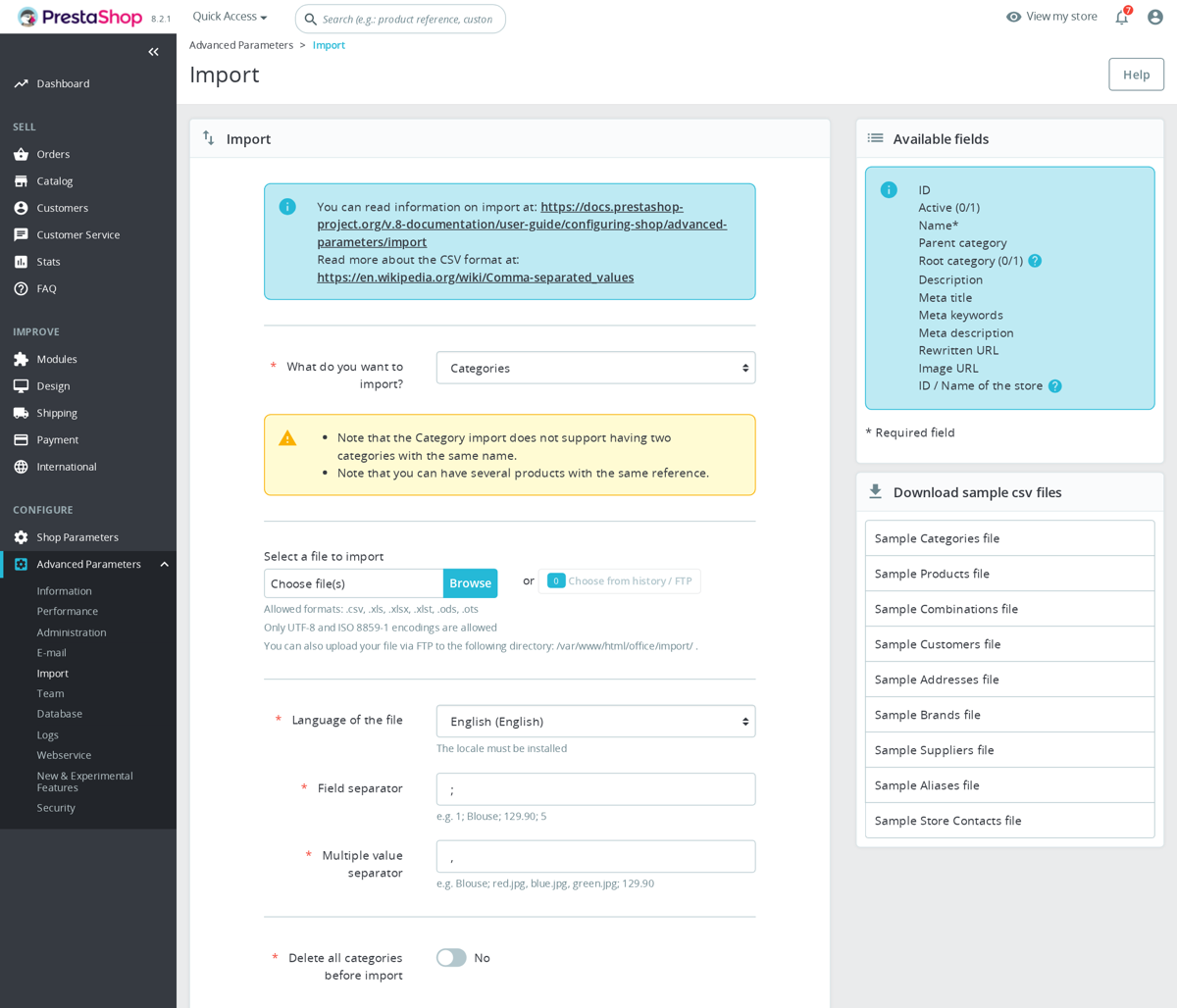
The native importer is under Advanced Parameters > Import in PrestaShop 1.7/8/9. After a blank page or 500 error, check var/logs/prod.log, var/logs/dev.log, the PHP-FPM log and the web server error log before retrying, because the visible import page often loses the real exception when the request dies.
For a partial import, do not immediately rerun the full file with destructive options such as deleting existing products unless that was planned. Identify the last successfully imported reference or ID, split the remaining CSV from the next row, fix any products left disabled or without images, then rebuild search and faceted indexes after the final batch.
If the import stops on the same row each time, inspect that row for bad delimiters, unescaped quotes, invalid encoding, broken image URLs, impossible category references, duplicate references, or values that do not match the selected import mapping. Use UTF-8, keep the delimiter consistent, and rebuild search/faceted indexes after a successful large import if product visibility or filters look wrong.
Was this answer helpful?
Still have questions?
Can't find what you're looking for? Send us your question and we'll get back to you.