



Reviewed and updated June 2026, verified against PrestaShop 1.7, 8 and 9 back-office behaviour.
Once your store passes a few dozen orders a day, the bottleneck stops being traffic and starts being the order screen. Every order you touch by hand is the same little sequence of clicks: open it, read it, change a status, print a slip, paste a tracking number, send a confirmation. None of it is hard. That is exactly the problem. Easy, repetitive work scales linearly with volume, so doubling your orders doubles your screen time. The stores that fulfil hundreds of orders a day without a warehouse full of staff are not faster typists. They have moved the repetitive clicks off the human and into PrestaShop's own machinery: bulk actions, status rules, and document generation that runs in batches instead of one order at a time.
This guide is about that machinery specifically. The back-office order list, the actions you can run across many orders at once, and how to turn a manual status change into something that fires on its own. It deliberately stays in its lane: fixing an individual order's contents, customising the status flow itself, or pulling order data out for accounting each have their own deep treatment, linked where they belong.
Where order management actually lives: AdminOrders
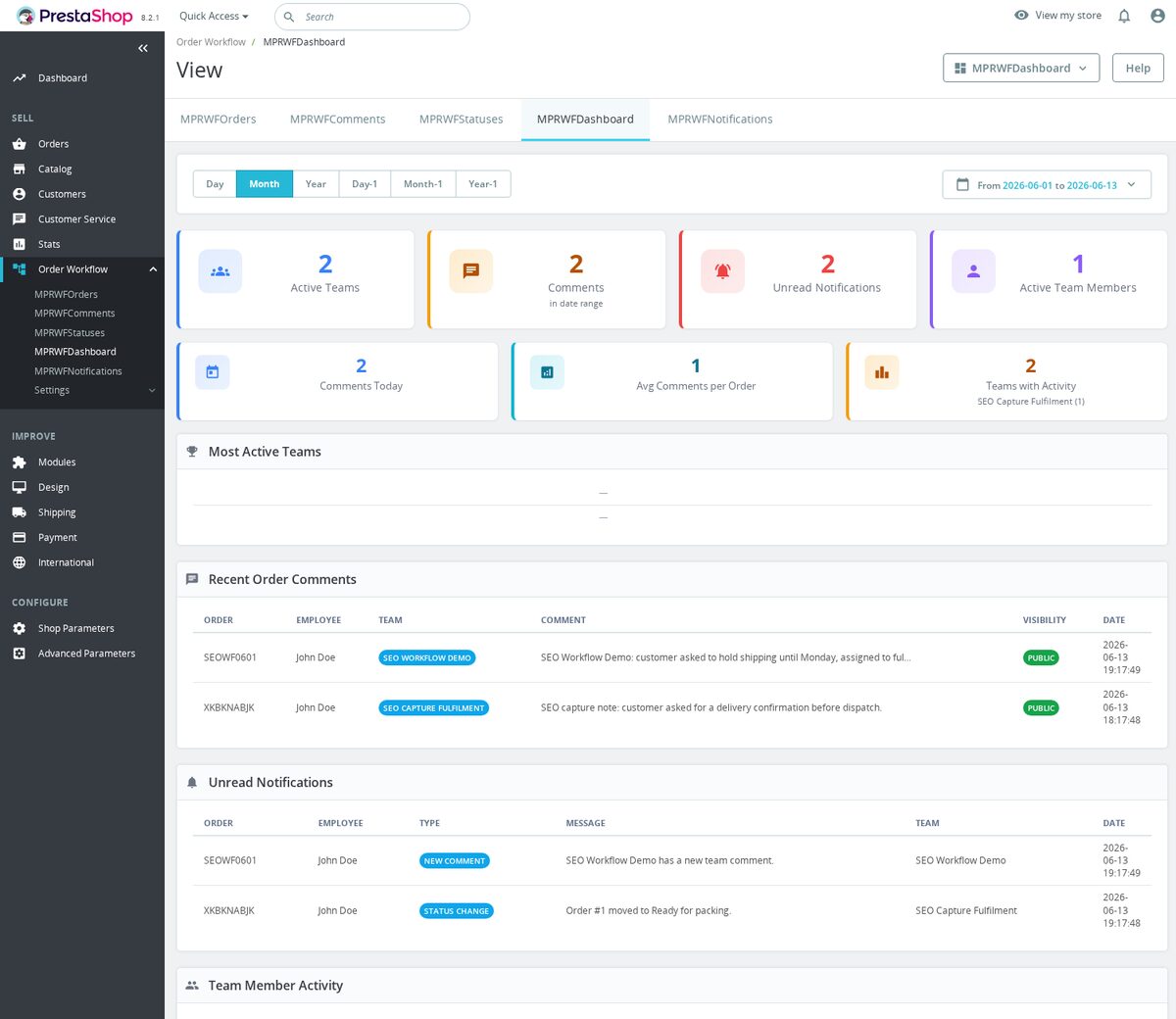
Every order in PrestaShop is rendered by the AdminOrdersController under Orders → Orders. That list is the single most-used screen in most back offices, and it is more capable than it first looks. The column header row carries a filter input for every column, so you can narrow to "Awaiting payment, last 7 days, France" without leaving the page. The result set you filter down to is the unit you act on. Which matters, because nearly everything that saves you time operates on a selection, not a single order.
Two habits pay off immediately. First, lean on those column filters for the views you return to constantly (today's paid-and-unshipped orders, for instance), and where your version preserves the parameters in the URL, bookmark that filtered URL so you are not re-typing the same filters every morning. Second, learn the Bulk actions dropdown at the bottom of the list. It is the difference between processing fifty orders in five clicks and processing them in two hundred.
Bulk actions: the highest-leverage habit in the back office
Processing orders one at a time is correct at five orders a day and indefensible at fifty. The native bulk-action menu on the order list lets you select any number of orders and act on all of them together. The two that save the most time:
- Bulk status change. Tick every order you have just packed, choose the new status once, and PrestaShop applies it to all of them, firing each status's customer email in the same pass. A morning's worth of "Processing → Shipped" becomes one action instead of forty.
- Bulk invoice and delivery-slip PDFs. Select a batch and PrestaShop merges every invoice (or every delivery slip) into a single PDF, in order, ready to print in one job. For a packing station this is the whole game: print the run, fold, match, done, no opening each order to hit "print" individually.
There is a quieter bulk lever most merchants miss: the Orders → Invoices and Orders → Delivery Slips screens generate documents by date range. Need every invoice from last month for your accountant? Set the from/to dates, generate, and you get one consolidated PDF without selecting anything by hand. The same screens expose the per-document settings (logo, legal free text, tax breakdown) that decide whether those PDFs are actually compliant where you trade.
The default status flow, and why it runs out
Out of the box, an order moves through a short chain of statuses: Awaiting payment, Payment accepted, Processing in progress, Shipped, Delivered (plus the error/cancel/refund branches). Each status is a row in the order_state table, and each carries a set of flags that quietly do real work: whether it sends a customer email, whether it marks the order paid, whether it generates an invoice, whether it counts as a shipped/delivery state, and whether it is logged in the customer's order history. Those checkboxes, set under Shop Parameters → Order Settings → Statuses, are where a status stops being a label and starts being an automation.
This default chain fits a one-person operation shipping a handful of packages. The moment your real process has steps the core never imagined, awaiting stock, in quality check, ready for pickup, partially shipped, you need statuses that mirror how you actually work, each with the right flags so the email and the invoice fire at the correct moment. (Stock itself is decremented when the order is validated/placed, not by a status flag you toggle later.) Designing that status map (and the colours, ordering, and email templates that go with it) is its own subject: see order status workflow in PrestaShop: customization and automation.
Turning manual status changes into rules
A custom status only saves time if something moves orders into it without you. Manually walking each order from "packed" to "shipped" is the single biggest recurring time sink in fulfilment, because every change is a context switch: find the order, open it, scroll to the status box, pick, save, back to the list. Multiply by your daily volume.
The fix is to let conditions drive the transition. The logic you want looks like this:
| When this happens | Move the order to | Side effect that fires |
|---|---|---|
| Payment confirmed and all items in stock | Processing in progress | Picking list becomes valid; no "is this paid?" check |
| A tracking number is saved on the order | Shipped (still a manual status change in core) | Tracking can be emailed to the customer; moving to Shipped fires that status's own email |
| Every line marked packed | Ready for dispatch | Order surfaces in the courier hand-off batch |
| Order sits unpaid past your window | Cancelled | Reserved stock released back to sellable |
PrestaShop's core gives you the building blocks for some of this, a tracking number can be emailed to the customer, for example, but saving tracking does not move the order to Shipped on its own; that status change (and its email) still needs a manual step or custom automation. For rule-based transitions that the core does not do on its own, our Advanced Order Workflow module lets you define these conditions from the back office and have orders move themselves. So what does that buy you? The minutes you currently spend clicking through statuses come back as hours across a busy week, and orders stop getting stuck in the wrong state because someone forgot the manual step.
Status changes are also your customer-communication engine
The number-one reason customers open a support ticket after buying is uncertainty: "Has it shipped?" "Where is my order?" Every one of those is a message you could have sent automatically. Because each status can carry its own email template, a well-built status flow keeps customers informed at every meaningful step without you writing a single message. The email is a side effect of the status change you were going to make anyway.
Two adjacent jobs sit just outside this post. When a customer says the confirmation never arrived, you want a clean one-click resend rather than a manual forward. That small but appreciated feature is covered in resending order confirmations. And when the order itself was right but the customer's details or items were wrong, you are editing the order, not re-statusing it, see order editing: fixing mistakes after a customer submits an order.
Documents and references that don't fight your accountant
Orders generate paperwork. Invoices, delivery slips, credit slips, and PrestaShop can produce each of these when the relevant status flags or actions apply: invoices and delivery slips on invoice/delivery-flagged statuses, and credit slips through the refund workflow rather than for every order. The friction is in the details that the defaults get wrong for a real business. Most EU jurisdictions require sequential invoice numbering with no gaps, including when an invoice is voided; the stock numbering settings rarely satisfy an auditor on their own. Our Invoice Number module gives you full control of the prefix, format, and sequence so the numbering holds up wherever you trade, and Order Number does the same for the customer-facing reference. The practical payoff: when you are on the phone with a customer or a courier, "ORD-2026-00142" is something a human can read back without errors, "XKJHQWER" is not.
Pulling order data out of PrestaShop, for a warehouse picklist, accounting import, or your own analysis, is a separate workflow with its own pitfalls around fields, encoding, and filtering. We cover it properly in CSV exports for orders and invoices.
Internal notes: the workflow detail that prevents repeat work
Not everything about an order belongs in the customer's view. The internal note field on each order is where your team records the things that save the next person time: a phone conversation, a special packing instruction, why a manual discount was applied, a flag that billing and shipping countries don't match. The discipline is simple and high-value, when a customer calls back three weeks later, the whole history is on the order, not scattered across someone's inbox. A consistent note habit is what lets a second person pick up an order cold and not re-do the investigation.
Stop the order screen from doing inventory's job
A surprising amount of "order management" pain is really inventory pain wearing an order's clothes. Orders pile up in "awaiting stock" because reordering is reactive; statuses get messy because items were oversold; pre-orders need a status path the default flow doesn't provide. Those belong to the inventory side of the cluster, and solving them there keeps your order screen clean:
- If stock tracking has outgrown a spreadsheet and that is what's clogging your order flow, start with inventory management for small online stores.
- To stop the "awaiting stock" pile-up at its source, set reorder points with simple reorder formulas that prevent stockouts.
- Deciding how sold-out items behave at checkout, and therefore what statuses you'll ever see, is covered in out of stock: to hide or not to hide.
- Selling before stock arrives needs its own status path; see pre-orders and backorders in PrestaShop.
A clean order list starts before launch
One workflow saver is so basic it is easy to skip: don't let test orders contaminate your real data. Test transactions placed during setup distort every report you'll run, average order value, fulfilment time, payment-method split, and clutter the list you filter every day. Clear them deliberately before you go live, as described in delete test orders: cleaning up your PrestaShop before going live. A clean starting line means every number you read afterwards is real.
Frequently asked questions
Can I delete an order I no longer want in PrestaShop?
Not from the standard order screen. PrestaShop treats orders as accounting records and gives no native "Delete order" action in the row menu or bulk actions, it's deliberate, for legal and audit reasons. You can cancel an order (set it to a Cancelled status, which can release stock), but removing it entirely is something you should only do on a store that has never taken a real order, before launch. The clean way to clear pre-launch tests is covered in delete test orders before going live.
Does changing an order's status automatically email the customer?
Only if that status has its "Send an email to the customer" flag ticked and a template attached, under Shop Parameters → Order Settings → Statuses. A status with the email flag off changes the order silently. That's why bulk-moving forty orders to a properly configured "Shipped" status sends forty shipping emails in one pass, while a custom status you added without the flag sends none.
When does stock actually get reduced, at payment or at shipping?
PrestaShop core decrements stock when the order is validated/placed, governed by your stock settings and the order lifecycle, not by a "paid versus shipped" toggle you flip later. Cancelling or refunding can re-inject stock if you enable that option. If you genuinely need stock to leave only at the shipping step, that's custom workflow territory, not a back-office switch.
Can I print all of today's invoices in one PDF?
Yes. Either tick the orders in the list and use the bulk "Generate invoice" action, or use Orders → Invoices to generate every invoice in a date range as a single consolidated PDF, no per-order clicking. The same date-range generation exists for delivery slips under Orders → Delivery Slips.
Why is my customer-facing order reference a random string like "XKJHQWER"?
That's PrestaShop's default reference format, a random alphanumeric string generated per order. It's awkward to read back over the phone and impossible to sort meaningfully. If you want sequential, human-readable references (and gap-free invoice numbering for your accountant), the Order Number and Invoice Number modules let you set the prefix, format and sequence.
The pattern that actually saves the hours
There is one rule under all of this: every time you catch yourself doing the same order action for the tenth time, you have found a workflow waiting to be removed. Start where the repetition is densest, bulk status changes, the customer emails that ride along with them, and batched document generation, because those are the actions you perform on nearly every order. Then push outward to rule-based transitions, then to the inventory and export jobs that feed the order screen. None of it requires you to type faster. It requires you to make PrestaShop do the clicks you keep doing for it, so the time you save can go into the parts of the store that only a human can grow.


